

Table of Contents
- Introduction
- Why Delete a Customer?
- Steps to Delete a Customer in QuickBooks Online
- Step 1: Log In to QuickBooks Online
- Step 2: Access the Customers List
- Step 3: Locate the Customer to Delete
- Step 4: Delete the Customer
- Alternative Method: Batch Actions
- Best Practices for Managing Customer Records
- Conclusion
Introduction
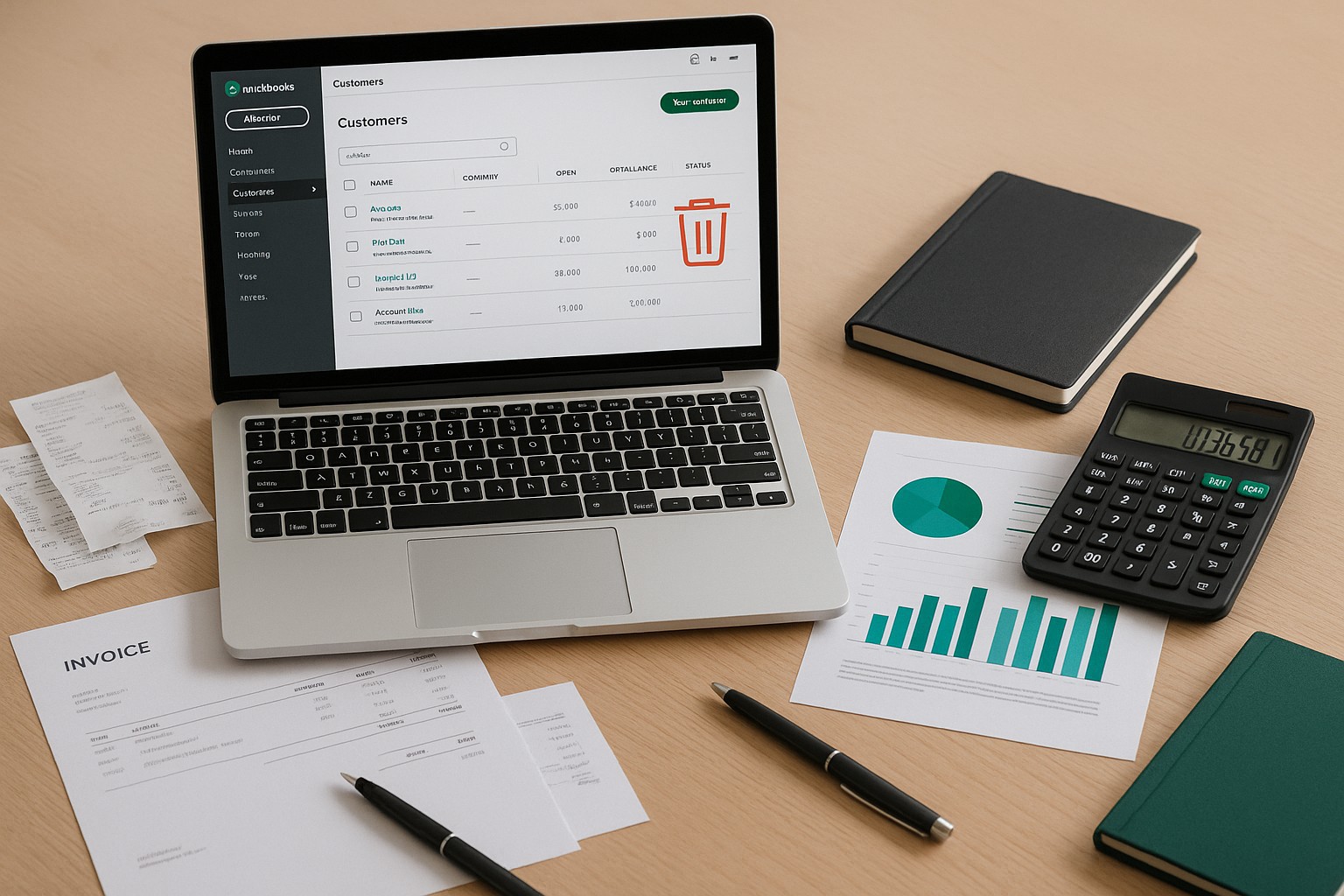
Managing your customer list in QuickBooks Online is crucial for maintaining accurate financial records. There may be times when you need to delete a customer that is no longer relevant to your business. This guide provides a step-by-step process to delete a customer in QuickBooks Online efficiently.
Why Delete a Customer?
- Data Cleanup: Remove outdated or inactive customers.
- Accuracy: Maintain accurate and organized customer records.
- Streamline Processes: Simplify your customer list for easier management.
Steps to Delete a Customer in QuickBooks Online
Step 1: Log In to QuickBooks Online
- Open QuickBooks Online: Navigate to the QuickBooks Online website and log in with your credentials.
Step 2: Access the Customers List
Step 3: Locate the Customer to Delete
Step 4: Delete the Customer
Alternative Method: Batch Actions
Best Practices for Managing Customer Records
- Regular Reviews: Periodically review your customer list to ensure it is up-to-date.
- Detailed Records: Maintain detailed records of active customers for better management.
- Consult with an Accountant: If unsure about deleting a customer, consult with your accountant to ensure proper handling.
Conclusion
Deleting a customer in QuickBooks Online is a straightforward process that helps keep your customer records accurate and organized. By following the steps outlined in this guide, you can efficiently manage your customer list, ensuring your records are up-to-date and relevant.
Tired of QuickBooks Headaches?
Debits connects directly to QuickBooks Online and helps you clean up uncategorized transactions, collect receipts from clients via magic link, and categorize in bulk. Your clients respond in seconds, not days.
Starting at $2 per client, per month.