

Table of Contents
- Introduction
- Preparing for Import
- Steps to Import General Ledger into QuickBooks
- Step 1: Format Your General Ledger File
- Step 2: Enable Import Feature in QuickBooks
- Step 3: Import the General Ledger File
- Step 4: Review Imported Data
- Step 5: Reconcile Accounts
- Best Practices for Importing General Ledger
- Conclusion
Introduction
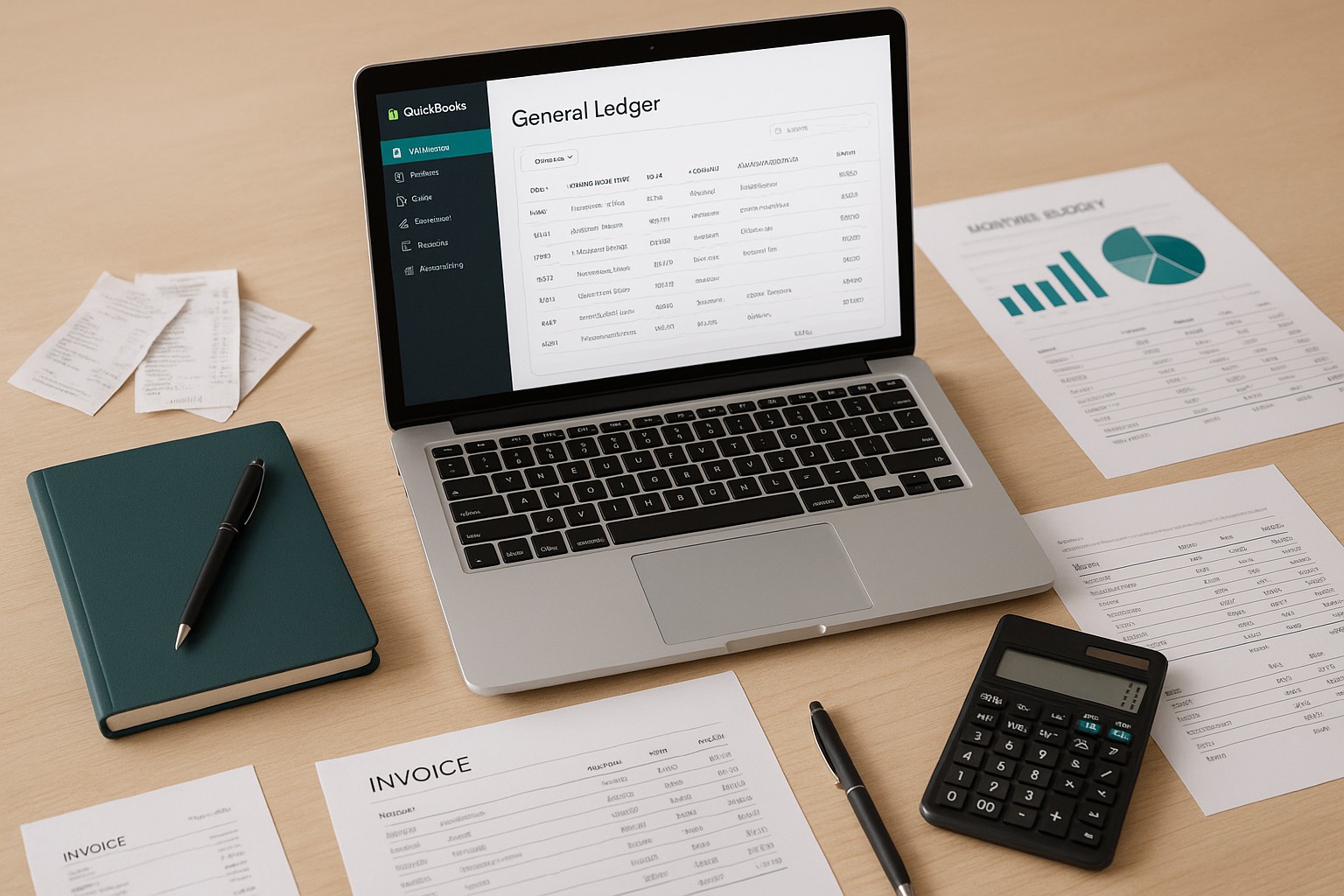
Importing your general ledger into QuickBooks can streamline your accounting process and ensure accurate financial reporting. This guide provides a step-by-step process to import your general ledger into QuickBooks efficiently.
Preparing for Import
Before you begin, ensure you have the following:
- QuickBooks Desktop or Online: The software should be installed and updated to the latest version.
- General Ledger File: The file should be in a compatible format, typically CSV or Excel.
Steps to Import General Ledger into QuickBooks
Step 1: Format Your General Ledger File
- Open Your File: Open your general ledger file in Excel or any spreadsheet program.
- Check Column Headers: Ensure that your file has clear column headers such as Date, Account, Description, Debit, and Credit.
- Save as CSV: Save the file in CSV format. Go to
File > Save As, and selectCSV (Comma delimited)from the dropdown menu.
Step 2: Enable Import Feature in QuickBooks
File > Utilities > Import. For QuickBooks Online, go to Settings > Import Data.Step 3: Import the General Ledger File
#### For QuickBooks Desktop
- Select Import Type: Choose
Excel Filesand clickAdvanced Import. - Upload File: Click
Browseand select your CSV file. - Map Fields: Map the fields in your CSV file to the corresponding QuickBooks fields. Ensure that Date, Account, Description, Debit, and Credit are correctly mapped.
- Import Data: Click
Importto bring your general ledger data into QuickBooks.
#### For QuickBooks Online
- Select Import Type: Choose
Bank Dataas the import type. - Upload File: Click
Browseand select your CSV file. - Map Fields: Map the fields in your CSV file to the corresponding QuickBooks fields.
- Import Data: Click
Next, review the data, and then clickImport.
Step 4: Review Imported Data
Chart of Accounts or General Ledger to review the imported transactions.Step 5: Reconcile Accounts
Banking > Reconcile. In QuickBooks Online, go to Accounting > Reconcile.Best Practices for Importing General Ledger
- Backup Data: Always back up your QuickBooks data before performing an import.
- Verify Data Format: Ensure your CSV file is properly formatted to avoid import errors.
- Map Fields Correctly: Double-check the field mapping to ensure accurate data import.
- Regular Updates: Keep your QuickBooks software updated to the latest version for optimal performance.
Conclusion
Importing your general ledger into QuickBooks can significantly streamline your accounting processes and ensure accurate financial reporting. By following the steps outlined in this guide, you can efficiently import your general ledger data and maintain accurate financial records. Implementing best practices will help prevent errors and ensure a smooth import process.