

You can easily update the information Debits uses on its services—such as your firm name, your name, or your email address—directly from your account settings.
 #
#
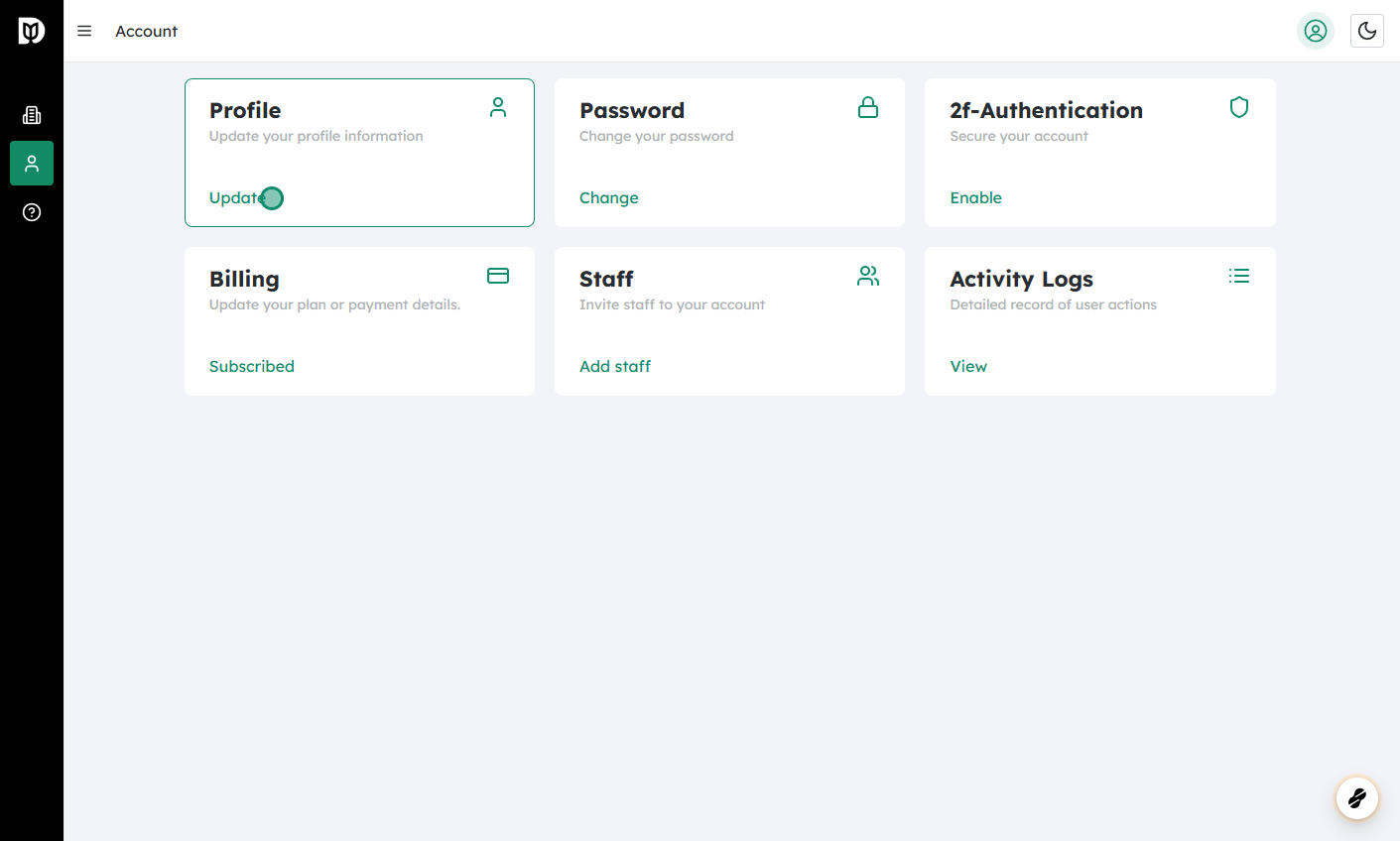
Log in to Debits and go to Account #
- Open the Debits website (or app, if applicable) and sign in with your existing credentials.
- Once you’re logged in, look for the Account section.
- This is usually found in the top-right menu under your name or avatar, or in the main navigation bar.
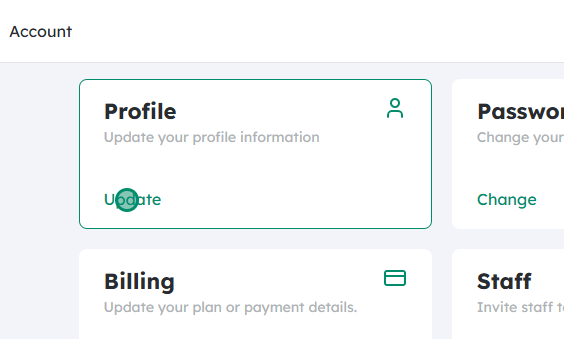
Click on Update under Profile #
- In the Account area, locate the Profile section.
- Click the Update button (or similar option) next to Profile to open your profile details.
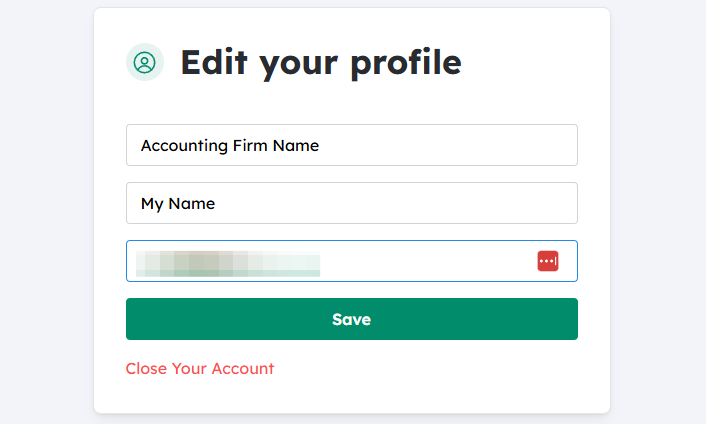
Edit your Firm Name, Your Name, or Email Address #
- – In the Profile edit view, you’ll see fields for:
- Firm Name – The business or organization name that appears on your Debits account and related documents.
- Your Name – Your personal name as shown on your account.
- Email Address
- The email address Debits uses to send you notifications, invoices, and account-related information.
- Click into any field you want to change and enter the updated information.
- Make sure the email address is valid and accessible, since you may need it for verification or password resets.
- If you’re updating the firm name, confirm that it matches how you want it to appear on reports, statements, or client-facing materials.

Click Save to apply your changes #
- After reviewing your updates, click the Save button.
- Your profile will be updated with the new information.
- In some cases, Debits may:
- Send a confirmation email to the new address, or
- Require you to re‑enter your password for security before changes are applied.
If you don’t see the option to change a specific field, or if a change doesn’t seem to take effect, contact Debits support for assistance—some details may be restricted based on your account type or permissions.


