

Dashboard notes are short messages you can write for your client. These notes will appear to your client when they visit the Uncategorized Transactions page, helping you:
- Give instructions (e.g., “Please review and categorize these by Friday.”)
- Ask questions (e.g., “Can you confirm what ‘ABC Services’ is for?”)
- Clarify how you want them to handle certain transactions.
When your client logs in and goes to their uncategorized transactions, the note you add here will be visible to them at the top of that page.
How to Add a Dashboard Note #
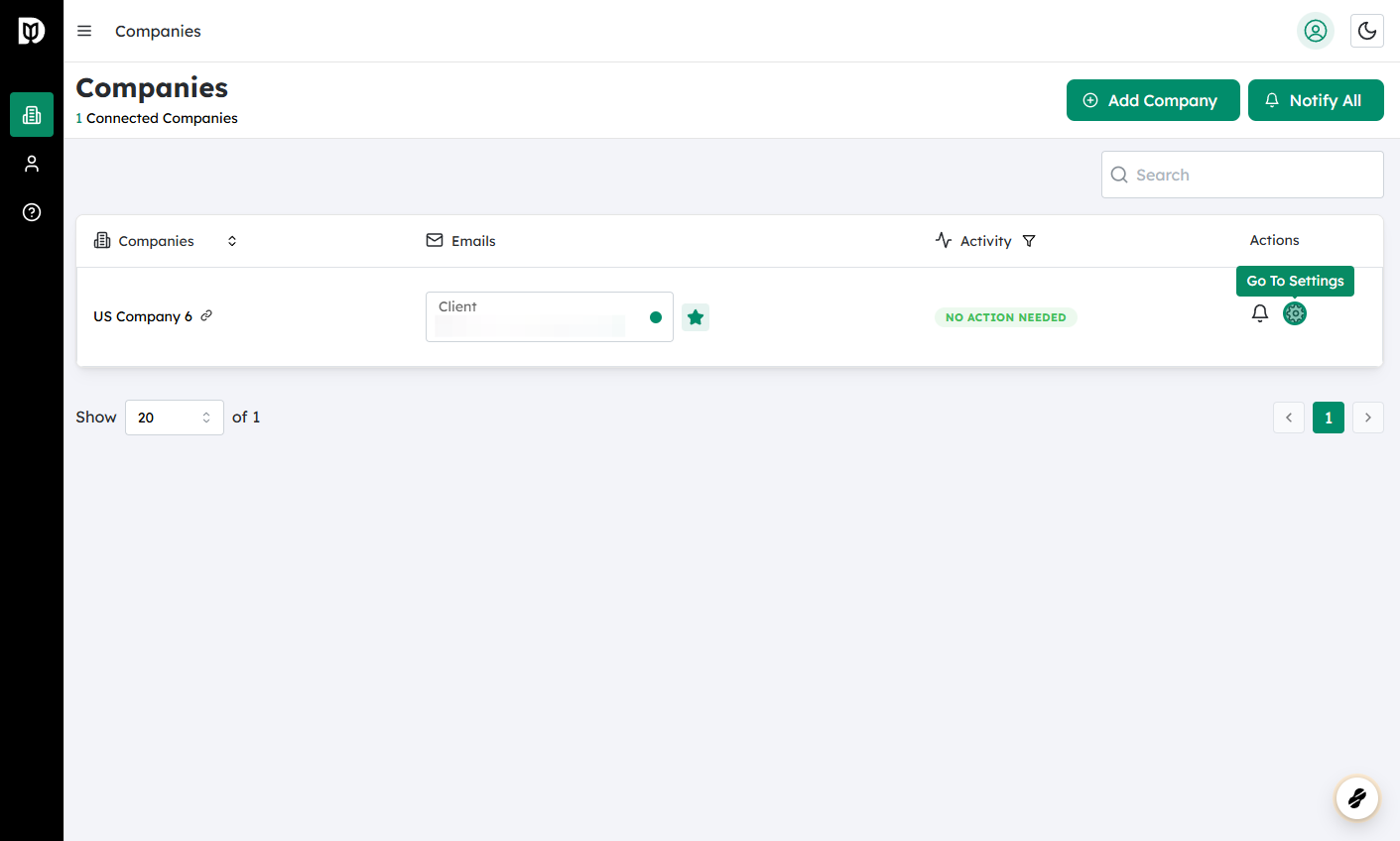
Log in to Debits and navigate to Companies #
- Sign in to your Debits account.
- From the main menu, go to Companies.
- Select the specific company/client you want to leave a note for.
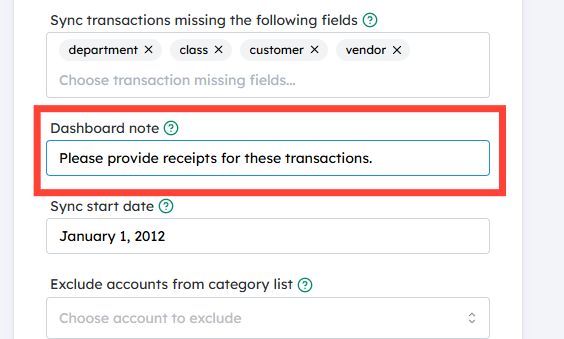
Type your message in the Dashboard note field #
- On the company’s dashboard page, locate the Dashboard note field.
- Click inside the field and type the message you want your client to see.
- Keep it clear and concise so your client understands exactly what to do when reviewing uncategorized transactions.
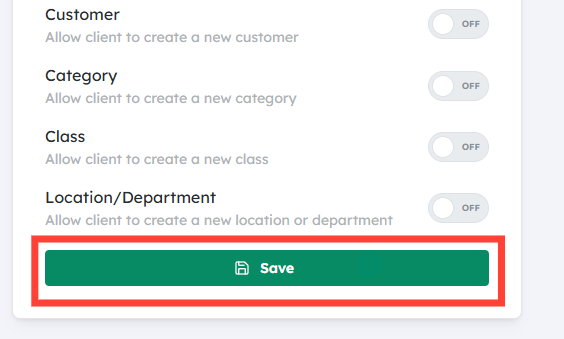
Click on Save #
- Once you’re happy with the note, click Save.
- The note is now stored and will automatically be displayed to your client when they go to their Uncategorized Transactions page.
You can return to this field at any time to update or remove the note if your instructions change.


