Open the relevant company record #
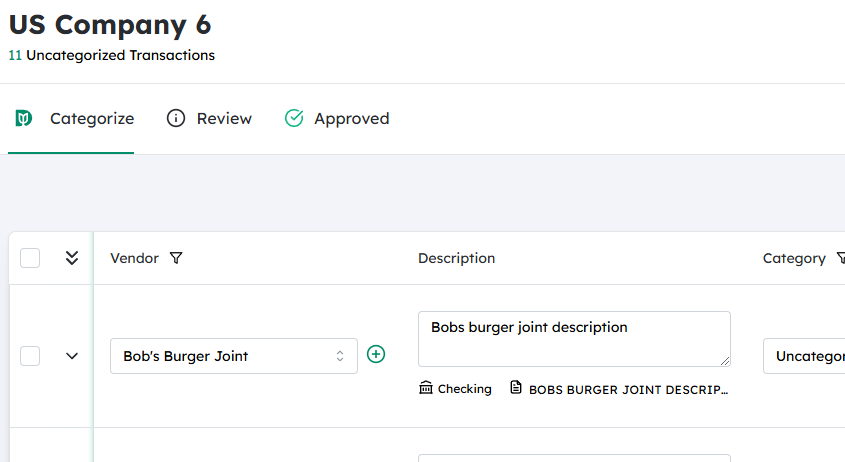
- From your main menu (e.g., Companies or Clients), search for and select the specific company you want to contact.
- Click the company name to open its detailed profile page.
Locate the email action near the Save button #
- In the company profile, look at the top-right corner of the screen where the Save button is located.
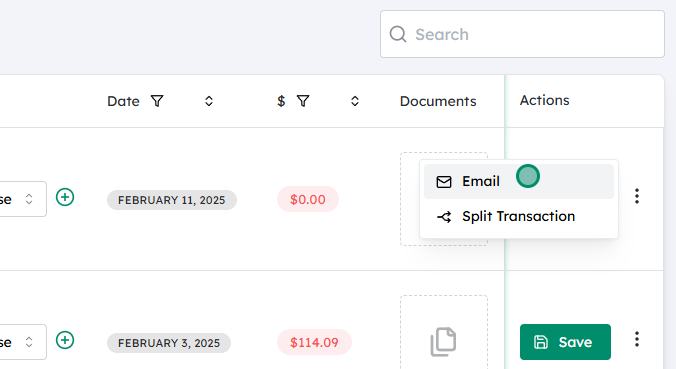
- Next to Save, you’ll see an icon (often represented by three dots, a dropdown arrow, or an envelope).
- Click this icon to open the actions menu.
Choose the Email option #
- From the dropdown or action menu that appears, select Email.
- This will open a new email window or panel linked to this specific company record.
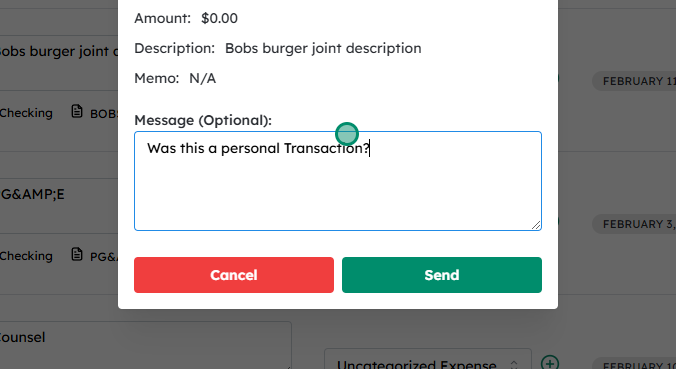
Compose your message to the client #
- Confirm the To field has the correct client email address associated with the company.
- Enter a clear Subject line.
- In the main message body, type the note or message you want to send to your client.
- If needed, attach any relevant files (proposals, invoices, etc.) using the attachment option.
Send the email #
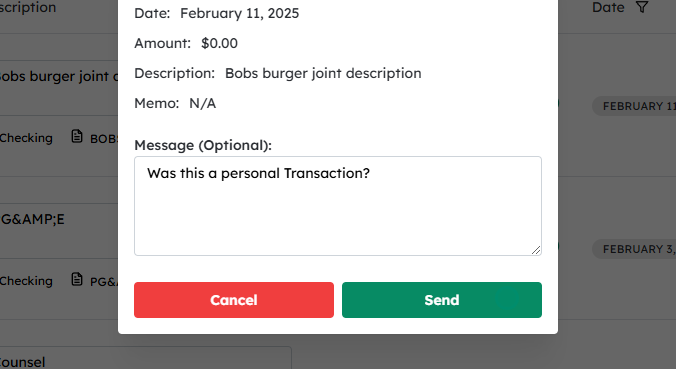
- Review the message for accuracy and completeness.
- Click Send to email the note to your client.
Updated on December 2, 2025


 #
#


