

Automatic Email Notifications for Client Users #
You can set up automatic email notifications so that your client users are alerted whenever there are transactions in Debits that require their response. These notifications can be sent on a weekly, daily, or monthly basis, depending on how often you want clients to be reminded.
Each notification email will contain a Magic Link. This is a secure, one-click link that takes your client user directly to their Debits Dashboard, without requiring them to manually log in. This helps them respond to outstanding transactions quickly and easily.
How to Enable and Configure Notification Emails #
Log into Debits
Sign in to your Debits account with your usual credentials.
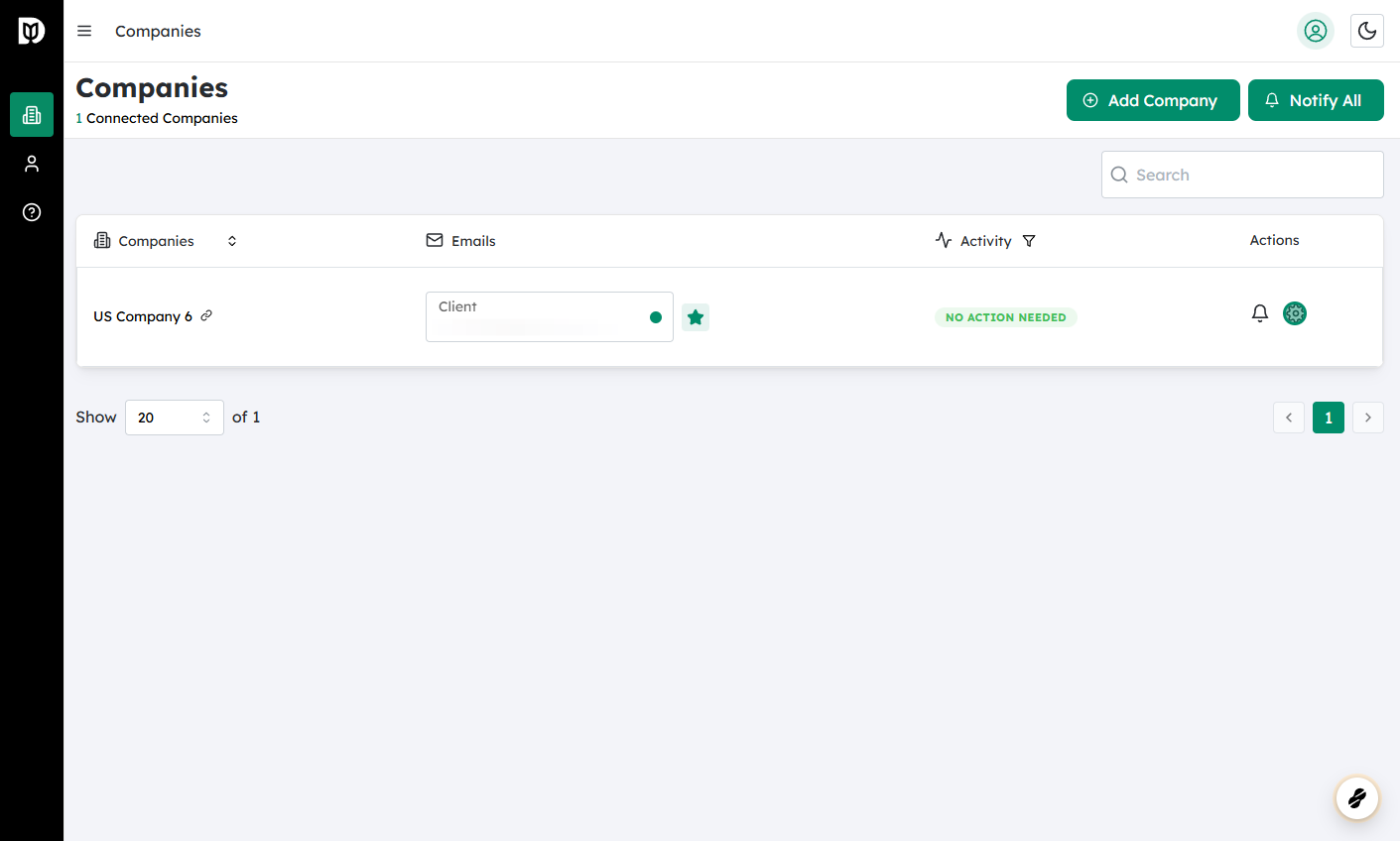
Go to the Companies section
From the main navigation, open the Companies page. This page lists all companies you manage in Debits.
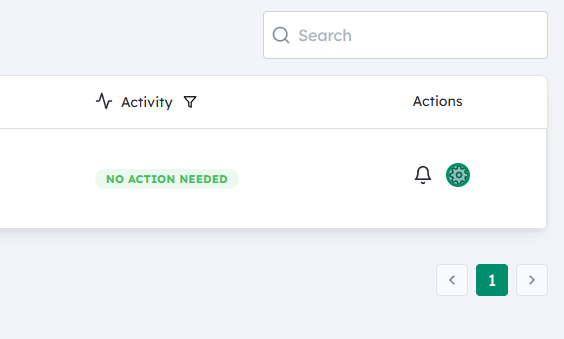
Open Settings for the relevant company
Find the company whose client notification settings you want to change, then click the Settings (gear) icon next to that company.
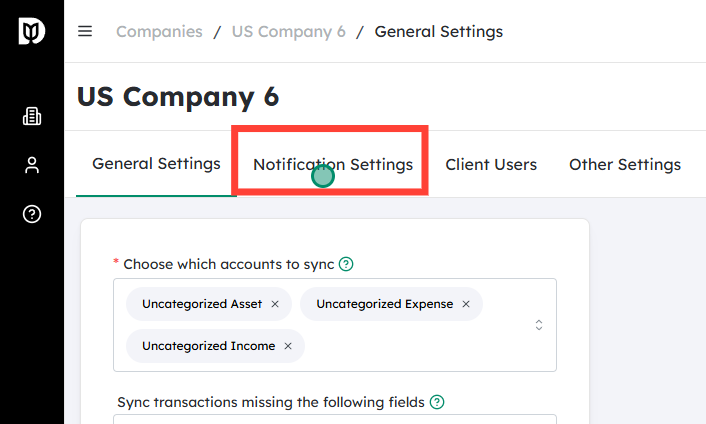
Access Notification Settings
Inside the company settings, click on Notification Settings. This section controls how and when emails are sent to client users.
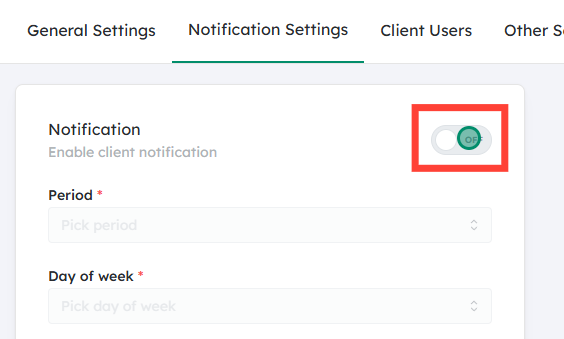
Turn on notifications
Locate the Notification toggle and switch it On.
- When this is enabled, Debits will begin monitoring for transactions that require client action and will include them in the scheduled notification emails.
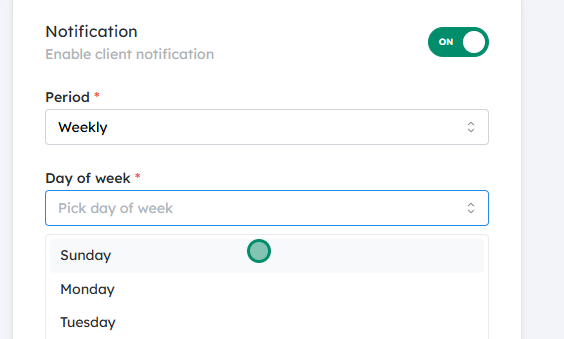
Choose the notification frequency
Select how often you want client users to receive these emails:
- Daily – Sends a summary every day that there are transactions requiring attention.
- Weekly – Sends a summary once per week.
- Monthly – Sends a summary once per month.
Choose the option that best fits how actively your client typically works with transactions.
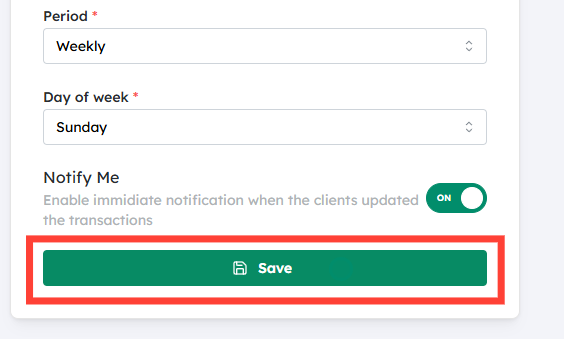
Save your changes
Click Save to apply the new settings. The notification schedule will take effect immediately, and client users will begin receiving emails according to the chosen frequency.
With this setup, your clients are automatically kept informed about any transactions awaiting their response, and the Magic Link in each email makes it simple for them to act promptly.


