

These options control what your client can change on their transactions and records in Debits. Common editable fields include:
- Vendor – The supplier or payee on a bill or expense.
- Allow editing if your client regularly changes or corrects who a payment is going to.
- Keep locked if vendors are tightly controlled (e.g., to avoid misposting expenses to the wrong vendor).
- Customer – The person or company being billed or associated with income.
- Allow editing if your client needs to reassign income or expenses to the correct customer/job.
- Keep locked if you want to prevent revenue being accidentally shifted between customers.
- Category – The account or expense category (e.g., Office Supplies, Utilities).
- Allow editing if your client is trained on your chart of accounts and you want them to help with coding.
- Keep locked if you prefer to handle all coding yourself or want to maintain strict account consistency.
- Class – A way to track segments like product lines, teams, or projects.
- Allow editing if you use classes for reporting and your client understands how to apply them.
- Keep locked if misclassification would distort management reports.
- Location/Department – A way to track branches, stores, or departments.
- Allow editing if your client regularly needs to tag activity by site or department.
- Keep locked if location/department reporting needs to be tightly controlled.
How to configure which fields your client can edit #
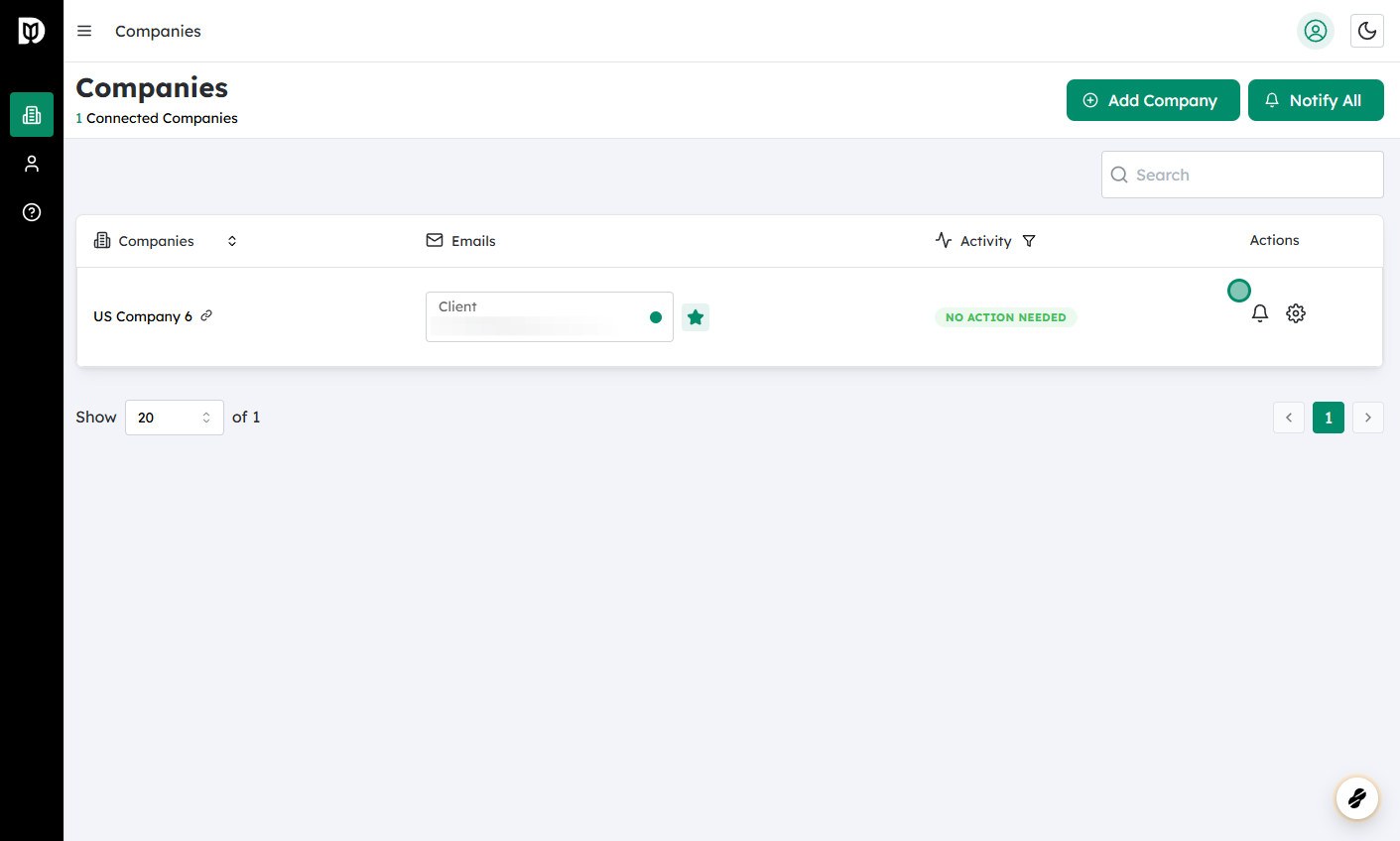
Log in to Debits and navigate to Companies
- Sign in to your Debits account.
- From the main navigation, go to the Companies section (this is where all client companies are listed).
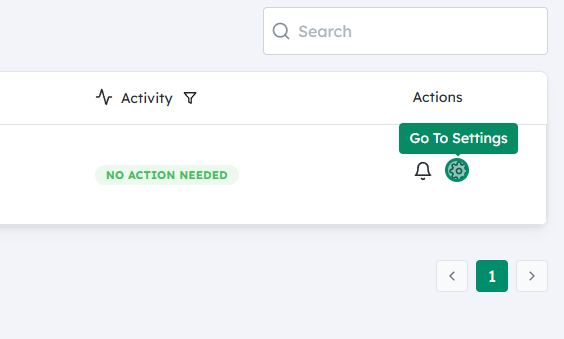
Open the settings for the specific company
- Find the company whose permissions you want to change.
- Click on the Settings (gear) icon for that company.
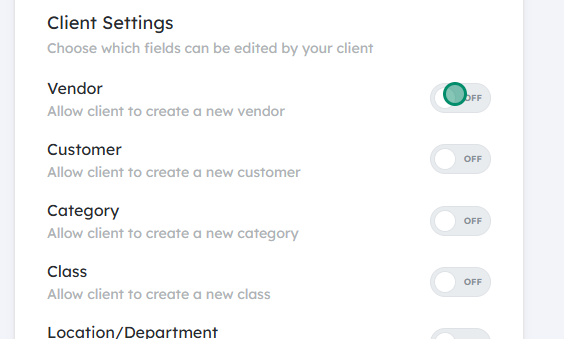
Choose which fields can be edited
- In the company settings, locate the section for Client Permissions, Editable Fields, or similar.
- You should see a list of fields such as Vendor, Customer, Category, Class, and Location/Department.
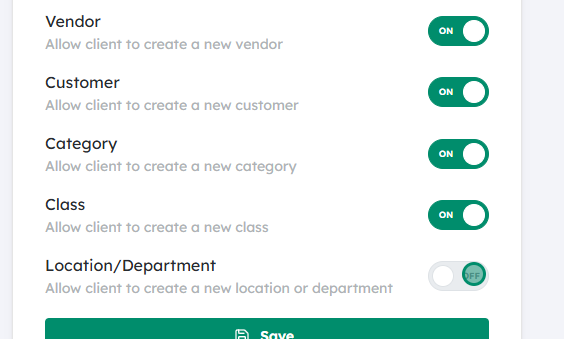
Toggle the fields On or Off
- For each field:
- Switch the toggle On to allow your client to edit that field.
- Switch the toggle Off to prevent your client from changing that field.
- Use the earlier guidelines (who should control vendors, coding, etc.) to decide what to enable.
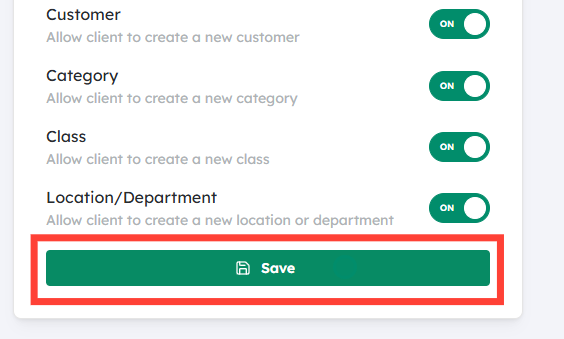
Click Save
- After setting the toggles, click Save to apply your changes.
- The client’s interface will now reflect these permissions—fields turned off will either be read‑only or hidden, depending on how Debits is configured.
In practice, many firms start with Category off (to protect the chart of accounts) and allow Vendor and Customer editing, then gradually open up Class/Location once the client is trained.


