Log in to your account #
- Open the website/app and sign in with your current username/email and password.
Navigate to your Account settings #
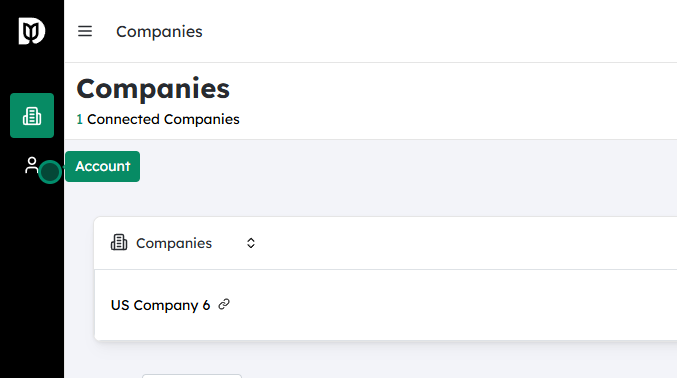
- Once logged in, look for your profile icon or name, usually at the top right corner.
- Click it and select Account, Account Settings, or Profile Settings from the menu.
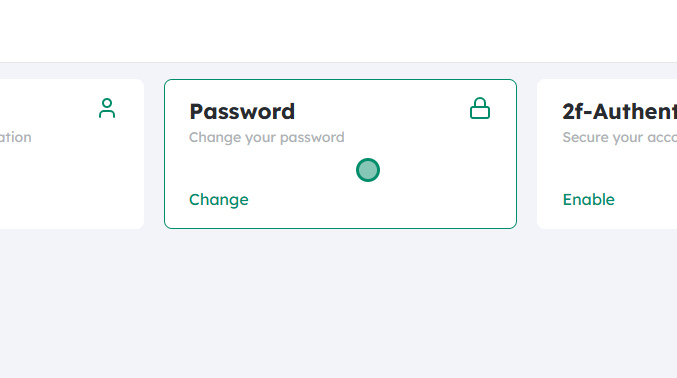
Open the Password section #
- In the account settings menu, find and click on Password or Change Password.
- This will open a page or dialog where you can update your password.

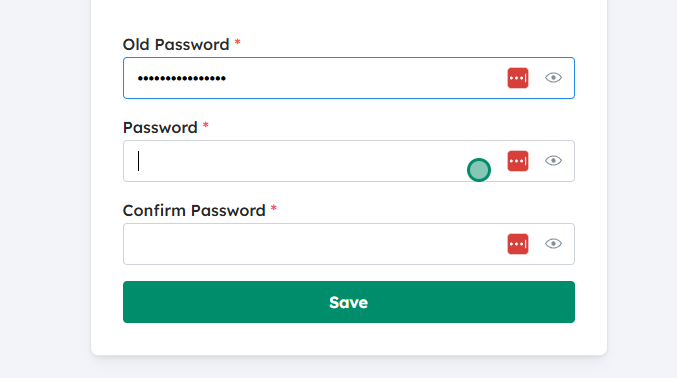
Enter your current password #
- In the first field, type your current password.
- This step confirms that you’re the account owner.
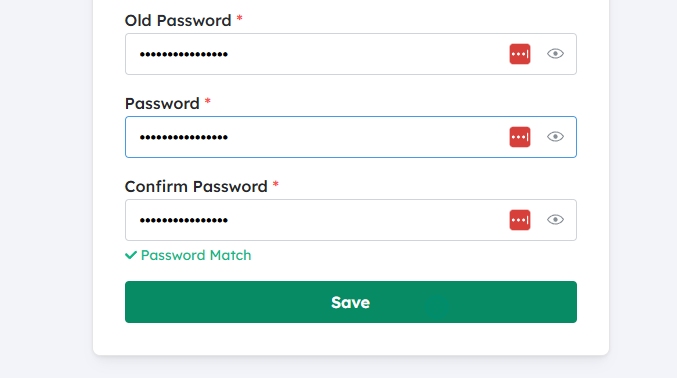
Enter your new password #
- In the New Password field, type the password you want to start using.
- If there is a Confirm New Password field, re-enter the same password exactly to avoid typos.
- Make sure your new password meets any listed requirements (for example: minimum length, includes a number, etc.).
Save your changes #
- Click Save, Update Password, or Change Password.
- If everything is correct, you’ll see a confirmation message that your password has been updated.
Sign in with your new password next time #
- The next time you log in, use your new password.
- If you use a password manager, update the stored password there as well.
Updated on December 2, 2025


 #
#