

Table of Contents
- Introduction
- Causes of QuickBooks Error 1327
- Symptoms of QuickBooks Error 1327
- Steps to Fix QuickBooks Error 1327
- Step 1: Reconnect the Disconnected Drive
- Step 2: Update Drive Mapping in Windows
- Step 3: Edit Windows Registry (Advanced)
- Step 4: Use the QuickBooks Install Diagnostic Tool
- Step 5: Switch to a Different Drive
- Step 6: Ensure Sufficient Permissions
- Step 7: Reinstall QuickBooks
- Troubleshooting Tips
- Conclusion
Introduction
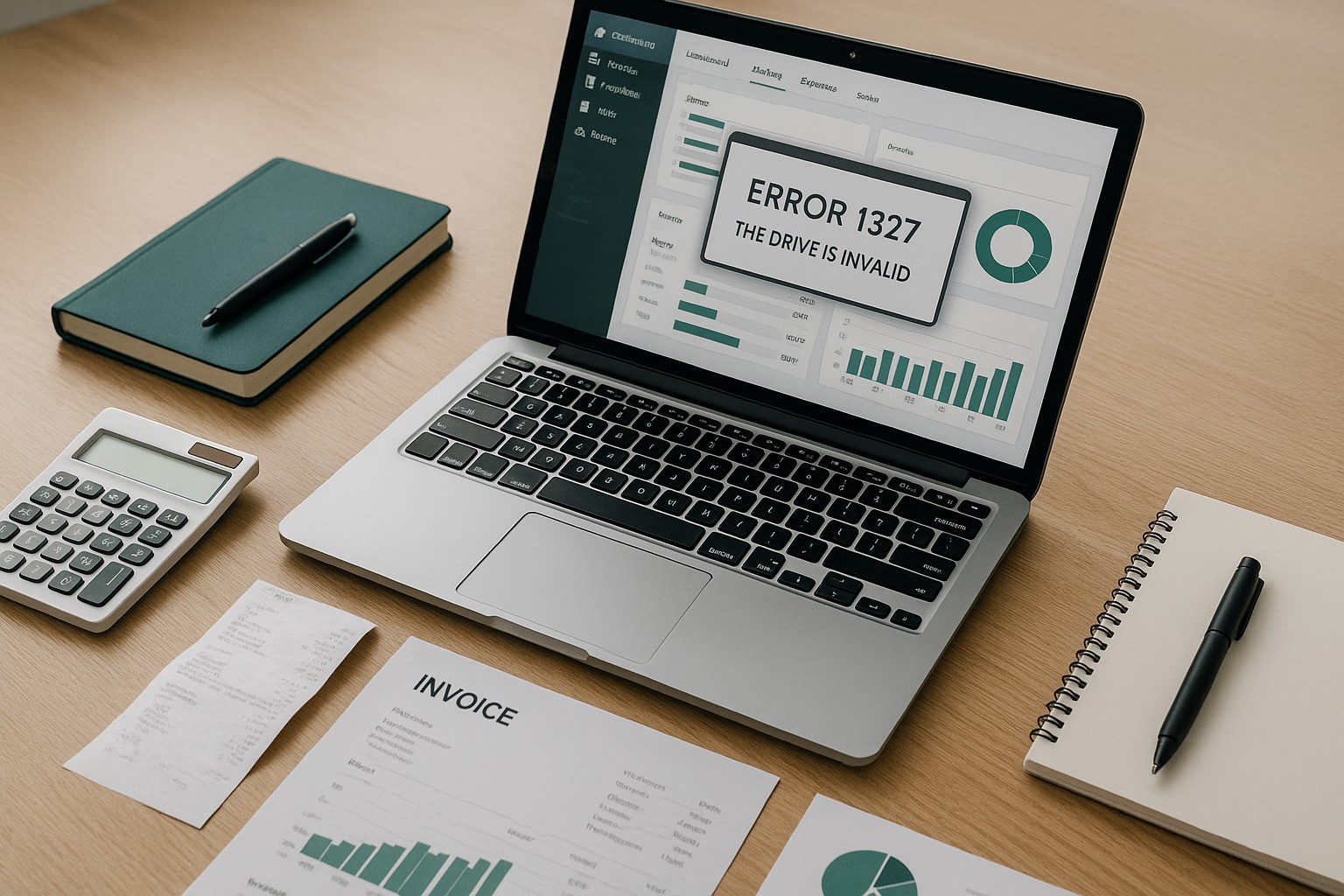
QuickBooks Error 1327 occurs when installing or updating QuickBooks Desktop, and the error message reads:
“Error 1327: The drive [Drive Letter] is invalid.”
This error is caused by discrepancies in the drive configuration, such as a disconnected external drive, an invalid drive mapping, or incorrect Windows registry entries. This guide will walk you through the steps to diagnose and resolve QuickBooks Error 1327 effectively.
—
Causes of QuickBooks Error 1327
- Disconnected Drive: A mapped network or external drive is no longer connected to the system.
- Incorrect Drive Mapping: A drive letter used by QuickBooks is invalid or misconfigured.
- Windows Registry Issues: Corrupt or outdated registry entries can result in invalid drive references.
- Installation Path Errors: The QuickBooks installation process is unable to locate the specified drive path.
- External Device Removal: Sudden removal of an external device during installation may cause this error.
—
Symptoms of QuickBooks Error 1327
- The installation or update process stops abruptly, showing the error message.
- Error message: “Error 1327: The drive [Drive Letter] is invalid.”
- QuickBooks fails to install or update.
- The system cannot access certain mapped drives or external devices.
—
Steps to Fix QuickBooks Error 1327
Step 1: Reconnect the Disconnected Drive
If QuickBooks is trying to access a drive that is disconnected, reconnect it.
- Open
File Explorerand ensure that all drives, including external and network drives, are accessible.
- If you are using an external drive, reconnect it to your computer.
- For network drives, ensure they are properly mapped and connected to the system.
—
Step 2: Update Drive Mapping in Windows
An incorrect or outdated drive mapping may cause this error. Correcting the drive mapping can resolve the issue.
- Press
Windows + Eto open File Explorer.
- Look for any network drives with a red “X” indicating they are disconnected.
- Right-click on the disconnected drive and select
Disconnect. - Remap the drive by selecting
Map Network Drivefrom the toolbar and entering the correct network path.
- Restart the installation or update process in QuickBooks.
—
Step 3: Edit Windows Registry (Advanced)
Incorrect registry entries can result in invalid drive references. Editing the registry can resolve the issue, but proceed with caution as incorrect changes can damage your system.
- Press
Windows + R, typeregedit, and press Enter.
- Go to:
“`
HKEY_CURRENT_USERSoftwareMicrosoftWindowsCurrentVersionExplorerShell Folders
“`
“`
HKEY_LOCAL_MACHINESOFTWAREMicrosoftWindowsCurrentVersionExplorerShell Folders
“`
- Check for any entries pointing to an invalid or non-existent drive.
- Right-click on the invalid entry and select
Modify. - Replace the invalid drive letter with a valid one.
- Save your changes and close the editor.
- Reboot your system and retry the QuickBooks installation.
> Warning: Create a backup of your registry before making any changes. To back up the registry, select File > Export in the Registry Editor and save a copy.
—
Step 4: Use the QuickBooks Install Diagnostic Tool
The QuickBooks Install Diagnostic Tool can identify and fix installation-related issues.
- Visit the official Intuit website and download the latest version of
QuickBooks Tool Hub.
- Open Tool Hub and go to the
Installation Issuestab. - Select
QuickBooks Install Diagnostic Tool.
- Let the tool run and resolve any detected issues.
- After the tool completes, restart your system and attempt the installation again.
—
Step 5: Switch to a Different Drive
If the specified drive is no longer accessible, changing the installation path to a different drive may resolve the error.
- Start the QuickBooks installer.
- During installation, click on the
Changebutton when asked to select the installation path. - Choose a valid drive (e.g., C:) and directory for installation.
- Follow the on-screen prompts to complete the installation process.
—
Step 6: Ensure Sufficient Permissions
Ensure that you have sufficient permissions to access the specified drive.
- Right-click on the QuickBooks installer file and select
Run as Administrator.
- Navigate to the installation directory and right-click on the folder.
- Select
Properties > Security > Edit, and ensure your user account hasFull Control.
—
Step 7: Reinstall QuickBooks
If none of the above solutions work, uninstalling and reinstalling QuickBooks may help.
- Go to
Control Panel > Programs > Programs and Features. - Select
QuickBooks Desktopand clickUninstall.
- Visit the official Intuit website and download the latest version of QuickBooks Desktop.
- Run the installer and follow the prompts to complete the installation process.
—
Troubleshooting Tips
- Check External Drives: Ensure all external drives or USB devices are properly connected and accessible.
- Disable Antivirus or Firewall: Temporarily disable antivirus software or firewall settings during installation to prevent interference.
- Create a Backup: Before editing the registry, back up your system and important files to avoid data loss.
—
Conclusion
QuickBooks Error 1327: “The drive is invalid” can be frustrating, but it is often resolved with the steps outlined above. Whether it’s reconnecting a drive, updating registry settings, or using diagnostic tools, these solutions address the most common causes of the error.
If the problem persists, consider contacting QuickBooks support or consulting a certified IT professional for advanced troubleshooting.