

Table of Contents
- Introduction
- Benefits of Using an Excel Template
- Steps to Create an Invoice from an Excel Template in QuickBooks Online
- Step 1: Log In to QuickBooks Online
- Step 2: Prepare Your Excel Template
- Step 3: Import the Excel Template
- Step 4: Map the Fields
- Step 5: Review and Import Data
- Step 6: Verify Imported Invoices
- Tips for Managing Invoice Templates
- Conclusion
Introduction
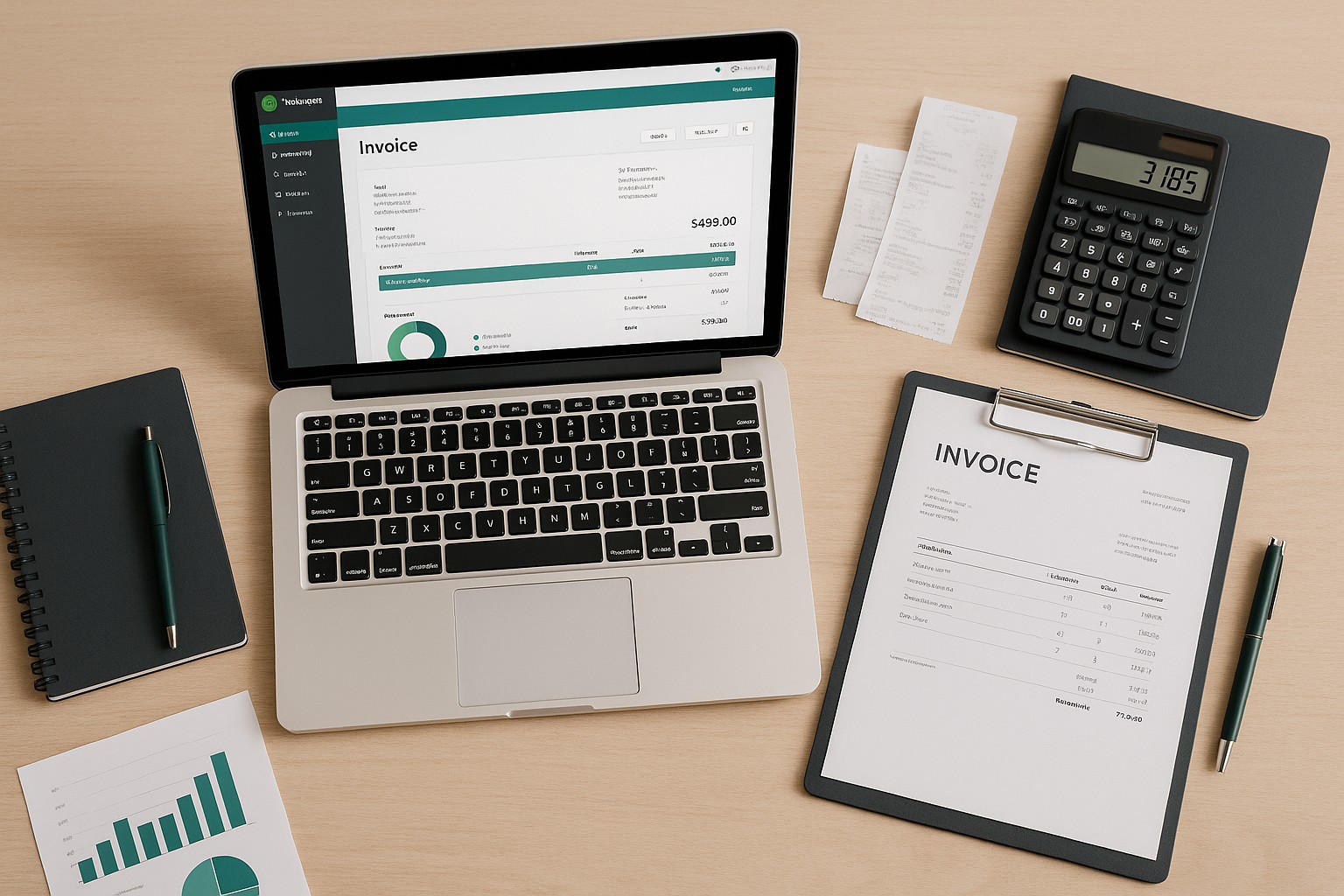
Creating invoices using an Excel template in QuickBooks Online can streamline your invoicing process and ensure consistency in your billing documents. This guide provides a step-by-step process to create an invoice from an Excel template in QuickBooks Online.
Benefits of Using an Excel Template
- Consistency: Maintain a uniform format for all invoices.
- Efficiency: Save time by using a pre-designed template.
- Customization: Easily customize templates to match your branding.
Steps to Create an Invoice from an Excel Template in QuickBooks Online
Step 1: Log In to QuickBooks Online
- Open QuickBooks Online: Navigate to the QuickBooks Online website and log in with your credentials.
Step 2: Prepare Your Excel Template
Step 3: Import the Excel Template
Step 4: Map the Fields
Step 5: Review and Import Data
Step 6: Verify Imported Invoices
Tips for Managing Invoice Templates
- Regular Updates: Periodically update your Excel templates to reflect any changes in your invoicing requirements.
- Backup Templates: Keep backup copies of your templates to prevent data loss.
- Standardize Formats: Use standardized formats for all templates to maintain consistency across all invoices.
Conclusion
Creating invoices from an Excel template in QuickBooks Online is a straightforward process that can enhance the efficiency and consistency of your billing operations. By following the steps outlined in this guide, you can easily import and manage invoices, ensuring your financial records are accurate and up-to-date.