

Table of Contents
- Introduction
- Understanding Overflow Errors
- Steps to Fix Overflow Errors in QuickBooks Desktop
- Step 1: Identify the Overflow Error
- Step 2: Fix Overflow in Inventory Items
- Step 3: Fix Overflow in Transactions
- Step 4: Fix Overflow in Account Balances
- Step 5: Use QuickBooks File Doctor
- Step 6: Contact QuickBooks Support
- Best Practices to Prevent Overflow Errors
- Conclusion
Introduction
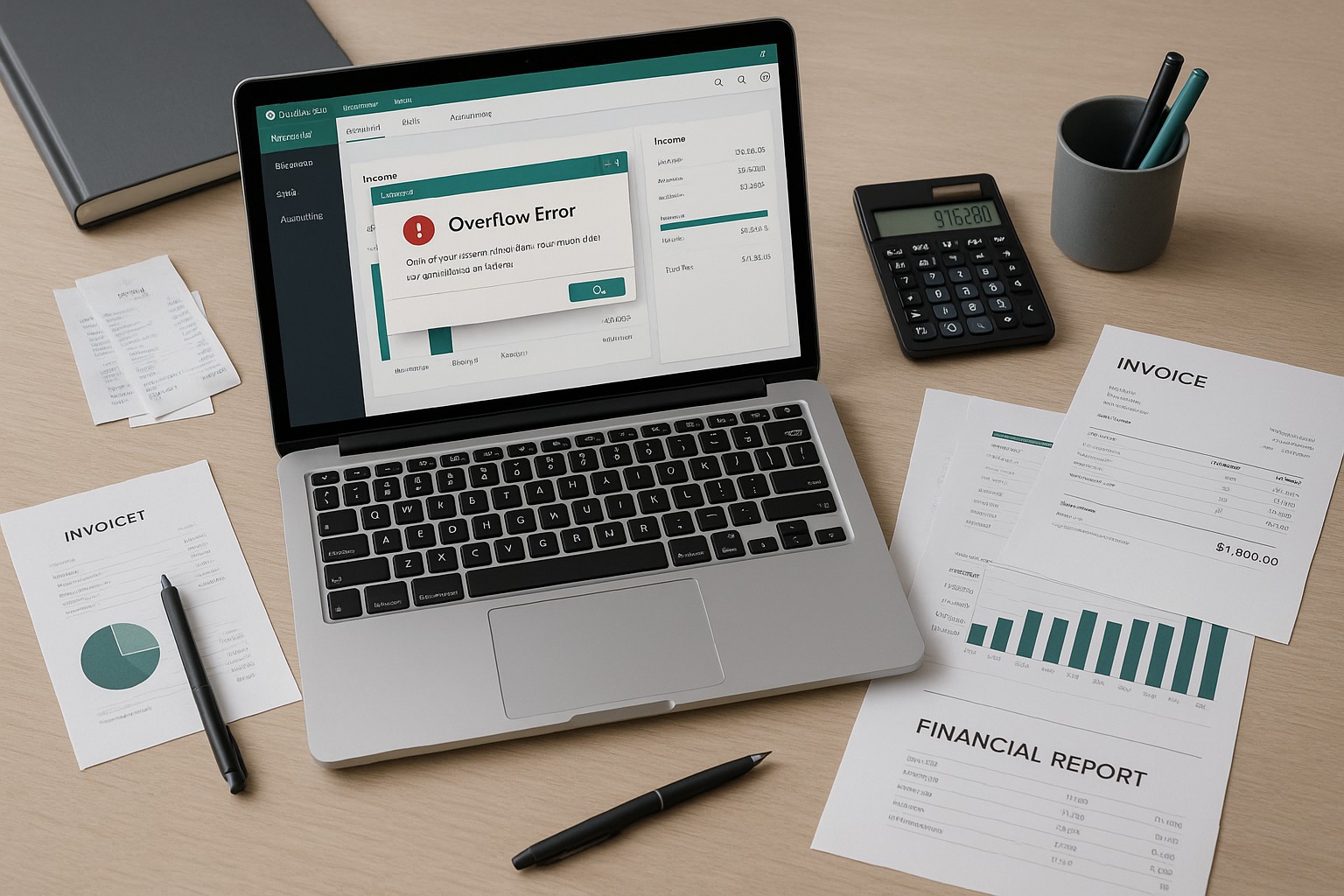
Encountering an overflow error in QuickBooks Desktop can disrupt your accounting tasks and hinder your workflow. Overflow errors typically occur when a number exceeds the maximum limit allowed by QuickBooks. This guide provides a detailed process to identify, troubleshoot, and resolve overflow errors in QuickBooks Desktop.
Understanding Overflow Errors
Overflow errors happen when a numerical value is too large for QuickBooks to handle. This can occur in various scenarios, such as:
- Inventory Items: When the quantity or value of inventory items exceeds the allowed limit.
- Transactions: When transaction amounts are too high.
- Account Balances: When account balances surpass the maximum value QuickBooks can process.
Steps to Fix Overflow Errors in QuickBooks Desktop
Step 1: Identify the Overflow Error
- Open QuickBooks Desktop: Launch QuickBooks Desktop and log in with your credentials.
- Run Reports: Go to
Reportsand run key financial reports such asProfit and Loss,Balance Sheet, andTransaction Detail by Accountto locate where the overflow error appears. - Look for Overflow: Check for the term “overflow” in the numerical fields of these reports.
Step 2: Fix Overflow in Inventory Items
Lists > Item List.Quantity on Hand or Value on Hand fields.Save & Close to update.Step 3: Fix Overflow in Transactions
Step 4: Fix Overflow in Account Balances
Lists > Chart of Accounts.Step 5: Use QuickBooks File Doctor
Company File Issues. Click on Run QuickBooks File Doctor and follow the prompts to scan and repair your company file.Step 6: Contact QuickBooks Support
If the overflow error persists after following the above steps, it may be necessary to contact QuickBooks Support for further assistance.
Best Practices to Prevent Overflow Errors
- Regular Updates: Keep QuickBooks Desktop updated to the latest version.
- Regular Reconciliation: Reconcile your accounts regularly to catch and fix discrepancies early.
- Maintain Reasonable Values: Ensure that all entries and transactions are within reasonable limits to avoid overflow errors.
- Backup Data: Regularly back up your QuickBooks data to prevent data loss and facilitate easy recovery.
Conclusion
Overflow errors in QuickBooks Desktop can be frustrating, but they are usually fixable by identifying the source of the error and making the necessary adjustments. By following the steps outlined in this guide, you can resolve overflow errors and maintain accurate financial records. Implementing best practices will help prevent such errors in the future, ensuring smooth operation of your QuickBooks Desktop software.