

Table of Contents
- Introduction
- Step 1: Create a Sales Receipt
- 1.1: Access the Sales Receipt Form
- 1.2: Enter Customer Information
- 1.3: Enter Product or Service Details
- 1.4: Review and Save the Sales Receipt
- Step 2: Send the Sales Receipt
- 2.1: Email the Sales Receipt
- 2.2: Print the Sales Receipt (Optional)
- Step 3: Track and Manage Sales Receipts
- 3.1: View Sales Receipt History
- 3.2: Manage Customer Payments
- Best Practices for Using Sales Receipts in QuickBooks Online
- Conclusion
Introduction
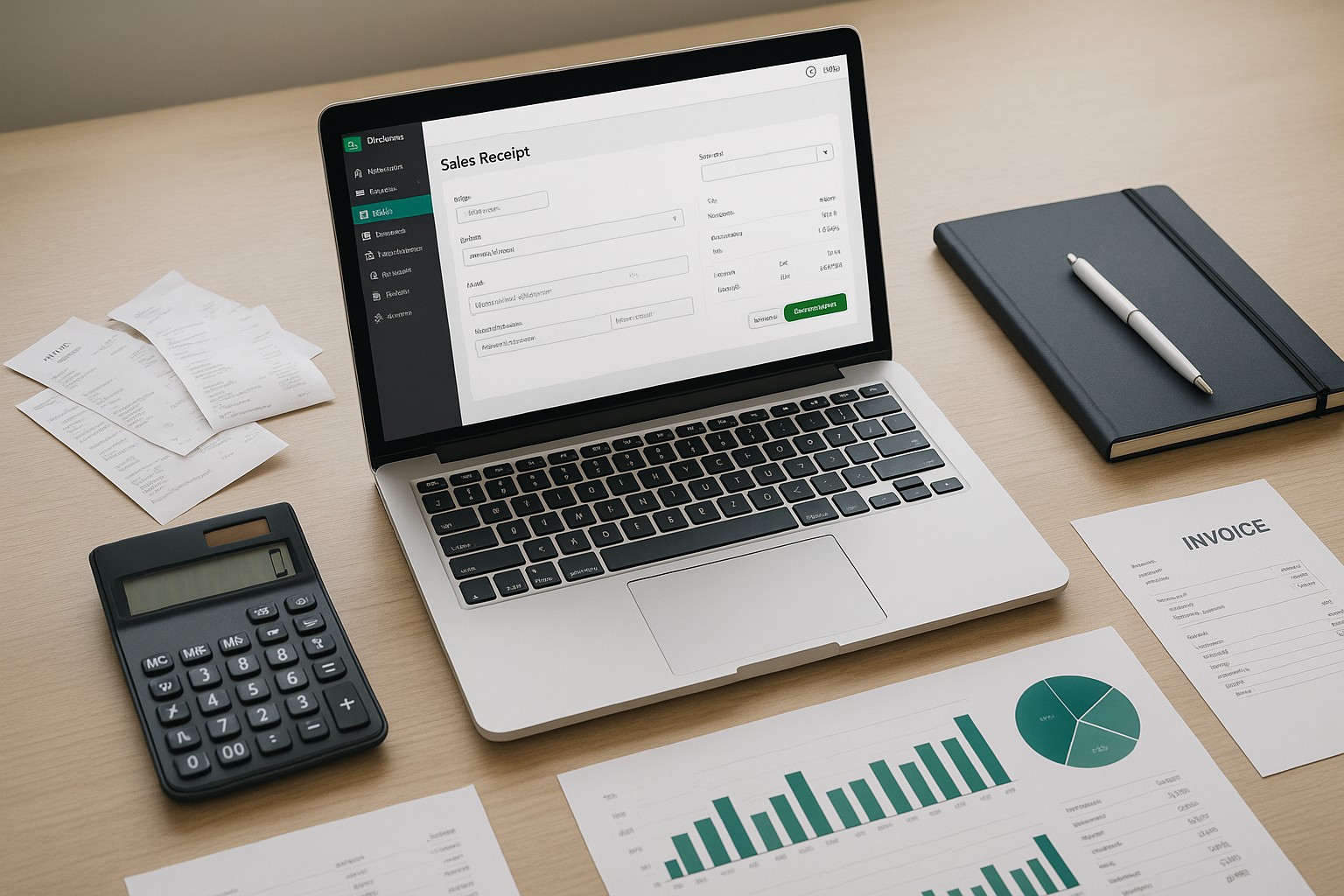
Sending a sales receipt in QuickBooks Online is a crucial step for documenting customer payments and ensuring your financial records are up to date. A sales receipt is typically used when a customer pays you at the time of the sale. This guide provides a detailed, step-by-step process for creating and sending sales receipts in QuickBooks Online.
Step 1: Create a Sales Receipt
1.1: Access the Sales Receipt Form
- Log in to QuickBooks Online: Start by logging in to your QuickBooks Online account using your credentials.
- Go to the + New Menu: Click on the
+ Newbutton located on the left-hand side of the screen. - Select Sales Receipt: Under the
Customerssection, chooseSales Receipt.
1.2: Enter Customer Information
Customer drop-down menu, select the customer who made the payment. If the customer is new, you can add them by clicking Add new.Sales Receipt Date field, enter the date the payment was received.Payment method drop-down menu.1.3: Enter Product or Service Details
Product/Service column, select the items or services the customer purchased.1.4: Review and Save the Sales Receipt
Save and close if you’re done, or Save and new if you need to create another sales receipt.Step 2: Send the Sales Receipt
2.1: Email the Sales Receipt
Send.Send and close to email the sales receipt to the customer.2.2: Print the Sales Receipt (Optional)
Print or Preview instead of sending the receipt via email.Print to generate a hard copy of the sales receipt.Step 3: Track and Manage Sales Receipts
3.1: View Sales Receipt History
Sales > All Sales to view a list of all transactions.3.2: Manage Customer Payments
Best Practices for Using Sales Receipts in QuickBooks Online
- Timely Entry: Enter sales receipts promptly to keep your records current and avoid discrepancies.
- Accurate Information: Always verify customer details and payment information before sending the sales receipt to avoid errors.
- Regular Reviews: Periodically review your sales receipts and customer payments to ensure accuracy in your financial reporting.
- Use Automation: Utilize QuickBooks Online’s automation features, such as recurring sales receipts, for regular customers.
Conclusion
Sending a sales receipt in QuickBooks Online is a simple yet vital process for recording payments and managing customer transactions effectively. By following the steps outlined in this guide, you can efficiently create, send, and manage sales receipts, ensuring your financial records are accurate and up to date. Implementing best practices for using sales receipts will further enhance your business’s accounting processes.