Navigate to Tax Organizers #
From your main dashboard or home screen, locate the menu option labeled “Tax Organizers”
Click Tax Organizers to open the list of existing organizers.
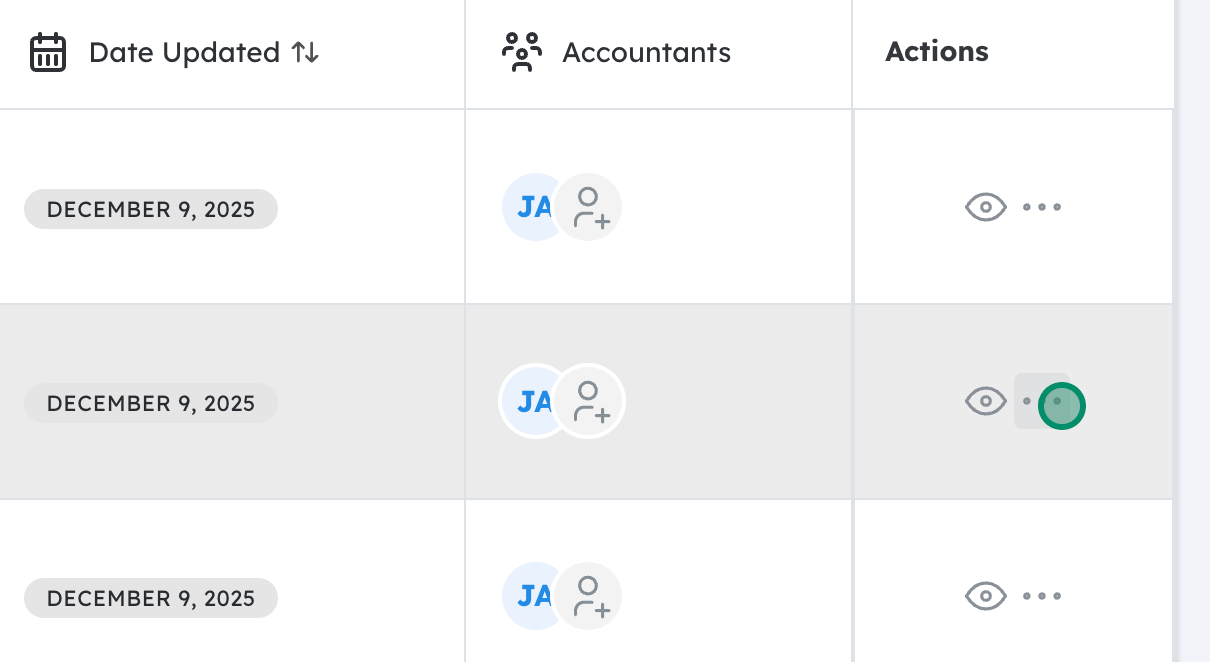
Open the Actions menu for the organizer you want to remove #
Find the specific organizer you wish to delete in the list.
On that organizer’s row, look for an “Actions” button or an icon (three dots).
Click this Actions menu to see available options.
Select “Delete Organizer” #
From the Actions dropdown, click “Delete Organizer.”
A confirmation prompt or pop‑up window should appear, warning that you’re about to permanently delete this organizer (and possibly any associated data).
Confirm the deletion #
Review the confirmation message to ensure you’re deleting the correct organizer.
Click “Confirm” (or “Yes, Delete” , depending on the wording) to complete the deletion.
The organizer should now be removed from your Tax Organizers list.
Updated on December 15, 2025