

Common Reasons to Exclude a Vendor #
Some vendors don’t require 1099 forms, such as corporations, vendors paid less than $600, or vendors where payments were for exempt purposes. Use the exclude feature to remove these vendors from your 1099 filing list.
- Corporations – C-Corps and S-Corps are generally exempt from 1099 reporting
- Payments under $600 – The IRS minimum threshold for most 1099 forms
- Exempt payment types – Rent to real estate agents, payments for merchandise, etc.
- Already reported elsewhere – Vendor has a W-2 or is reported on another form
Steps to Exclude a Vendor #
Step 1: Navigate to the 1099s Tab #
Go to Transactions and click the 1099s tab.
Step 2: Find the Vendor #
Locate the vendor you want to exclude from the vendor table.
Step 3: Open the Actions Menu #
Hover over the vendor row and click the three-dot menu in the Actions column.
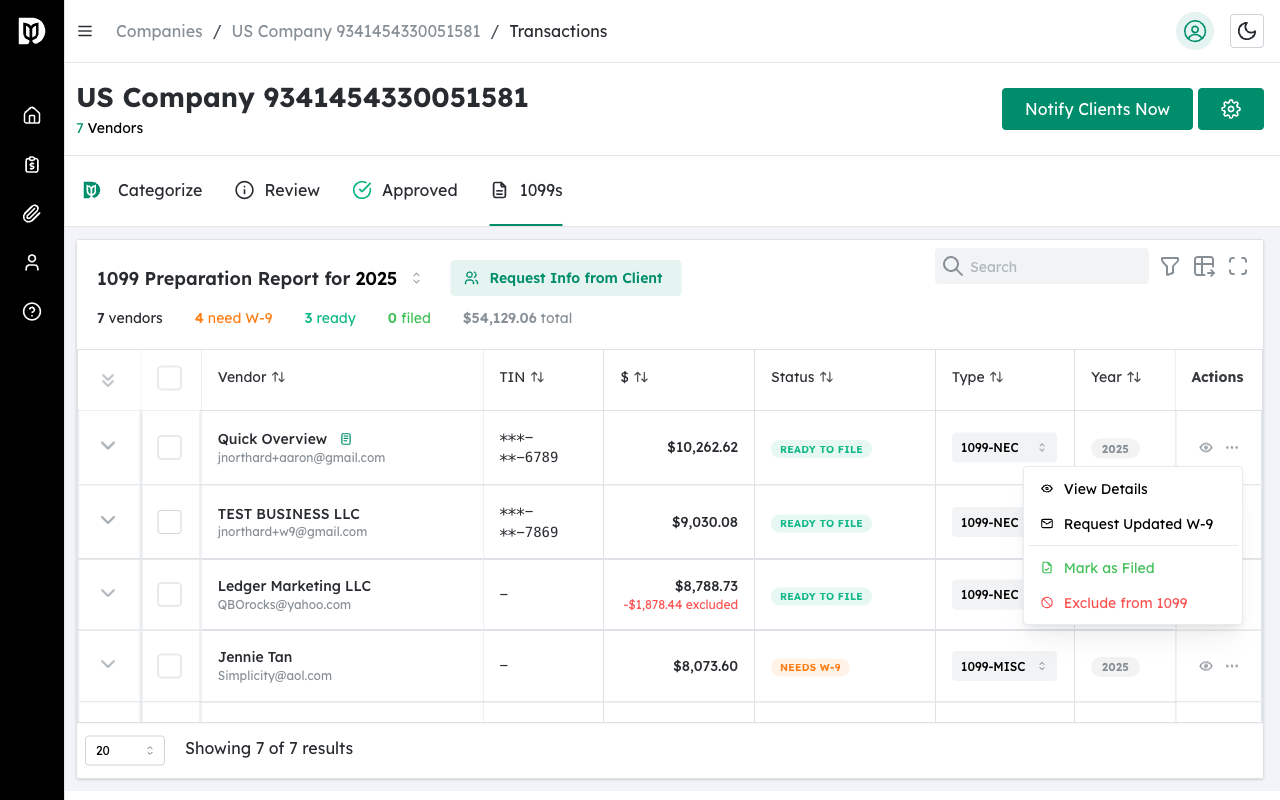
Step 4: Click Exclude #
Select Exclude from 1099 from the dropdown menu.
Step 5: Confirm Exclusion #
A confirmation dialog appears. Click Exclude to confirm.
Identifying Excluded Vendors #
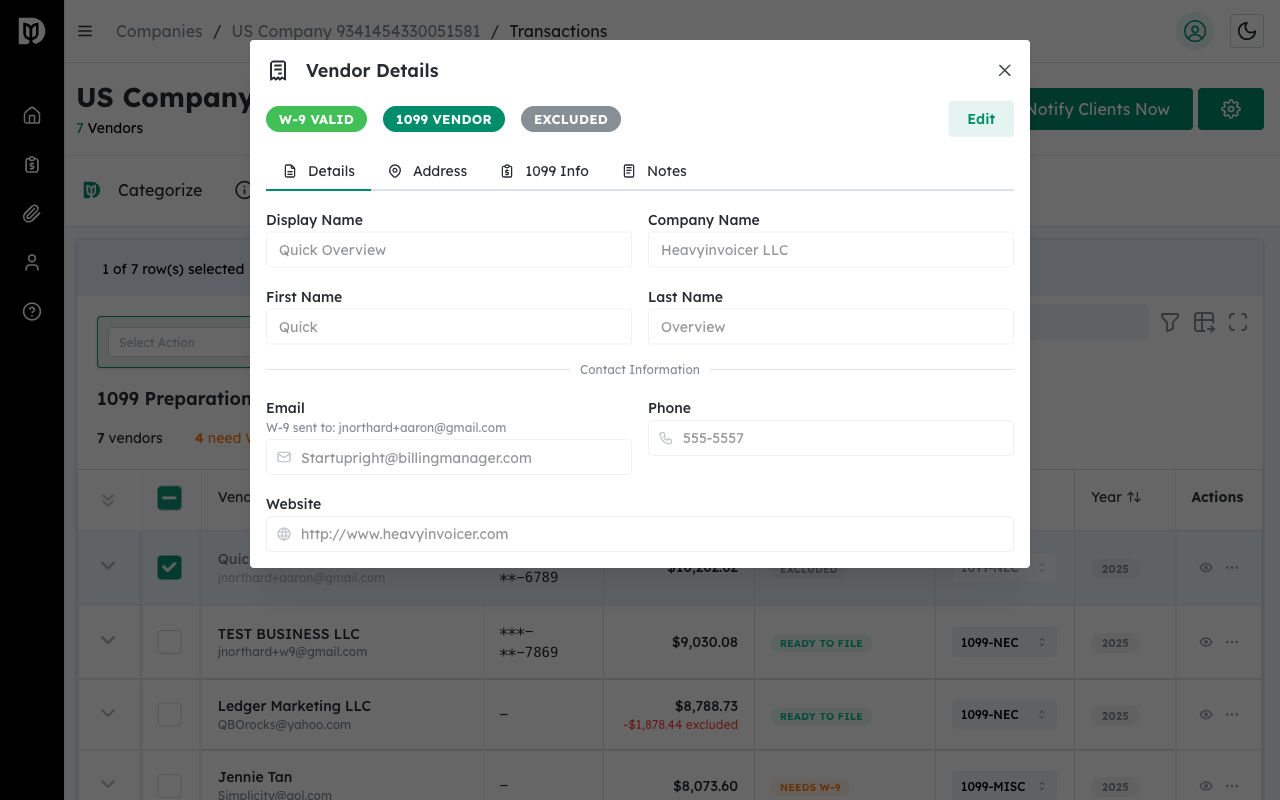
Once excluded, the vendor displays an Excluded badge in both the vendor table and the details modal header.

Excluded Vendor in Details Modal #
When you open the details for an excluded vendor, the Excluded badge appears prominently in the header.
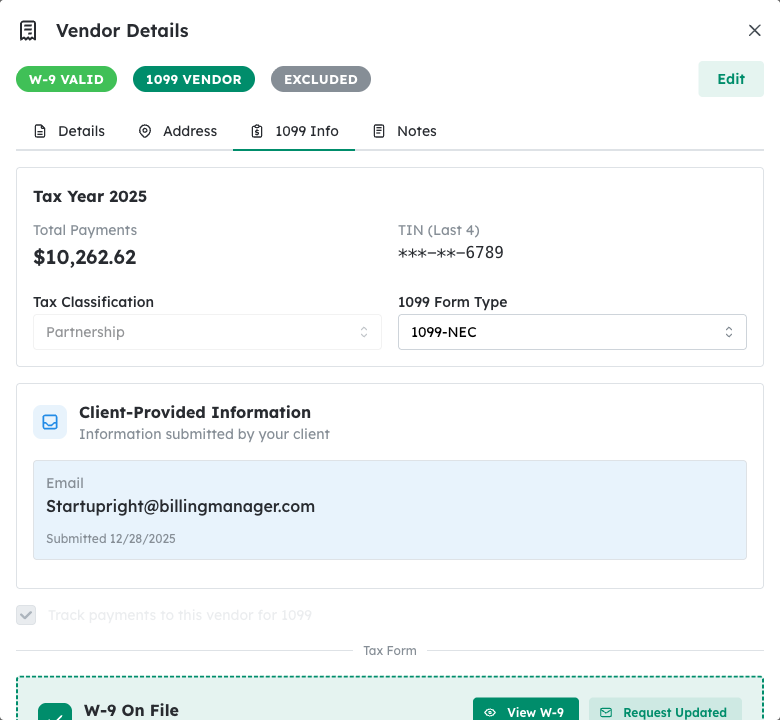
Excluded Amount Display #
The 1099 Info tab shows the excluded amount under the Total Payments, so you can see how much was excluded from reporting.
Remove Exclusion (Include Vendor) #
If you need to include a previously excluded vendor:
Step 1: Open the Actions Menu #
Find the excluded vendor and click the three-dot menu.
Step 2: Click Include in 1099 #
Select Include in 1099 to remove the exclusion and add the vendor back to your filing list.
Important: Excluding a vendor removes them from exports and 1099 filing. Make sure you have a valid reason for exclusion to maintain IRS compliance.
Tip: Keep notes on why each vendor was excluded. Use the Notes tab in the Vendor Details modal to document the reason for future reference.


