

Mark a Single Vendor as Filed #
After you’ve submitted 1099 forms to the IRS, mark vendors as Filed in Debits to track your progress and keep your records up to date.
Step 1: Navigate to the 1099s Tab #
Go to Transactions and click the 1099s tab.
Step 2: Find the Vendor #
Locate the vendor whose 1099 has been filed with the IRS.
Step 3: Open the Actions Menu #
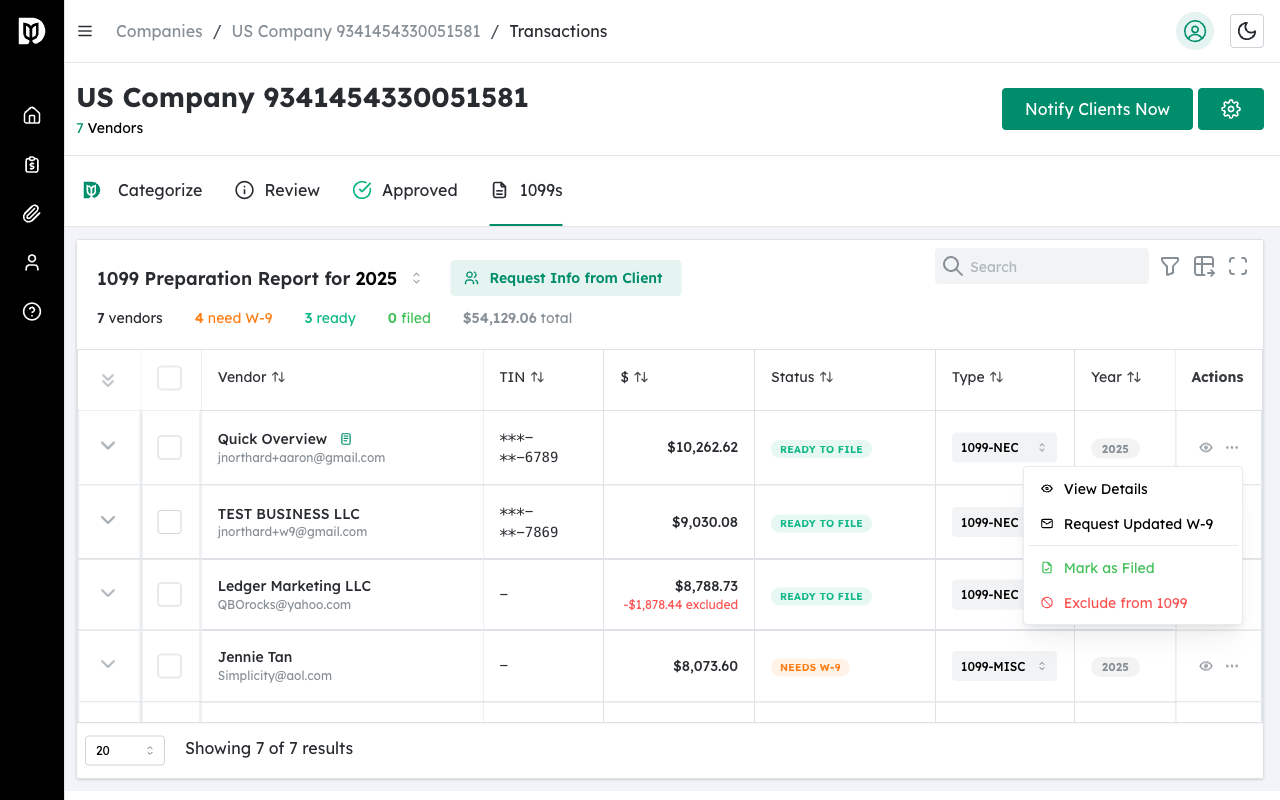
Hover over the vendor row and click the three-dot menu in the Actions column.
Step 4: Click Mark as Filed #
Select Mark as Filed from the dropdown menu.
Step 5: Confirm #
The vendor’s status updates to show a Filed badge.
Bulk Mark as Filed #
After submitting multiple 1099s, you can mark them all at once:
Step 1: Select Multiple Vendors #
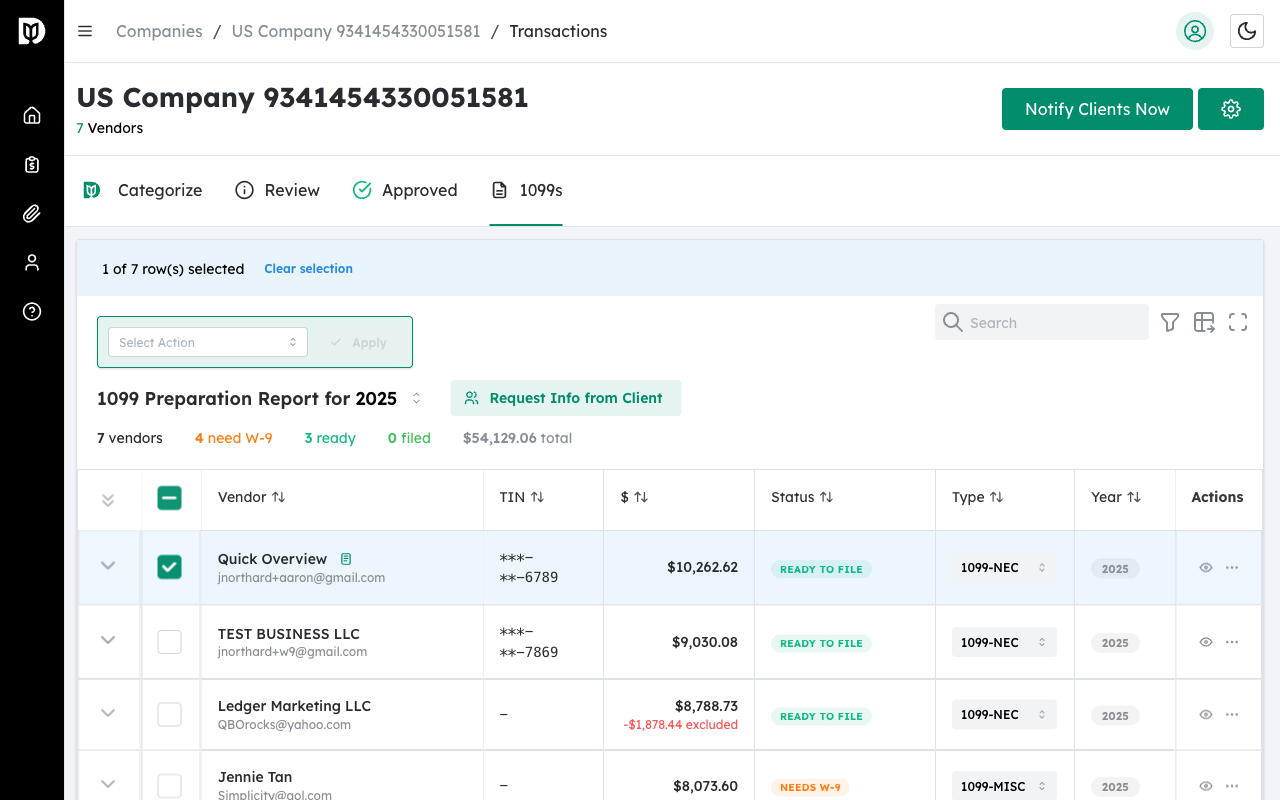
Click the checkboxes next to each vendor you’ve filed 1099s for.
Step 2: Click Bulk Actions #
Click the Bulk Actions button that appears above the table.
Step 3: Select Mark as Filed #
Choose Mark as Filed from the dropdown to update all selected vendors at once.
Unmark a Vendor (Remove Filed Status) #
If you need to correct a filing status:
Step 1: Open the Actions Menu #
Click the three-dot menu on the filed vendor row.
Step 2: Click Unmark as Filed #
Select Unmark as Filed to remove the filed status and return the vendor to Ready status.
Filing Status vs. IRS Status: The Filed status in Debits is for your tracking purposes. It does not automatically submit forms to the IRS. You must file 1099s separately through the IRS, Track1099, Tax1099, or your preferred filing service.
Tip: Use the status filter to show only Ready vendors when you’re preparing to file. This helps you identify which 1099s still need to be submitted.
Important: Only mark vendors as Filed after you’ve actually submitted their 1099 to the IRS. This helps maintain accurate records and ensures no vendors are missed during filing.


