Log in to your Debits account #
- Open the Debits website or app.
- Enter your username/email and password, then complete any required authentication (such as a verification code, if enabled).
- Once logged in, you’ll be taken to your main dashboard or home screen.
Go to the Account section #
- Look for an “Account,” “Settings,” or profile icon (often at the top-right corner or in a side menu).
- Click or tap Account to open your account settings.
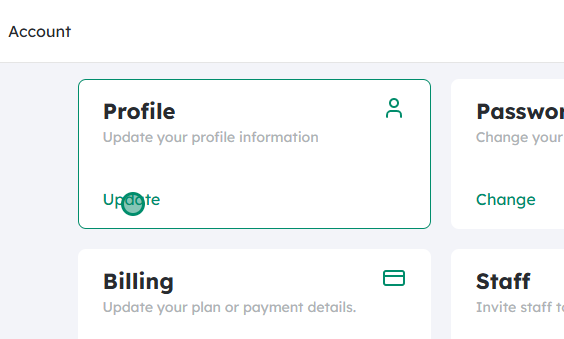
Click on “Update” under Profile #
- Within the Account or Settings area, find the Profile section that shows your personal details (name, email, etc.).
- Click the Update button or link under Profile to access options related to changing your account information and status.

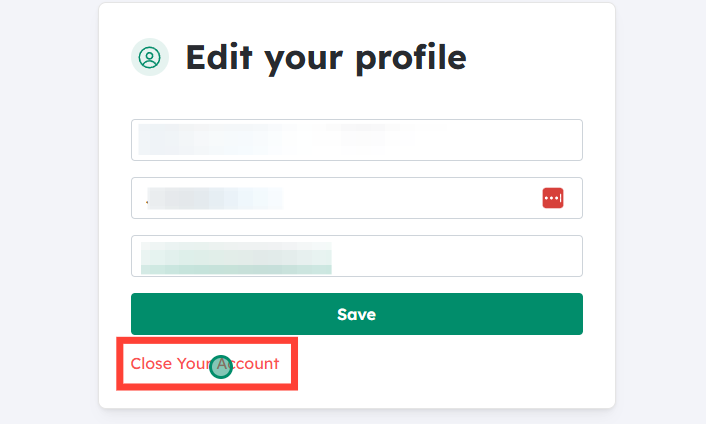
Select “Close Your Account” #
- On the profile update page, look for an option labeled “Close Your Account”, “Delete Account”, or similar.
- Click Close Your Account.
- At this point, Debits may ask you to confirm your identity again (e.g., by entering your password or a verification code) for security reasons.
Review what will be deleted #
- A confirmation screen will appear listing the data and items that will be removed from the Debits system if you proceed.
- This may include:
- Your personal information (name, email, contact details)
- Saved payment methods or linked accounts
- Transaction history, budgets, or reports (if Debits provides these features)
- Any preferences, notifications, or custom settings
- Carefully read this list so you understand what you will permanently lose access to.
Understand that this cannot be undone #
- Closing your account is typically permanent and irreversible.
- Once the account is closed:
- You may not be able to recover any data or reactivate the same account.
- Any active services, subscriptions, or automations associated with Debits may stop working.
- If there are records you need for tax, personal, or business purposes, export or save them before proceeding.
Click “Confirm” to close your account #
- If you are sure you want to proceed, click the Confirm button.
- The system may show a final message acknowledging that your account has been scheduled for closure or has been closed immediately.
- You might also receive a confirmation email to the address on file stating that your Debits account has been closed.
Updated on December 2, 2025