

Export Formats Available #
Debits allows you to export vendor 1099 data in multiple formats for filing with the IRS through various services like Track1099, Tax1099, or for use with other tax software.
- Track1099 – Direct import into Track1099 filing service
- Tax1099 – Direct import into Tax1099 filing service
- CSV – General-purpose export for spreadsheets or other software
Steps to Export 1099 Data #
Step 1: Navigate to the 1099s Tab #
Go to Transactions and click the 1099s tab.
Step 2: Select the Tax Year #
Use the year selector to choose the tax year you want to export.
Step 3: Click Export #
Click the Export button in the toolbar above the vendor table.
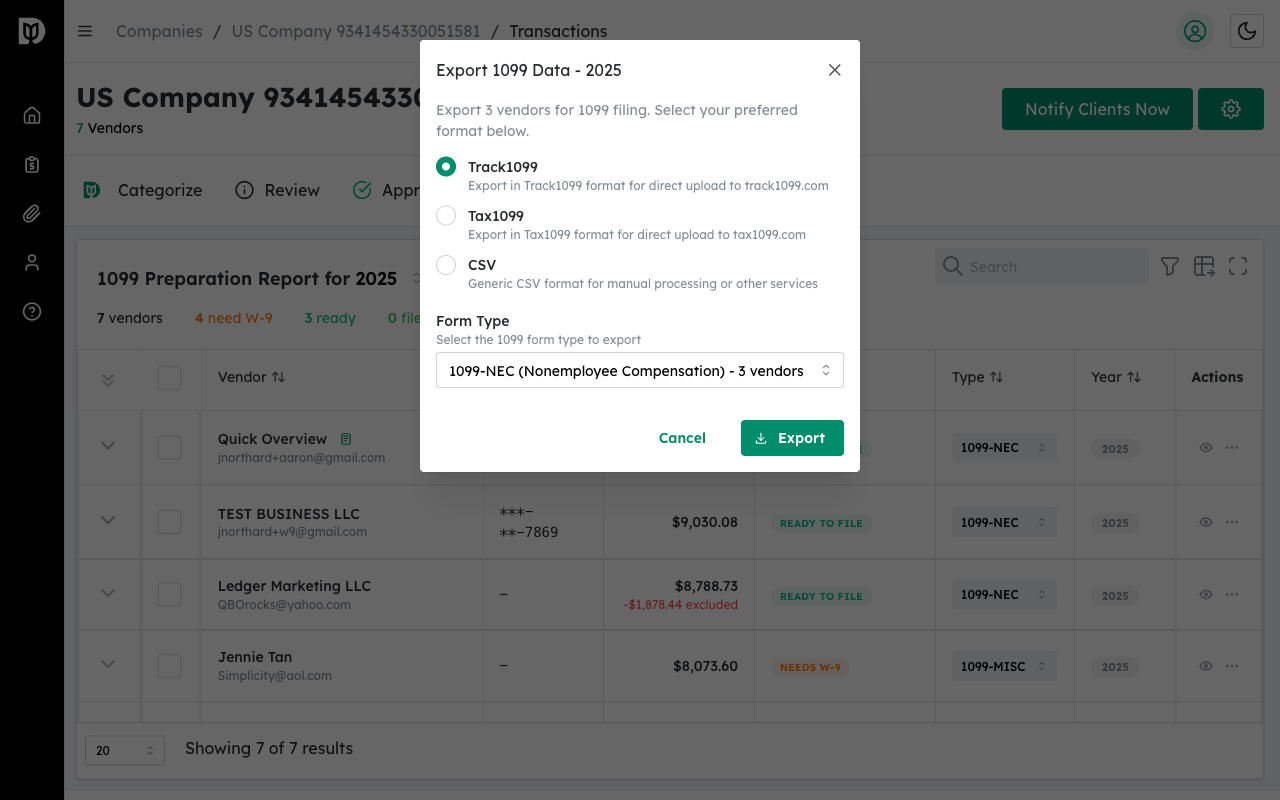
Step 4: Select Export Format #
Choose your preferred export format:
- Track1099 – Formatted for Track1099 bulk upload
- Tax1099 – Formatted for Tax1099 bulk upload
- CSV – Standard comma-separated values file
Step 5: Select Form Type #
Choose which 1099 form type to export:
- 1099-NEC – Non-employee compensation
- 1099-MISC – Miscellaneous income
- All Forms – Export all form types together
Step 6: Click Download #
Click the Download button to generate and download the export file.
What’s Included in the Export #
The export includes all non-excluded vendors with the following information:
- Vendor legal name
- Tax Identification Number (TIN)
- Mailing address
- Total payments for the tax year
- Tax classification
- 1099 form type
Excluded Vendors: Vendors marked as Excluded are not included in exports. If you need to include them, remove the exclusion first.
Using Your Export #
Track1099 #
- Log in to your Track1099 account
- Go to the bulk upload section
- Upload the exported file
- Review and submit your 1099s
Tax1099 #
- Log in to your Tax1099 account
- Navigate to import
- Upload the exported file
- Verify data and file
Tip: Always review your vendor data before exporting. Ensure all W-9 information is complete and tax classifications are correct to avoid filing errors.


