Access the 1099 Report #
The 1099 Preparation module in Debits helps you manage vendor tax information, request W-9 forms, and prepare 1099 filings for year-end reporting. This guide walks you through accessing and understanding the main 1099 features.
Step 1: Navigate to Transactions #
From your company dashboard, click on Transactions in the left sidebar menu.
Step 2: Click the 1099s Tab #
At the top of the Transactions page, you’ll see multiple tabs. Click the 1099s tab to access the 1099 preparation tools.
Understanding the 1099 Report Panel #
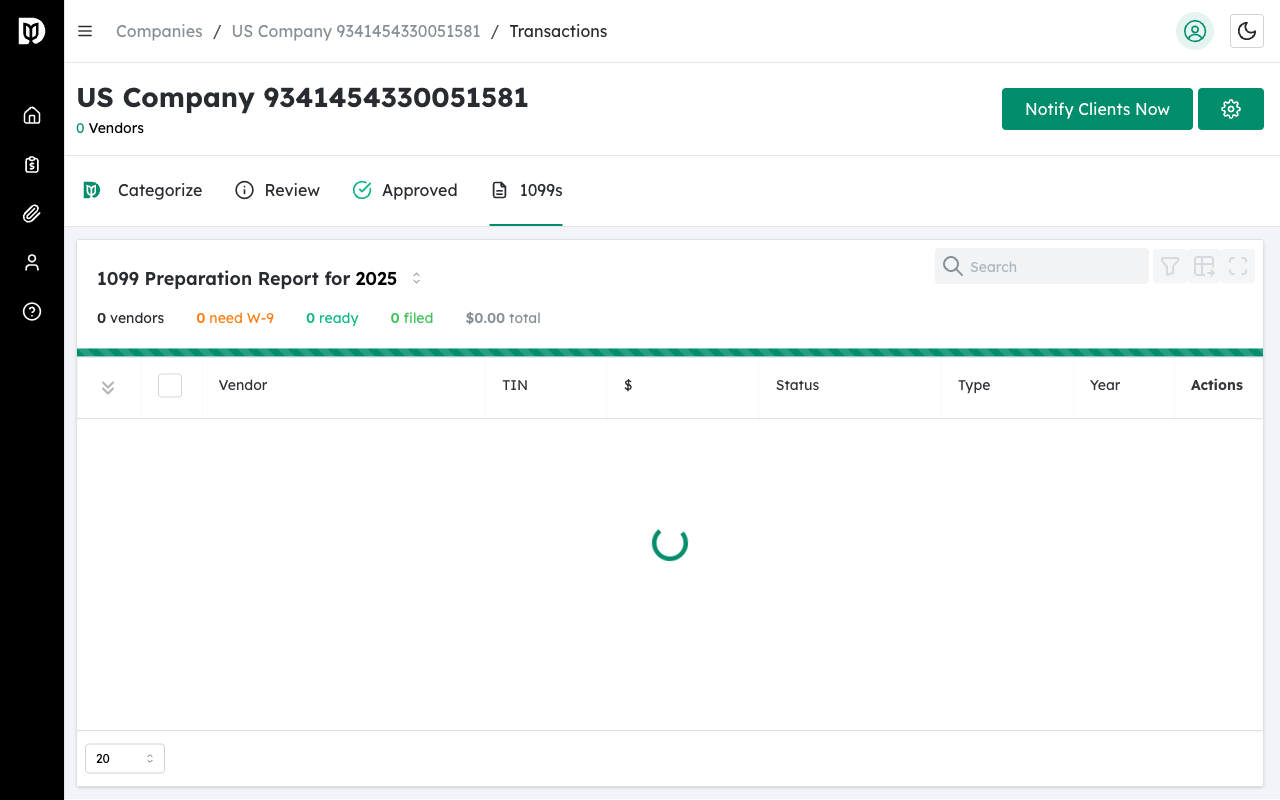
The 1099 Report panel displays all vendors who have received payments during the selected tax year.
Key Features #
- Summary Statistics – View total vendors, total payments, and filing status at a glance
- Vendor Table – Lists all vendors with their payment totals, W-9 status, and 1099 status
- Status Badges – Color-coded badges show each vendor’s current status (Needs W-9, W-9 Requested, Ready, Filed, Excluded)
- Actions Menu – Quick access to view details, request W-9, exclude vendor, or mark as filed
- Year Selector – Switch between tax years to view historical data
- Export Options – Export vendor data for filing with Track1099, Tax1099, or as CSV
Vendor Table Overview #

The vendor table includes the following columns:
- Vendor Name – Business or individual name
- Total Payments – Sum of all payments for the tax year
- W-9 Status – Whether W-9 is on file, requested, or needed
- 1099 Status – Current filing status (Ready, Filed, Excluded)
- Actions – Buttons to view details, request W-9, or access more options
Tip: Vendors with payments under $600 are automatically excluded from 1099 reporting requirements, but you can still track them in the system.
View Vendor Details #
Step 1: Click the View Button #
Hover over a vendor row and click the eye icon to open the Vendor Details modal.

Step 2: Review Vendor Information #
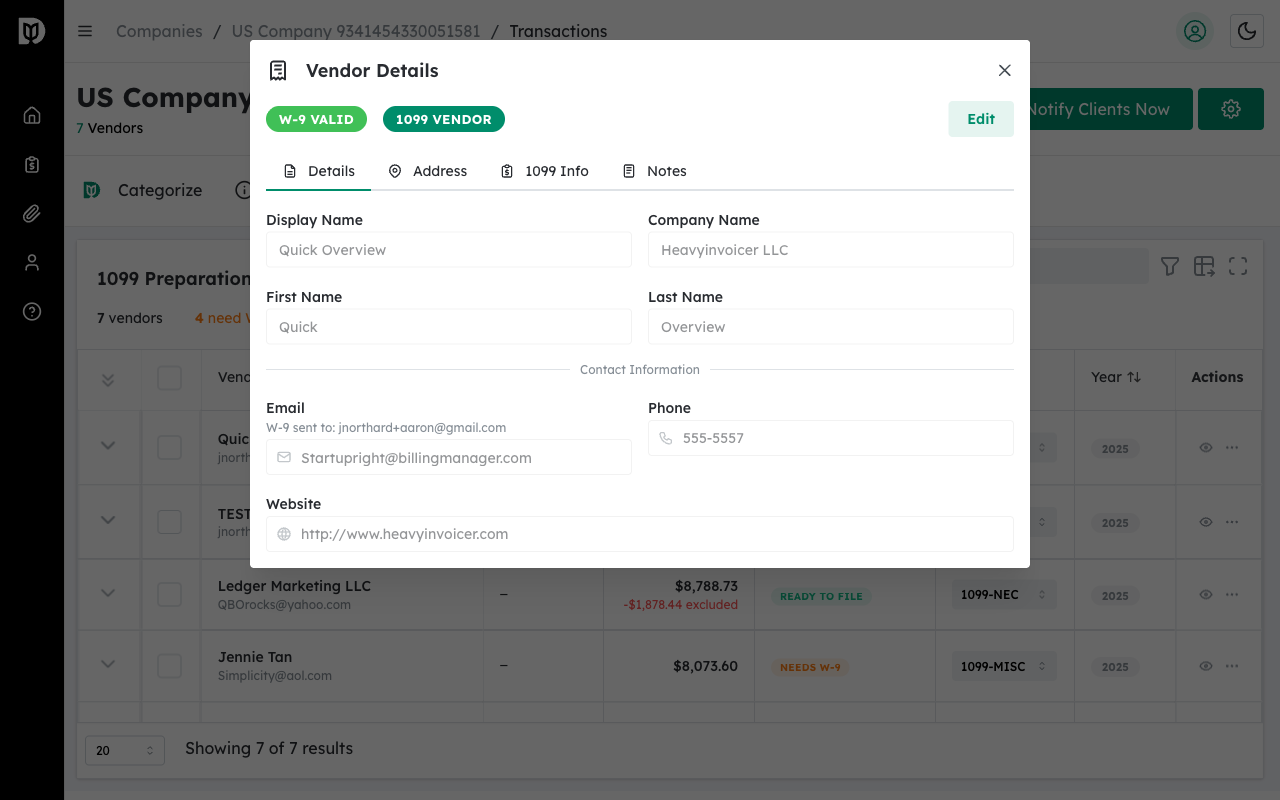
The Vendor Details modal has four tabs:
- Details – Basic vendor information (name, email, phone)
- Address – Mailing address for 1099 delivery
- 1099 Info – Tax classification, TIN, form type, and payment details
- Notes – Internal notes about the vendor