

Who this is for: Accountants who want to show tailored metrics beyond the standard statements.
What you’ll learn: How to add a Custom KPIs section and build KPIs from report metrics with the format you choose.
Before you begin #
- Open a draft report and add the Custom KPIs section in Edit Report Sections.
- KPIs are computed from report metrics such as revenue, net income, gross profit, expenses, cash balance, and total liabilities.
Step-by-step instructions #
Step 1: Add a KPI #
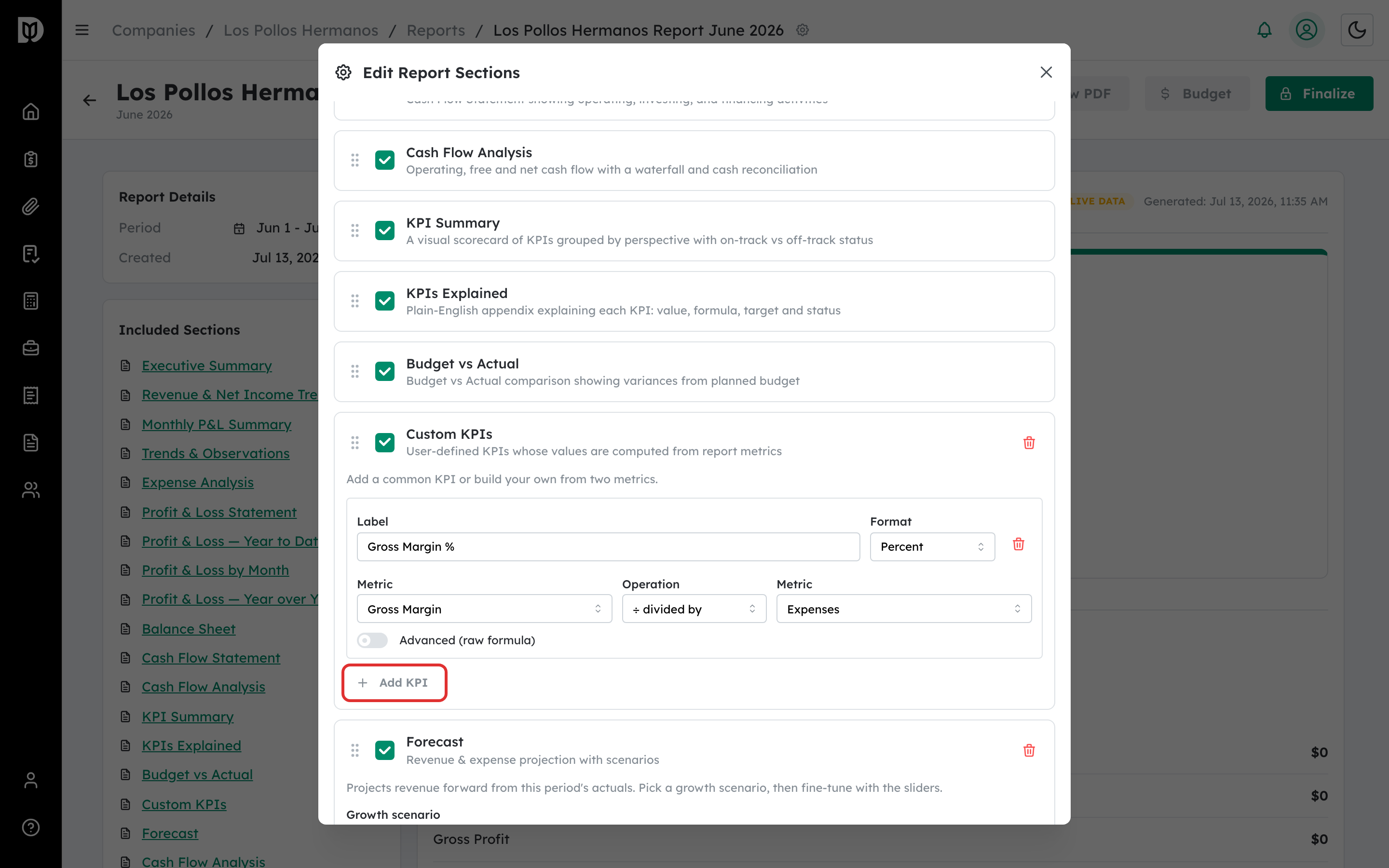
Expand the Custom KPIs section and select Add KPI. You can also start from a preset such as Gross Margin % or Current Ratio.
Step 2: Name the KPI and build its formula #
Enter a Label, then build the value with the guided picker: choose a Metric, an Operation, and a second metric — for example Gross Margin divided by Expenses. Turn on Advanced (raw formula) to type a formula directly.
Step 3: Choose a value format #
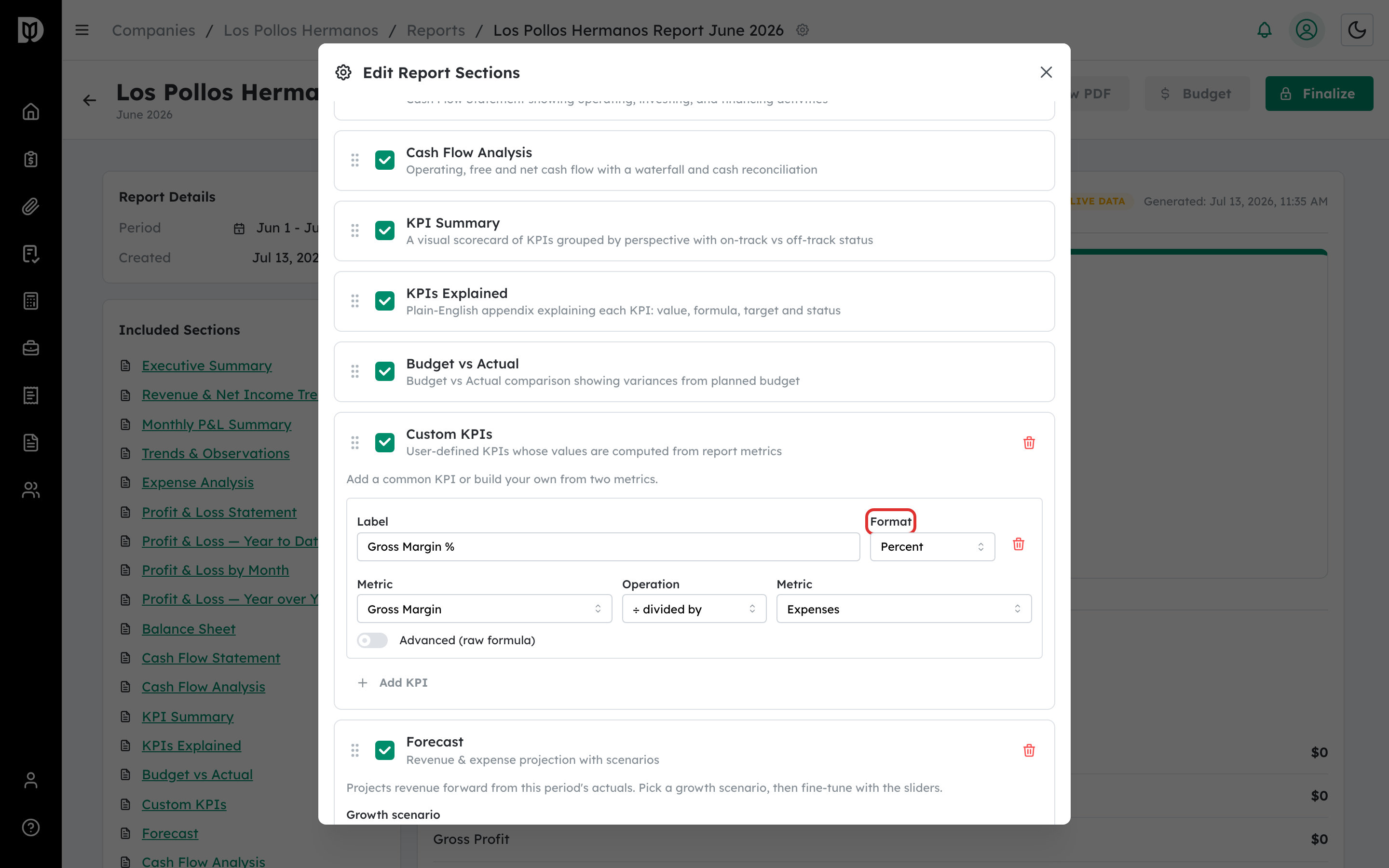
Set Format to Number, Currency, or Percent so the value displays correctly.
Step 4: Check the live value #
The builder shows the live value the KPI will carry, based on the report’s current data, so you can confirm the formula before finalizing.
What happens next #
Your custom KPIs render in the report’s Custom KPIs section and are captured in the snapshot when you finalize.
Troubleshooting #
- Problem: A KPI shows “–“. The formula divided by zero or referenced a value that isn’t available for the period. Debits handles this gracefully by showing a dash instead of an error.
- Problem: You can’t save. Fix any highlighted formula — only valid formulas can be saved.


