Who this is for: Accountants tailoring which sections appear in a report, and in what order.
What you’ll learn: How to add, remove, reorder and configure the sections that make up a report.
Before you begin
- Open a draft report. Sections can only be changed while the report is a draft.
- See the section catalog article for what each section shows.
Step-by-step instructions
Step 1: Open Edit Report Sections
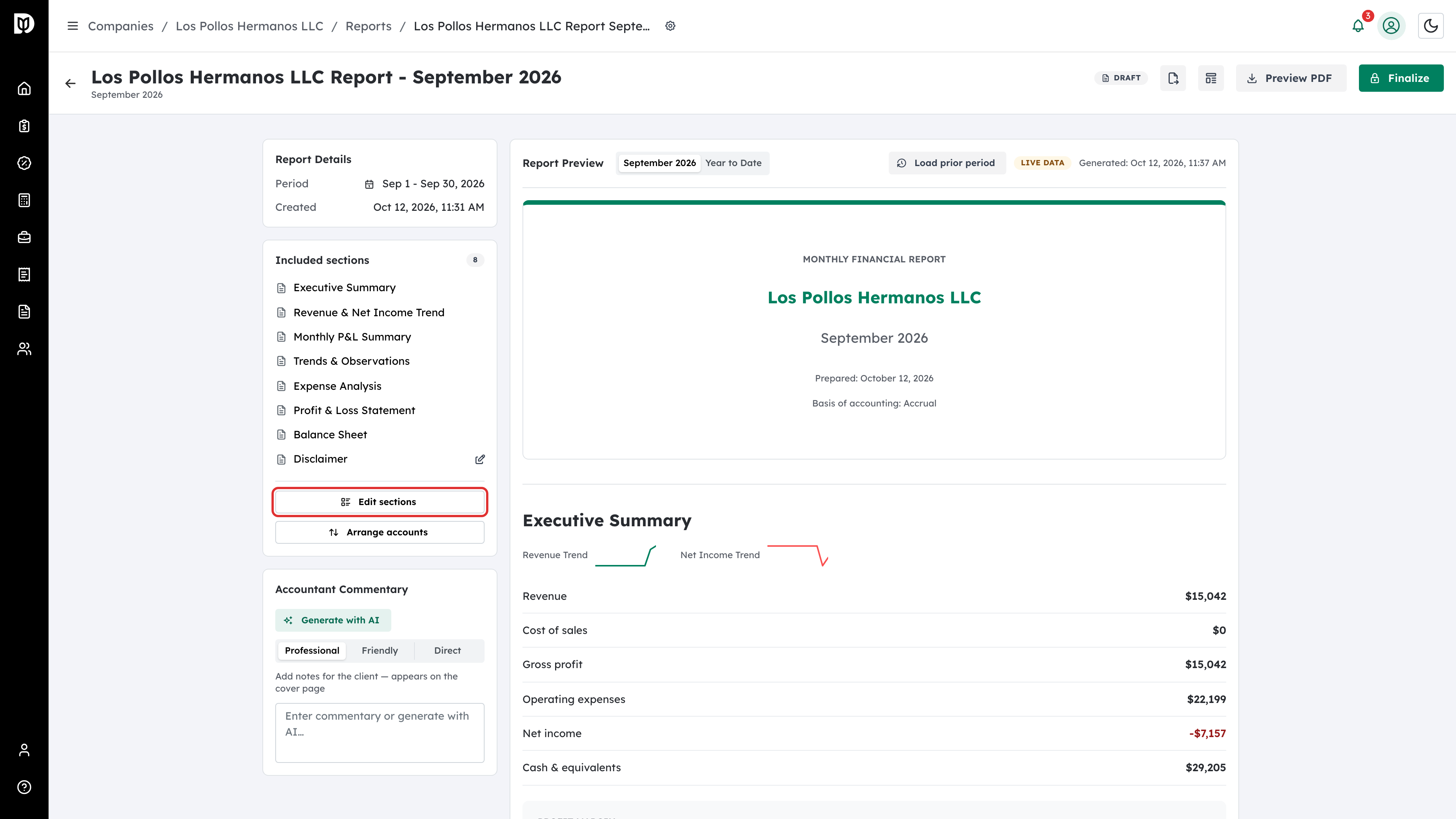
In the report workspace, select Edit sections in the Included Sections card. (Arrange accounts, beside it, changes which accounts appear in which section and group.)
Step 2: Review the section list
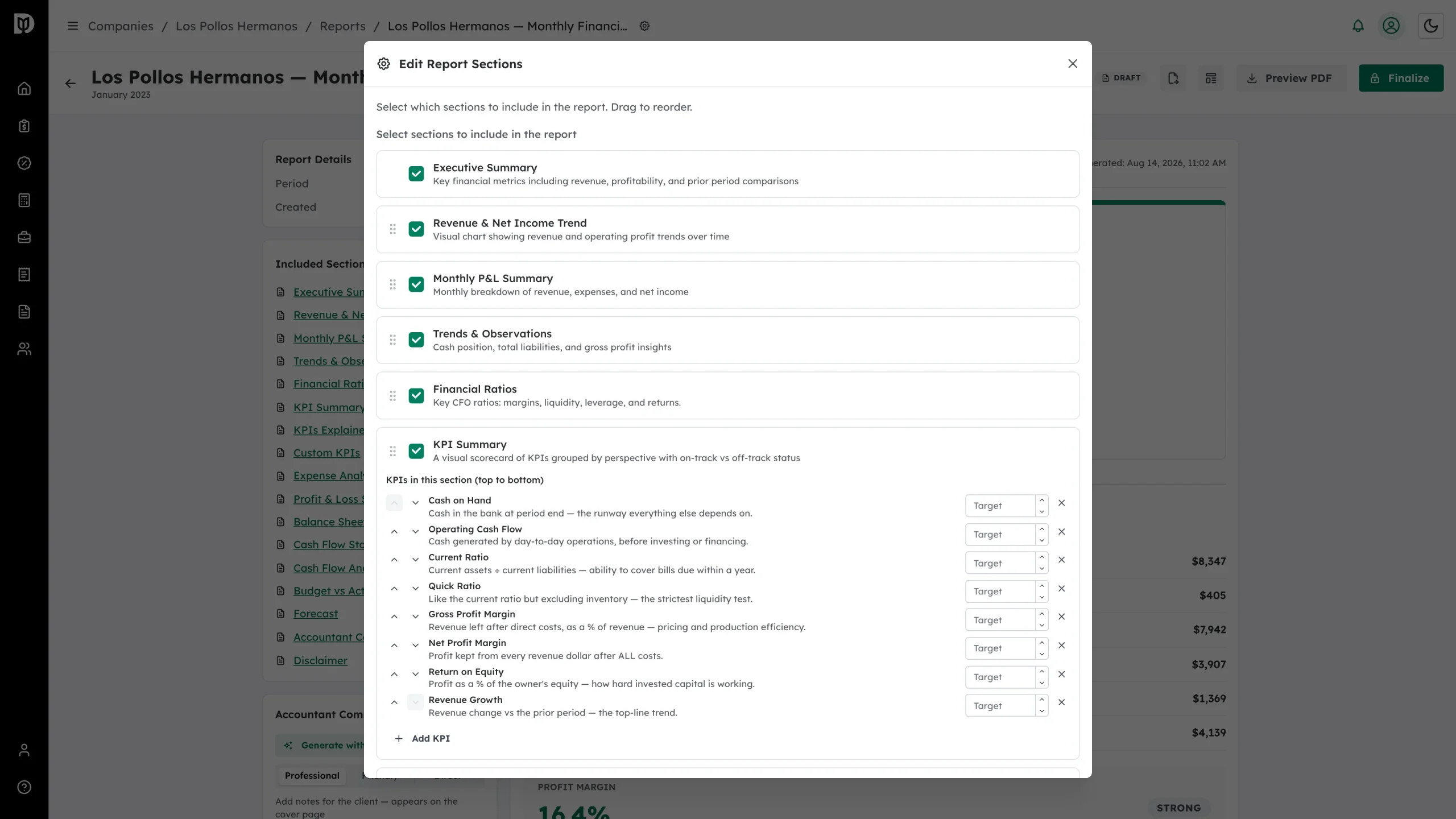
The Edit Report Sections window lists every available section with a short description of what it adds.
Step 3: Turn sections on or off
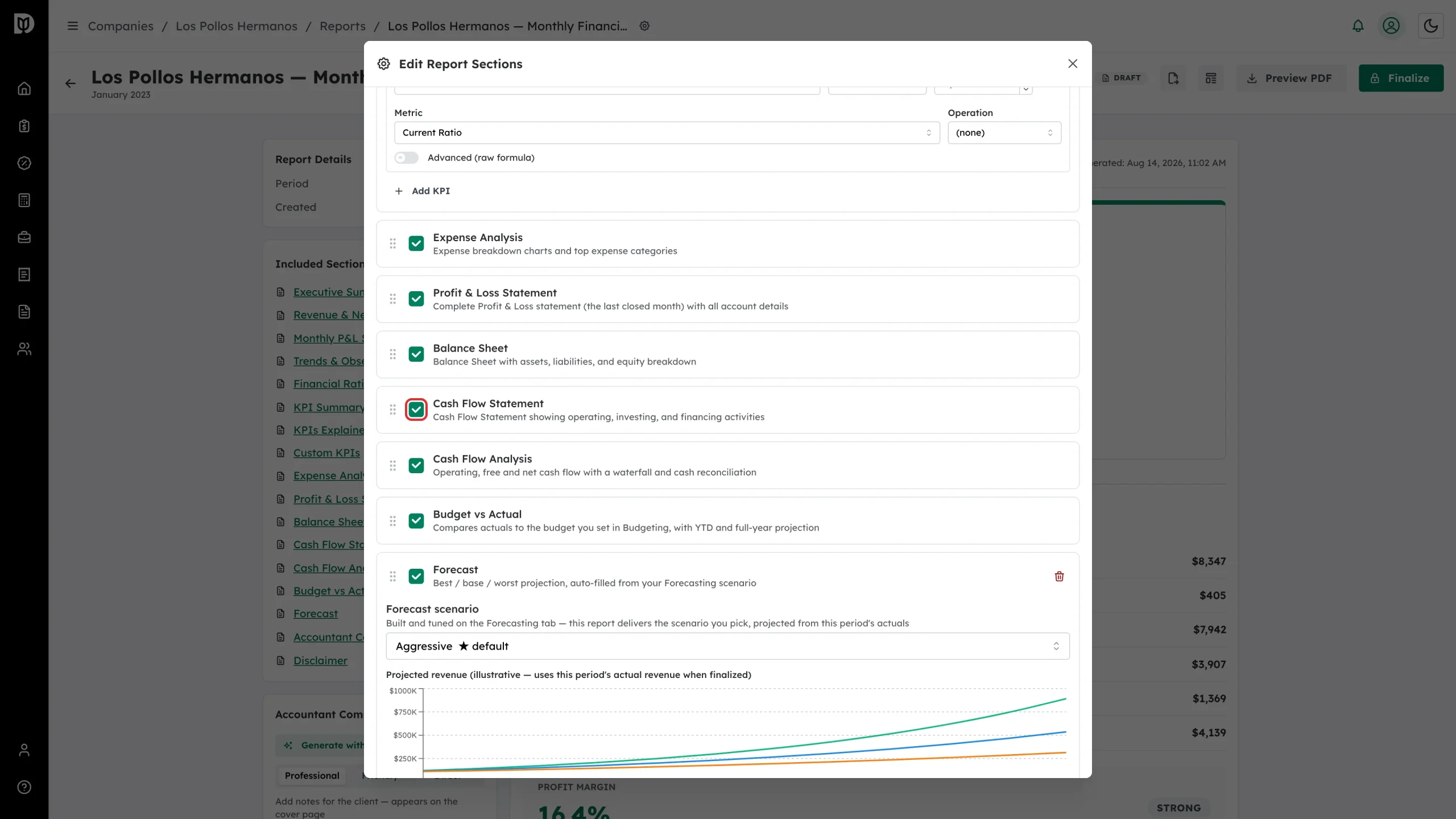
Use each tick box to include or exclude a section.
Step 4: Reorder sections
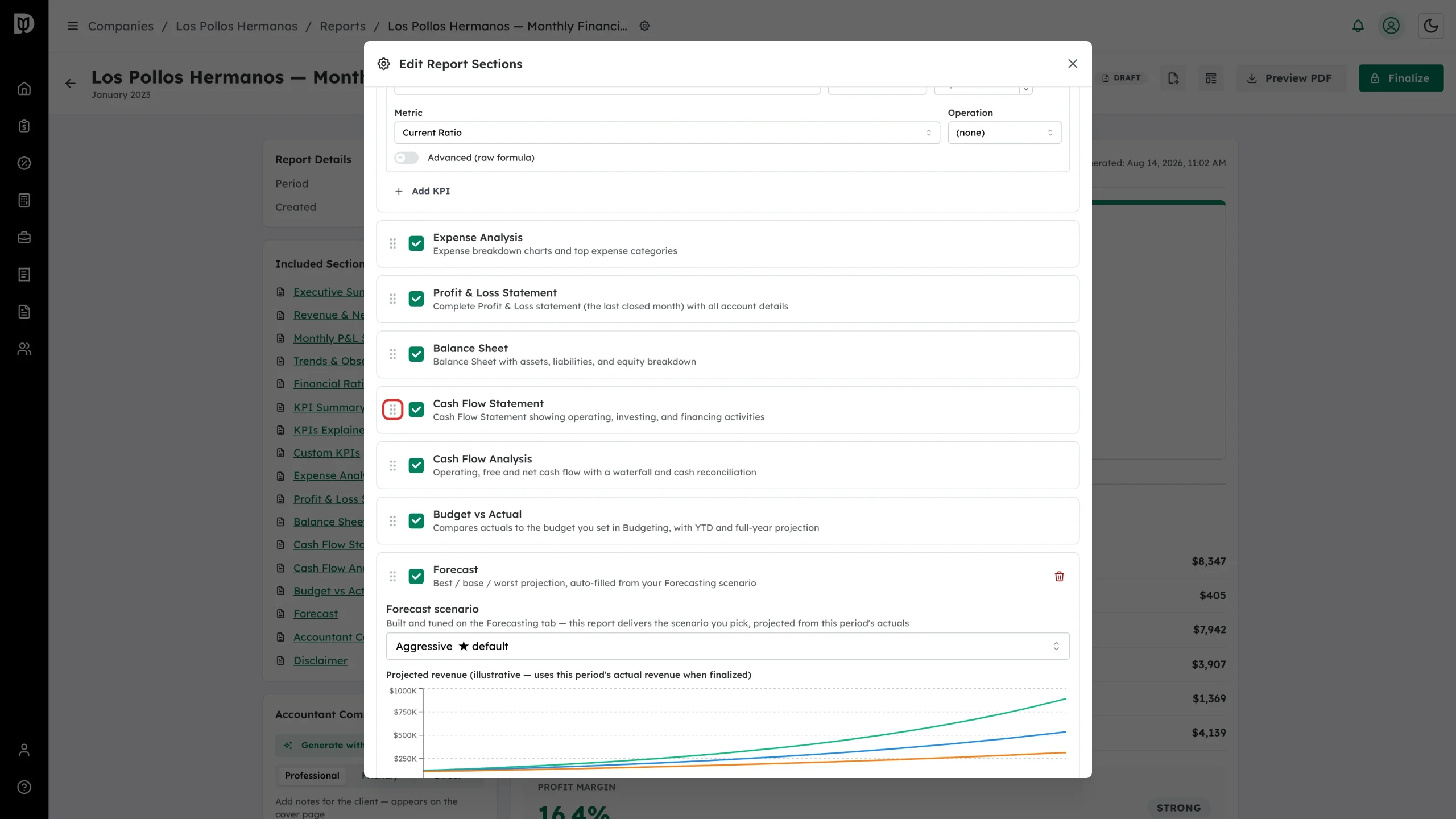
Drag a section by the handle on its left to move it. The order here is the order in the preview and the PDF.
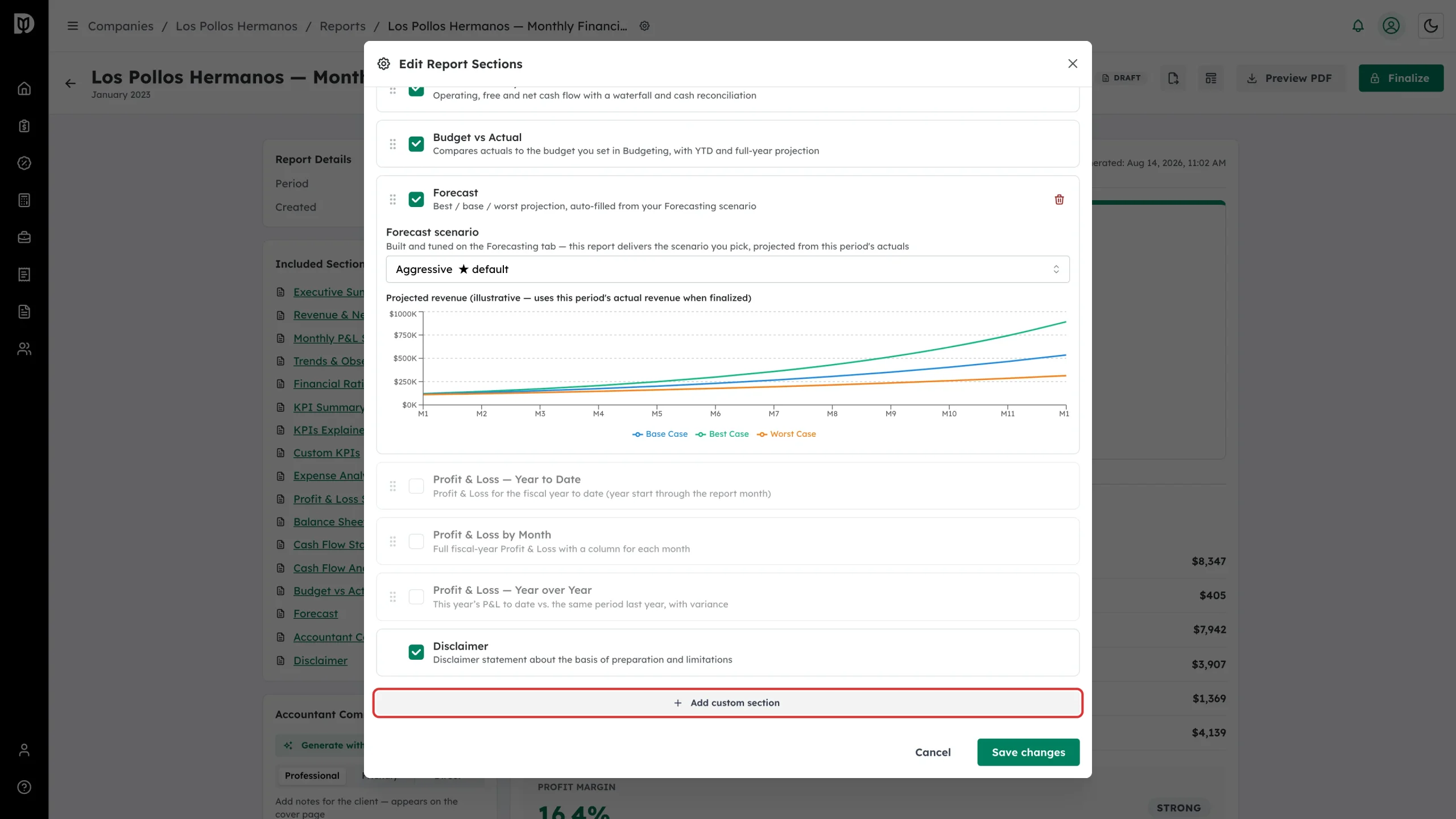
Step 5: Add a custom section
Select Add custom section at the bottom of the list.
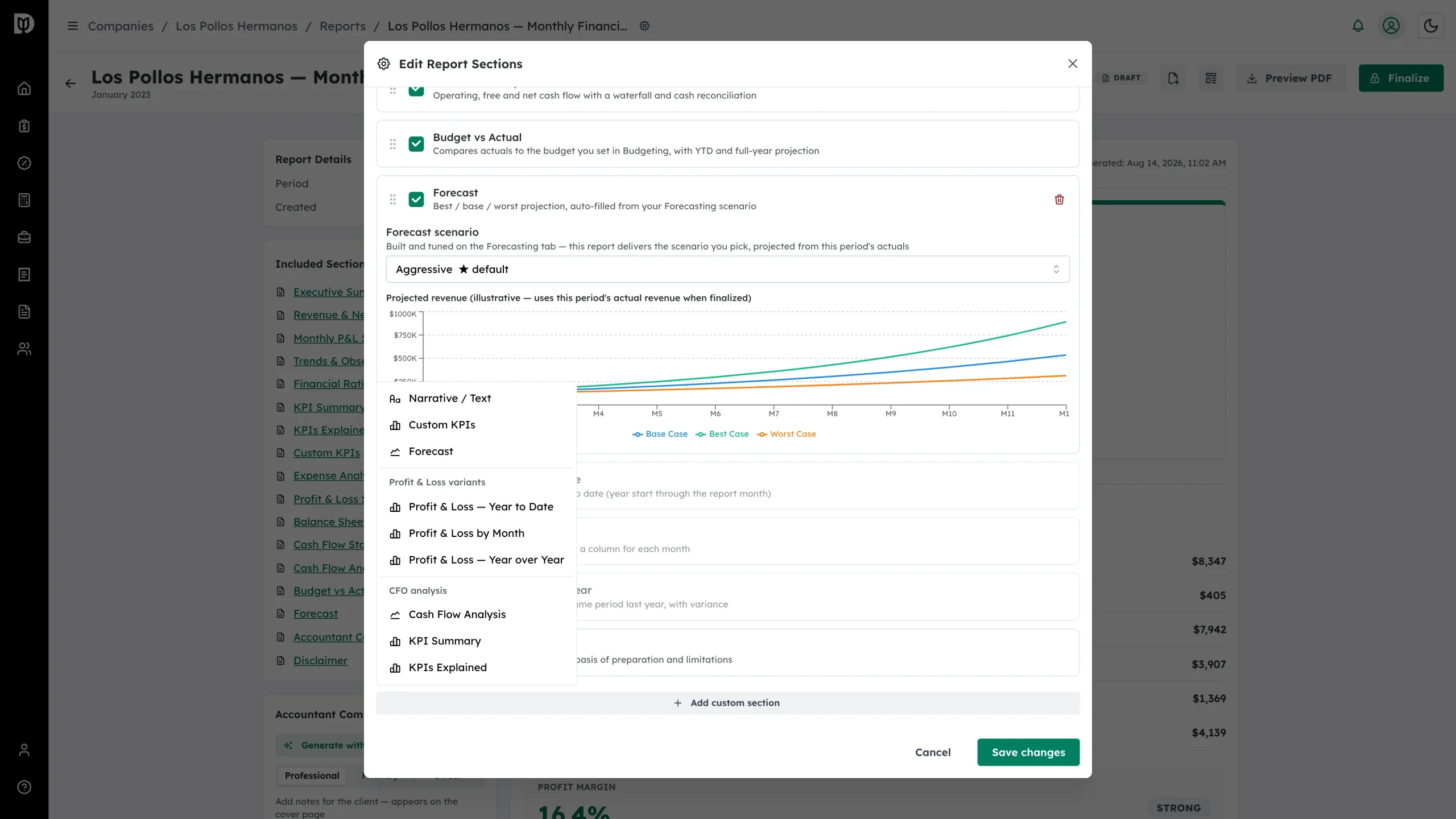
Step 6: Pick the section to add
Choose Narrative / Text, Custom KPIs or Forecast, or pick from Profit & Loss variants and CFO analysis. Sections that carry their own settings — custom KPIs, the forecast scenario, KPI targets, narrative text — are configured in this same window.
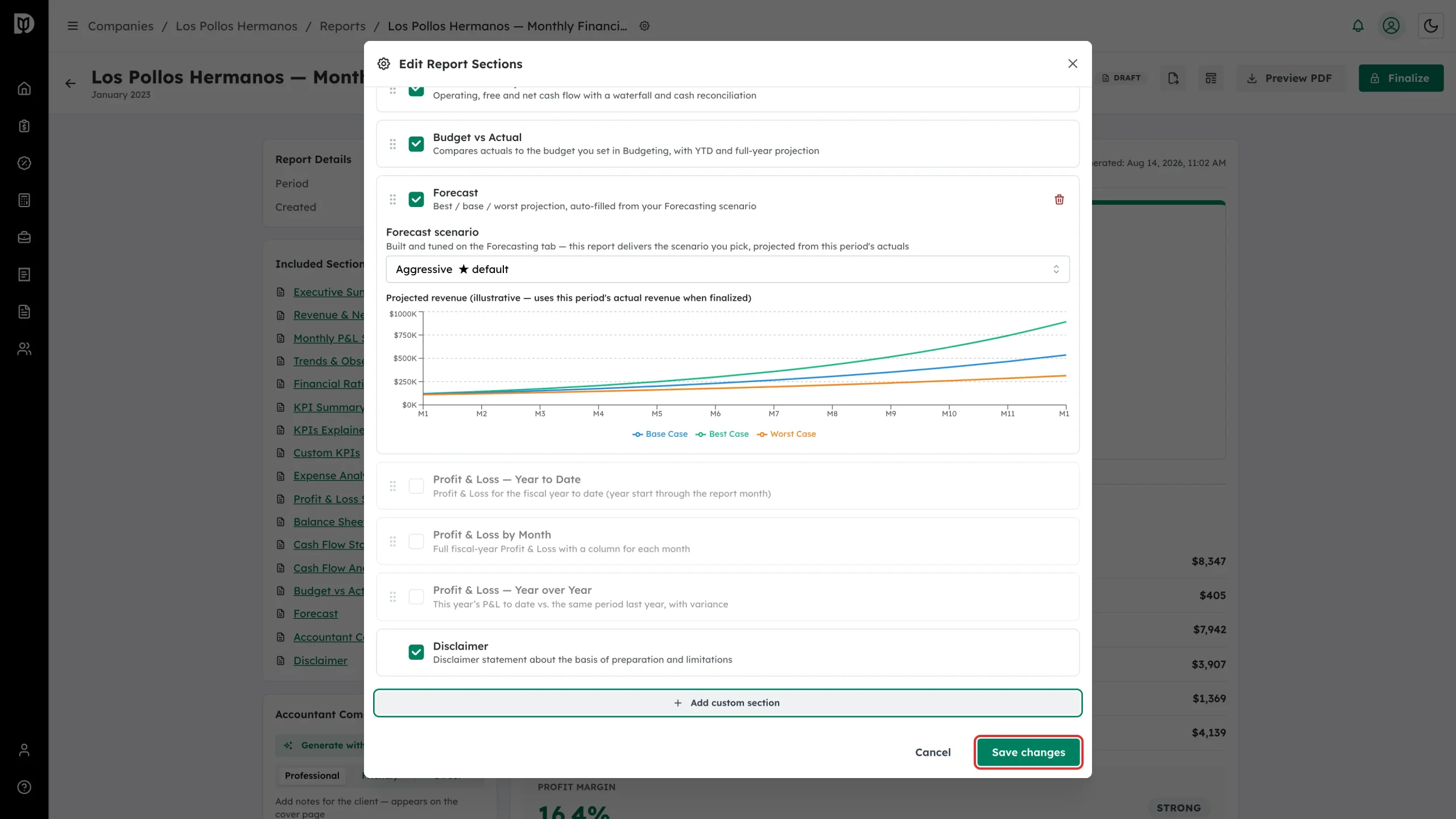
Step 7: Save your changes
Select Save changes. The preview updates immediately.
What happens next
Your section choices are saved to the draft and captured when you finalize, so the delivered report matches what you set up here.
Troubleshooting
- Save changes is disabled. Fix any custom KPI formula flagged in red first.
- A statement section is empty. That statement has no activity for the period in QuickBooks.
- There is no Edit sections button. The report is finalized. If it has not been sent yet, select Reopen as draft; otherwise duplicate it to make changes on a fresh draft.