Who this is for: Accountants and clients who want a saved copy of a financial report.
What you’ll learn: How to download the print-ready PDF, and how to export the underlying figures.
Before you begin
- Accountants can download the PDF for a draft or a finalized report.
- Clients download it from the report link or from their portal.
- The PDF is built fresh each time it is requested, so it always matches the report.
Step-by-step instructions
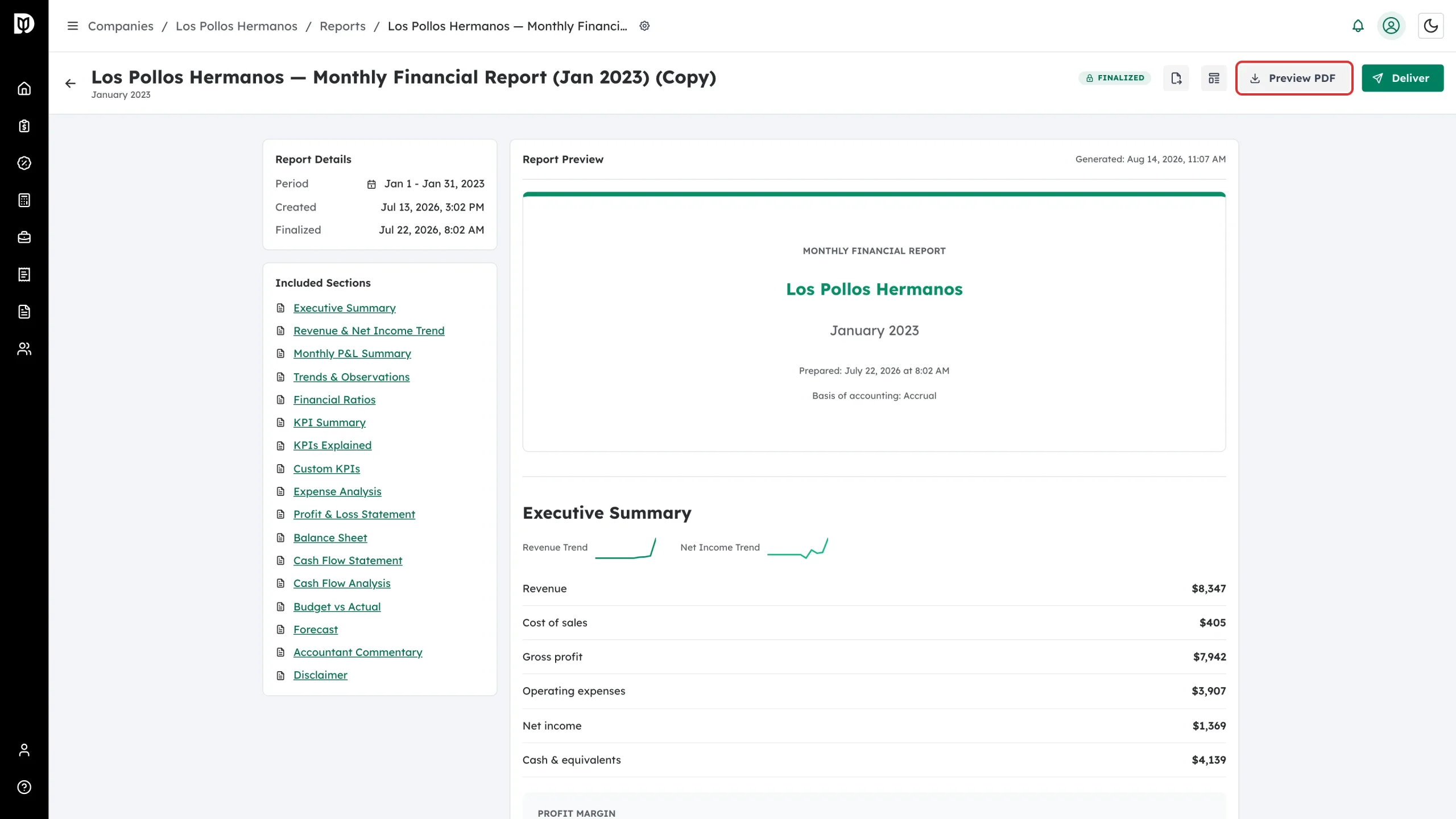
Step 1: Select Preview PDF
Open the report and select Preview PDF in the header.
Step 2: Wait for the PDF
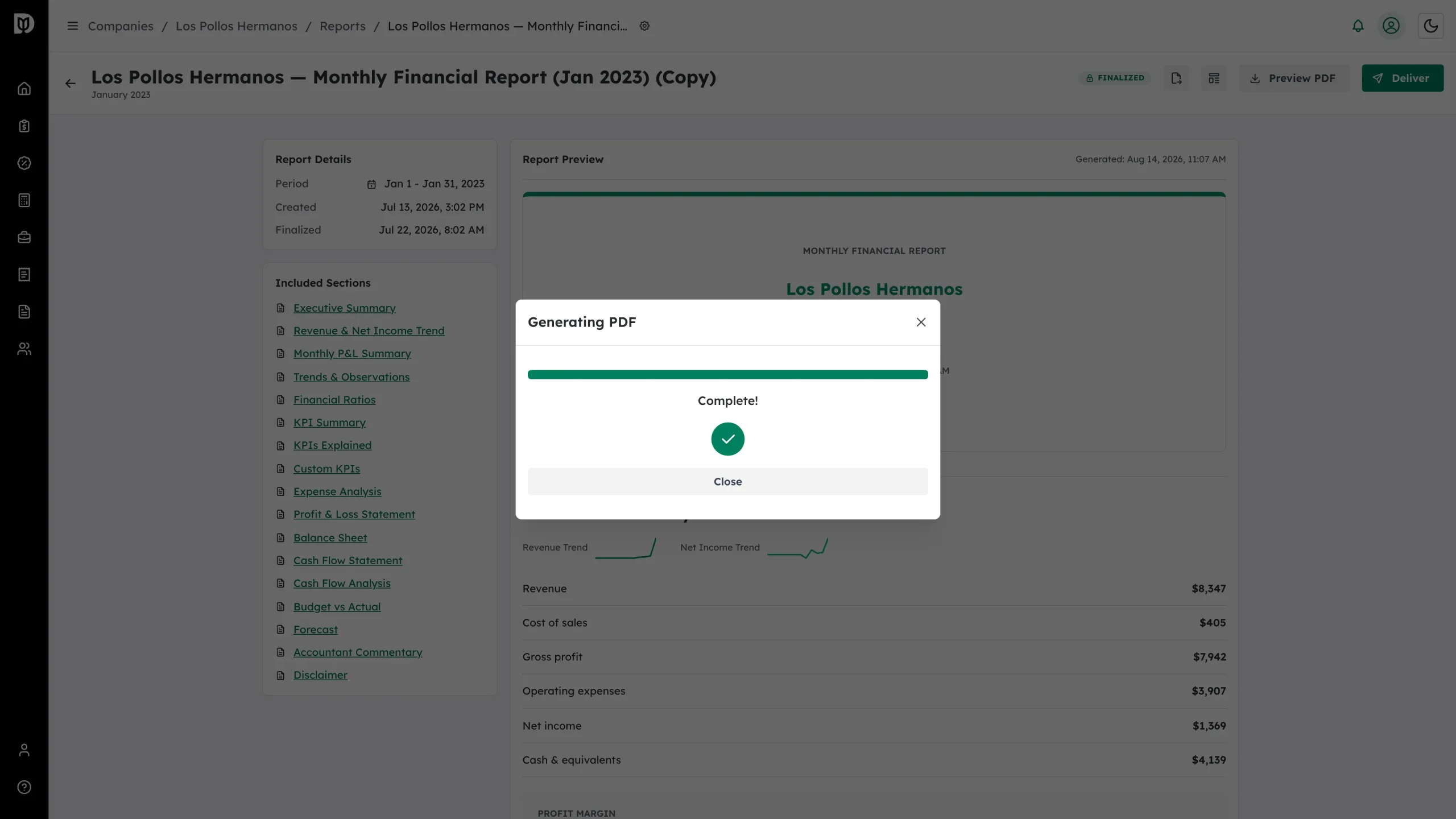
Debits shows a Generating PDF window while it builds the file, then downloads it to your computer. Large reports take a few seconds.
Step 3: Export the figures instead (optional)
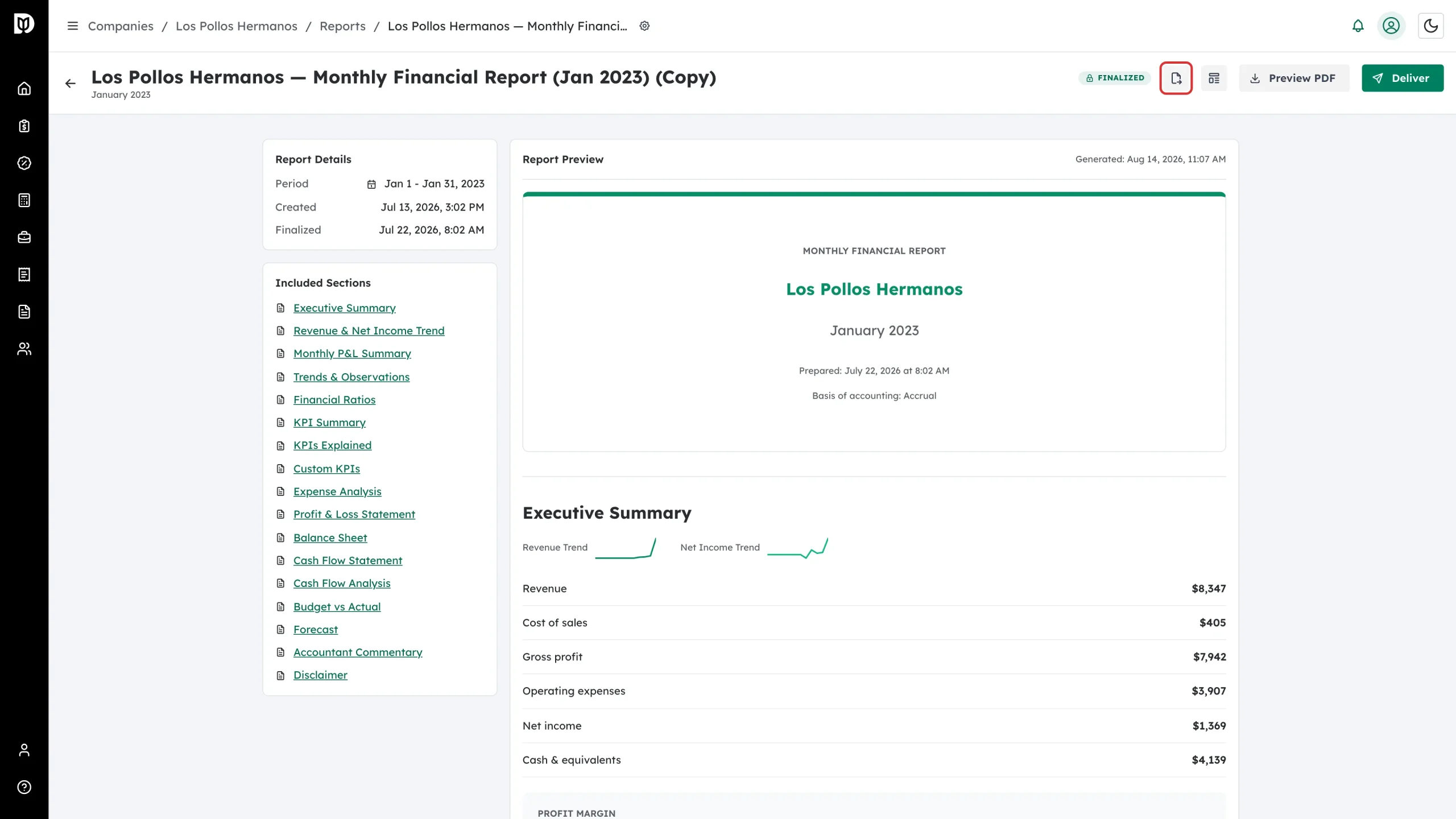
To get the numbers into a spreadsheet, select the Export icon beside Preview PDF.
Step 4: Choose a format
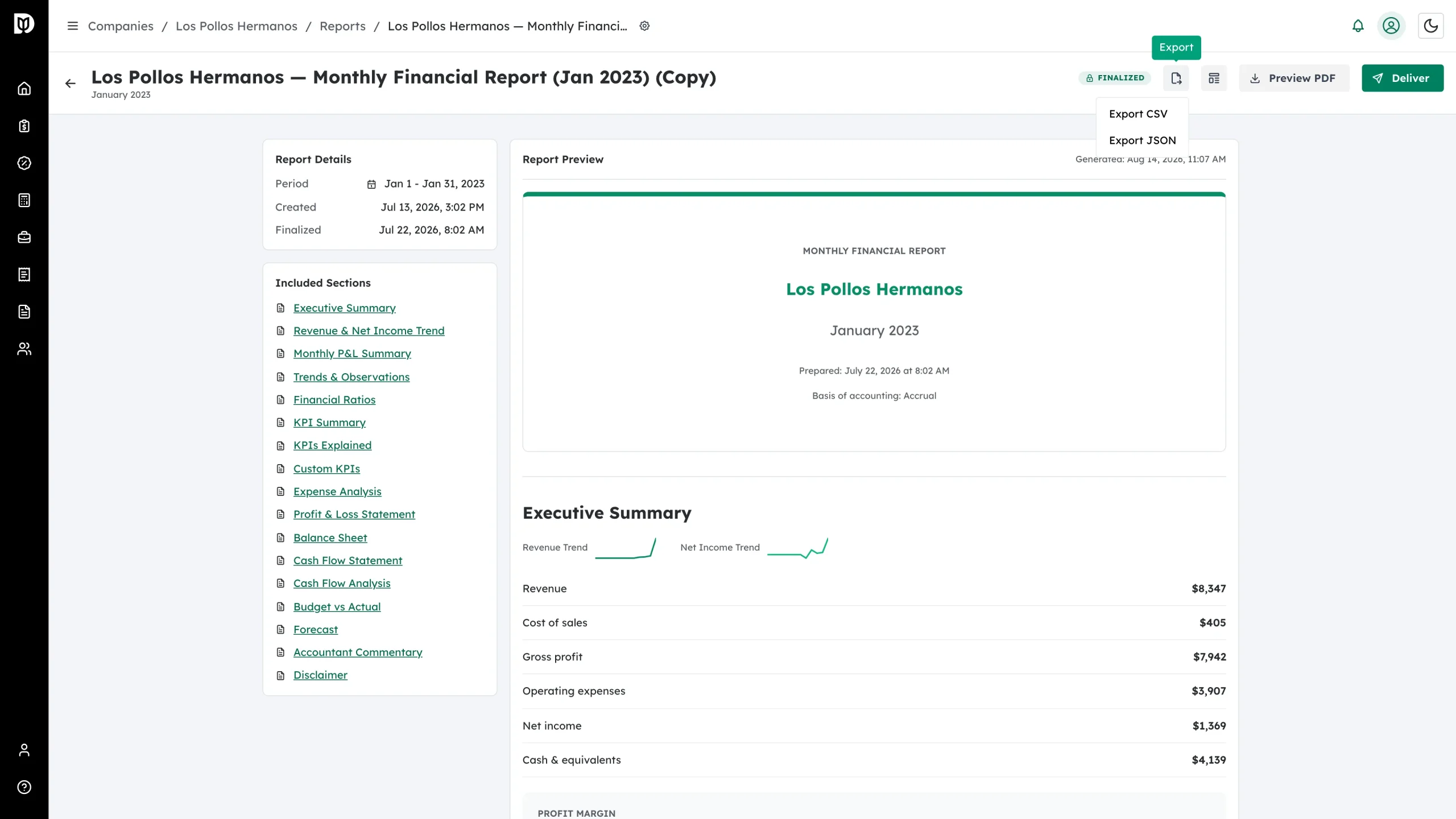
Choose Export CSV or Export JSON.
What happens next
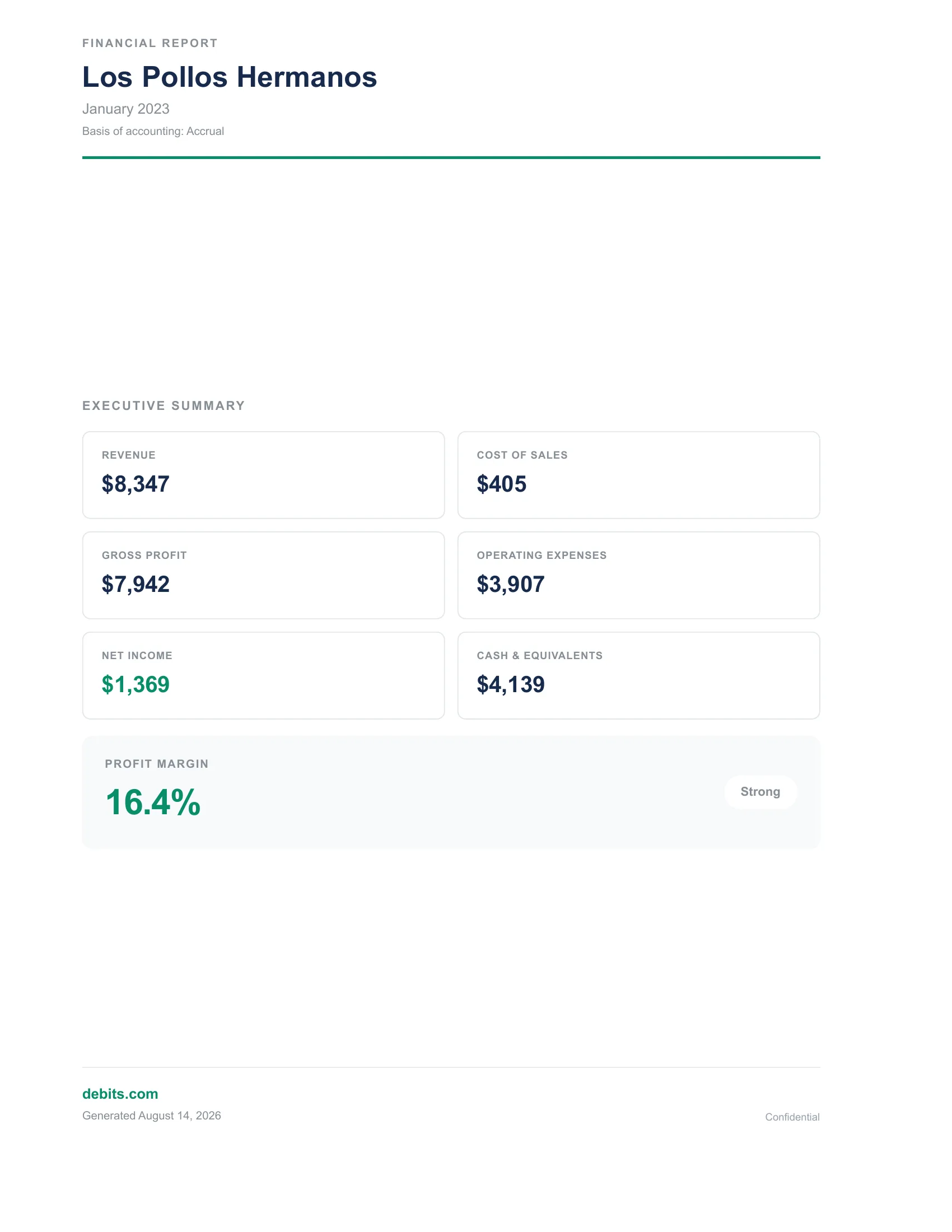
The PDF is a branded, print-ready document — a cover page with your firm’s colours, the report’s charts, and every section you enabled, in the order you set.
If you are the client
Select Download PDF on the report page your accountant sent you, or use Download PDF from the report’s actions menu in your portal.
Troubleshooting
- Nothing downloads. Check your browser’s pop-up or download settings and try again.
- Preview PDF is greyed out. The report has neither live QuickBooks data nor a finalized snapshot to build from.
- Generating the PDF takes too long. Retry from the window that appears — very large reports can take a moment when the server is busy.