Who this is for: Accountants who prepare reports, budgets and forecasts for a client.
What you’ll learn: How the Reports workspace is organised, and how to find and act on any report.
Before you begin
- Open the company, then go to the Reports tab.
- Everything in this workspace belongs to the company you have open.
Step-by-step instructions
Step 1: Choose a view
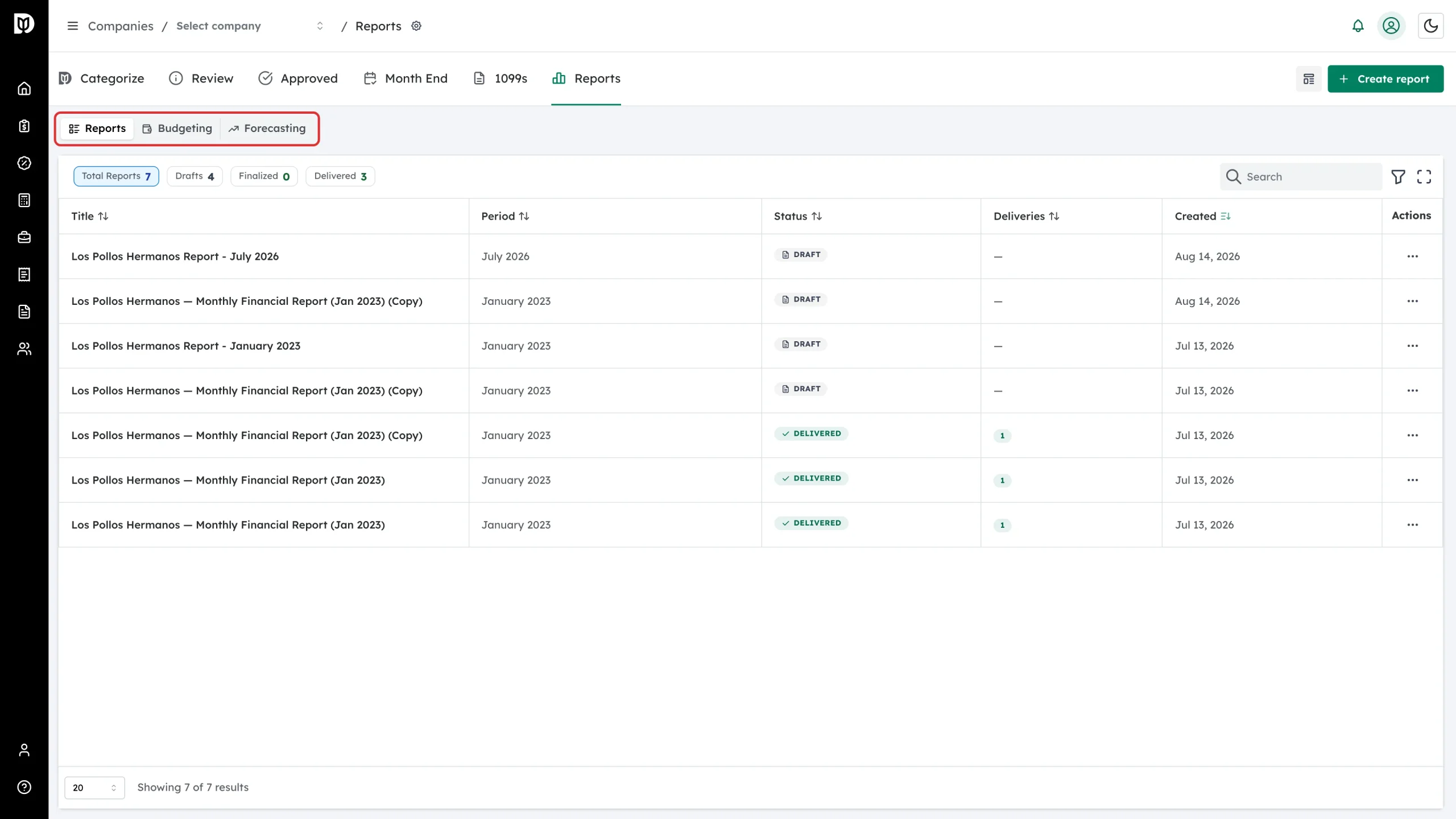
The workspace has three views. Reports lists the report packages you have built. Budgeting is where the company’s budget is set and compared against actuals. Forecasting is where you build the scenarios a report can project.
Step 2: Read the status counts
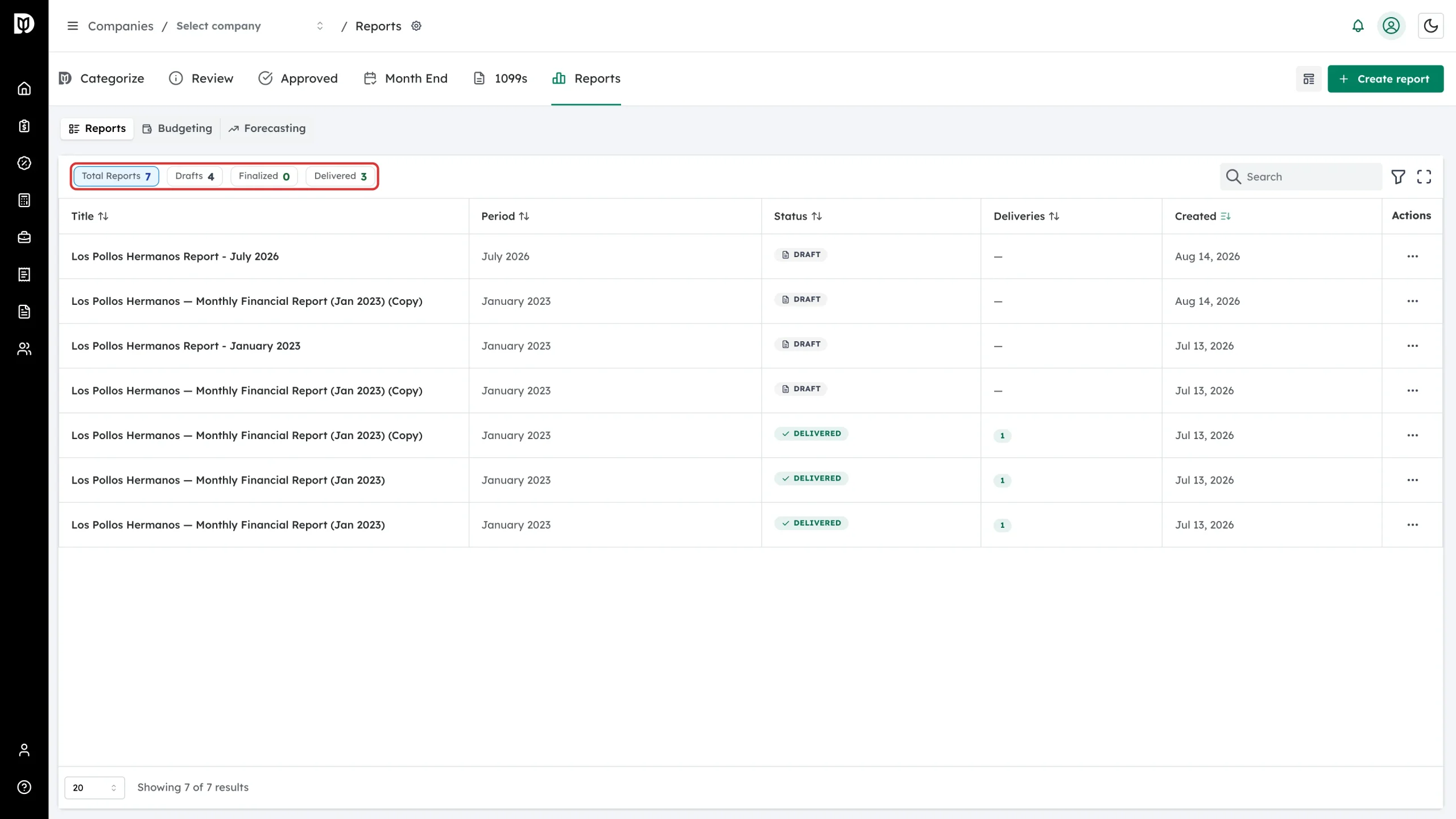
Above the list, Total Reports, Drafts, Finalized and Delivered show where the company’s reports stand.
Step 3: Filter by status
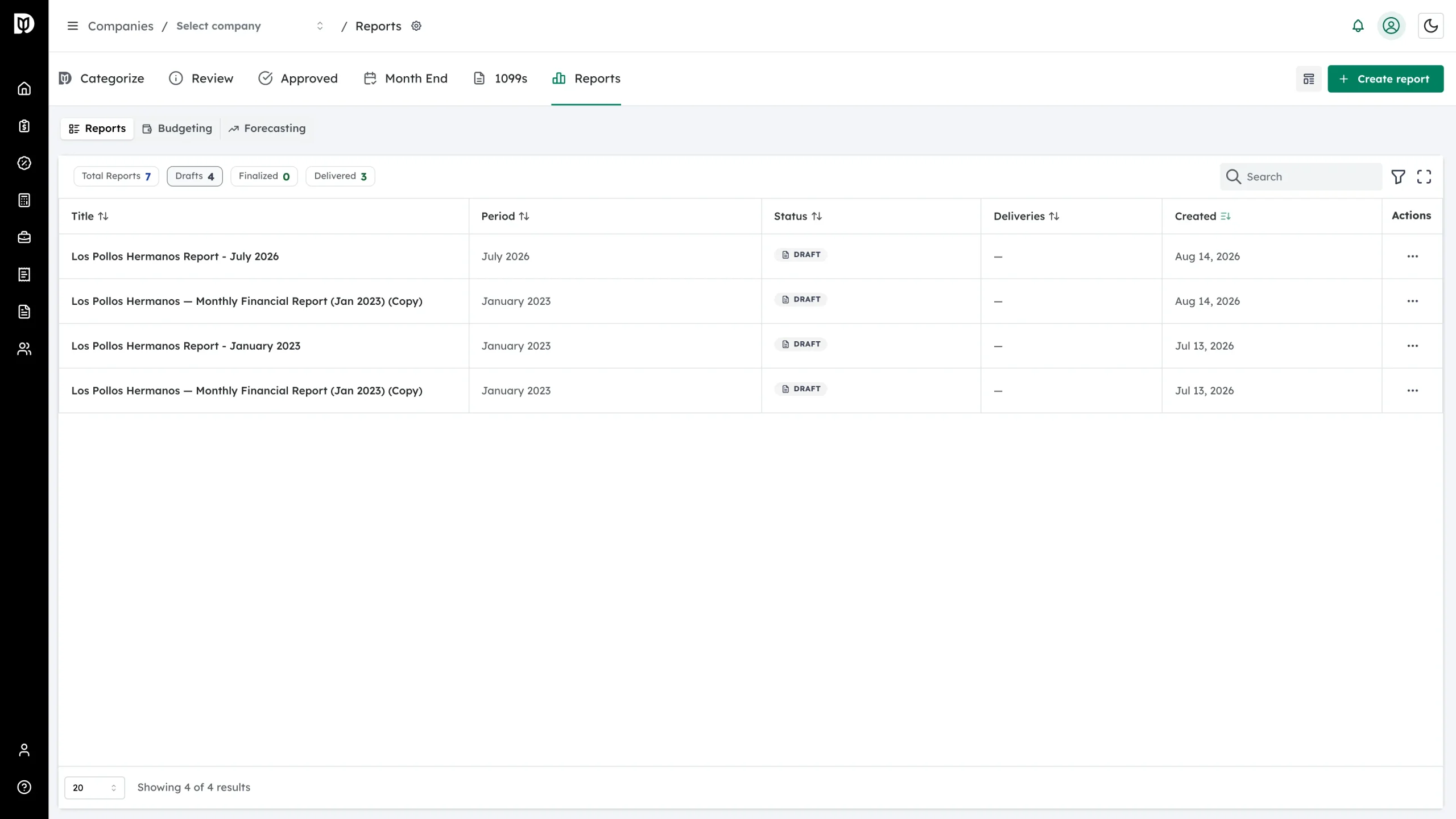
Select a chip to show only those reports. Select it again to clear the filter.
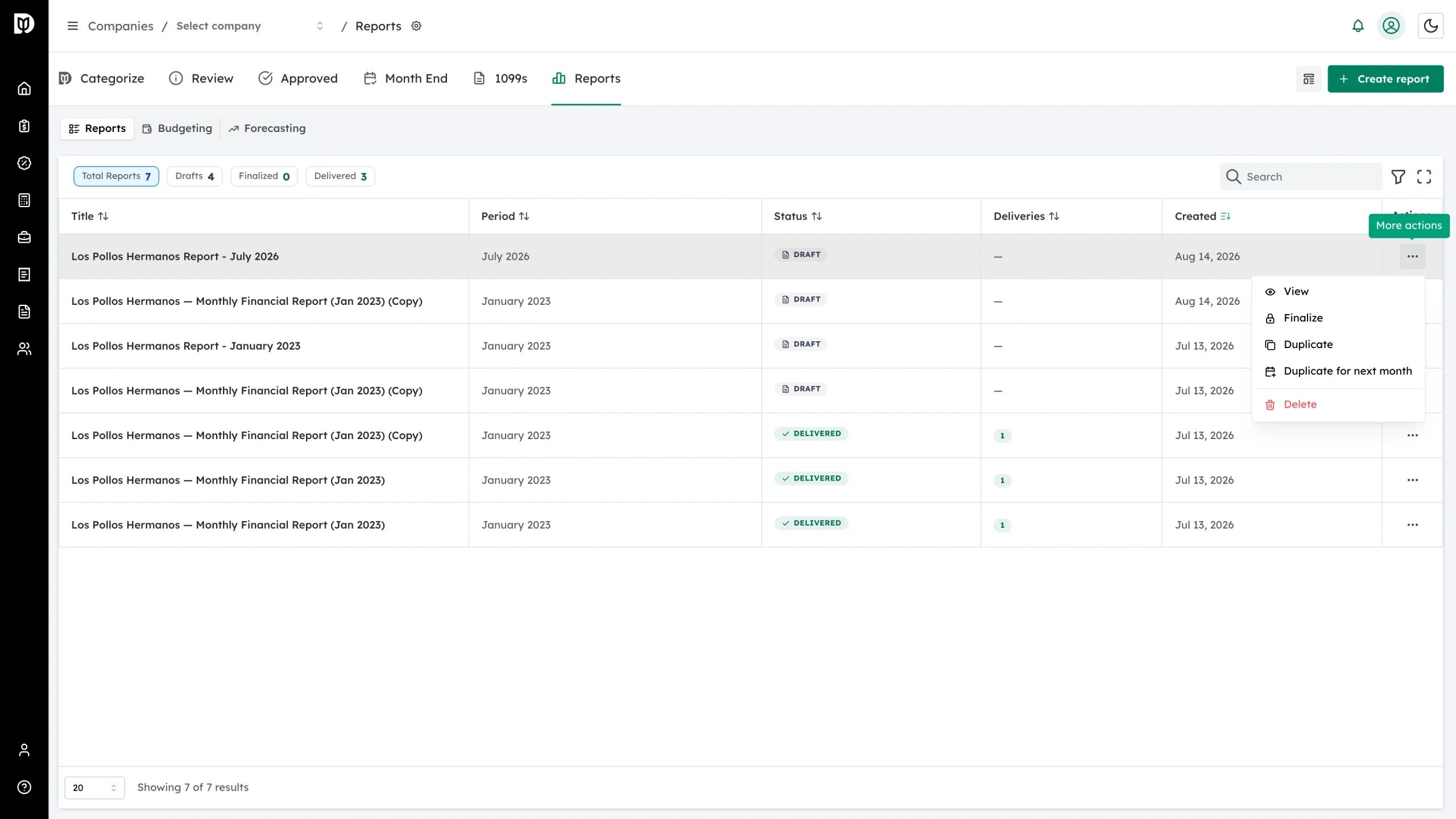
Step 4: Open a report’s actions
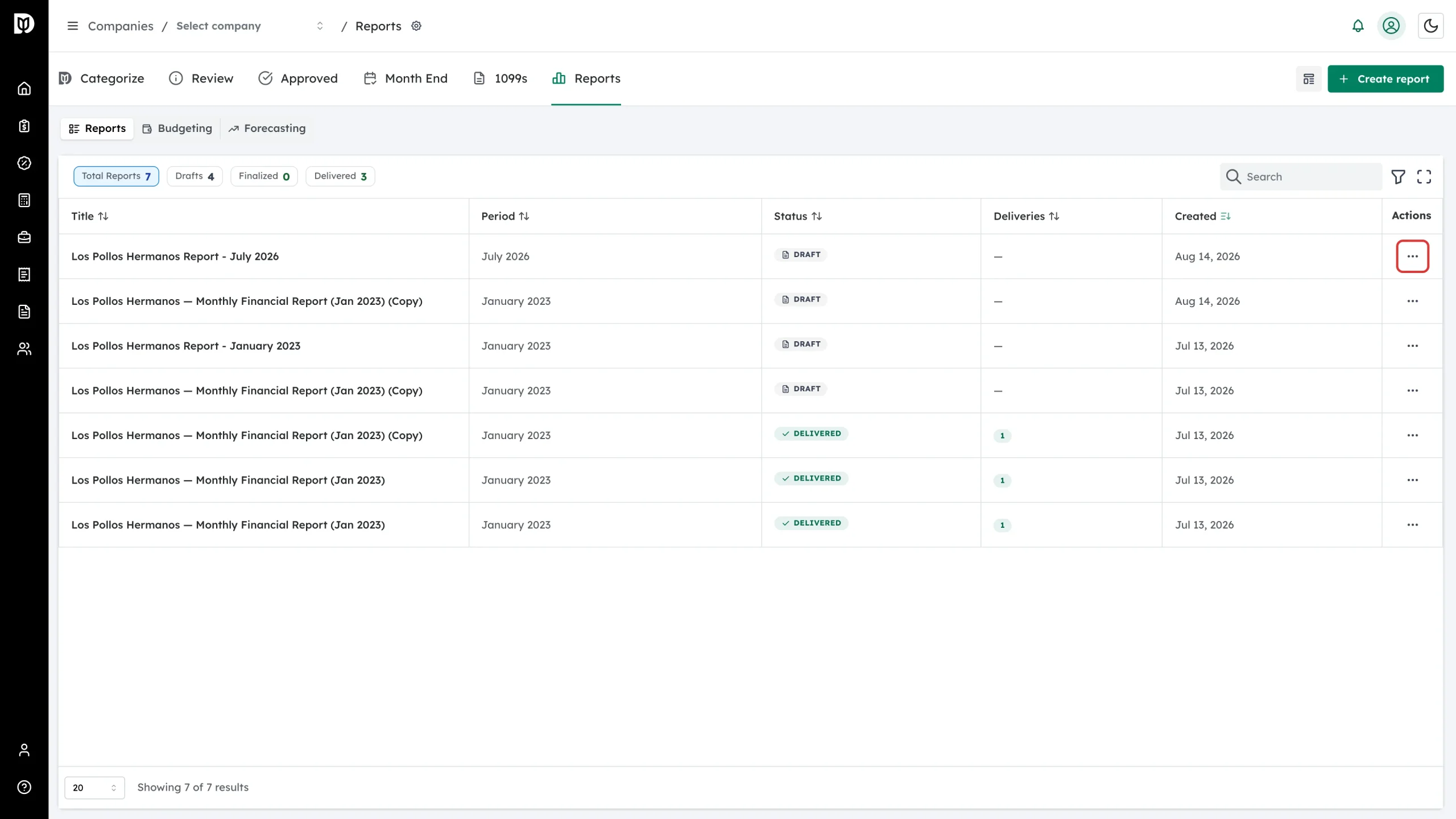
Select the three-dot menu at the end of a row.
Step 5: Act on the report
The menu offers View, Finalize for a draft, Deliver once it is finalized, Reopen as draft for a finalized report that has not been sent yet, Duplicate, Duplicate for next month, and Delete for drafts. Duplicating for next month rolls the period forward, which is the quickest way to start the next monthly pack.
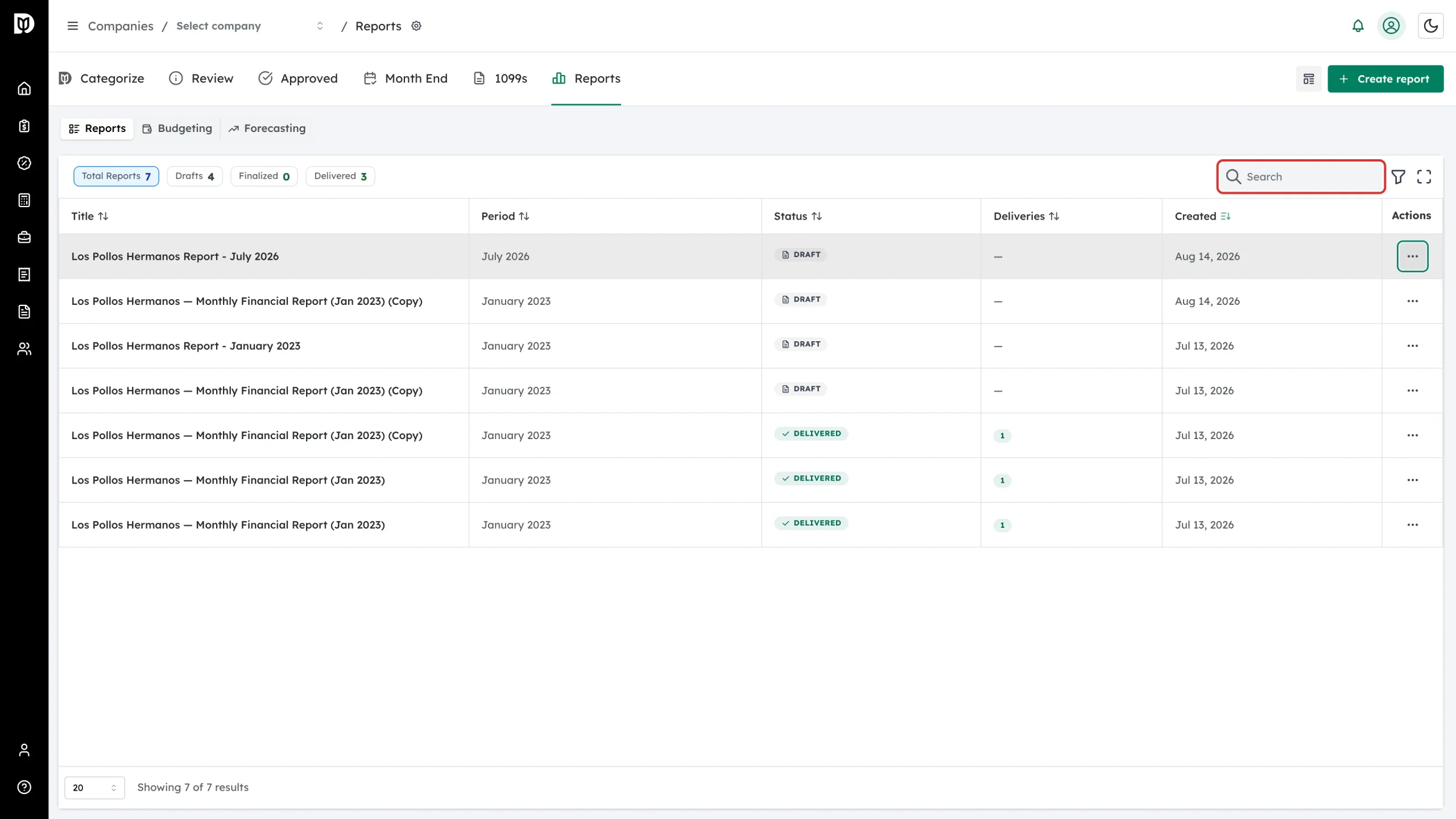
Step 6: Find an older report
Use the search box to find a report by title, and the column headings to sort by period, status or created date.
What happens next
Open a draft to keep working on it, or start a new one with Create report. Reports stay in this list after delivery, with the number of deliveries beside each one.
Troubleshooting
- The list is empty. No reports have been created for this company yet — select Create report to build the first one.
- You can’t delete a report. Only drafts can be deleted. A finalized or delivered report is a permanent record.
- Budgeting or Forecasting looks empty. Each is set per company — build the company’s budget or forecast scenario there first.