Who this is for: Accountants who want to project a client’s revenue and expenses forward.
What you’ll learn: How to build a forecast scenario for a company and include it in a report.
Before you begin
- Forecasts belong to the company. Build a scenario once, then any report can use it.
- A report shows the scenario exactly as the Forecasting view does — from the scenario’s own starting figures and its Actuals through month, not from the report’s month.
Step-by-step instructions
Step 1: Open the Forecasting view
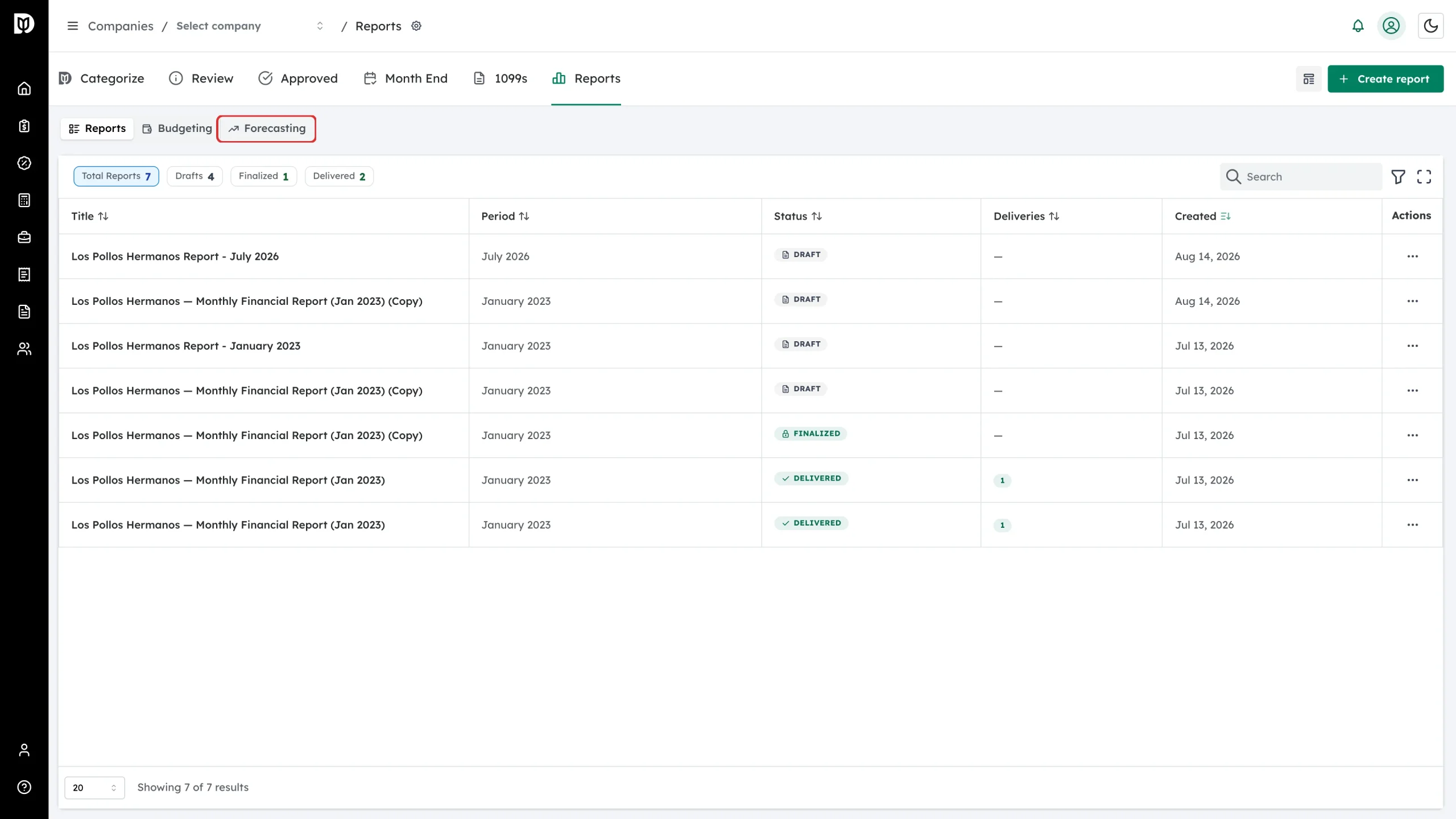
In the company’s Reports tab, switch to Forecasting.
Step 2: Set the assumptions
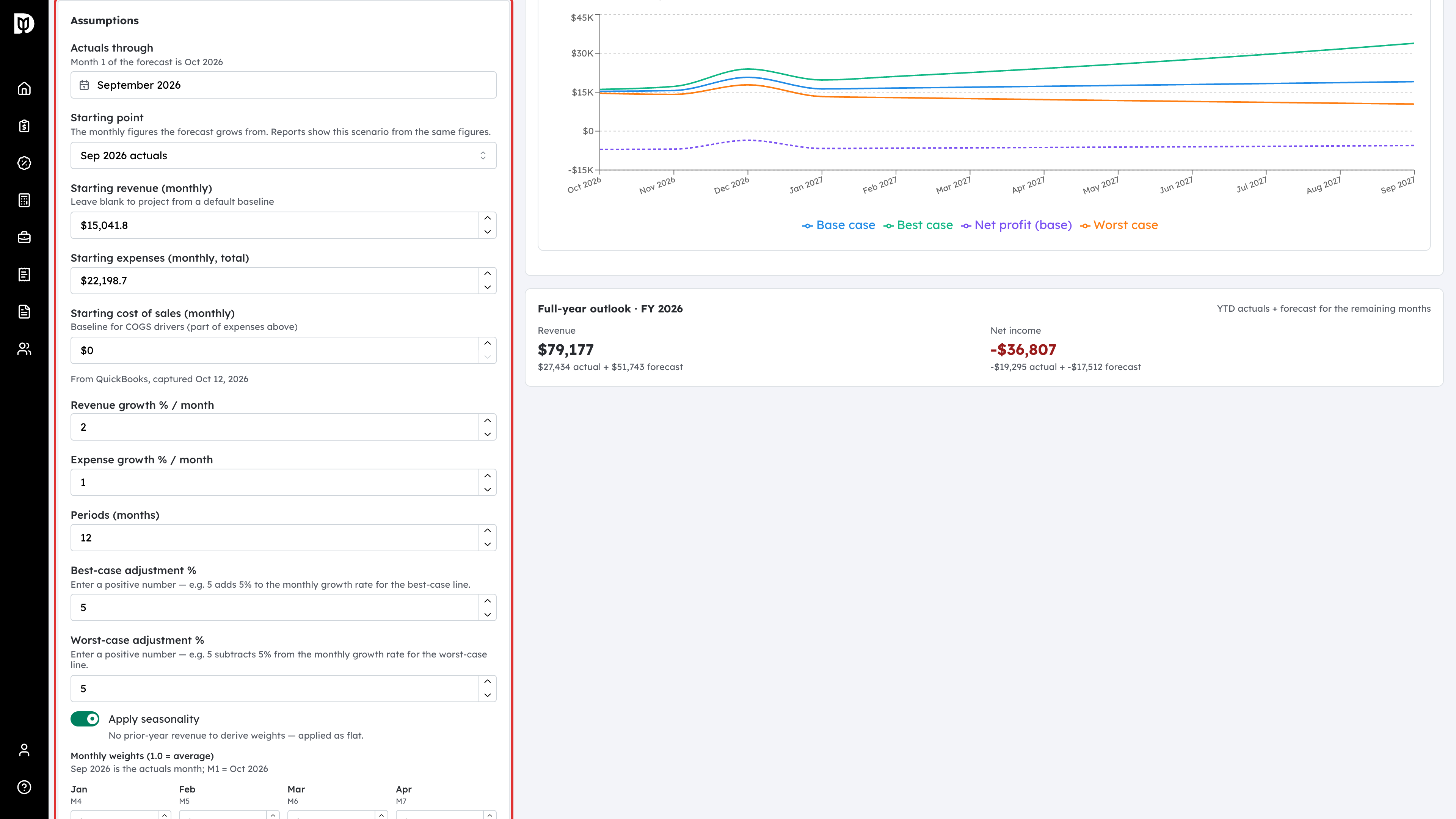
Name the scenario, then set where it starts:
- Actuals through — the last month of real figures. The forecast’s first month is the month after it.
- Starting point — the monthly figures the forecast grows from: Typed figures, that month’s actuals, or the average of the 3, 6 or 12 months to that month. With typed figures, enter Starting revenue (monthly), Starting expenses (monthly, total) and Starting cost of sales (monthly).
- Periods (months) — how many months to project.
When a newer month has closed since an actuals-based scenario was set up, Debits offers Roll forward to that month, which moves the scenario on and refills its figures.
Step 3: Set the growth rates
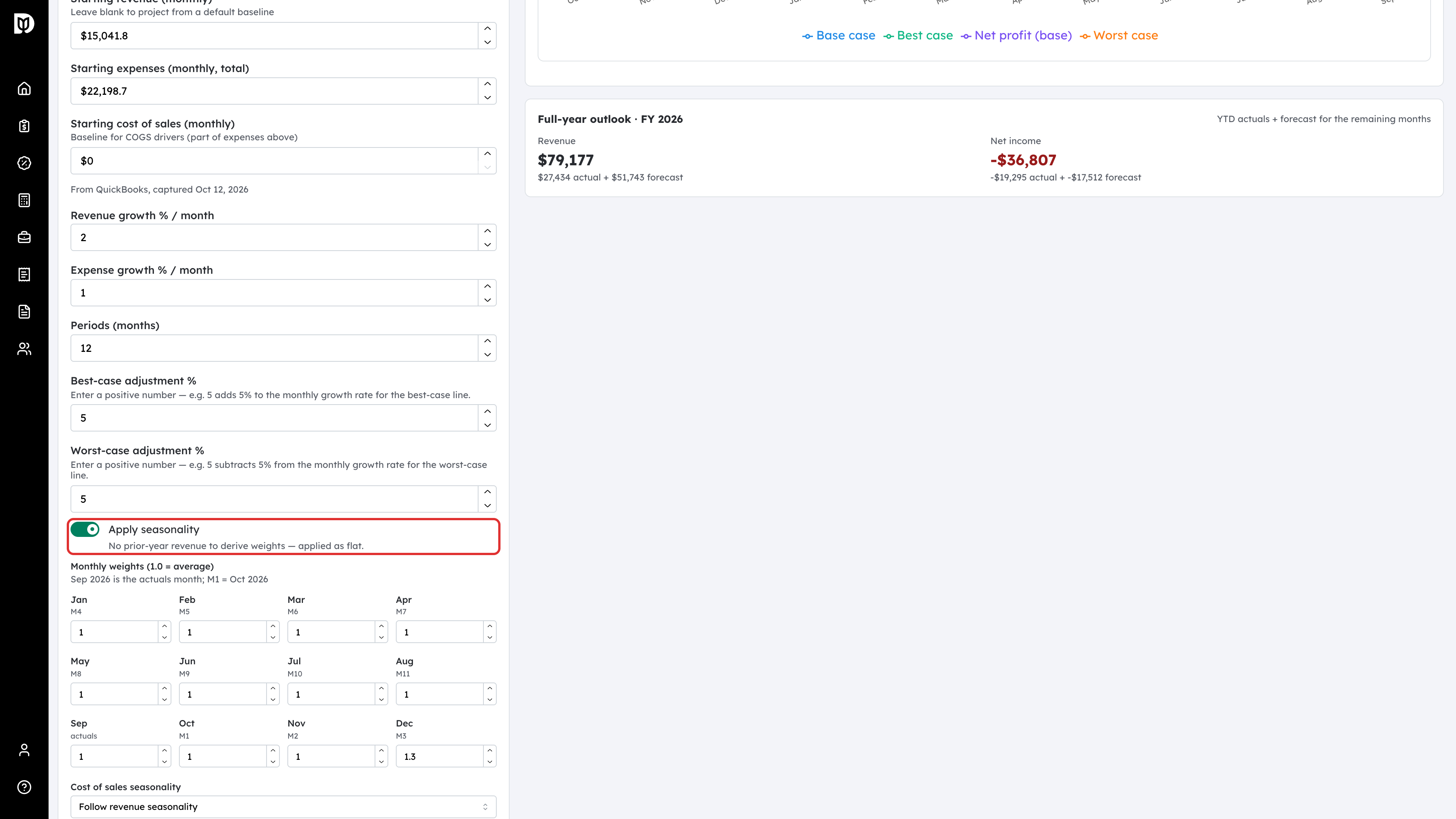
Enter Revenue growth % / month and Expense growth % / month. Use Best-case adjustment % and Worst-case adjustment % to widen or narrow the range around the base case, and turn on Apply seasonality to shape the curve by last year’s monthly pattern. Editing one month’s weight moves only that month. Cost of sales seasonality and Expense seasonality each have their own setting: Follow revenue seasonality, Own monthly weights or No seasonality (flat).
Step 4: Override individual accounts (optional)
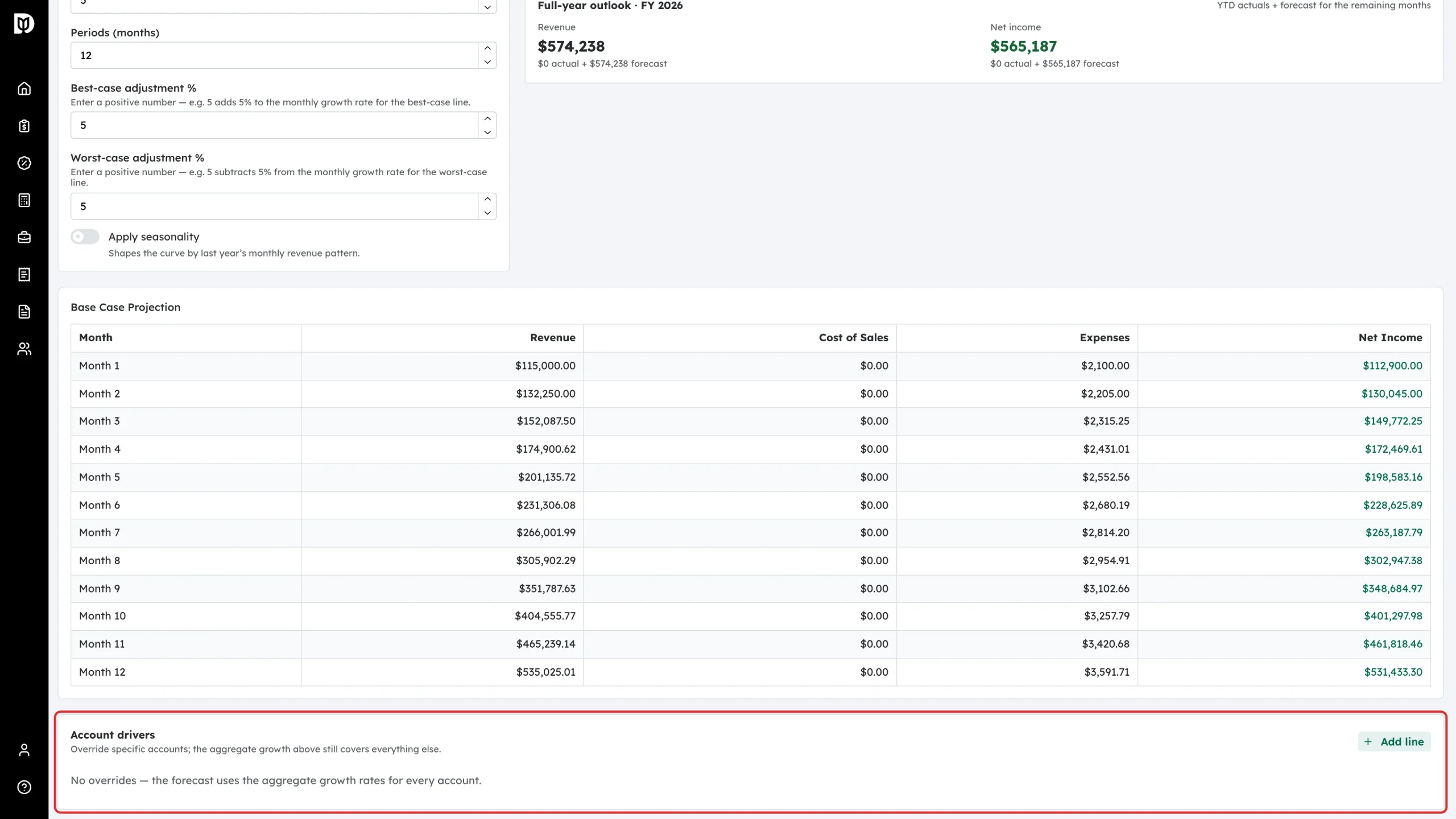
Use Account drivers to give specific accounts their own driver — a growth rate, a percentage of another line, or a fixed monthly amount (the same every month, or for specific months only). Everything else keeps the aggregate growth rates.
Step 5: Read the projection
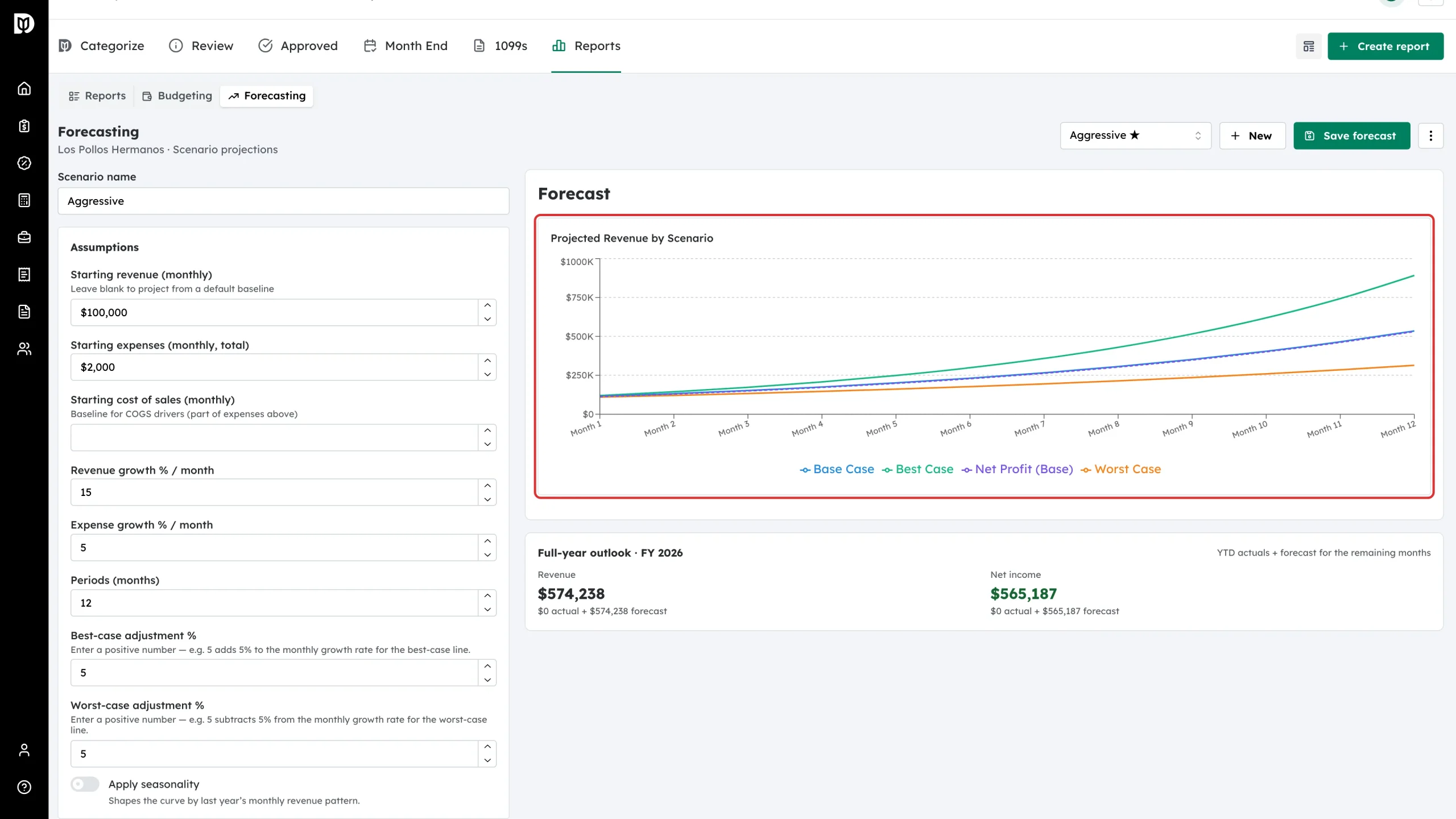
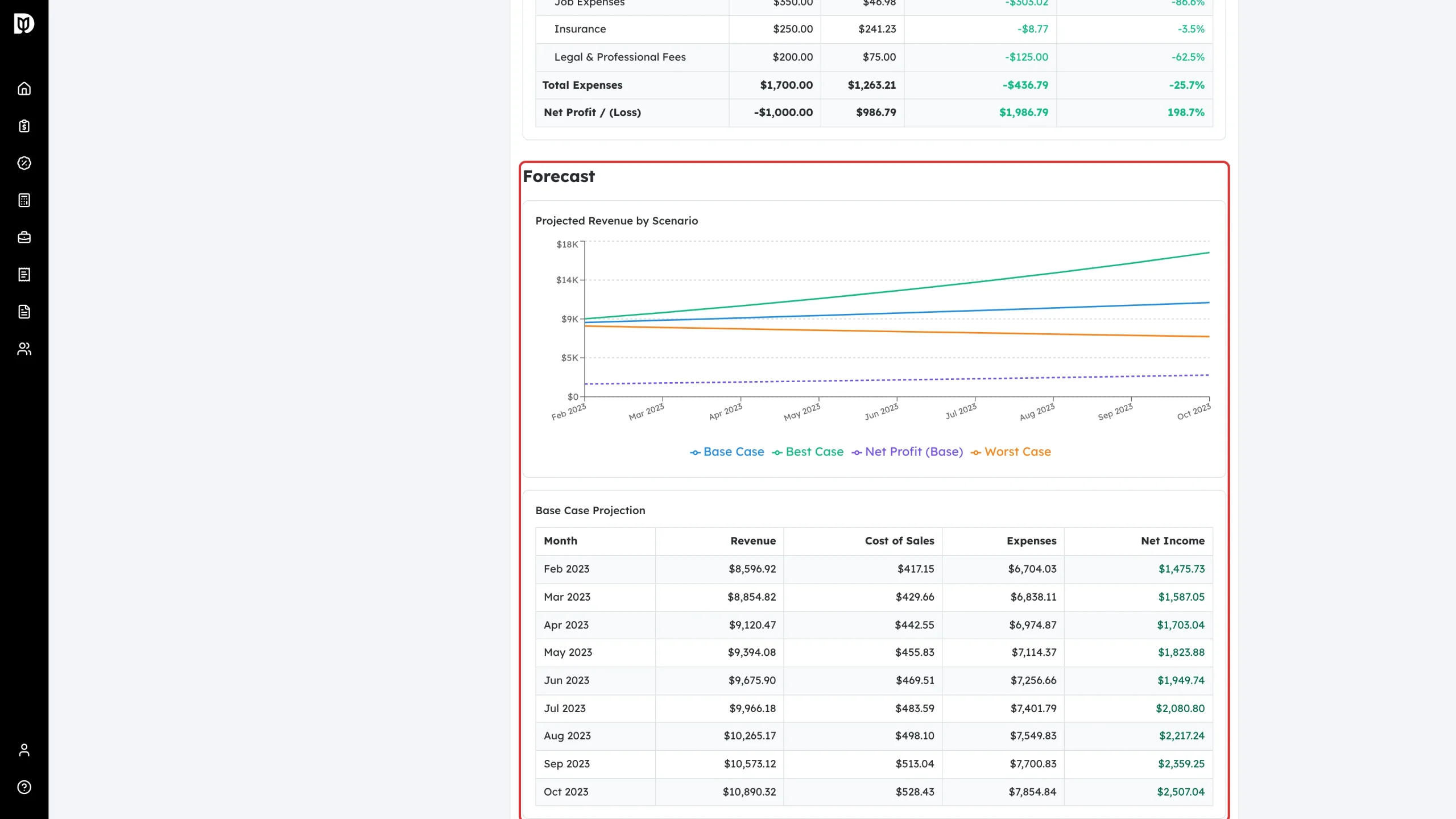
The chart plots Base Case, Best Case and Worst Case revenue, with base-case net profit, and a month-by-month base case table sits underneath it, labelled with real month names. Switch the table between Summary and By account to see the projection for each account; the accounts add up to the totals.
Step 6: Check the full-year outlook
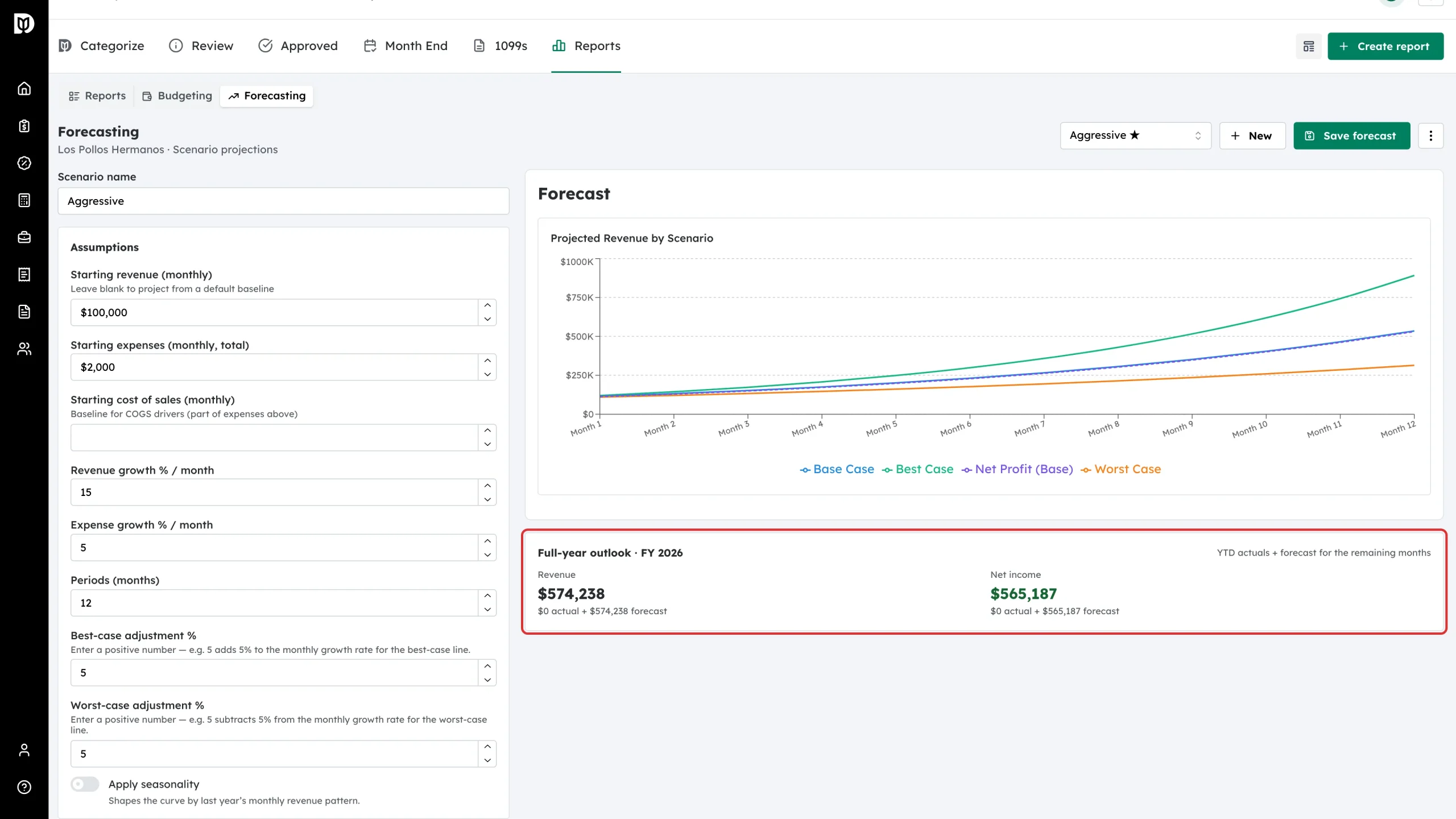
Full-year outlook adds the year-to-date actuals to the forecast for the remaining months, so you can see where the year lands.
Step 7: Save the scenario
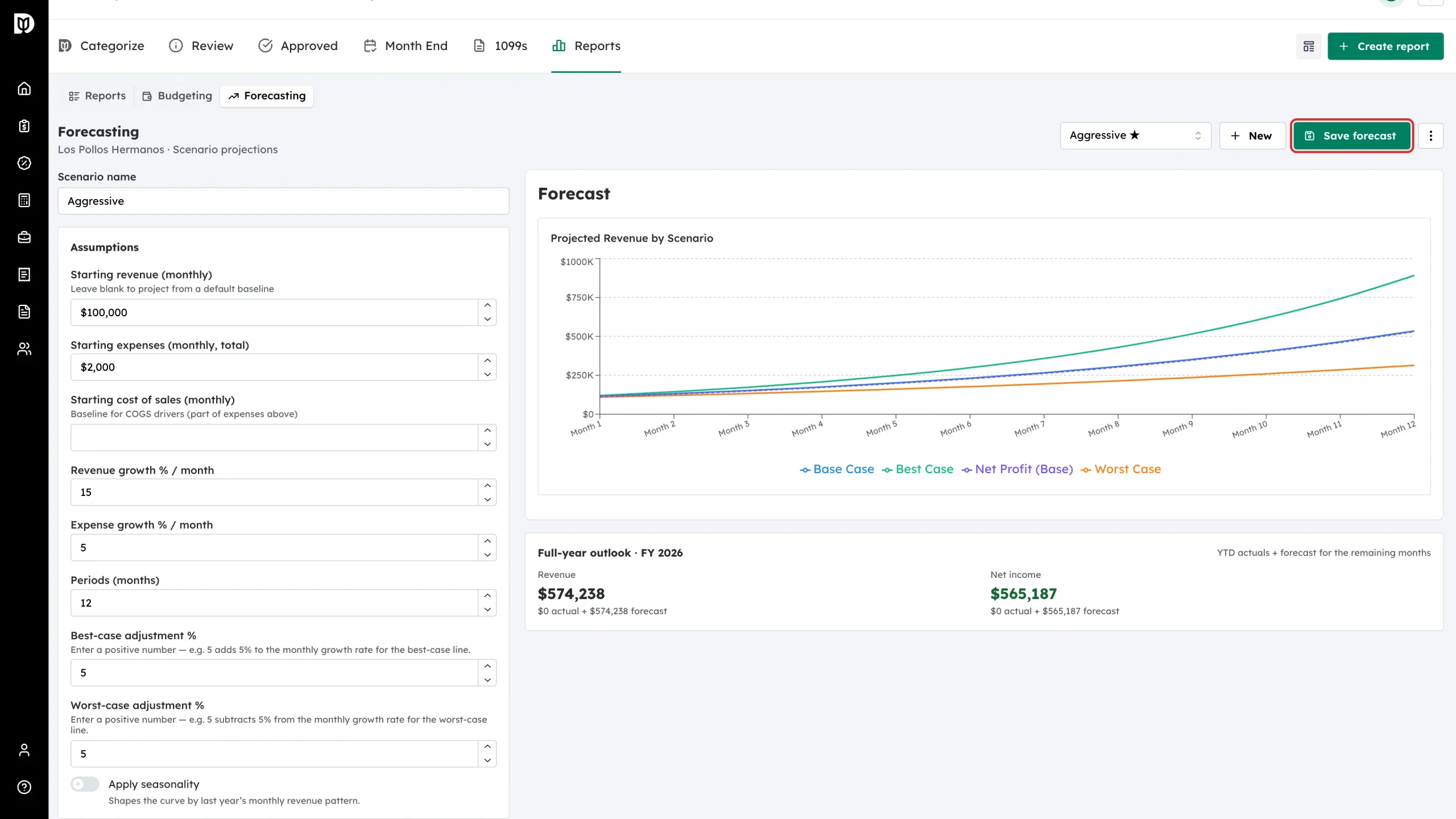
Select Save forecast.
Step 8: Keep more than one scenario
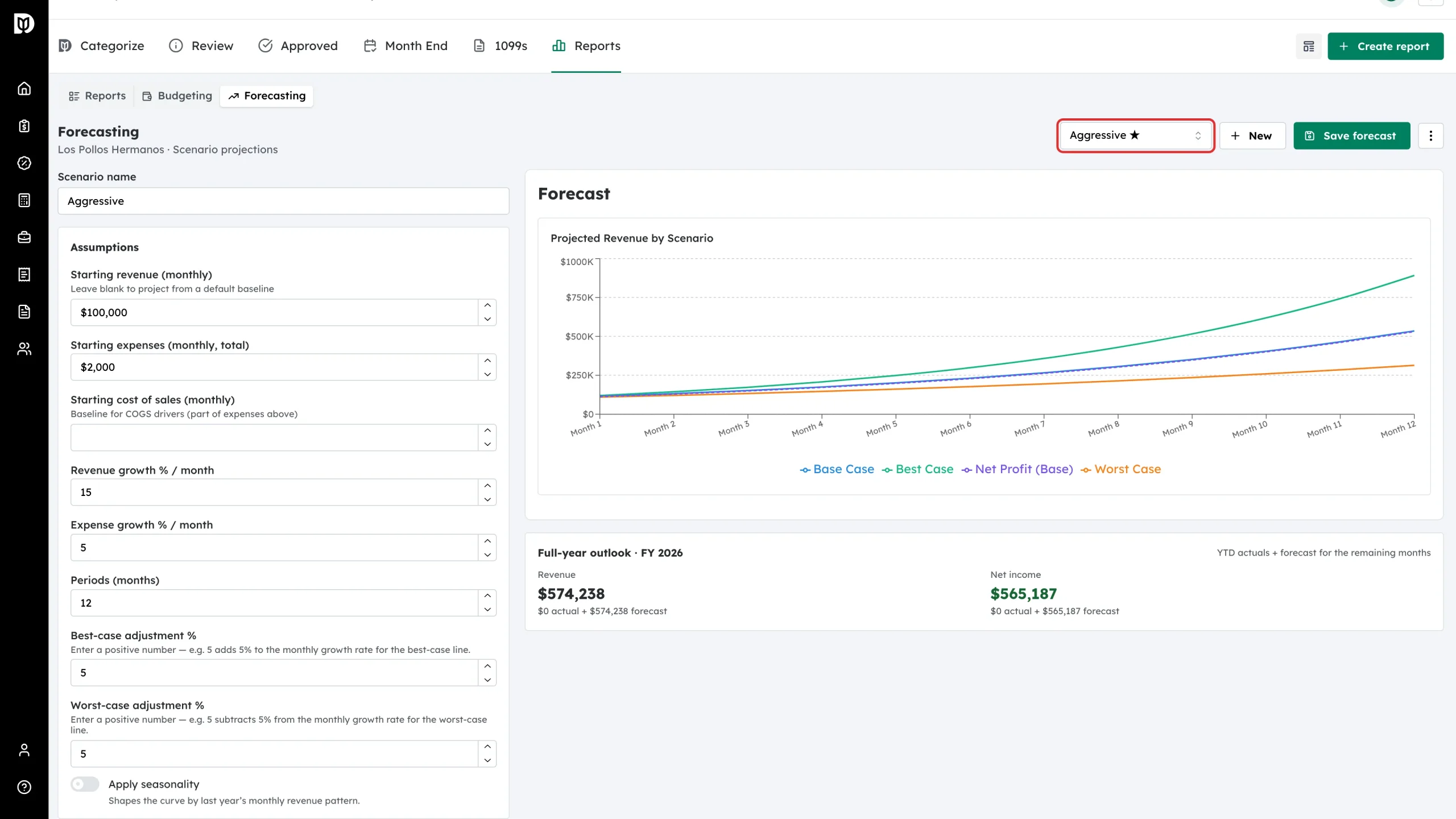
Use New to start another scenario and the picker to switch between them. The starred scenario is the company default. Used in: lists the reports that use the scenario.
Step 9: Add the Forecast section to a report
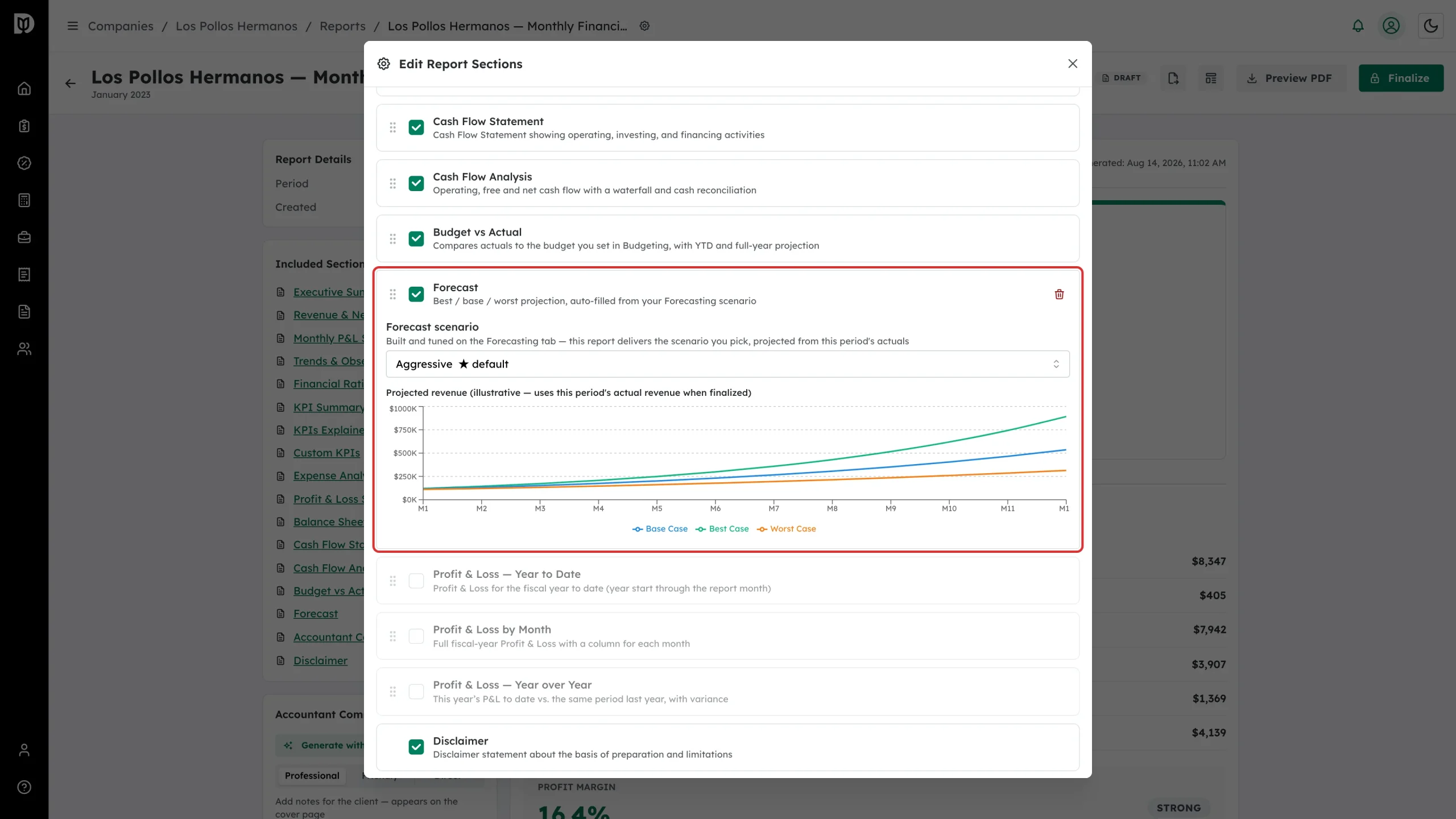
Open a draft, select Edit sections under Included Sections, and turn on Forecast.
Step 10: Pick the scenario to deliver
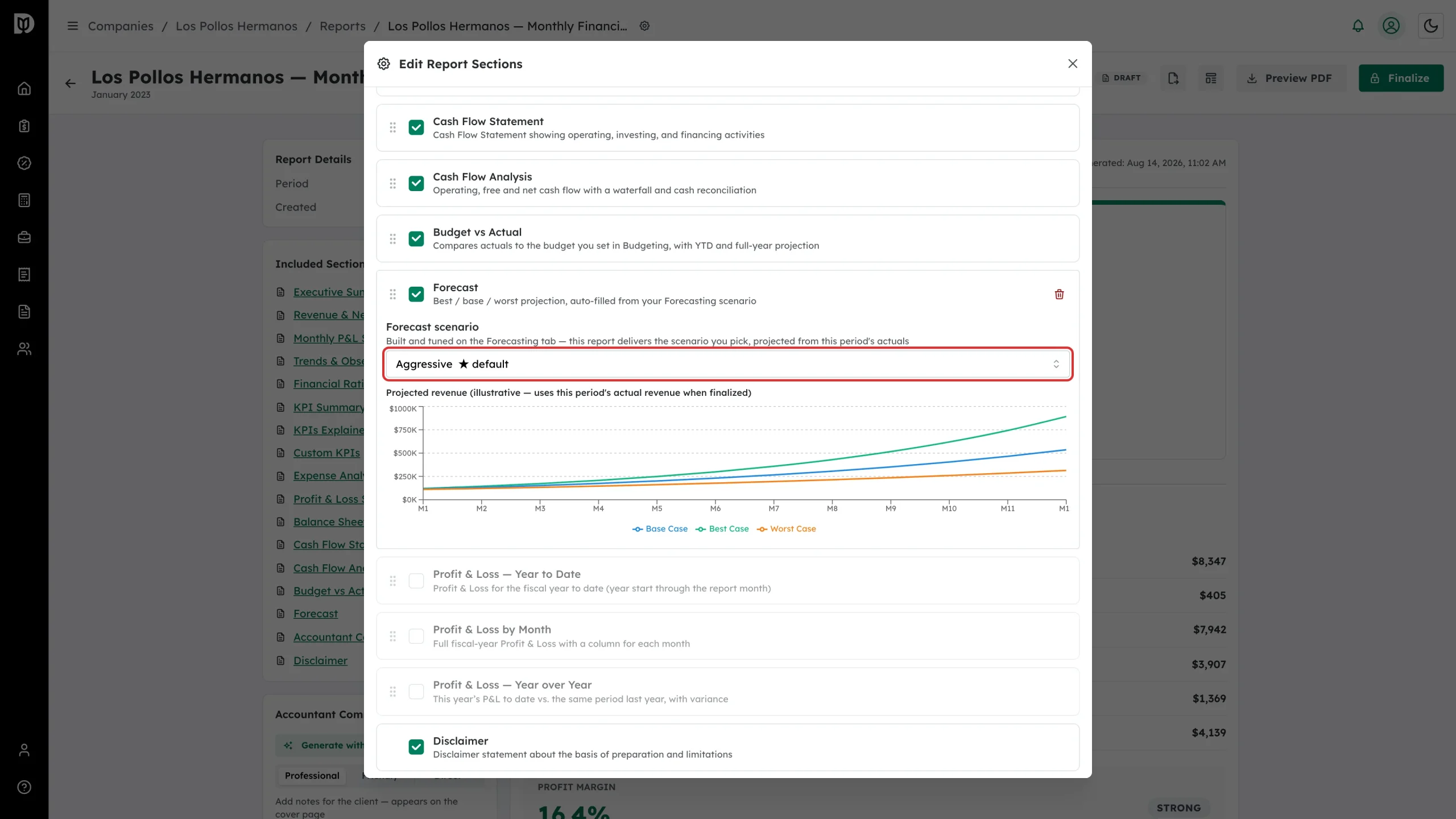
Choose the saved scenario under Forecast scenario. The small chart shows the shape of the projection, and a line underneath says what it starts from. The delivered report shows the scenario exactly as the Forecasting view does, so check the scenario’s Actuals through month matches the report — Debits points it out when it does not. Only a scenario with no starting figures of its own starts from the report month’s actuals.
What happens next
The scenario is captured in the snapshot when you finalize, and renders in the report and the PDF as a chart of the three cases plus a base-case projection table.
Troubleshooting
- The Forecast section says to build a forecast first. The company has no saved scenario yet — build one on the Forecasting view.
- The projection looks flat. The growth rates are zero, or the period has no revenue to project from.
- The report shows a different scenario than you expected. The section stores the scenario you picked; if that scenario was deleted, the report falls back to the company default.