Who this is for: Accountants who want to add a narrative summary to a report.
What you’ll learn: How to write accountant commentary, generate a draft with AI, and choose its tone.
Before you begin
- Open a draft report. The commentary panel only appears on drafts.
- Commentary appears on the report’s cover page.
- AI commentary is written from the period’s live QuickBooks figures, so the company must be connected.
Step-by-step instructions
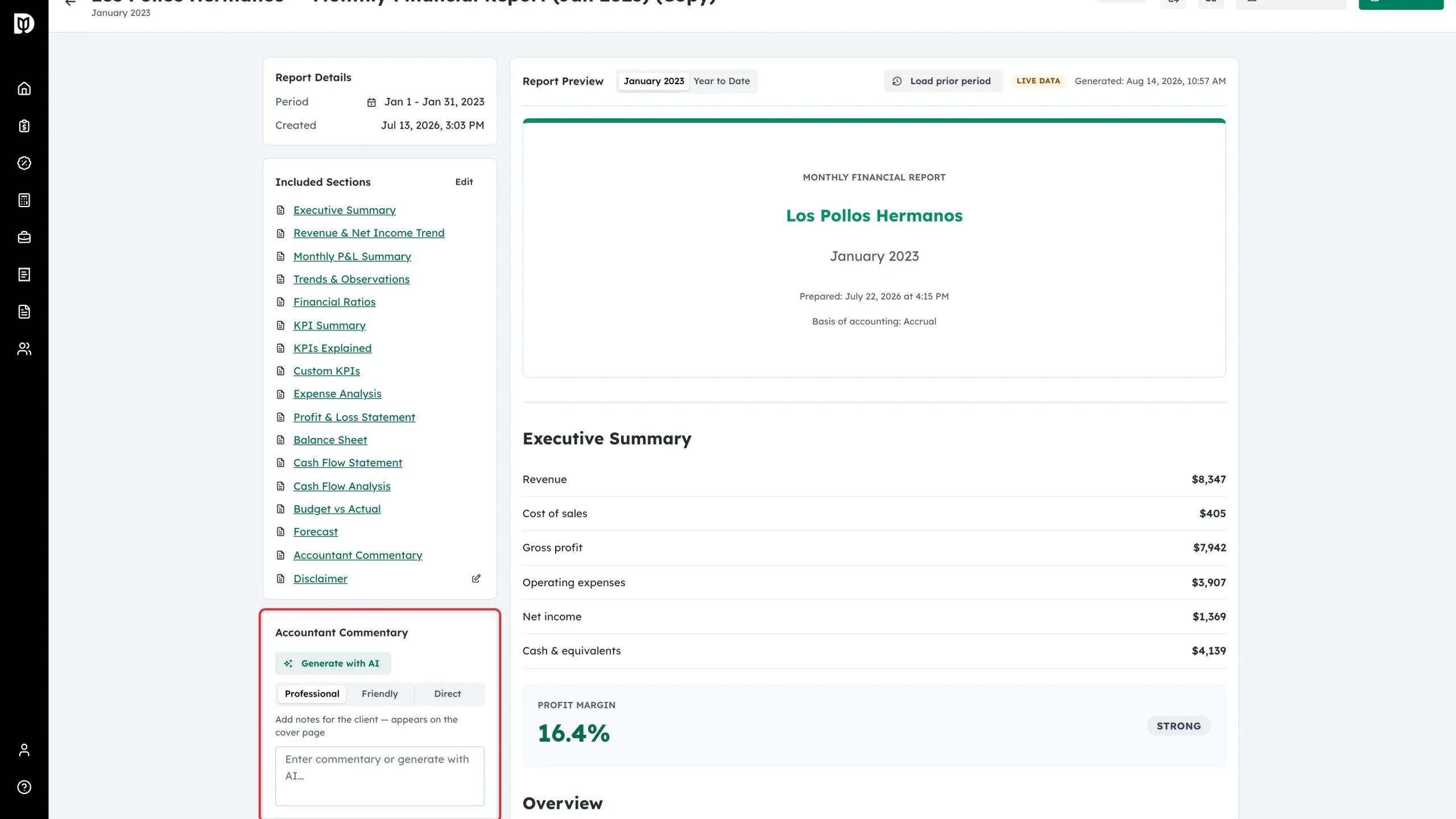
Step 1: Find the commentary panel
In the draft workspace, scroll the left column to Accountant Commentary. You can type your notes straight into the box, or have AI draft them for you.
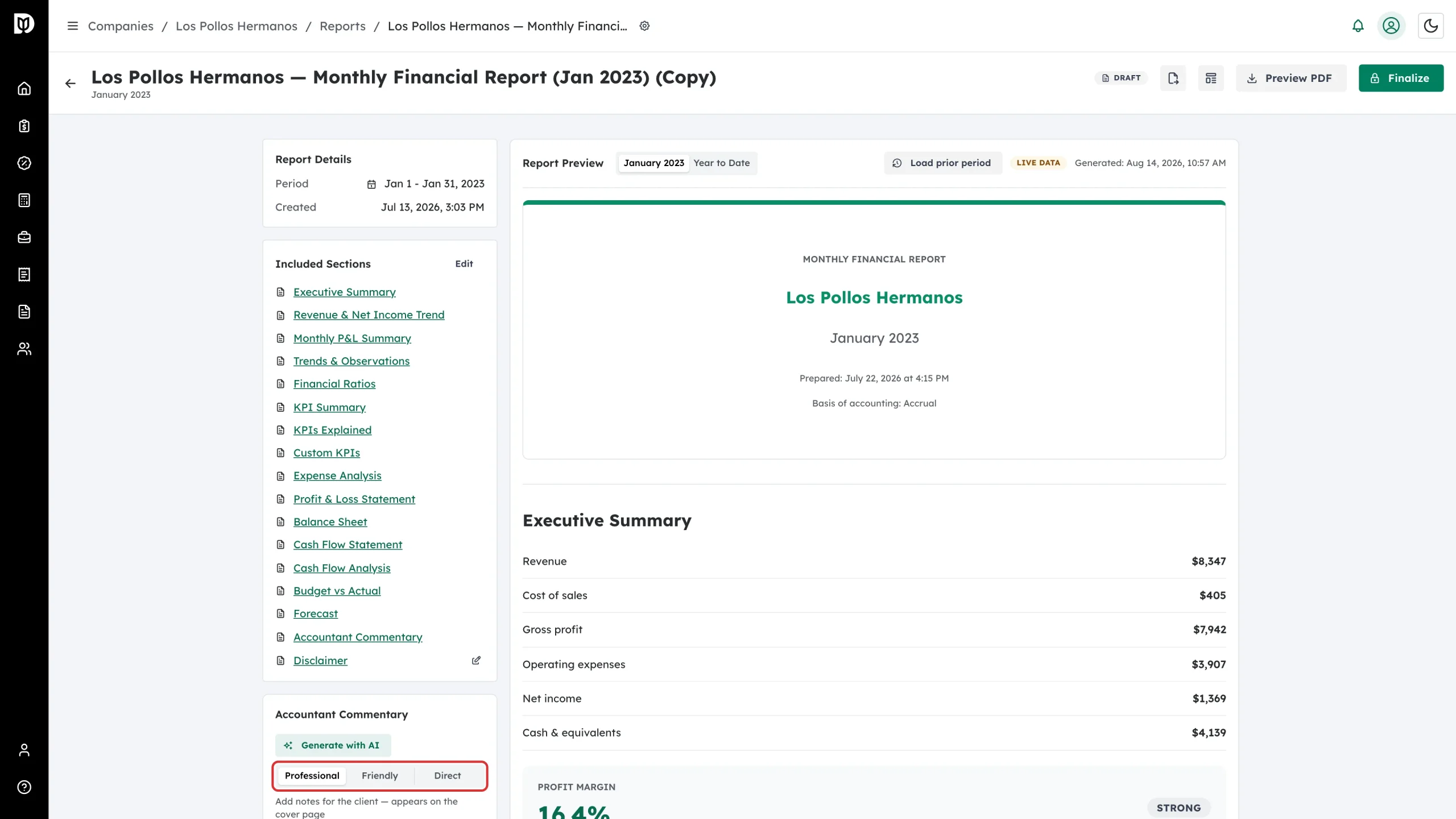
Step 2: Choose a tone
Pick Professional, Friendly or Direct. The tone applies to the next draft you generate.
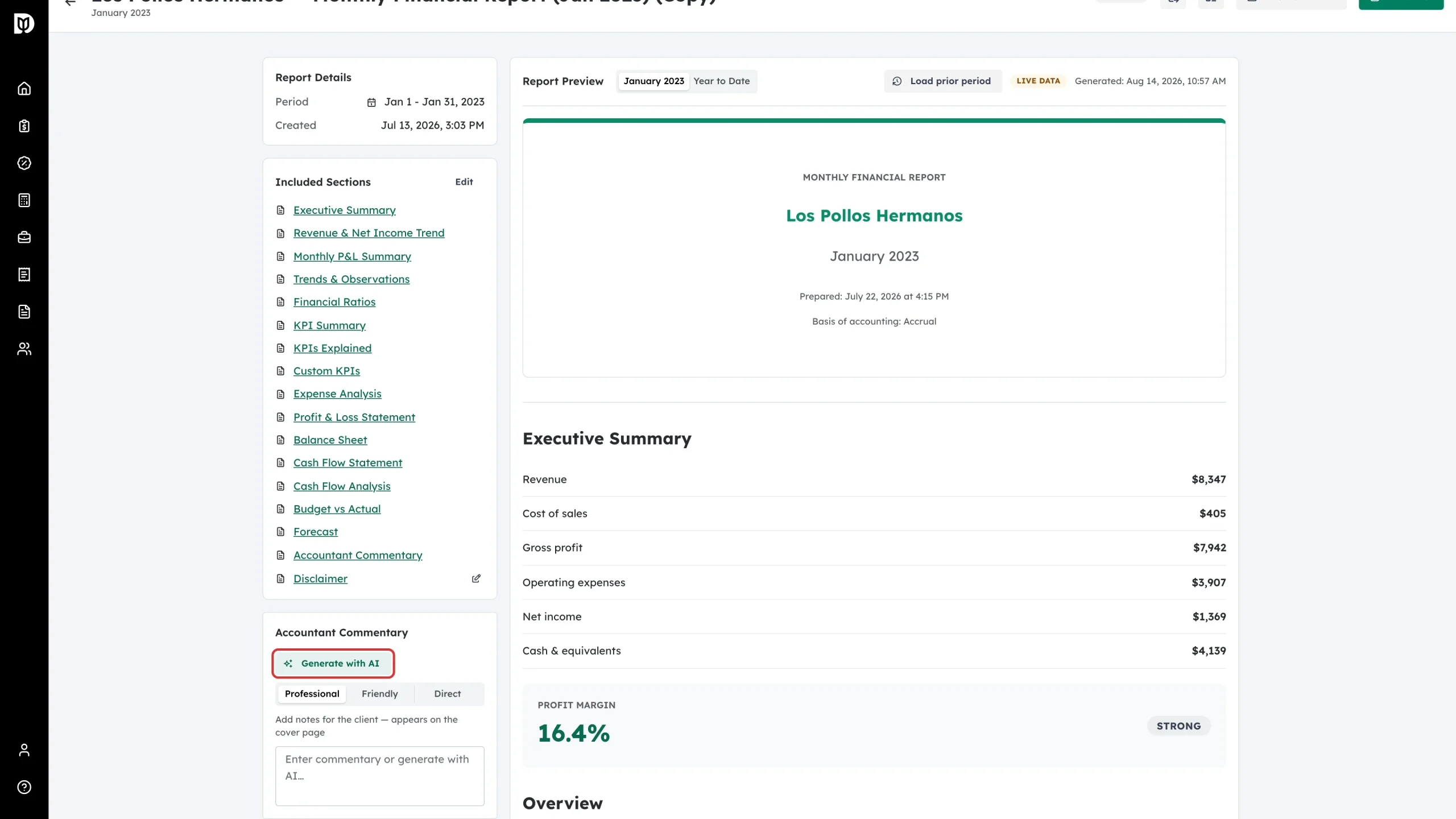
Step 3: Generate with AI
Select Generate with AI. Debits writes a narrative summary from the report’s figures in the tone you chose and drops it into the box.
Step 4: Edit and save
Read the draft, edit anything you want to change, then select Save. Discard puts back the last saved version.
What happens next
Your commentary appears on the cover page of the report and in the PDF, and it is captured in the snapshot when you finalize.
Troubleshooting
- Generate with AI is greyed out. The report has no live QuickBooks data for the period. Check the company’s connection and reopen the report.
- The text doesn’t match the report. AI commentary is written from the live figures for the period. If the report is showing a captured snapshot from an earlier pull, the two can differ — always read the draft before saving it.
- The panel isn’t there. The report is finalized. Commentary can only be changed while it is a draft.