Who this is for: Accountants who project a client’s revenue and costs forward.
What you’ll learn: How to build a forecast scenario on the Forecasting tab: where it starts, how it grows, how to shape it by season and by account, how to keep it current, and how a report shows it.
Before you begin
- The company must be connected to QuickBooks. Scenarios that start from actuals read the company’s Profit & Loss.
- A scenario belongs to the company. Build it once and any report for that company can use it.
- A report shows a scenario exactly as the Forecasting tab does. Set the scenario up here, then pick it in the report.
Step-by-step instructions
Step 1: Open the Forecasting tab
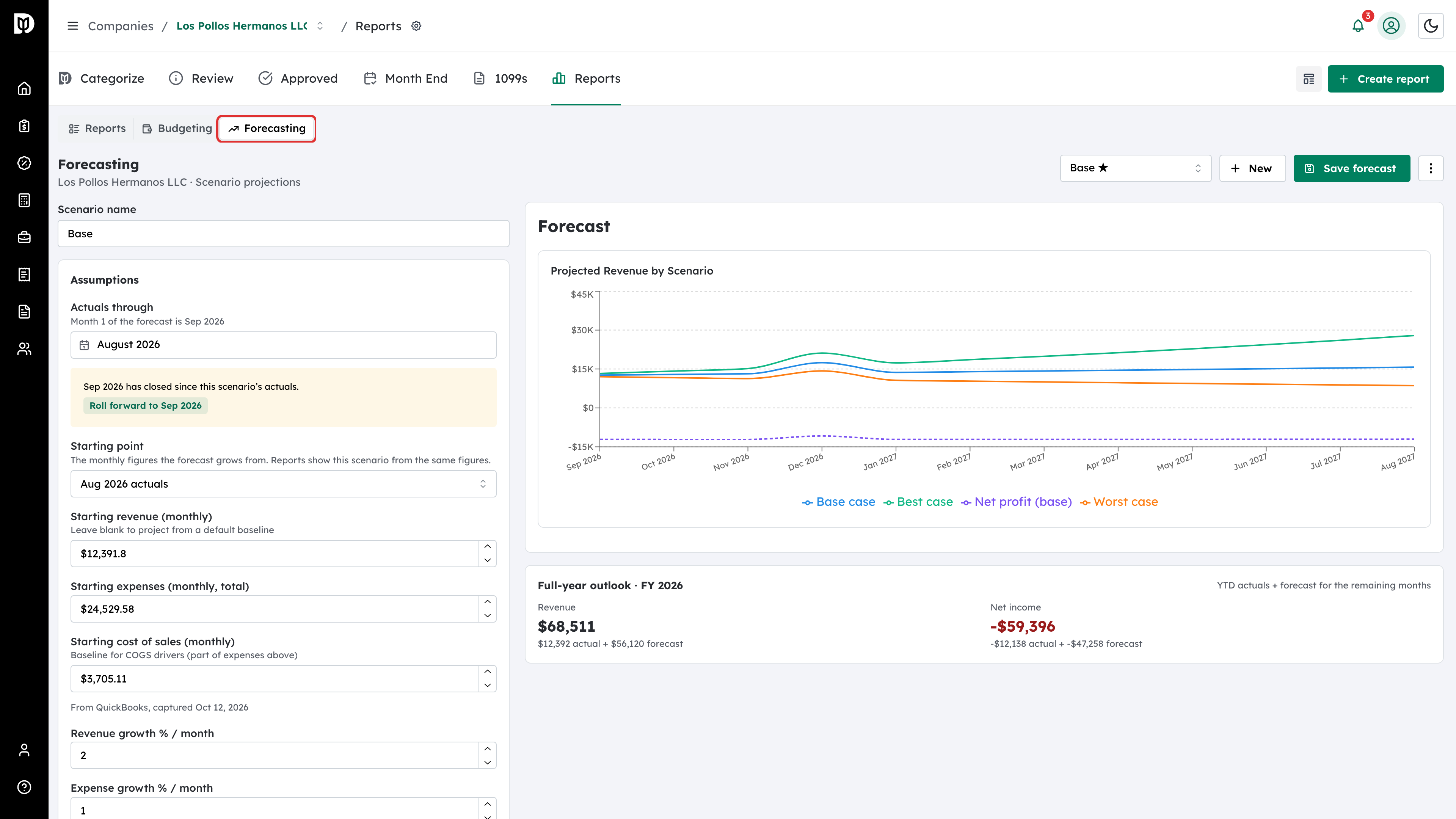
Open the company, select Reports, then switch to Forecasting.
Step 2: Name the scenario
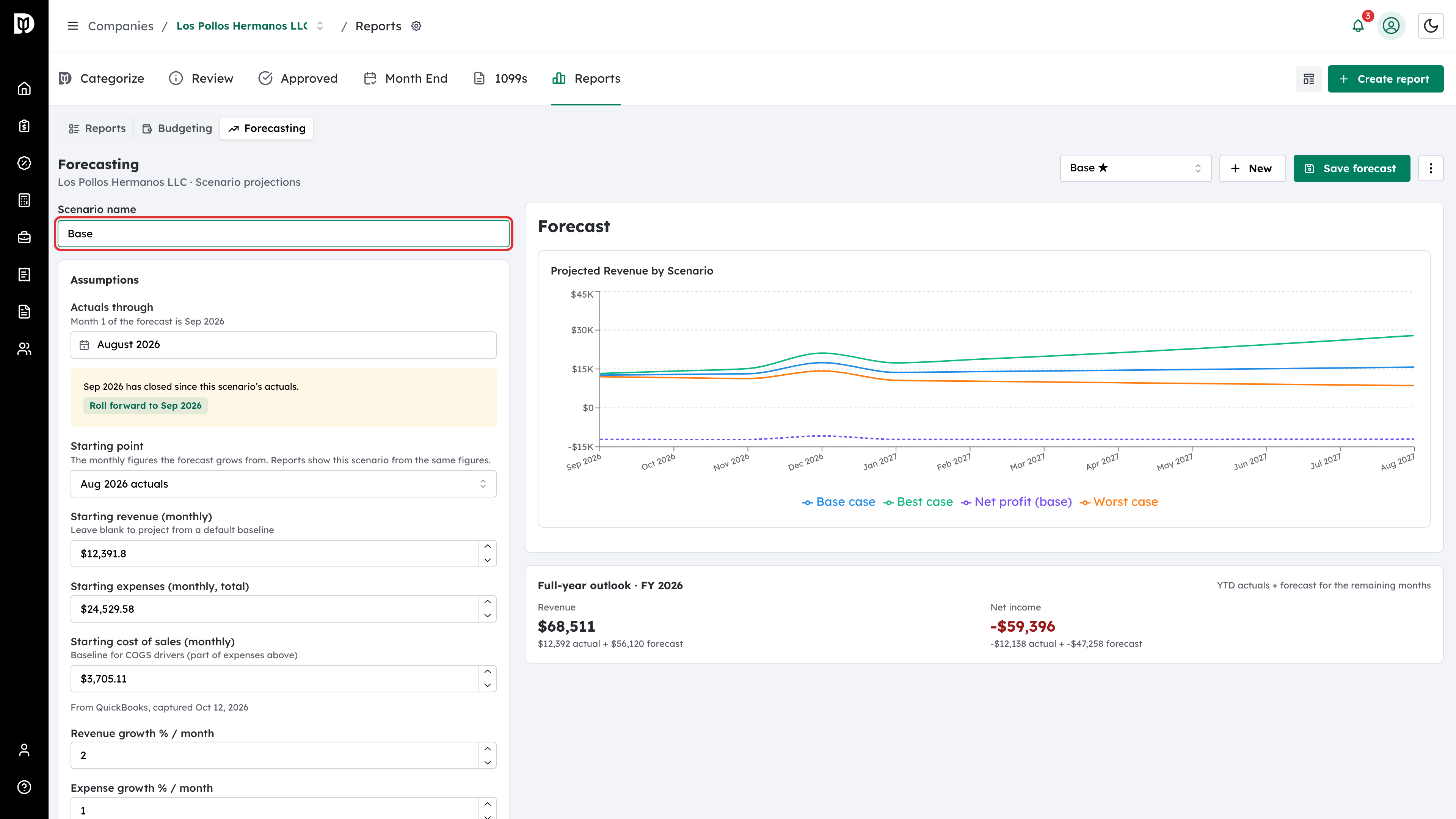
Type a name in Scenario name, for example Base. To start another scenario later, select New.
Step 3: Choose the actuals month
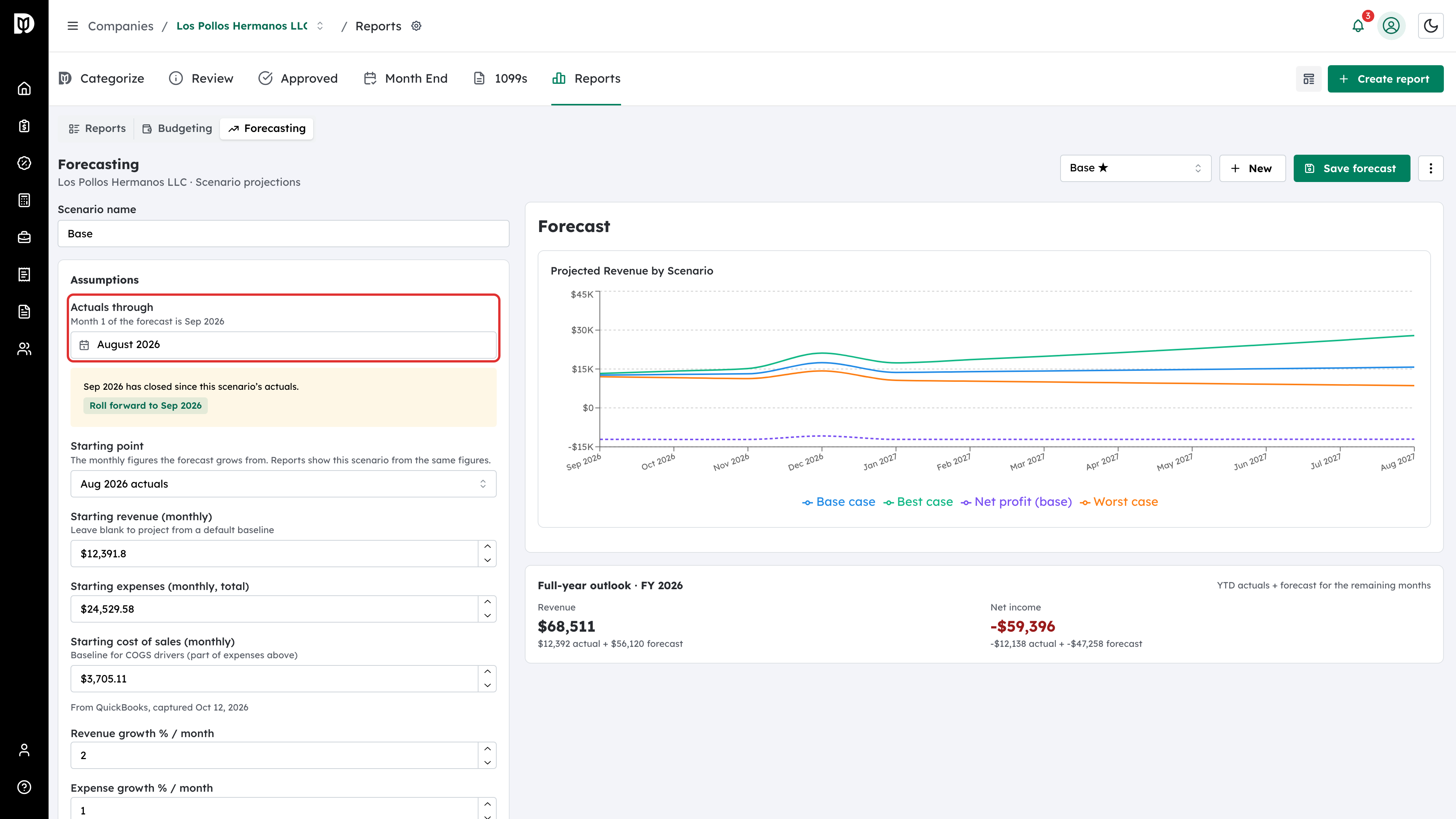
Under Assumptions, set Actuals through to the last month of real figures. The forecast starts the month after it, and the field tells you which month that is.
Step 4: Choose a starting point
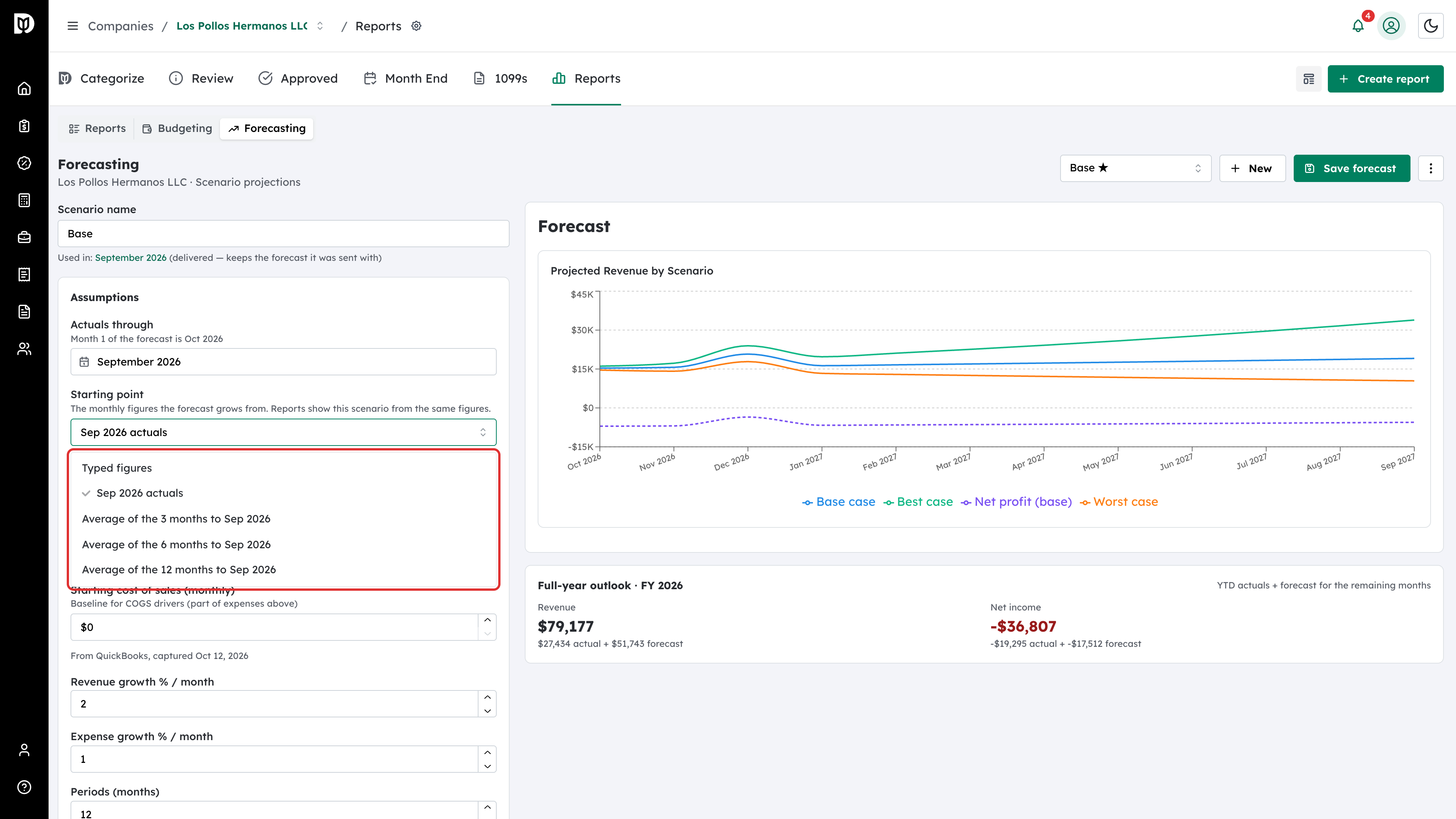
Open Starting point and pick the monthly figures the forecast grows from:
- Typed figures — you enter the starting revenue, expenses and cost of sales yourself.
- <month> actuals — the actuals month’s own figures from QuickBooks.
- Average of the 3, 6 or 12 months to <month> — smooths out a weak or strong month.
Step 5: Check the starting figures
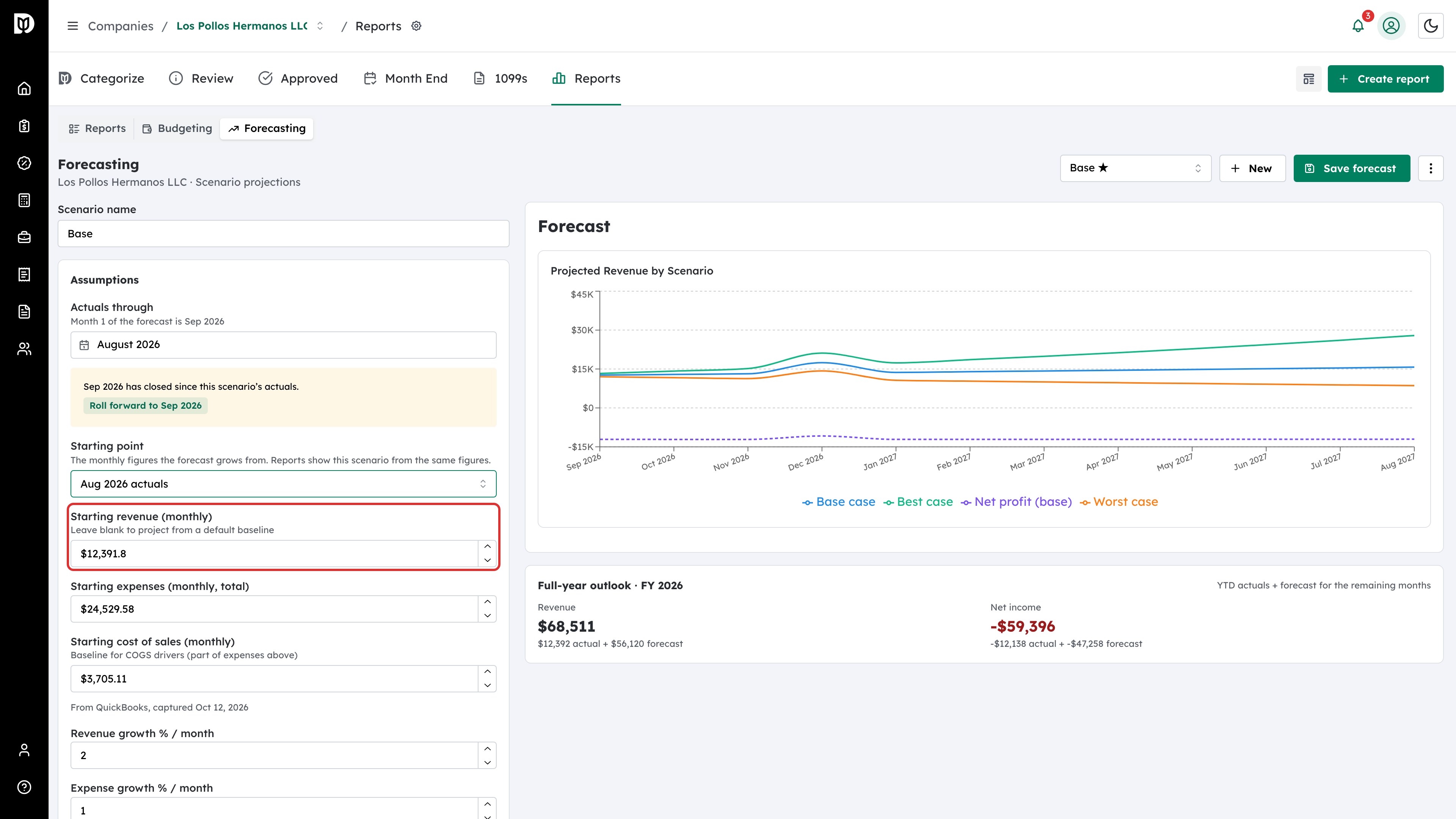
Debits fills in Starting revenue (monthly), Starting expenses (monthly, total) and Starting cost of sales (monthly) from the option you chose, and notes where they came from. With Typed figures, type them in yourself.
Step 6: Set growth and the best and worst cases
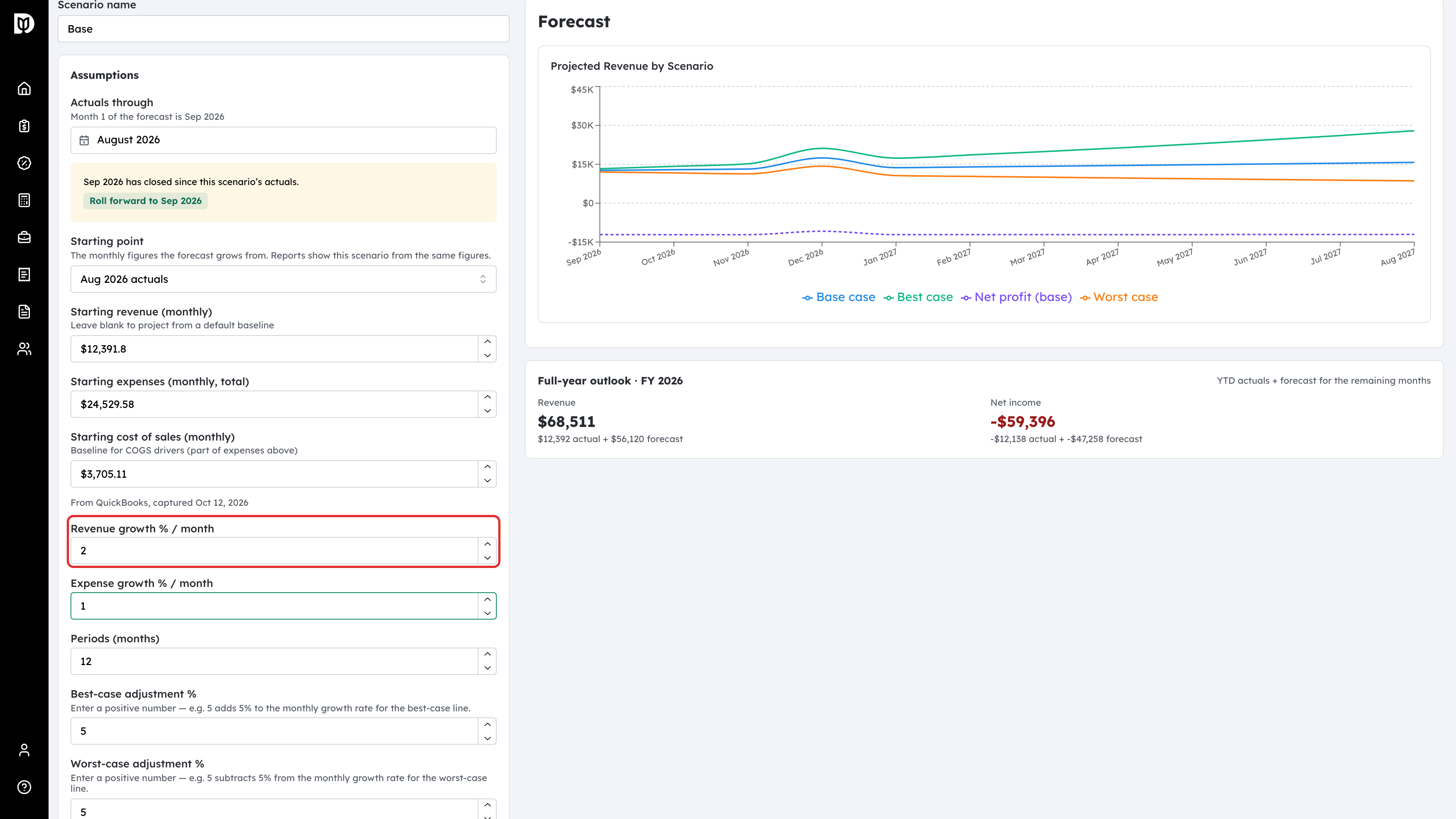
Enter Revenue growth % / month and Expense growth % / month, and how many Periods (months) to project. Use Best-case adjustment % and Worst-case adjustment % to set the range around the base case. Enter positive numbers for both.
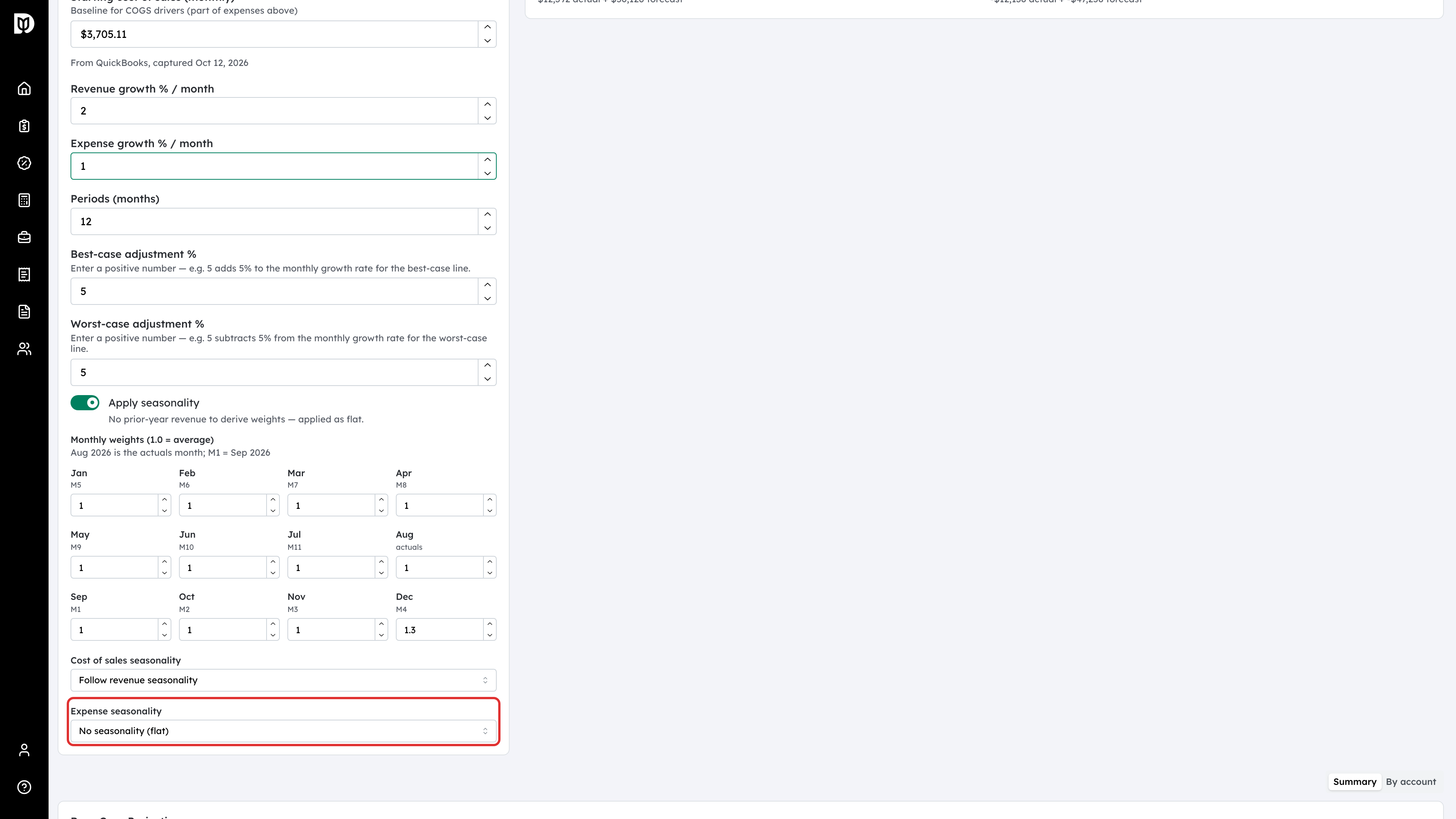
Step 7: Turn on seasonality
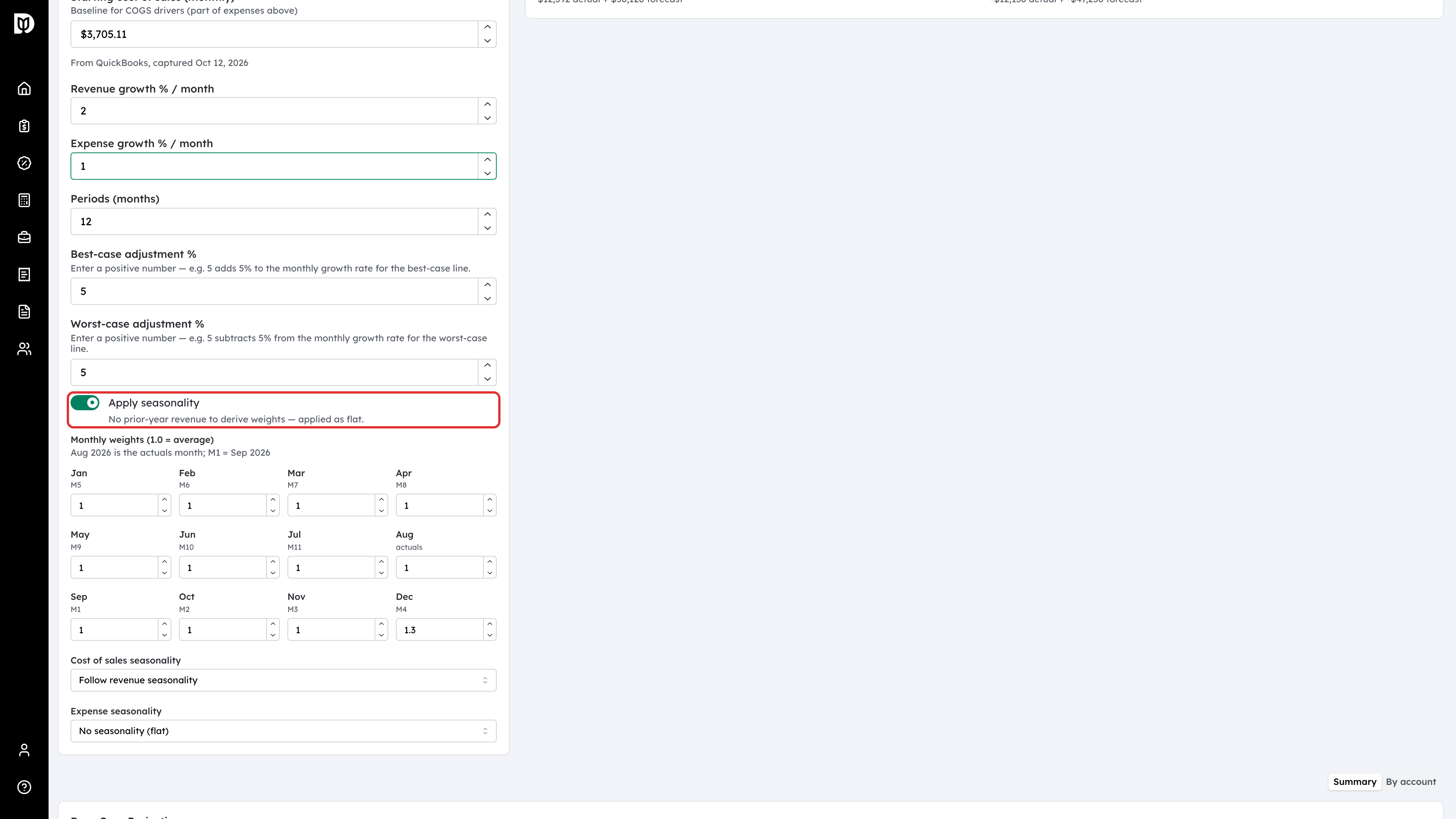
Turn on Apply seasonality to shape the curve by last year’s monthly revenue pattern. If the company has no revenue from last year, Debits says so and starts every month at 1.
Step 8: Adjust a month’s weight
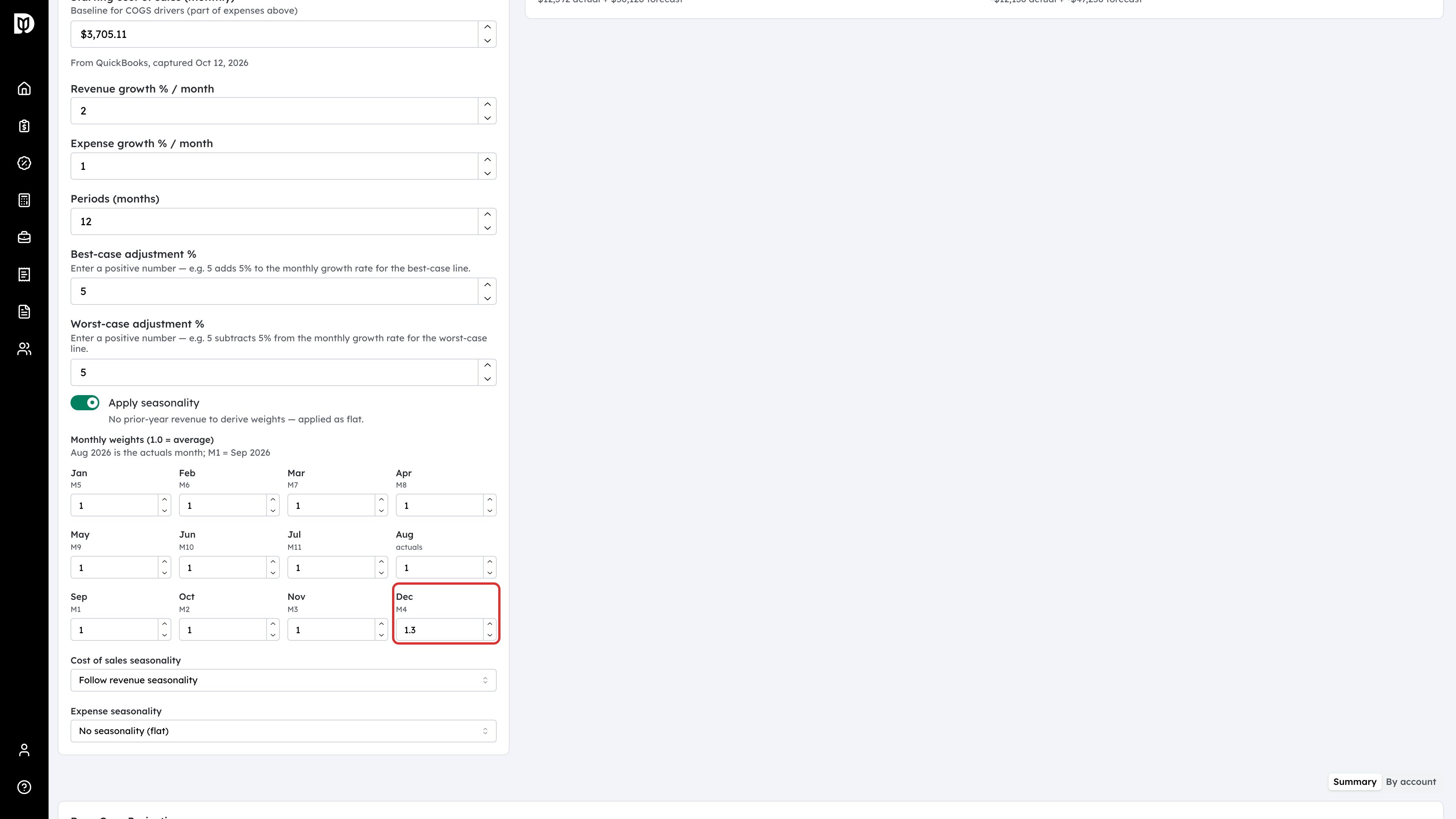
Under Monthly weights (1.0 = average), change any month. For example, set December to 1.3 for a busy holiday month. Changing one month moves only that month. Select Reset to derived to go back to last year’s pattern.
Step 9: Choose how costs follow the season
Cost of sales seasonality and Expense seasonality each have three choices: Follow revenue seasonality, Own monthly weights or No seasonality (flat).
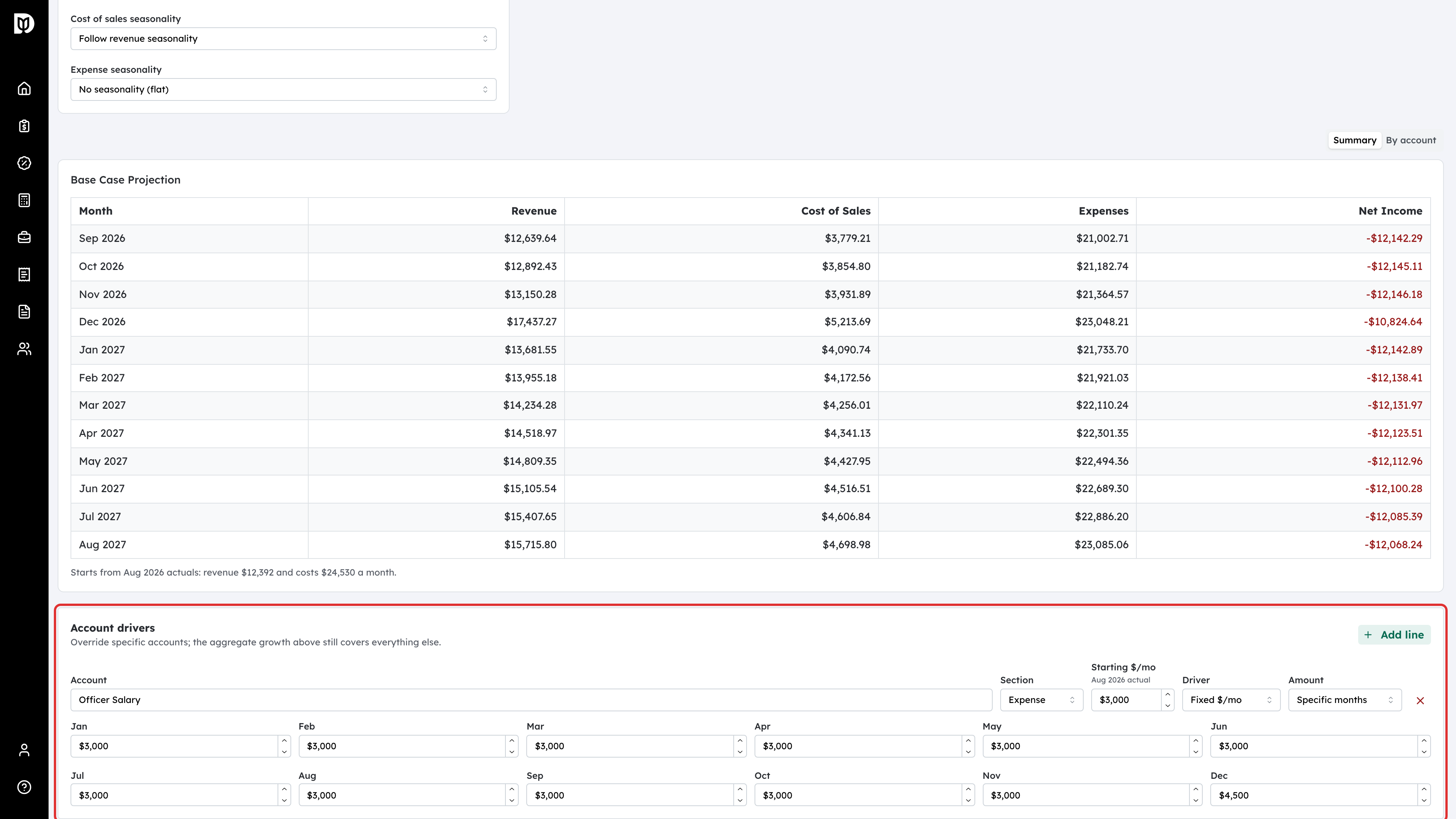
Step 10: Give an account its own driver
Under Account drivers, select Add line and pick the Account. Then choose a Driver:
- Growth %/mo — the account grows at its own rate.
- % of line — the account is a percent of revenue or cost of sales.
- Fixed $/mo — a set amount. Under Amount, choose Same every month, or Specific months to enter a different amount for each month, such as a December bonus.
Every account without a line keeps the overall growth rates.
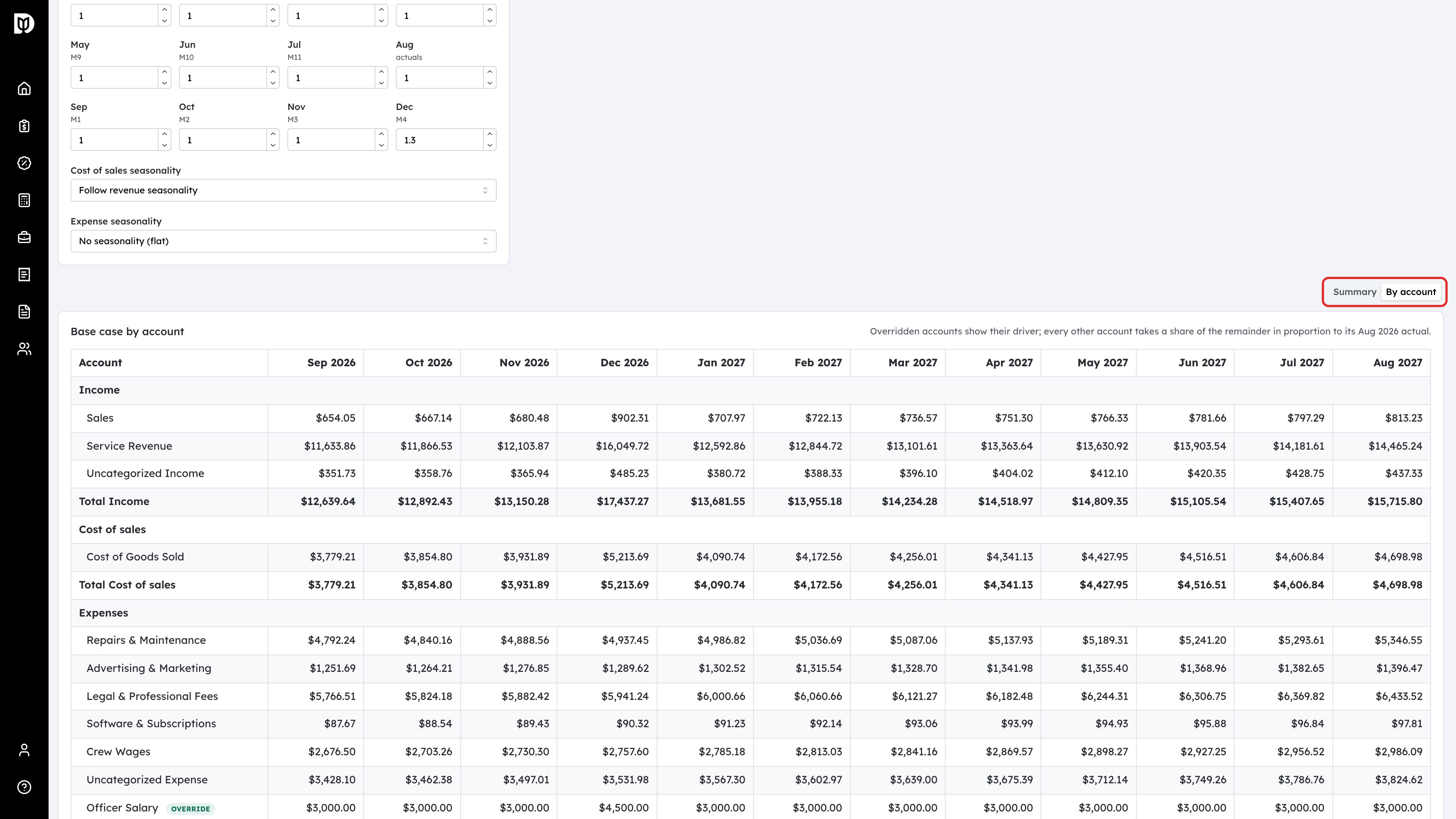
Step 11: Read the projection by account
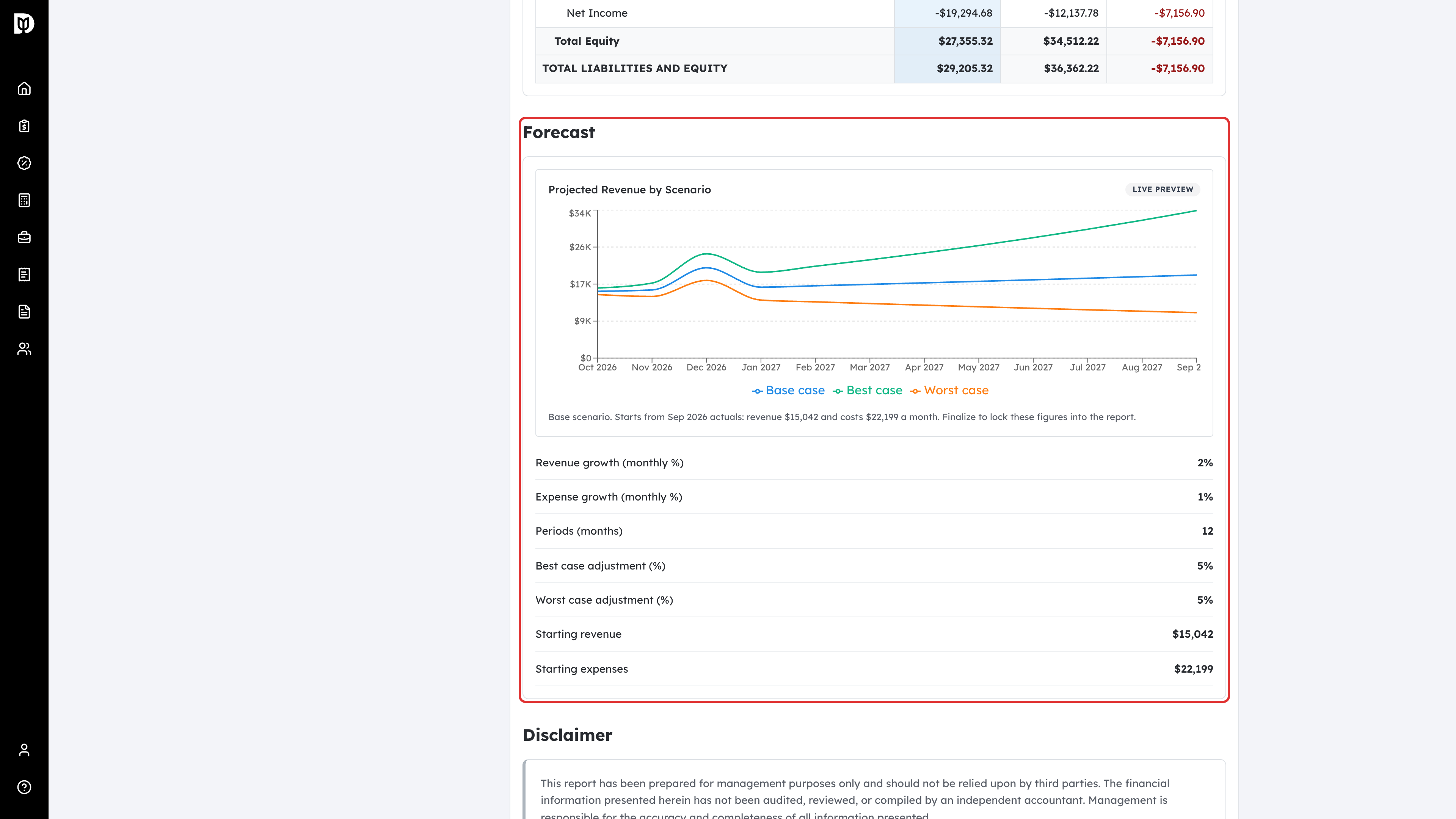
The chart shows the Base case, Best case and Worst case. Below it, switch the table between Summary and By account to see each account month by month. Accounts with their own driver are marked Override.
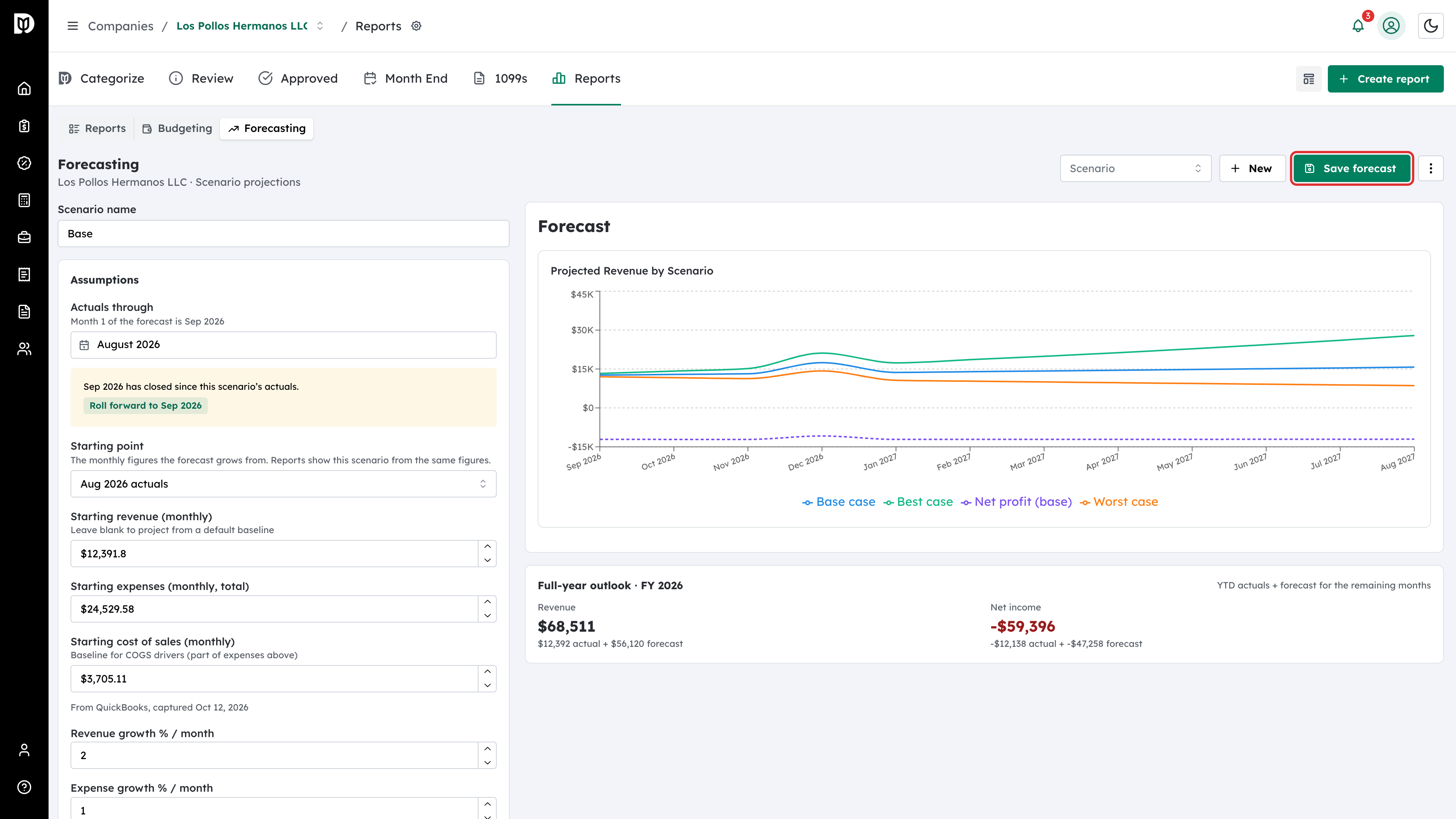
Step 12: Save the scenario
Select Save forecast. The scenario picker beside it lists every saved scenario, and the starred one is the company default.
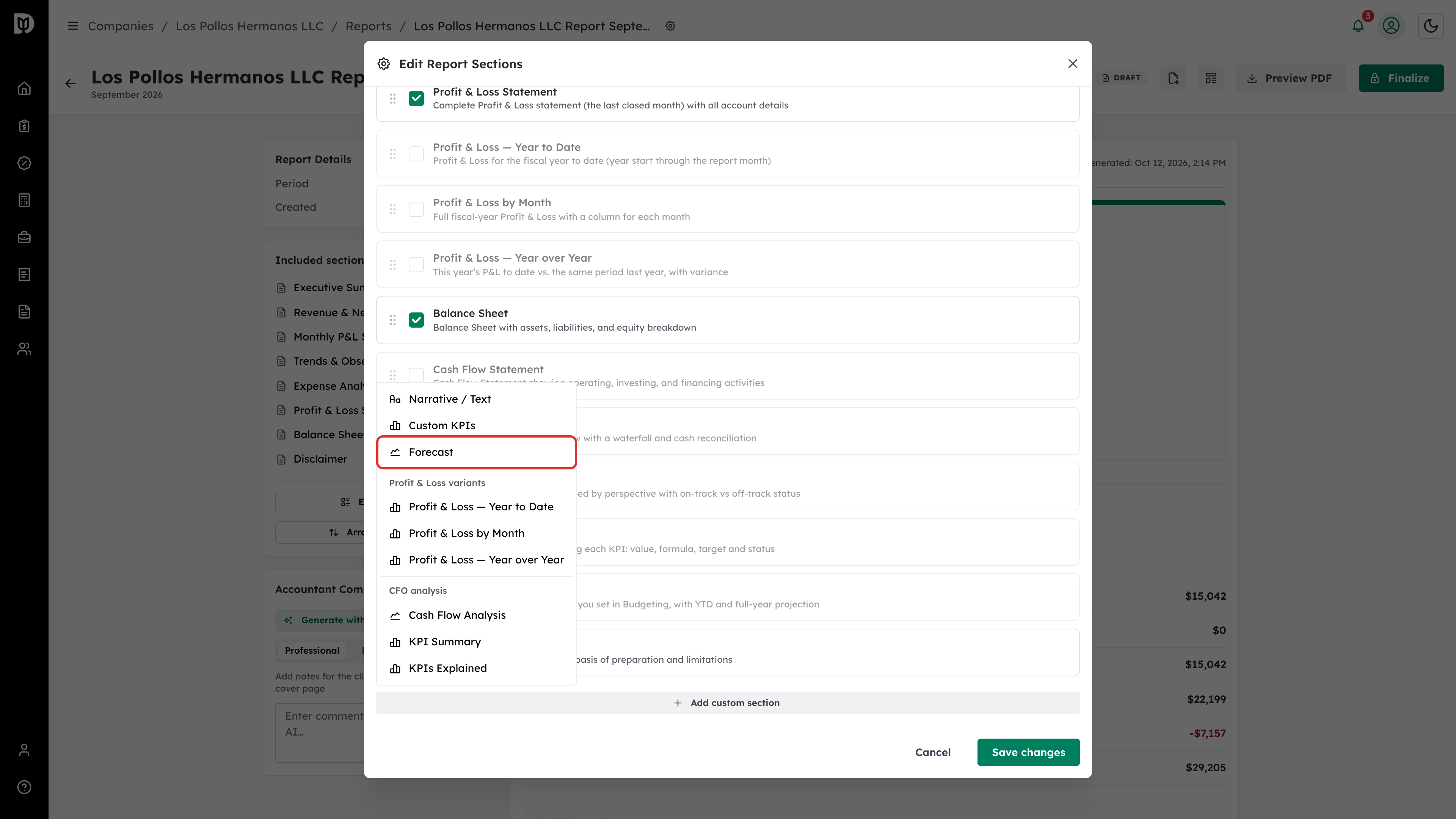
Step 13: Add the Forecast section to a report
Open a draft report, select Edit sections, then Add custom section and Forecast.
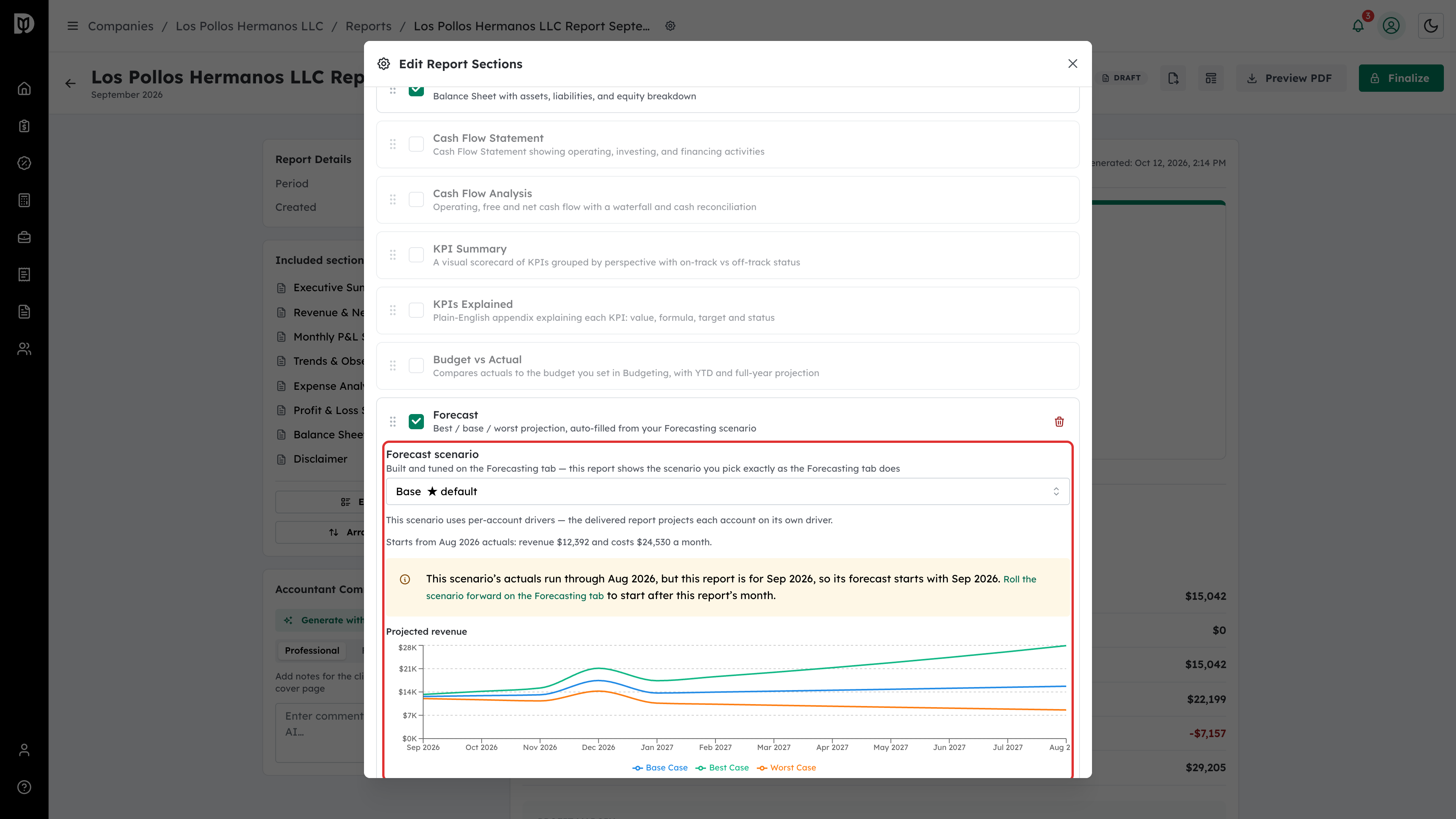
Step 14: Pick the scenario for the report
Choose it under Forecast scenario. A line under the picker says what the scenario starts from. If the scenario’s actuals month is not the report’s month, Debits warns you and suggests rolling the scenario forward. Select Save changes.
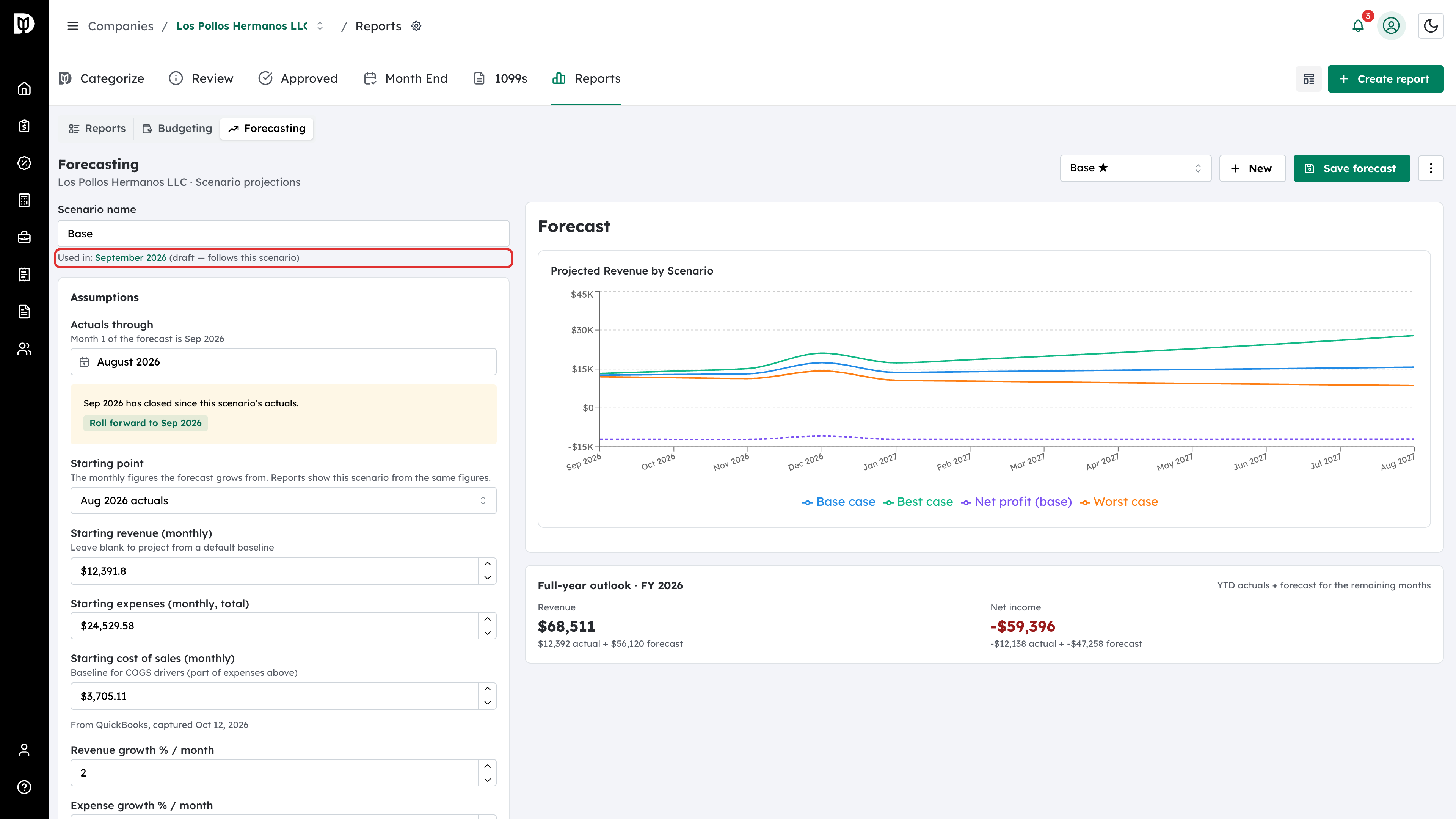
Step 15: See which reports use it
Back on the Forecasting tab, Used in: under the scenario name lists each report that uses the scenario. A draft follows changes to the scenario. A finalized report keeps the forecast it was finalized with until you reopen it, and a delivered report keeps the forecast it was sent with.
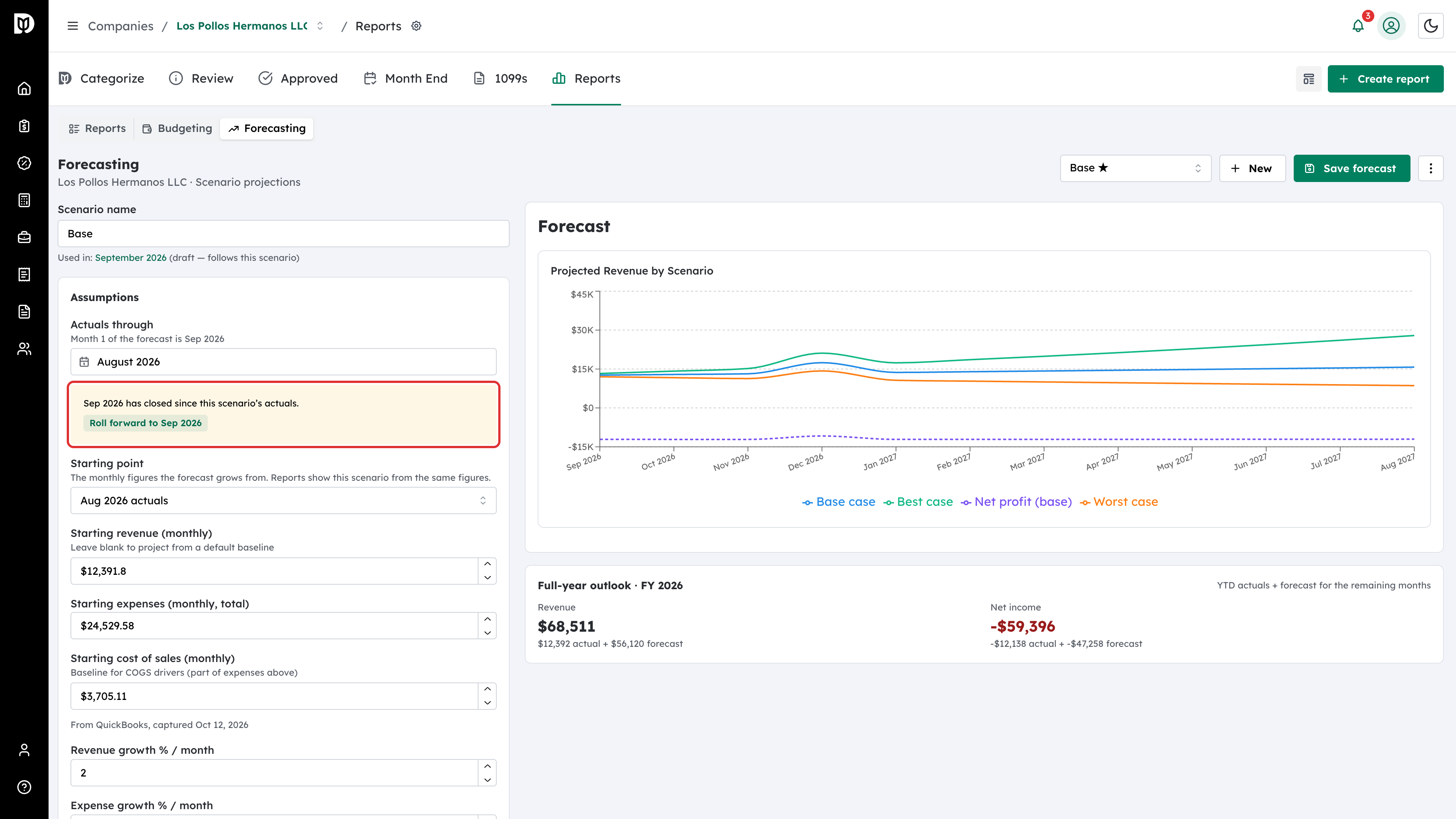
Step 16: Roll the scenario forward
When a newer month closes, a scenario that starts from actuals shows that the month has closed and offers Roll forward to that month. Select it to move Actuals through to the new month and refill the starting figures, then select Save forecast. Typed figures are never rolled forward. You restate those yourself.
Step 17: Check the forecast in the report
The report’s Forecast section draws the scenario from its own figures and its own actuals month, with a line that says what it starts from and the assumptions underneath.
What happens next
- The report and the Forecasting tab always show the same projection for a scenario.
- Finalizing a report locks in the scenario’s figures. To show later changes in a report that has not been sent, select Reopen as draft and finalize it again.
- If a scenario a report uses is deleted, the report falls back to the company default.
Troubleshooting
- The full-year outlook asks for a starting revenue. The scenario has no starting figures yet. Pick a starting point or type the figures.
- The report forecast starts in the wrong month. The scenario’s Actuals through month is earlier than the report’s month. Roll the scenario forward.
- Seasonality looks flat. The company has no revenue from last year to learn from. Enter the monthly weights yourself.
- There is no Roll forward option. It only appears on a saved scenario that starts from actuals, once a newer month has closed.