

Who this is for: Accountants and staff who need to customize reminder settings for specific clients.
What you’ll learn: How to override global reminder settings for individual contacts, pause reminders temporarily, and enable instant notifications.
Before you begin #
- You must have access to the contact you want to configure
- Global reminder settings must be configured first by an administrator
- Contact-level overrides take precedence over global settings
Step-by-step instructions #
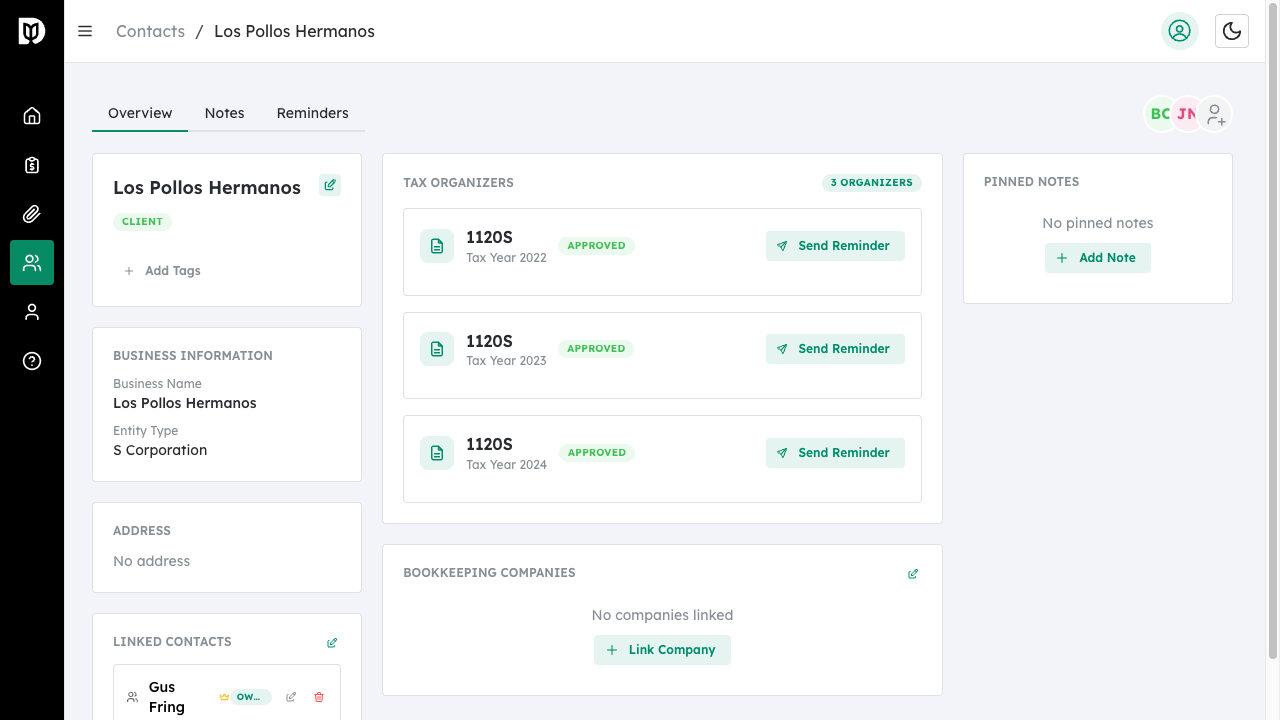
Step 1: Open the Contact Profile #
Navigate to Contacts and click on the contact whose reminders you want to customize.
Step 2: Go to the Reminders Tab #
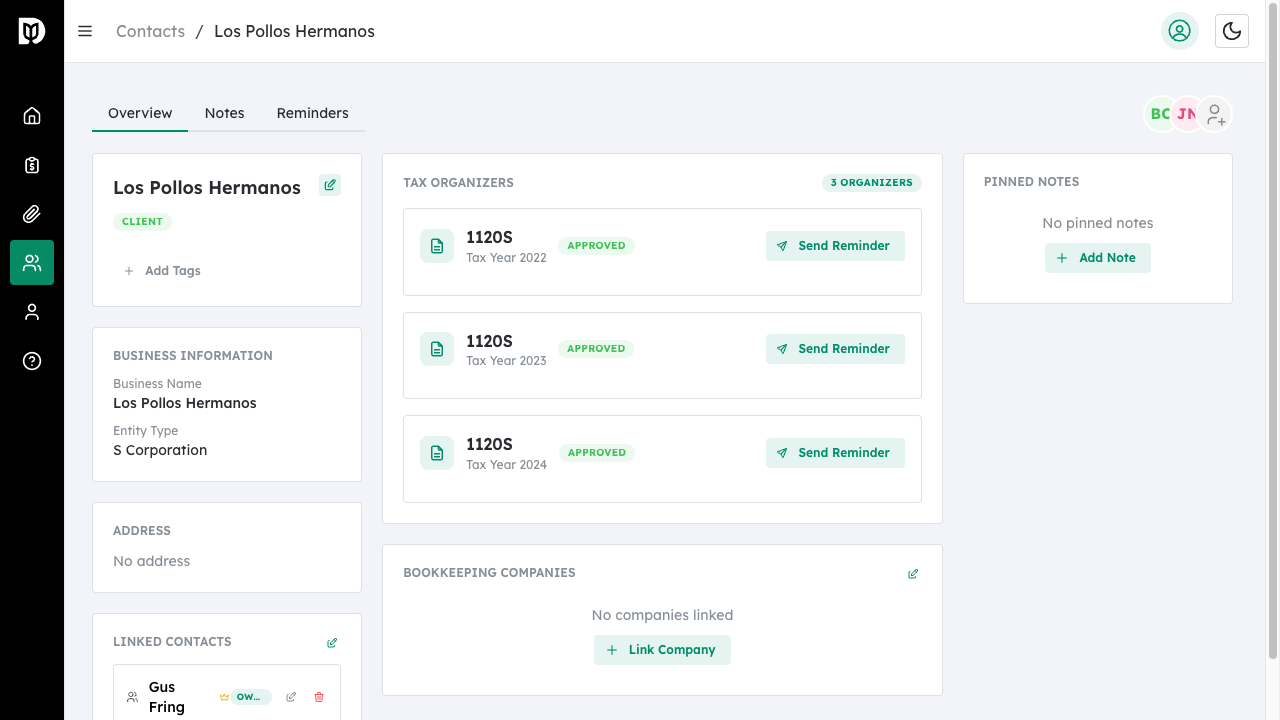
Click the Reminders tab at the top of the contact profile.
Configuring Scheduled Reminders #
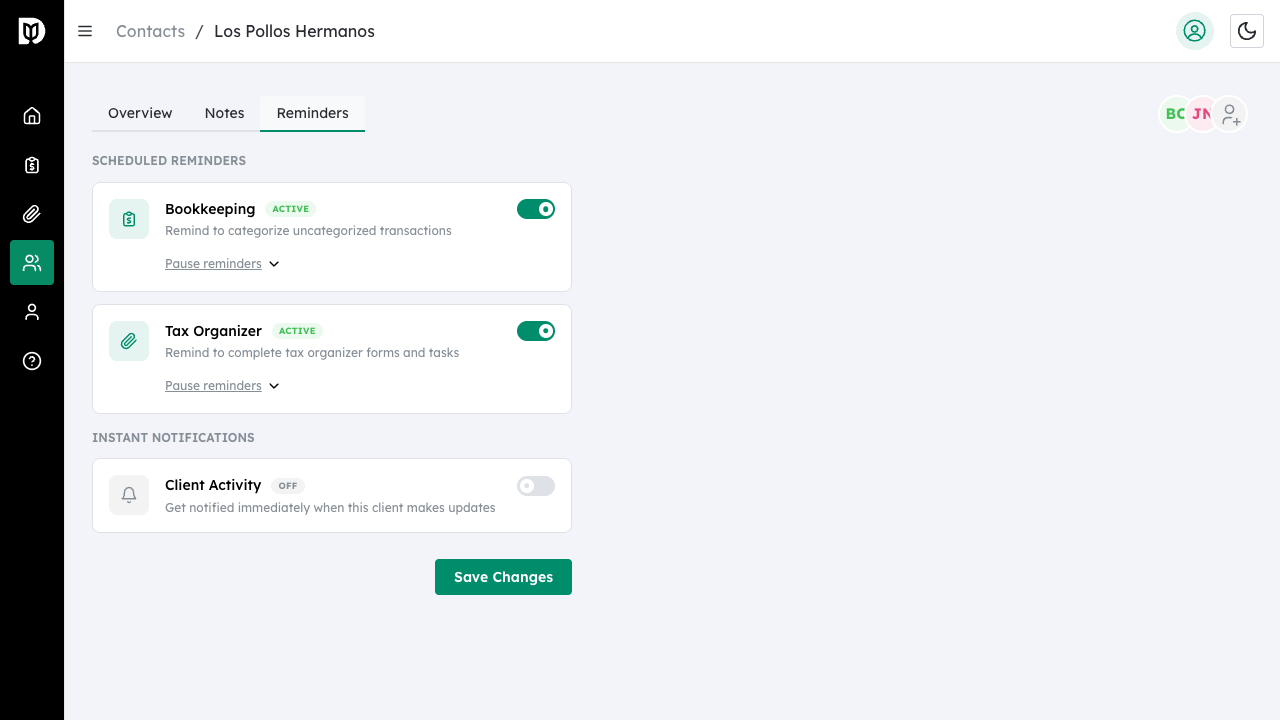
You can override global settings for bookkeeping and tax organizer reminders.
Step 3: Toggle Bookkeeping Reminders #
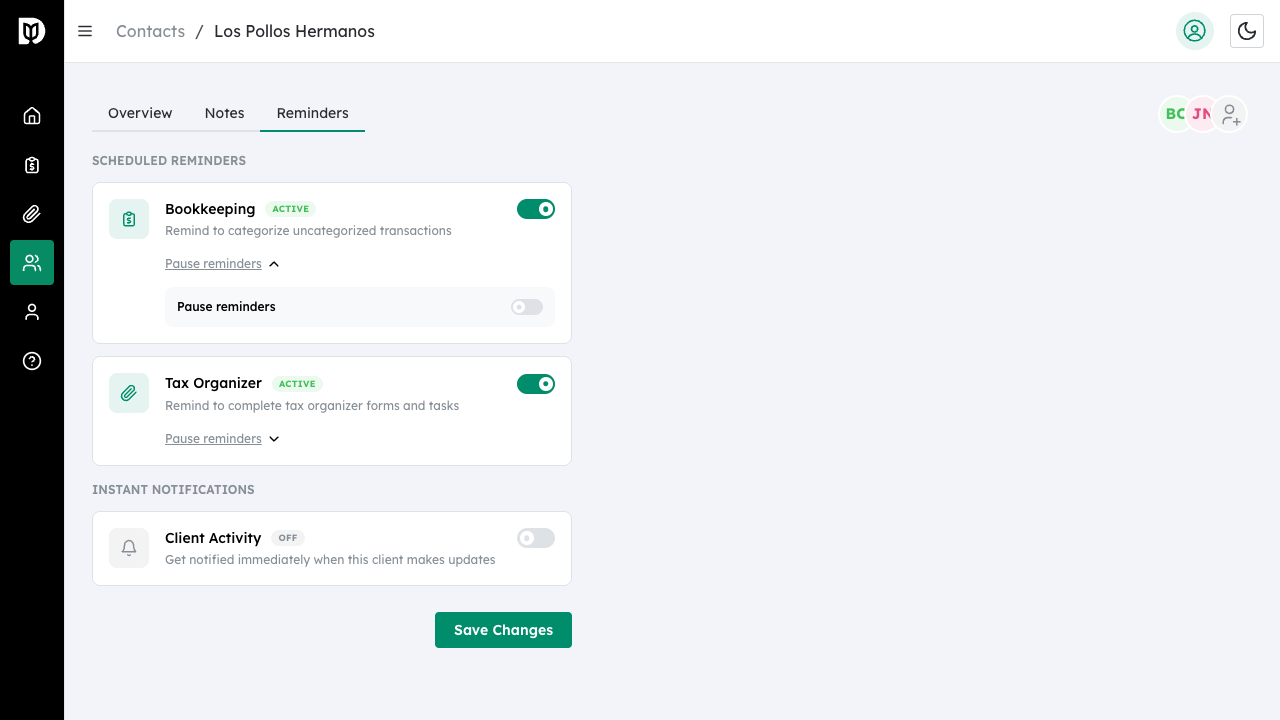
Use the switch to enable or disable bookkeeping reminders for this specific contact. The status badge shows whether reminders are Active, Paused, or Off.
Step 4: Pause Reminders Temporarily #
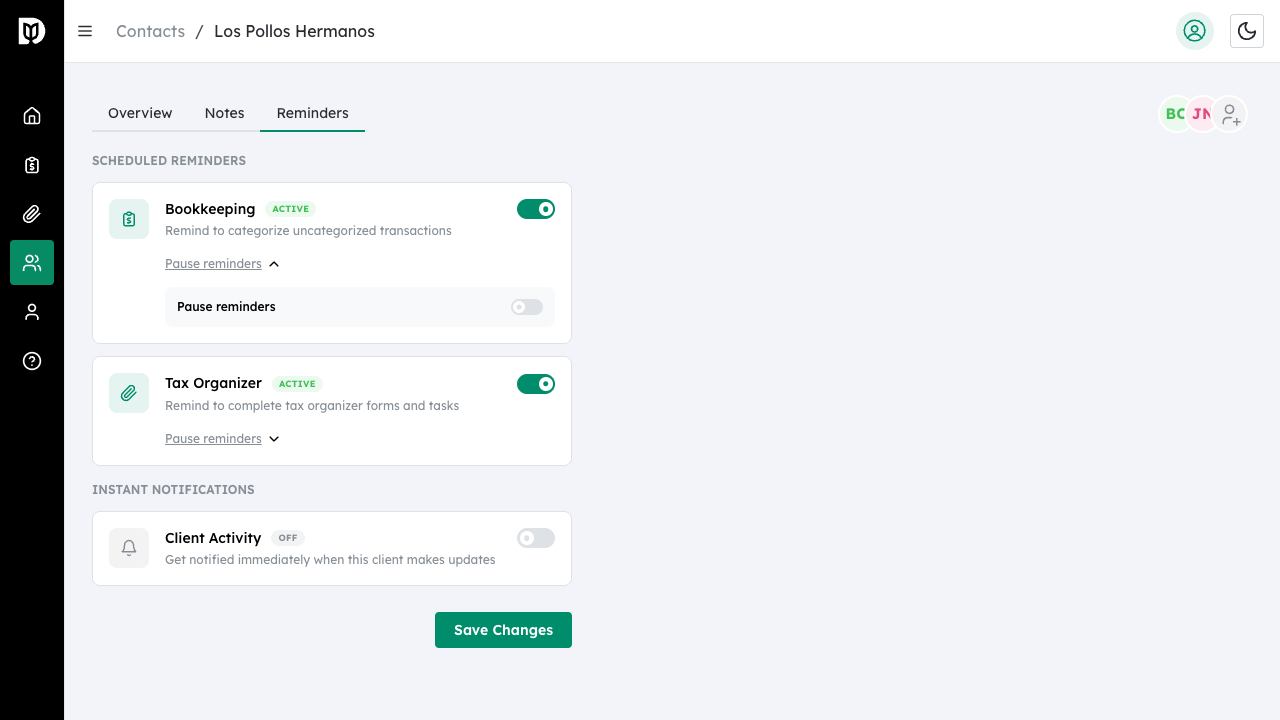
To pause reminders without disabling them completely:
- Click Pause reminders below the toggle
- Toggle the Pause reminders switch in the expanded section
- Optionally set a Resume date – reminders will automatically resume on this date
Step 5: Configure Tax Organizer Reminders #
Similarly, toggle and optionally pause tax organizer reminders for this contact. These reminders notify the client about incomplete tax organizer forms and tasks.
Enabling Instant Notifications #
Get notified immediately when a specific client makes updates.
Step 6: Enable Client Activity Notifications #
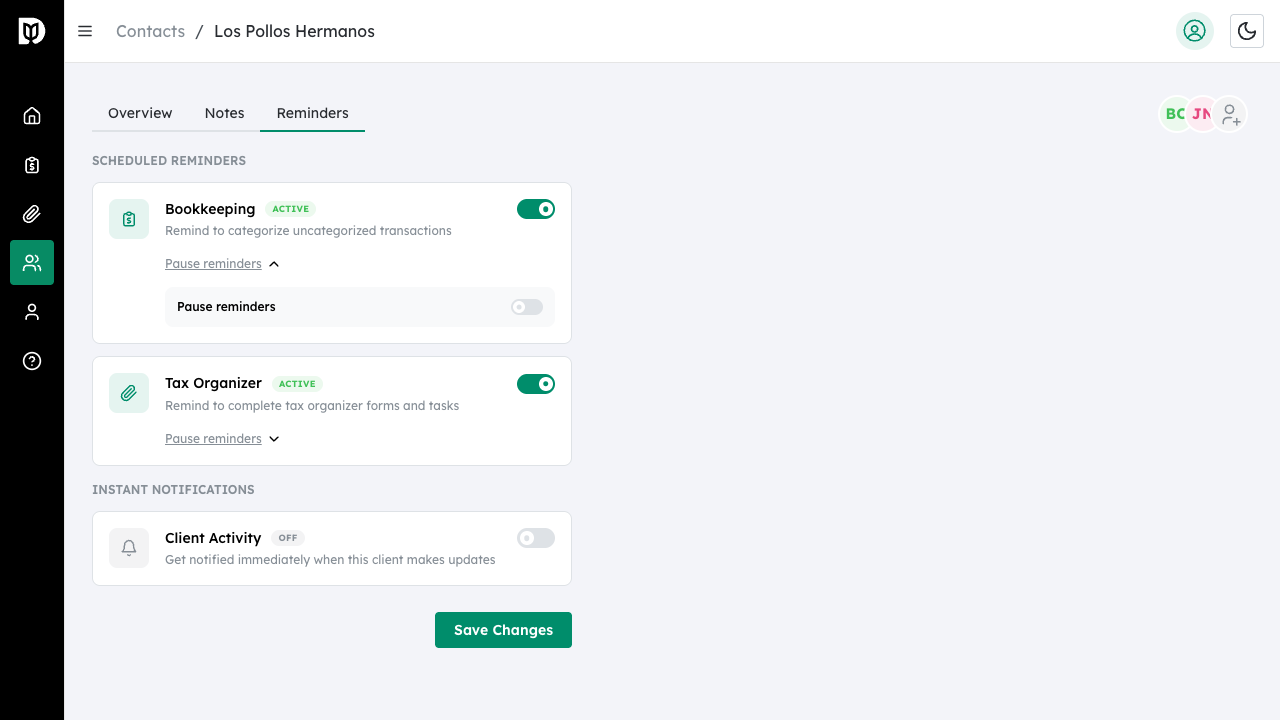
In the Instant Notifications section, toggle Client Activity to receive immediate notifications when this client:
- Categorizes transactions
- Submits tax organizer items
- Uploads documents
- Completes other actions
Step 7: Save Changes #
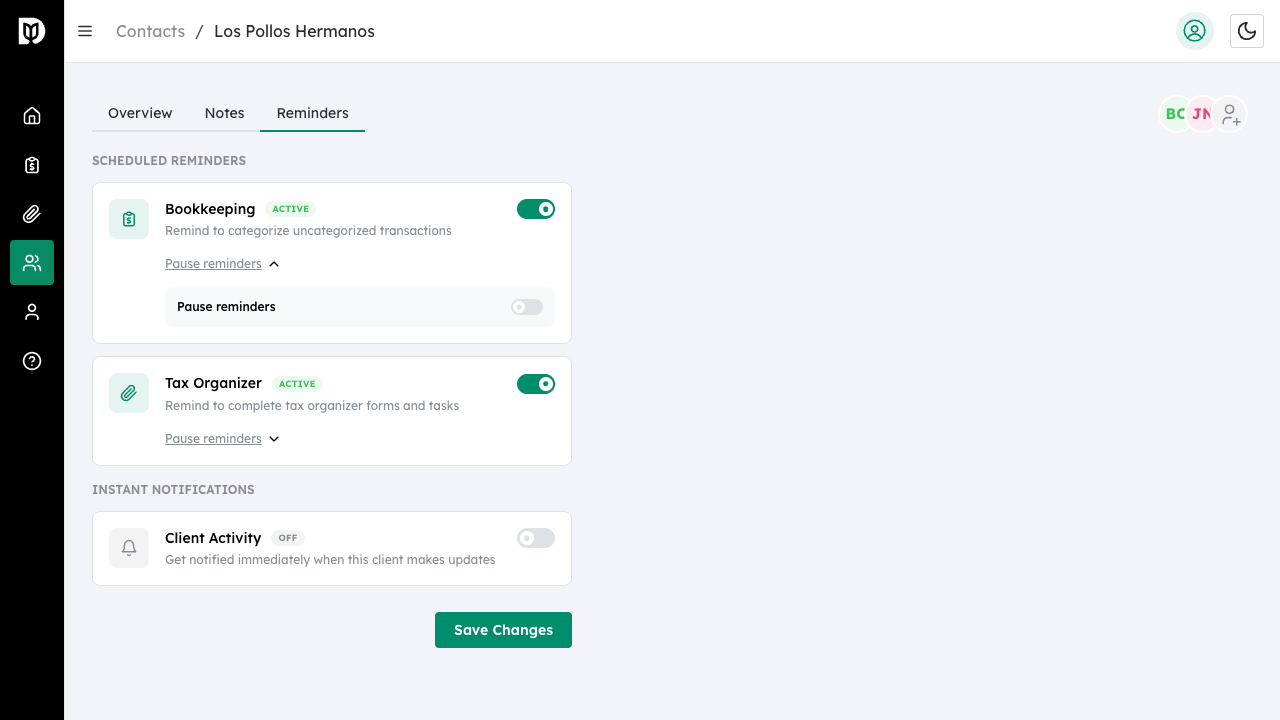
Click Save Changes to apply your reminder settings for this contact.
Understanding Override Behavior #
Contact-level settings work as follows:
- When you toggle a reminder type, it overrides the global setting for this contact only
- If you leave a toggle in its default position, the global setting applies
- Pausing is always contact-specific and doesn’t affect global settings
- Changes only affect this contact – other contacts use global settings unless they have their own overrides
What happens next #
Your custom reminder settings take effect immediately. The contact will receive (or stop receiving) reminders based on your configuration. Paused reminders will resume automatically if you set a resume date.
Troubleshooting #
- Settings not saving: Ensure you click Save Changes after making modifications.
- Reminders still being sent after disabling: Changes may take up to 24 hours to fully propagate. If reminders continue after that, contact support.
- Pause date not working: Ensure the resume date is in the future. Past dates are not accepted.
- Not receiving instant notifications: Verify your notification settings in your account preferences.


