

Who this is for: Accountants who want to add a narrative summary to a report.
What you’ll learn: How to write accountant commentary, generate it with AI, and choose a tone.
Before you begin #
- Open a draft report with live data available.
- Commentary appears on the report’s cover page.
Step-by-step instructions #
Step 1: Find the commentary panel #
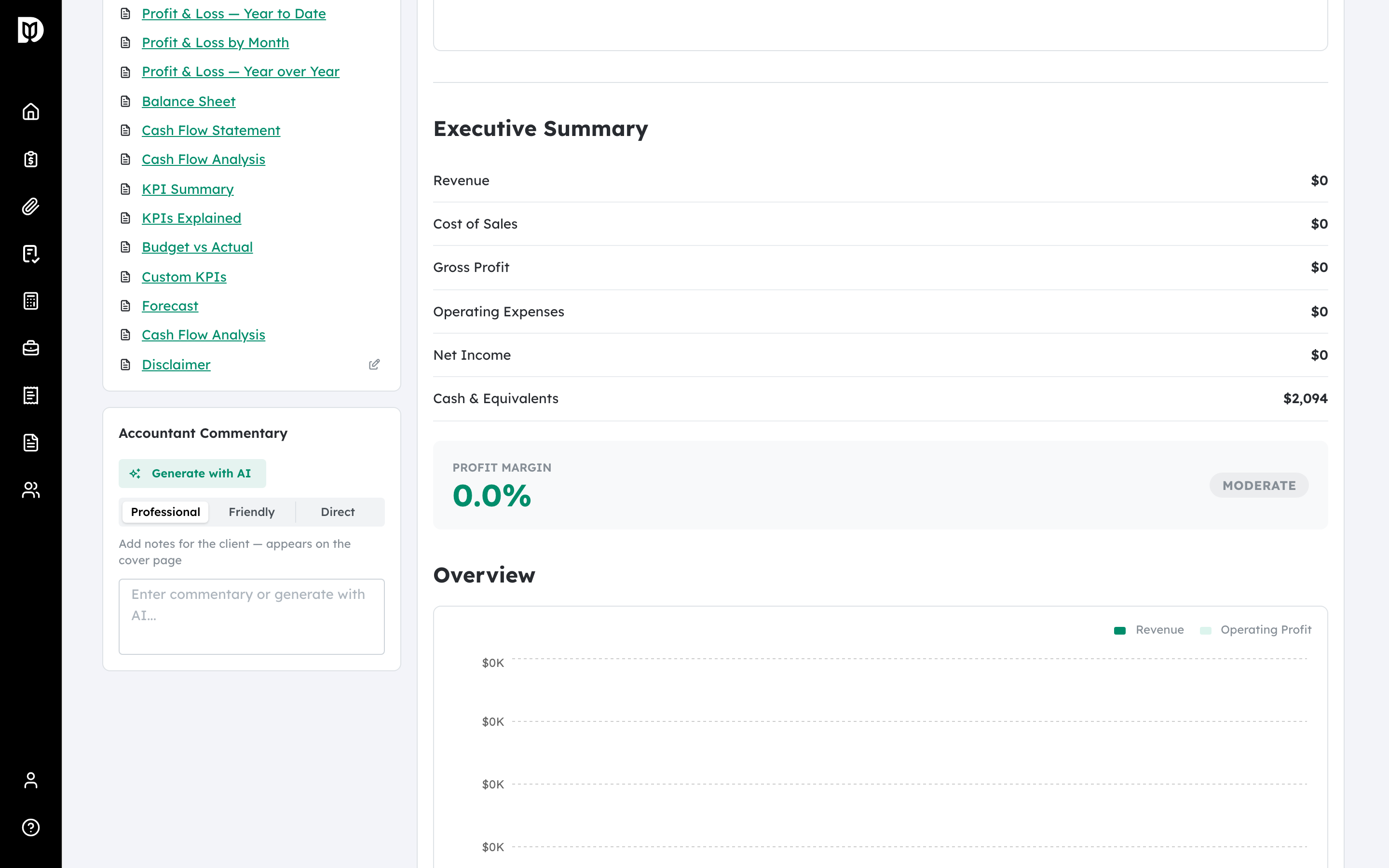
In the draft workspace, locate the Accountant Commentary panel. Type your notes directly, or generate a draft with AI.
Step 2: Choose a tone #
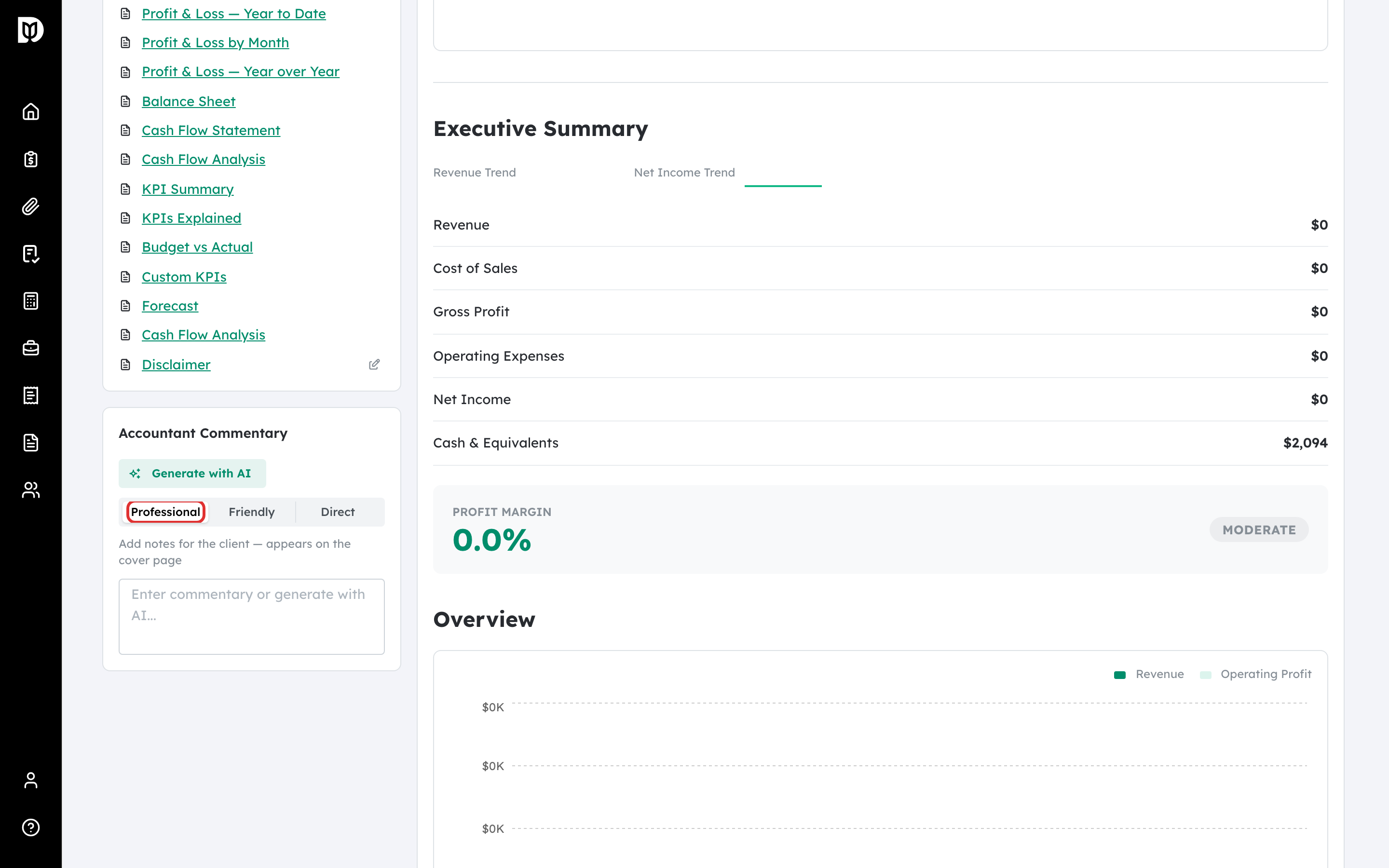
Pick a tone for the AI draft: Professional, Friendly, or Direct.
Step 3: Generate with AI #
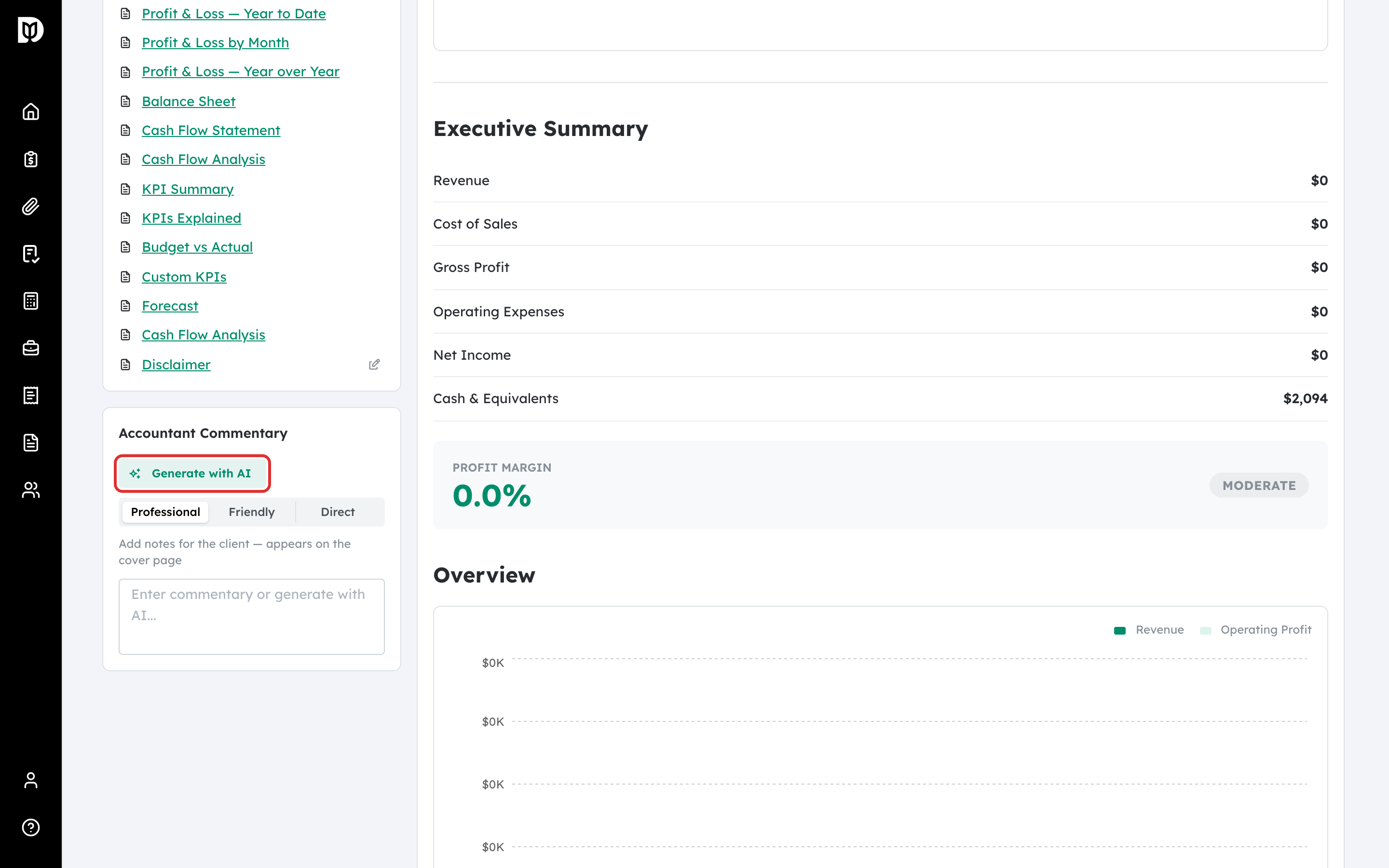
Select Generate with AI. Debits writes a narrative summary from the report’s figures in the tone you chose. Edit the text as needed, then save.
What happens next #
Your commentary appears on the cover page of the report and is captured when you finalize.
Troubleshooting #
- Problem: Generate with AI is disabled. The report needs live data — confirm the QuickBooks connection and period.
- Problem: The generated text needs edits. AI commentary is a starting point; review and adjust it before delivering.


