

Who this is for: Accountants who want to track all events and actions related to a tax return.
What you’ll learn: How to view the audit trail showing who did what and when.
Before you begin #
- You must have a tax return open on the detail page.
Step-by-step instructions #
Step 1: Open the Activity tab #
On the tax return detail page, click the Activity tab.
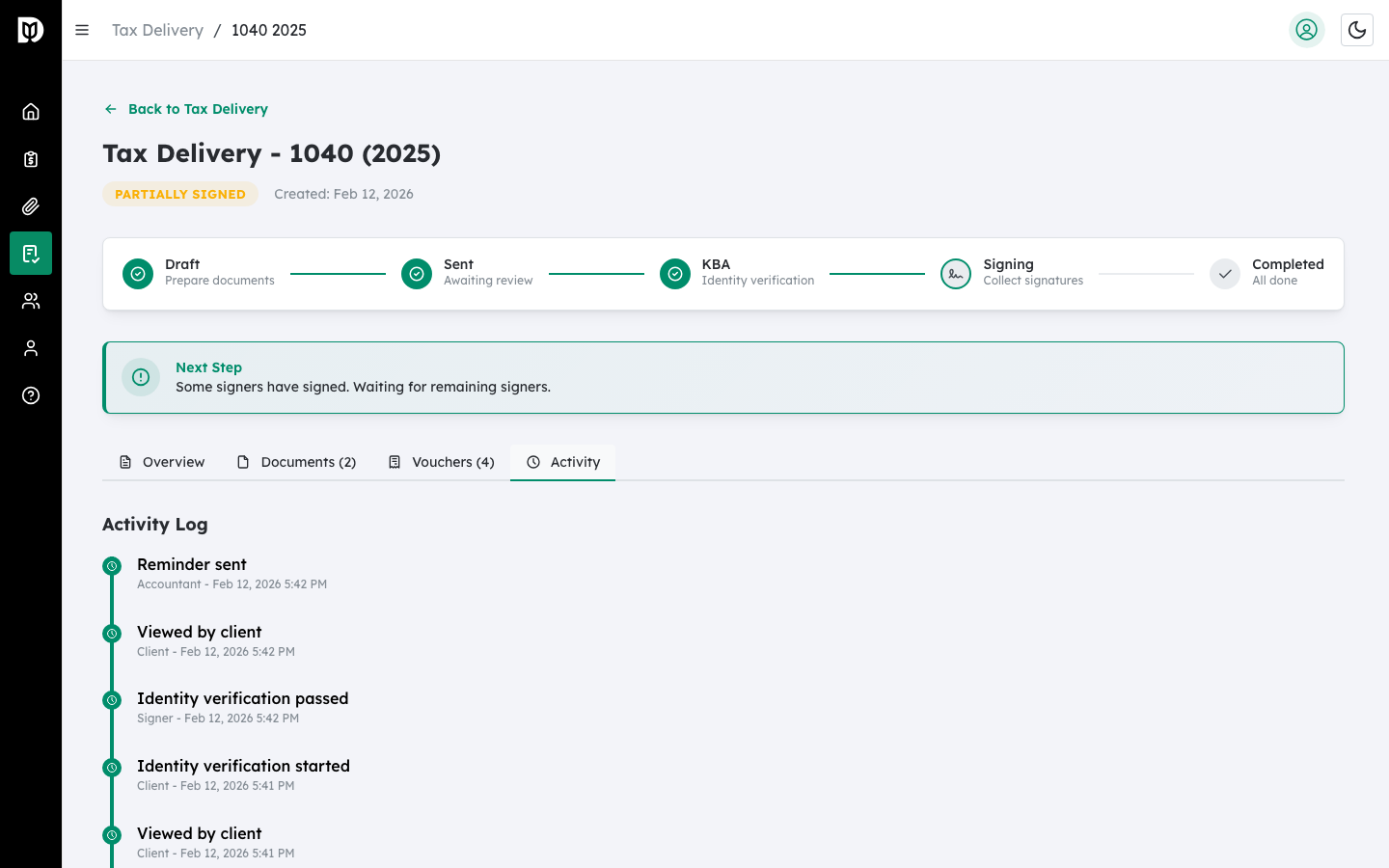
Step 2: Review the timeline #
The Activity tab displays a chronological timeline of all events. Each entry shows:
- Event description — What happened (e.g., “Tax return created,” “Document uploaded,” “Sent to client”).
- Actor — Who performed the action (Accountant, Client, or System).
- Timestamp — The date and time of the event.
Step 3: Understand the event types #
Common events include:
- Tax return created — Return was initially created.
- Document uploaded — A file was added.
- Sent to client — Return was sent for signature.
- Identity verification started/passed/failed — KBA events.
- Document signed — A signer completed their signature.
- Signing completed — All required signatures collected.
- Voucher reminder sent — Automated payment reminder delivered.
- K-1 sent/viewed/downloaded — K-1 distribution events.
- Rejected by client — Client declined to sign.
- Payment collected/failed/skipped — Billing events.
What happens next #
Use the activity log to monitor progress, troubleshoot issues, and maintain a complete compliance record for each tax return delivery.
Troubleshooting #
- Activity log is empty: New tax returns only show the “Tax return created” event initially. More events appear as actions are taken.


