Who this is for: Accountants who want to check where a tax delivery has got to.
What you’ll learn: How to read the detail page, follow the progress stepper, and finish a return once everyone has signed.
Before you begin
- You need at least one tax delivery created.
Step-by-step instructions
Step 1: Open the tax delivery
From Tax > Delivery, click the eye icon on a row, or open the row menu and choose View Details.
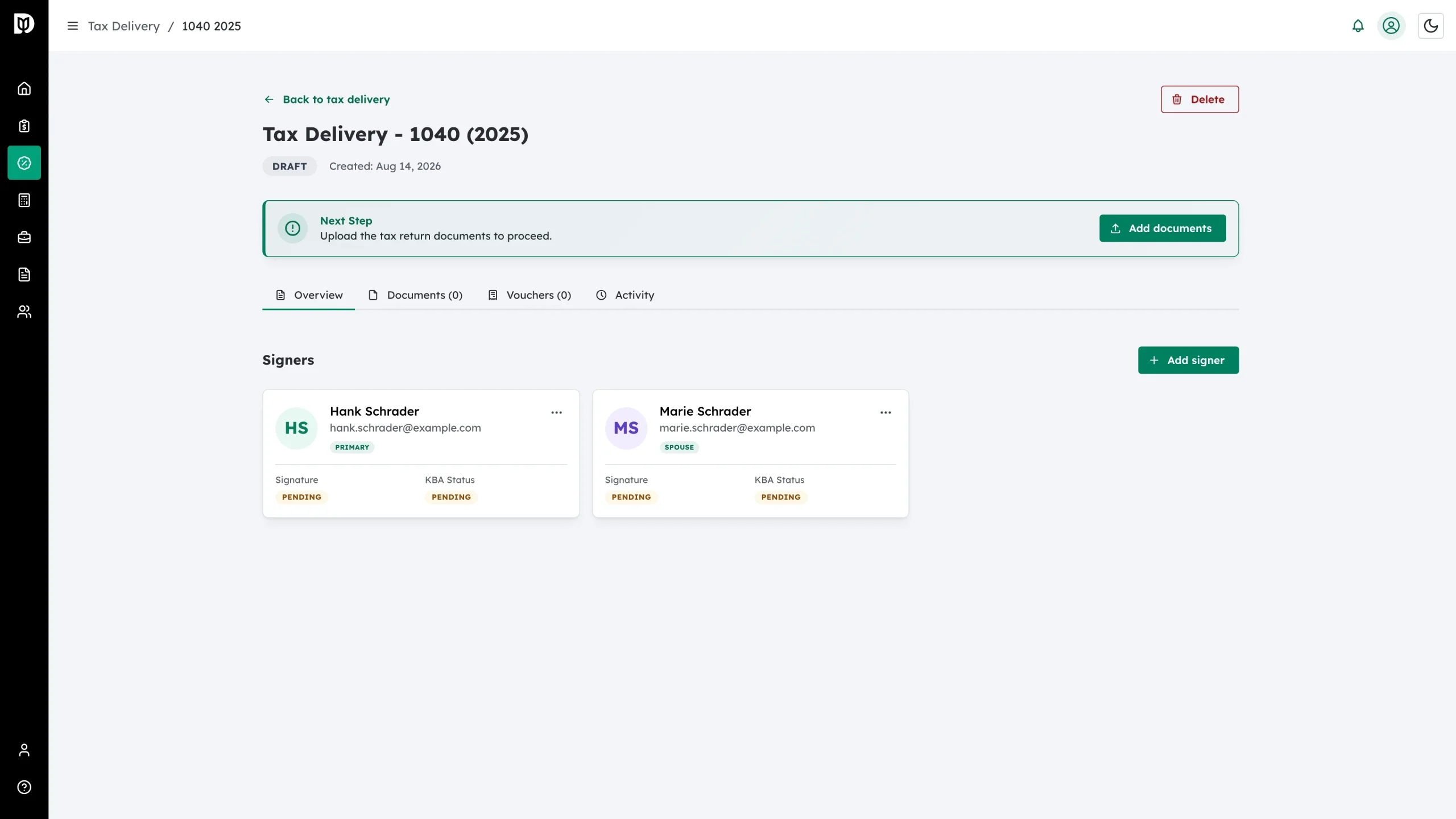
Step 2: Check the status badge
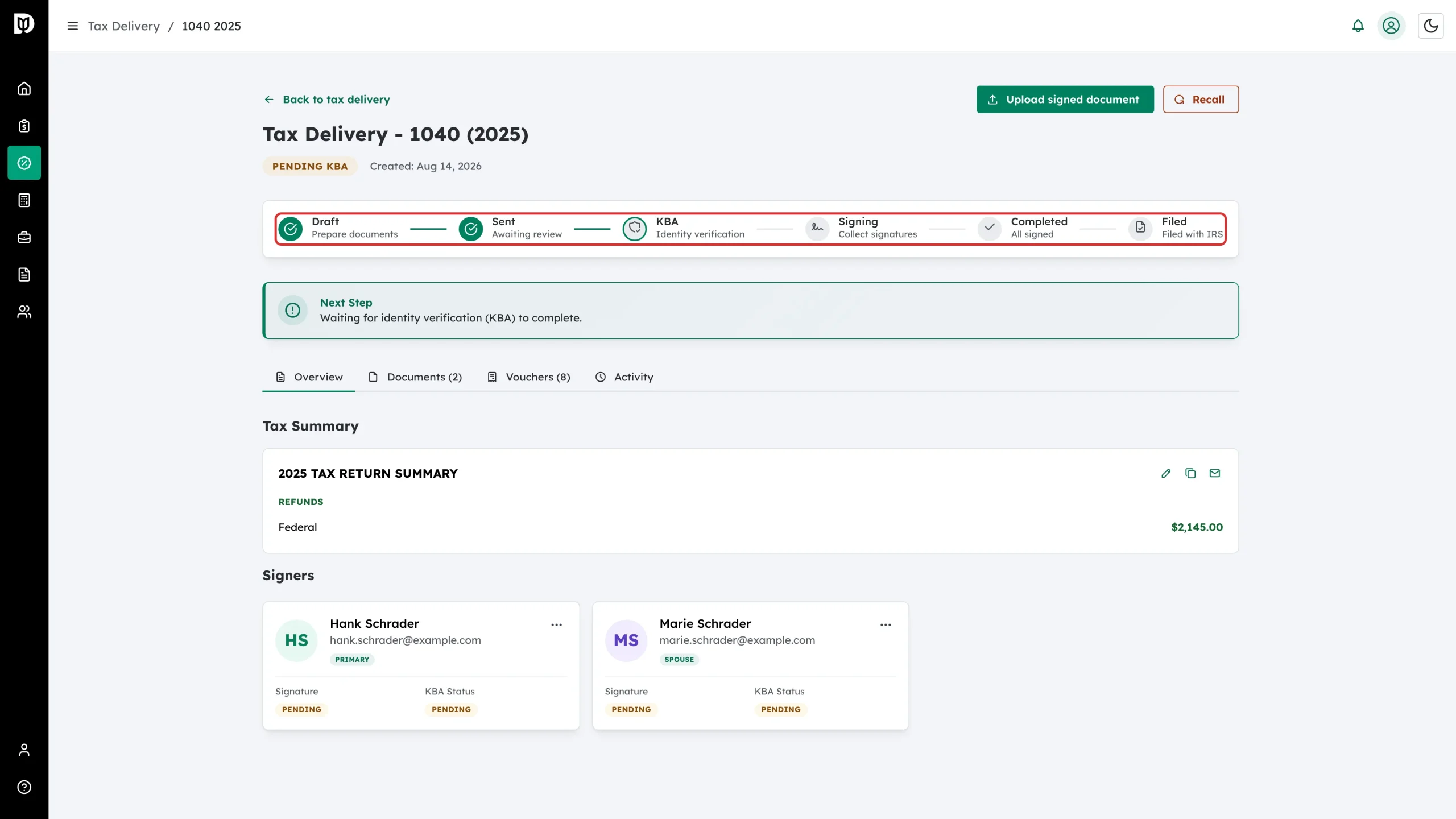
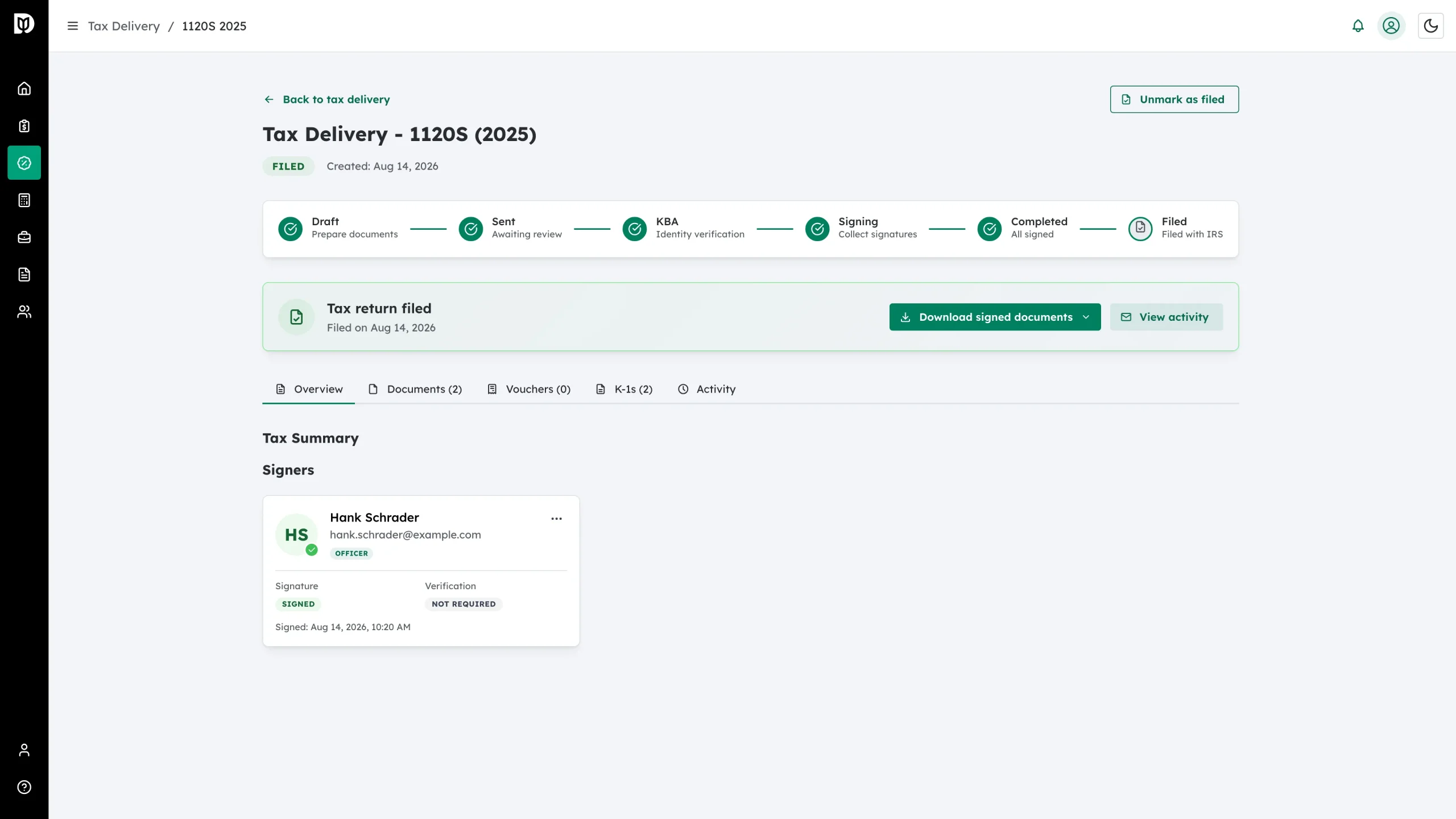
The badge sits under the page title and tells you the current state of the return – for example Draft, Pending KBA, Completed or Filed. The date the delivery was created sits beside it.
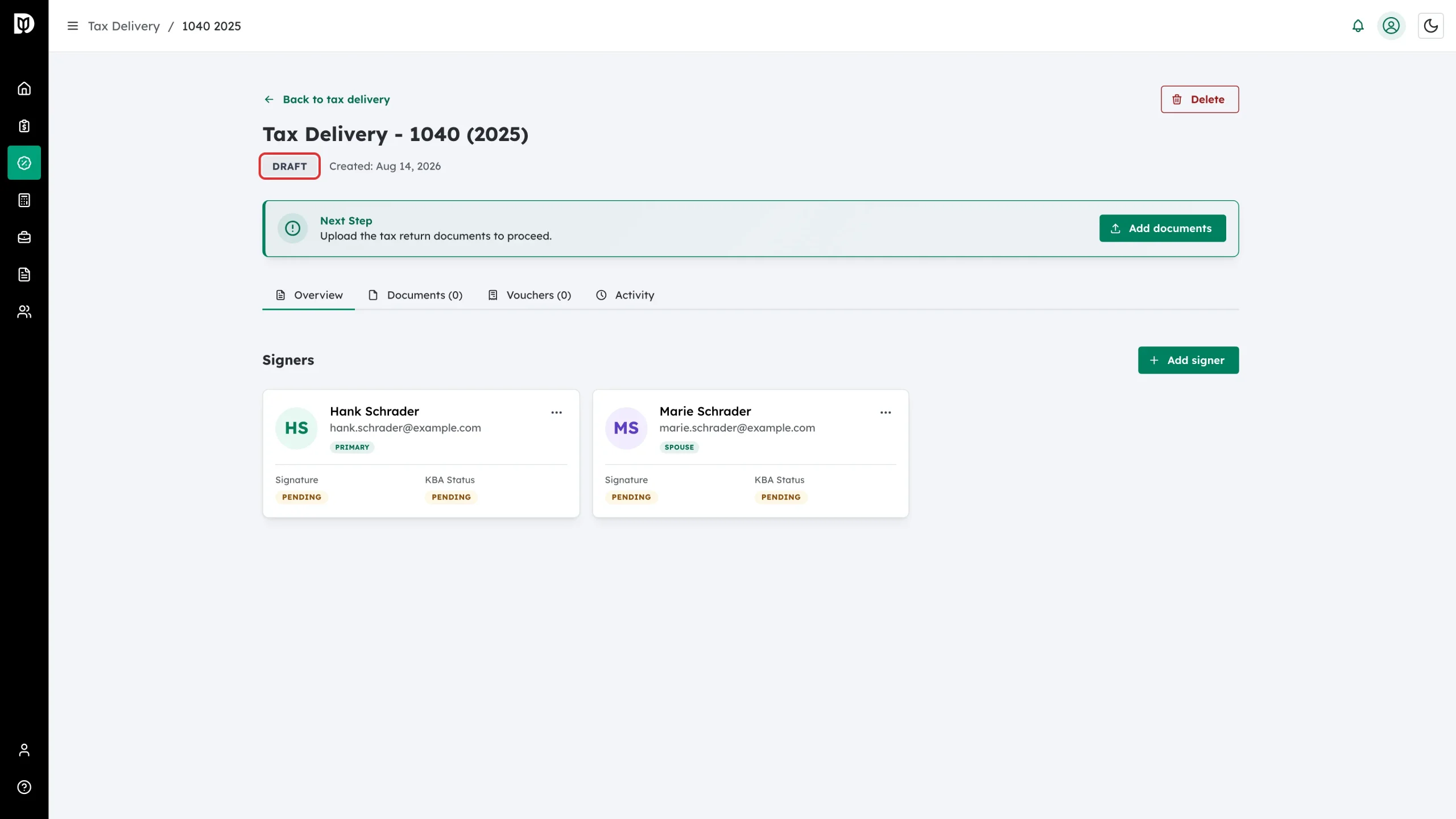
Step 3: Move between the tabs
The tabs carry live counts so you can see what has been added:
- Overview – tax summary and signer cards
- Documents – the files the client will sign
- Vouchers – estimated tax payment vouchers
- K-1s – only on 1065 and 1120S returns (an 1120 issues no K-1s)
- Activity – the full audit trail
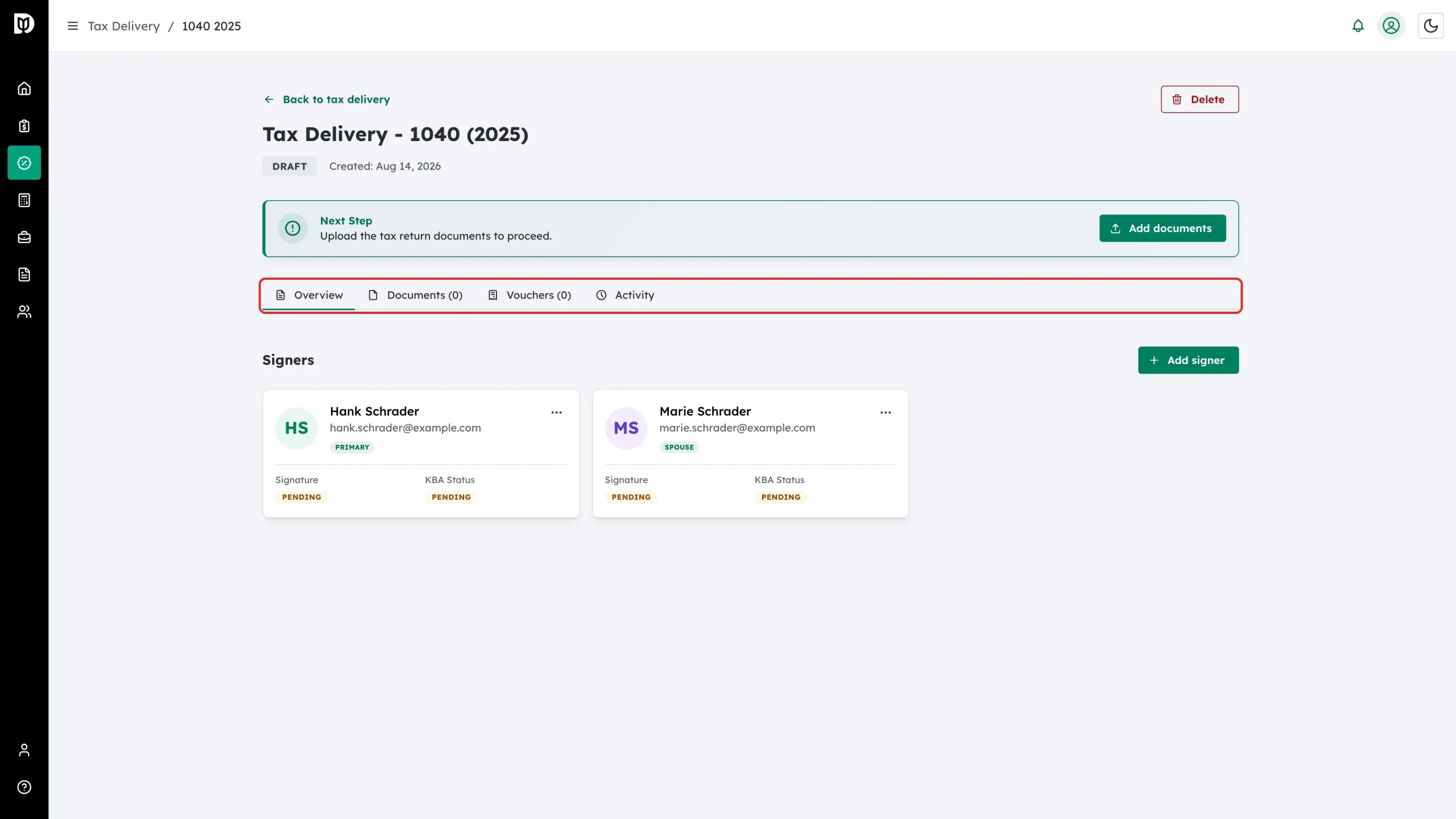
Step 4: Do what the Next Step card says
The green Next Step card always tells you the one thing to do next, and carries the button to do it – Add documents, Configure Signatures or Send for signature. Once the return is with the client it explains what you are waiting on instead.
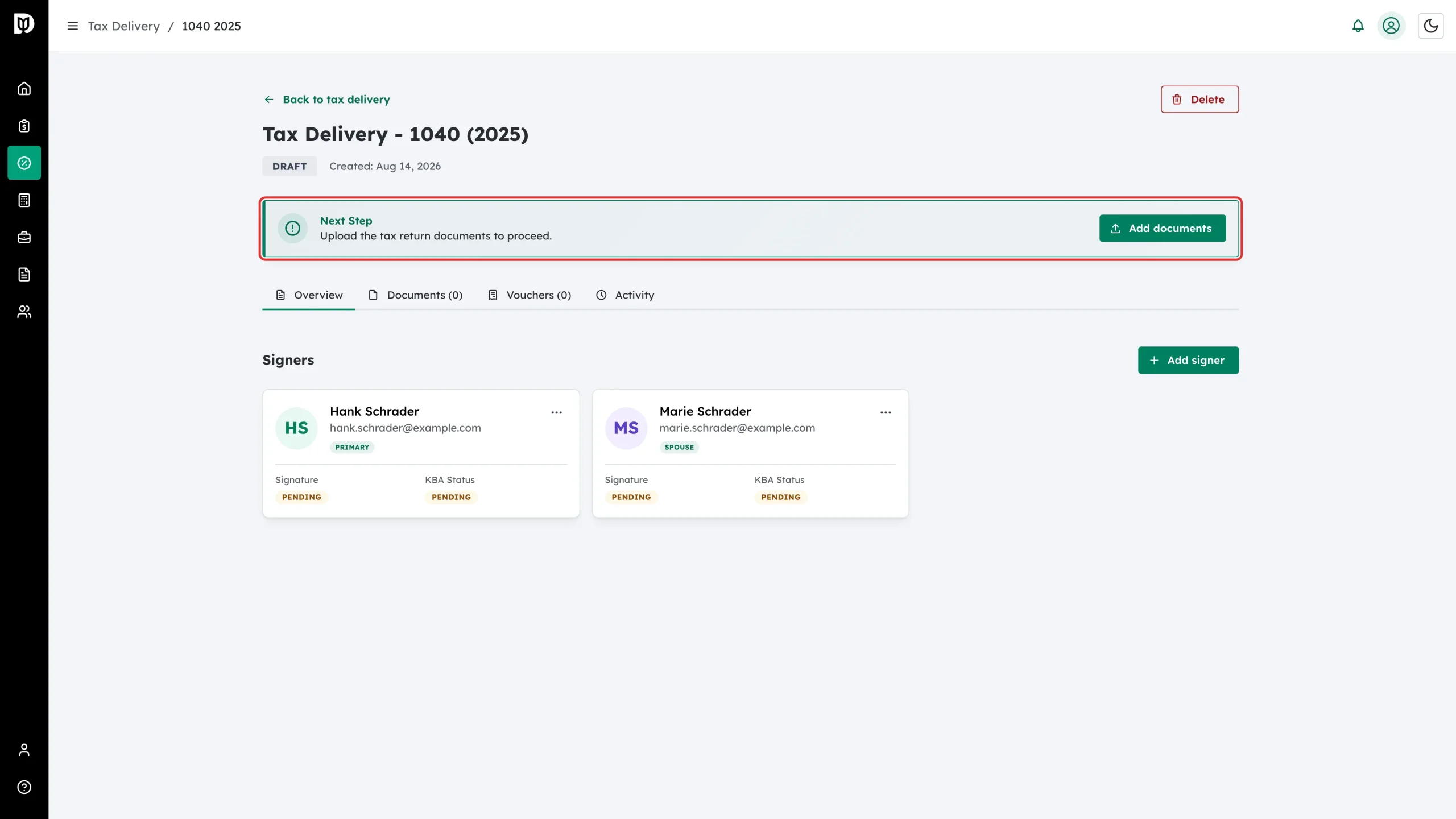
Step 5: Follow the progress stepper
After a return is sent, a six-stage stepper appears. Completed stages turn green:
- Draft – prepare documents
- Sent – awaiting review
- KBA – identity verification
- Signing – collect signatures
- Completed – all signed
- Filed – filed with the IRS
While a return is out with the client, Upload signed document and Recall appear at the top of the page. Recall pulls the return back so you can change it.
Step 6: Confirm every signature is in
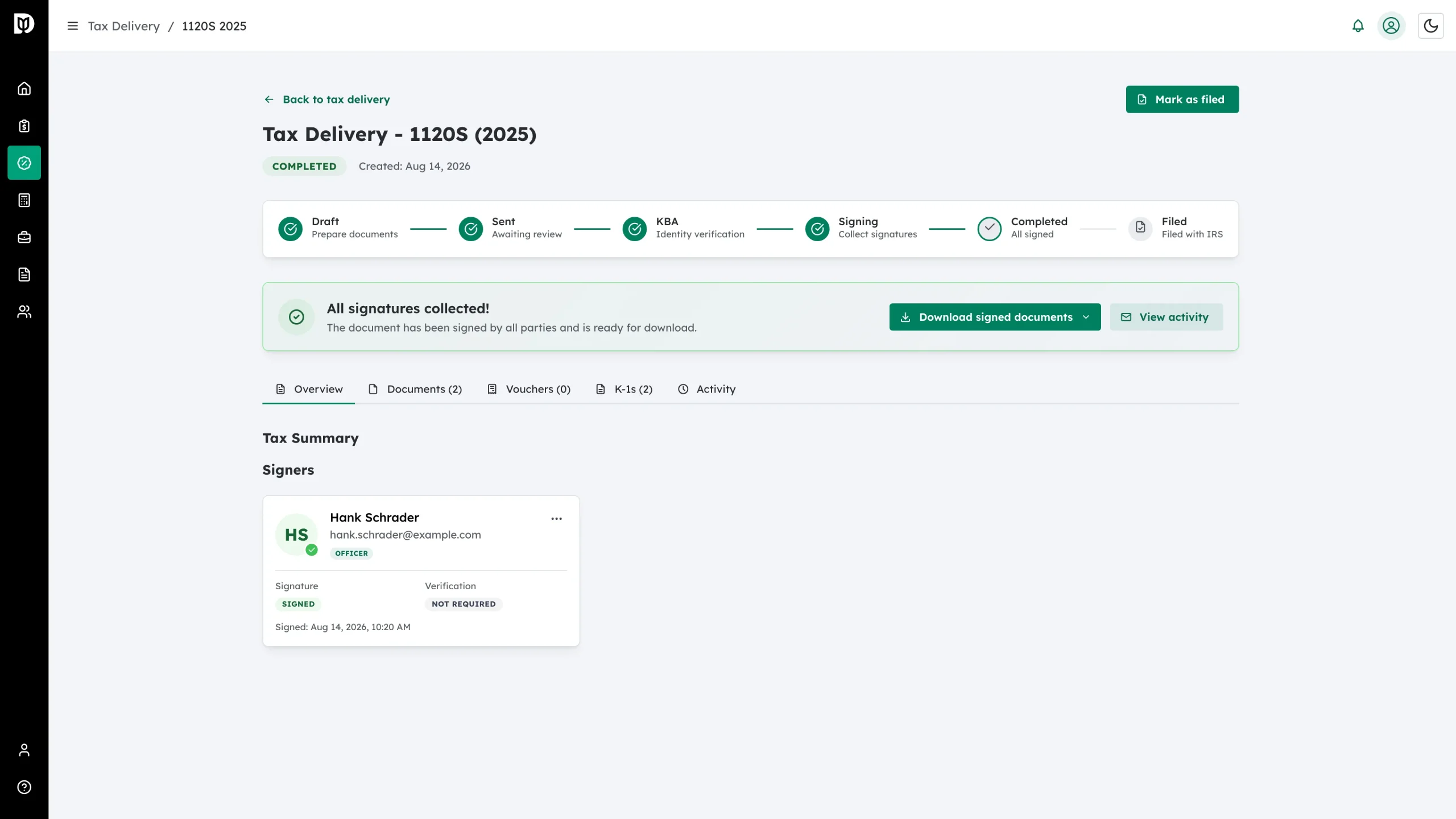
When the last signer finishes, the Next Step card is replaced by a green All signatures collected! card and the status badge changes to Completed.
Step 7: Download the signed documents
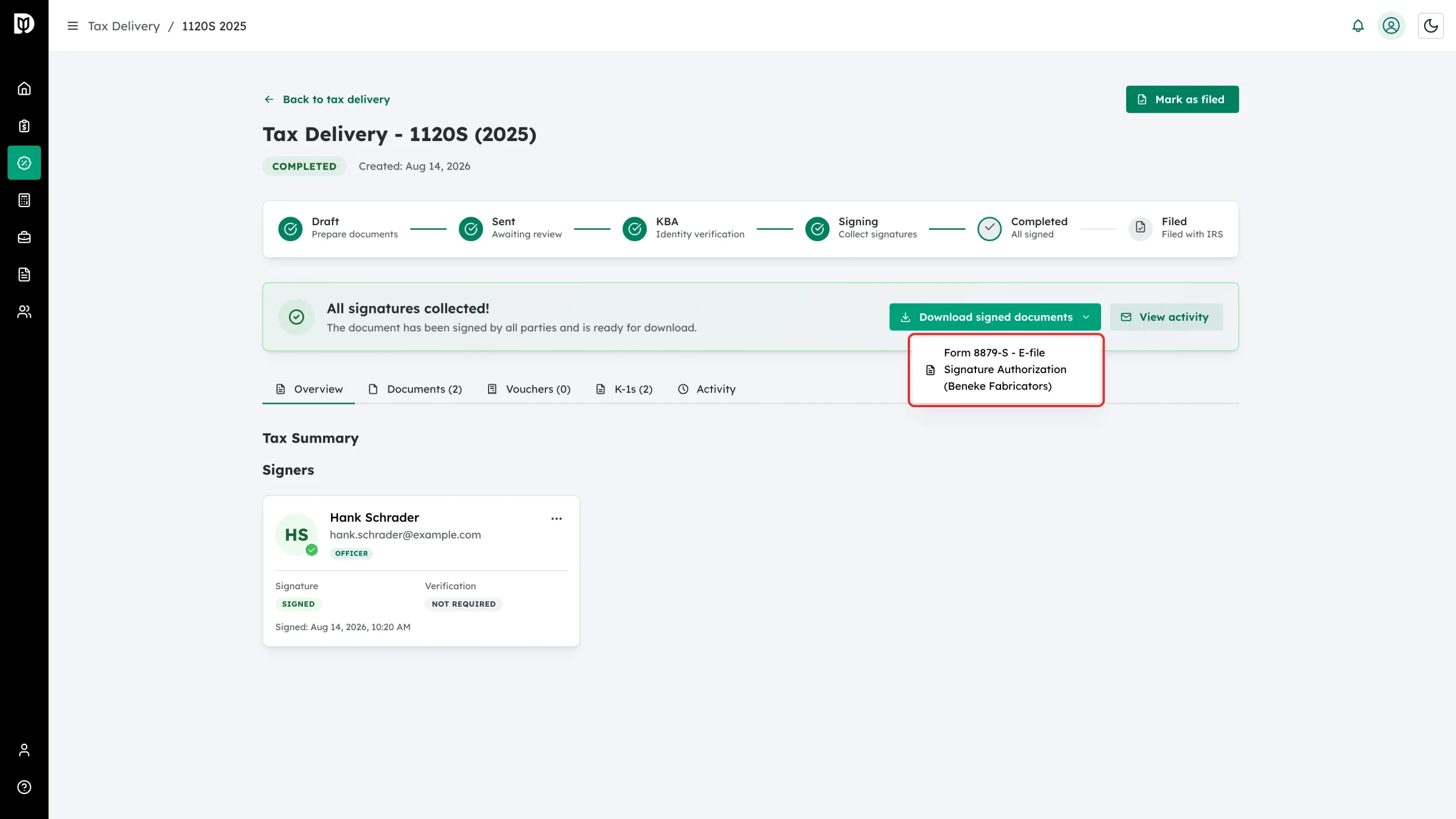
Click Download signed documents to save the signed copies. The arrow beside it lets you pick a single document instead of all of them.
Step 8: Mark the return as filed
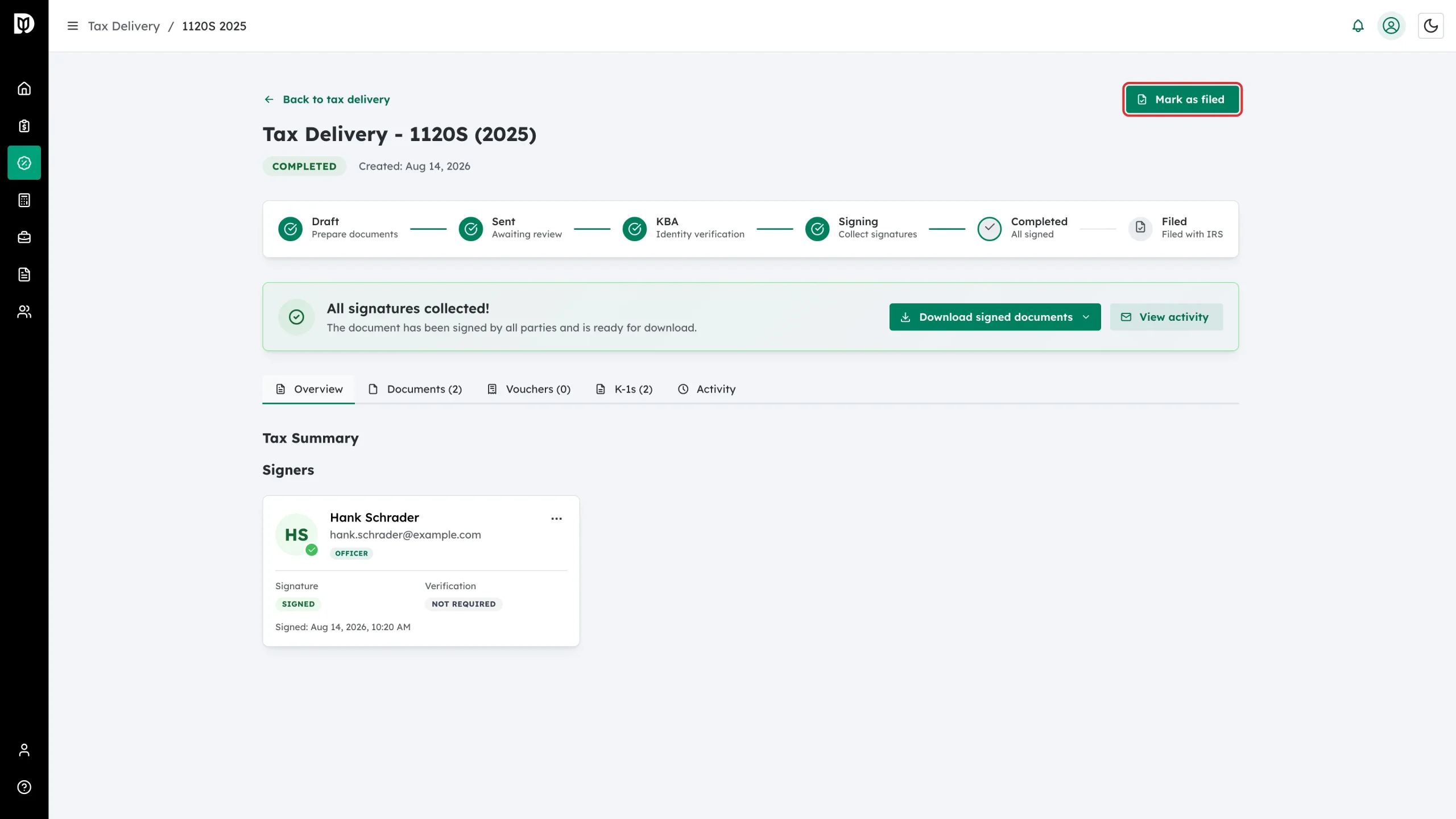
After you file the return with the IRS through your filing software, click Mark as filed so your team and the audit trail both show it is done.
Debits does not e-file returns. Marking as filed is a record-keeping step in Debits only. Send for signature, Upload signed document and Mark as filed need the Send bulk reminders, send for signature, and file tax permission.
If the return was delivered or filed outside Debits, open the row menu on the Delivery list and choose Move to stage. Pick the Target stage. When the plan includes steps completed outside Debits, fill in Document how this was completed outside Debits (it is recorded permanently on the return’s activity log), then click Move return.
What happens next
The badge changes to Filed, the last stage of the stepper turns green, and a Tax return filed card records the date. If you marked it by mistake, click Unmark as filed.
Troubleshooting
- The K-1s tab is missing: K-1s only apply to 1065 and 1120S returns.
- The client says they cannot sign or download a document: check the Documents tab for a padlock. A held document stays locked until its invoice is paid.
- You need to change a sent return: Click Recall. This withdraws the return from the client so you can edit it and send it again.
- “Failed to load tax return”: The delivery may have been deleted or archived. Go back to the list and click the View archived icon.