Who this is for: Clients who have been emailed a link to confirm an estimated tax payment.
What you’ll learn: What the confirmation page does and what to check on it.
Before you begin
- You need the voucher reminder email from your accountant.
- Only click the link once you have actually made the payment to the taxing authority. Debits does not take the payment for you.
Step-by-step instructions
Step 1: Click the confirmation link
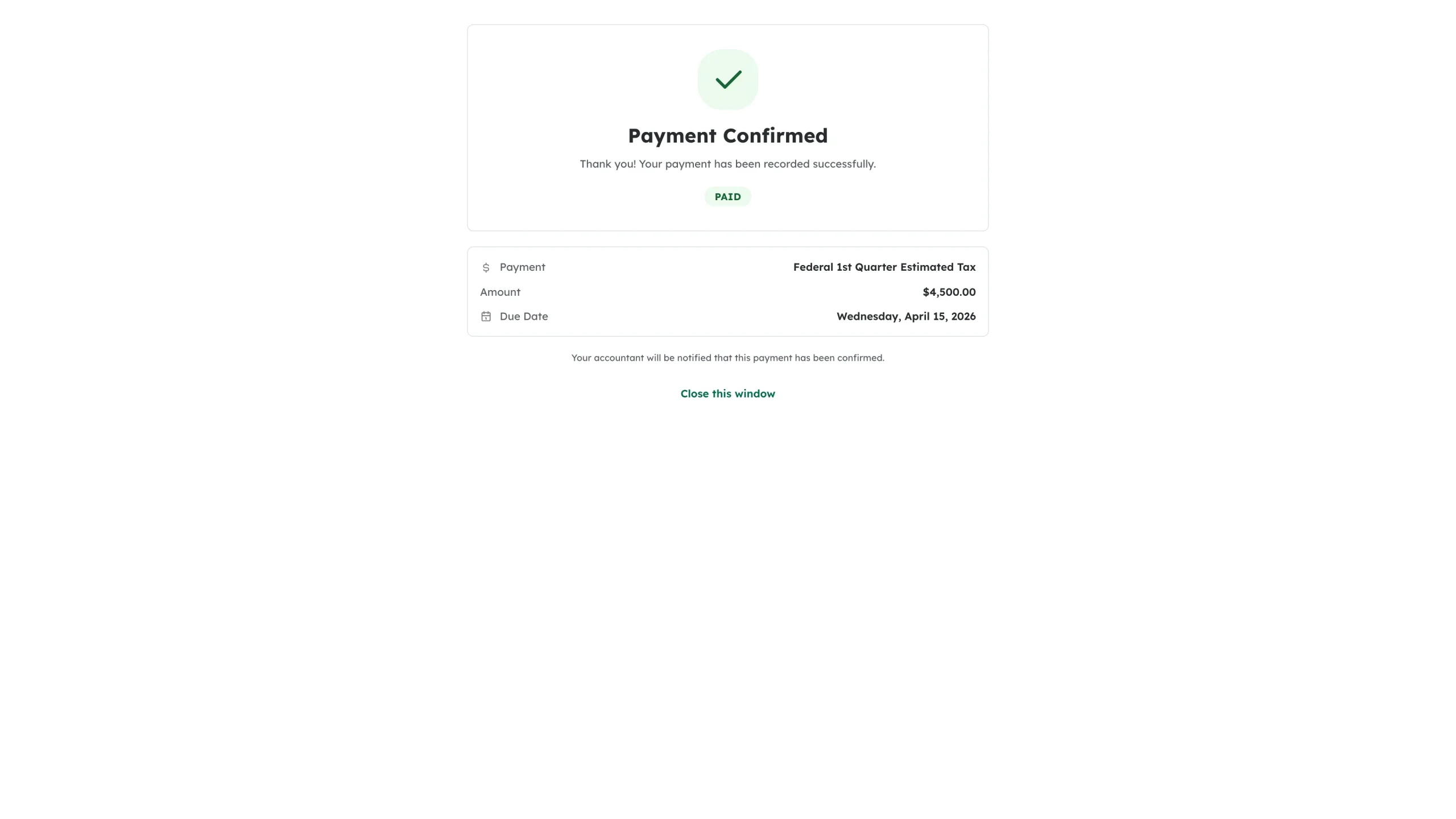
Open the email and click the confirmation link. The page confirms the payment for you – there is no button to press. You will see Payment Confirmed with a green Paid badge.
Step 2: Check the details
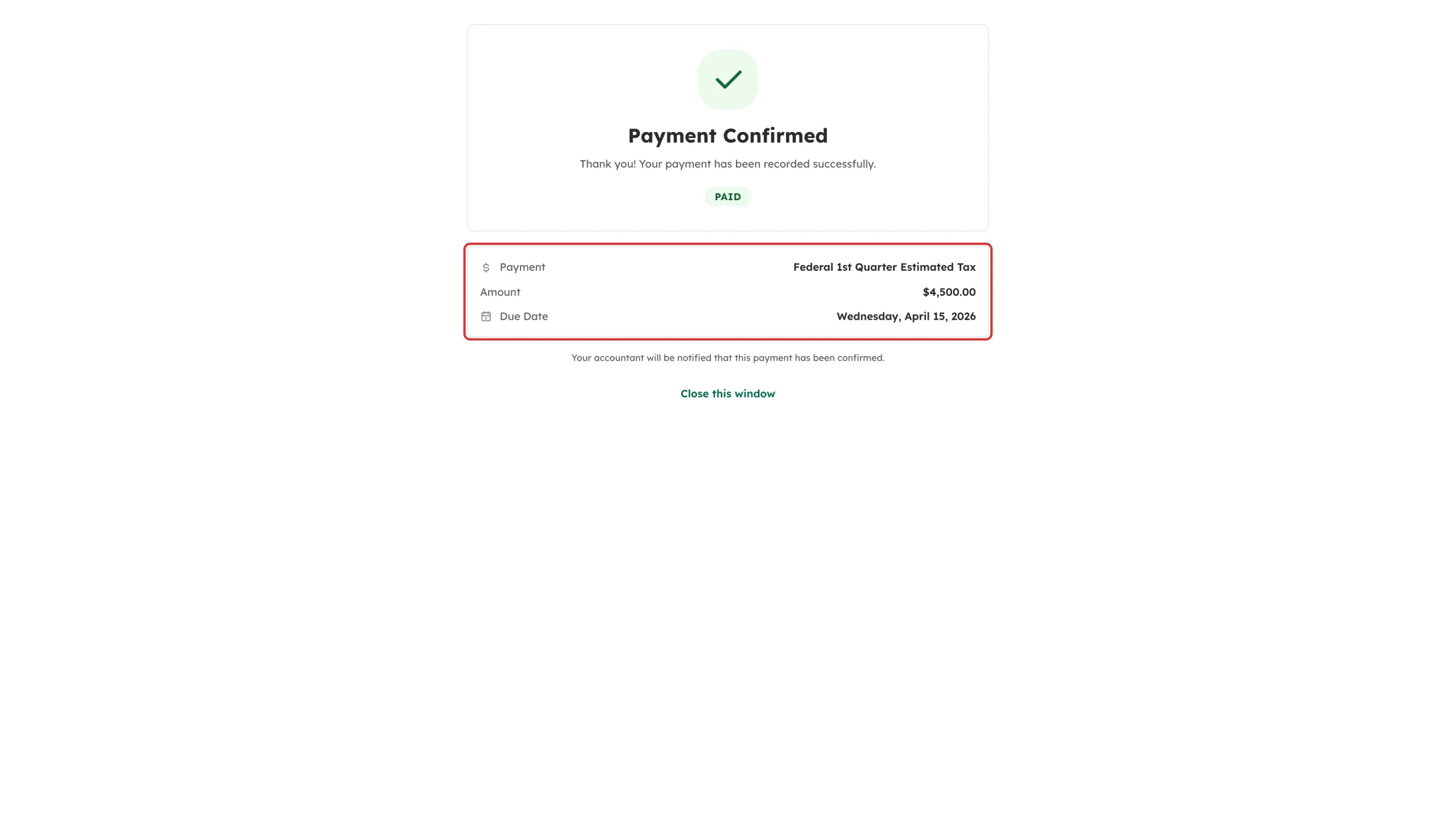
The card underneath shows exactly which voucher you just confirmed:
- Payment – the jurisdiction and quarter, for example “Federal 1st Quarter Estimated Tax”
- Amount
- Due Date
If this is not the payment you meant to confirm, contact your accountant.
Step 3: Close the page
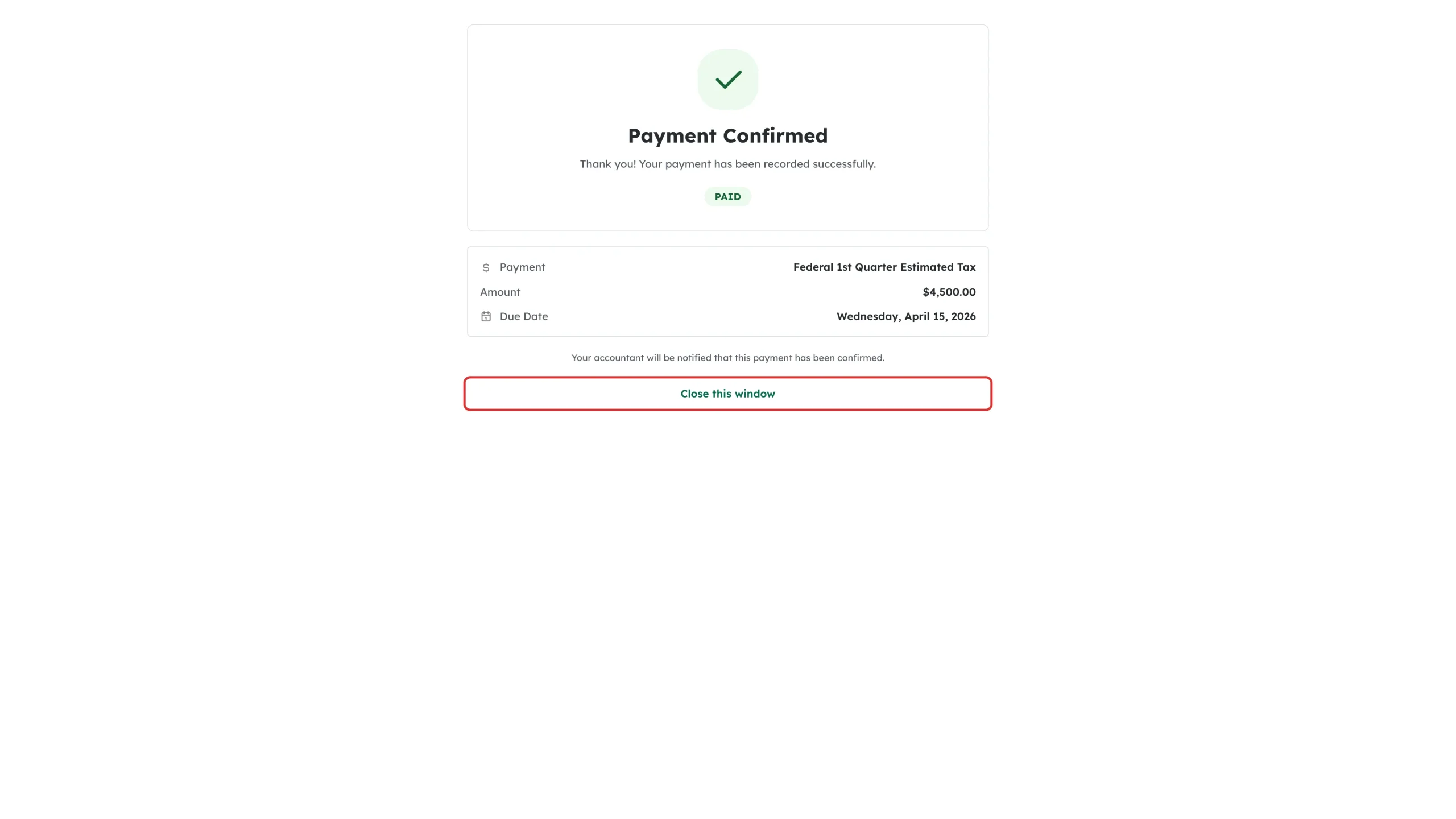
Click Close this window, or just close the browser tab. Nothing else is needed.
What happens next
Your accountant is notified, the voucher is marked as paid on their side, and its automated reminders stop.
Troubleshooting
- “Unable to Confirm Payment”: The link may already have been used or may have expired. Ask your accountant to mark the voucher as paid for you.
- You clicked the wrong link: Contact your accountant – they can change the status back.
- You still get reminders: Reminders stop once the voucher is marked as paid. If they continue, let your accountant know.