Who this is for: Clients who would rather print their tax return, sign it by hand and upload it – including anyone who cannot get through the identity questions.
What you’ll learn: How to download your documents, sign them on paper, and send the signed copy back.
Before you begin
- You need your signing link from your accountant.
- You need a printer, and a scanner or a phone camera.
Step-by-step instructions
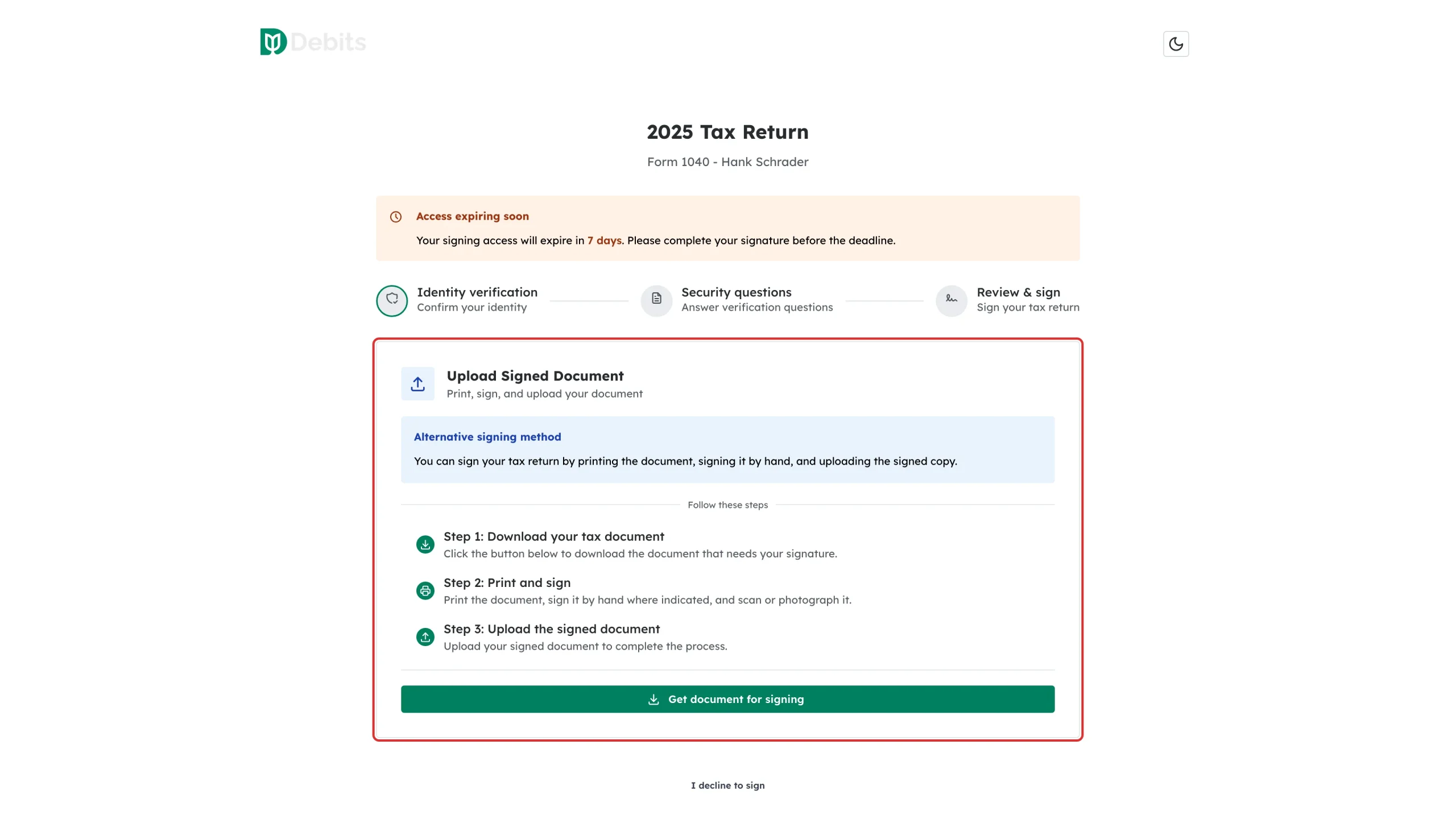
Step 1: Find the Upload Signed Document card
Open your signing link. Below the progress bar you will see Upload Signed Document, labelled Alternative signing method. You can use it at any point – you do not have to try the security questions first. A document your accountant is holding for payment cannot be downloaded here until its invoice is paid.
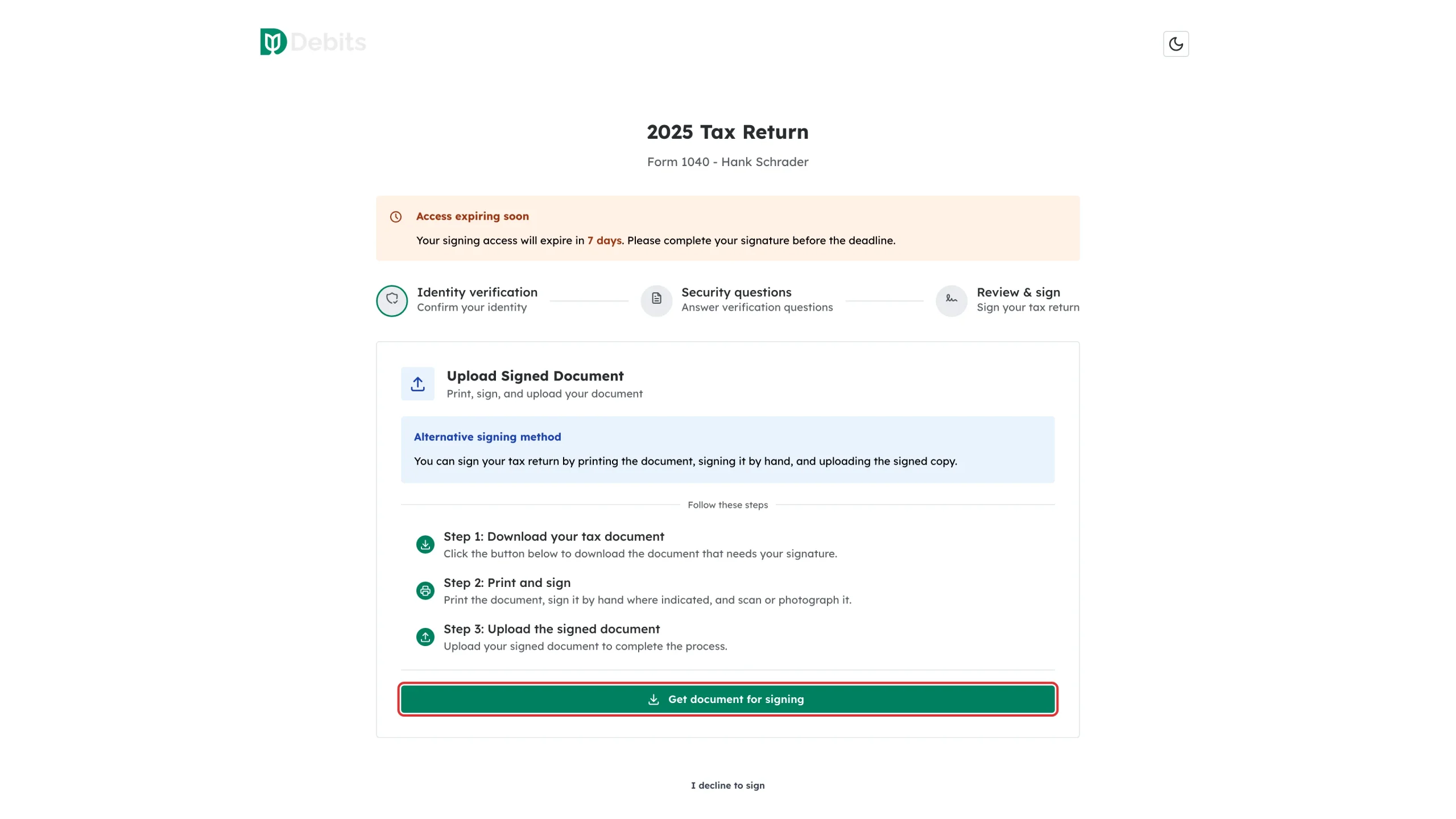
Step 2: Click Get document for signing
Click Get document for signing to pull up the documents that need your handwritten signature.
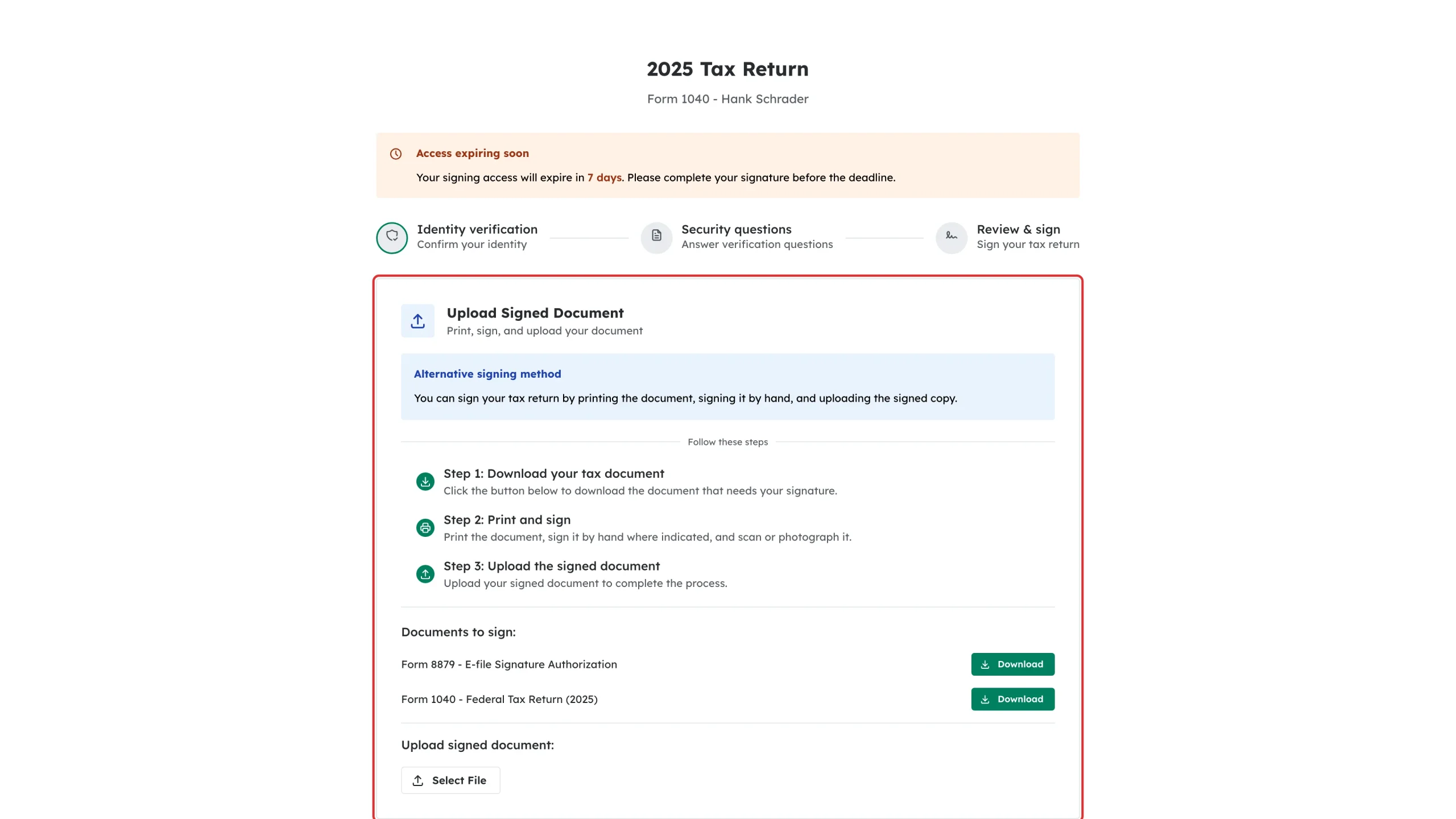
Step 3: Download and print each document
A Documents to sign list appears with a Download button beside each file. Save them, print them, sign them by hand where indicated, then scan or photograph the signed pages.
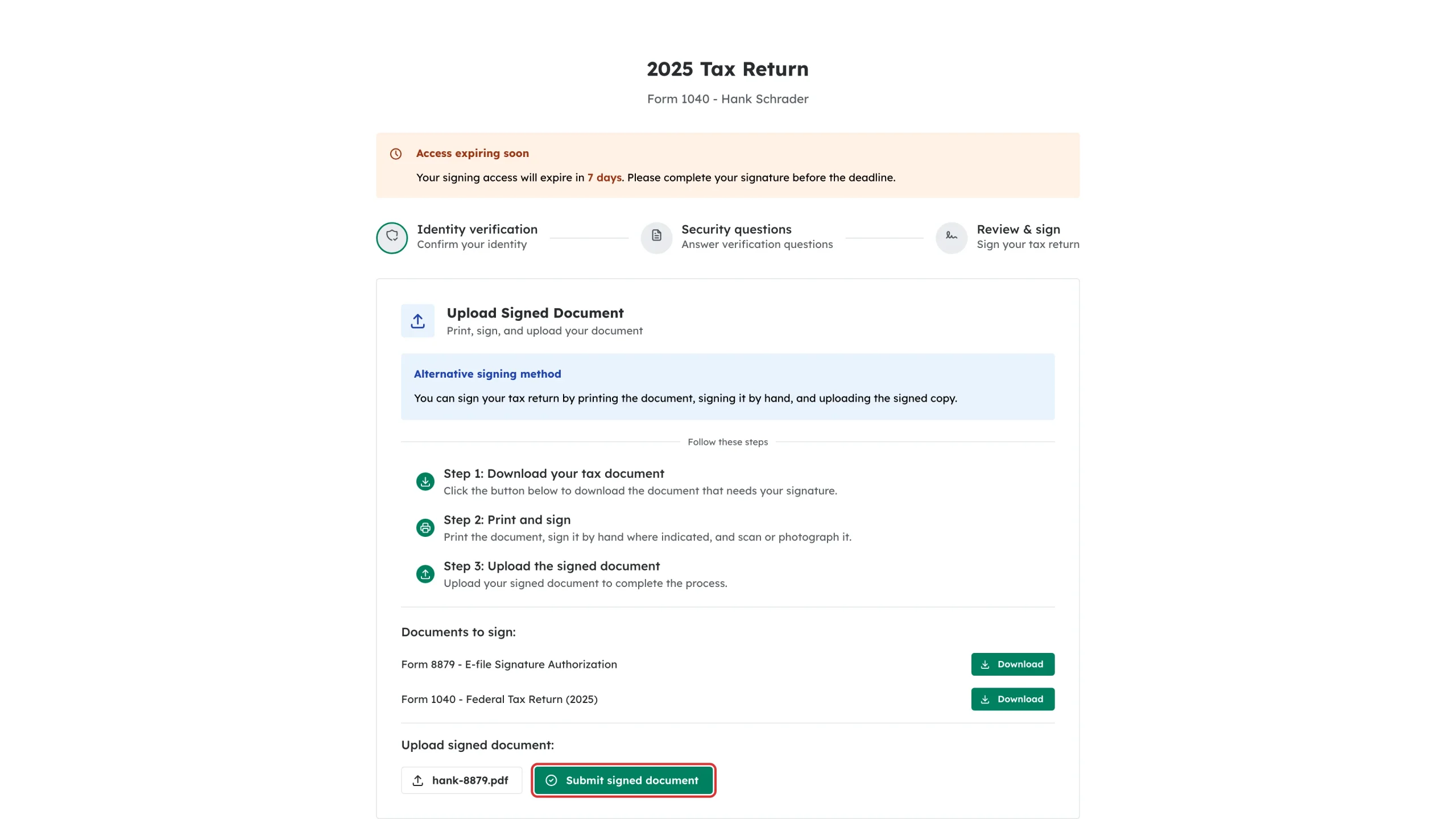
Step 4: Upload your signed copy
Under Upload signed document, click Select File and choose your scan or photo. The file name appears next to the button. Click Submit signed document.
What happens next
Your signature is recorded as complete and your accountant is notified. The upload is written to the return’s activity log, so there is a clear record of how you signed.
Troubleshooting
- “Failed to get document”: Refresh the page and try again. If it keeps happening, contact your accountant.
- Your upload is rejected: Send a PDF or a clear image. Make sure every signed page is included.
- Your link has expired: Ask your accountant for a new one.