Who this is for: Firm owners and admins who manage firm settings.
What you’ll learn: How to show clients a simple note on their portal that says where their return stands.
The note is deliberately simple. Clients see one plain sentence about their return. Your stages, sub-statuses, assignments and internal notes stay private.
Before you begin
- You need to be an owner or admin to change firm settings.
- The Tax Suite feature must be switched on. Client return progress is greyed out without it.
- The setting is off by default.
Step-by-step instructions
Step 1: Open Firm settings
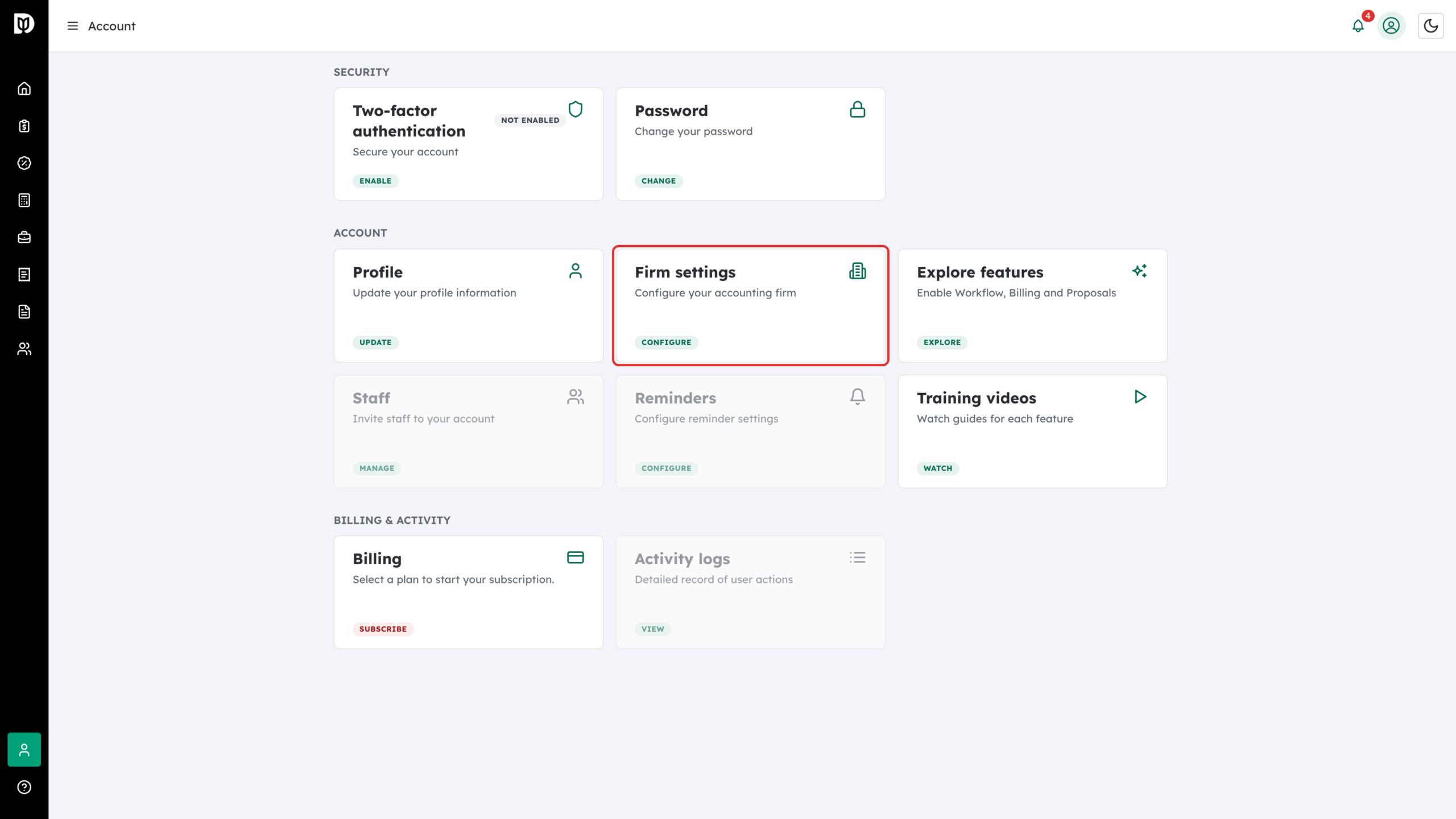
Click Account in the left sidebar, then click the Firm settings card.
Step 2: Switch on Client return progress
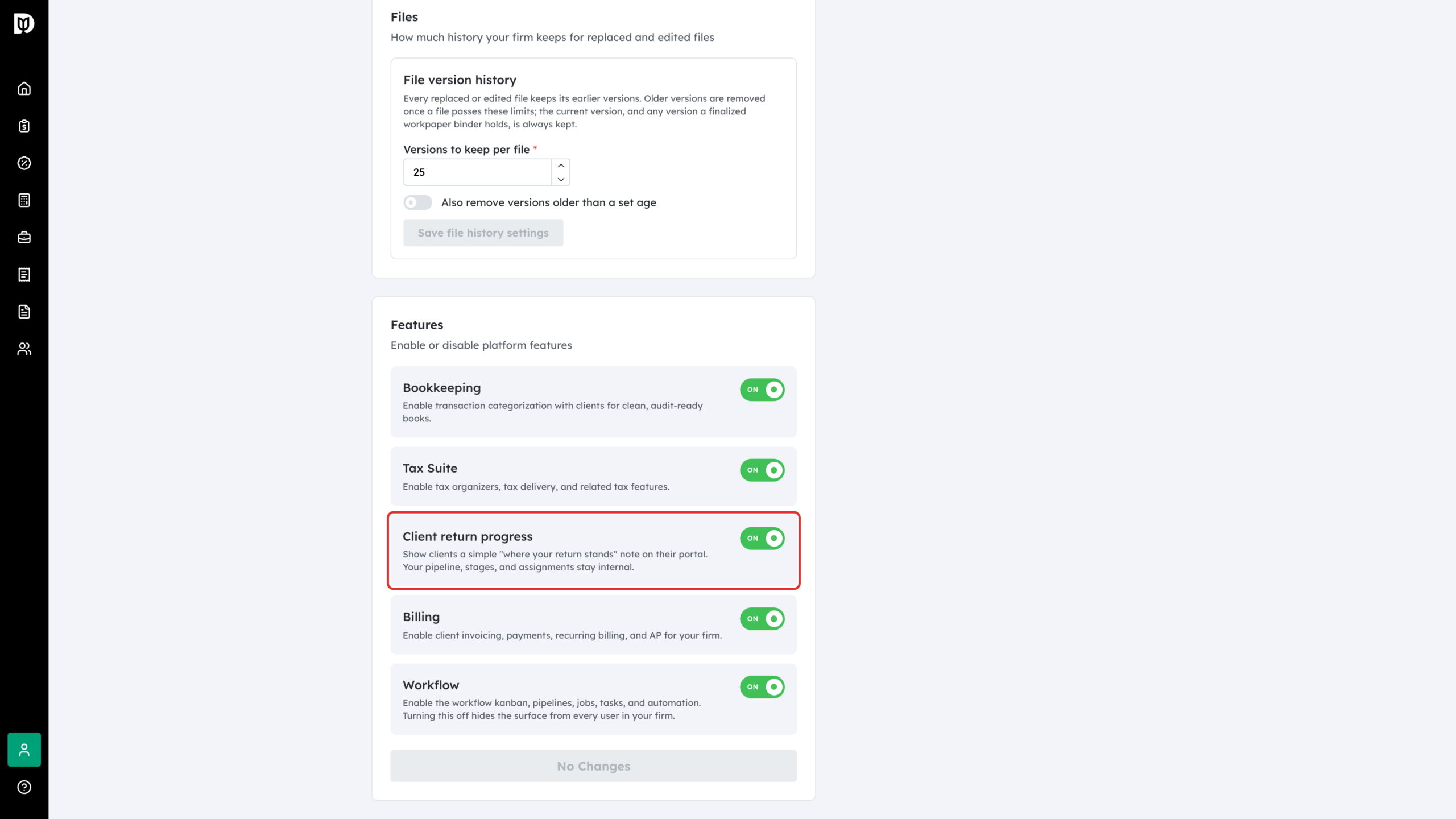
Scroll to Features and turn on Client return progress. Click Save Changes at the bottom of the page.
Step 3: See what your client sees
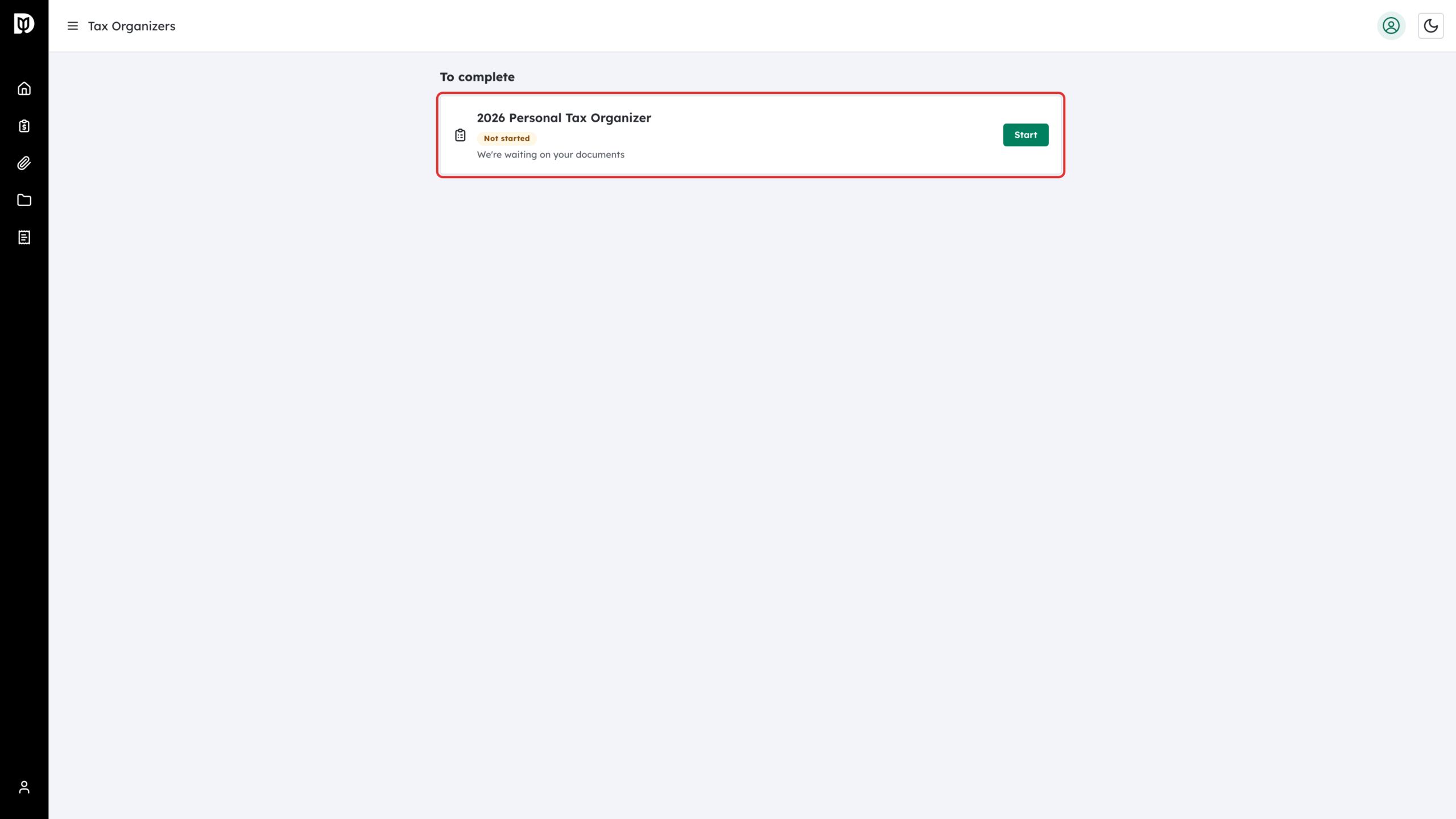
On the client’s Tax Organizers page, each organizer card now carries a short note under its status. Depending on where the return stands, it reads:
- We’re waiting on your documents
- Documents received — your return is in preparation
- Your return is in preparation
- Your accountant needs more information
What happens next
The note updates on its own as the organizer moves along. Nothing shows for an organizer you have not sent yet. Once the return reaches delivery, the client follows it through the signing steps as before.
You can also switch this on from Account > Explore features, where it is listed as Client tax status.
Troubleshooting
- The switch is greyed out: turn on Tax Suite first.
- The client sees no note: check that you clicked Save Changes, and that the organizer has been sent.