Who this is for: Accountants handling a partnership (1065) or S-corporation (1120S) return who need to get each partner or shareholder their K-1.
What you’ll learn: How to upload a K-1 PDF per recipient, send them all, and track who has looked at theirs.
Before you begin
- The tax delivery must be a 1065 or 1120S return.
- Have each recipient’s K-1 saved as its own PDF.
- Have each recipient’s name, email, ownership percentage and distribution amount to hand.
Step-by-step instructions
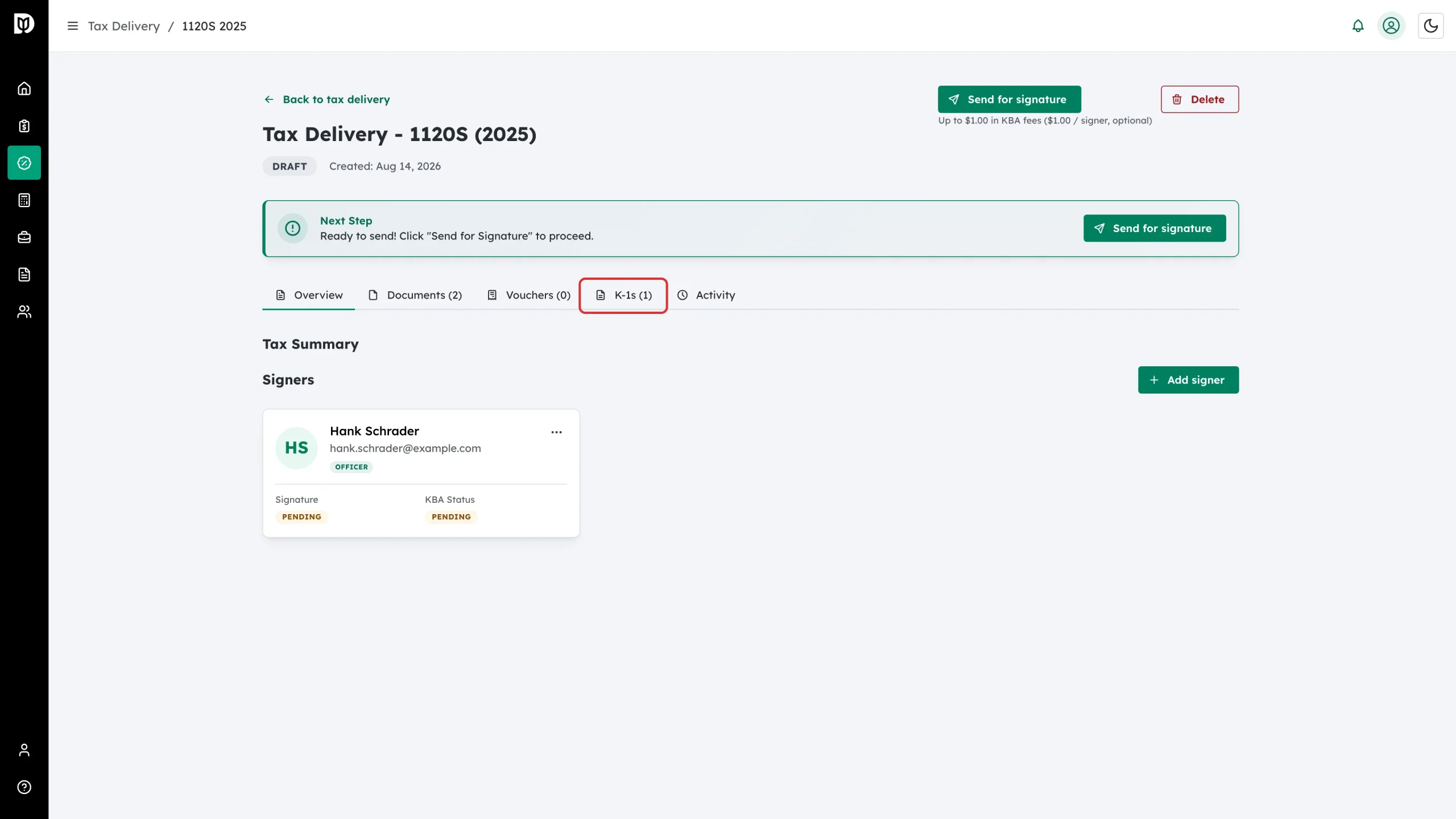
Step 1: Open the K-1s tab
On the tax delivery detail page, click K-1s. This tab only appears on 1065 and 1120S returns.
Step 2: Read what the tab expects
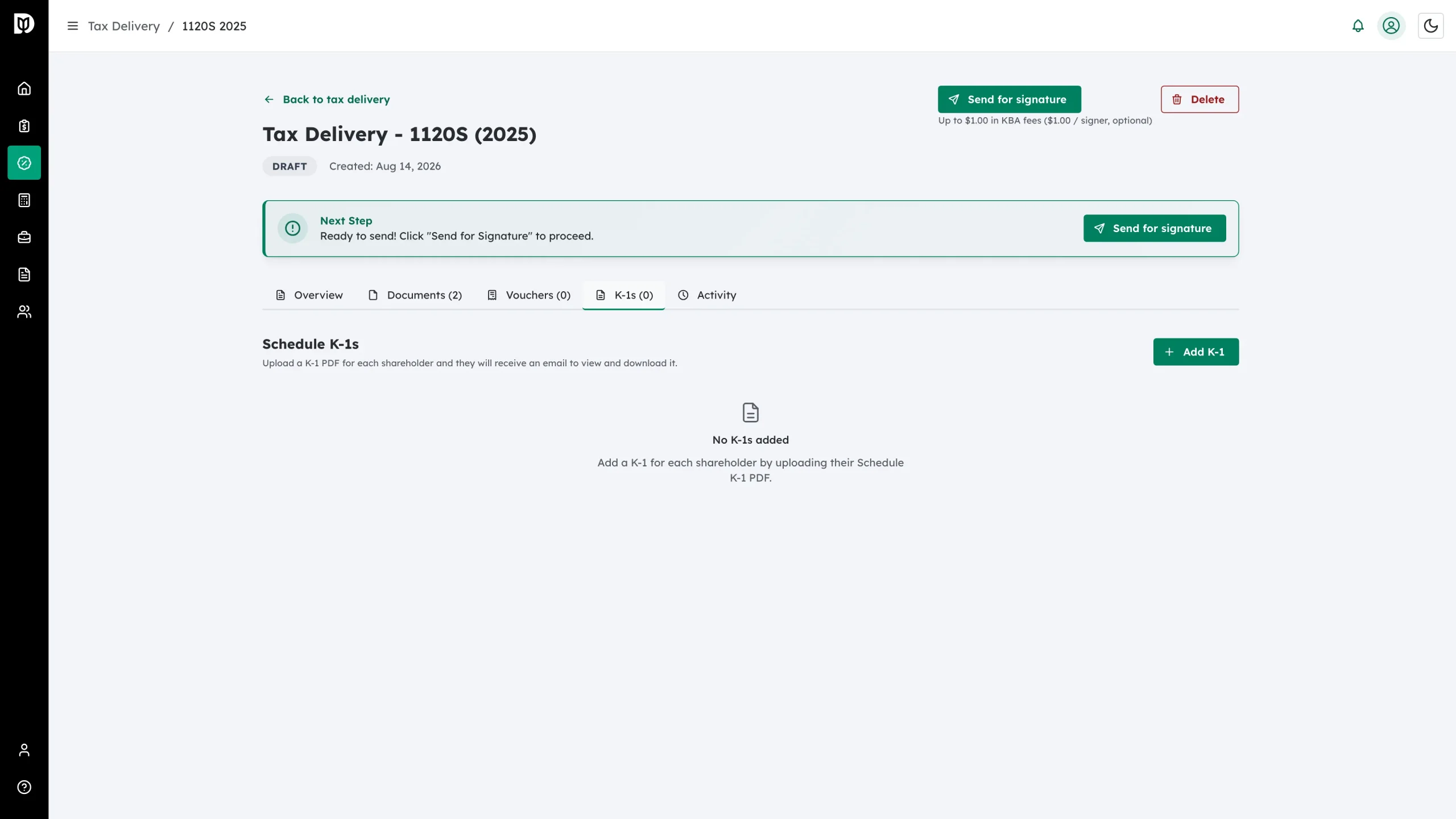
Before you add anyone, the tab is empty and explains the rule: upload a K-1 PDF for each shareholder or partner, and they will get an email to view and download it.
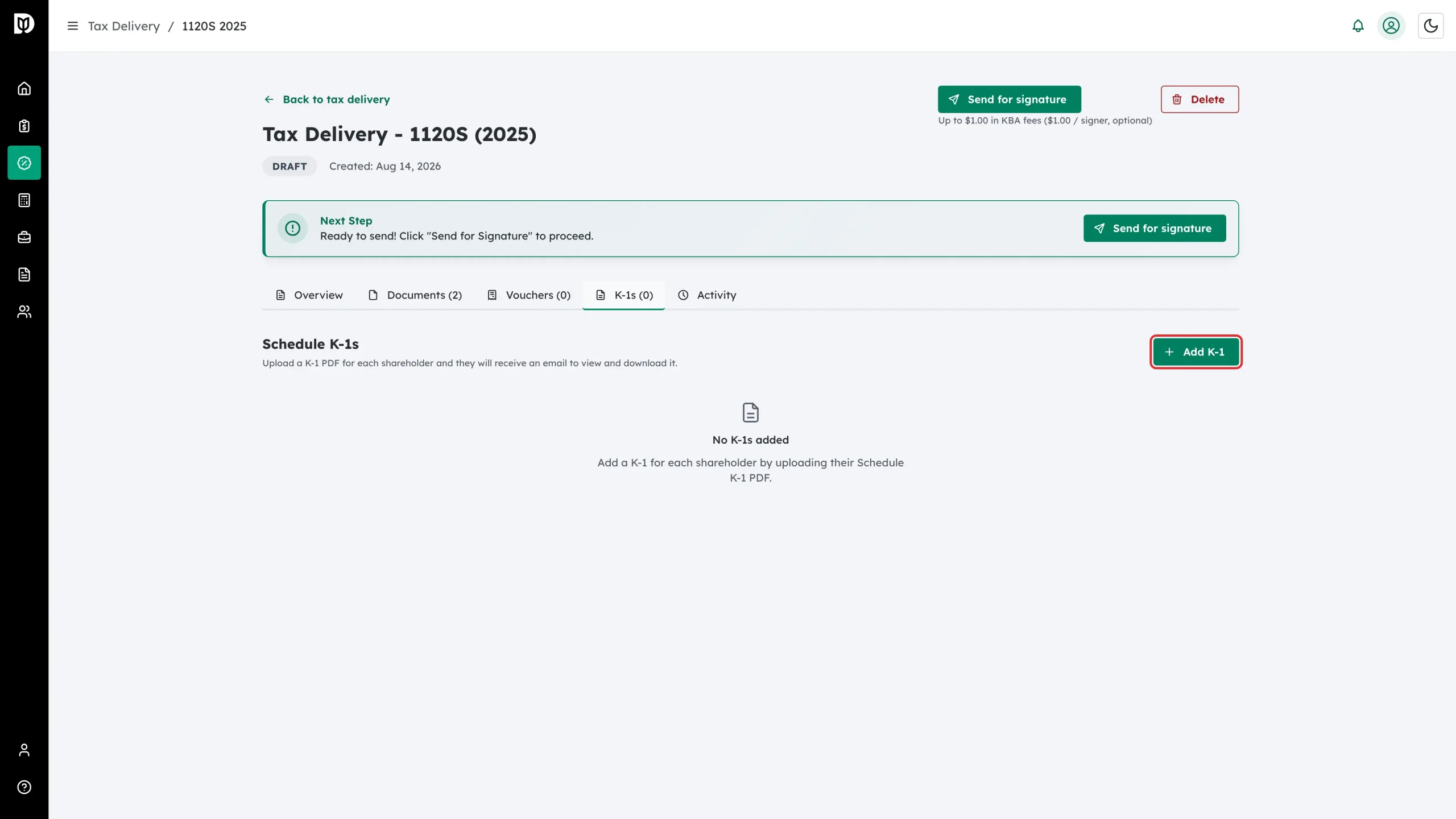
Step 3: Click Add K-1
Click Add K-1 on the right of the Schedule K-1s heading.
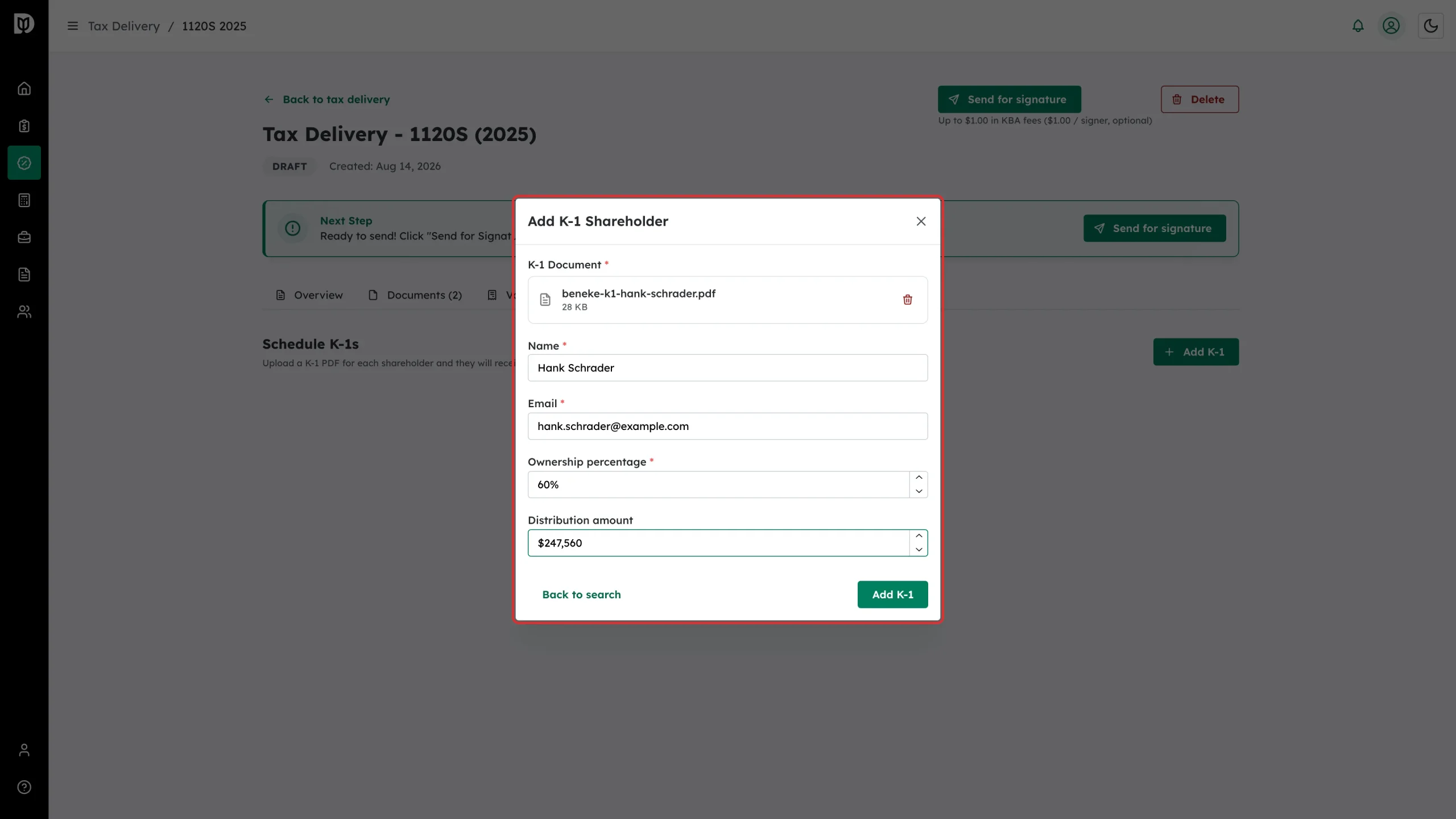
Step 4: Fill in the recipient and attach their K-1
Search your contacts for the person, or click through to the manual form (Back to search takes you back). Then:
- K-1 Document – upload that person’s K-1 PDF. This is required.
- Name and Email – where the K-1 will be sent.
- Ownership percentage – their share, from 0 to 100.
- Distribution amount – what they were distributed.
Click Add K-1 to save, then repeat for every partner or shareholder.
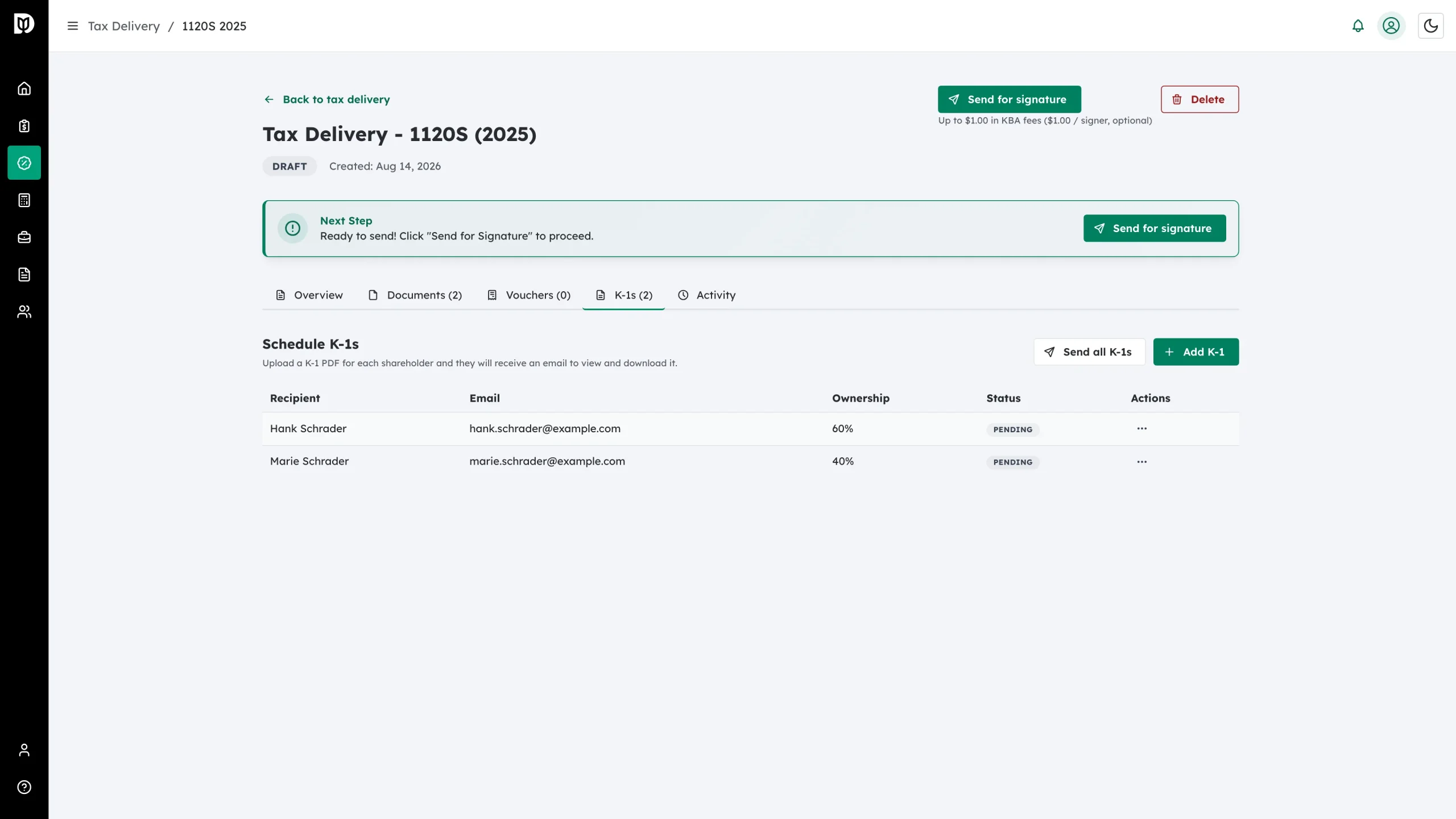
Step 5: Check the list
Each recipient becomes a row showing their name, email, ownership and delivery status.
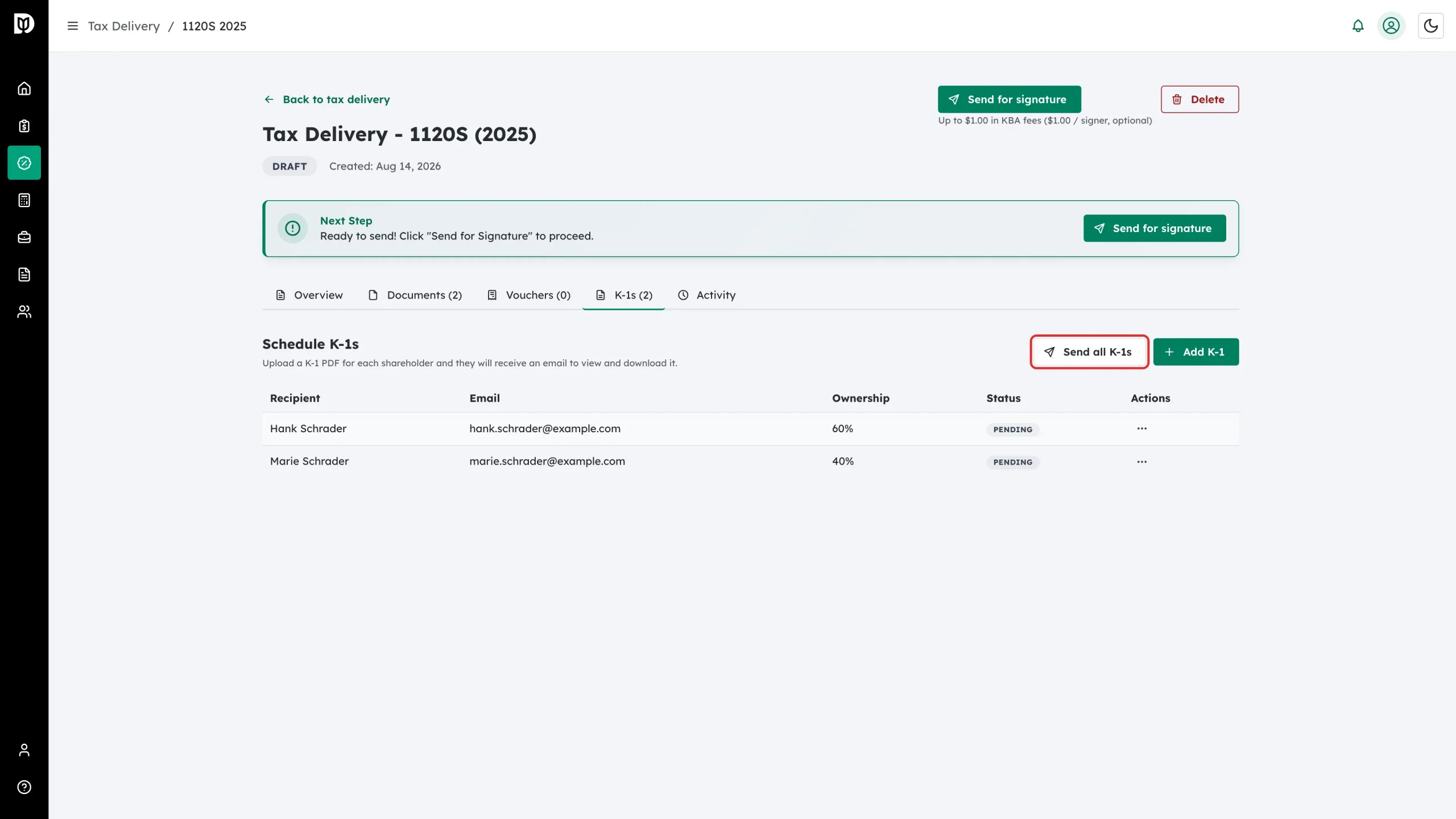
Step 6: Send them all
Click Send all K-1s to email every recipient whose K-1 is still pending. Each person gets their own secure link.
What happens next
Each row’s status moves through Sent, Viewed and Downloaded as the recipient opens their link. Use the three-dot menu on a row to Download PDF, Edit the details, Resend Email, or Delete the distribution.
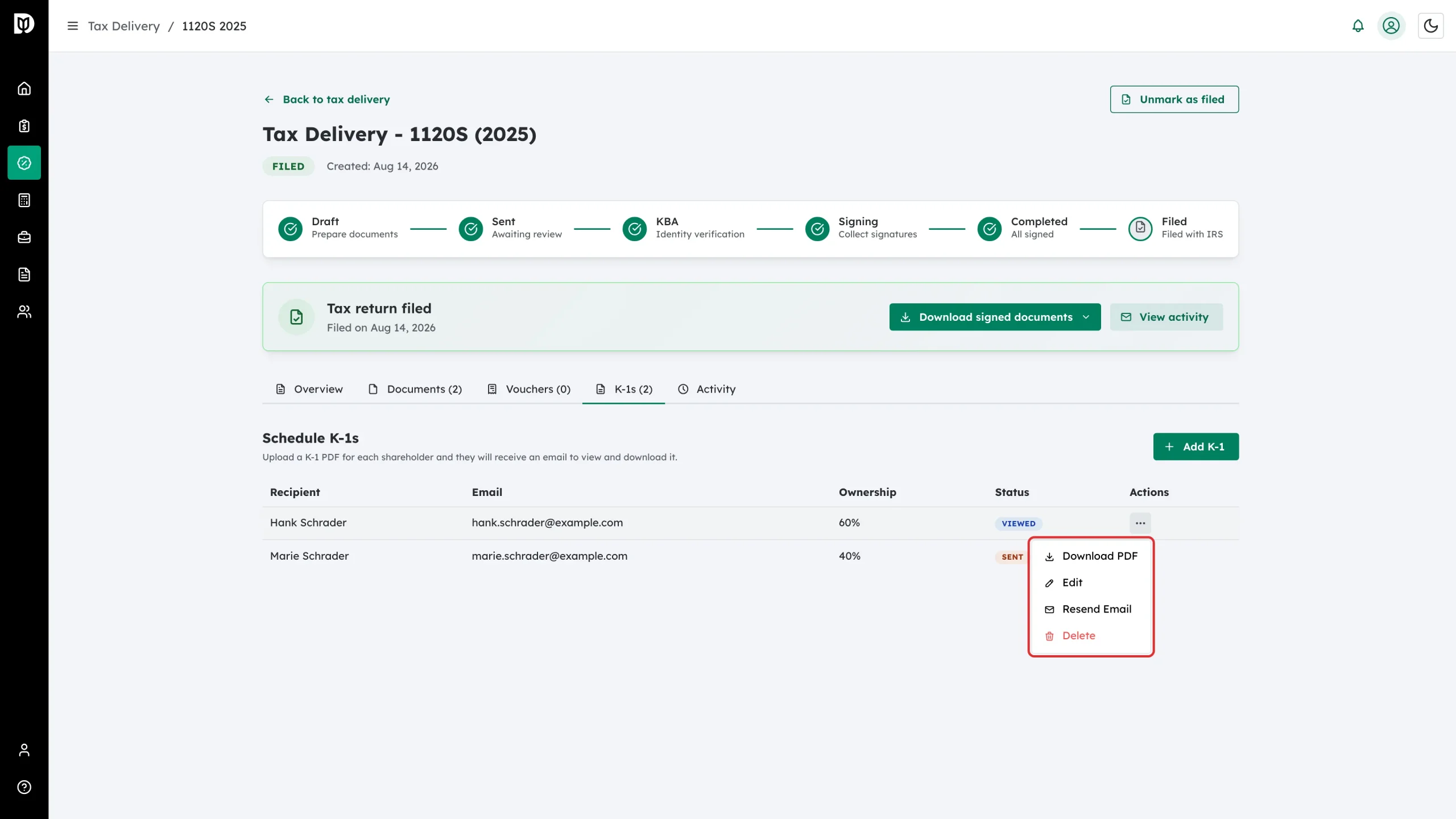
Every send, view and download is also written to the Activity tab.
Troubleshooting
- The K-1s tab is missing: K-1s are only available on 1065 and 1120S returns. A C corporation (1120) issues no K-1s, so the tab is hidden.
- A row shows Incomplete: The recipient is missing an email address or an ownership percentage. Open Edit and fill in the gap – Debits will not send an incomplete K-1.
- Send all K-1s is not there: It only appears while at least one K-1 is still pending. Use Resend Email on a row to send an individual one again.