Who this is for: Partners and shareholders who have been emailed a link to their Schedule K-1.
What you’ll learn: How to open your K-1, check the figures, and download a copy.
Before you begin
- You need the email from the accountant with your K-1 link. The link is personal to you.
Step-by-step instructions
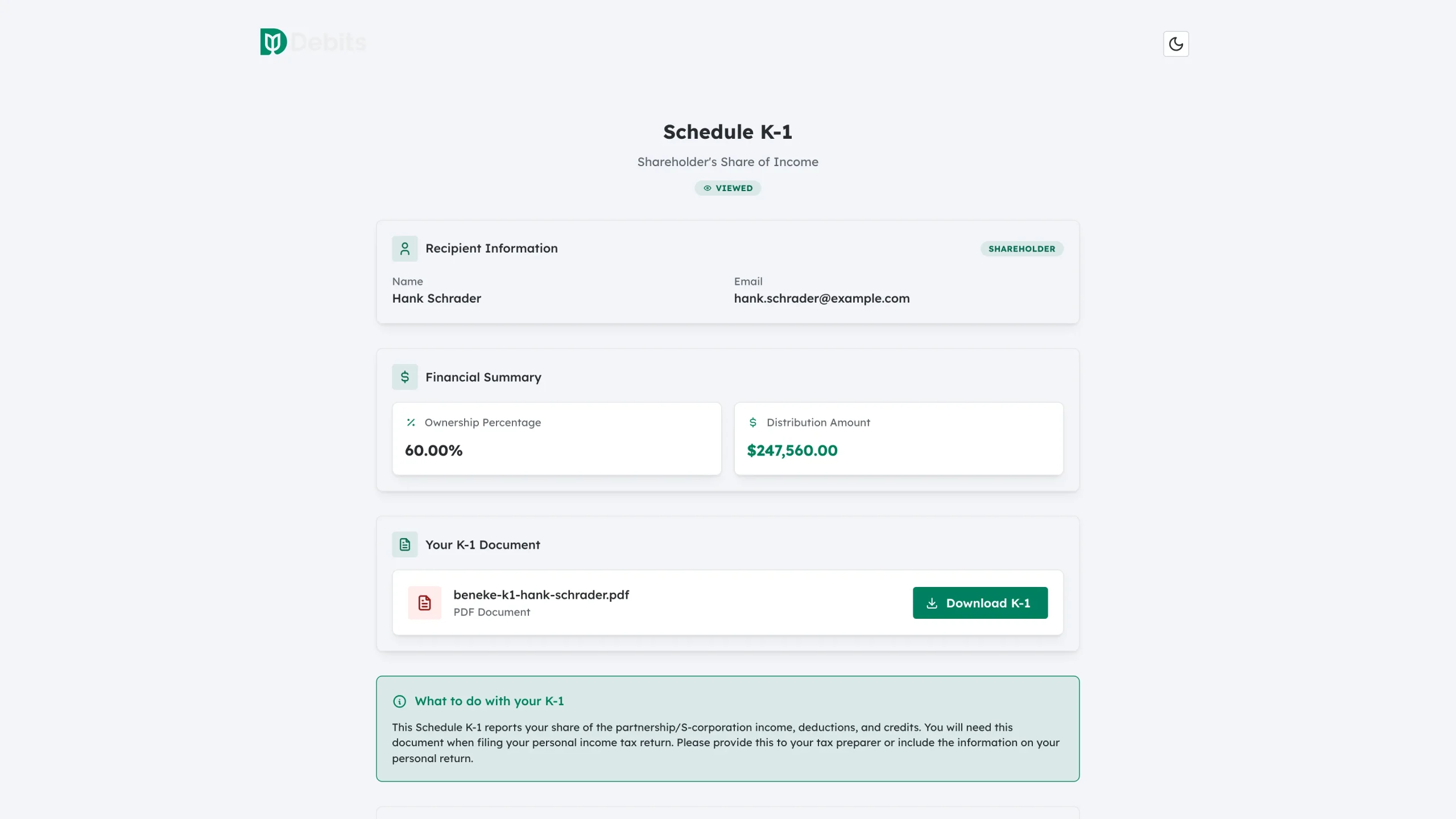
Step 1: Open your link
Click the link in the email. The page is headed Schedule K-1, with a badge under the title showing where your delivery has got to – Sent, Viewed or Downloaded.
Step 2: Check your details
Recipient Information shows the name and email the K-1 was issued to, plus a badge for your role – Shareholder or Partner. Tell the accountant straight away if anything is wrong.
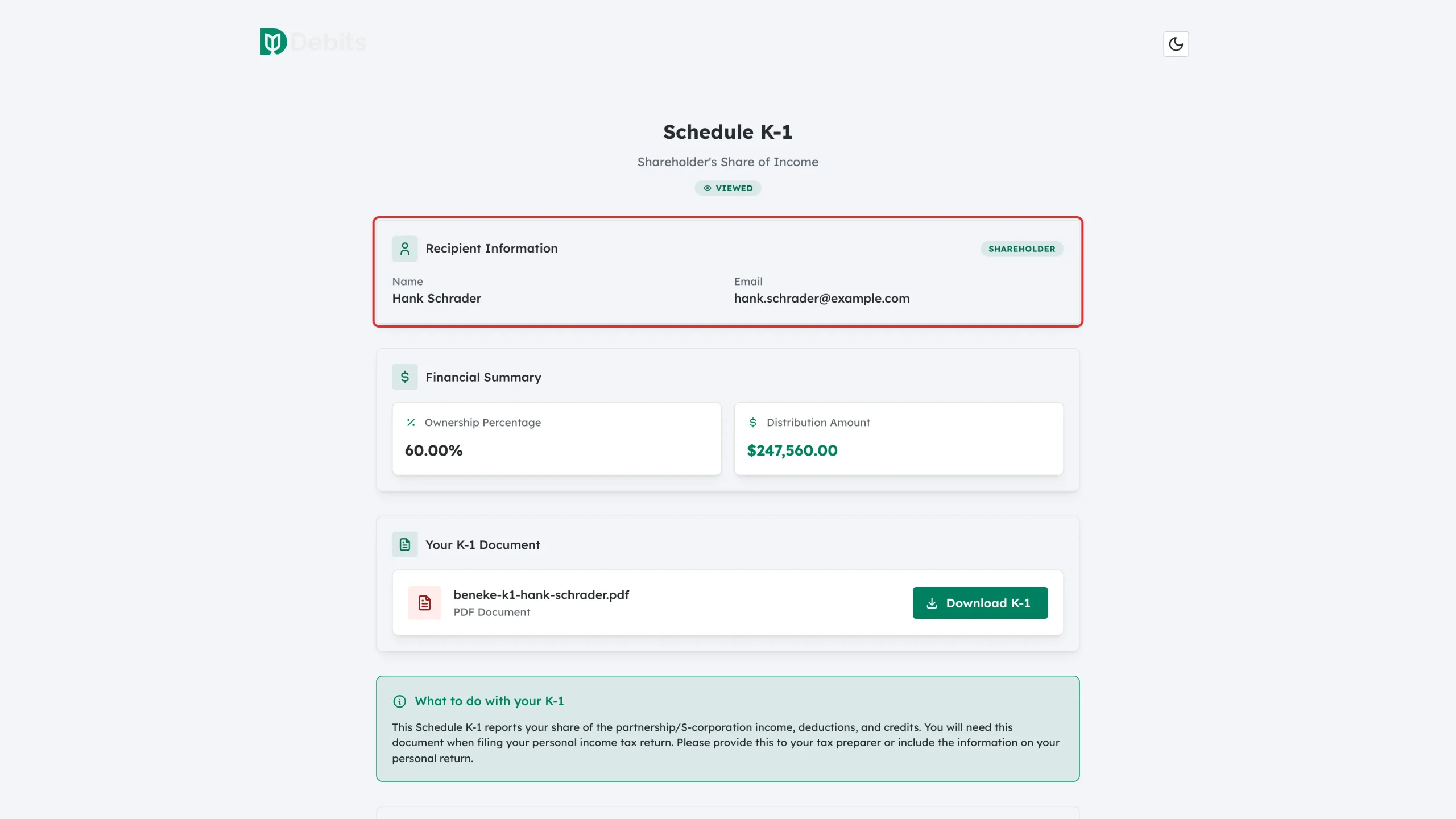
Below it, Financial Summary shows your Ownership Percentage and Distribution Amount.
Step 3: Download your K-1
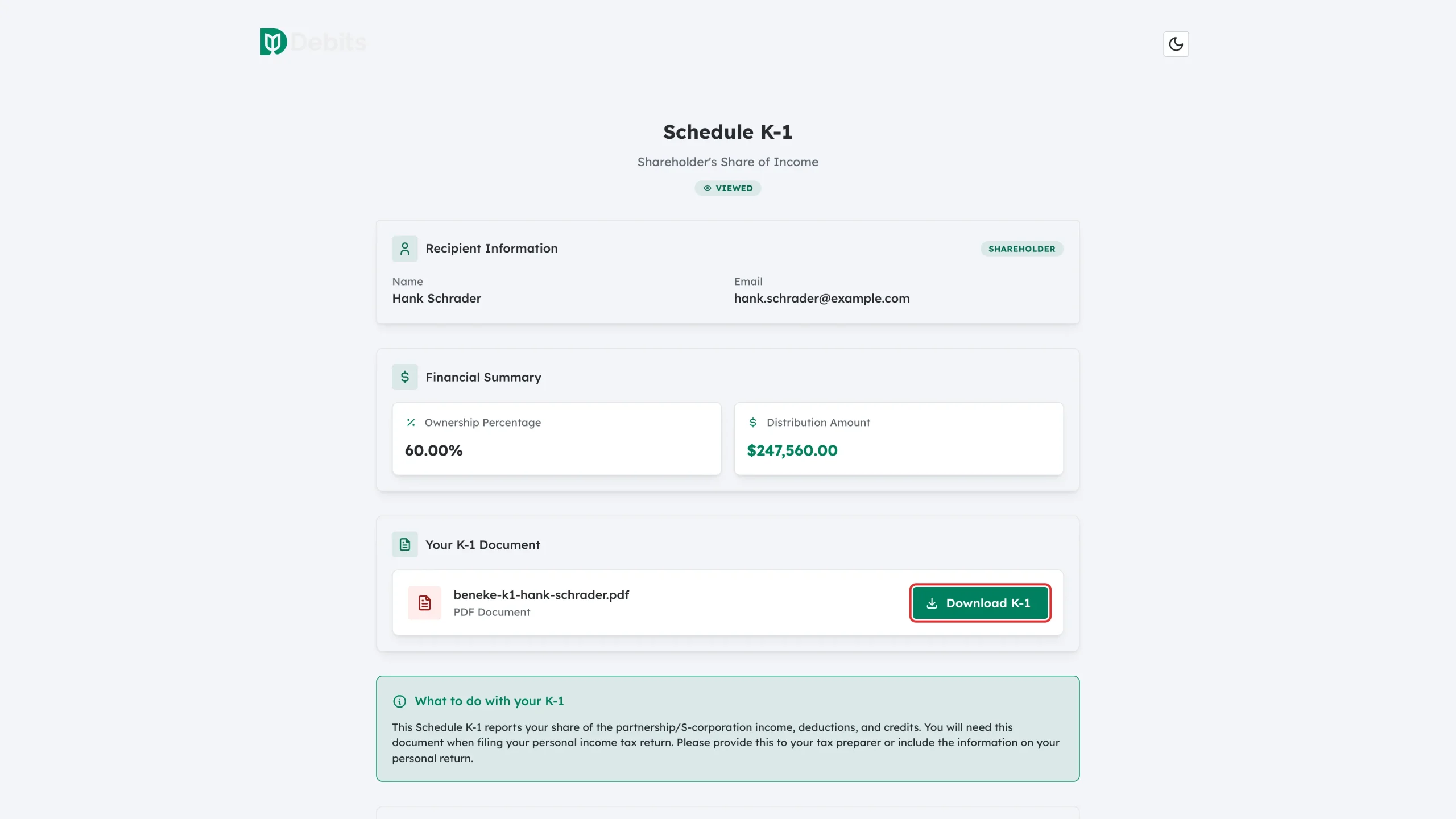
In Your K-1 Document, click Download K-1 to save the PDF. The file name is shown beside the button.
Step 4: Use it on your own return
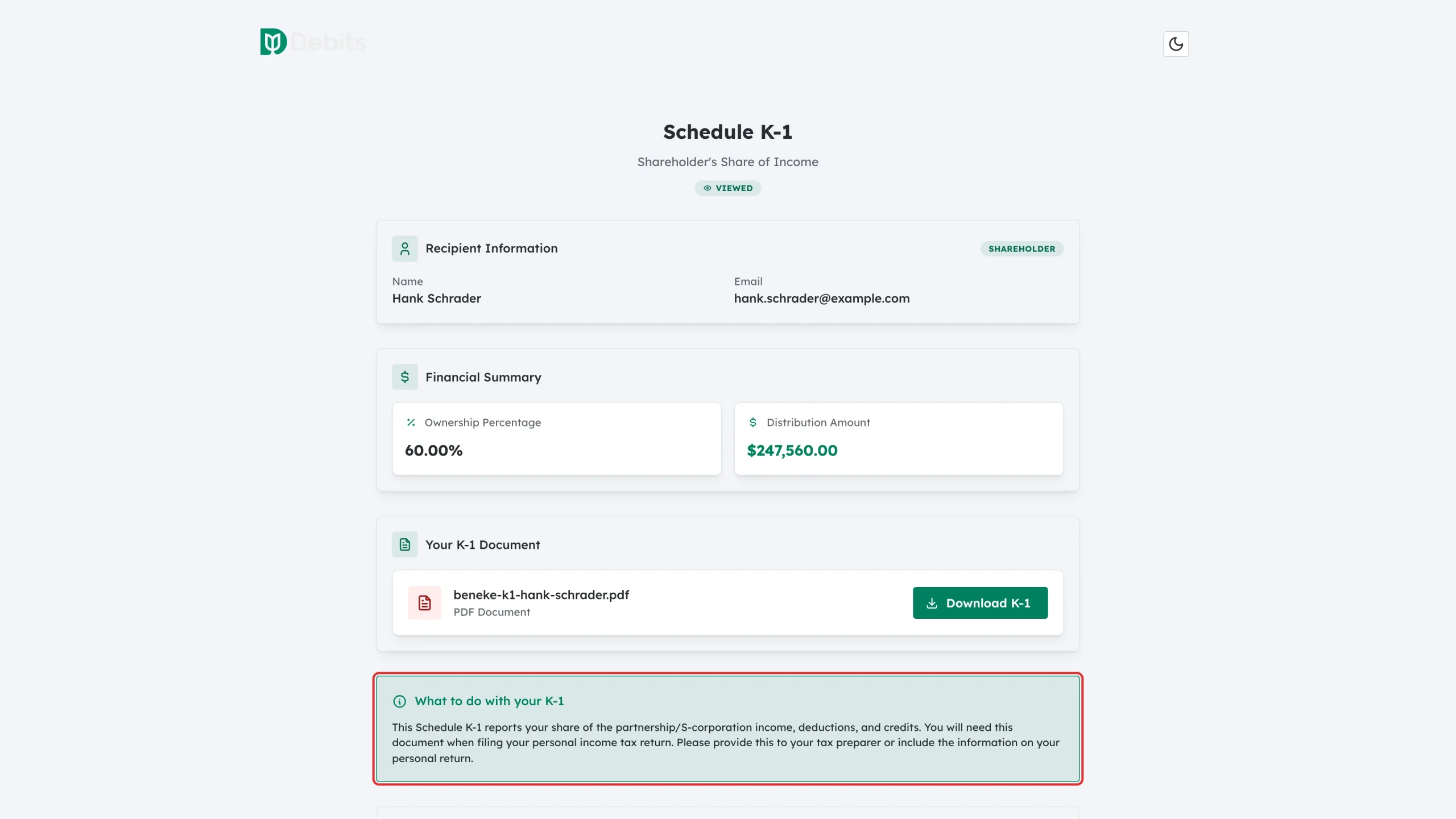
The What to do with your K-1 panel explains the next step: this form reports your share of the partnership or S-corporation income, deductions and credits, and you need it when you file your personal income tax return. Give it to your own tax preparer, or enter the figures on your personal return.
What happens next
The accountant can see that you have opened and downloaded your K-1. Nothing else is needed from you on this page.
Troubleshooting
- “Access Denied” or an expired link: Ask the accountant to send your K-1 again.
- The download does not start: Refresh the page and click Download K-1 again, and check your browser is not blocking downloads.
- The ownership or distribution figure looks wrong: Contact the accountant who issued the K-1 – the figures cannot be changed from this page.