Who this is for: Accountants who need to give a client their estimated tax payment schedule.
What you’ll learn: How to add federal, state and local vouchers with quarterly amounts and due dates in one pass.
Before you begin
- Open the tax delivery you want to add vouchers to.
- Know the estimated amount for each quarter and each jurisdiction.
Step-by-step instructions
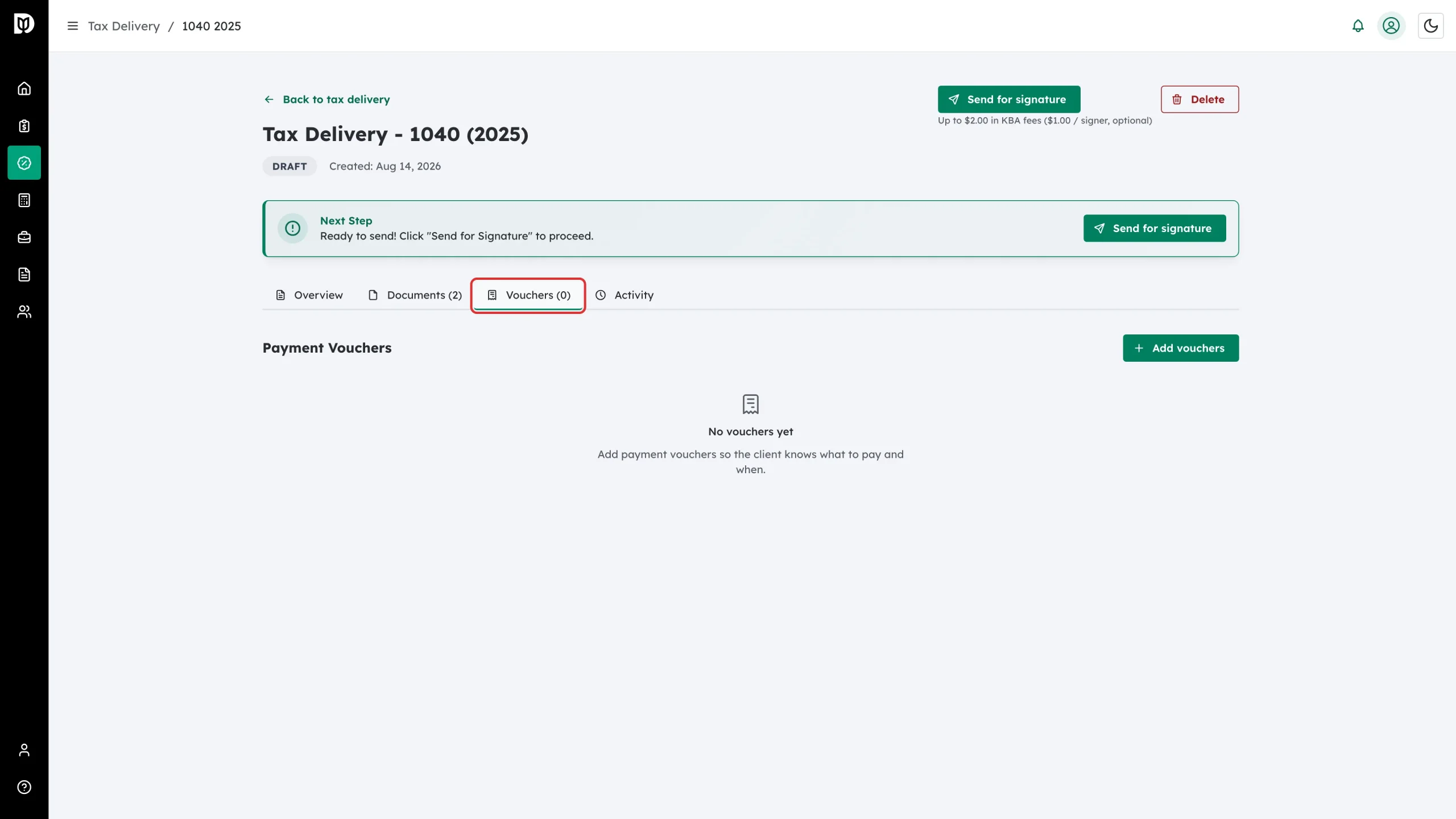
Step 1: Open the Vouchers tab
On the tax delivery detail page, click Vouchers.
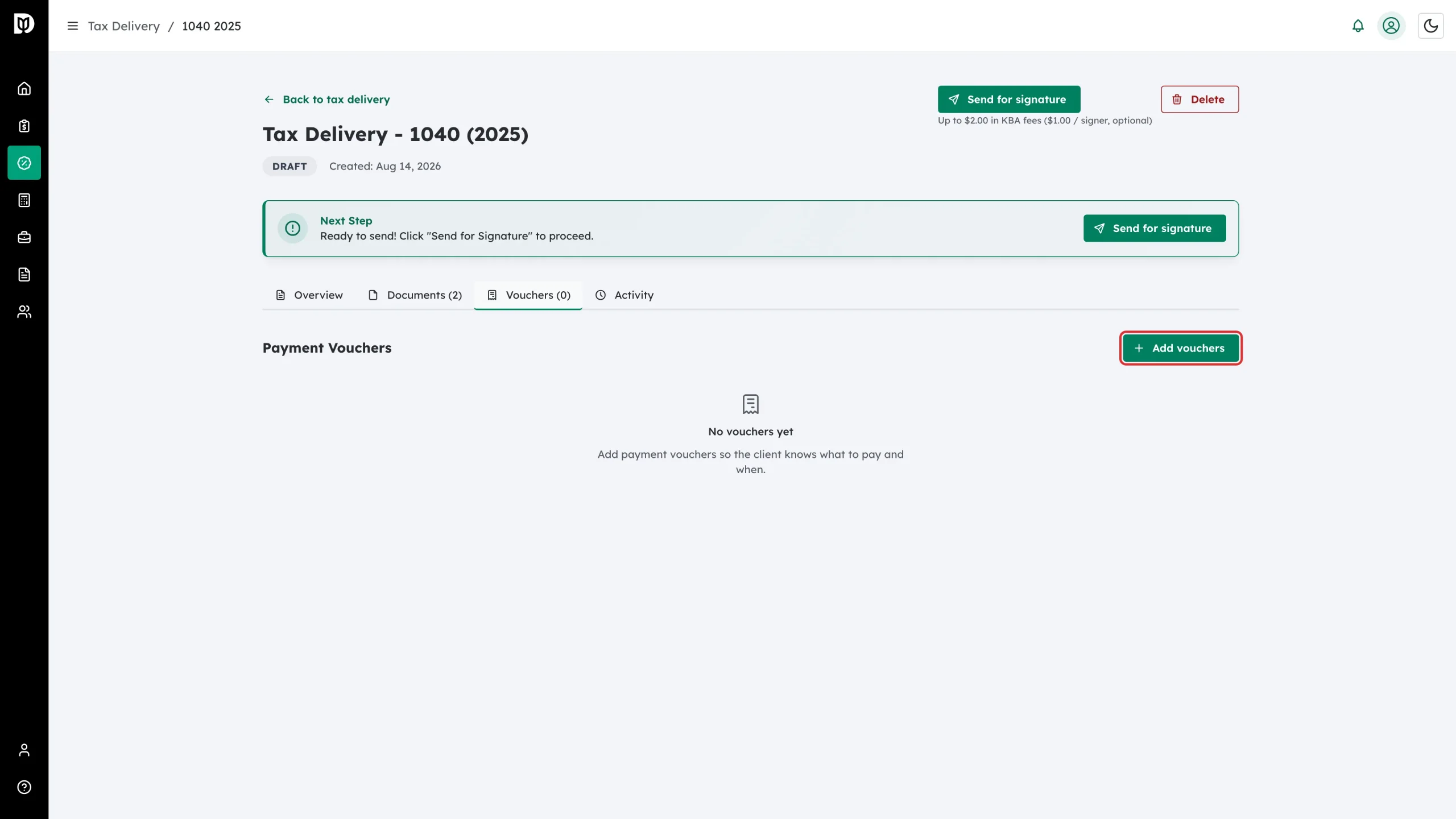
Step 2: Click Add vouchers
Click Add vouchers on the right of the Payment Vouchers heading.
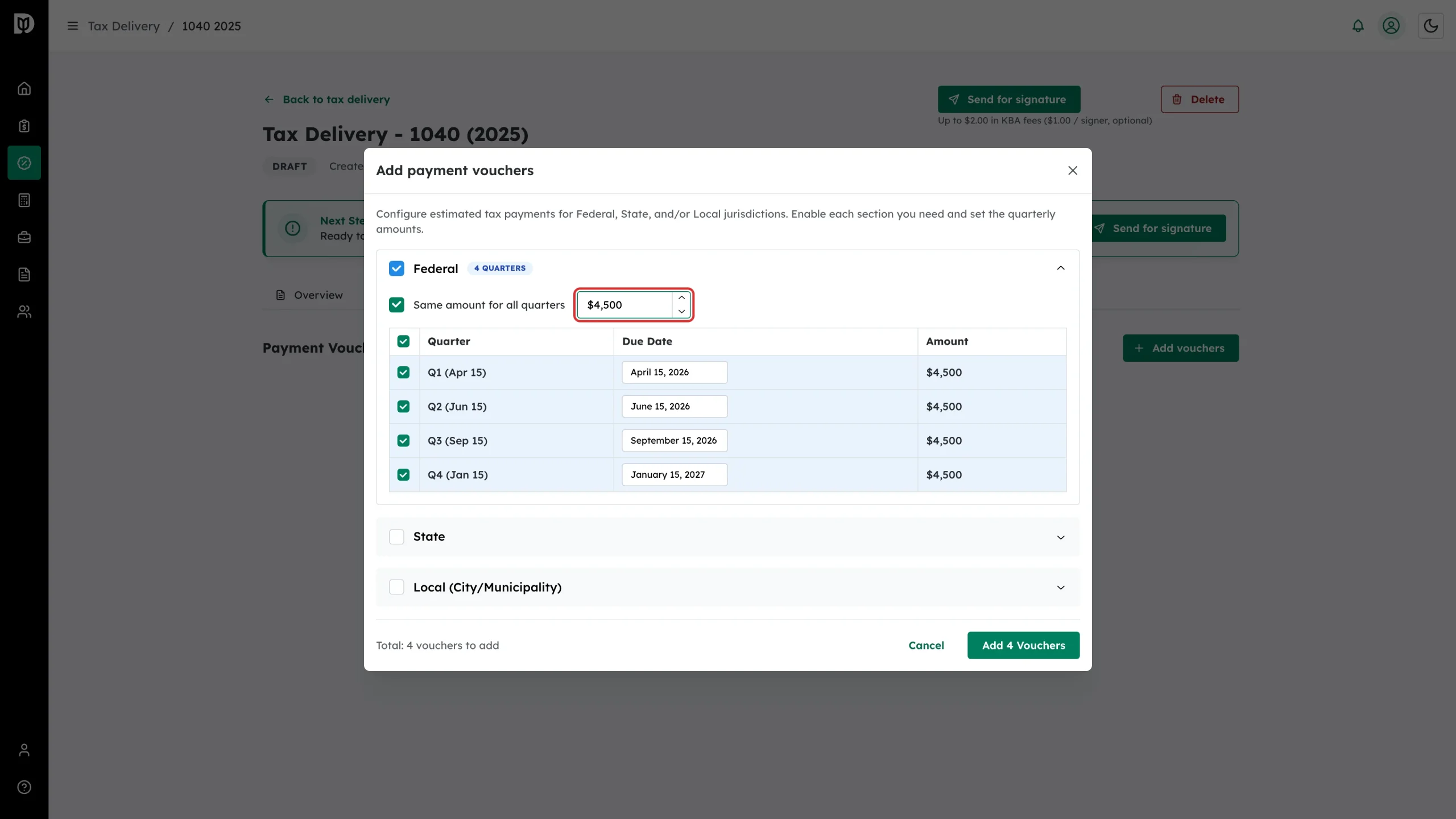
Step 3: Set the federal amounts
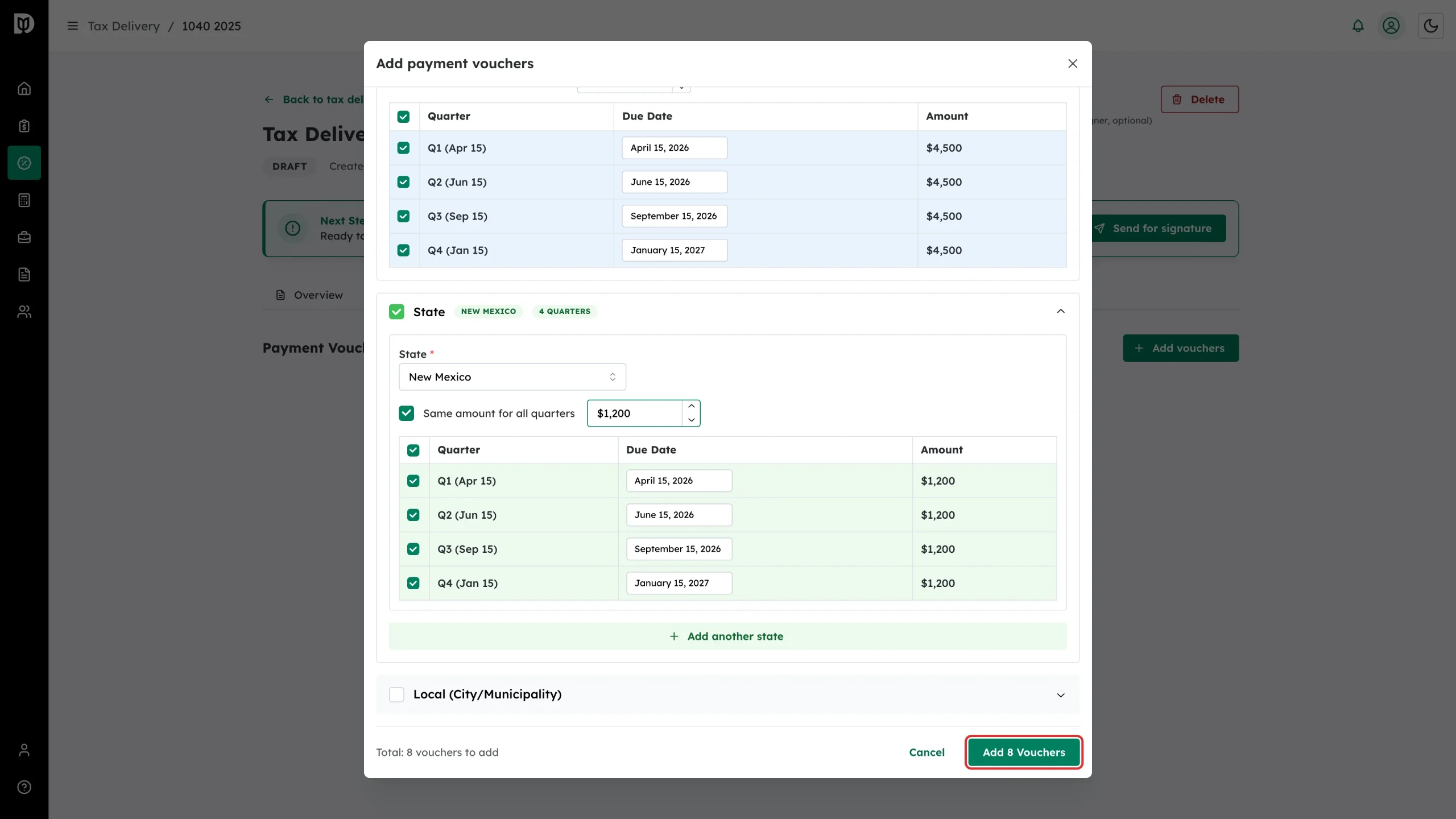
Tick Federal to open that section. Leave Same amount for all quarters ticked and type one figure to fill Q1 to Q4, or clear it and enter each quarter separately.
The quarter table shows Q1 (Apr 15), Q2 (Jun 15), Q3 (Sep 15) and Q4 (Jan 15). Untick any quarter you do not need, and click a due date to change it.
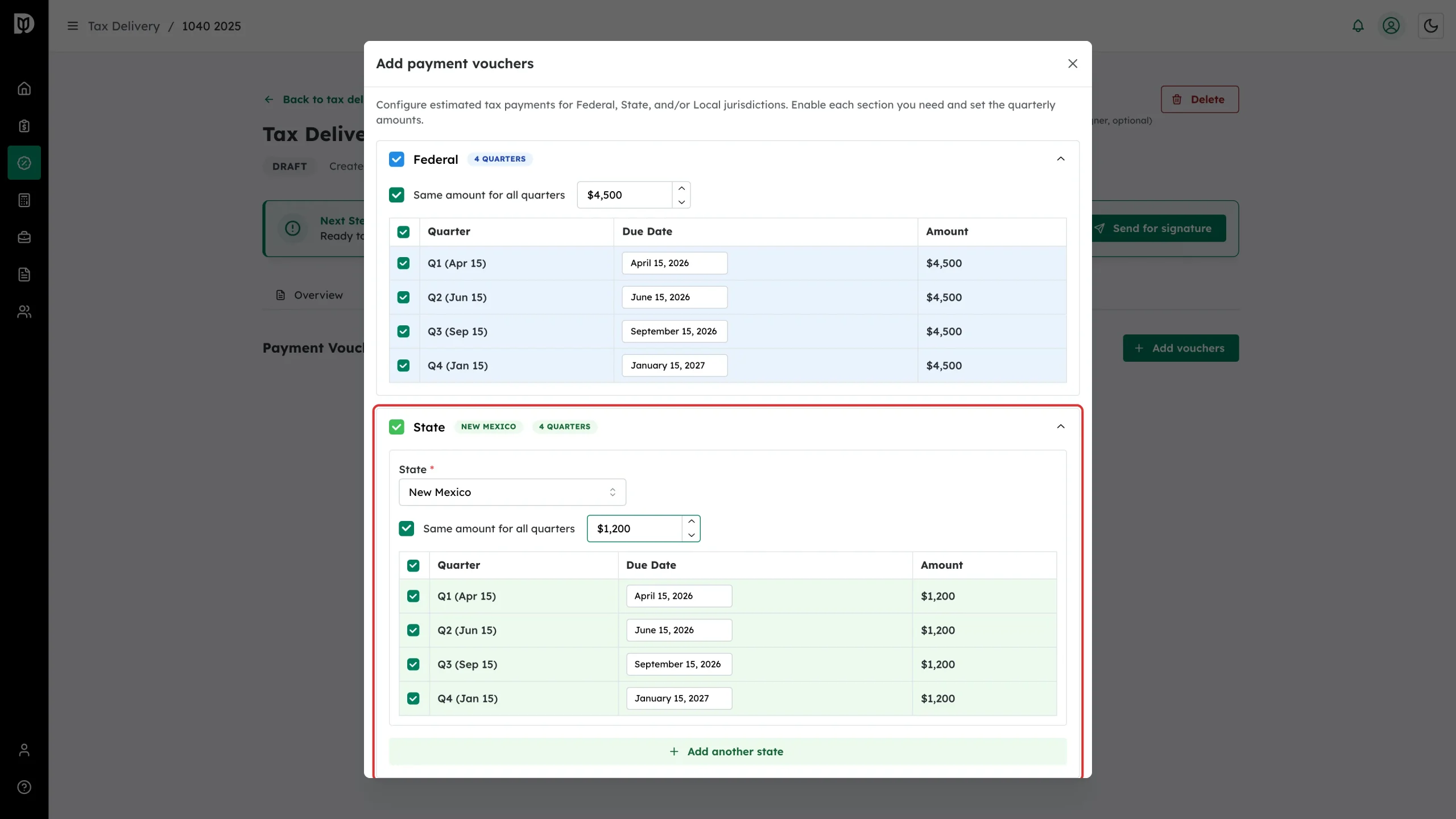
Step 4: Add state vouchers
Tick State, choose the State from the dropdown, then set the amounts the same way. Click + Add another state if the client owes more than one state.
The Local (City/Municipality) section works the same way for city or municipal estimates.
Step 5: Create the vouchers
The footer keeps a running total – for example “Total: 8 vouchers to add”. Check it matches what you expect, then click the Add Vouchers button.
What happens next
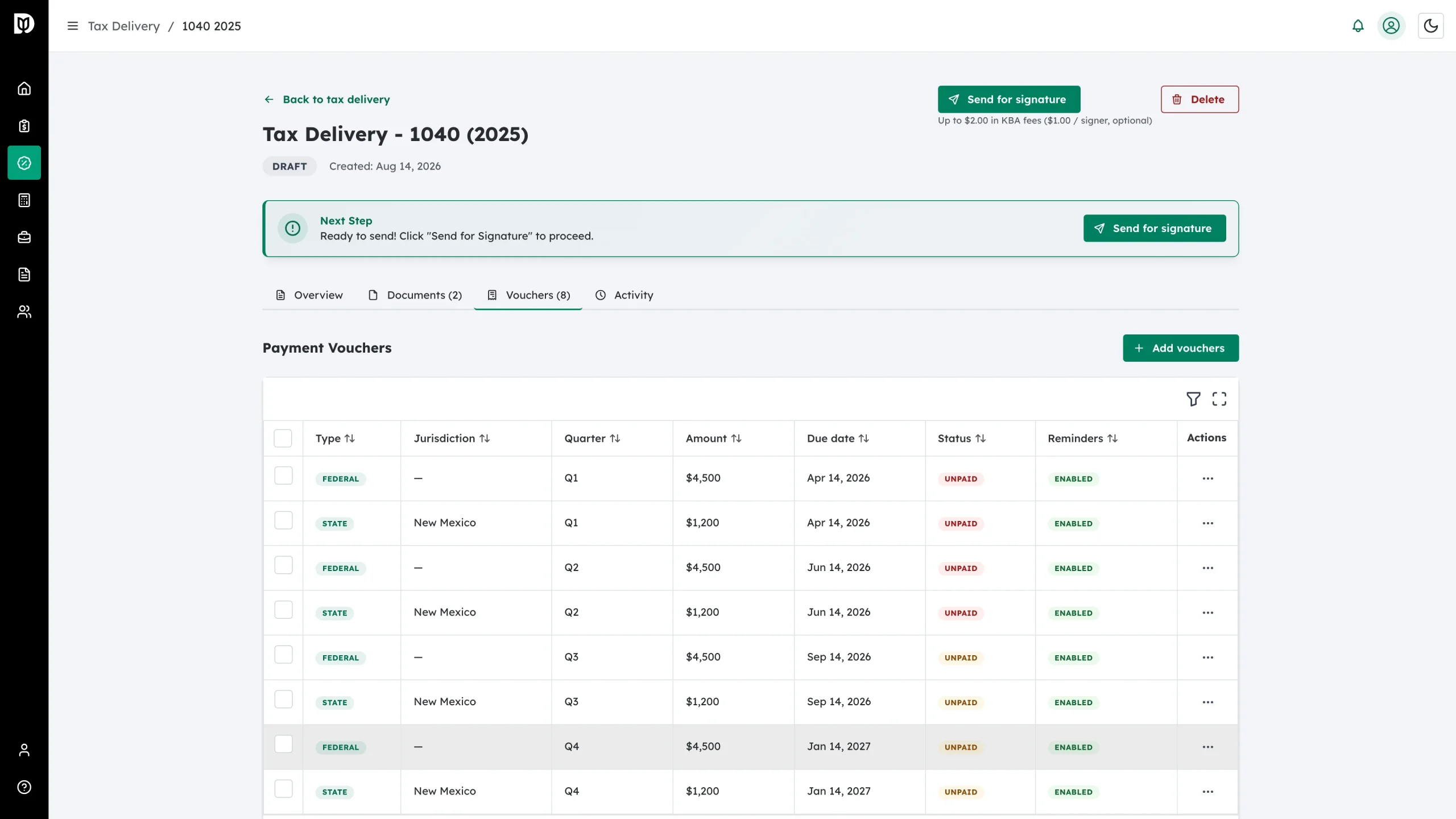
Every voucher appears in the table with an Unpaid status and reminders Enabled. You can edit them, mark them paid, send reminders or delete them at any time.
Troubleshooting
- You are asked to pick a state: You ticked the State section but did not choose a state. Select one or untick the section.
- An amount is rejected: Every selected quarter needs an amount greater than $0. Untick quarters you do not want instead of leaving them blank.
- The total is wrong: Check the quarter checkboxes – the count only includes ticked quarters in enabled sections.