Who this is for: Firm owners, admins, managers and staff who prepare tax returns.
What you’ll learn: How to read the All returns tracker, narrow it to the returns that need you, save the filters you use most, and act on several returns at once.
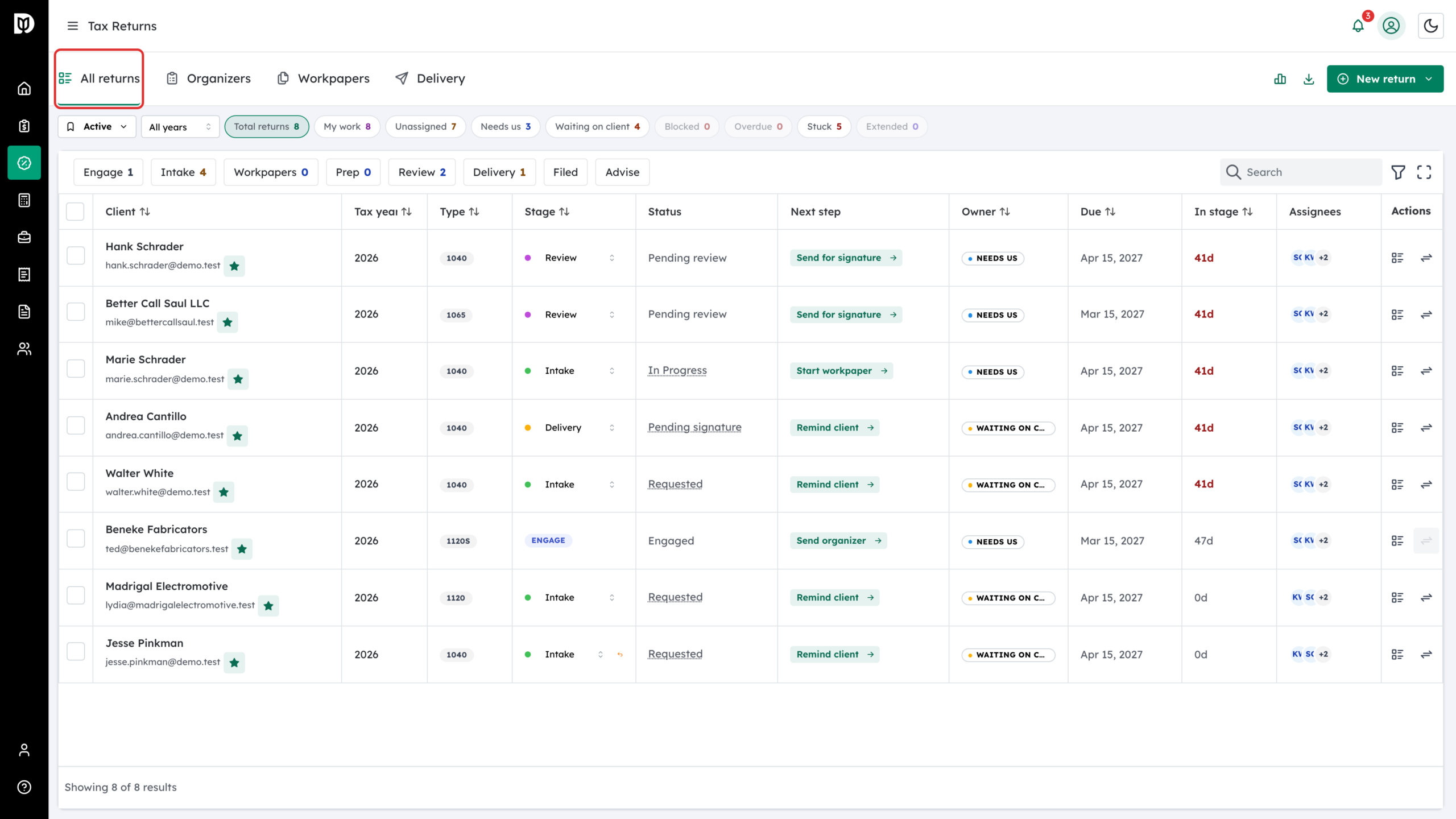
All returns shows every return your firm is working on, one row per client, year and form, wherever it stands. Each return sits in one of eight stages:
- Engage – an unsigned proposal or a signed engagement with no organizer, workpapers or return yet.
- Intake – the organizer is out with the client.
- Workpapers – the workpaper binder is being prepared or reviewed.
- Prep – the binder is finalized and ready for, or out with, the preparer.
- Review – the assembled return is waiting for internal sign-off.
- Delivery – the return is with the client for review, identity check and signature.
- Filed – the return has been filed with the IRS.
- Advise – a filed return whose client has a live advisory or tax-planning engagement.
Before you begin
- Your firm needs the Tax Suite switched on in Firm settings.
- Returns appear here once there is something to track: a proposal, an organizer, a workpaper binder or a tax delivery.
Step-by-step instructions
Step 1: Open All returns
Click Tax in the left sidebar. The Tax hub opens on the All returns tab.
Step 2: Read the stage chips
The chips above the table show how many returns are in each stage. Hover over a chip to see what the stage means and the average number of days returns have spent in it. Click a chip to show only that stage. Click it again to clear the filter.

Step 3: Use a queue tile
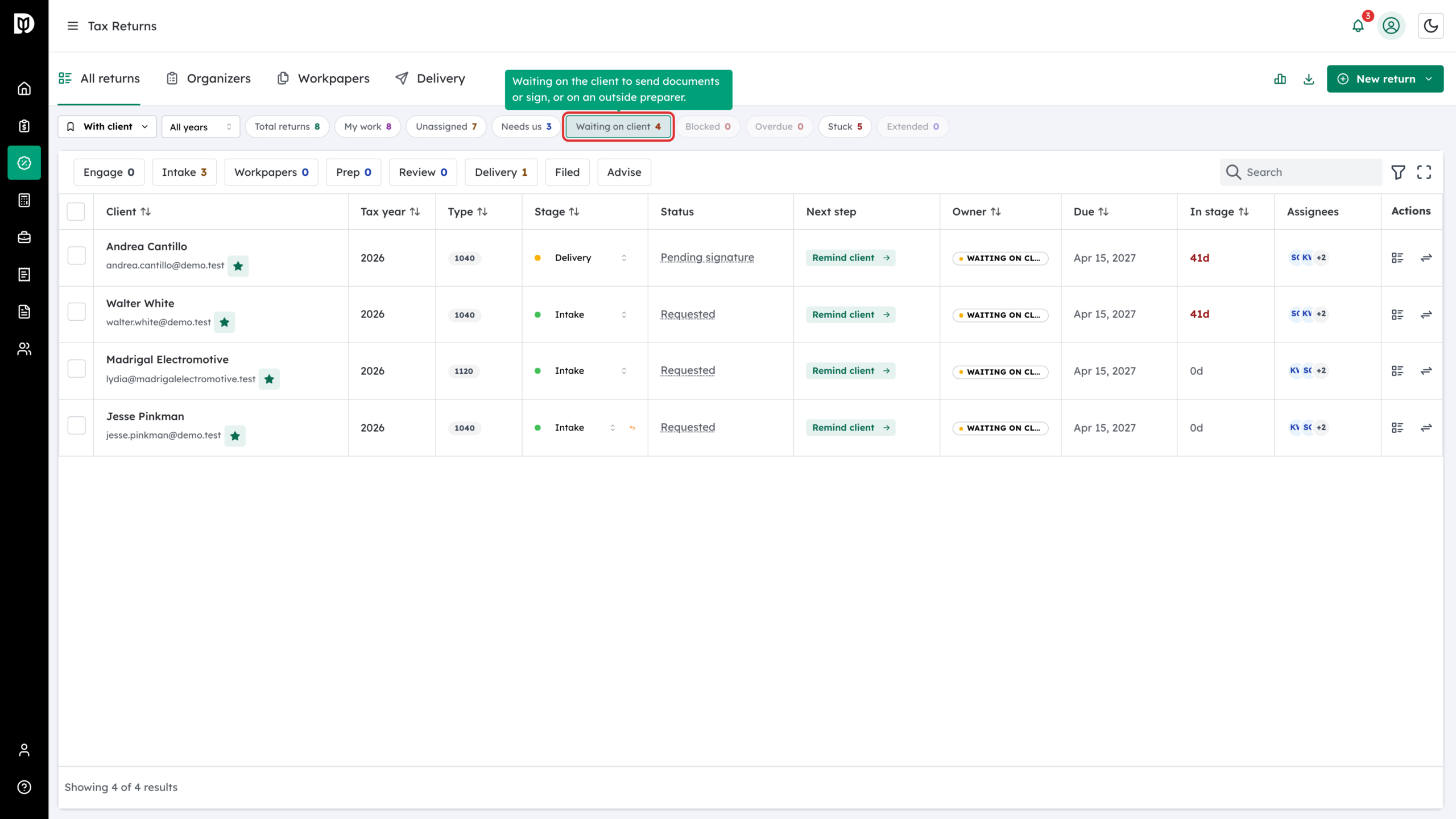
The tiles above the table answer “what needs me right now”. Click a tile to filter the table: Total returns, My work, Unassigned, Needs us, Waiting on client, Blocked, Overdue, Stuck or Extended. Hover over a tile to see exactly what it counts. A tile’s number always matches the rows its click shows.
Step 4: Pick a view
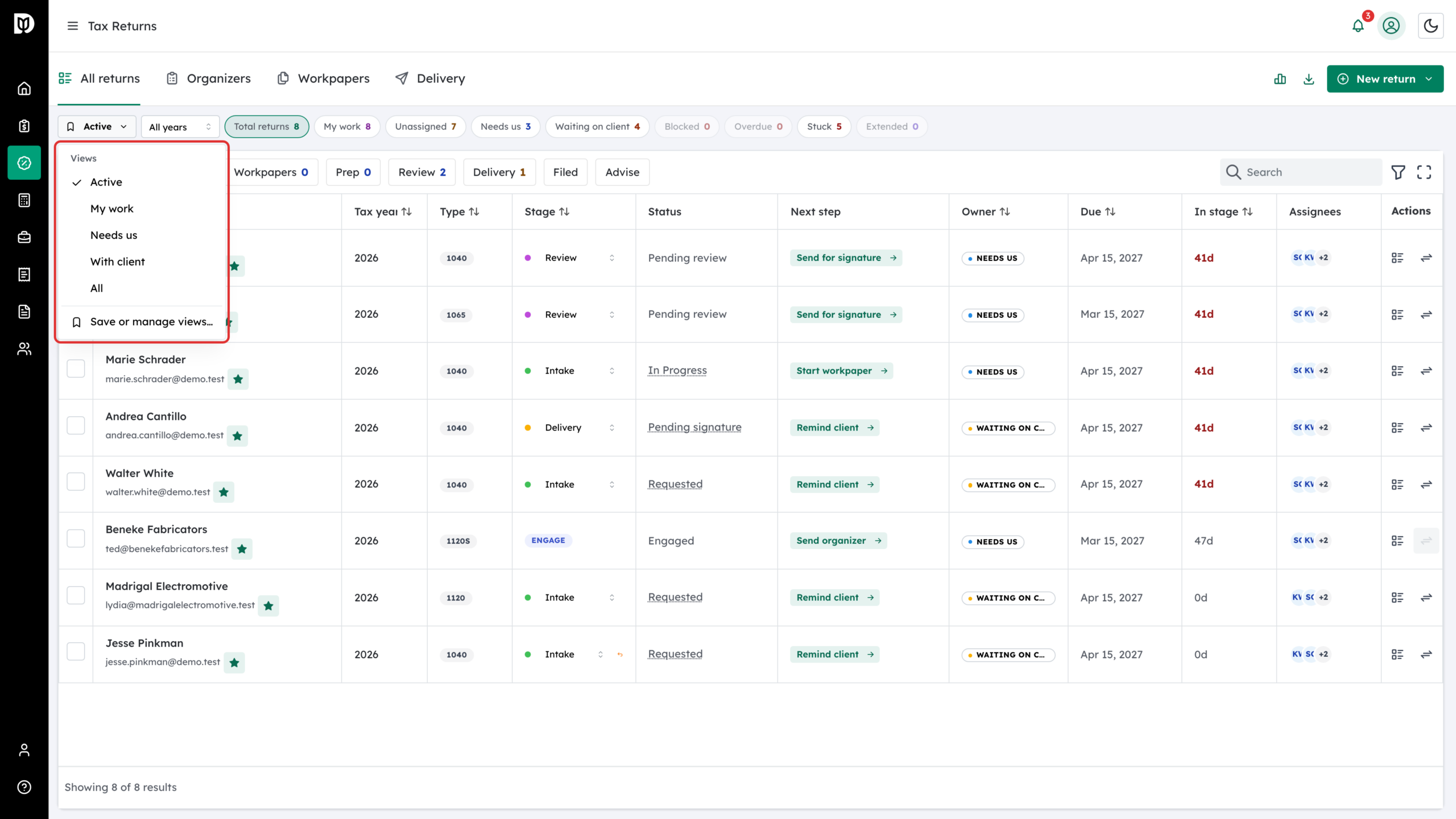
The view button on the left (it reads Active by default) switches between built-in views: Active, My work, Needs us, With client and All.
Step 5: Show filed returns too
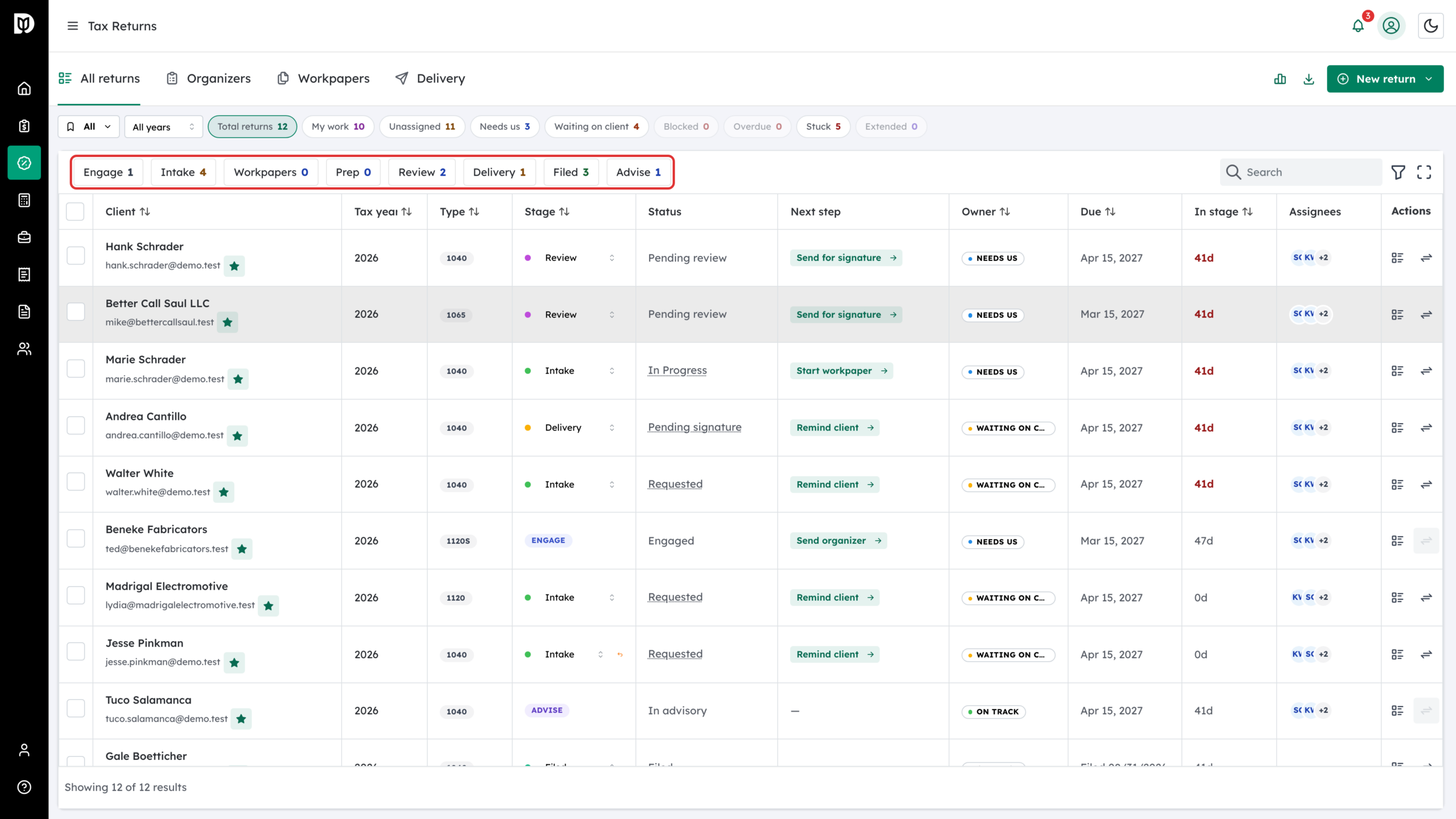
The Active view hides Filed and Advise returns, so their chips show no count. Choose All to include them. You can also click the Filed or Advise chip directly: the tracker switches to the All view for you and filters to that stage.
Step 6: Narrow to one tax year
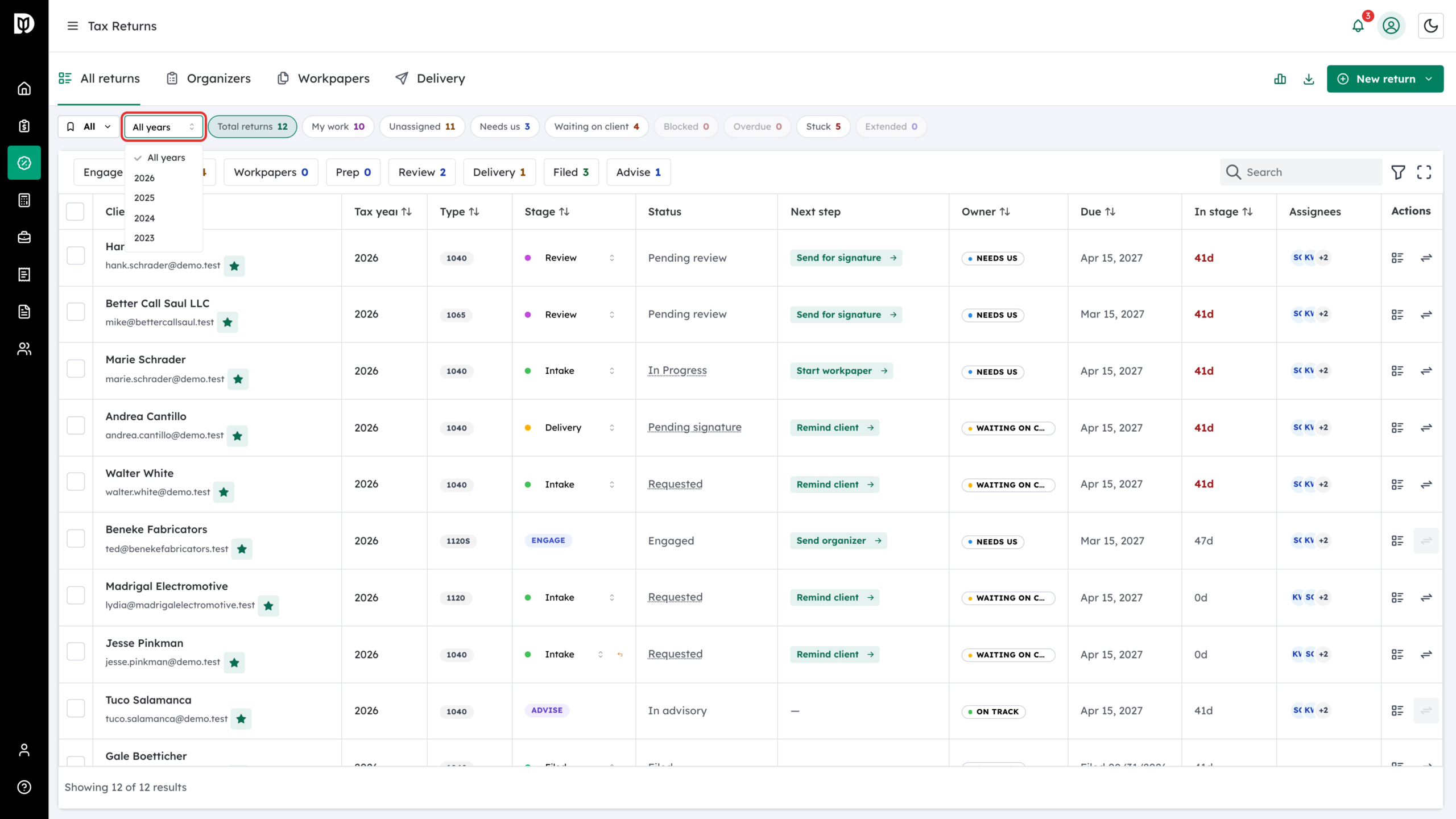
Open the year select next to the view button and pick a year, or All years. Switching views resets the year, because each built-in view covers all years.
Step 7: Save the filters you use most
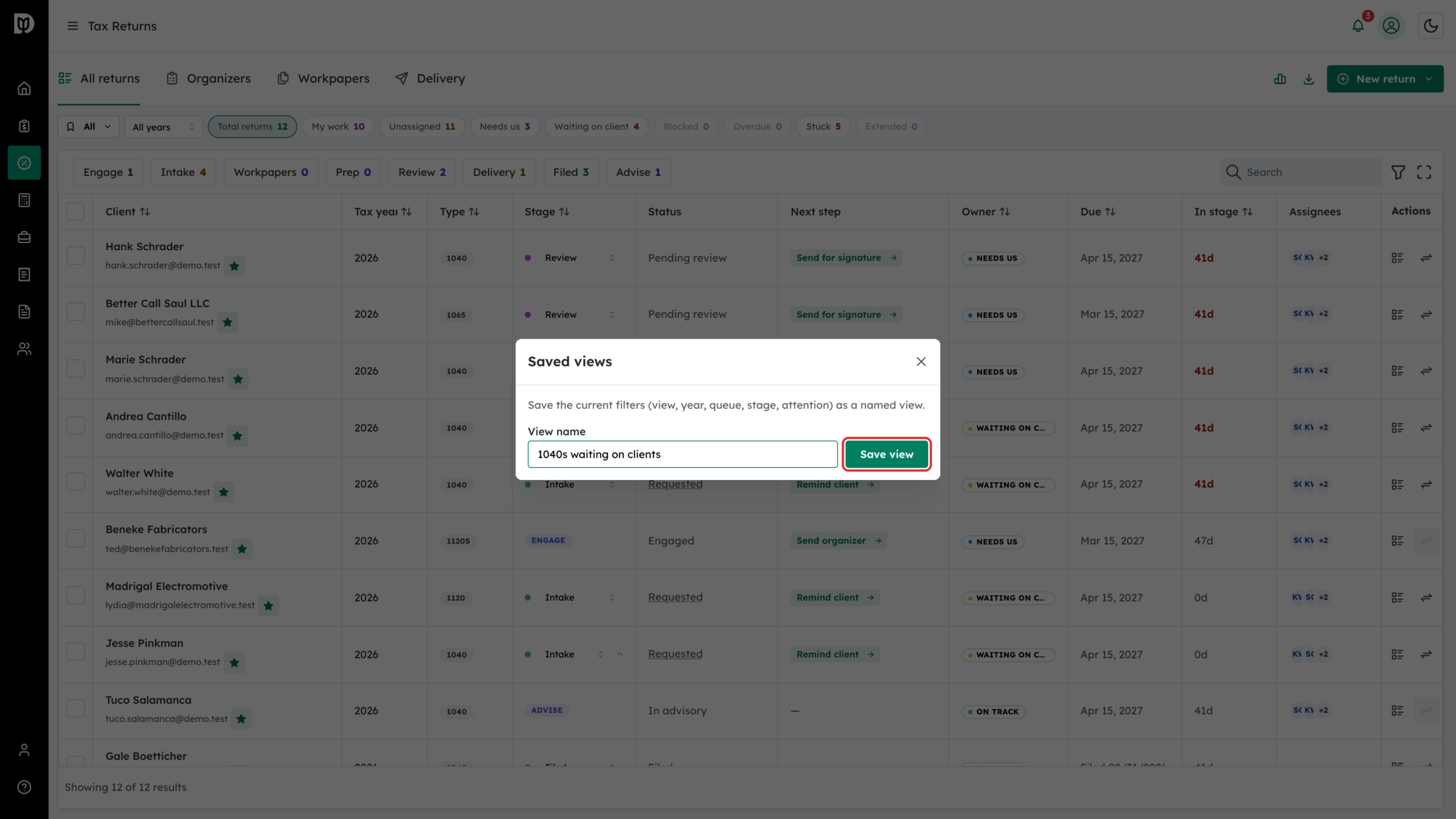
Set up the view, year, queue and stage you want, then open the view button and choose Save or manage views…. Type a View name, for example “1040s waiting on clients”, and click Save view. Your saved views appear in the same menu, and you can delete them from the same window.
Step 8: Act on several returns at once
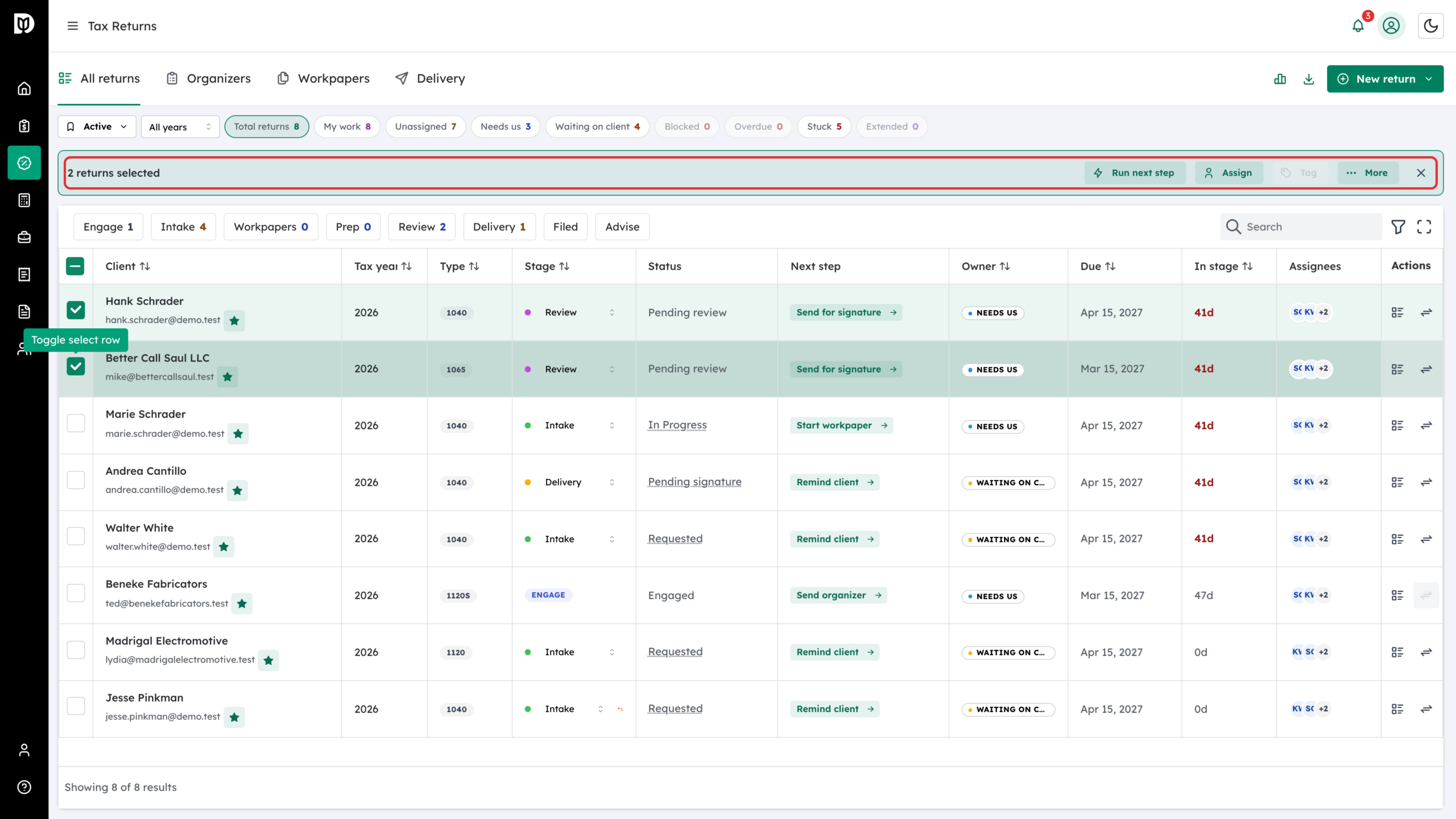
Tick the box on each row you want. A bar shows how many returns are selected, with these actions:
- Run next step – runs each return’s own next step. Steps that need a person’s review are skipped and reported. If you select more than 10 returns, you are asked to confirm first.
- Assign – sets the lead preparer.
- Tag – adds one of your firm’s tags. It is greyed out if your firm has no tags yet.
- More – holds Extend, which rolls each filing deadline to its extension date, and Remove.
Step 9: Export the list
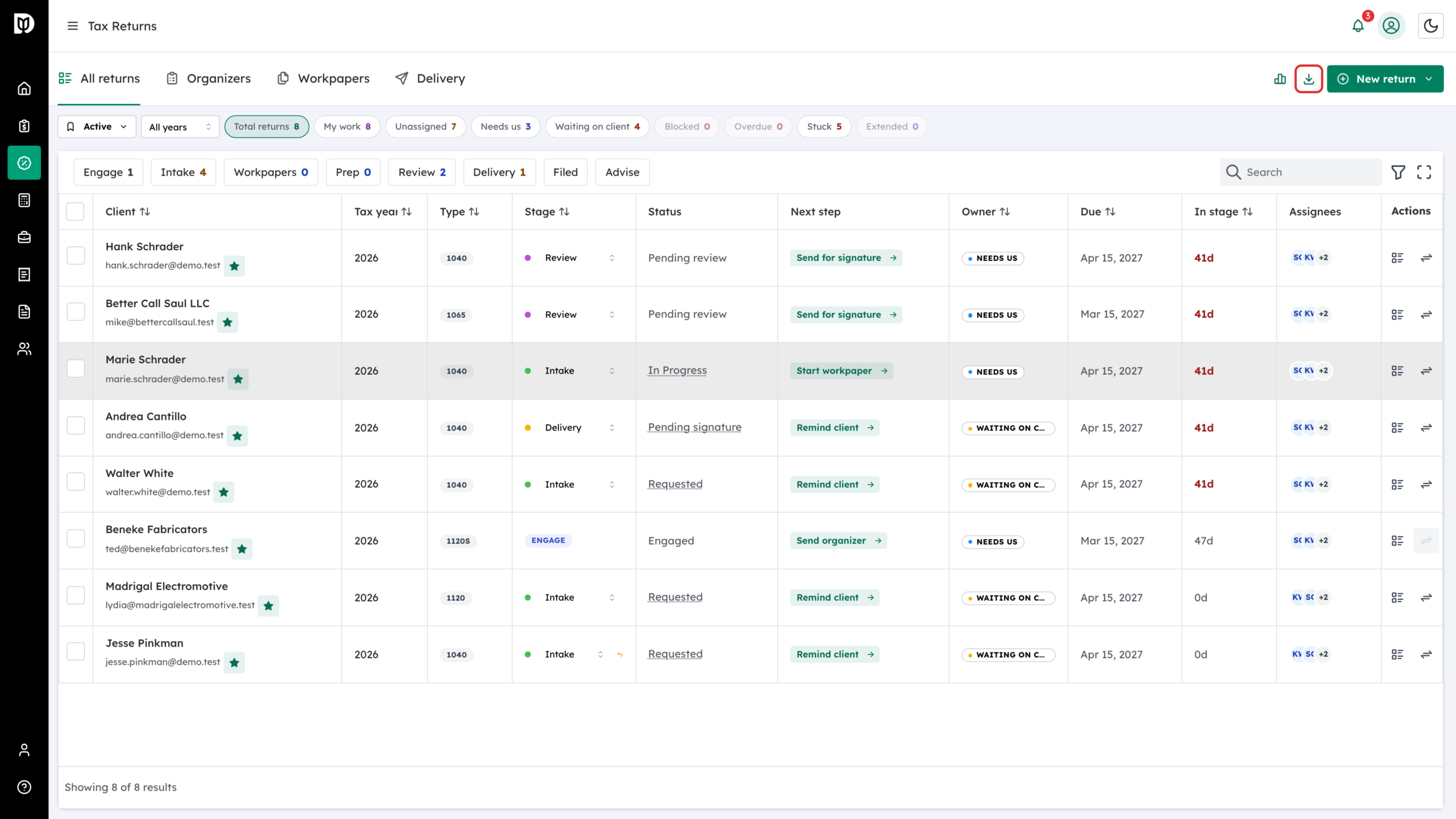
Click the Export CSV icon next to New return to download the returns in the current view as a spreadsheet. On a phone, Export CSV is inside the New return menu.
What happens next
Each row shows the return’s stage, status, Next step, owner, due date, days in stage and assignees. Click the Next step button to do it from the table, click View to open the return, or click Move to stage to move it by hand. To start a new return at any stage, open New return.
Troubleshooting
- The table says “Nothing matches these filters”: a stage chip, queue tile or view is narrowing the list. Click the active chip or tile again, or choose the All view.
- Filed returns are missing: the Active view hides Filed and Advise. Switch to All.
- The Organizers tab shows more items than the Intake chip: the Organizers tab lists every organizer record, including ones not sent yet. All returns shows one card per client, year and form.
- Tag is greyed out: your firm has no tags yet.