

Update in Debits will sync with QuickBooks Online in real time. This means that, under normal circumstances, any new or updated transactions in Debits are automatically pushed to your connected QuickBooks Online company without you having to do anything.
However, there may be times when you want to force a sync—for example, if you’ve just made several updates in Debits and want to see them reflected in QuickBooks Online immediately, or if you suspect an automatic sync was delayed. In these cases, you can manually trigger a sync by following the steps below:
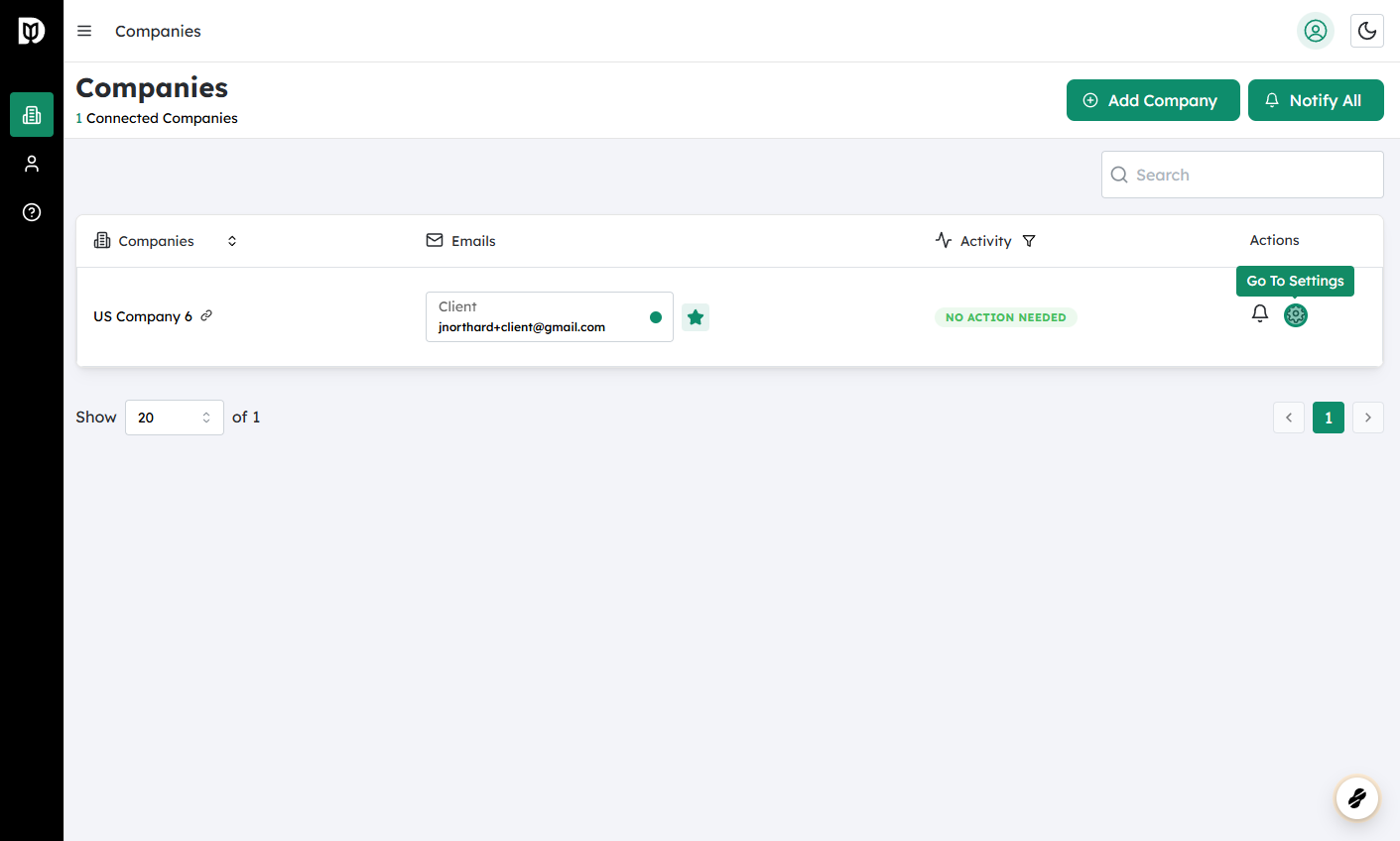
Log in to Debits and navigate to Companies
- Sign in to your Debits account.
- From the main dashboard or navigation menu, go to the Companies section. This page lists all of the companies you have set up in Debits.
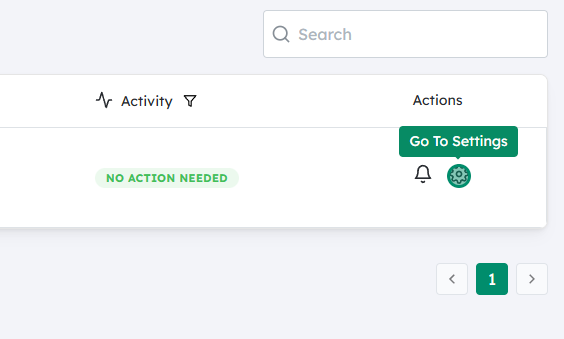
Click on the Settings icon of the company you wish to change
- Find the specific company that is connected to QuickBooks Online and whose transactions you want to sync.
- Click on the Settings (gear) icon next to that company. This opens the configuration options for that company.
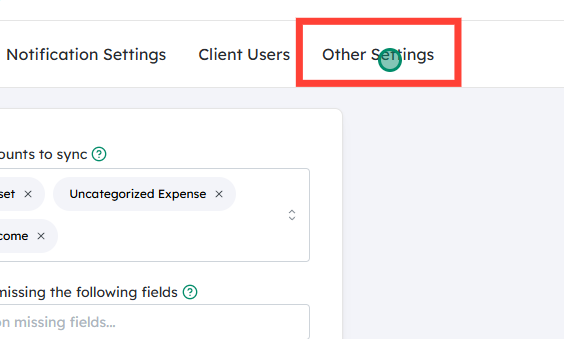
Click on Other Settings
- Within the company’s settings, locate and select Other Settings.
- This area contains additional configuration and management tools, including sync-related options.
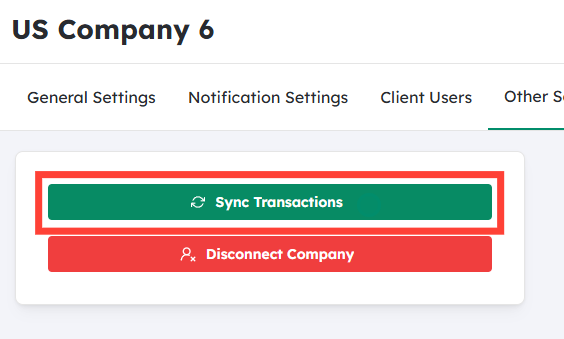
Click on Sync Transactions
- In the Other Settings section, look for the Sync Transactions option.
- Click Sync Transactions to start a manual data sync between Debits and QuickBooks Online.
- Debits will then push any pending or recently updated transactions to QuickBooks Online. Depending on the volume of data, this may take a short time to complete.
After running the manual sync, you can confirm it worked by checking the relevant accounts, transactions, or reports in QuickBooks Online to ensure your latest Debits activity is reflected there.


