

Steps to Send Bulk W-9 Requests #
When you have many vendors who need W-9 forms, you can save time by sending requests to multiple vendors at once using the bulk selection feature.
Step 1: Navigate to the 1099s Tab #
Go to Transactions and click the 1099s tab to view your vendor list.
Step 2: Select Multiple Vendors #
Click the checkboxes on the left side of each vendor row you want to include. You can select as many vendors as needed.
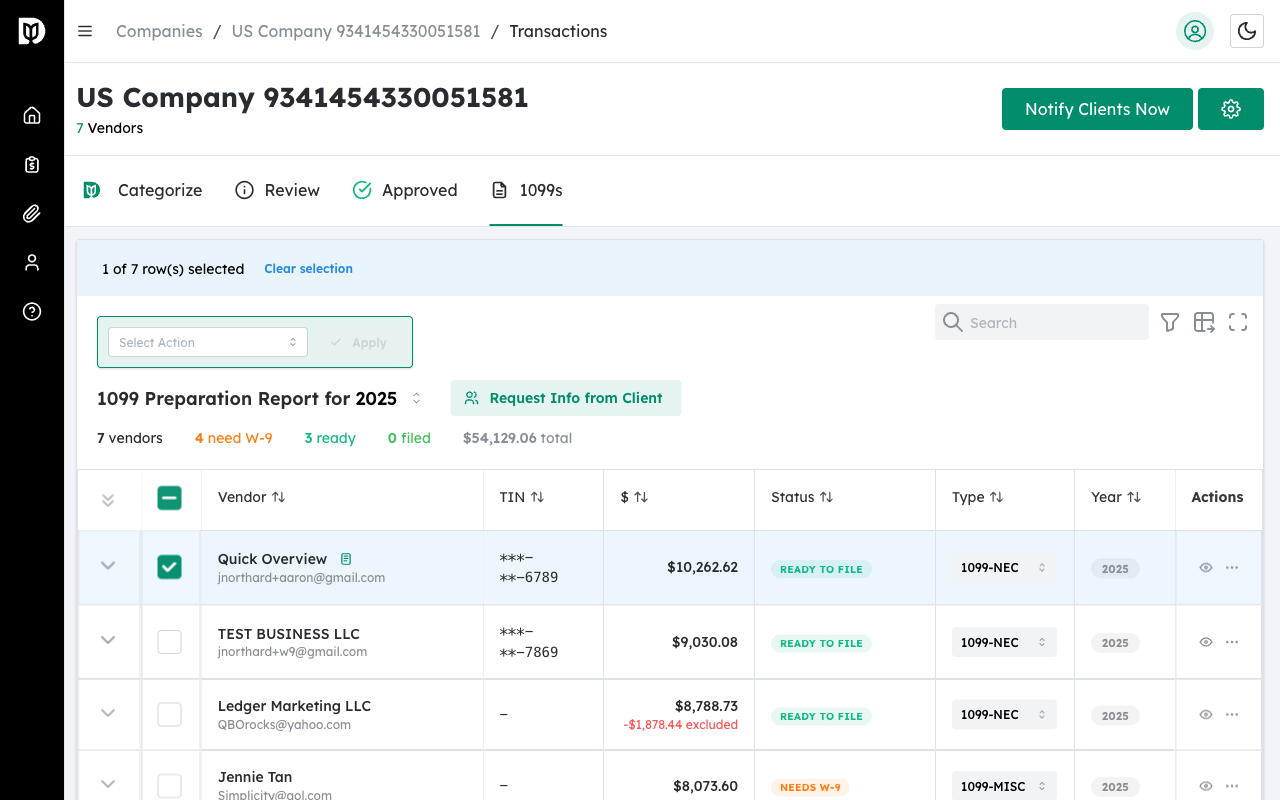
Step 3: Click Bulk Actions #
Once you have vendors selected, a Bulk Actions button appears above the table. Click it to see available actions.
Step 4: Select Request W-9 #
From the dropdown menu, select Request W-9 to open the bulk request modal.
Step 5: Review and Confirm #
Review the list of selected vendors and customize the email message if needed. Click Send Requests to email W-9 requests to all selected vendors.
Bulk Request Results: After sending, you’ll see a summary showing:
- Number of requests sent successfully
- Any vendors that failed (e.g., missing email address)
- Vendors that were skipped (e.g., already have W-9 on file)
Tips for Efficient Bulk Requests #
Filter First: Use the status filter to show only vendors who Need W-9 before selecting. This ensures you’re not accidentally requesting from vendors who already have W-9s on file.
Select All: Click the checkbox in the table header to select all visible vendors at once. This is useful after filtering to Needs W-9 status.
Important: Vendors without a valid email address on file cannot receive W-9 requests. Make sure to update vendor contact information before sending bulk requests.


