

Who this is for: Accountants managing transaction data in Debits.
What you’ll learn: How to customize which columns appear on the Transactions table, change their display order using drag-and-drop, and use the quick-action buttons to show all, hide all, or reset the column order.
Before you begin #
- You must be signed in as an Accountant. This feature is not available to Client users.
- You must have at least one company set up with connected bank transactions.
- Navigate to Companies and select the company whose transactions you want to view.
How it works #
The Transactions table displays up to 6 columns in the main row. If you enable more than 6 columns, the extra columns overflow into a second detail row that appears below each transaction. You can expand each transaction row to see these additional fields.
Your column visibility and order preferences are saved automatically and persist across sessions and all companies.
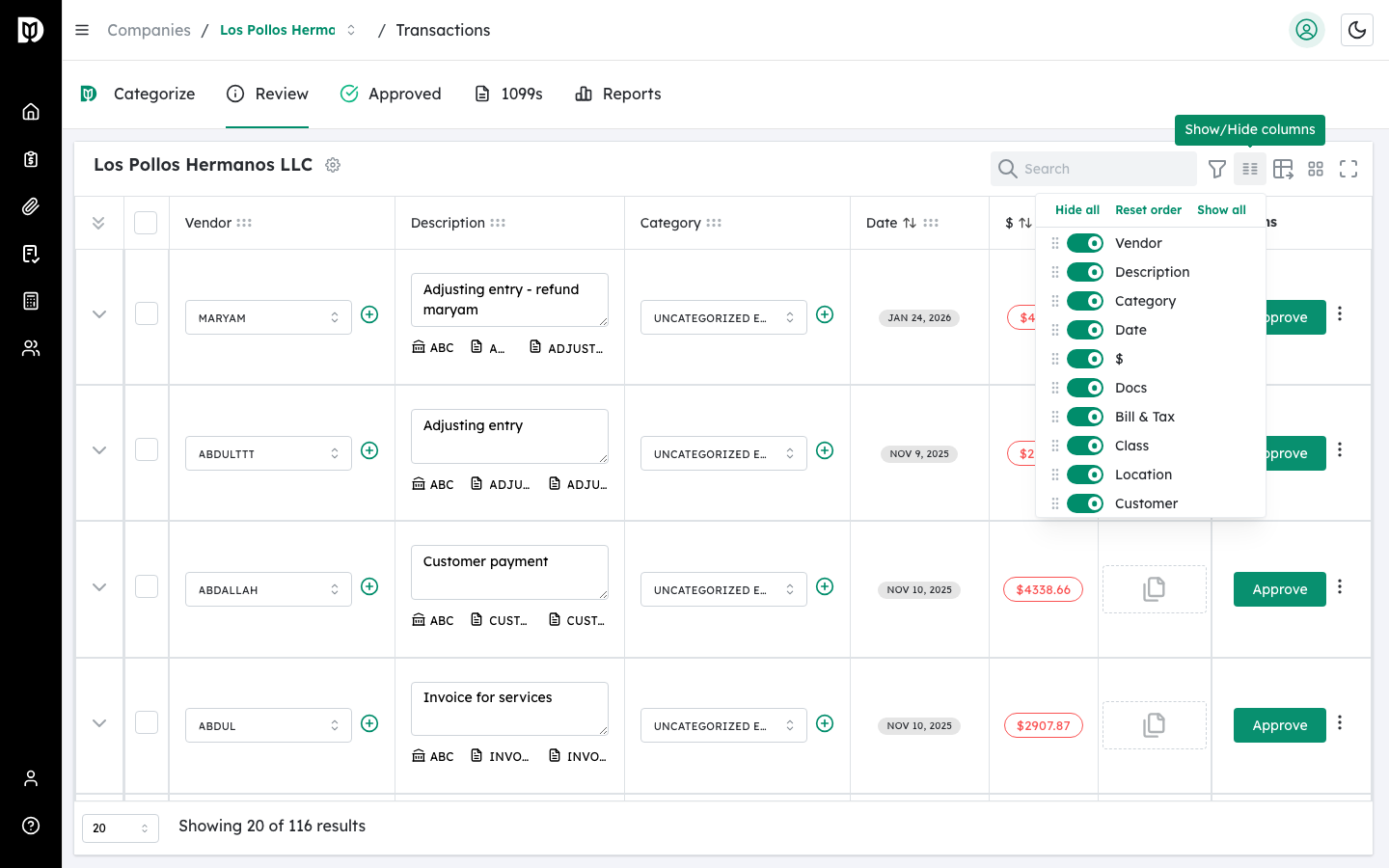
The default column order is: Vendor, Description, Category, Date, Amount ($), Docs, Bill & Tax, Class, Department, Customer.
Step-by-step instructions #
Step 1: Open the Transactions page #
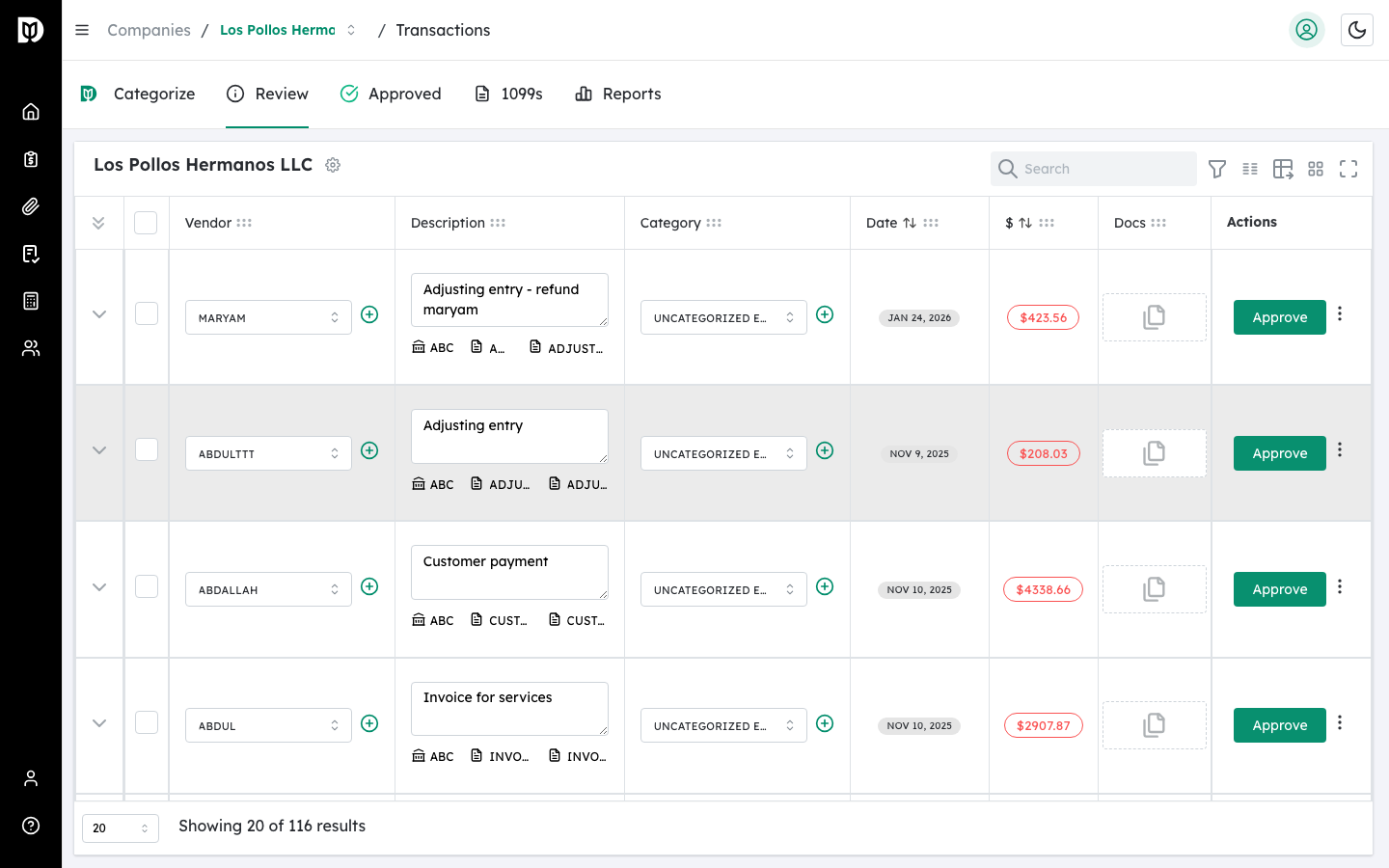
Go to Companies in the left sidebar, select a company, then click Transactions. The Transactions page loads with the Categorize tab selected by default.
Step 2: Locate the Columns icon #
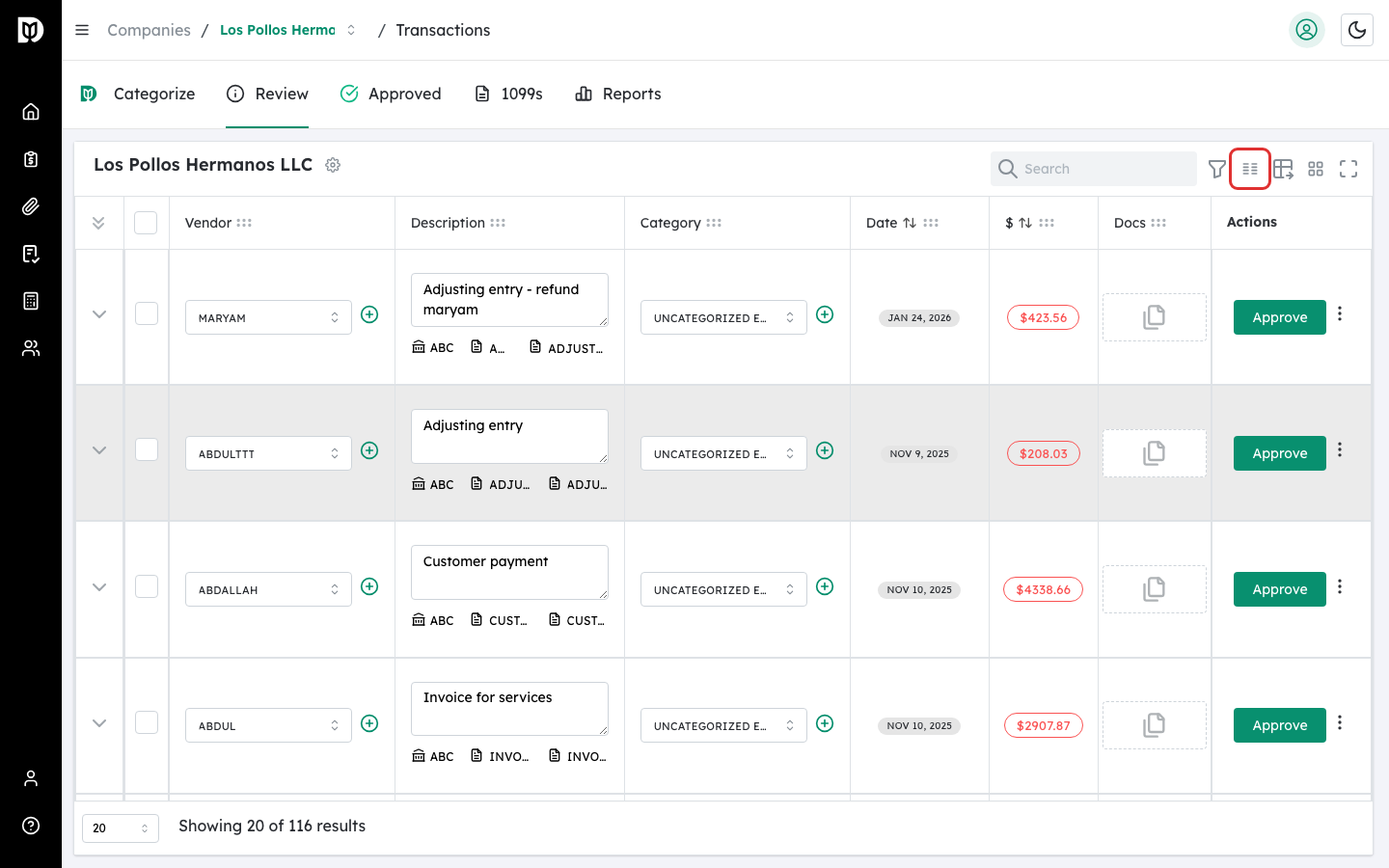
In the toolbar above the table, find the columns icon (a grid-like icon). Hover over it to see the tooltip Show/Hide columns.
Step 3: Open the Column panel #
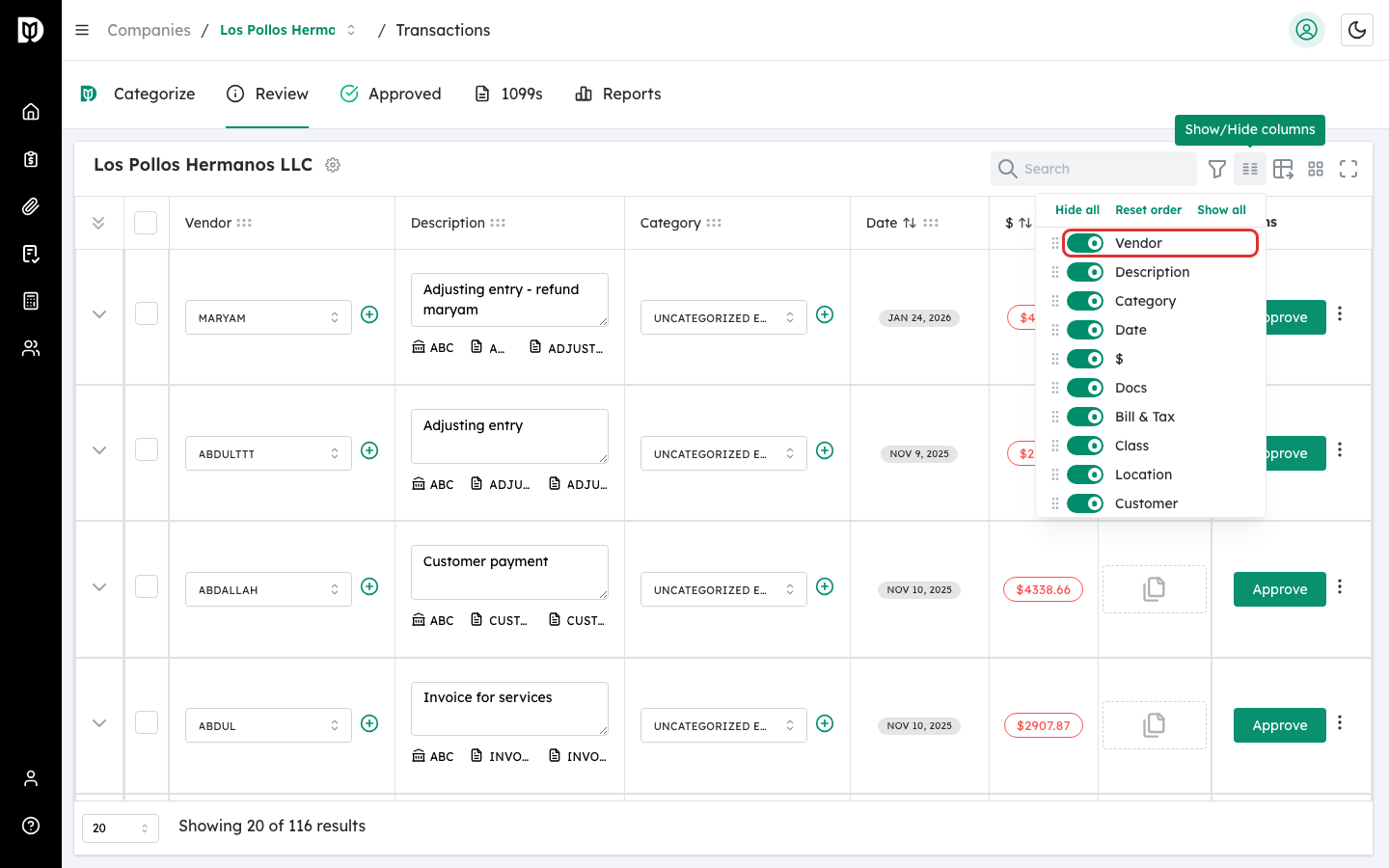
Click the columns icon. A popover panel appears listing every available column with its current visibility state.
Step 4: Use quick-action buttons #
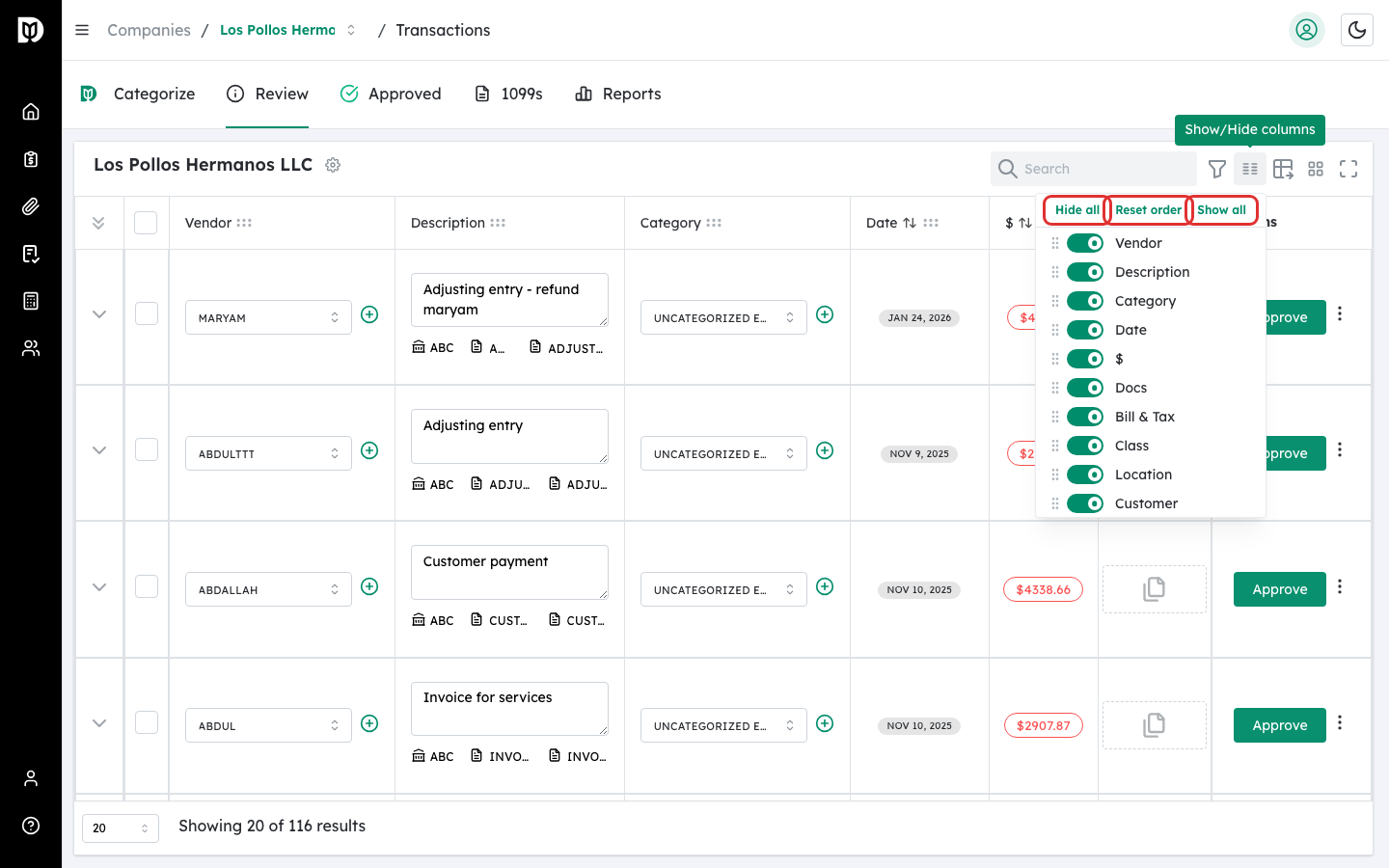
At the top of the panel you will see three buttons:
- Hide all — turns off every column at once.
- Reset order — returns columns to the default order (Vendor, Description, Category, Date, Amount, Docs, Bill & Tax, Class, Department, Customer).
- Show all — turns on every column at once.
Step 5: Toggle a column on or off #
Each column row has a switch toggle on the right. Click the switch to show or hide that column. The table updates immediately.
Step 6: Drag to reorder columns #
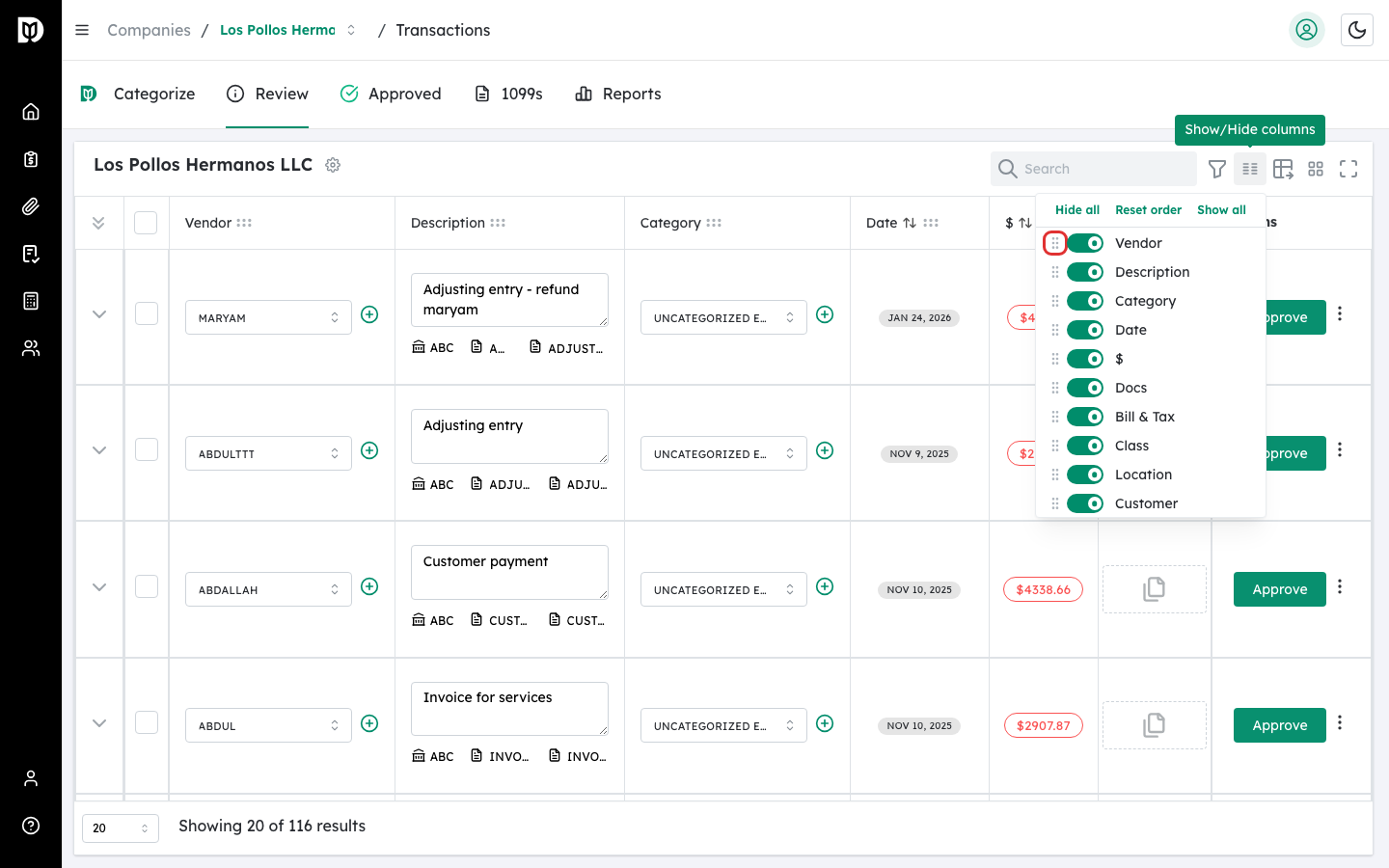
Each column row has a grip handle (vertical dots icon) on the left. Click and drag the grip handle to move a column up or down in the list. Drop it at the desired position. The table column order updates immediately to match.
What happens next #
- The first 6 visible columns (based on your custom order) display in the main table row.
- Any additional visible columns appear in a second detail row below each transaction. Click the expand arrow on a transaction row to see these overflow columns.
- Your preferences save automatically and apply every time you return to the Transactions page, across all companies.
Troubleshooting #
- I do not see the columns icon in the toolbar: This feature is only available to Accountant users. If you are signed in as a Client, the icon will not appear. Contact your accountant if you need column changes.
- Some columns are missing from the table after reordering: You may have toggled them off. Open the column panel and check that the switches are turned on for the columns you want to see.
- I see data in a second row under each transaction: This is expected when more than 6 columns are visible. The extra columns overflow to a detail row. If you prefer a single-row layout, hide columns until only 6 or fewer are visible.
- My column order did not save: Column preferences are stored in your browser. If you clear your browser data or switch browsers, preferences will reset to the defaults. Use Reset order if the layout looks incorrect.


