Who this is for: Accountants reviewing transactions a client has categorized.
What you’ll learn: How to send a transaction from the Review tab back to the client’s Categorize tab so they can correct it.
Before you begin
- You must be signed in as an accountant. Clients do not have this action.
- The transaction has to be on the Review tab. The action is not offered on Categorize or Approved.
- Go to Companies, open the company, and select the Transactions page.
How the tabs fit together
- Categorize — transactions synced from QuickBooks that nobody has coded yet. This is what the client works through.
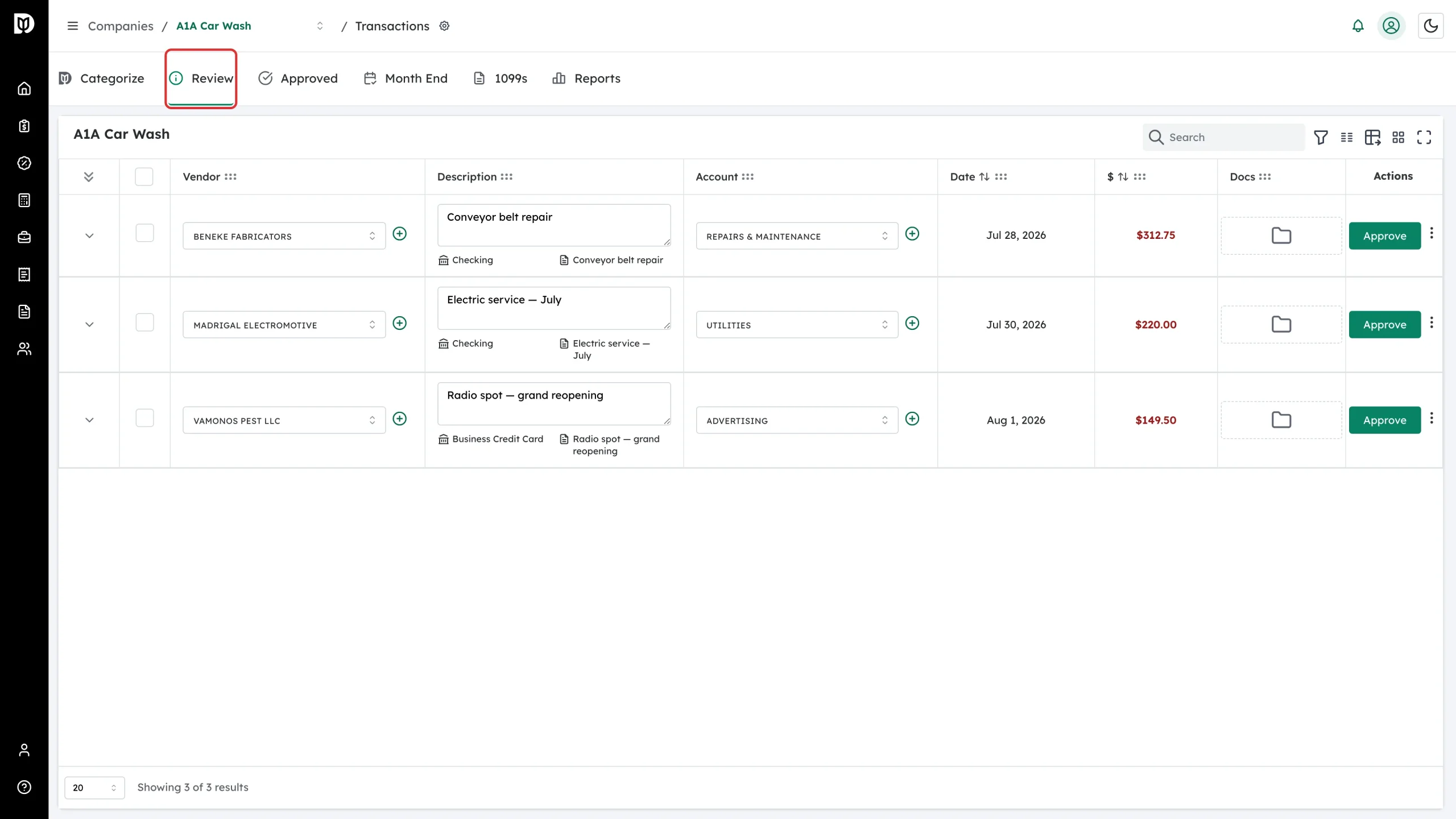
- Review — what the client has categorized, waiting for an accountant to check it.
- Approved — finalized transactions.
Return to Client moves one transaction from Review back to Categorize.
Step-by-step instructions
-
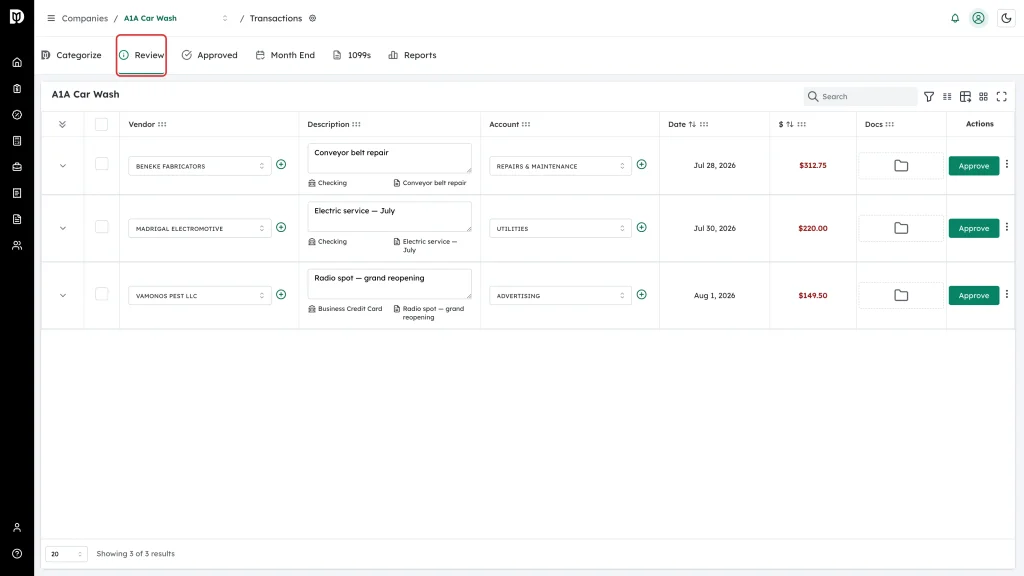
Select the Review tab. The table now shows only transactions waiting on an accountant.
-
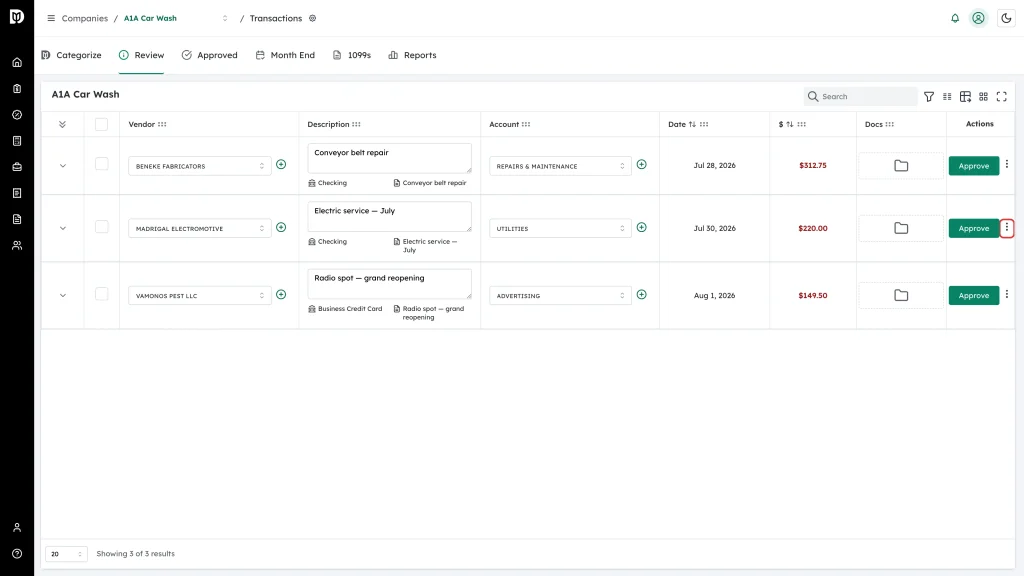
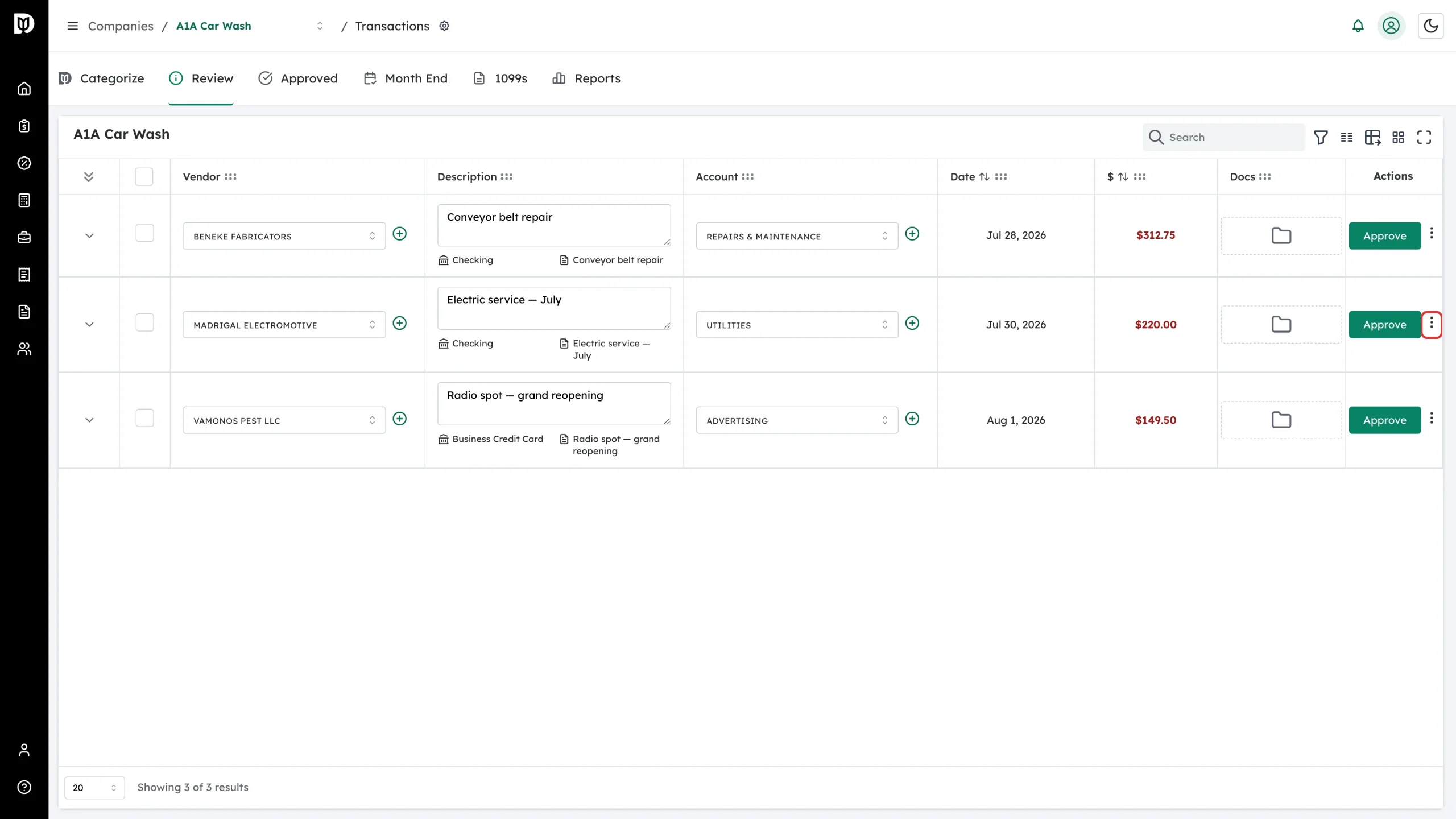
Find the transaction and select the three-dot menu at the end of its row.
-
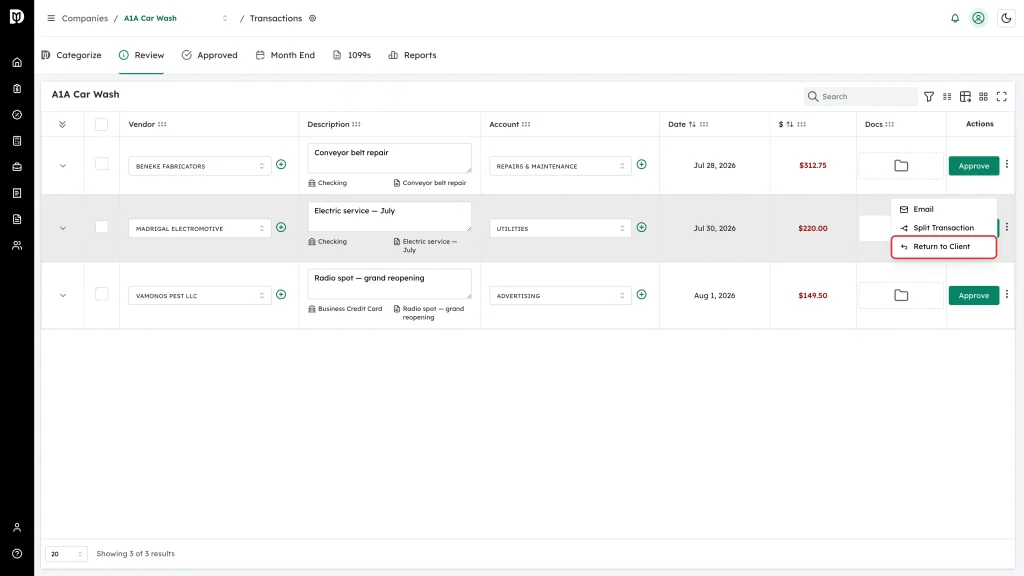
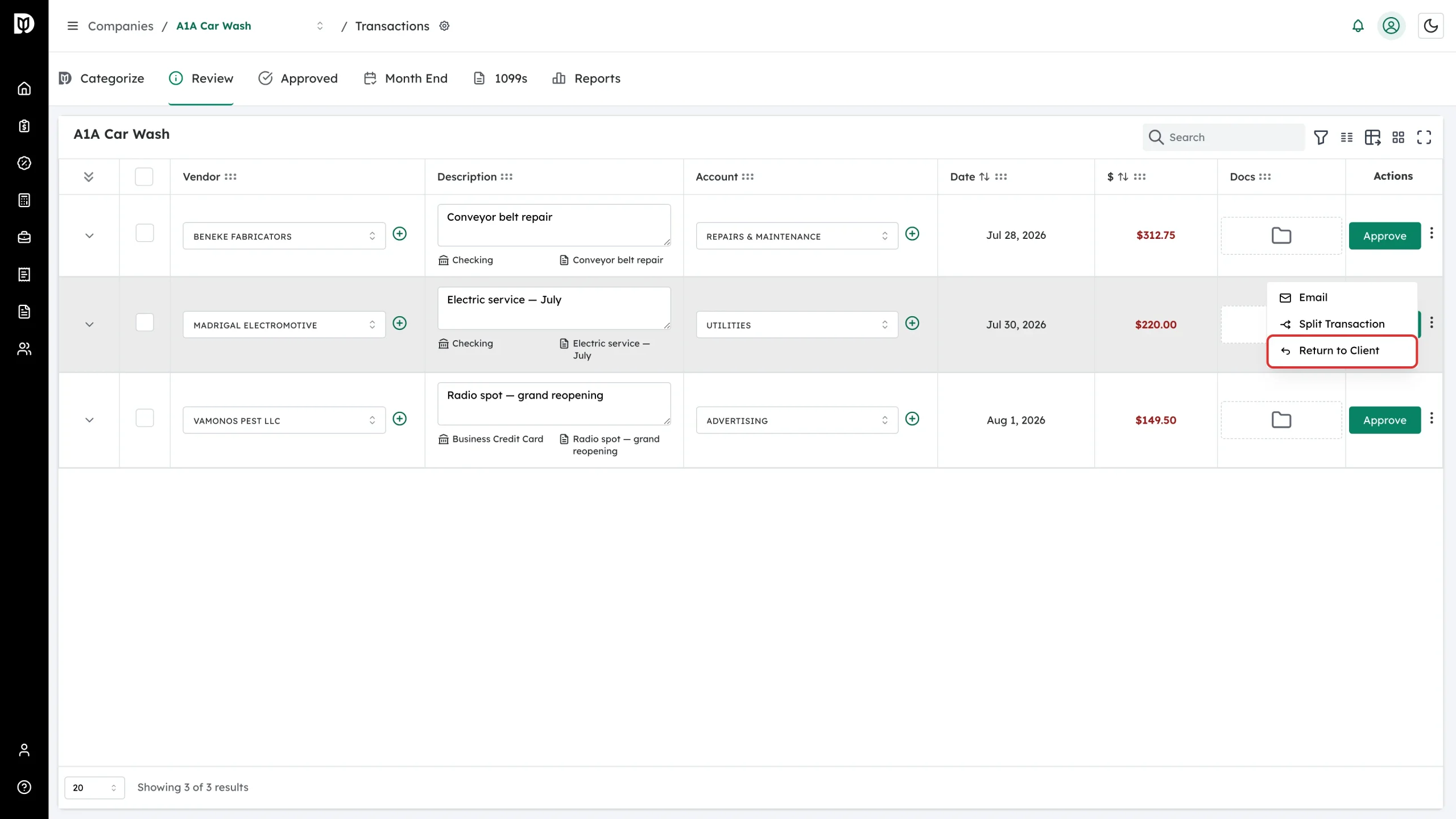
Select Return to Client. The menu also offers Email and Split Transaction.
-
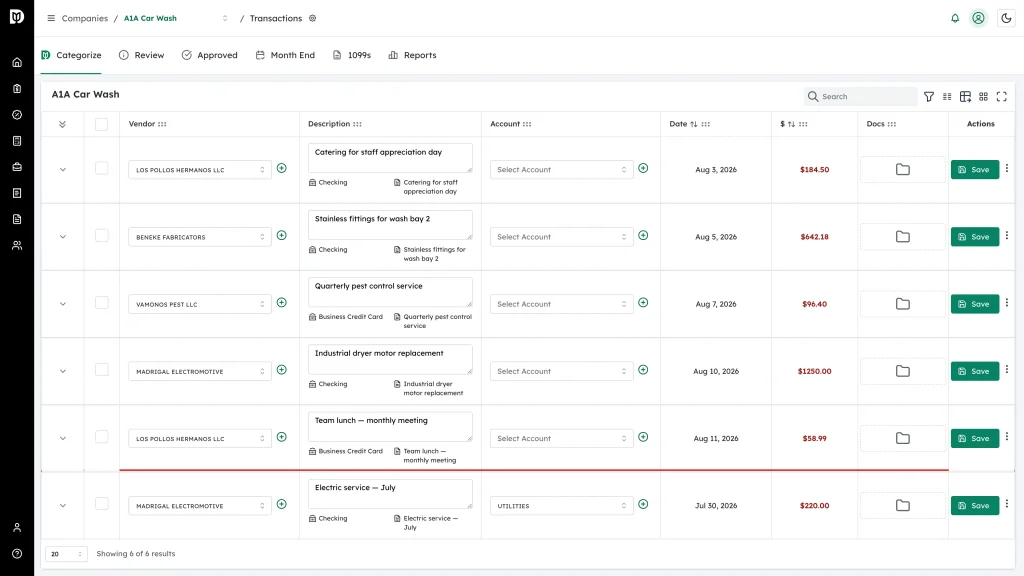
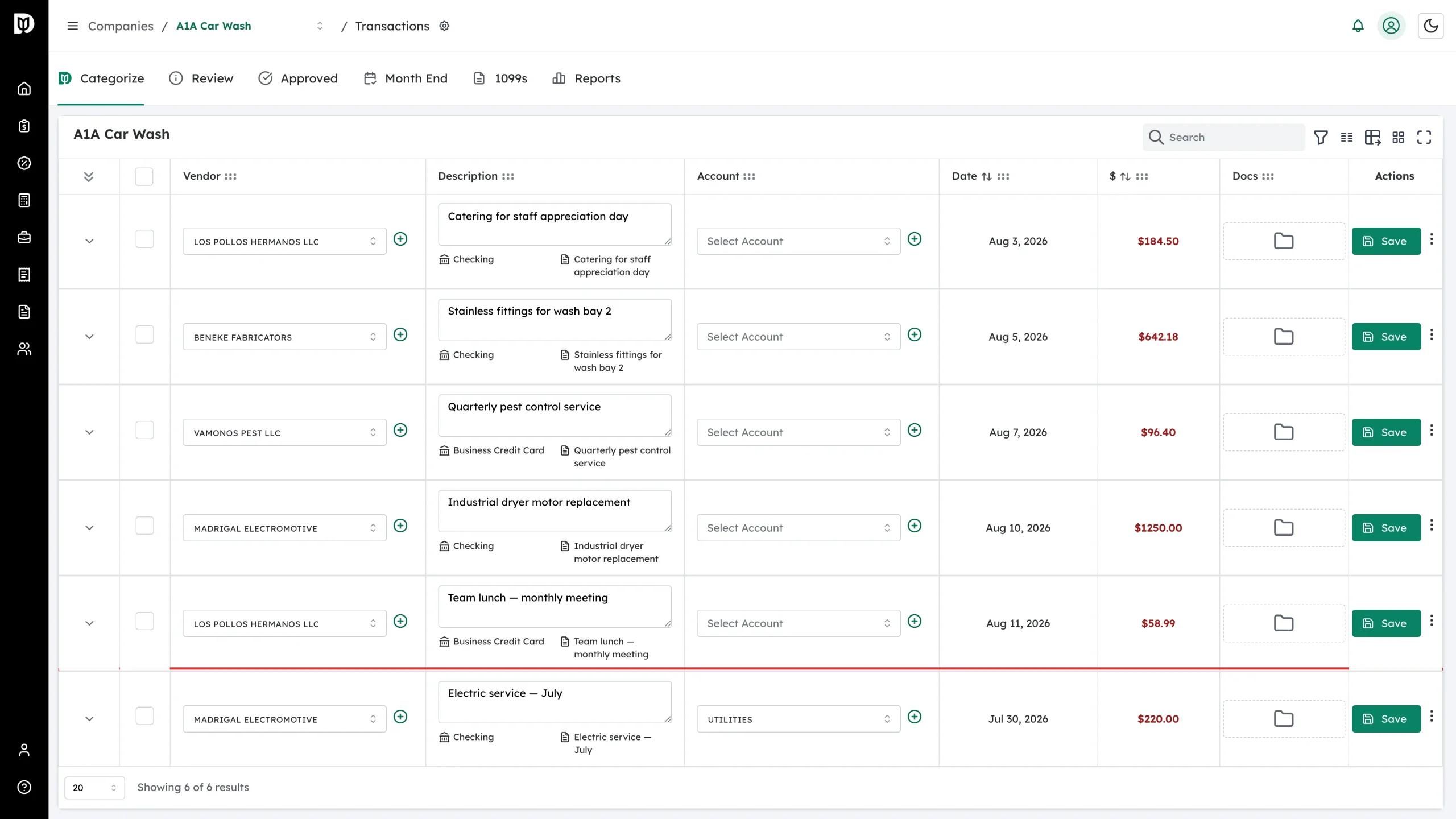
The transaction leaves the Review tab and reappears on Categorize, where the client can correct it and send it back.
What happens next
- The transaction’s status changes from review back to uncategorized straight away.
- The client sees it on their Categorize tab with the coding it already had, so they can adjust rather than start over.
- Once they recategorize it, it returns to your Review tab.
Troubleshooting
- You cannot see Return to Client. It only appears on the Review tab, and only for accountants. Check which tab you are on.
- “Failed to return transaction”. Refresh the page and try again.
- Can you return several at once? No. It is a per-transaction action.
- The transaction is not on the Categorize tab. Refresh the tab — the list is cached briefly.
- “This company isn’t in your client list”. Staff can open a company’s transactions only when they are assigned to that company. Ask an owner or admin to assign you.