Who this is for: Bookkeepers and reviewers checking a client’s transactions before closing the month.
What you’ll learn: How to run the automated scan and then fix, approve, or exclude the transactions it flags.
Before you begin
- Open the client’s Month End tab and select the Review tab.
- The client must be connected to QuickBooks. The scan reads the transactions Debits has synced from QuickBooks for the month you are closing.
Step-by-step instructions
-
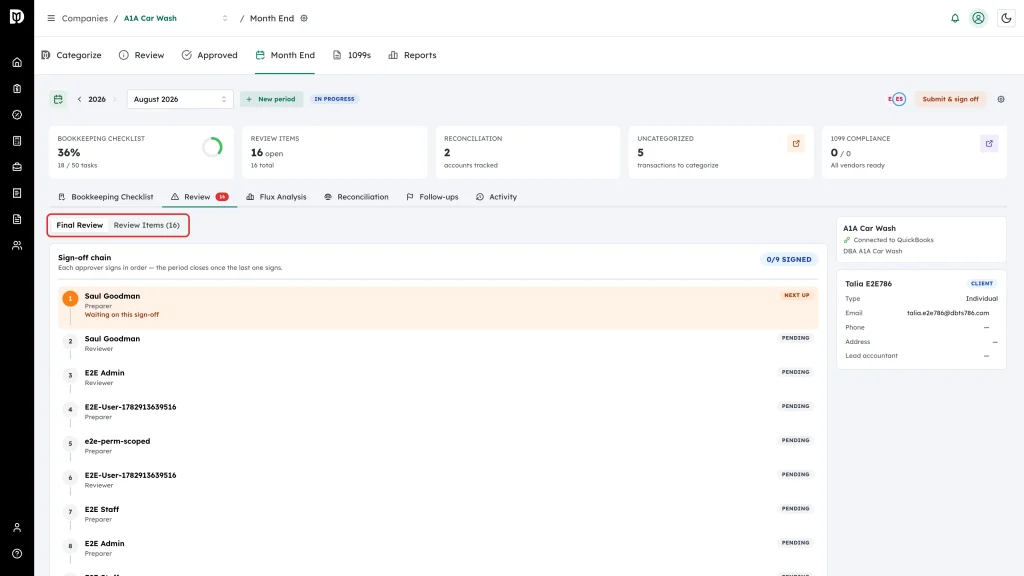
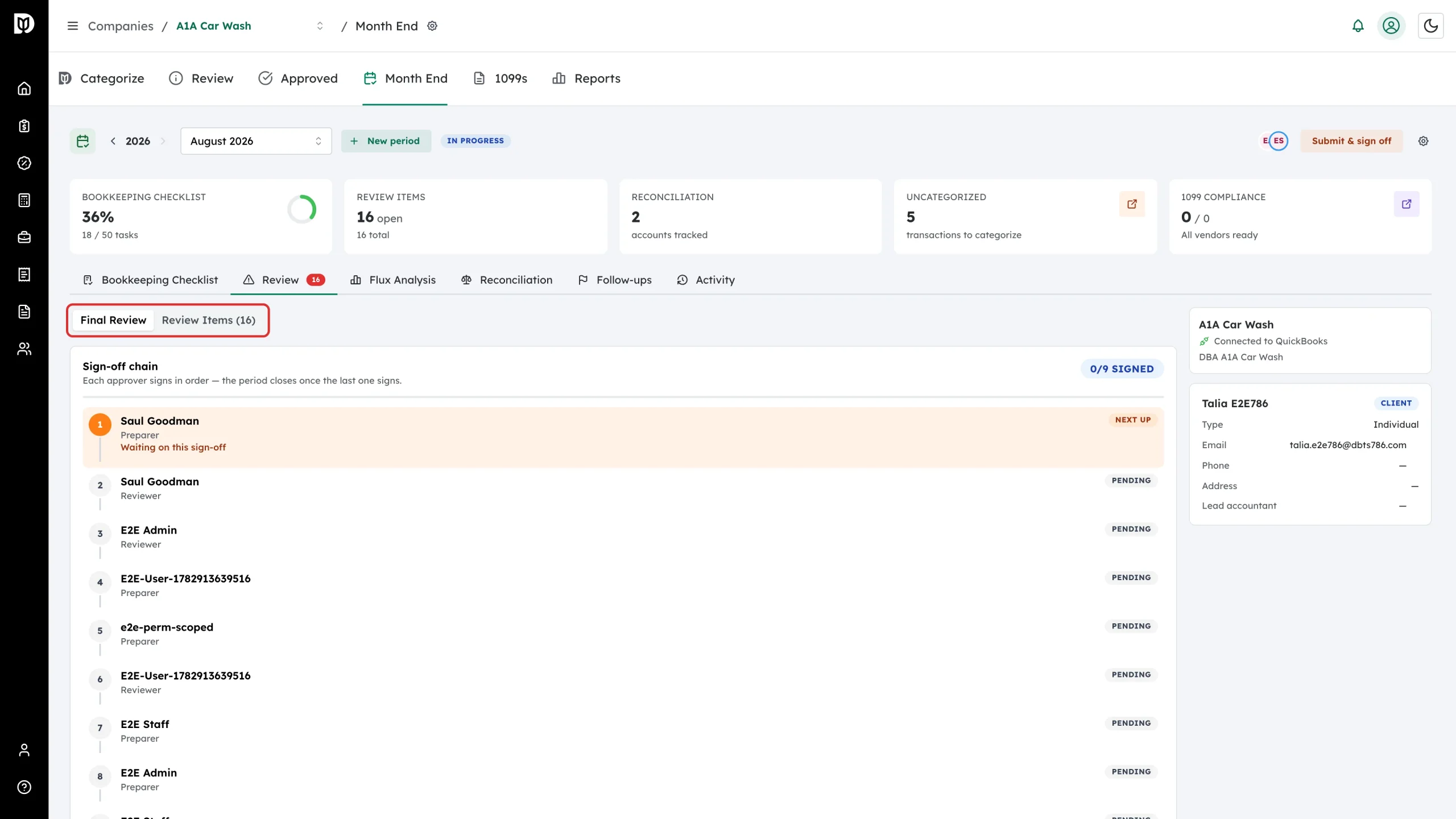
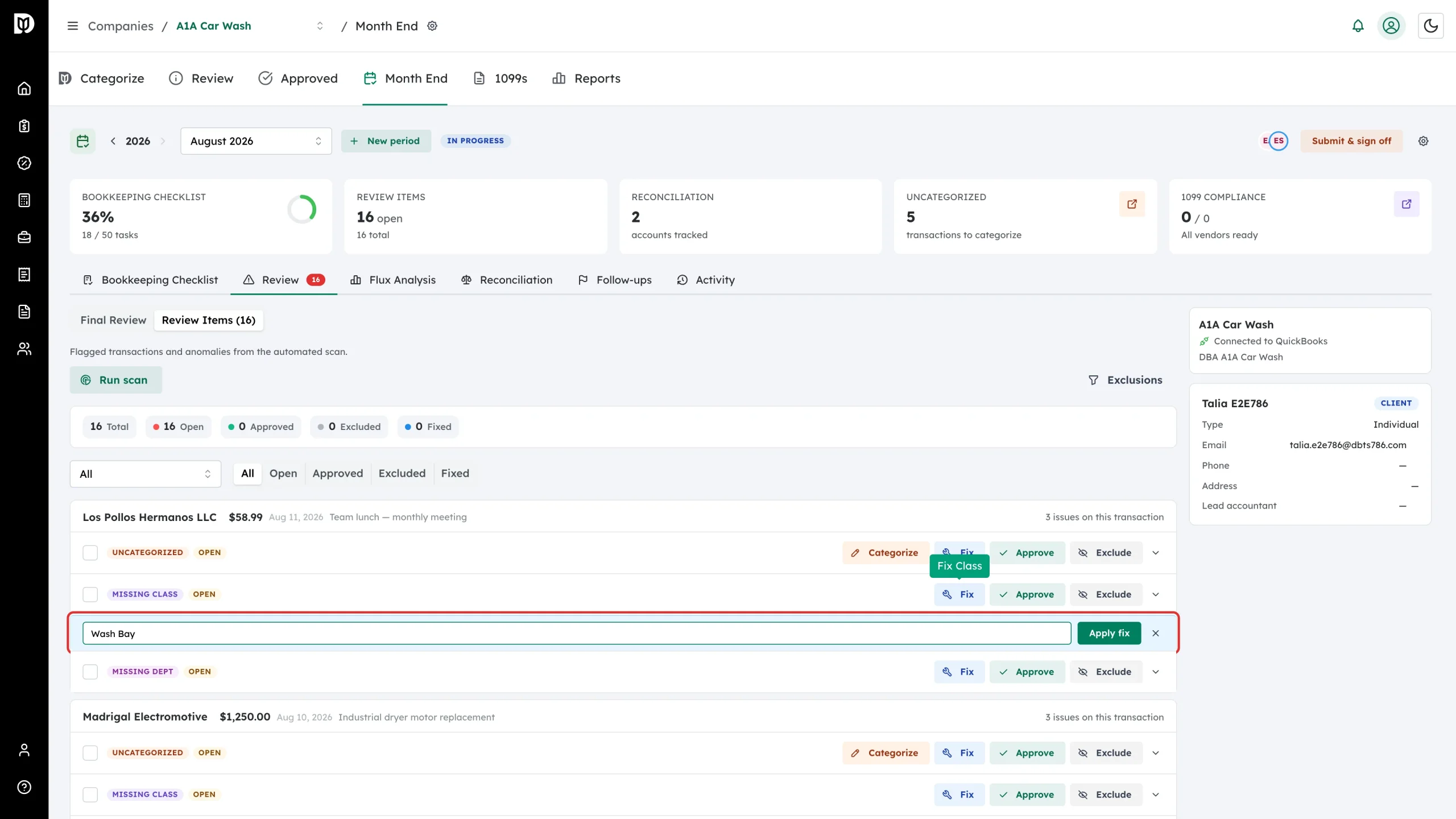
On the Review tab, switch from Final Review to Review Items.
-
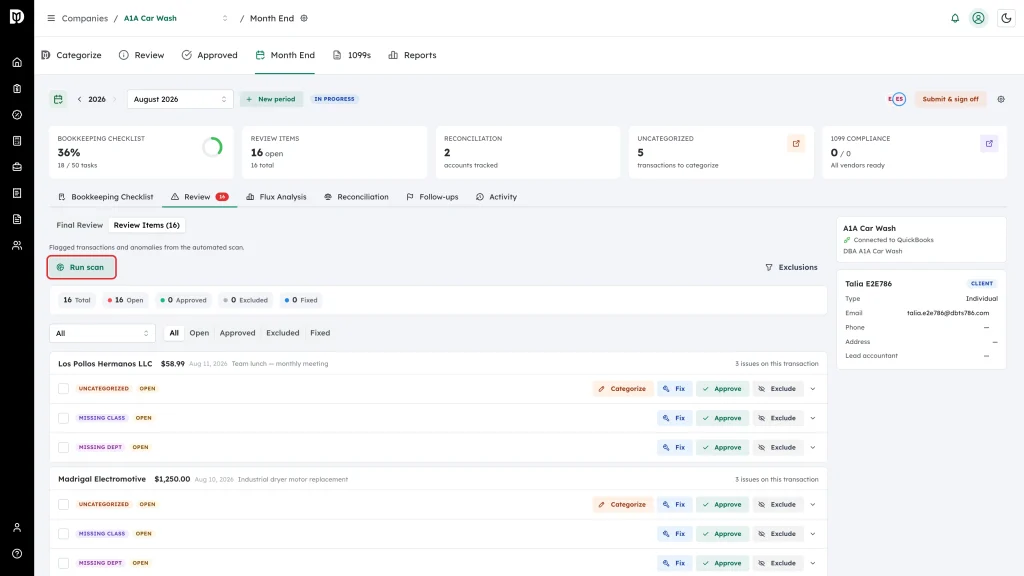
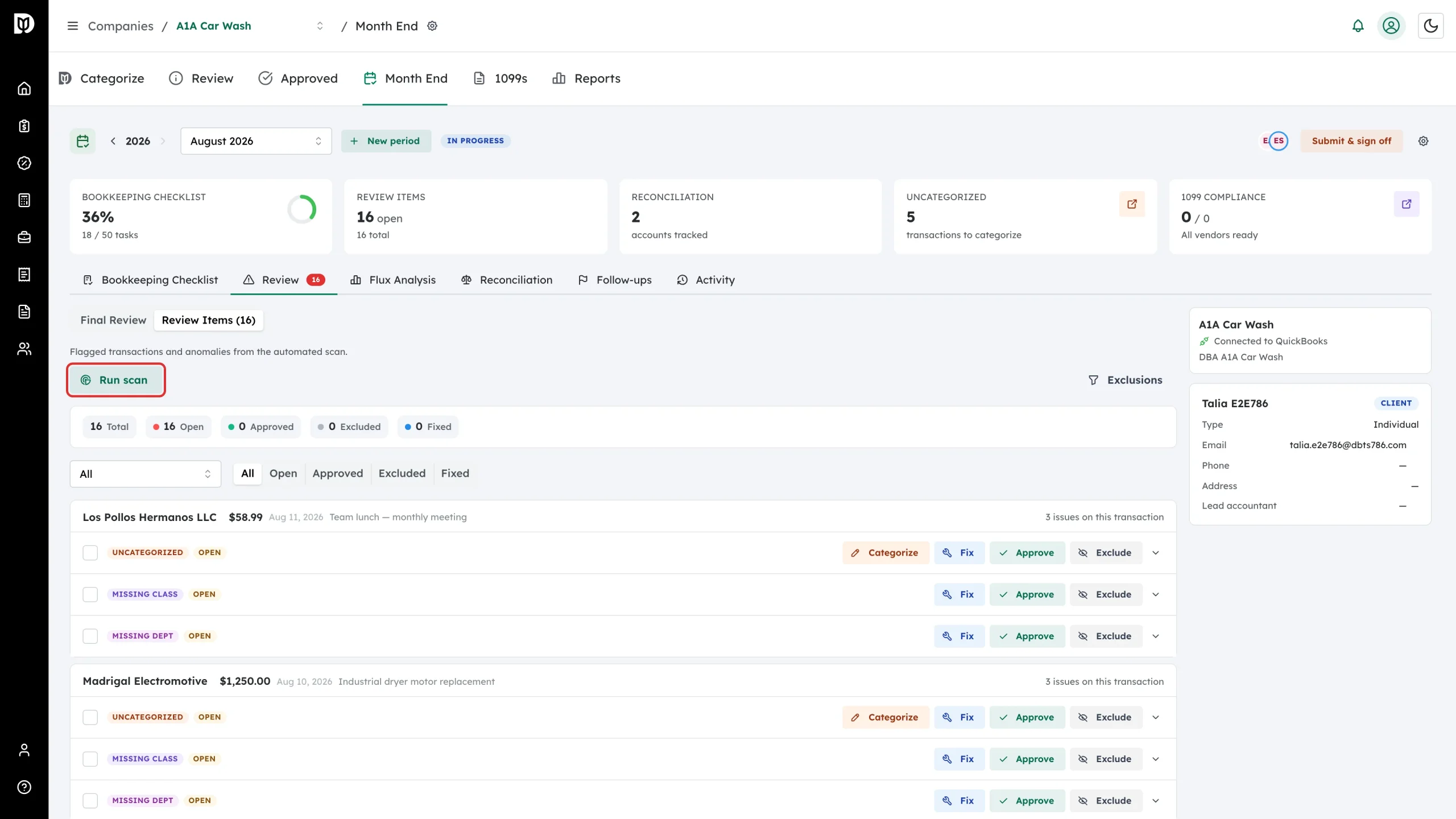
Select Run scan. Debits checks the month’s transactions against its rules — uncategorized, missing payee, missing class, missing department, missing customer, large transactions, missing attachments, transactions coded to a parent account, possible duplicates, future-dated and backdated entries, round numbers, and suspense accounts — and then runs an AI anomaly pass over the same transactions. Expenses, deposits, journal entries, sales receipts, bills and vendor credits are all checked. Journal entries are never flagged for a missing payee, and a deposit whose Received From is a customer counts as having one.
-
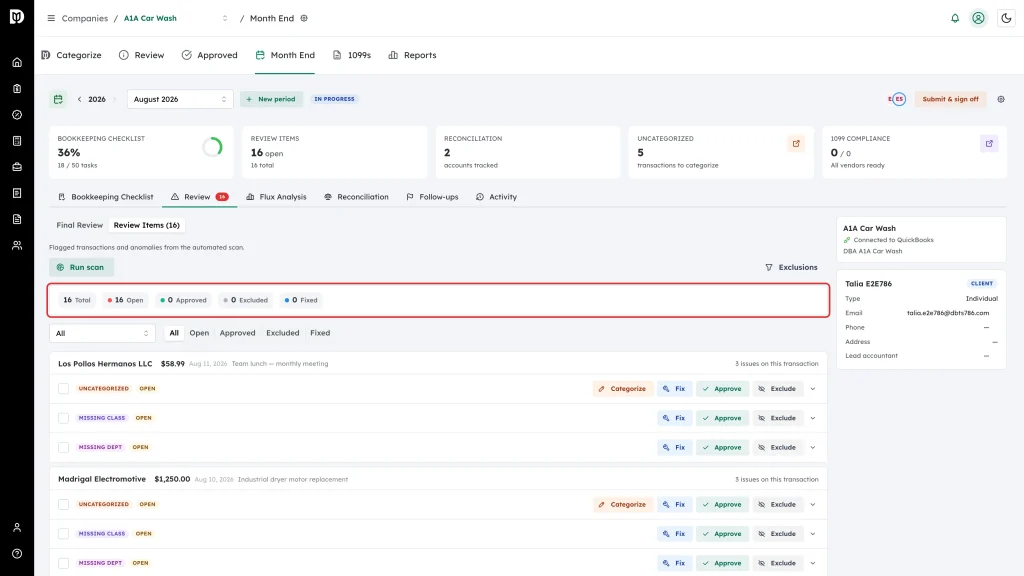
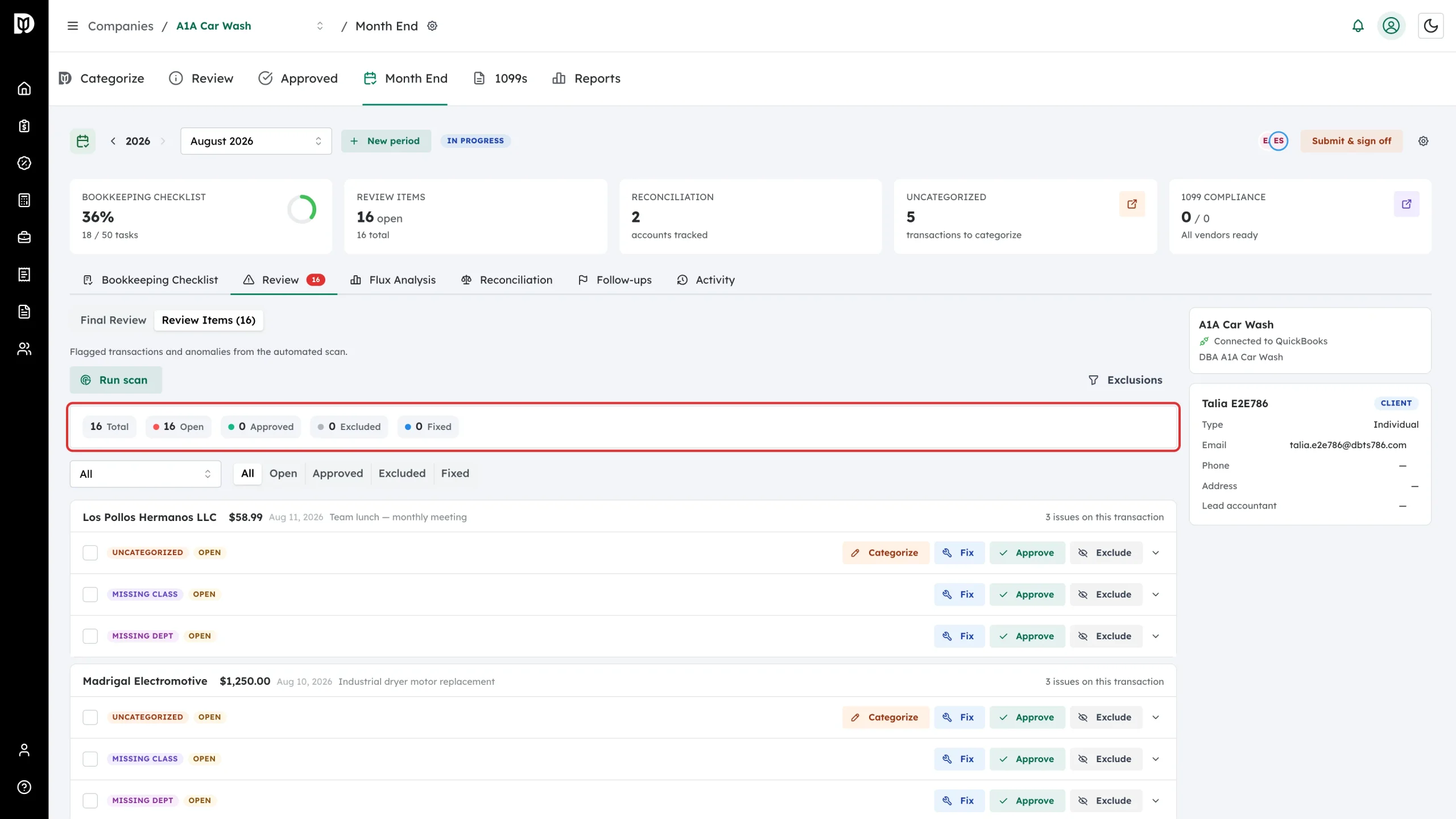
Read the summary strip: Total, Open, Approved, Excluded, and Fixed. Use the report-type dropdown and the status buttons underneath to narrow the list.
-
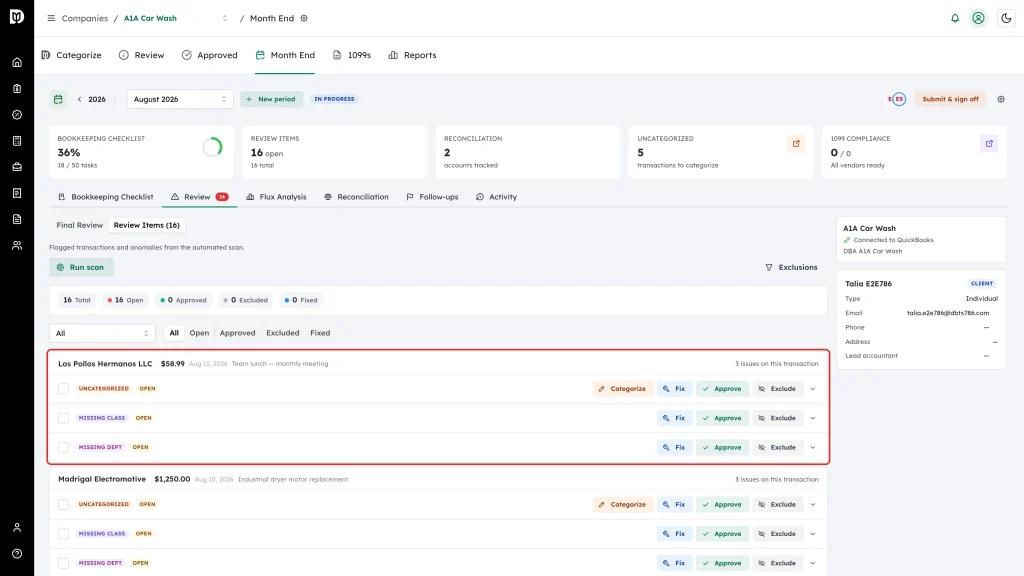
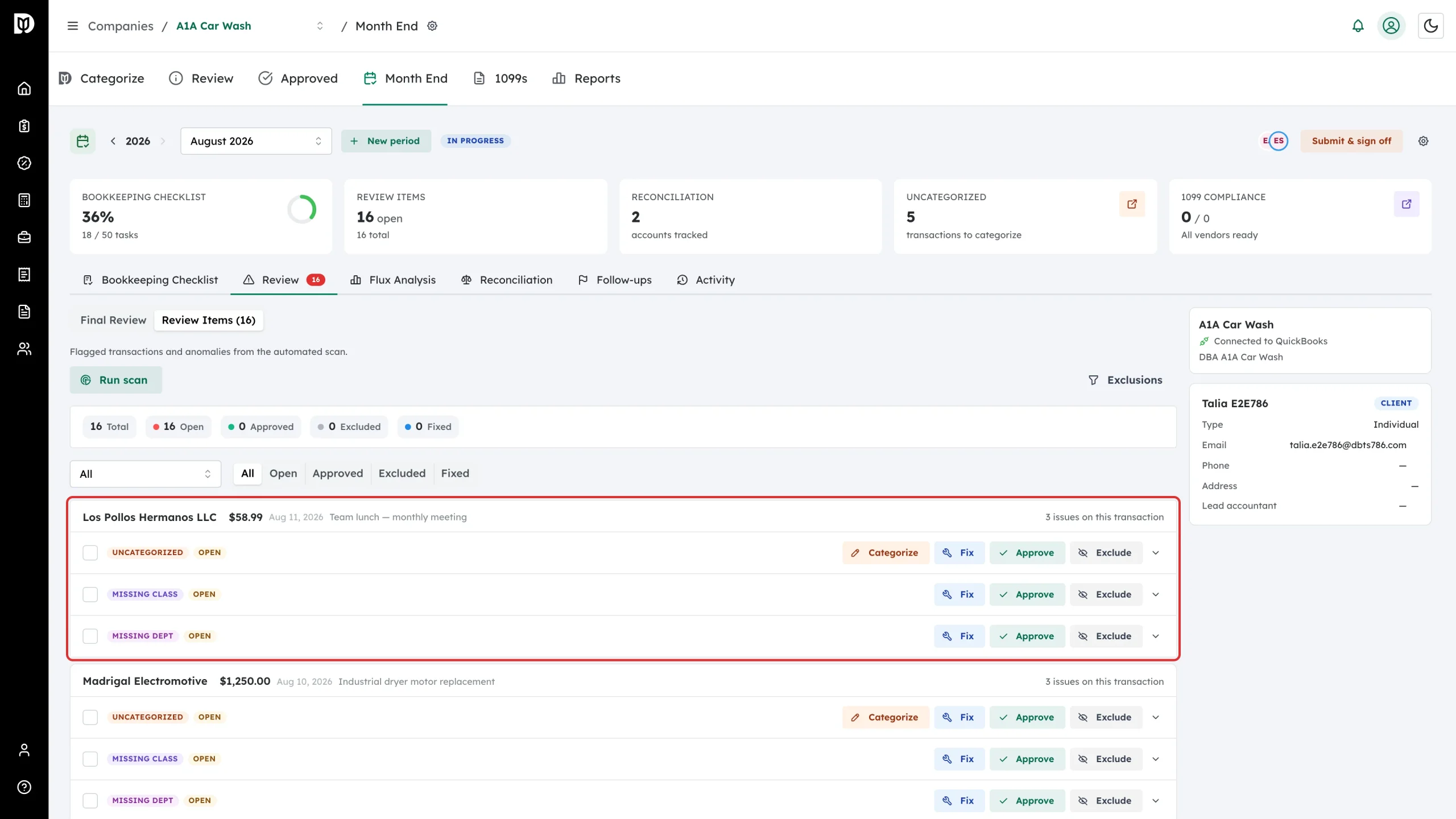
Work through the list. When one transaction trips several rules, Debits states the transaction once and lists a row per issue — the header says how many issues are on it. Each row can be handled on its own.
-
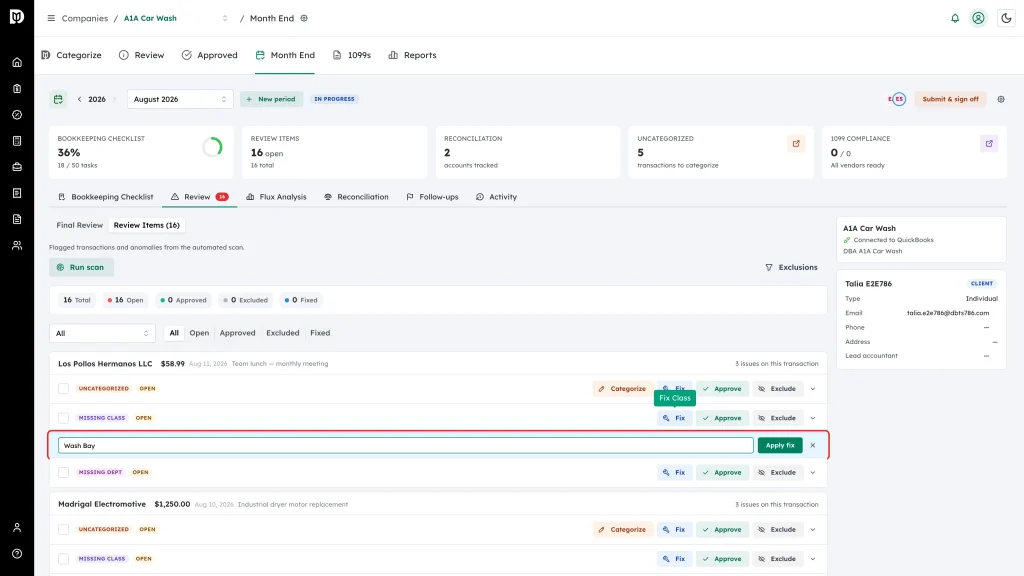
Select Fix to correct the value in place. Type the account, vendor, class, or department and select Apply fix. Debits writes the change back to QuickBooks. If the transaction is a bill that has been paid or part-paid, Debits asks you to confirm before changing it. For uncategorized transactions you can also select Categorize to open the transaction list instead.
-
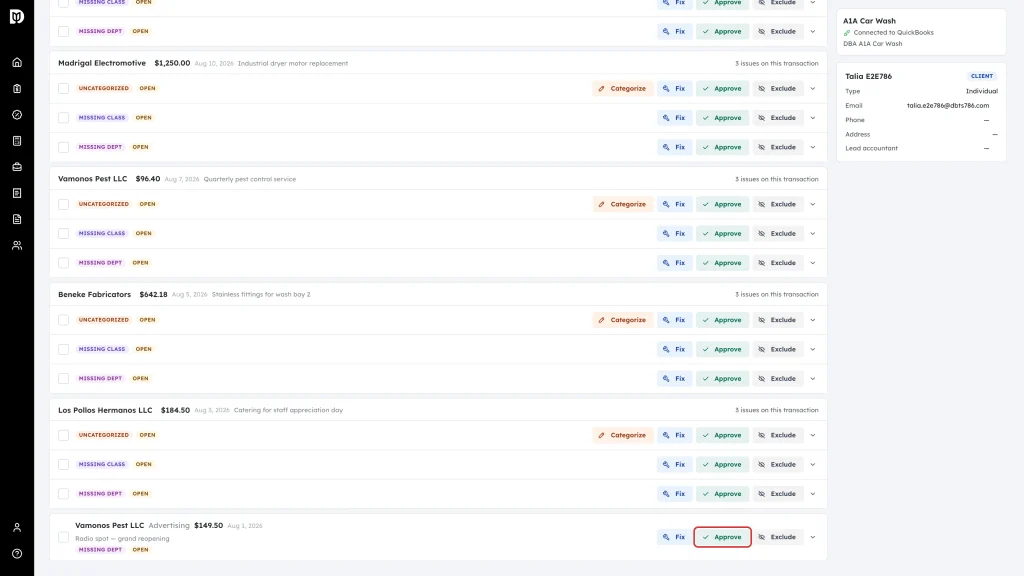
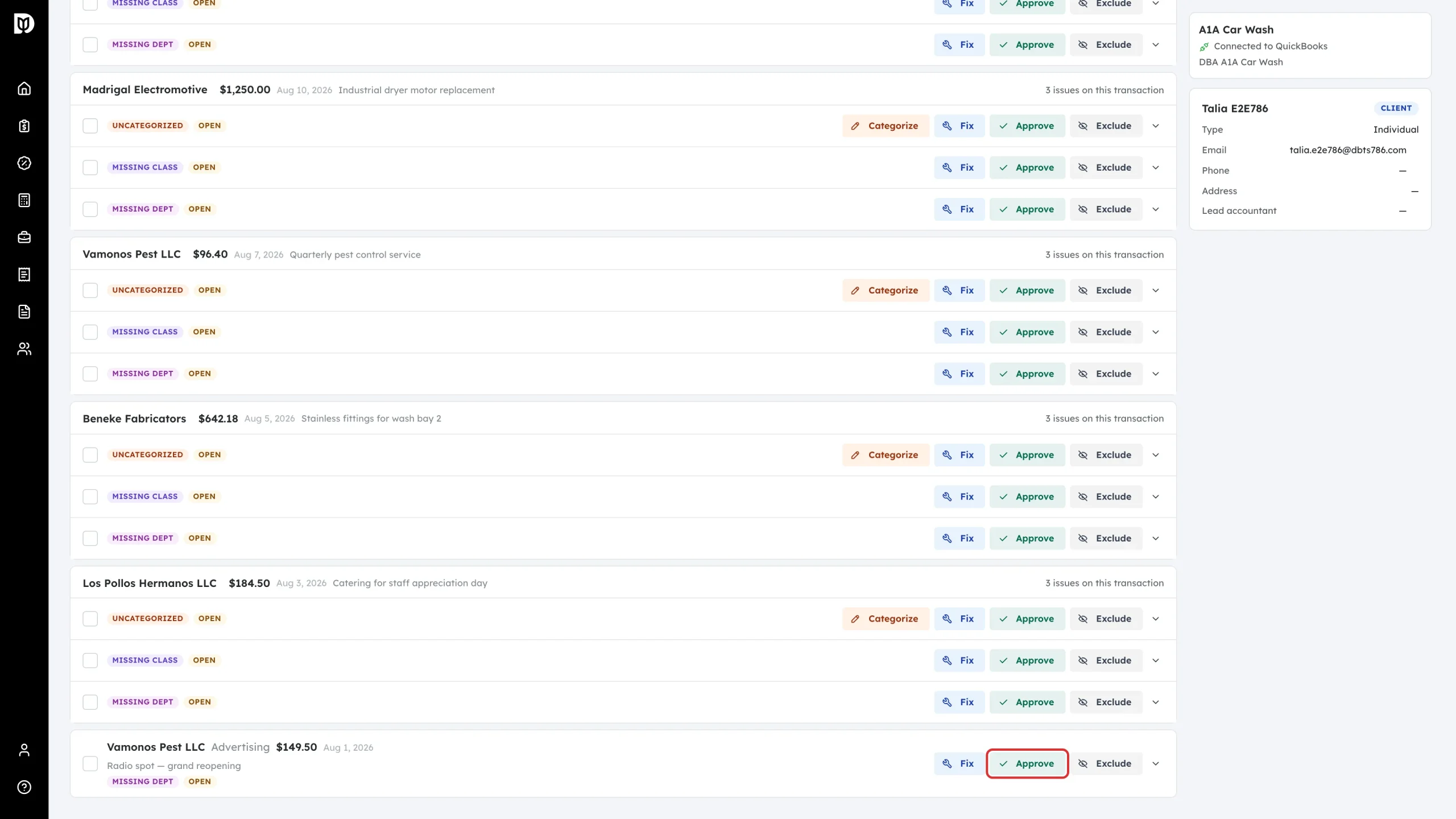
Select Approve when the transaction is correct as it stands.
-
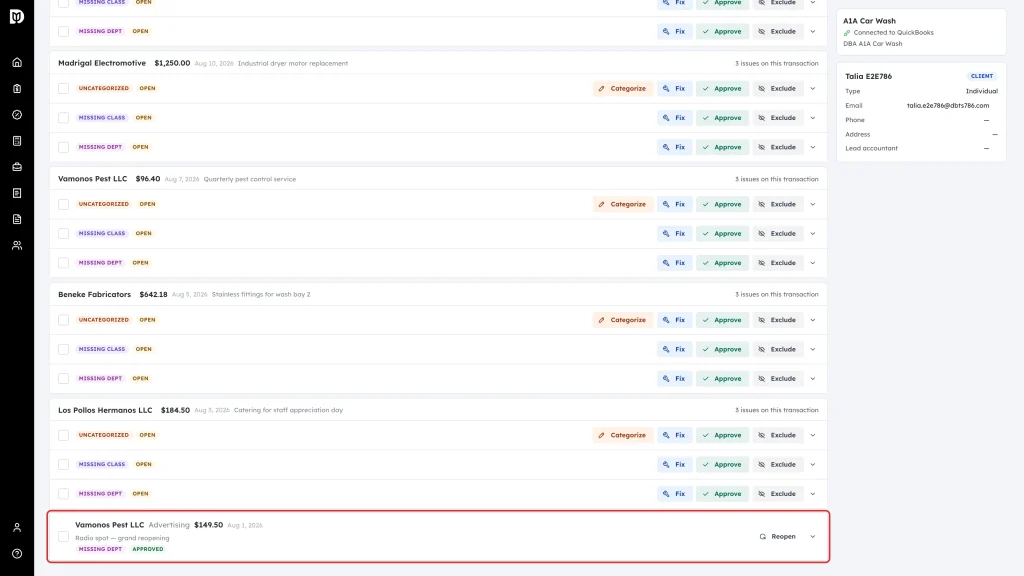
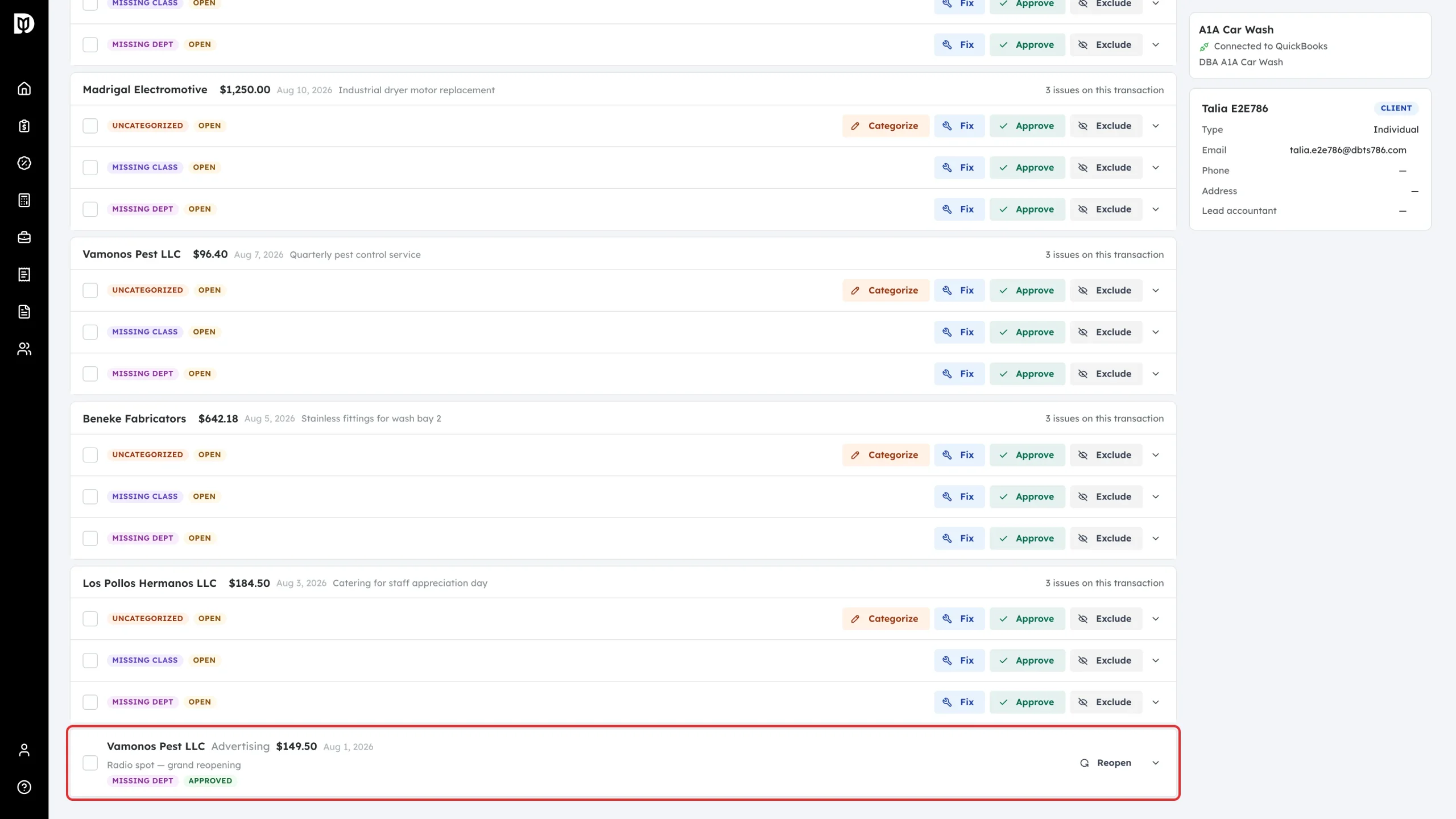
The item drops out of the open count and shows an Approved badge. Select Reopen if you need it back.
-
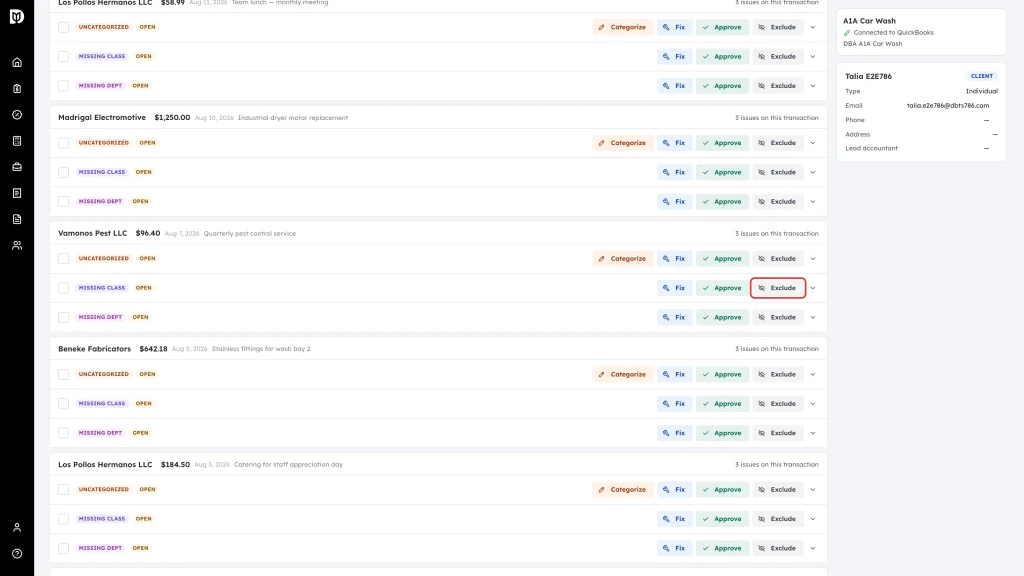
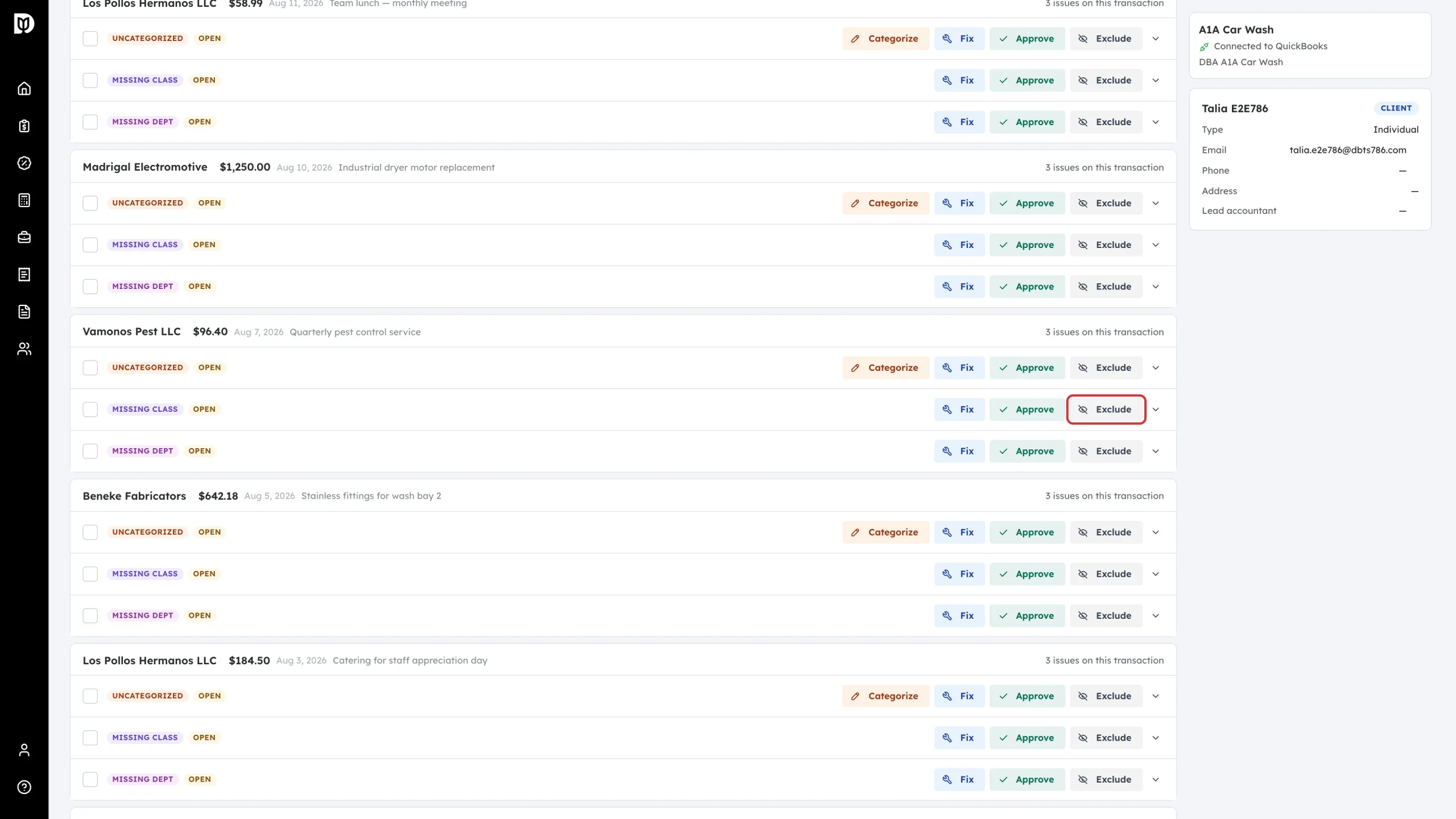
Select Exclude for an item that is expected and does not need a decision. It is marked Excluded and leaves the open count. If the item has a vendor, Exclude also stops that vendor being flagged for the same check in future scans — see the exclusion rules article.
Tune what gets flagged
-
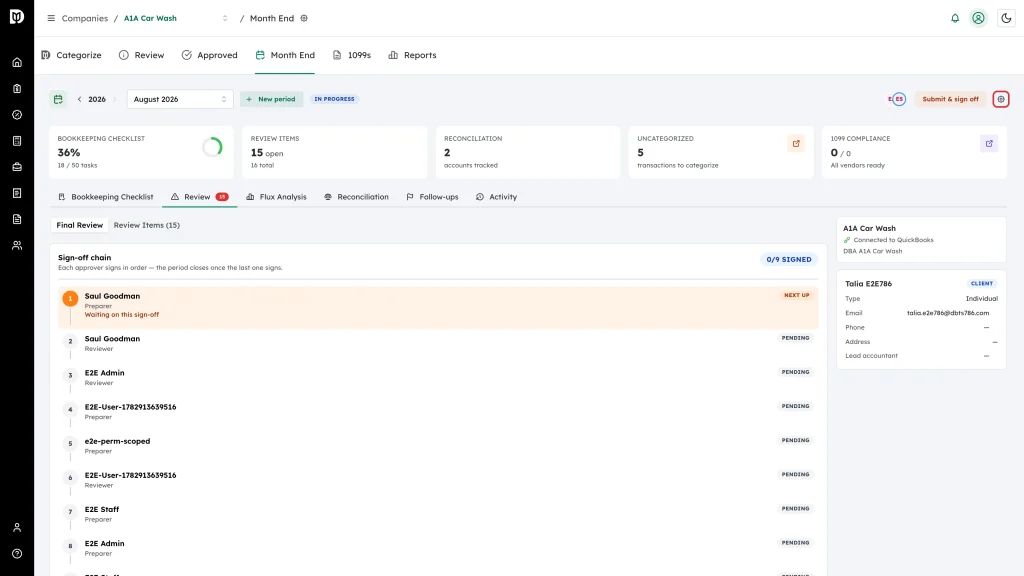
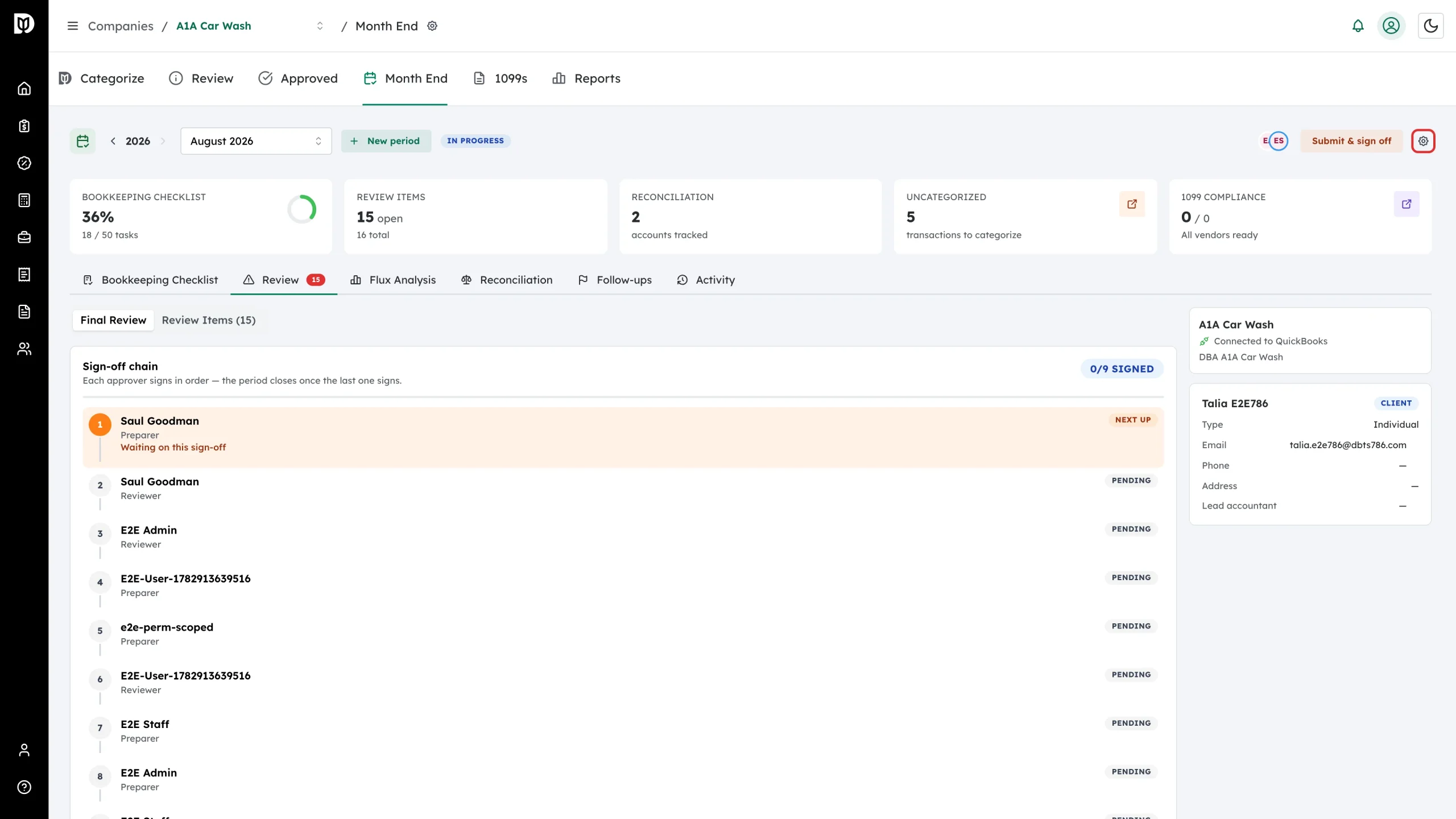
Select the gear icon in the workspace header.
-
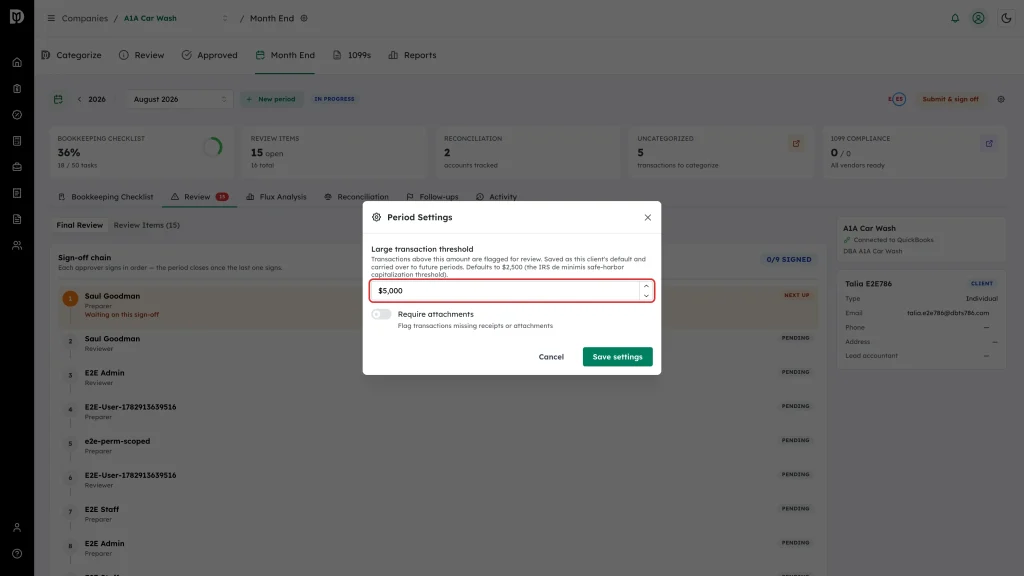
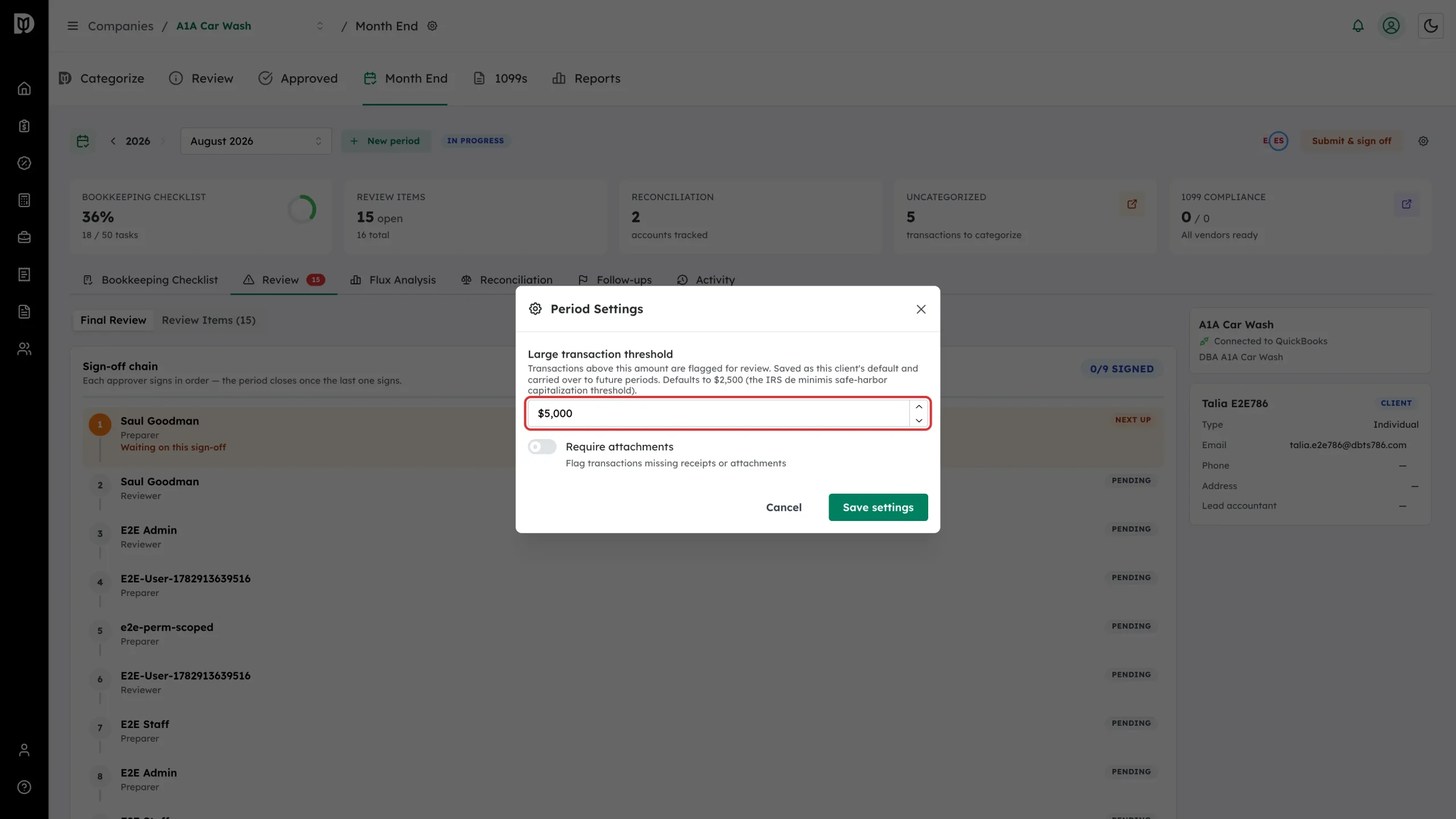
Set the Large transaction threshold — anything above it is flagged for review. It defaults to $2,500, the IRS de minimis safe-harbor capitalization threshold, and is saved as the client’s default for future periods. Turn on Require attachments to flag transactions with no receipt, and set an amount above which the receipt is required. Select Save settings.
What happens next
- Resolved items leave the Open count and the red badge on the Review tab updates.
- Tick several items and use Approve all or Exclude all to clear them together.
- Select the chevron on an item to leave a comment for whoever picks it up next.
- Items flagged by the AI pass carry an AI Anomaly badge and a confidence percentage.
- Re-run the scan any time. Items you already resolved stay resolved, and issues that no longer exist are cleared.
Troubleshooting
- The scan finds nothing. Either the month is clean, or Debits has no synced transactions in that month for this client. Check the Uncategorized card and the client’s QuickBooks connection.
- The same kind of transaction is flagged every month. Add an exclusion rule so future scans skip it — see the related article.
- A fix will not save. Fixes are written back to QuickBooks. If the client’s QuickBooks connection has expired, reconnect it and try again.