Who this is for: Firm owners and admins who want the same close checklist across periods and clients.
What you’ll learn: How to apply a checklist template to a period, edit the tasks and default roles inside a template, and save the current checklist as a reusable template.
Before you begin
- Open a client’s Month End tab and select the Bookkeeping Checklist tab.
- Any accountant role can apply and create templates. Deleting a template needs an owner or admin.
Step-by-step instructions
-
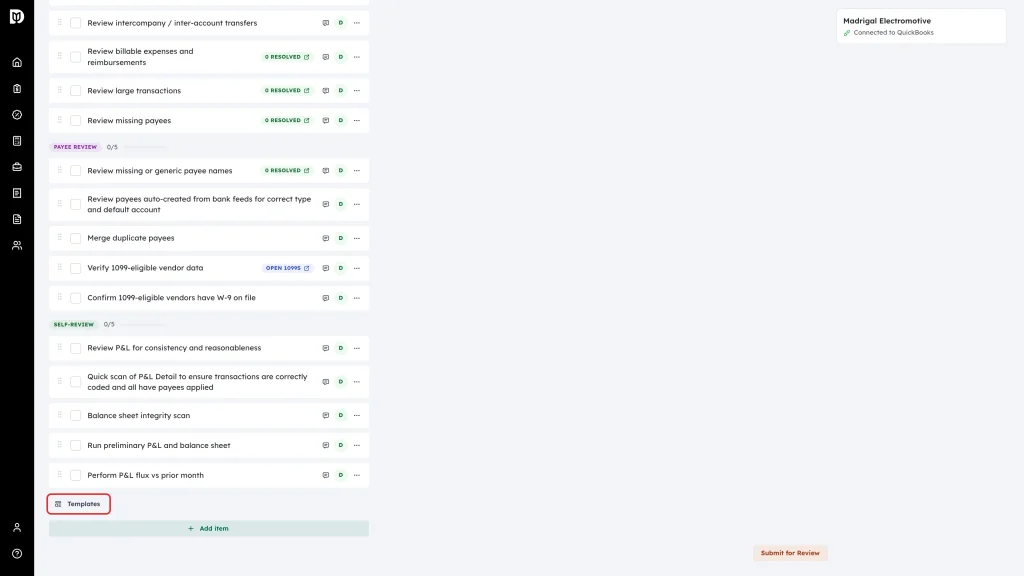
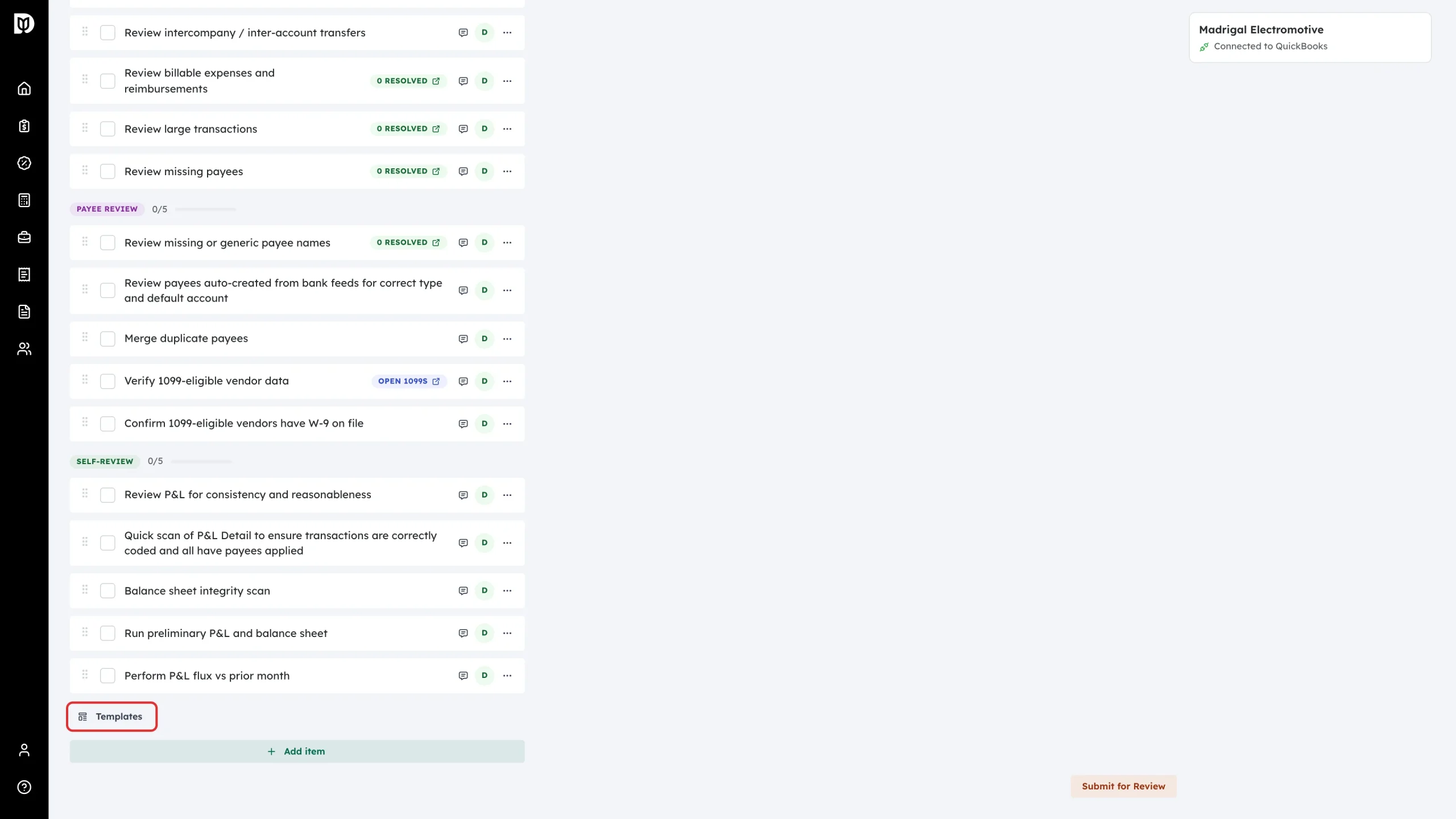
Select Templates below the checklist.
-
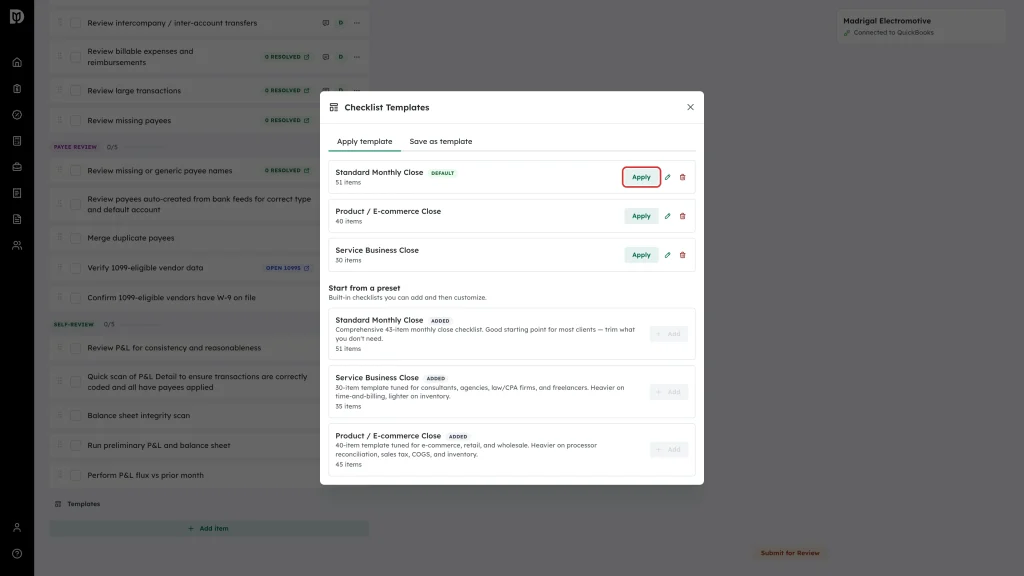
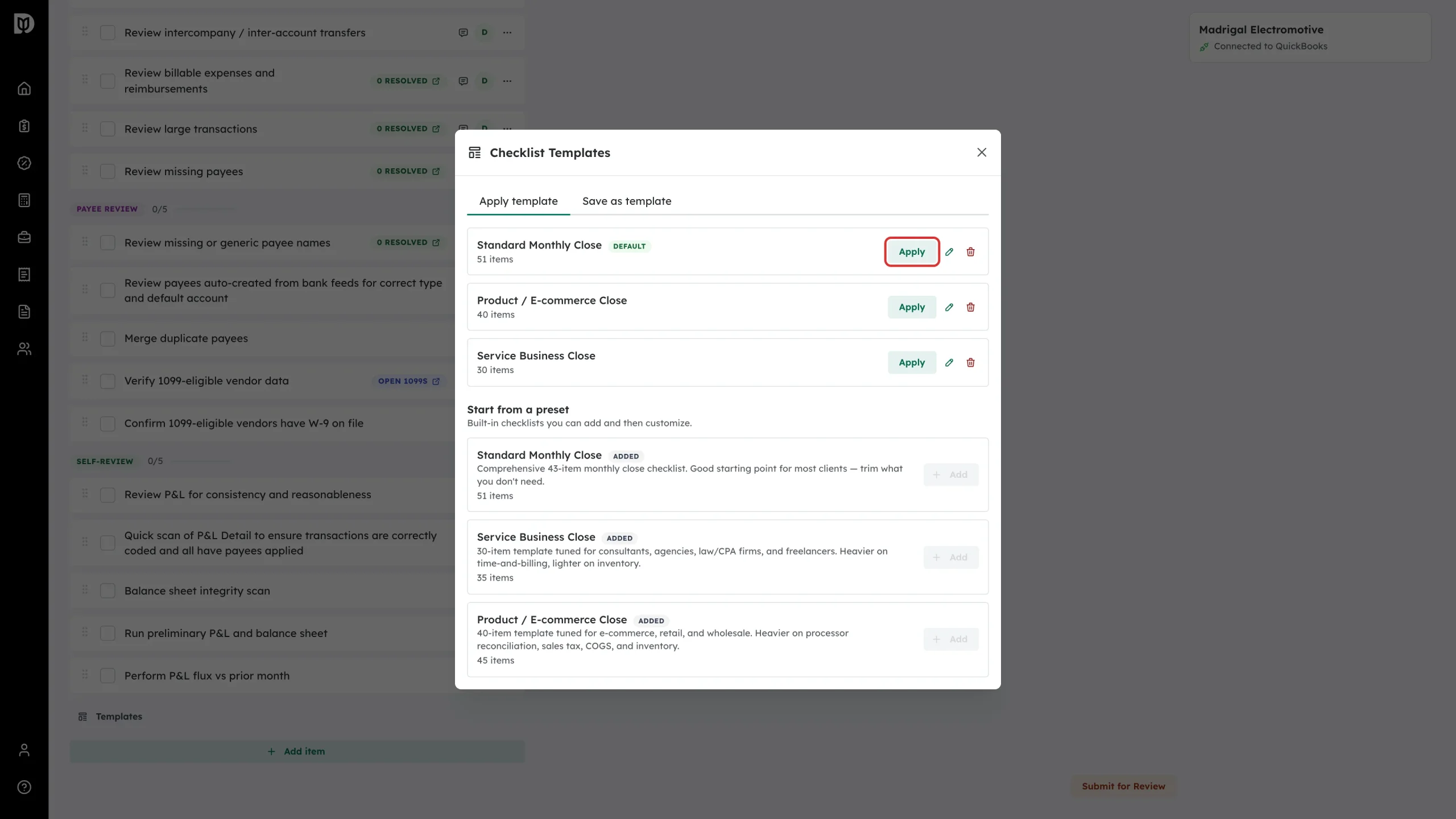
On the Apply template tab, find the template you want and select Apply. Its tasks are added to the current period’s checklist. A template marked Default is the one Debits uses when you create the client’s next period.
-
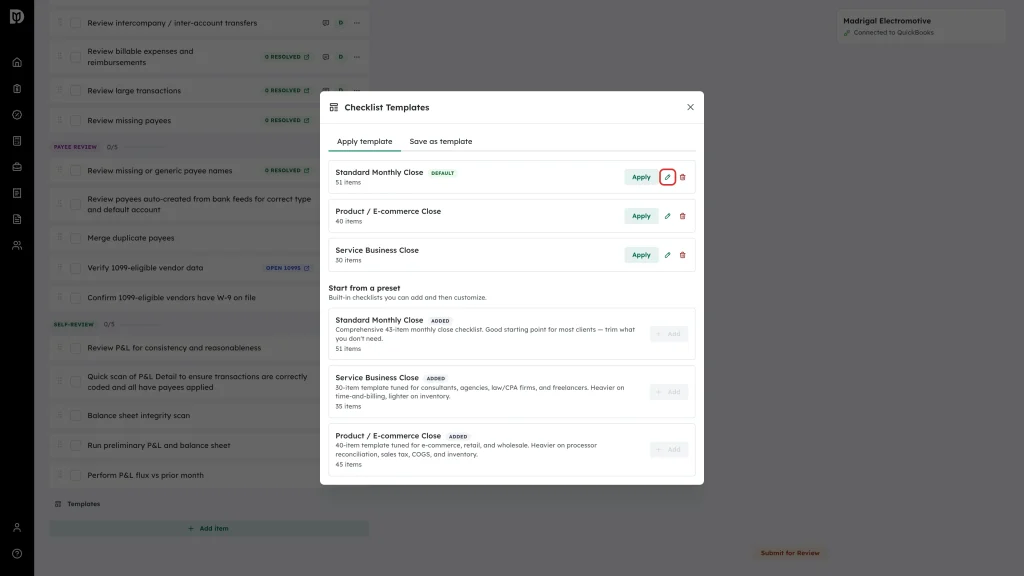
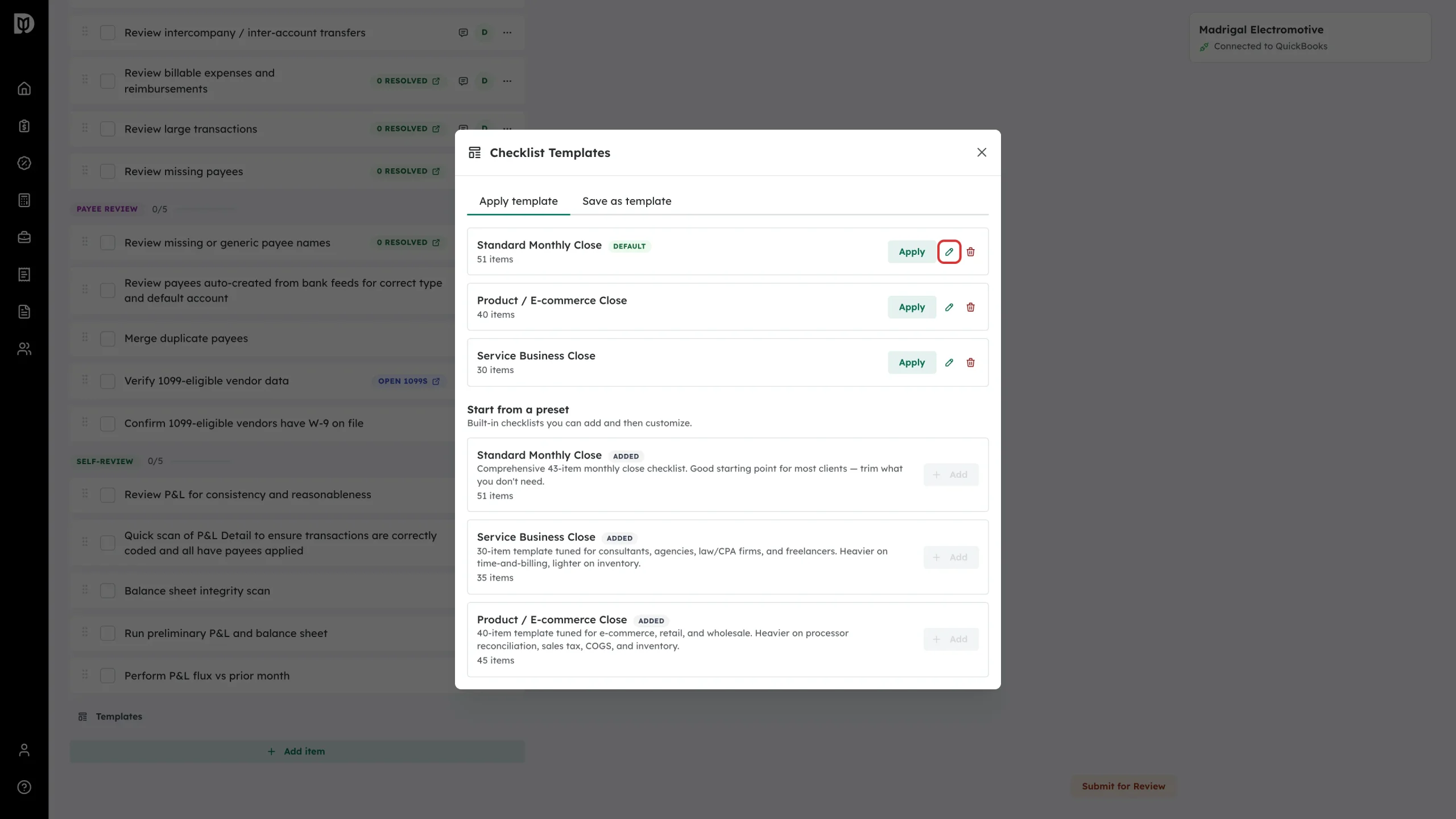
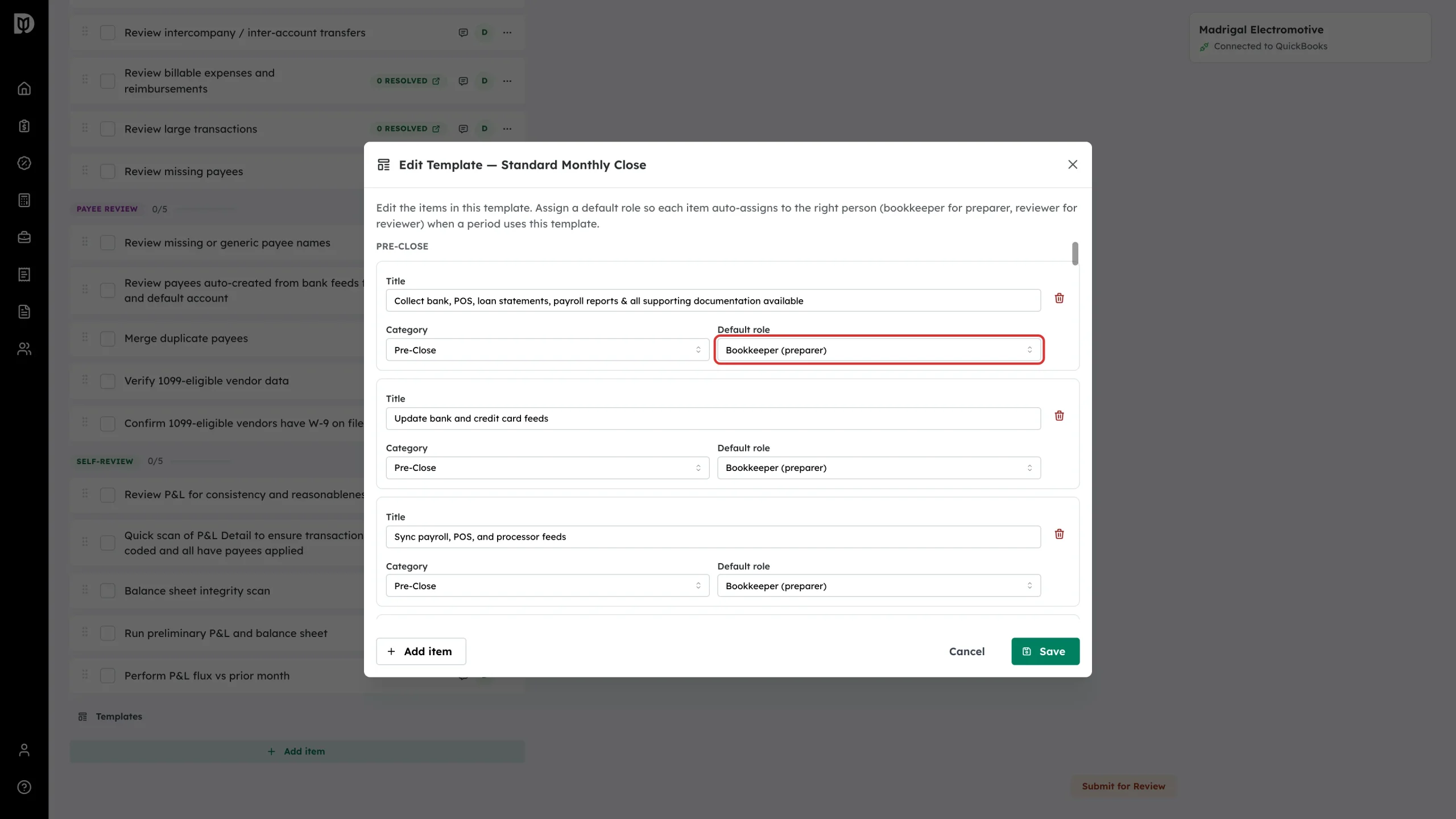
To change what a template contains, select the pencil icon next to it.
-
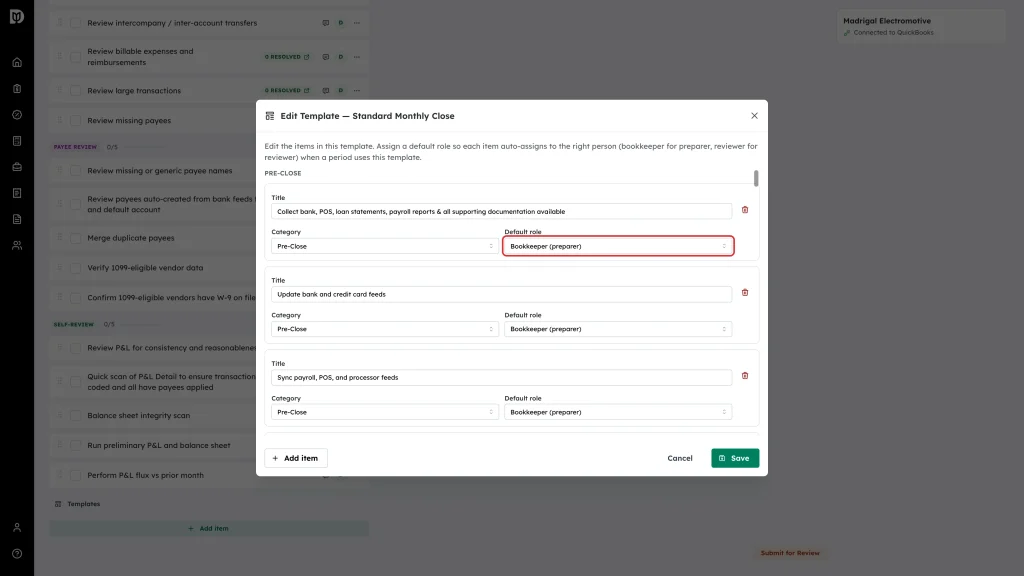
In Edit Template, change any task title, move it to a different stage, or set its Default role. A task set to Bookkeeper (preparer) or Reviewer is assigned to whoever holds that role on the period. Select Save.
-
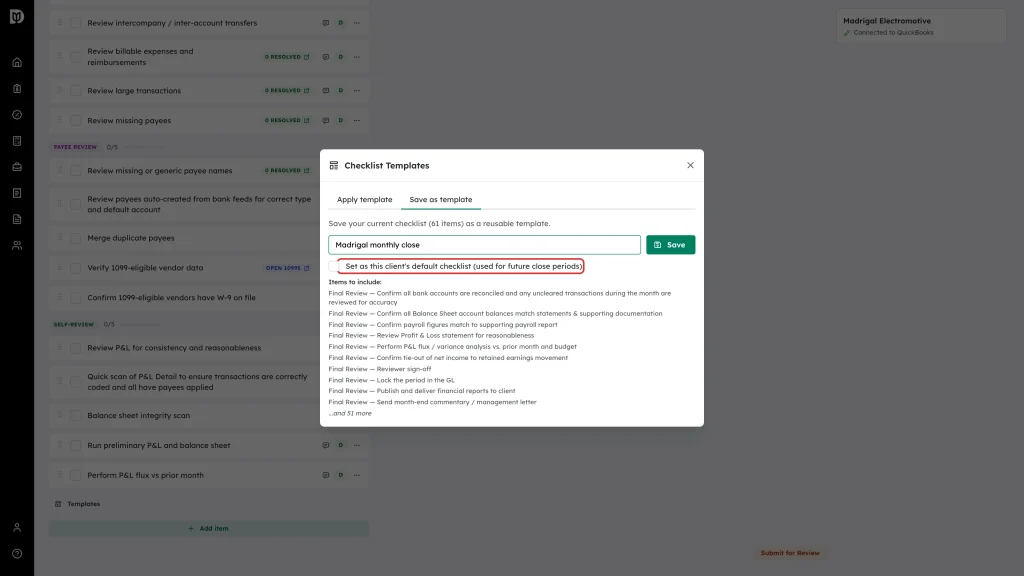
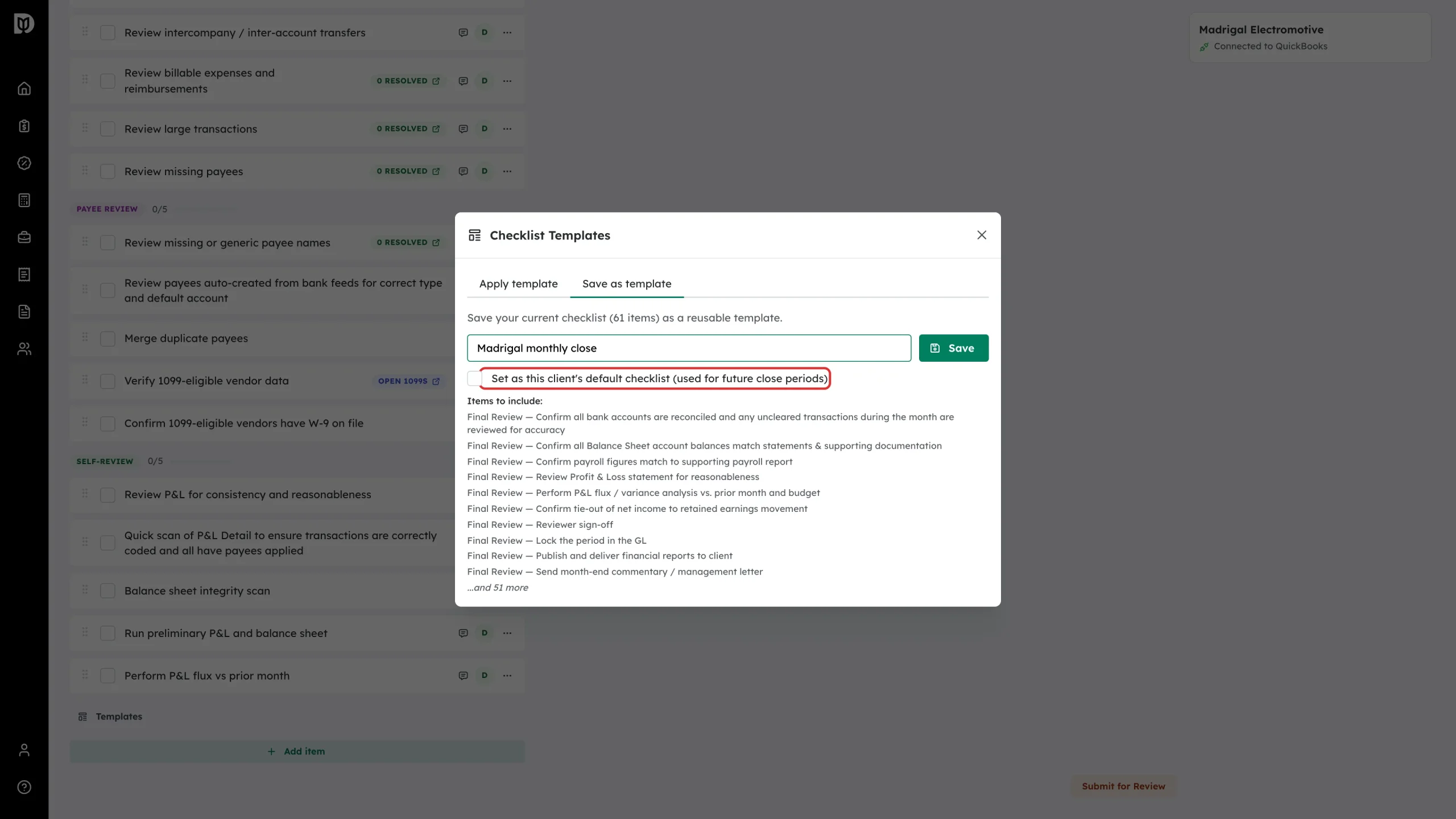
To turn the checklist you are working on into a template, select the Save as template tab, enter a name, and choose whether to make it this client’s default. Select Save.
What happens next
- Applied tasks appear in the checklist immediately.
- Shortcut: when you rename or rearrange standard tasks on the checklist itself, Debits shows These changes apply to this month only. Select Save for future months there to save the current checklist as the client’s template in one step.
- Saving as a template captures every task in the period, including the reviewer’s Final Review tasks — the count above the name field tells you how many.
- If you have no templates yet, start from a built-in preset under Start from a preset (Standard Monthly Close, Service Business Close, Product / E-commerce Close). Add the preset, then edit it like any other template.
Troubleshooting
- You cannot delete a template. Only owners and admins can. Ask a firm admin.
- Applying a template created duplicate tasks. Applying adds the template’s tasks to whatever is already there. Delete the extras — deleted tasks are banked and can be re-added from the add-item form.
- A preset’s description and its item count disagree. The description text is a rough label; the item count under the name is the number of tasks you will actually get.