Who this is for: Firm owners and admins who manage workflow automations, and reviewers who sign off a month by delivering its report.
What you’ll learn: How to turn on the built-in rule Close the month-end period when a report package is delivered, what it does when you deliver a report, and when it stops instead of closing.
Before you begin
- You need permission to manage workflow automations.
- Every firm has this rule already, turned off. Nothing happens until you turn it on.
- The rule only acts on a report that is linked to the company’s bookkeeping card for that month on a Bookkeeping board. Debits links the report to the card for you when the report is created, finalized or delivered, as long as the card exists and is linked to the company.
- For a close with a sign-off chain, the month must already be submitted for review, and the person delivering the report must be the next signer, usually the reviewer.
Step-by-step instructions
Step 1: Open Automations
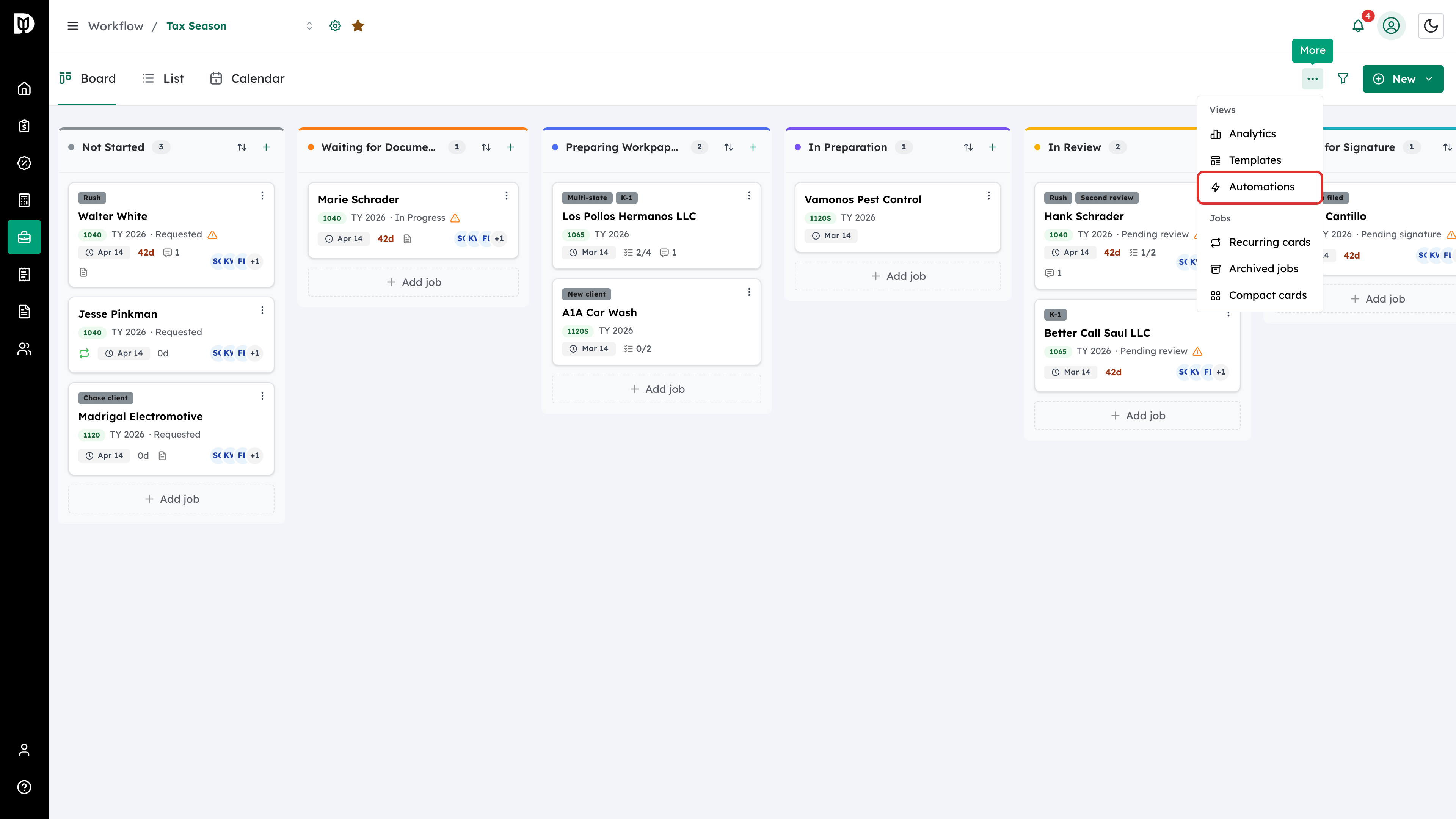
Go to Workflow, open the … menu at the top right and select Automations.
Step 2: Find the rule
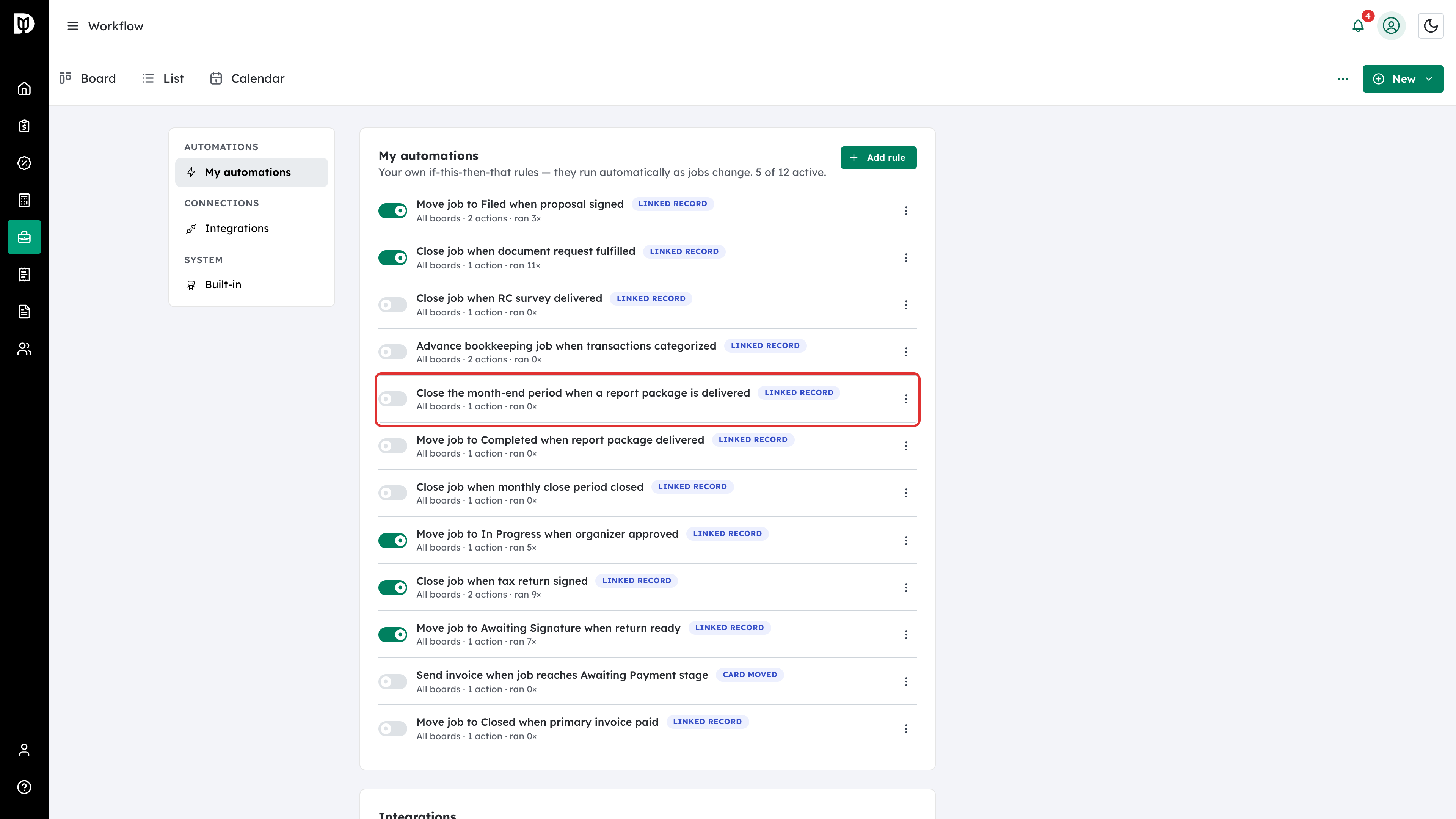
Under My automations, find Close the month-end period when a report package is delivered. Its switch is off.
Step 3: Edit the rule
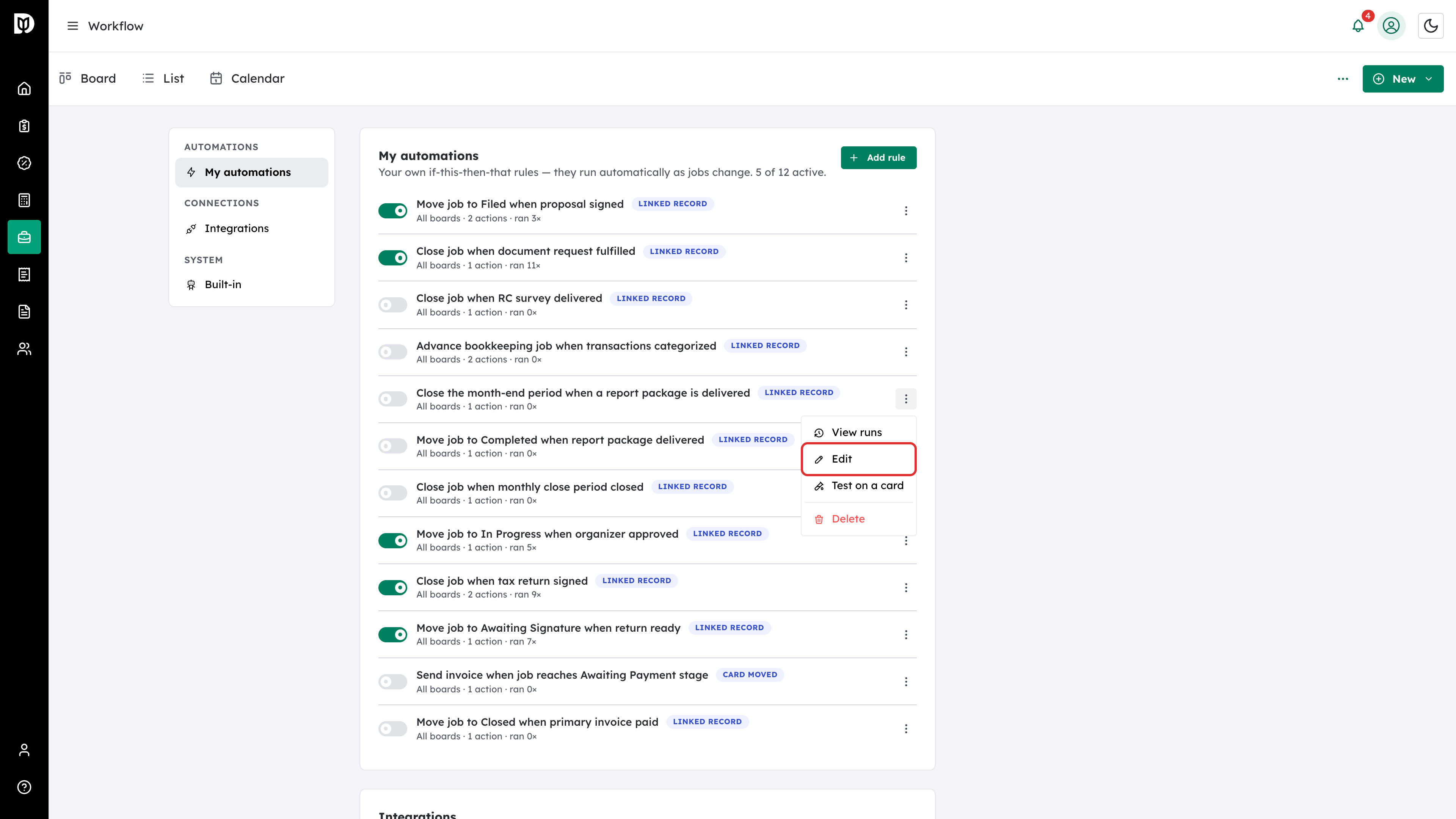
Open the rule’s ⋮ menu and select Edit.
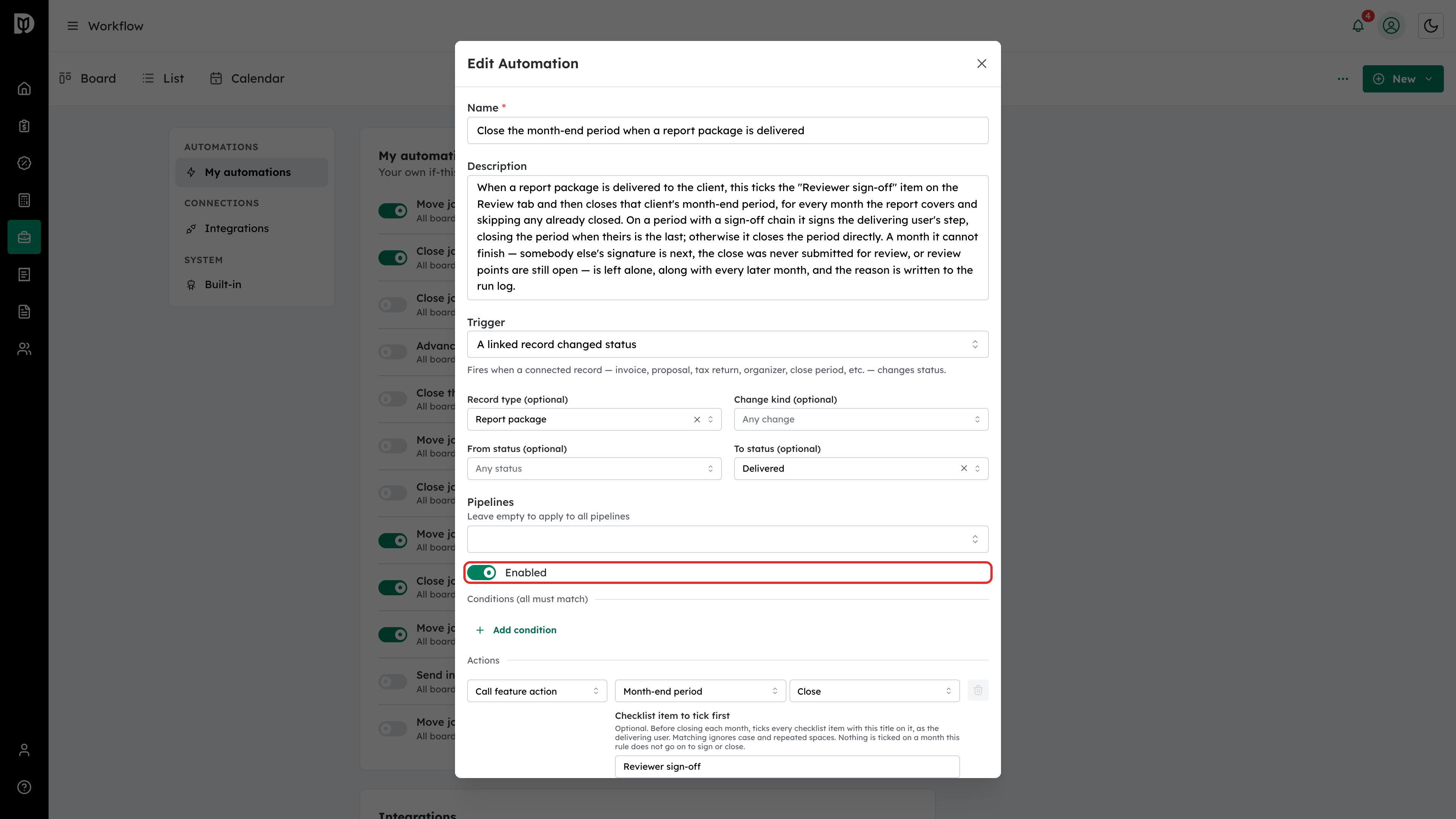
Step 4: Check the checklist item it ticks
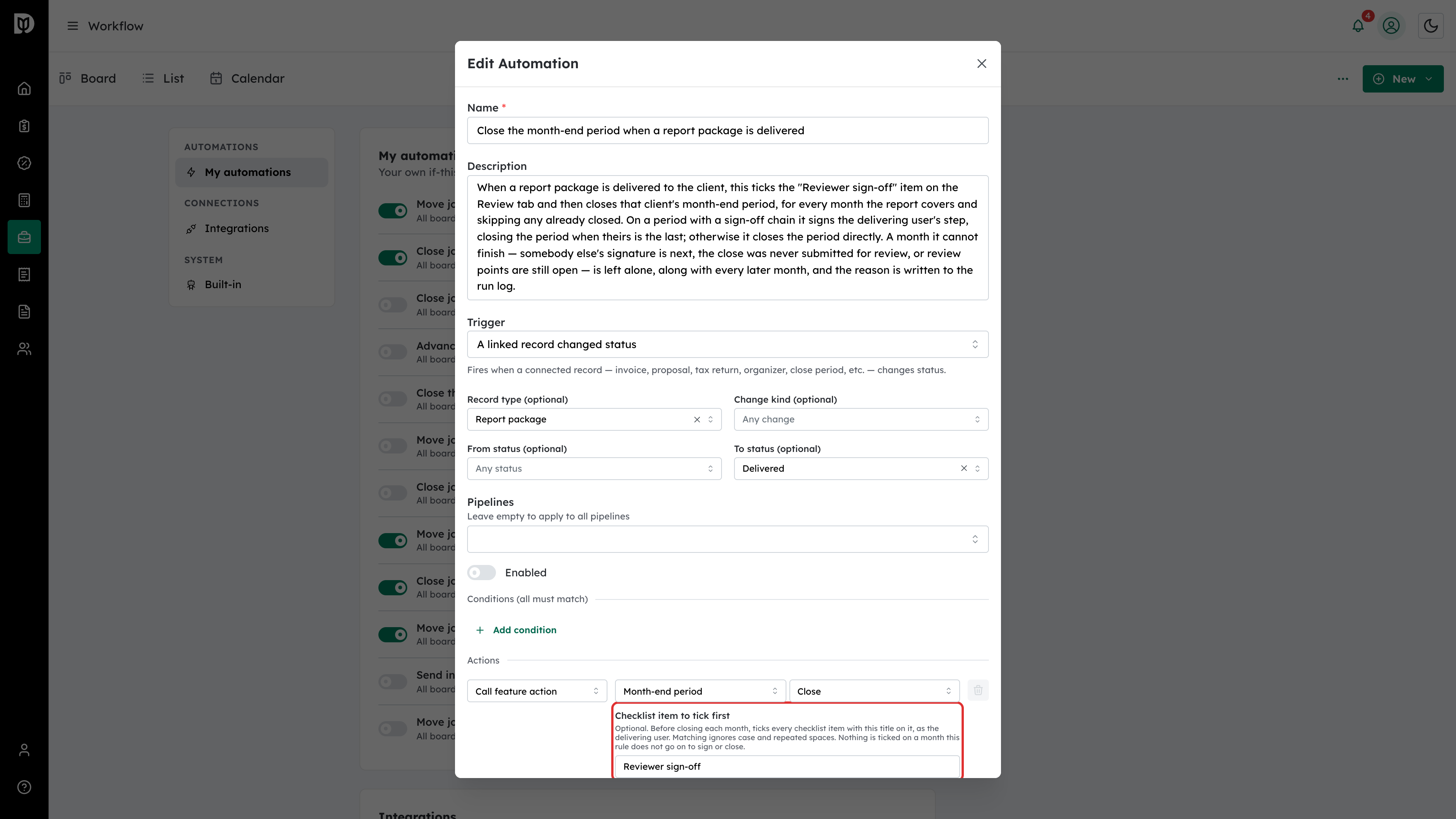
Under Actions, Checklist item to tick first is set to Reviewer sign-off. Before it closes a month, the rule ticks every checklist item with this title on that month, in the name of the person who delivered the report. Change the title if your firm’s Final Review list uses a different one, or clear it to tick nothing.
Step 5: Turn the rule on
Turn on Enabled. Leave Pipelines empty to apply it to every board, or pick the boards it should apply to. Then select Save Changes.
Step 6: Confirm it is on
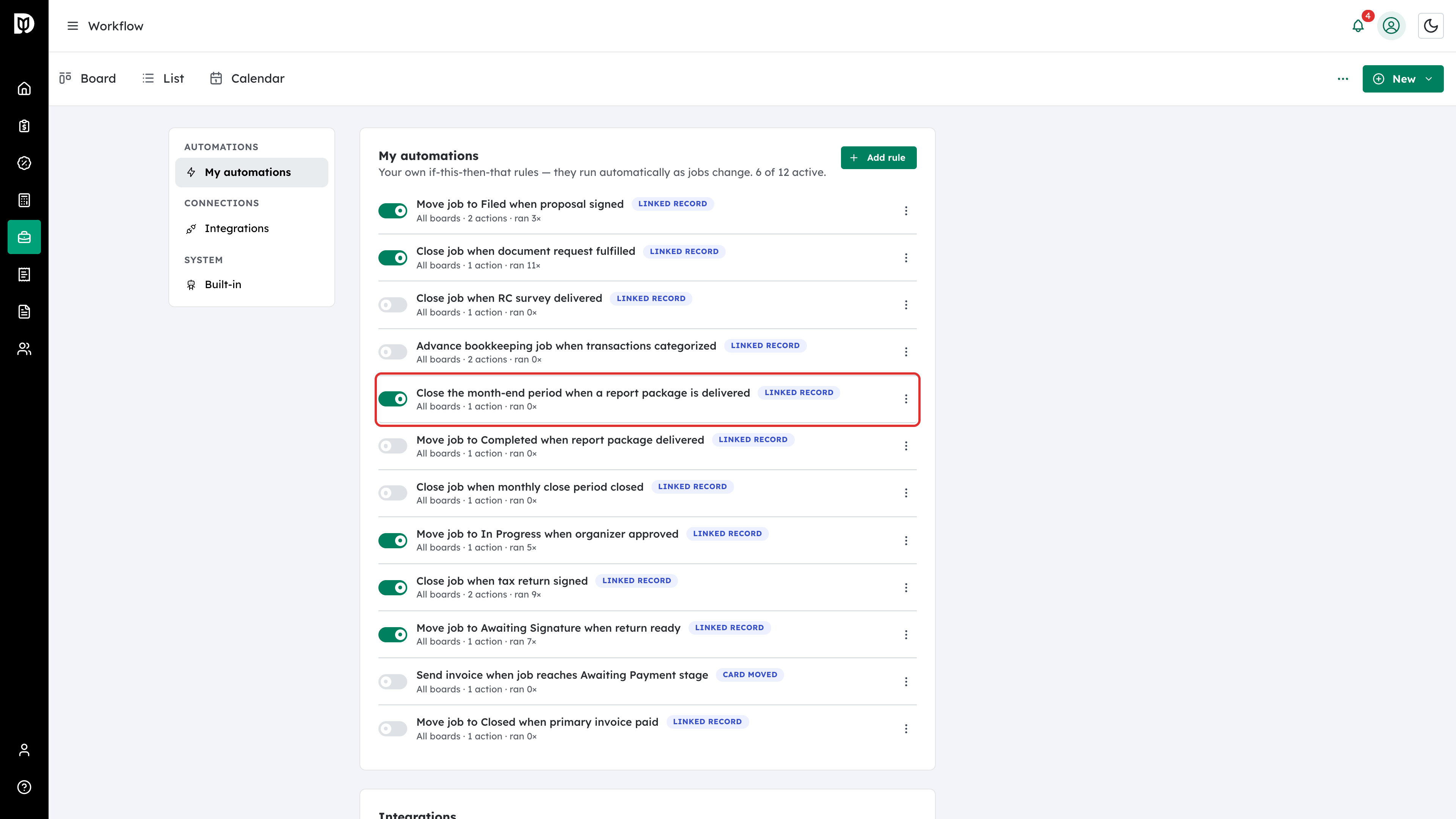
The rule’s switch is now on in the list, and the line under it counts how many times it has run.
Step 7: Deliver the report as usual
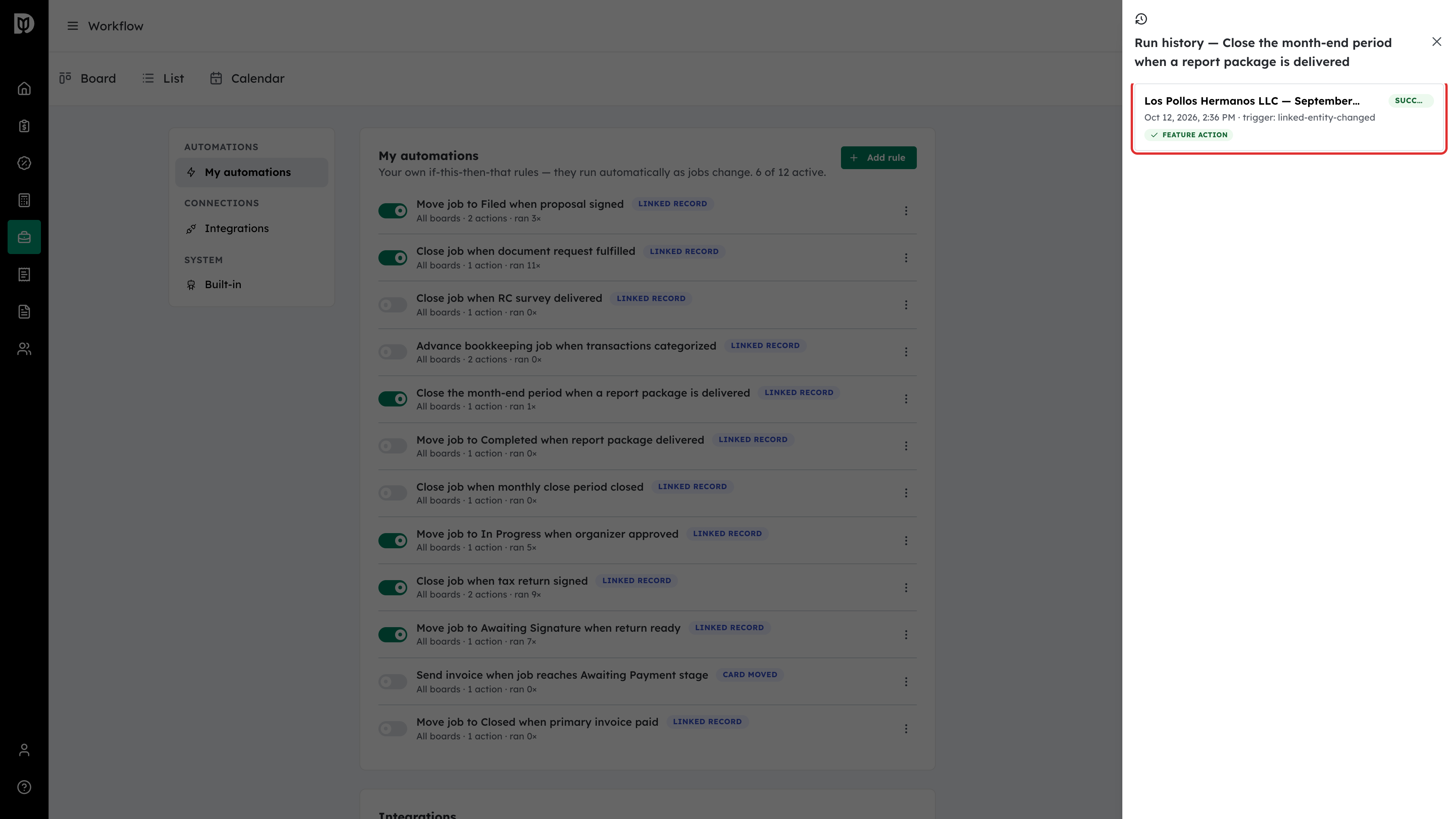
When the month is ready, finalize and deliver its report the usual way. When the report is delivered, the rule runs. To see what it did, open the rule’s ⋮ menu and select View runs.
Step 8: Check the month
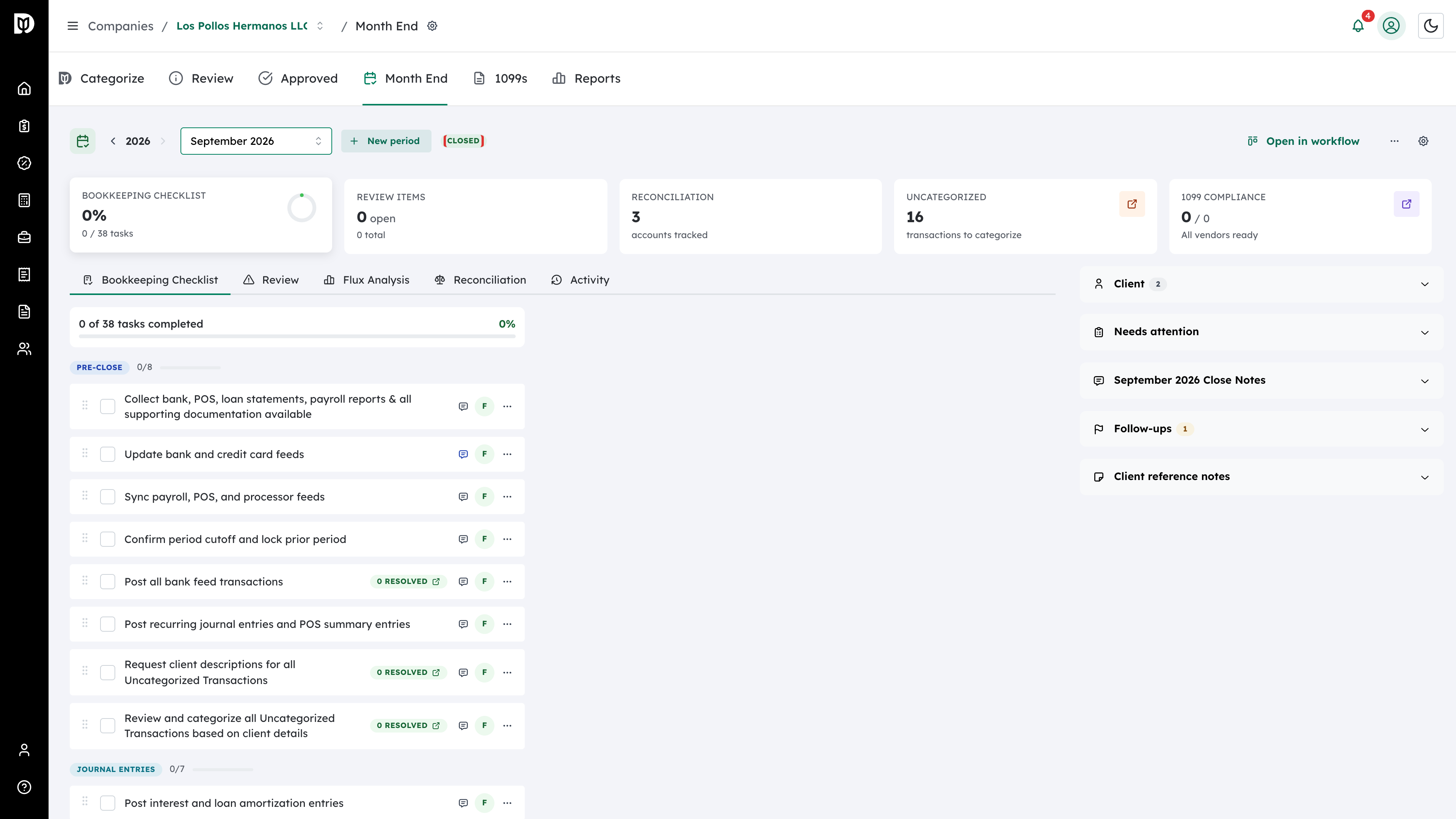
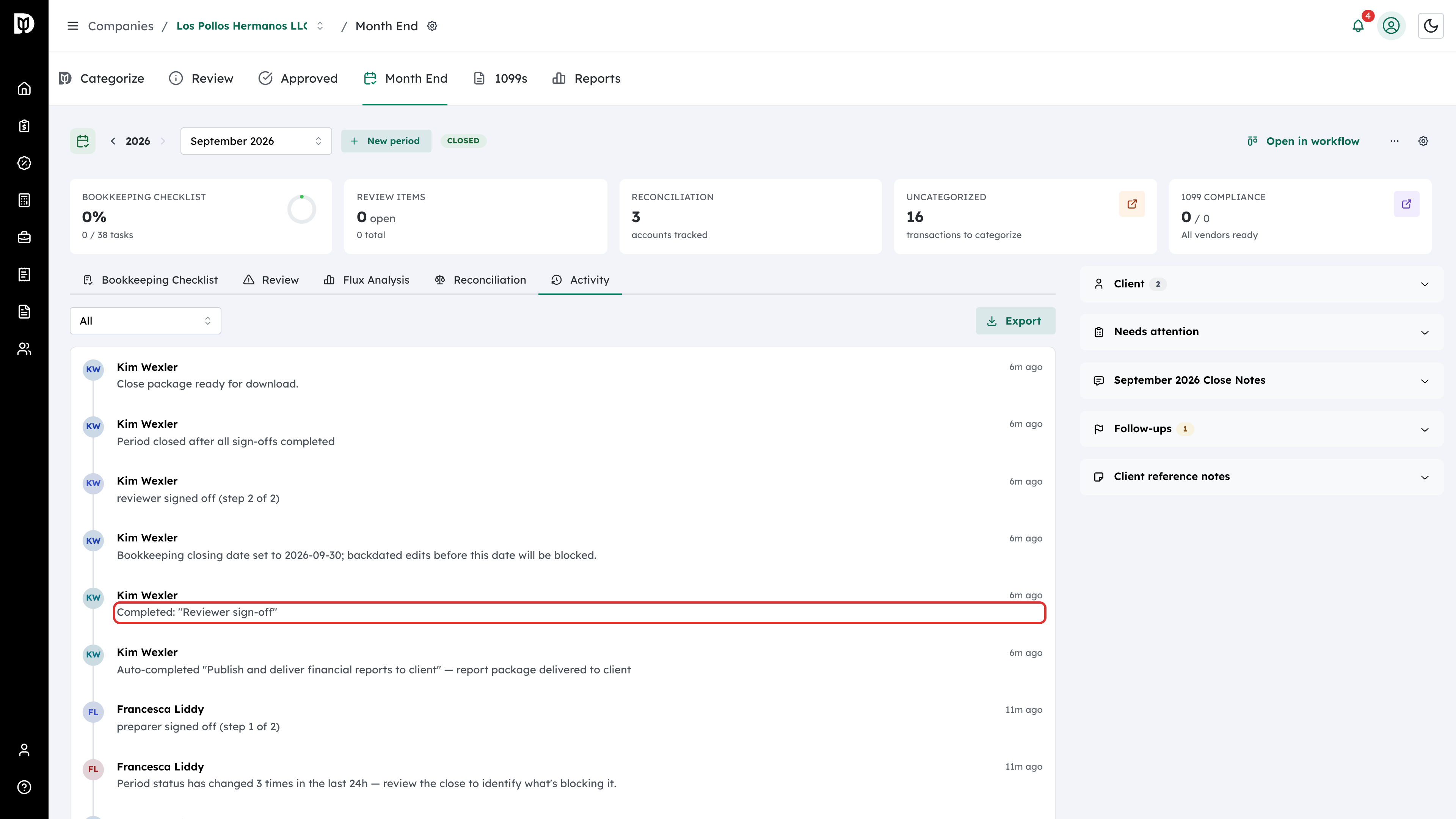
Open the company’s Month End tab. The month the report covers is Closed.
Step 9: Check the sign-off item
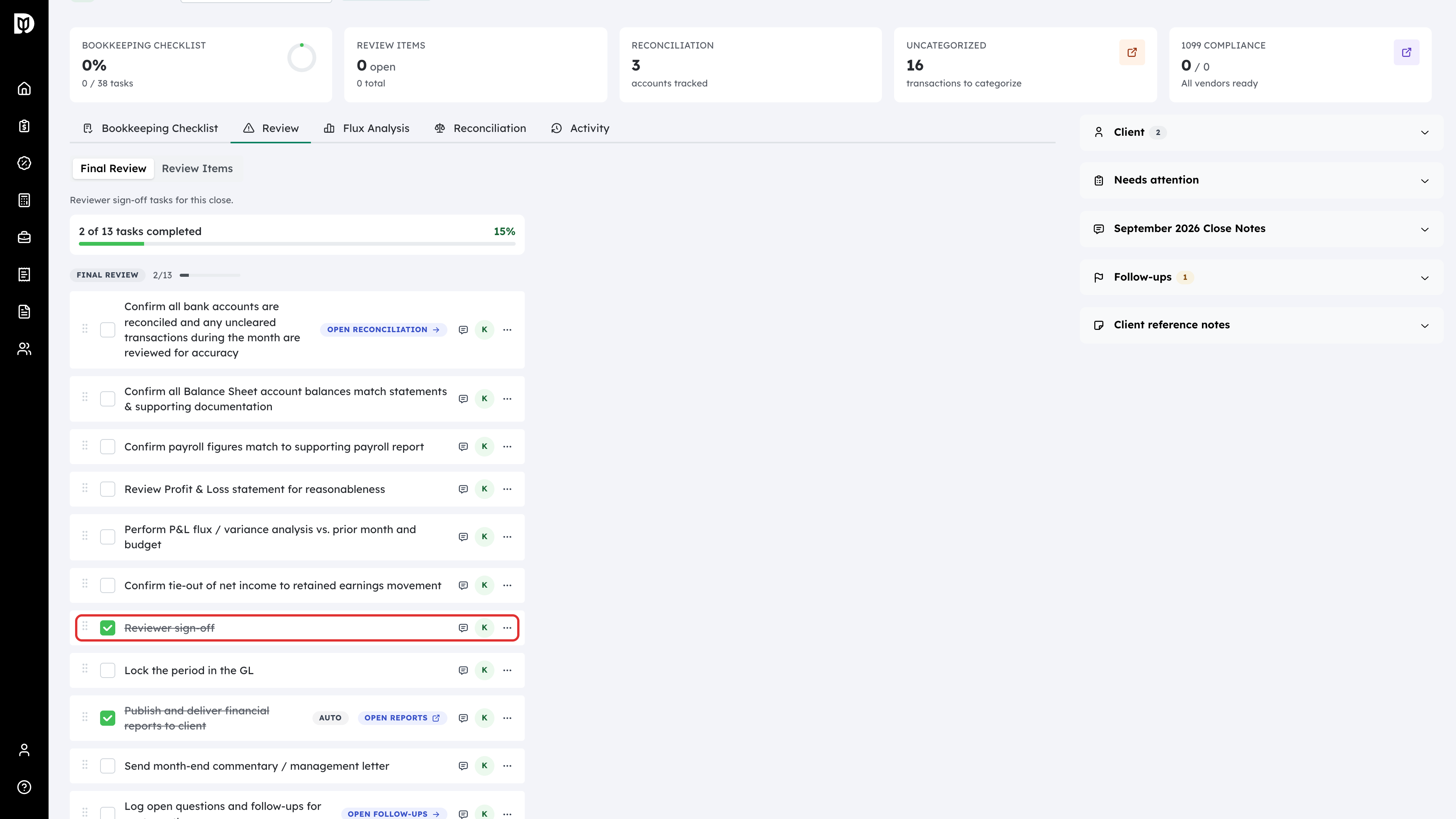
On the Review tab, under Final Review, Reviewer sign-off is ticked.
Step 10: Read the audit trail
The Activity tab records each step in the name of the person who delivered the report: the ticked checklist item, their sign-off and the close.
What happens next
- The rule covers every month the delivered report covers and skips any month already closed.
- On a close with a sign-off chain, it signs the delivering person’s step. If that was the last step, the month closes. A close with no chain is closed directly.
- Closing a month sets the company’s bookkeeping closing date to the last day of that month, the same as closing it by hand.
- The checklist item is only ticked on a month the rule goes on to sign or close.
When the rule stops instead of closing
The rule never forces a month closed. It leaves the month alone, writes the reason to the run log, and leaves every later month alone too, when:
- somebody else’s signature is next on the chain;
- the close was never submitted for review;
- your firm requires a second person, and the person delivering the report is the one who submitted the month; or
- review points on the close are still open. The rule never resolves review points for anyone.
Troubleshooting
- The rule ran but the month is still open. Open View runs to read why it stopped, fix that, and sign off the month by hand.
- The rule did not run at all. The report is not linked to a bookkeeping card for that month. Check that the company has a card for the month on a Bookkeeping board, and that the card is linked to the company.
- The wrong item was ticked. The rule ticks every Final Review item whose title matches Checklist item to tick first. Capital letters and extra spaces are ignored.