Who this is for: Bookkeepers and reviewers confirming that a client’s bank, credit card, and balance sheet accounts are settled for the period.
What you’ll learn: How to read the Reconciliation tab, record how far each account is reconciled, and hide accounts you do not reconcile.
Before you begin
- Open the client’s Month End tab and select the Reconciliation tab.
- You reconcile accounts in QuickBooks. Debits does not reconcile anything itself — this tab reads the accounts and balances from QuickBooks and keeps a record of where each one stands for this close.
Step-by-step instructions
-
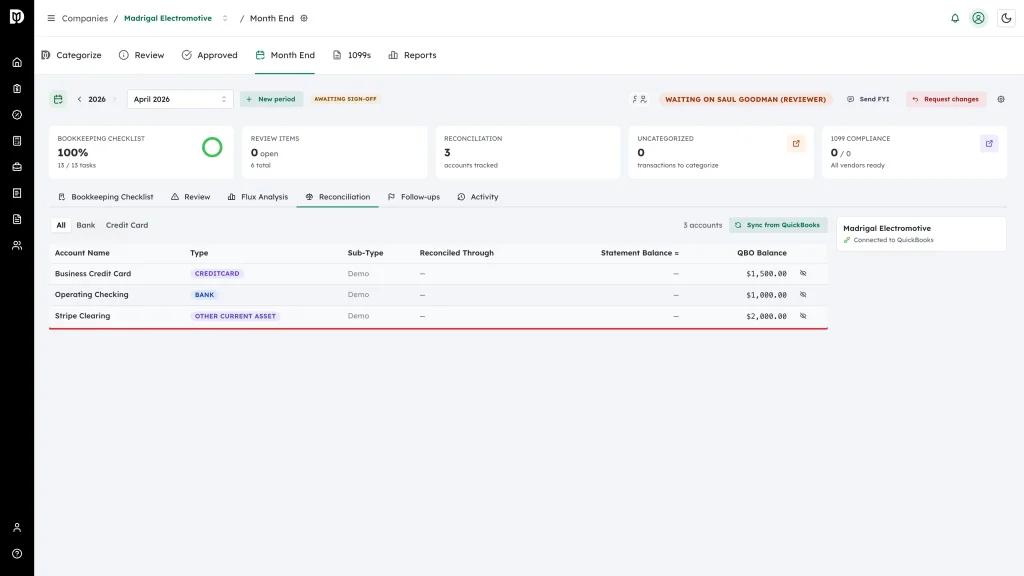
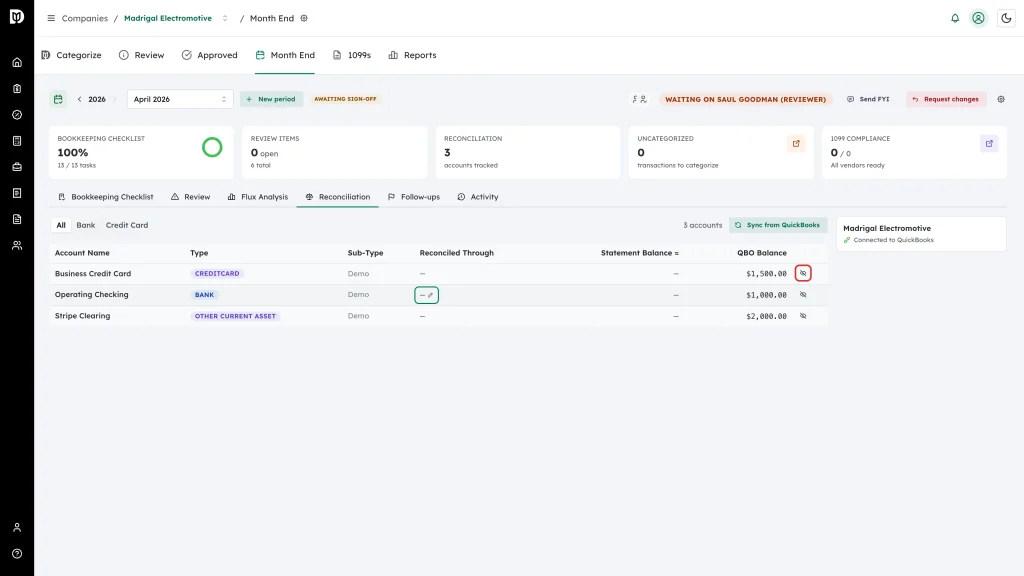
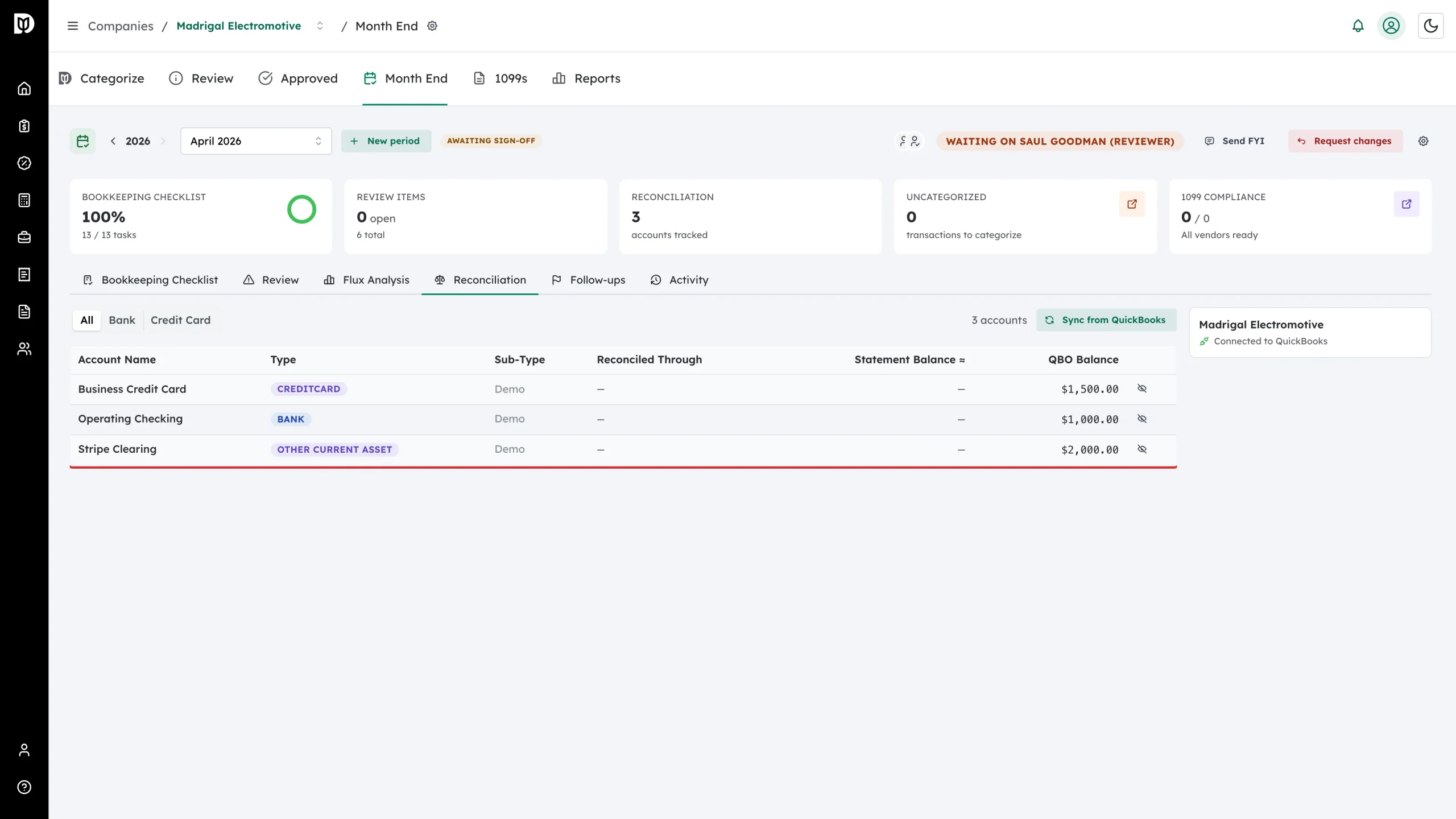
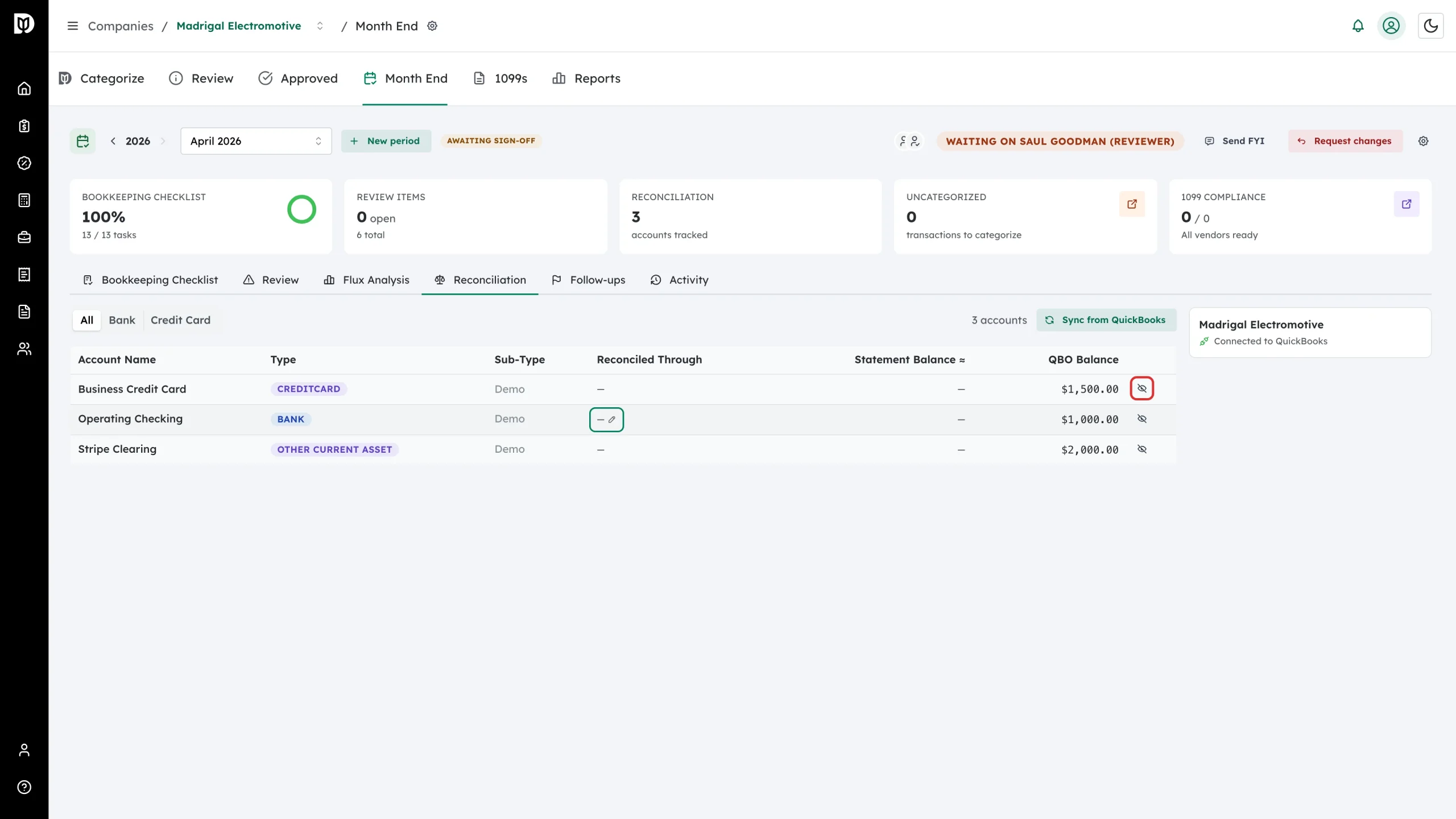
Read the table. Each account shows its Type and Sub-Type, the date it is Reconciled Through, the Statement Balance ≈ (the QuickBooks balance as of that date, the closest available stand-in for the statement’s ending balance), and the current QBO Balance.
-
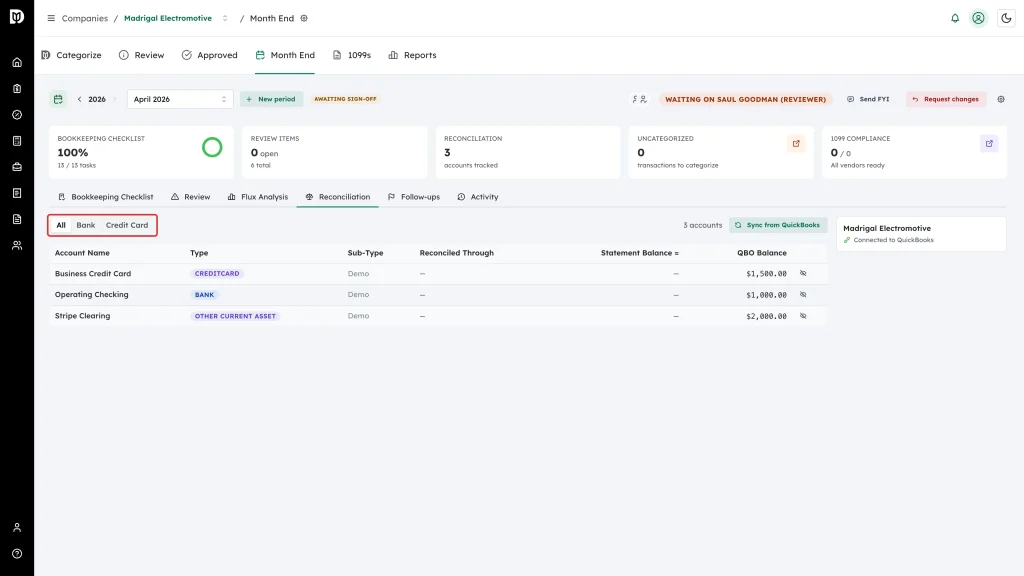
Use All, Bank, and Credit Card to narrow the list to the accounts you are working on.
-
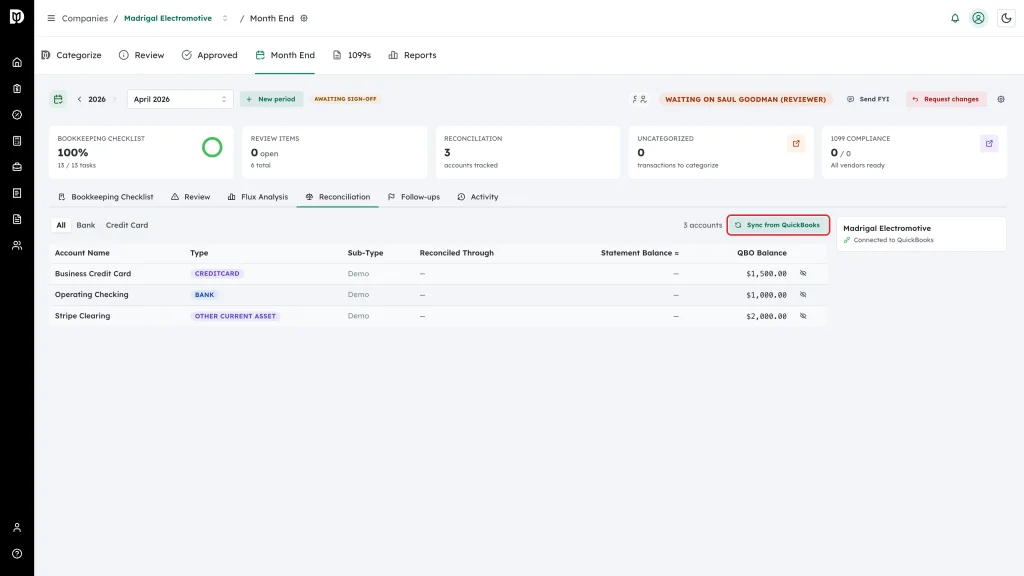
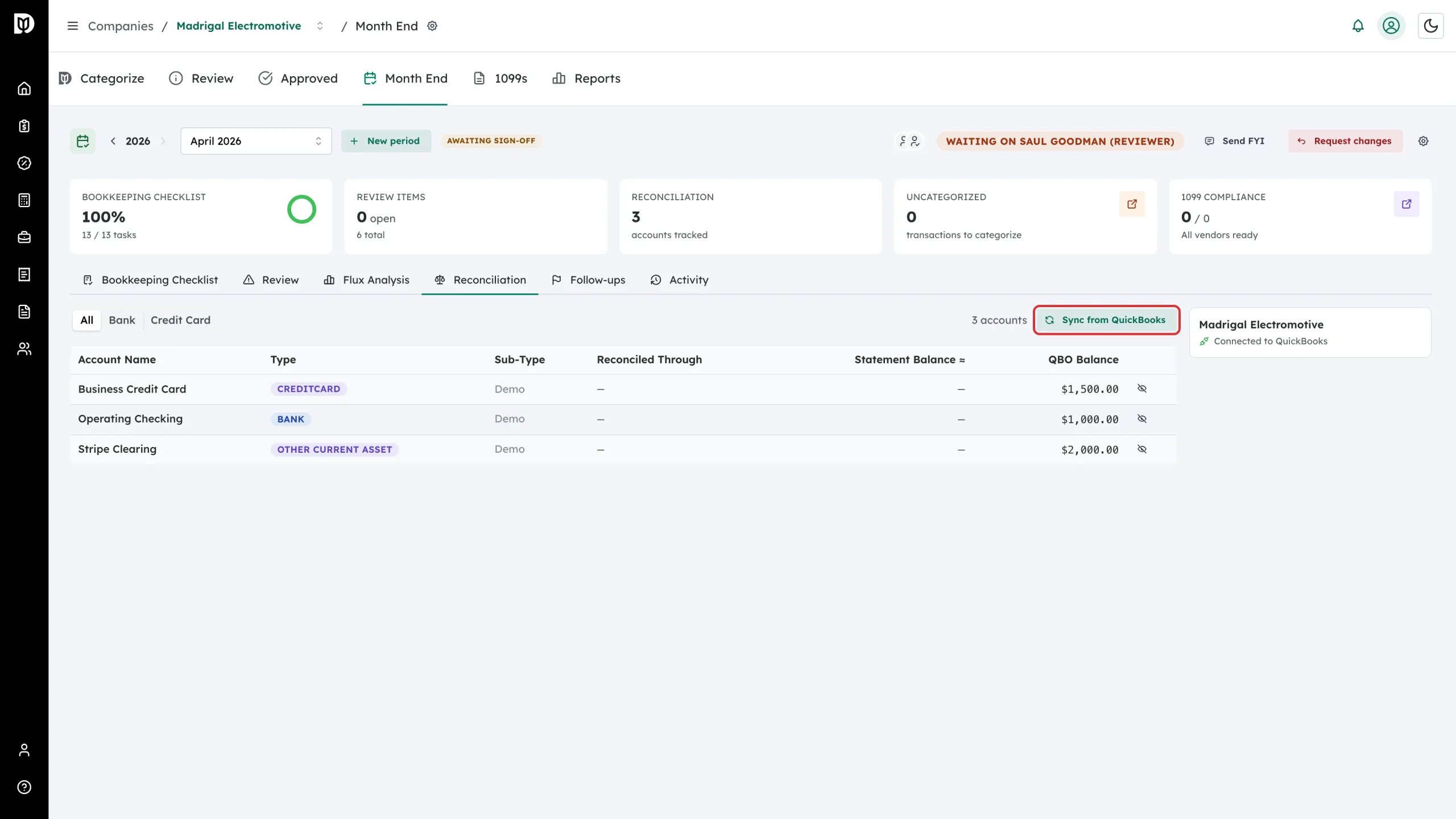
Select Sync from QuickBooks to refresh the list and pull the latest reconciled-through dates and balances. Debits reports how many bank and credit card accounts it synced and how many came back fully reconciled.
-
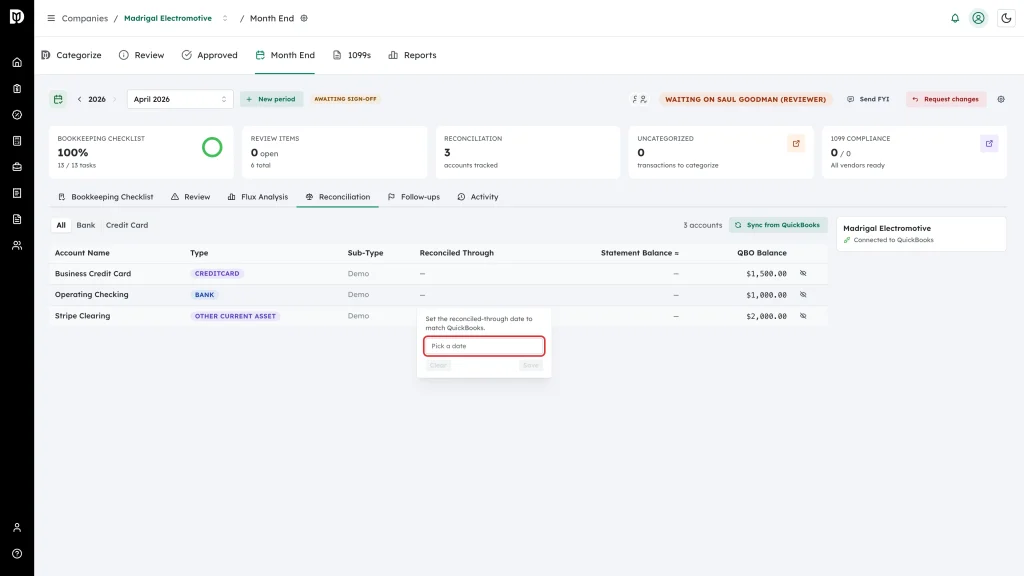
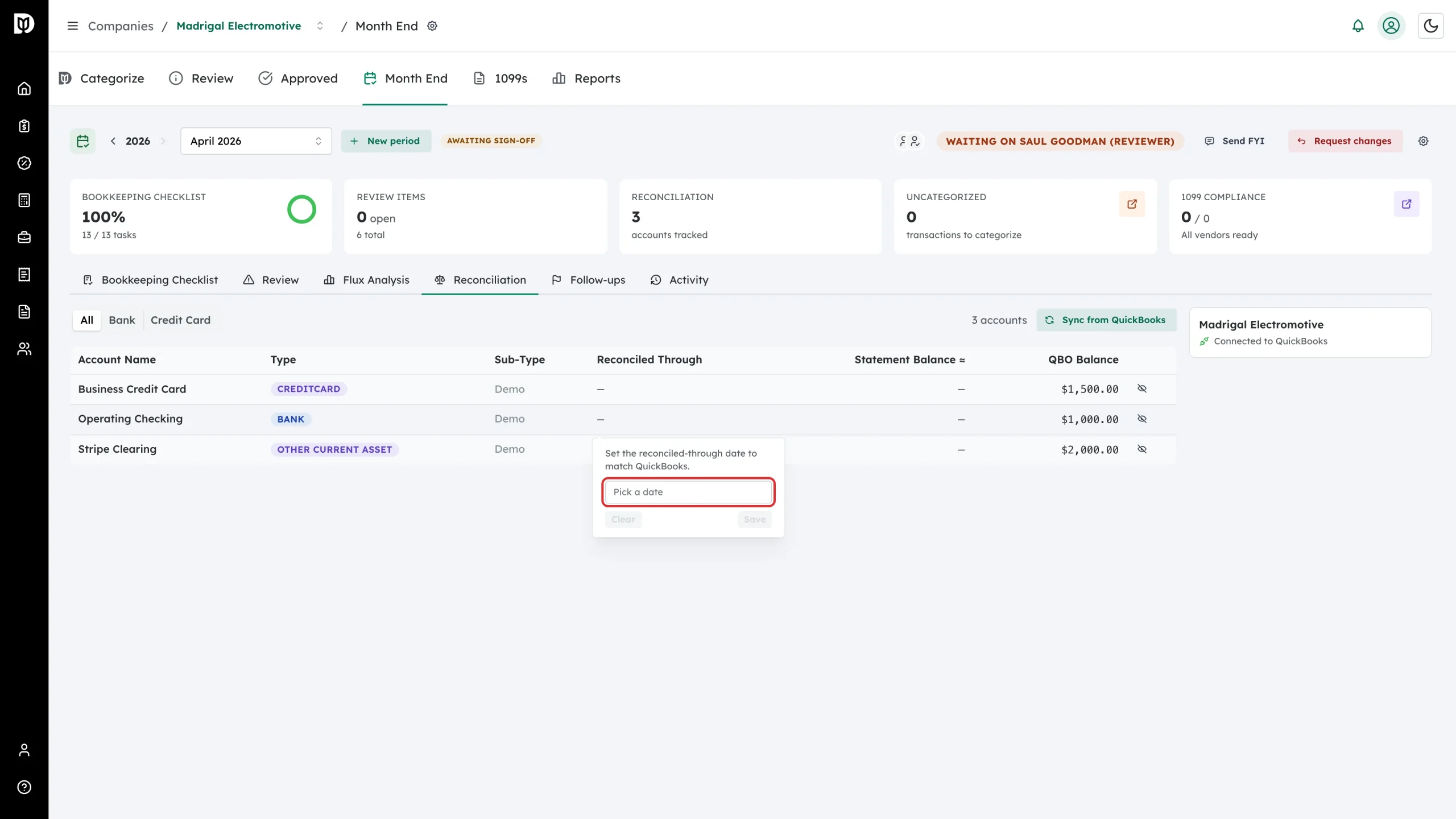
Select the Reconciled Through cell to set the date by hand. Pick the date and select Save, or select Clear to remove it. Use this for accounts with no activity to derive a date from, or when the statement date sits a day or two past the last reconciled transaction.
-
Select the eye icon to hide an account you do not reconcile each month. Hidden accounts move into a Show hidden accounts list at the bottom, and can be brought back at any time.

What happens next
- Use this tab to confirm every account is reconciled through the end of the month before you submit the close for review.
- An account that was not on the prior period’s list is badged New, and the workspace shows an Account changes since last close alert when the client’s account list has changed since last month. Select Acknowledge once you have checked it; it stays hidden until a later sync finds different changes.
- A date you set by hand is kept as a manual value — the cell’s tooltip says so — and is not overwritten silently by the next sync.
Troubleshooting
- A balance shows as Unavailable. QuickBooks did not return a balance for that account. Select Sync from QuickBooks, and check the client’s QuickBooks connection if it stays blank.
- Sync from QuickBooks fails. Debits shows the reason it was given. The usual cause is a QuickBooks connection that has expired or been disconnected — reconnect the client and try again.
- No accounts are listed. Switch the filter back to All, then select Sync from QuickBooks to pull in the client’s bank and credit card accounts.
- You cannot change a reconciled-through date. A month that has been submitted or closed is locked. Have the reviewer send it back first.