Who this is for: Bookkeepers and accounting staff preparing a client’s month-end close.
What you’ll learn: How to work the Bookkeeping Checklist — completing tasks, adding your own, assigning them, and leaving notes for the reviewer.
Before you begin
- Open the client’s Month End tab and select the period you are working on.
- The period must be In Progress. Once you submit a month for review it becomes view-only for you until the reviewer closes it or sends it back.
Step-by-step instructions
-
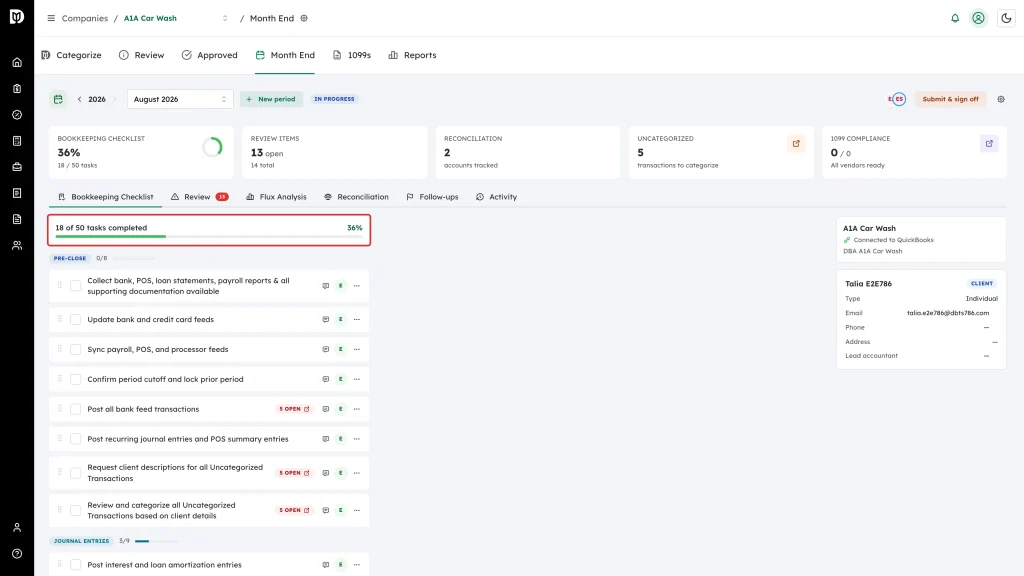
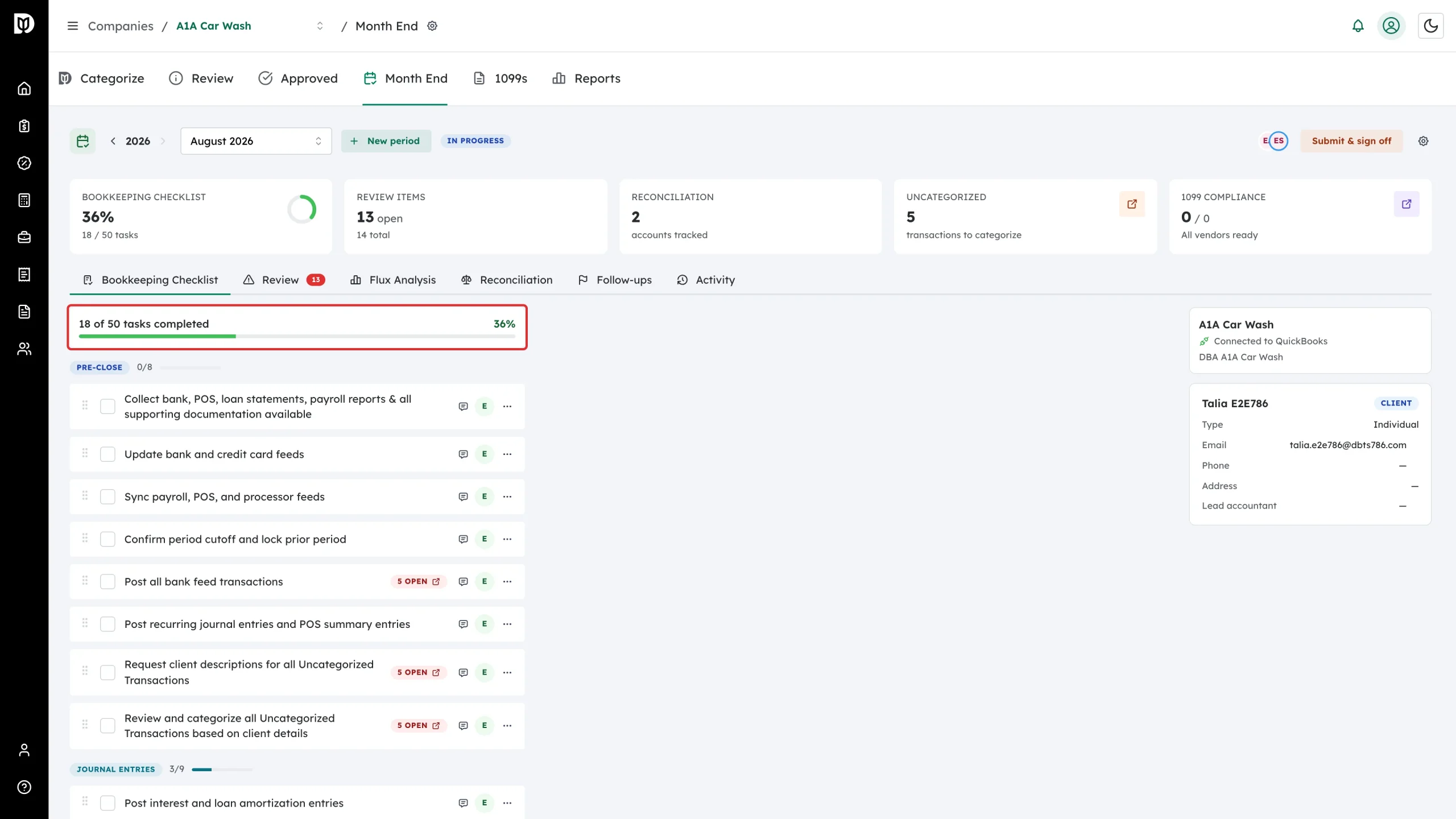
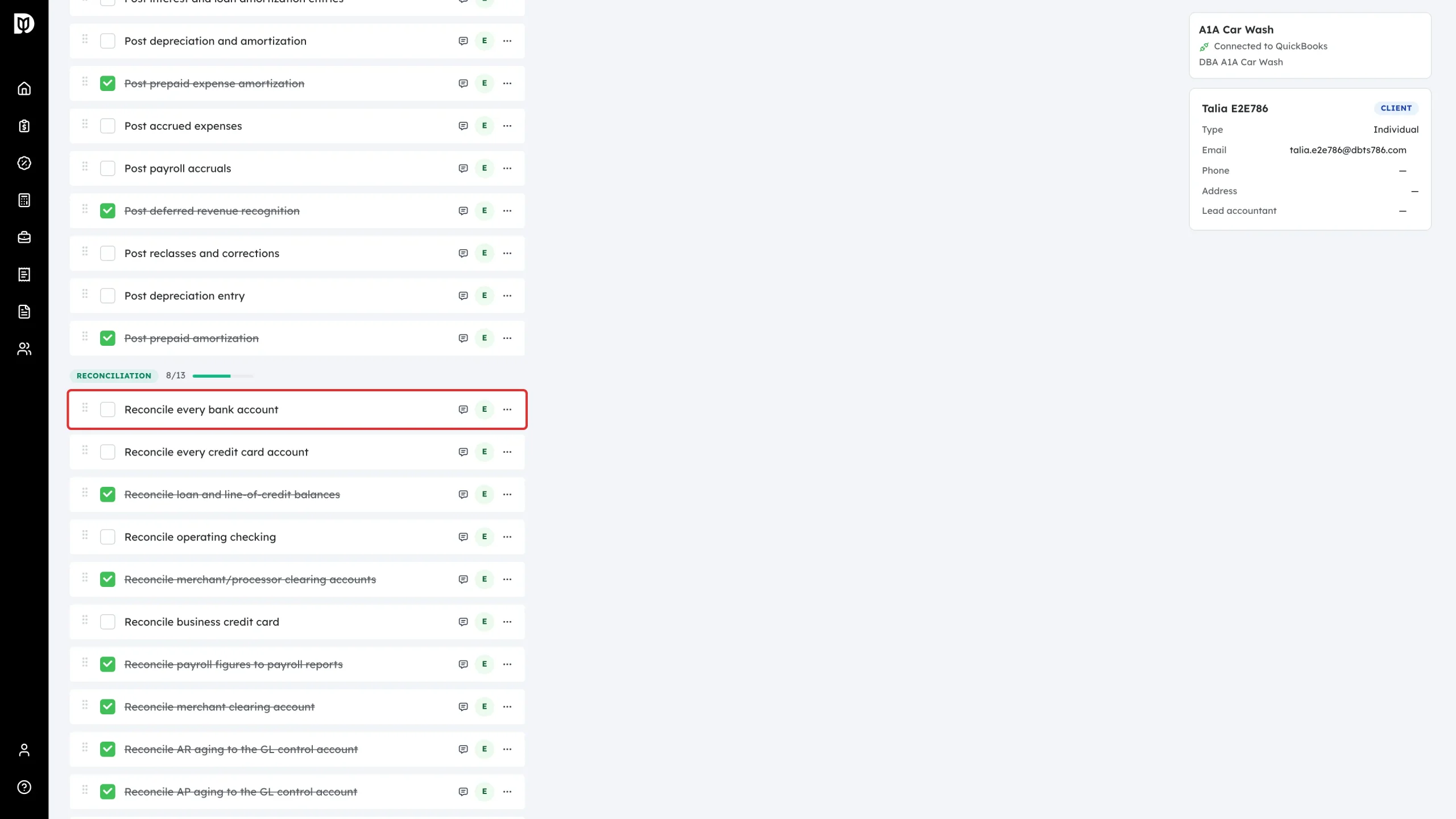
On the Bookkeeping Checklist tab, check the progress bar at the top. Tasks are grouped into stages — Pre-Close, Journal Entries, Reconciliation, Transaction Review, Payee Review, and Self-Review — and each stage has its own count.
-
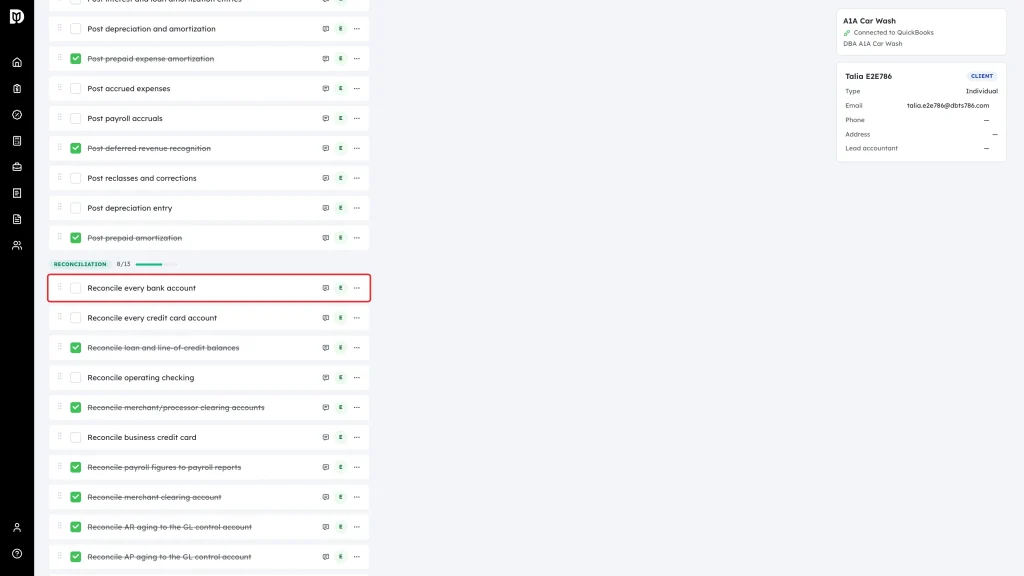
Select the checkbox next to a task to mark it complete. The task is struck through, and the stage and overall progress update straight away.
-
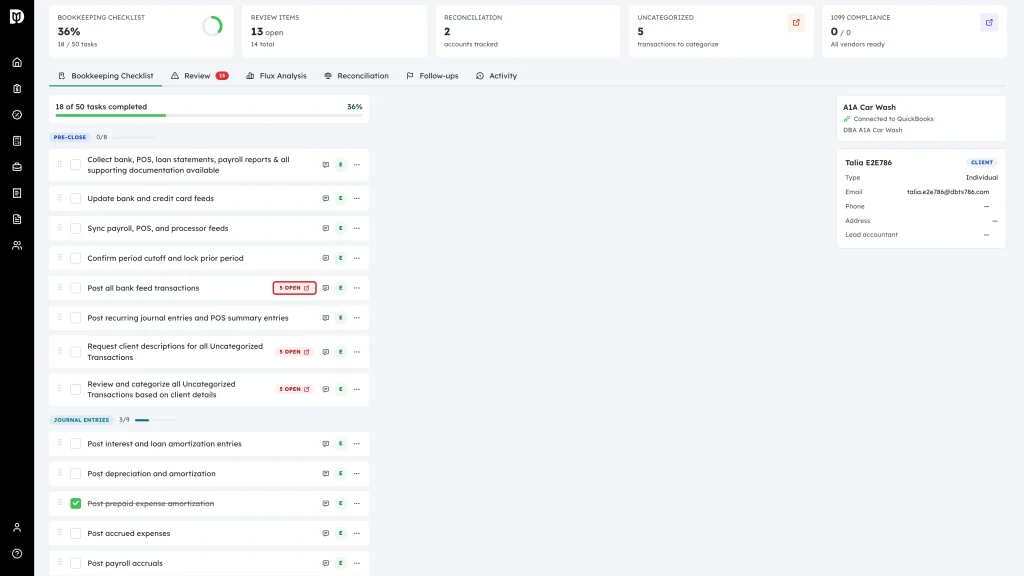
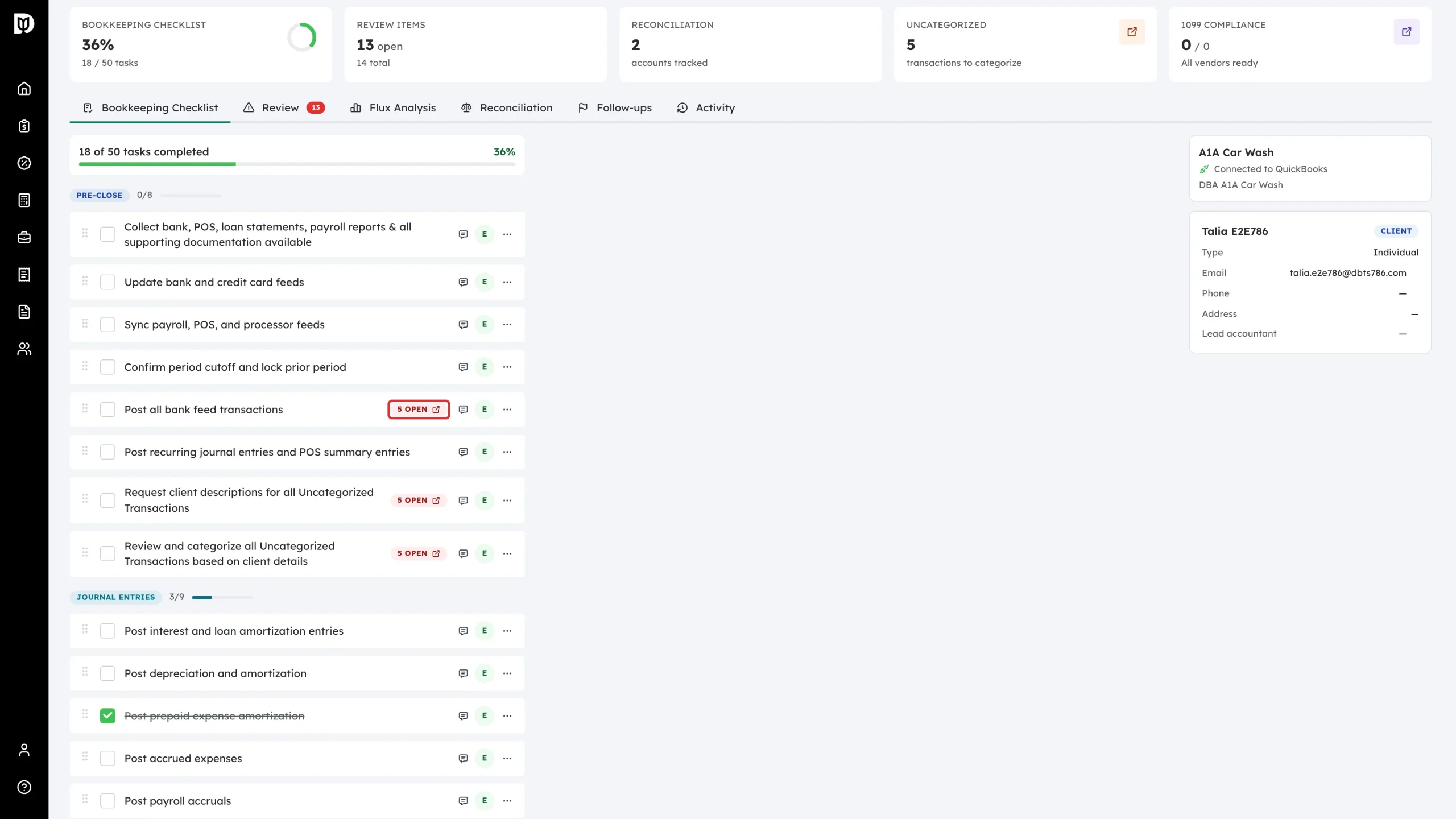
Some tasks carry a badge showing live counts from the scan, such as 5 open or 0 resolved. Select the badge to jump to those flagged transactions. Badges like Open 1099s or Open Reconciliation take you to the matching area.
-
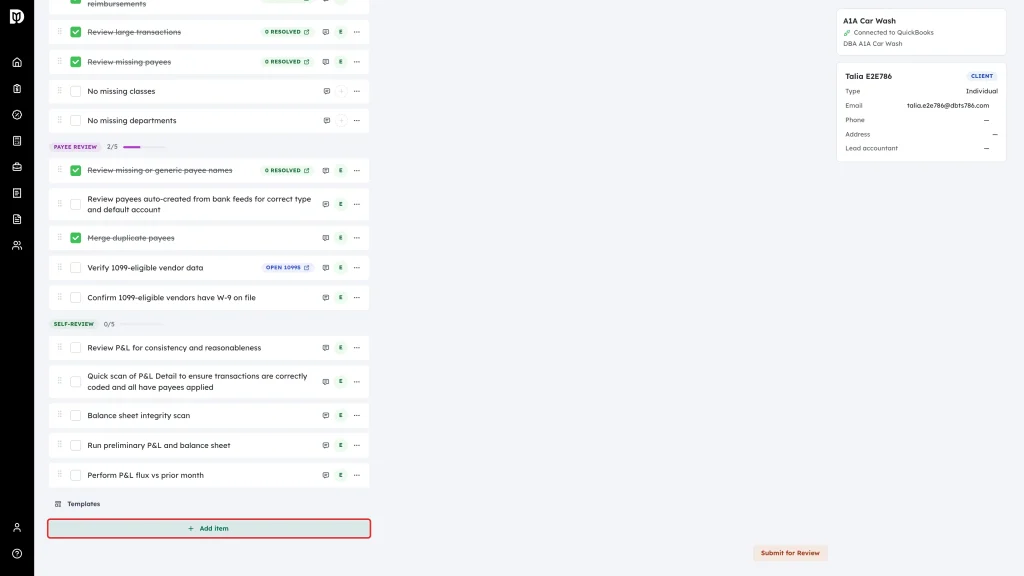
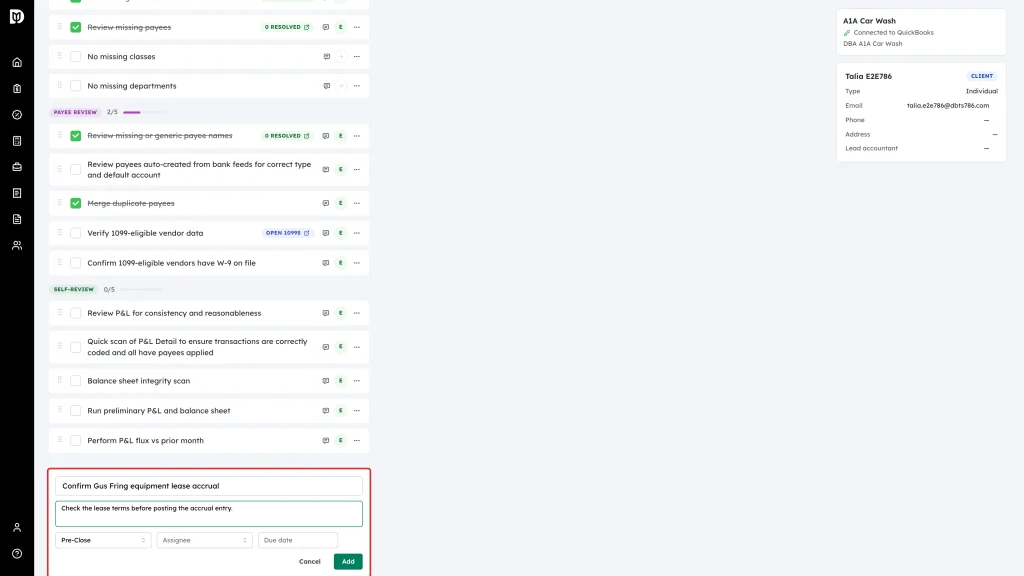
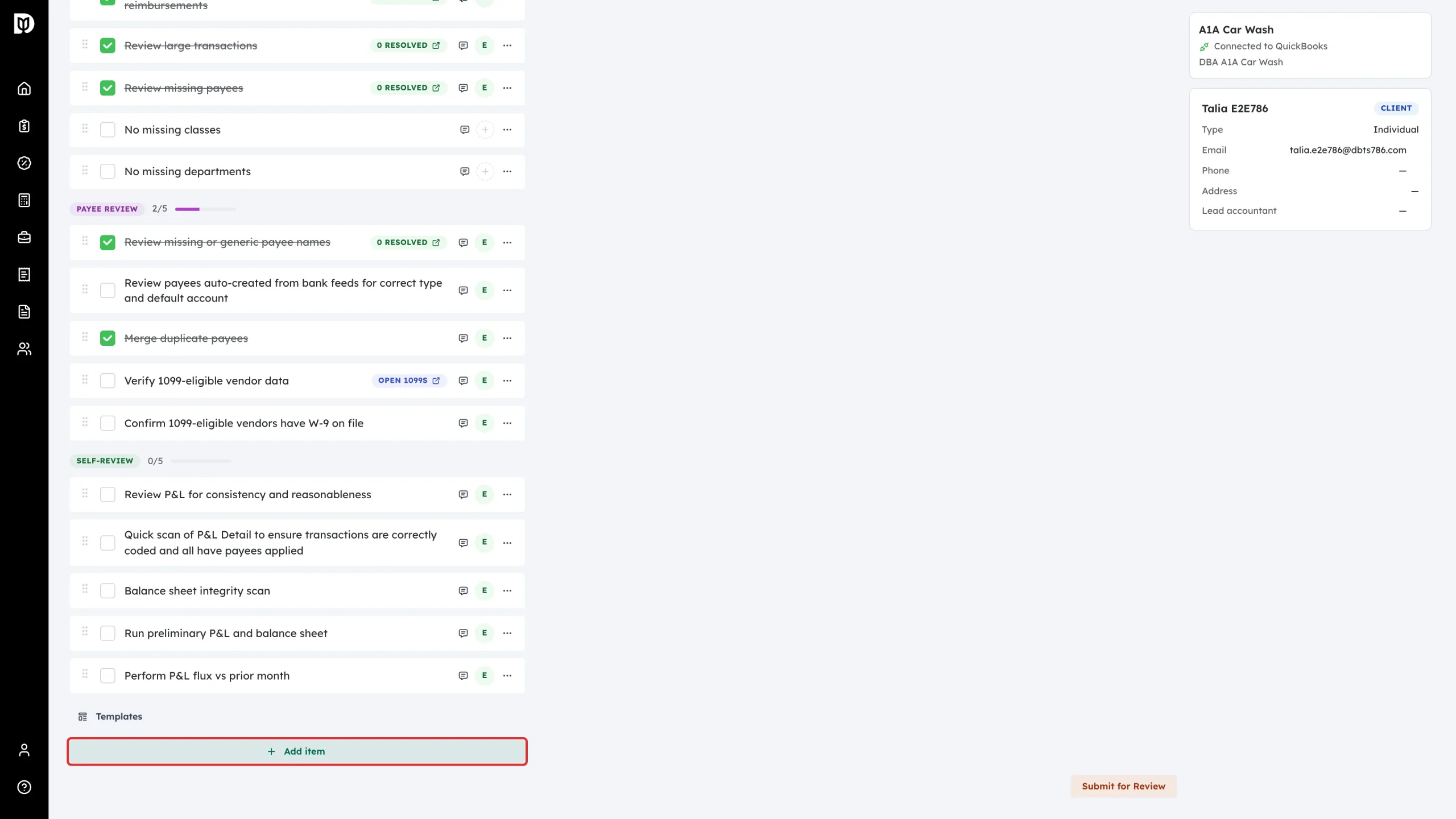
To add your own task, select Add item at the bottom of the list.
-
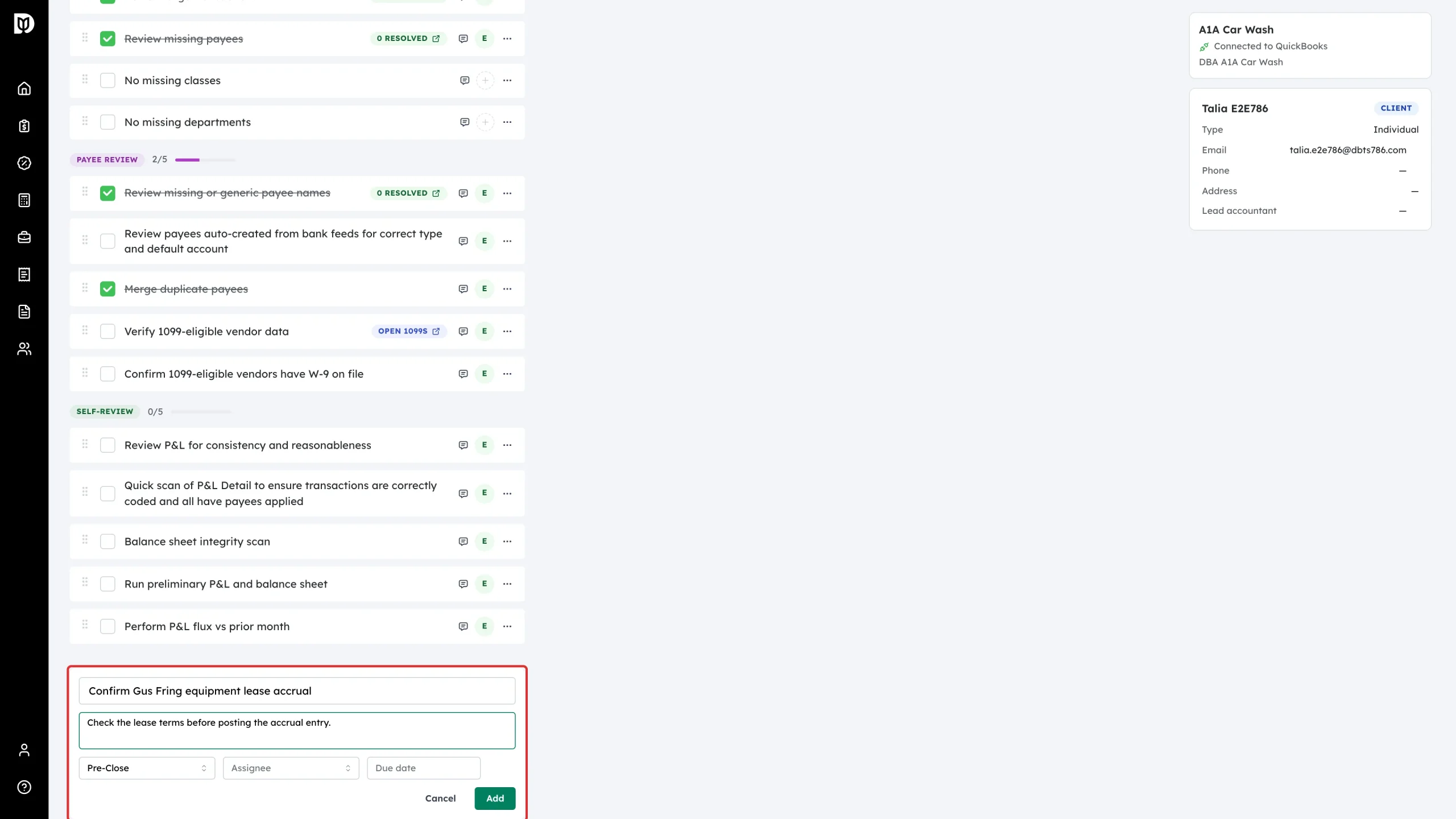
Enter a task title and an optional description, then pick a stage, an assignee, and a due date. Select Add.
-
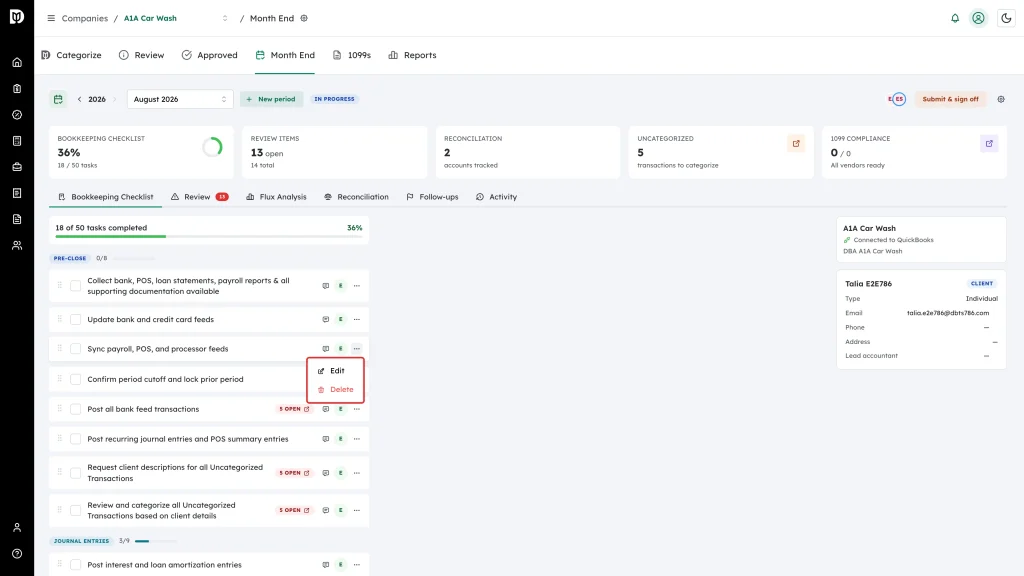
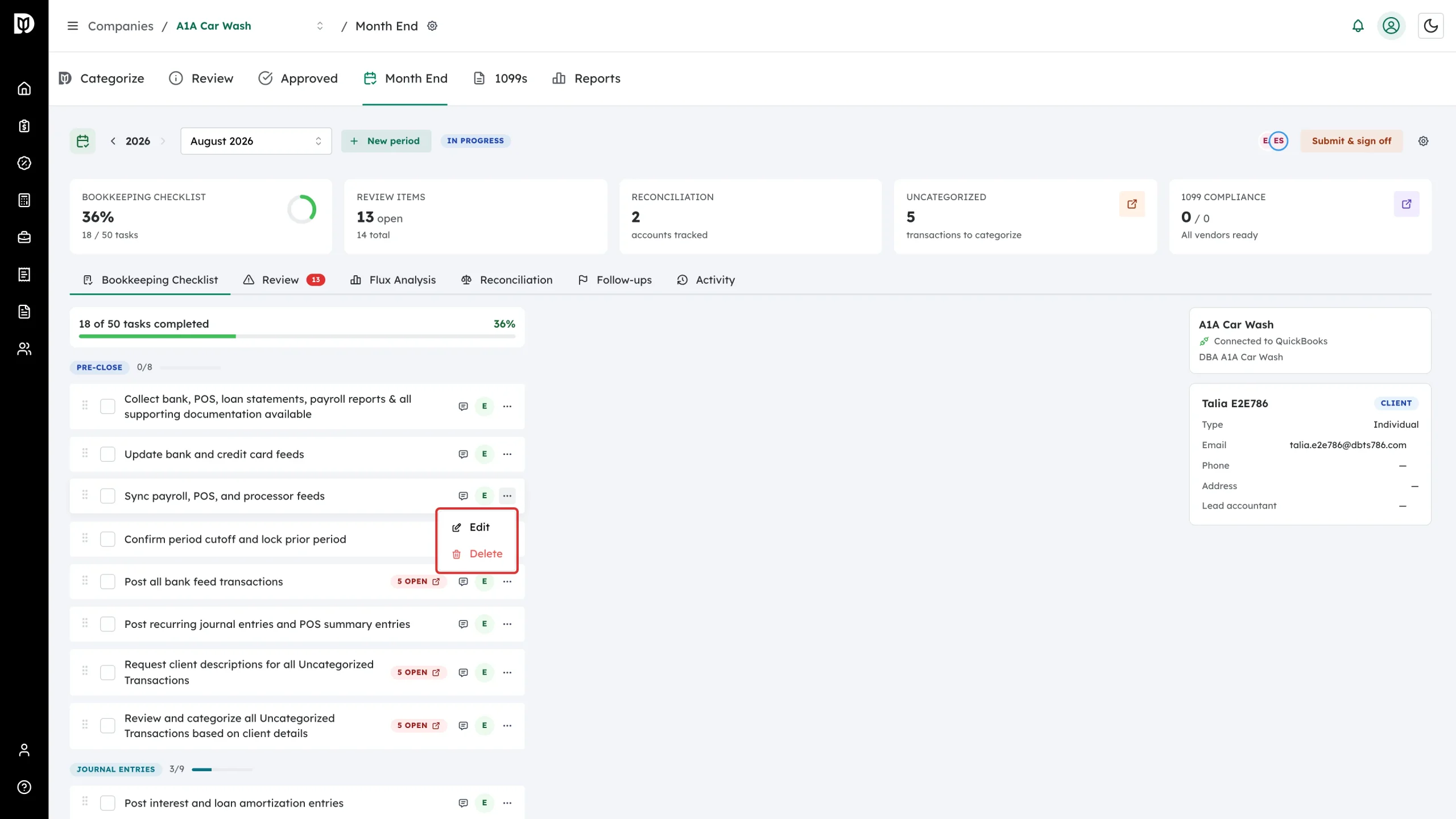
Use a task’s … menu to Edit its title and notes, or to Delete it.
-
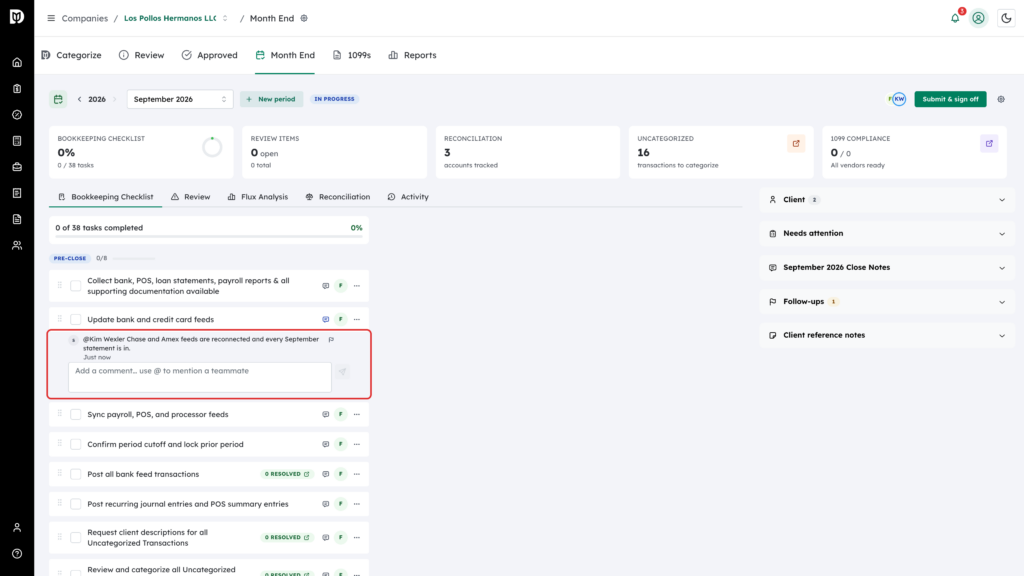
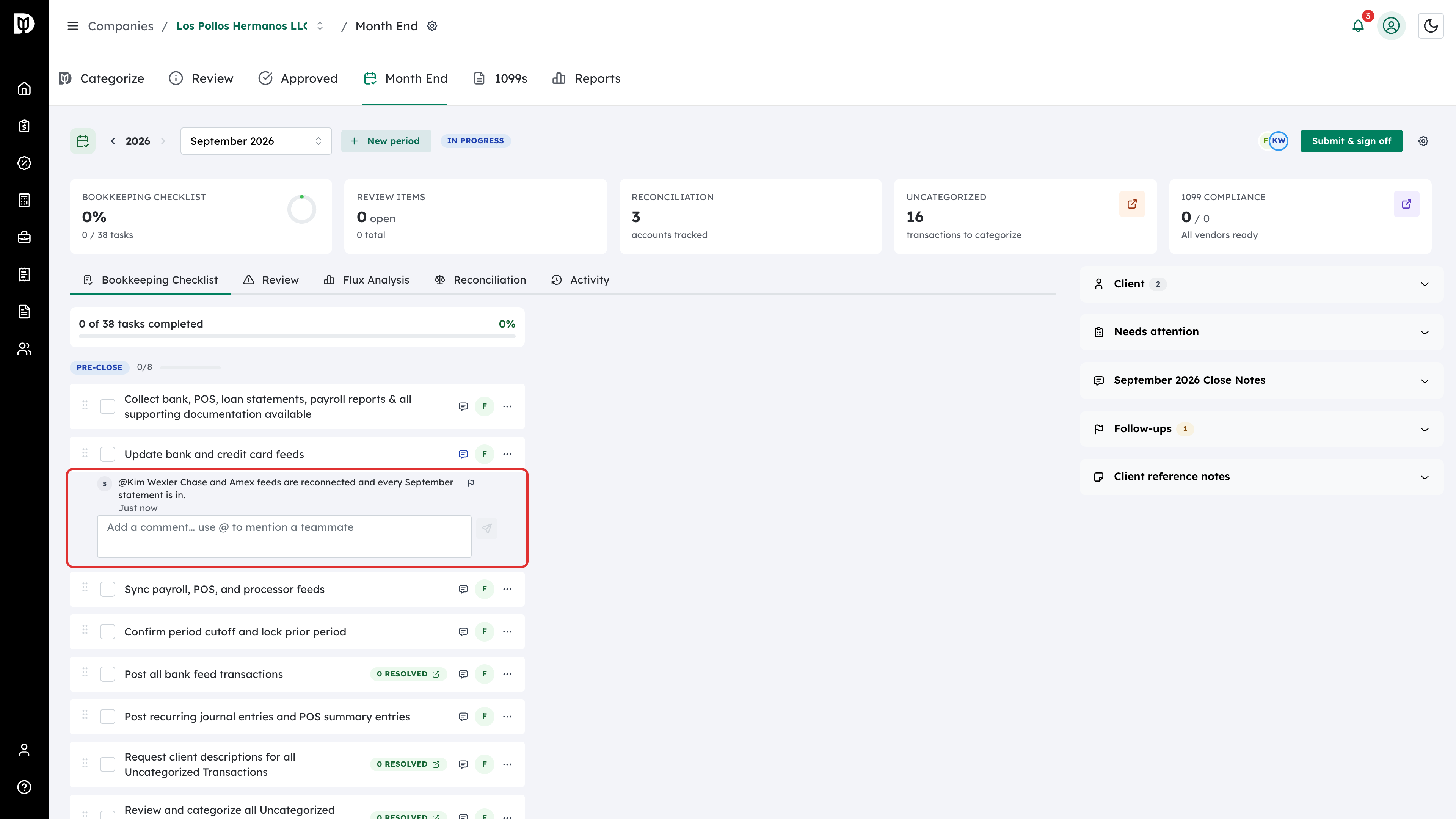
Select the comment icon on a task to open its thread. Type @ and a teammate’s name to mention them — they are notified and can jump straight to the comment.
What happens next
- Drag a task by its handle to reorder it.
- Renaming or rearranging the standard tasks changes this month only. When you do, Debits shows These changes apply to this month only — select Save for future months to make this checklist the client’s template, so every new month starts from it.
- After you run a scan, Debits ticks off tasks it can verify itself — for example, a task about uncategorized transactions completes once none are left. These show in the activity log as “Auto-completed by smart-check”.
- Deleting a task is safe: it is banked on the client, and reappears as a chip under Re-add a removed task in the add-item form.
- The reviewer’s Final Review tasks are not on this tab and are not counted in this tab’s progress. They live on the Review tab.
Troubleshooting
- A task will not tick. Once the month has been submitted for review it is view-only for the preparer. Debits shows “This month has been submitted — it is view-only until the reviewer closes it or sends it back.”
- You deleted a task by mistake. Open Add item and select the task chip under Re-add a removed task.
- A standard task stopped appearing in new months. Deleting a task also removes it from the default checklist Debits builds for that client’s future periods. Re-add it from the chip list, or apply a template that contains it.