Who this is for: Bookkeepers and reviewers who need to track open questions and see the full history of a close.
What you’ll learn: How to keep reference notes about a client, log follow-ups with due-date reminders, and read or export the period’s activity log.
Before you begin
- Open the client’s Month End tab and select the period you are working on.
Step-by-step instructions
-
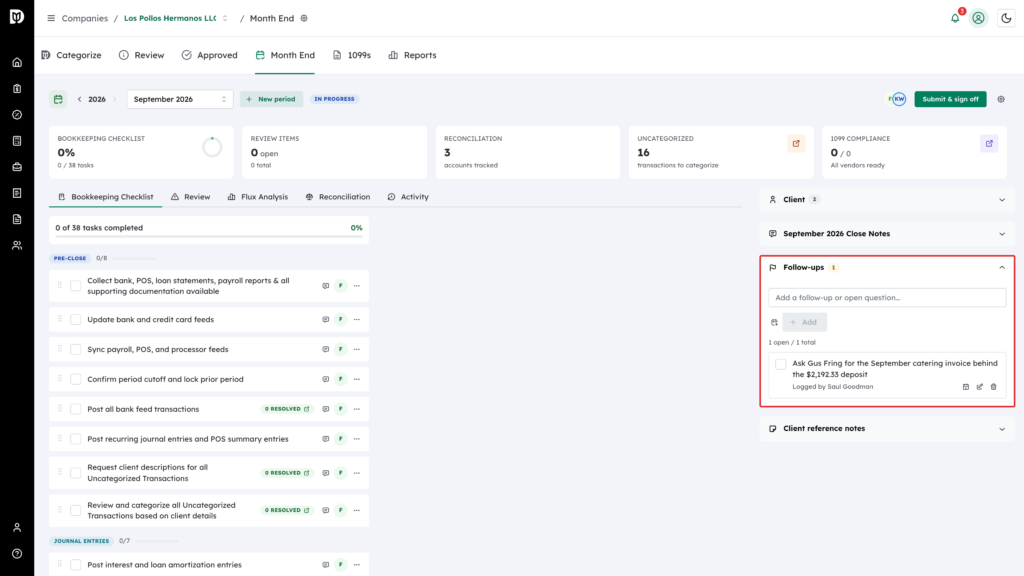
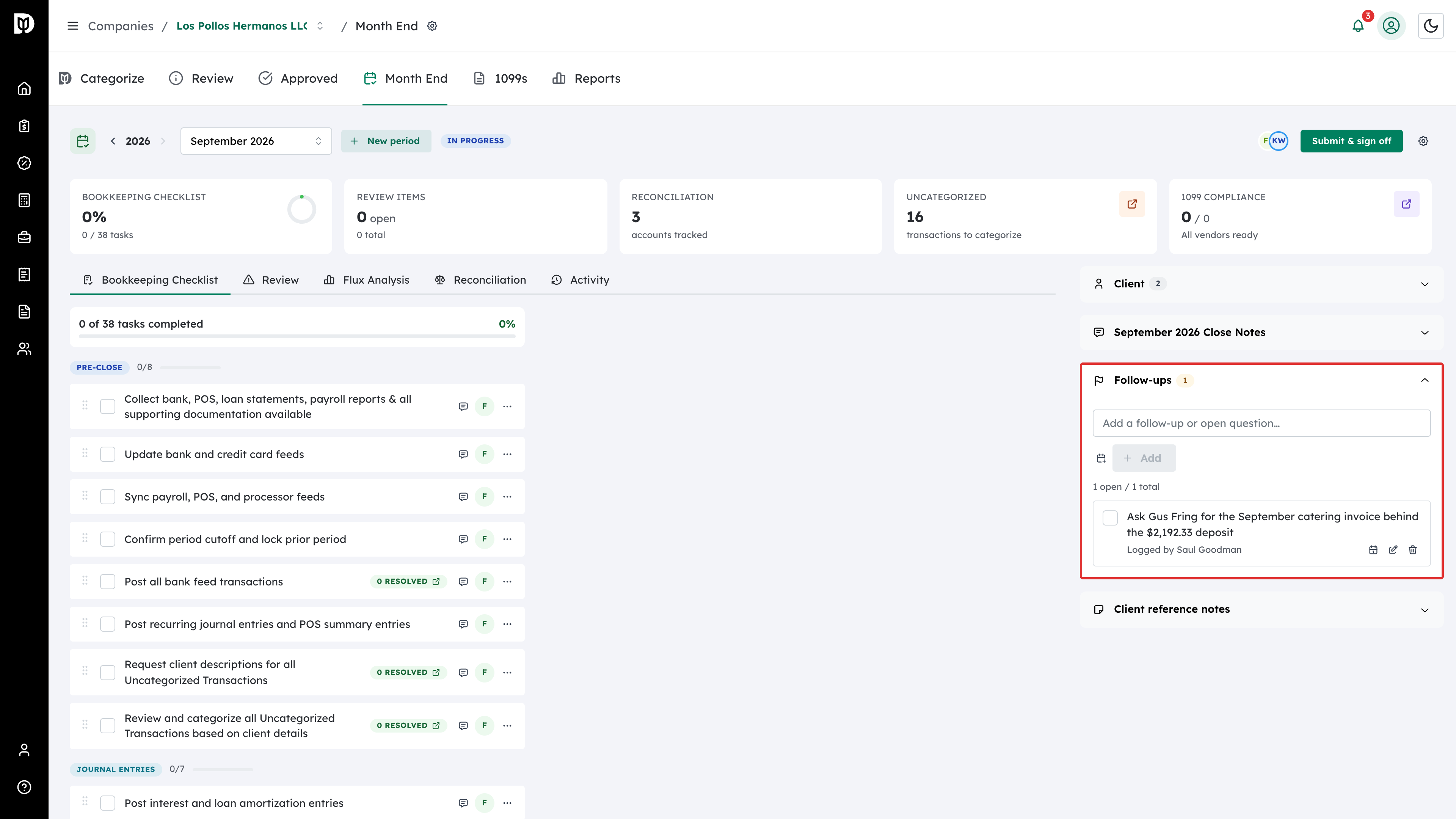
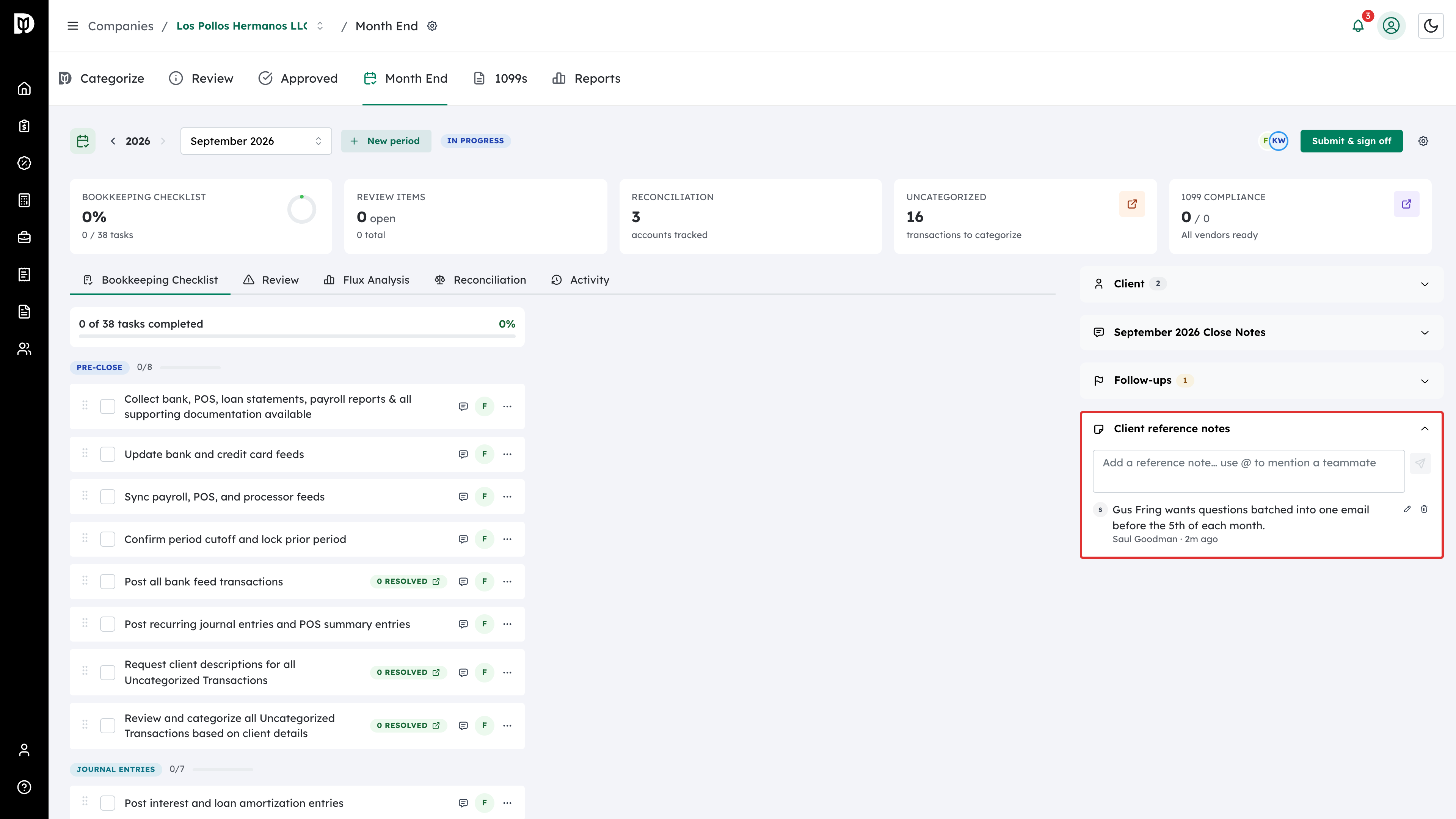
Find the Follow-ups card in the panel on the right of the Month End workspace and expand it. The badge on the card is the number of follow-ups still open.
-
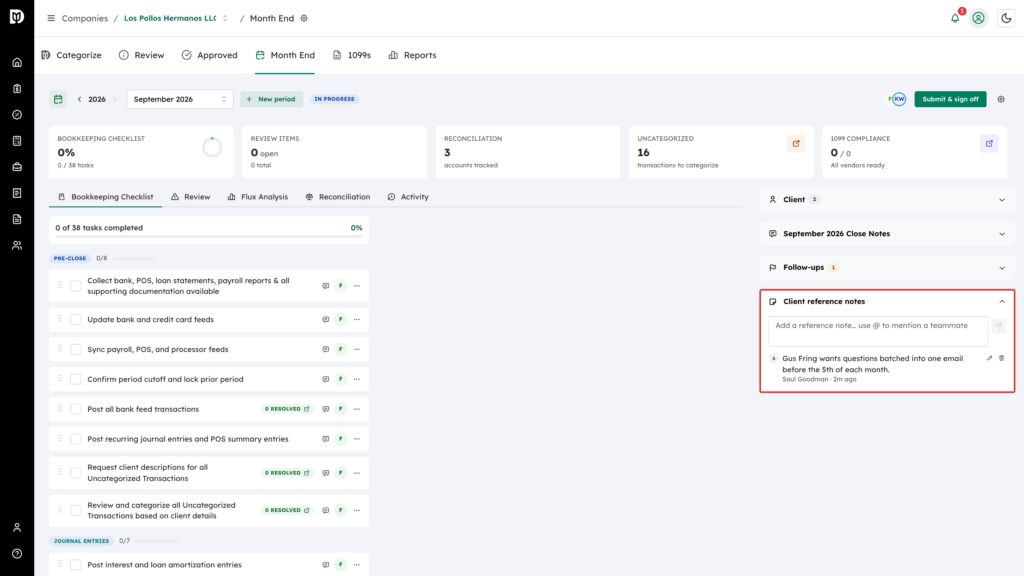
Use the Client reference notes card in the same panel for standing notes about the client — things worth remembering that are not action items. Type the note (use @ to mention a teammate) and select Add note. Each note can be edited or deleted on its own. These notes belong to the client and stay put from month to month. Discussion about this month goes in the period’s Close Notes card instead; any note or comment there can be turned into a follow-up with Convert to follow-up.
-
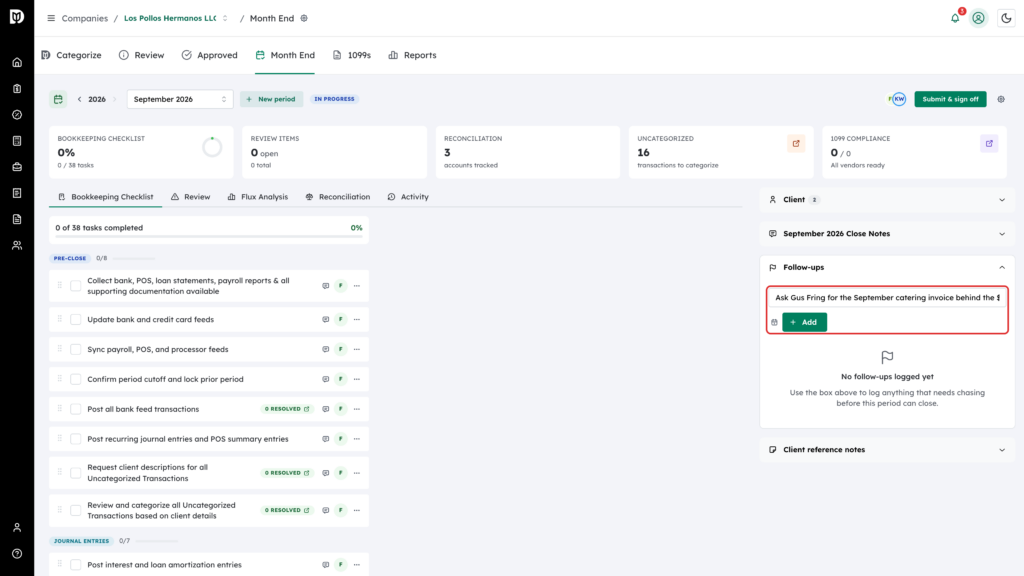
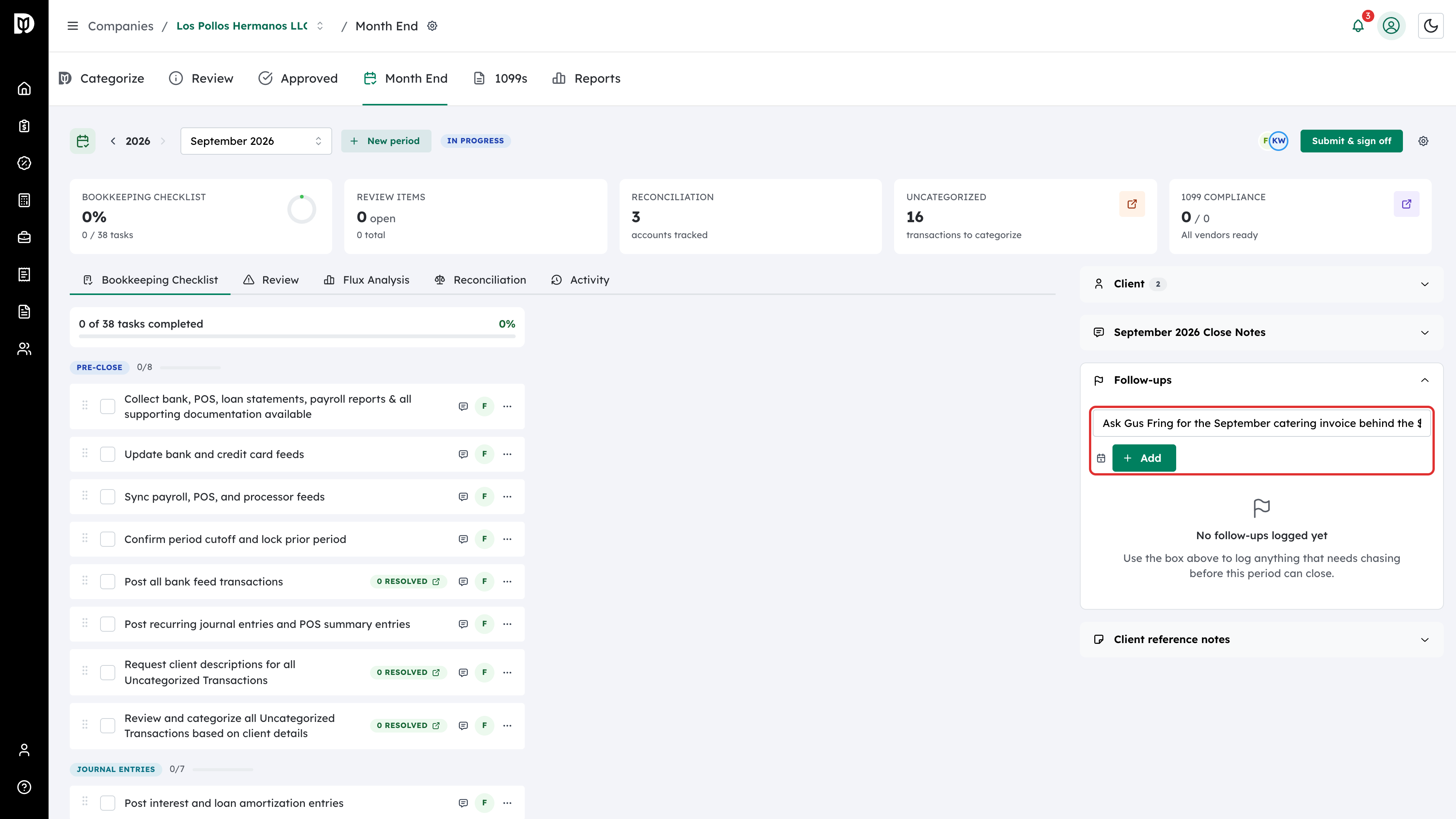
Type an open question in the Add a follow-up or open question field. To get a reminder, select the calendar icon beside it and pick a due date. Then select Add.
-
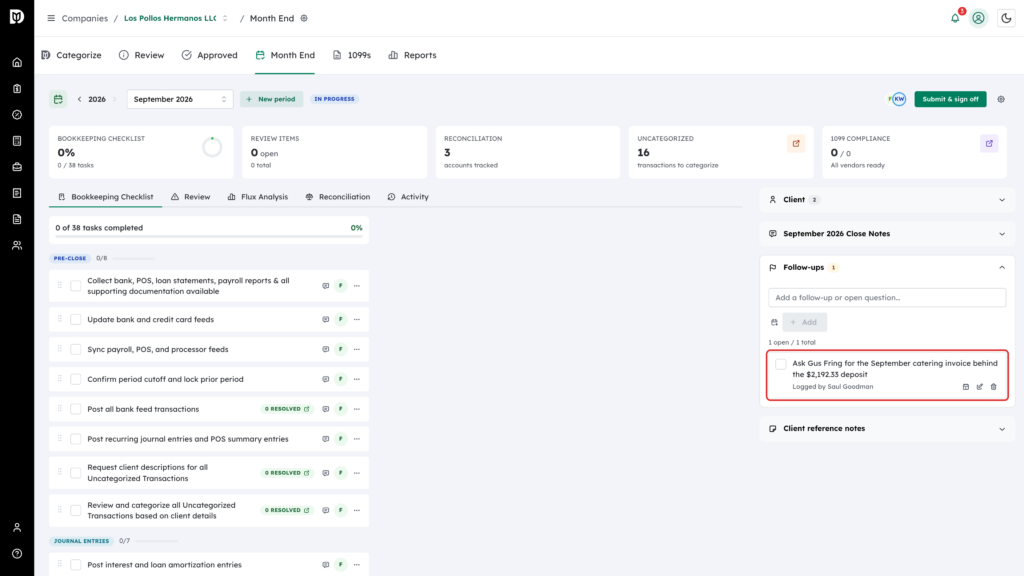
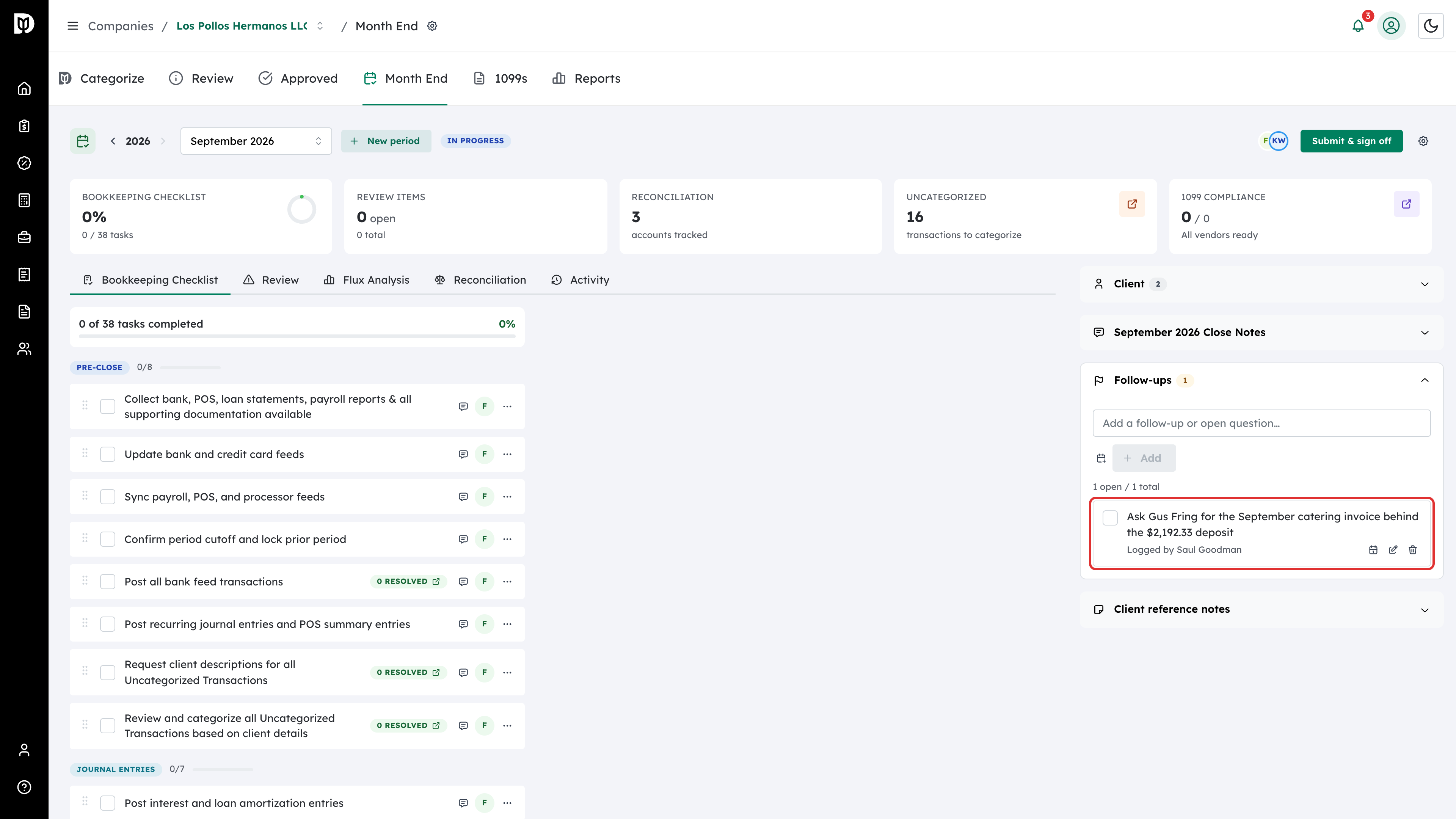
The follow-up is listed with who logged it. Its calendar icon shows the due state — hover it to read “Due today” or “Overdue”, or select it to change the date. Use the checkbox to resolve it, the pencil to reword it, and the trash icon to delete it.
-
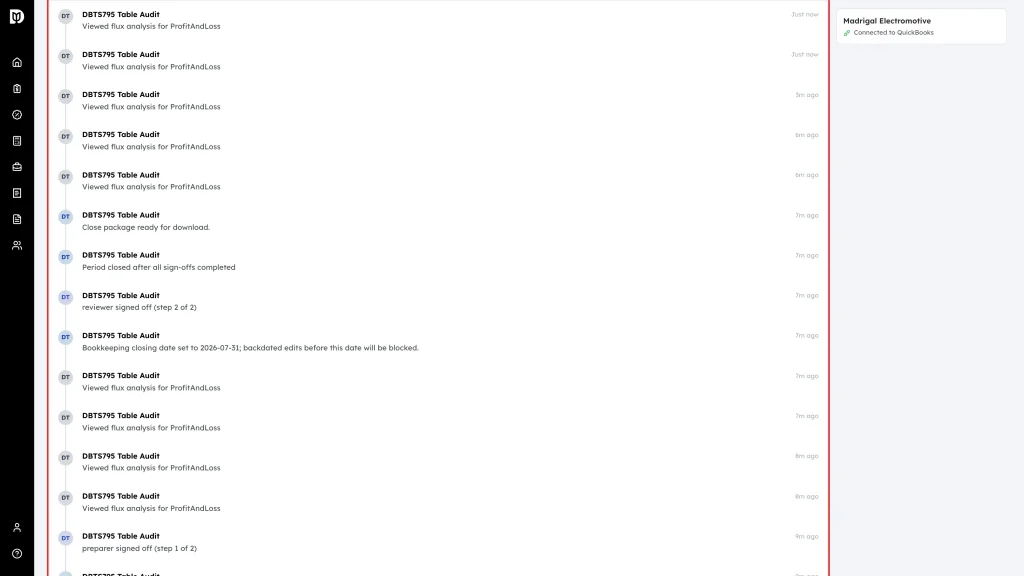
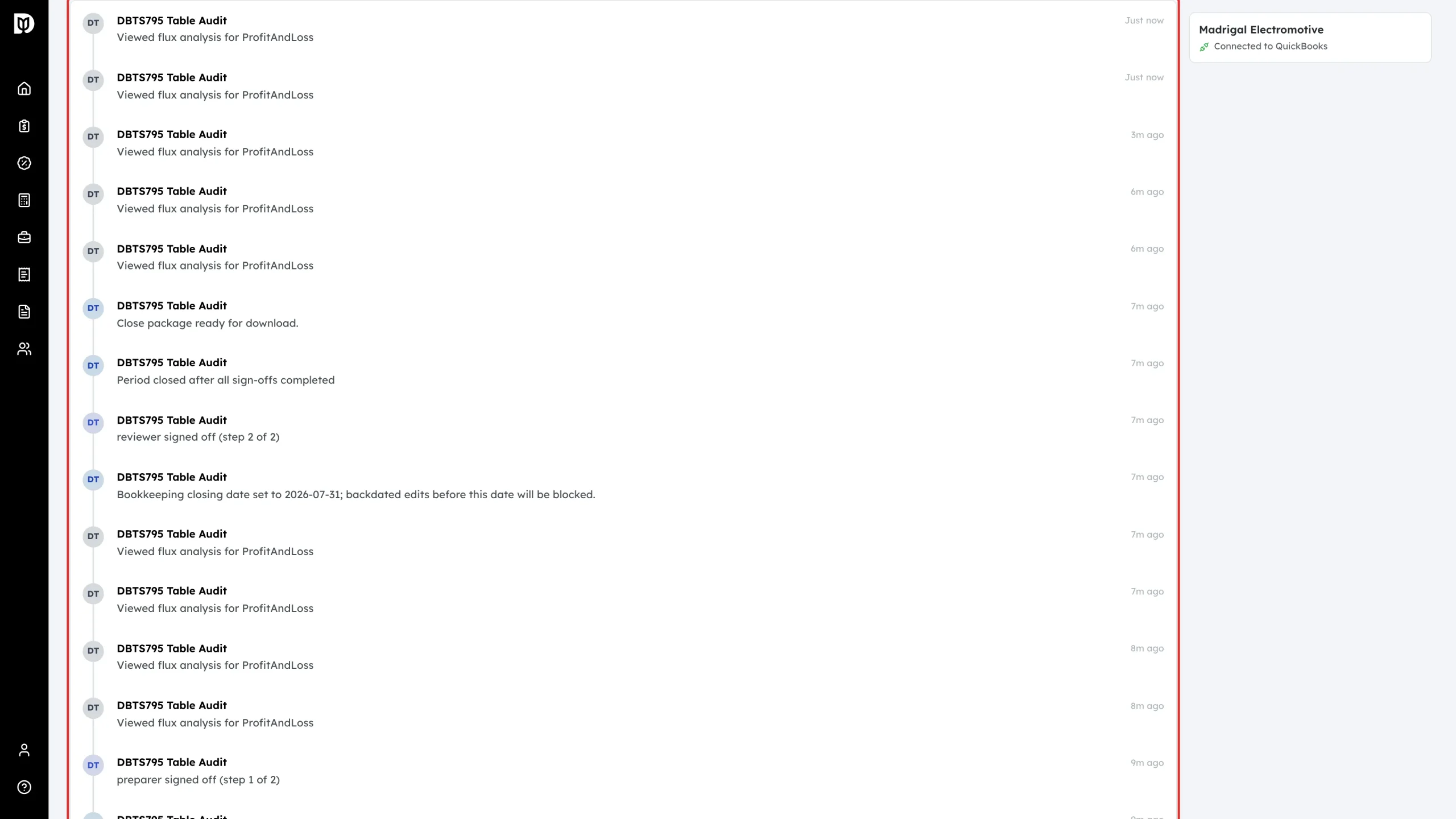
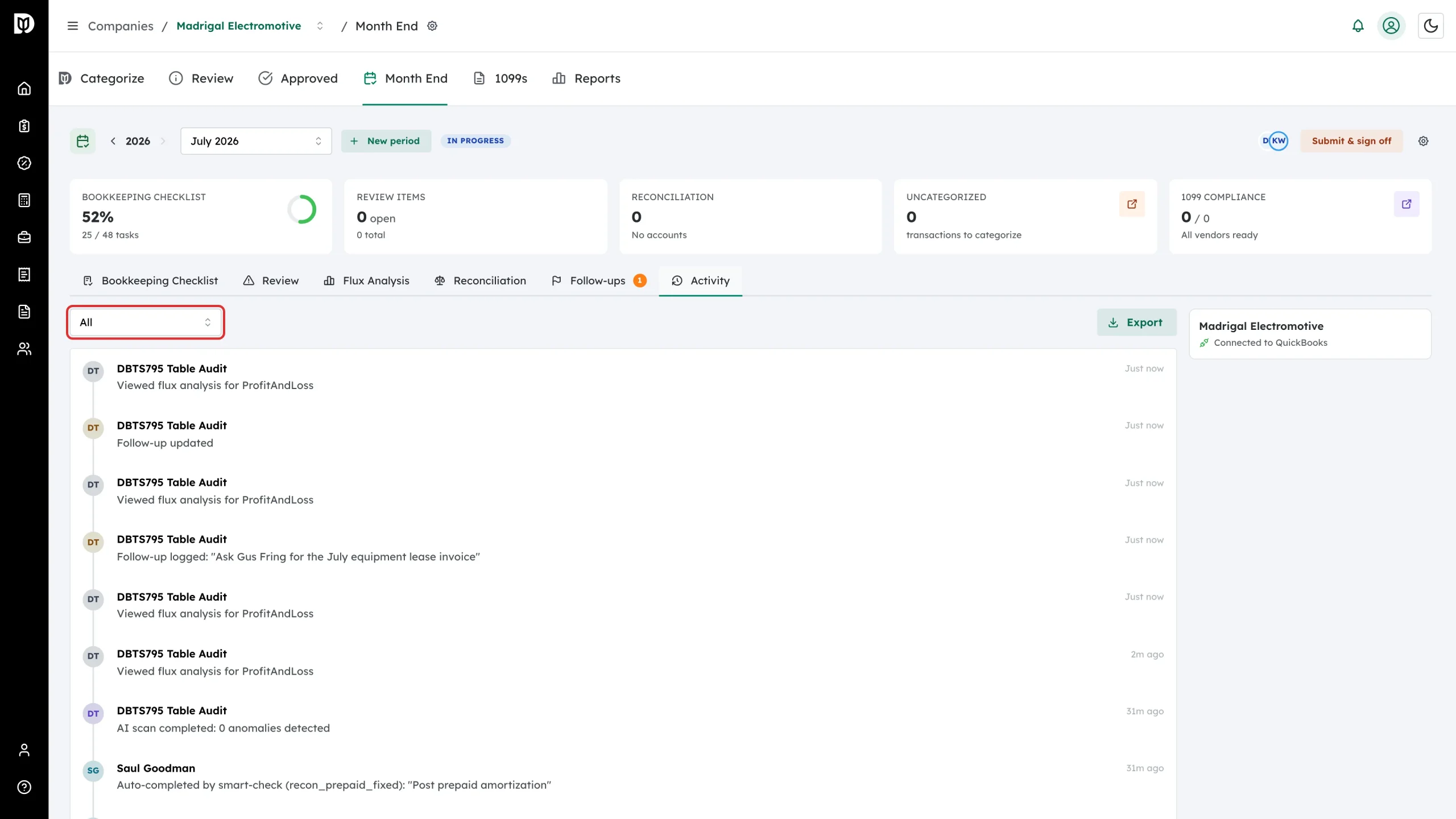
Select the Activity tab to see everything that happened in this close — who created the period, every scan, each checklist change, sign-offs, comments, and automatic events such as an overdue period.
-
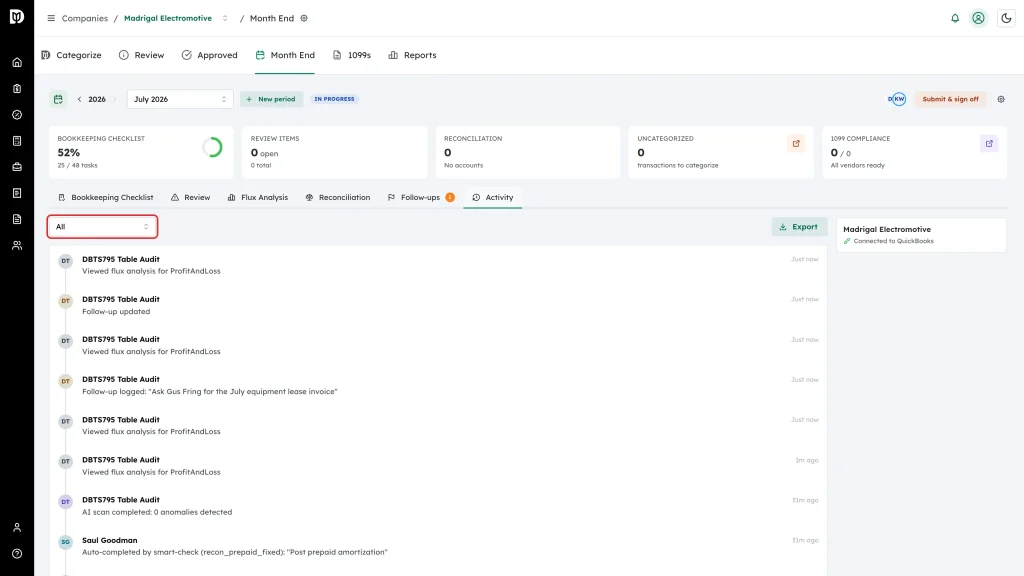
Narrow the timeline with the type filter: Period, Review Items, Checklist, Templates, Exclusions, or Reconciliation.
-
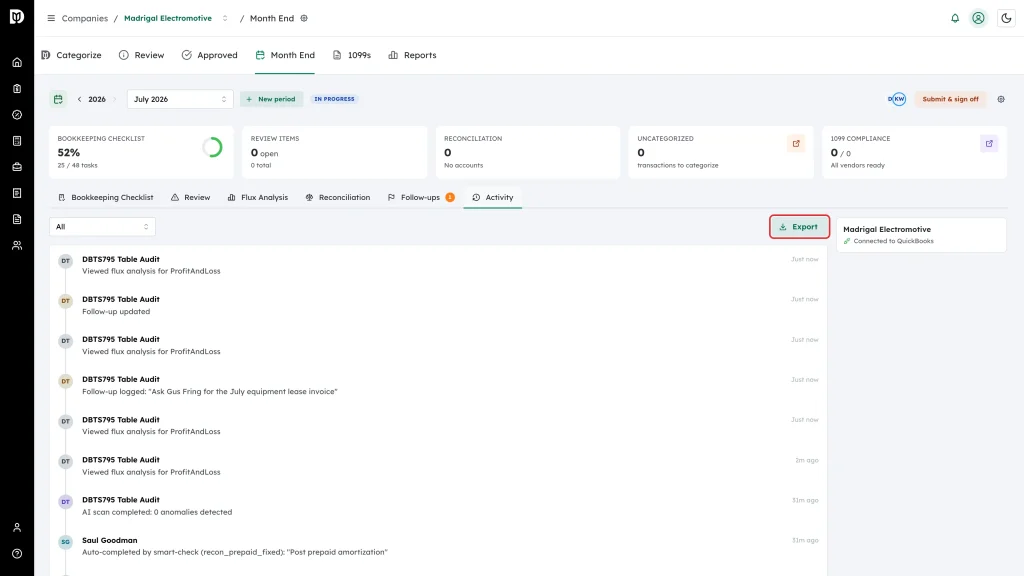
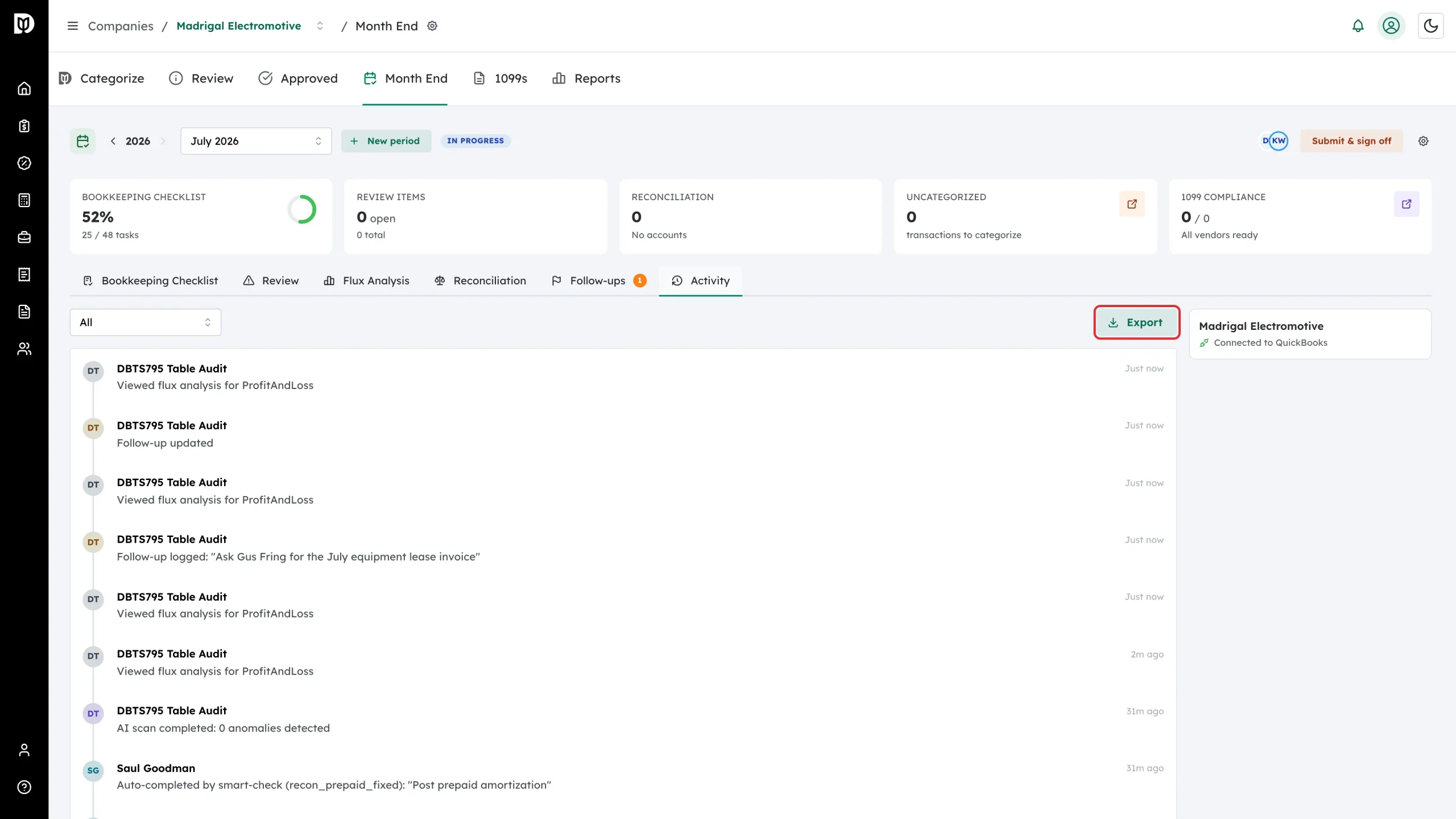
Select Export to download the activity log as a CSV file for the client file or your workpapers.
What happens next
- A follow-up with a due date triggers one email reminder to the person who logged it, on the day it is due.
- Open follow-ups follow the client, not the month: any follow-up still open in another period appears here badged Carried from that month, so nothing is lost when you move to the next close.
- Deleting a follow-up removes it from every month it appears in — Debits asks you to confirm.
- The activity log is the audit trail of the close. It is written automatically; nothing on it can be edited.
Troubleshooting
- No reminder email arrived. Reminders only go out for follow-ups that have a due date, they go to the person who logged the follow-up, and each follow-up is reminded once. Add or move the due date to trigger a new reminder.
- A follow-up you did not log appears in this month. It is still open in another month of this client’s close. Resolve it here and it clears everywhere.
- Long timelines. The timeline loads twenty events at a time — select Load more at the bottom, or export the CSV.