Who this is for: Firm owners, admins, reviewers, and the bookkeepers who hand a close over to them.
What you’ll learn: How to staff a close, submit it for review, sign it off in order, and send it back when something needs fixing.
Before you begin
- Open the client’s Month End tab and select the period.
- Debits records the close as a chain of approvals: the bookkeeper is the Preparer and the reviewer is the Reviewer. Each person signs in order, and the period closes when the last one signs.
Step-by-step instructions
-
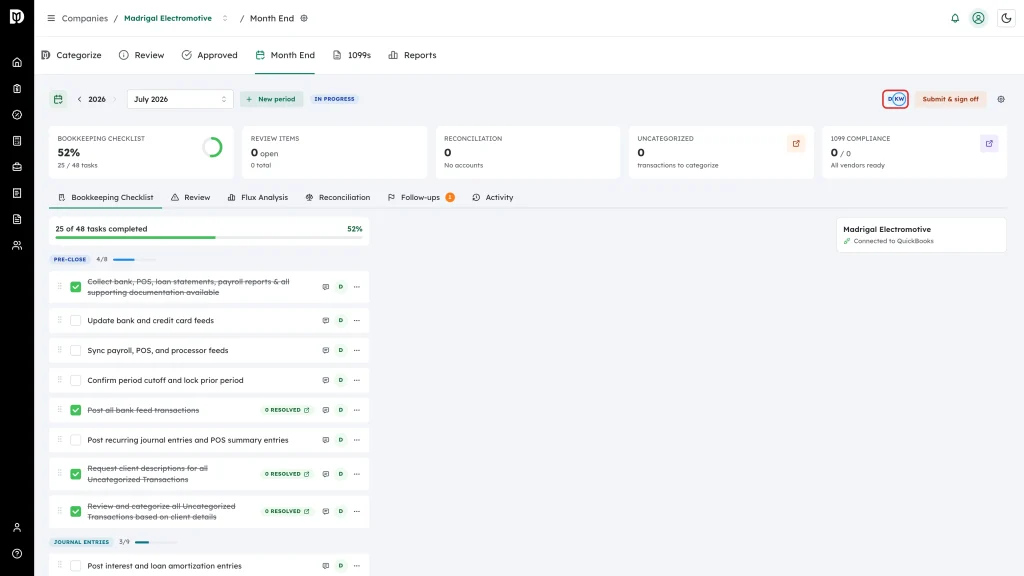
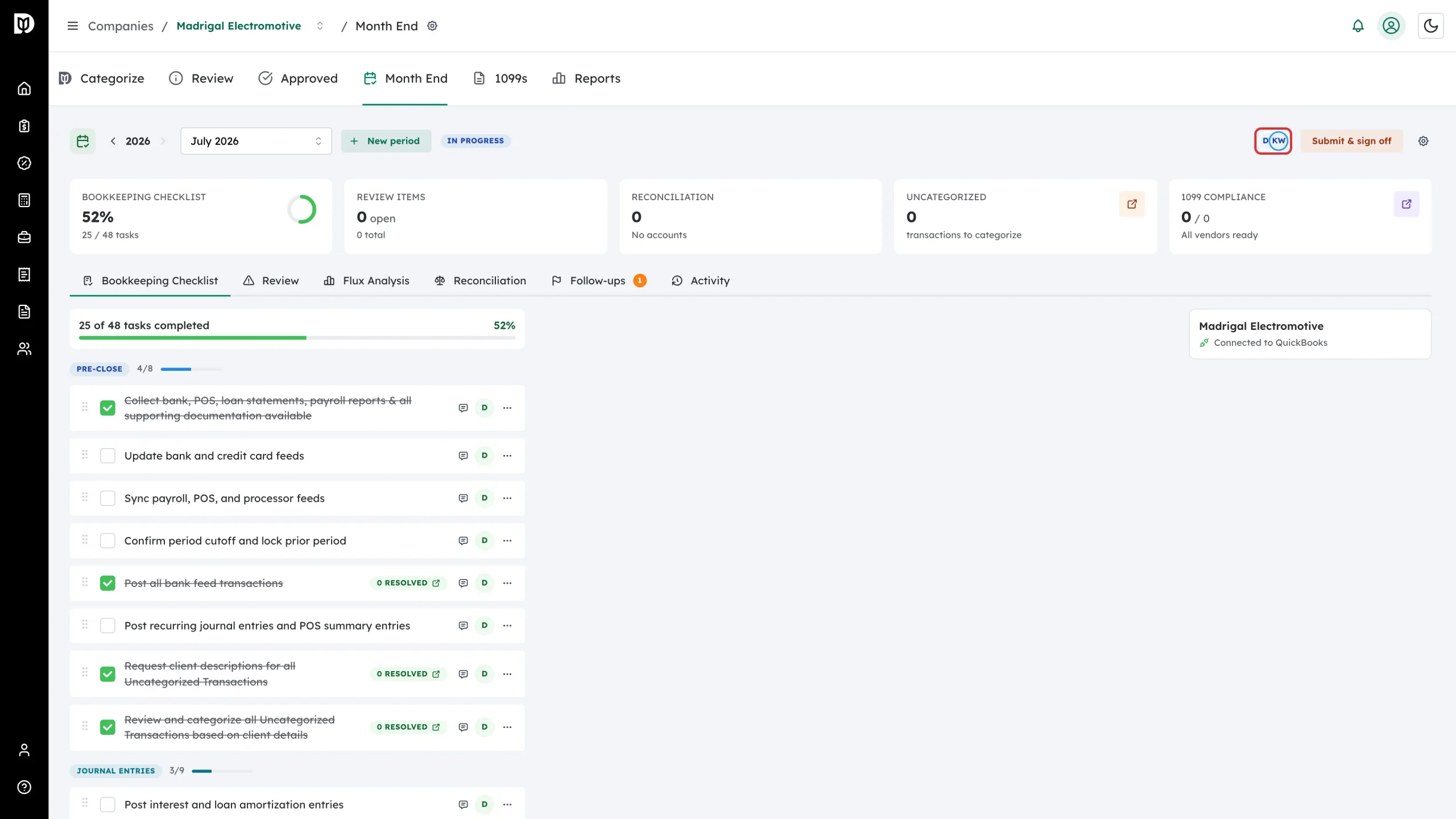
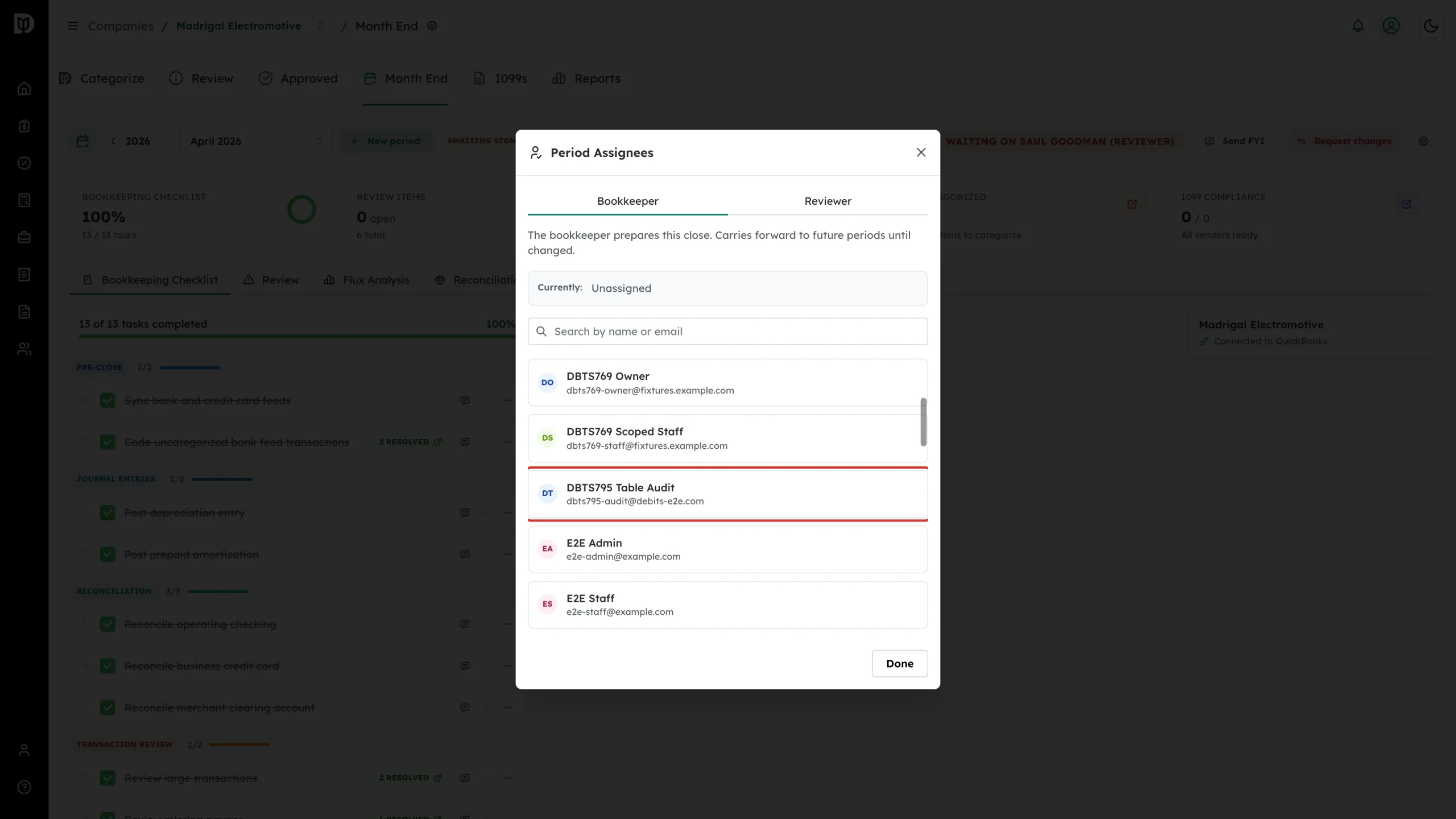
Select the assignee avatars in the workspace header.
-
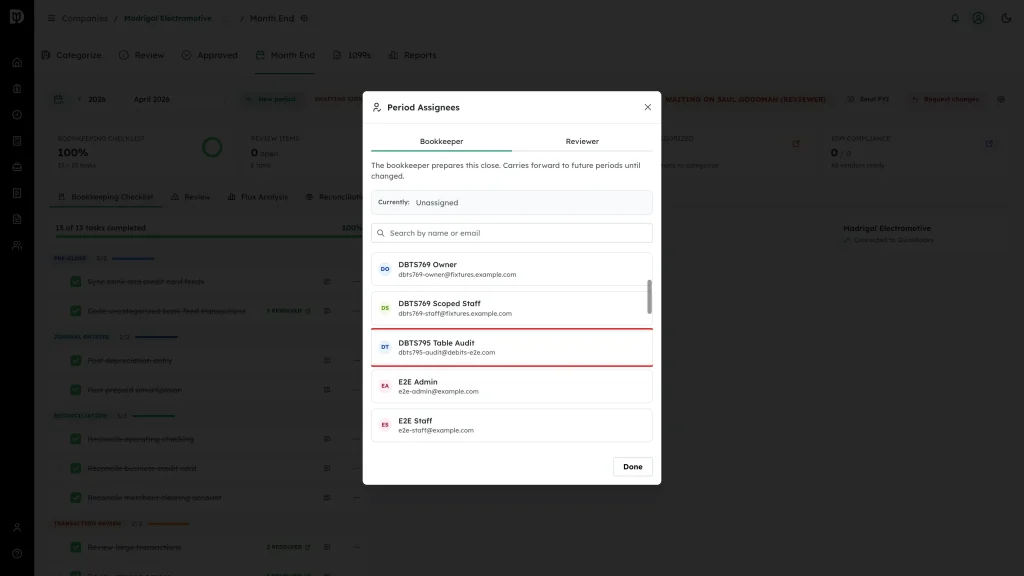
Pick the Bookkeeper who prepares the close and the Reviewer who signs it off, then select Done. Both carry forward to future periods until you change them.
-
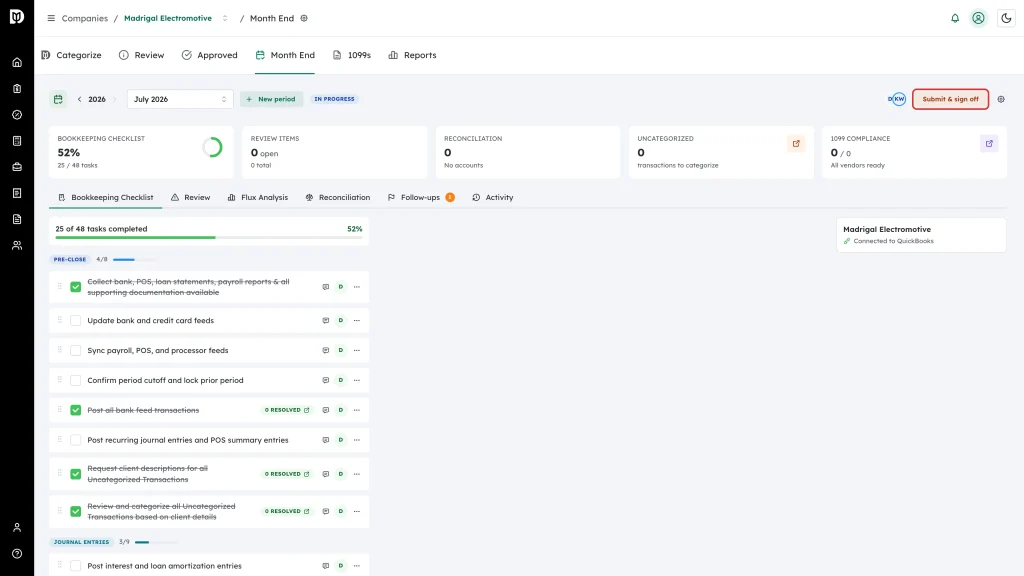
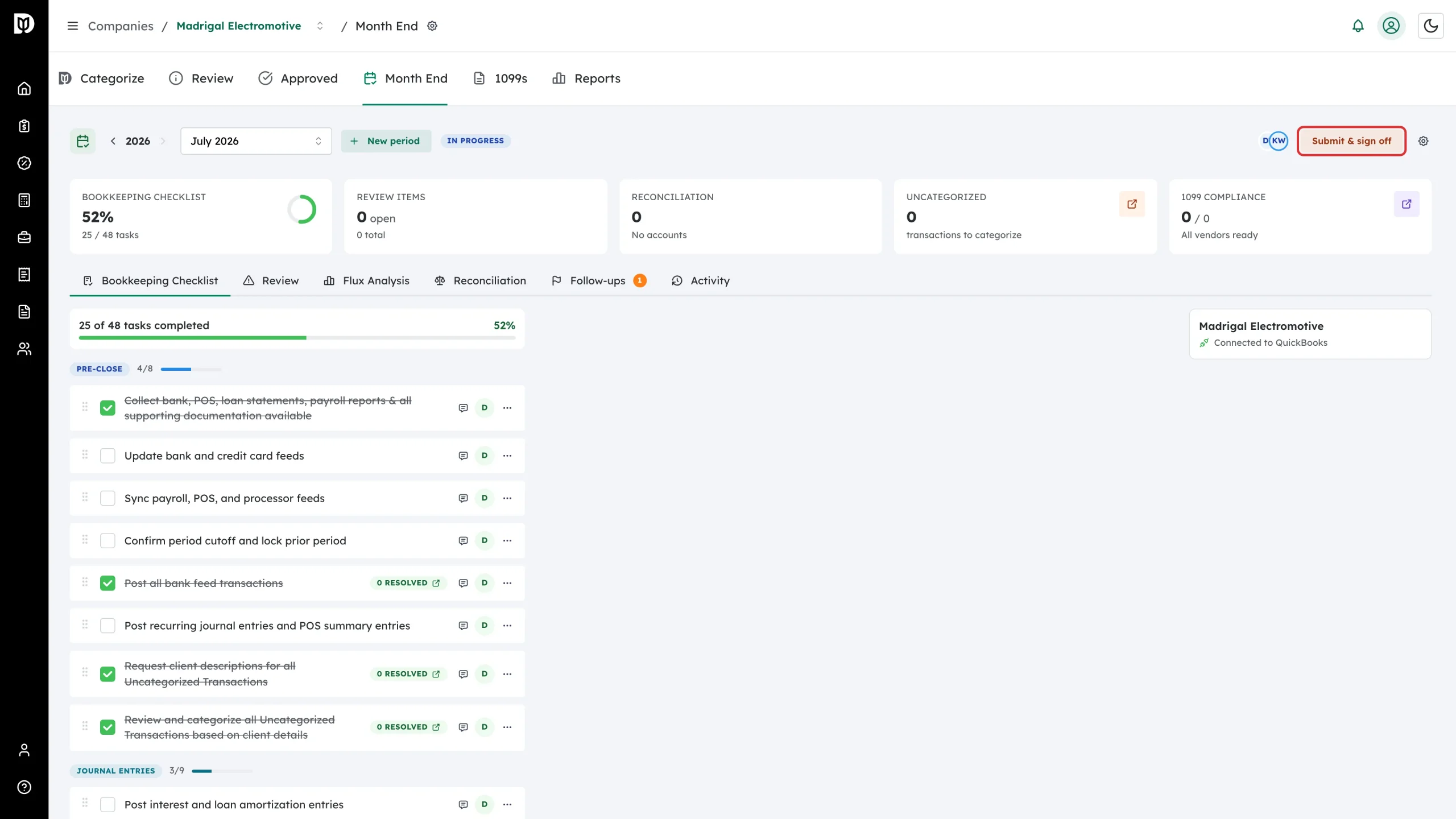
When the checklist and the review items are handled, select Submit & sign off in the header.
-
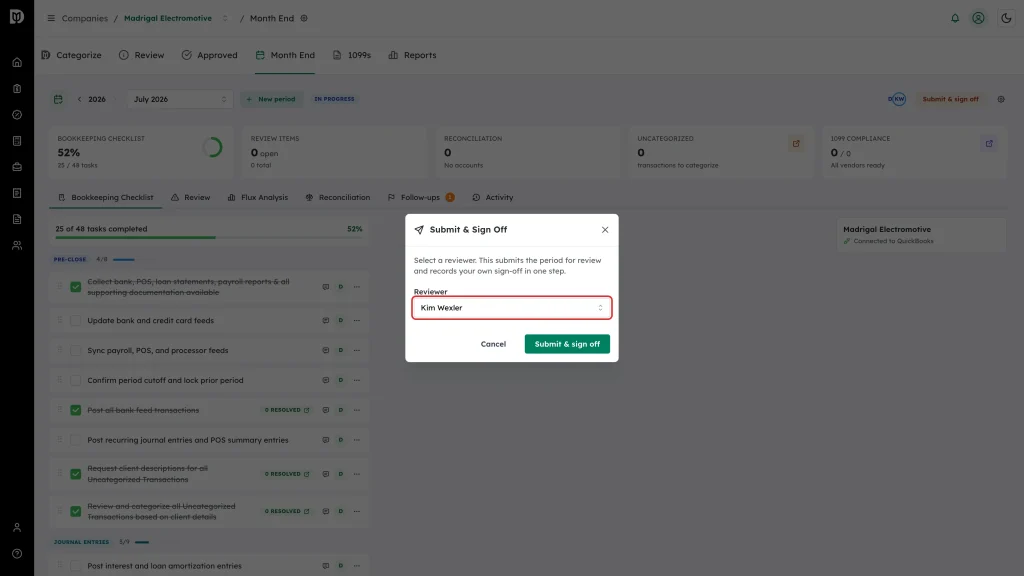
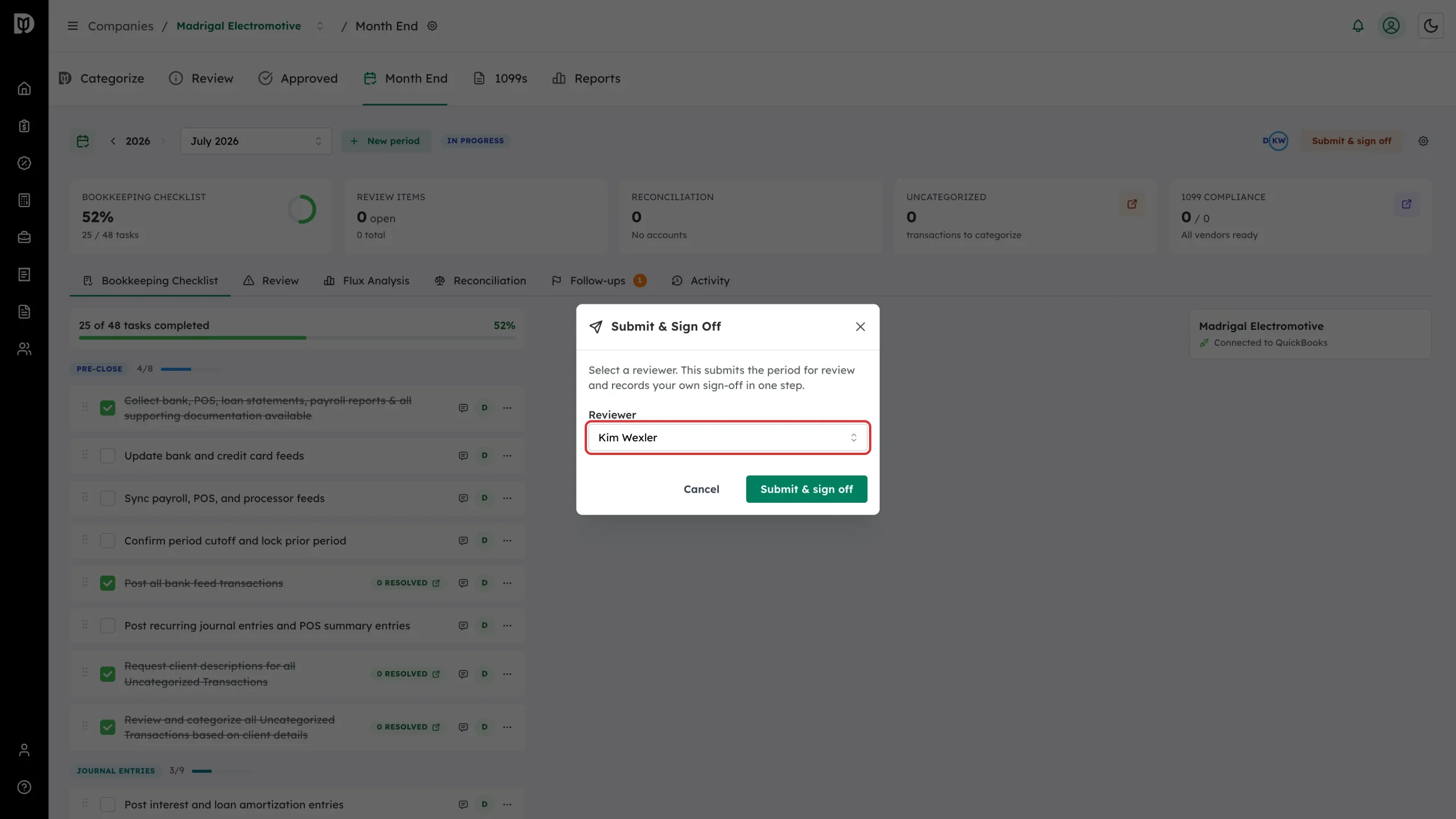
Confirm the Reviewer and select Submit & sign off. This submits the month and records your own sign-off in one step.
-
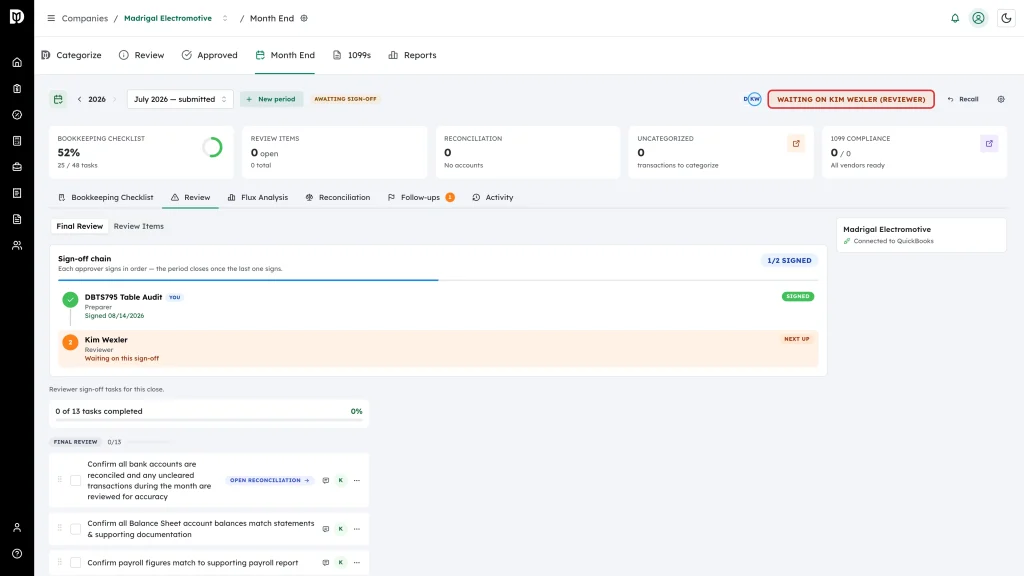
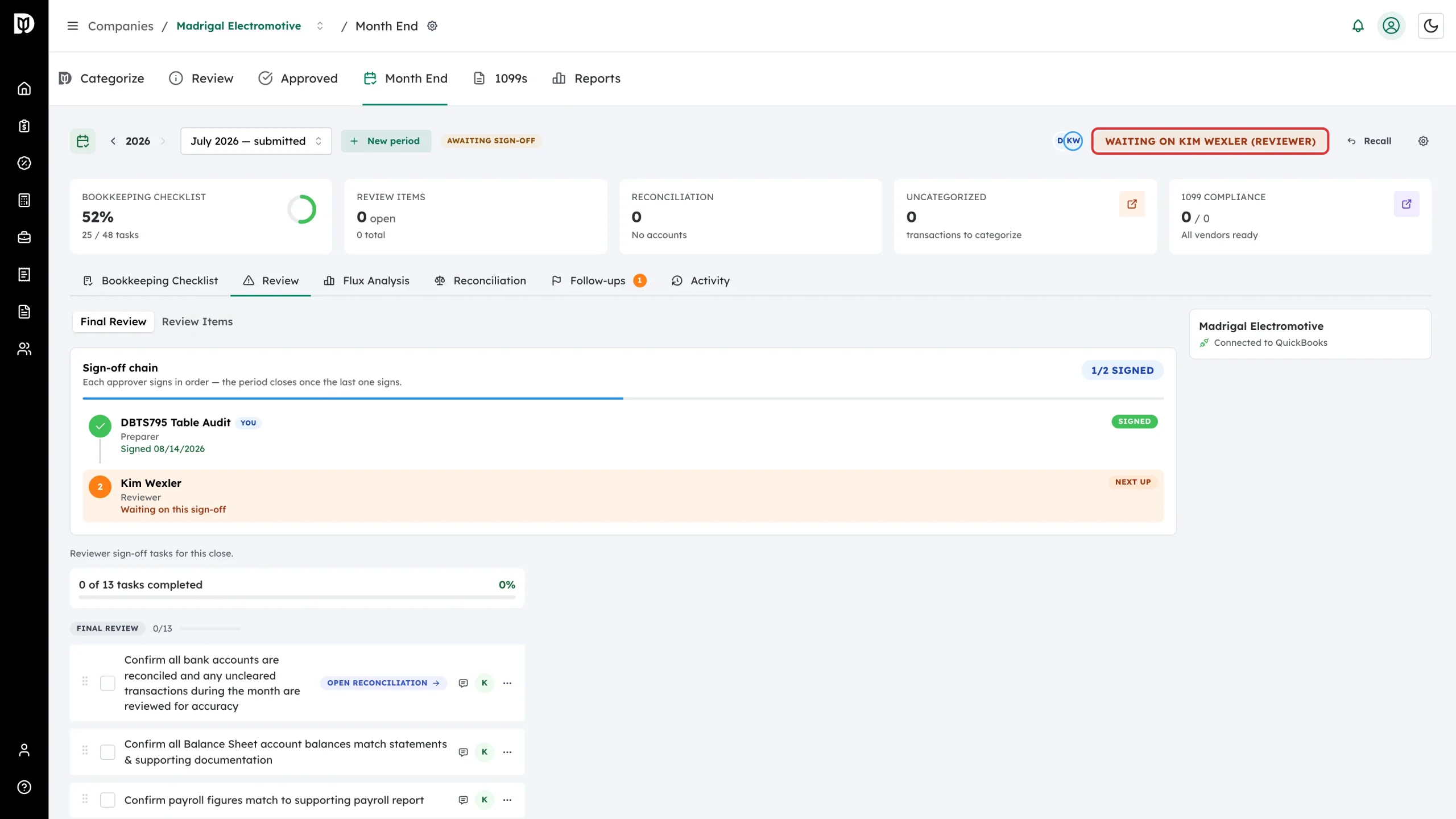
The period moves to Awaiting Sign-off and the header names whoever is next.
-
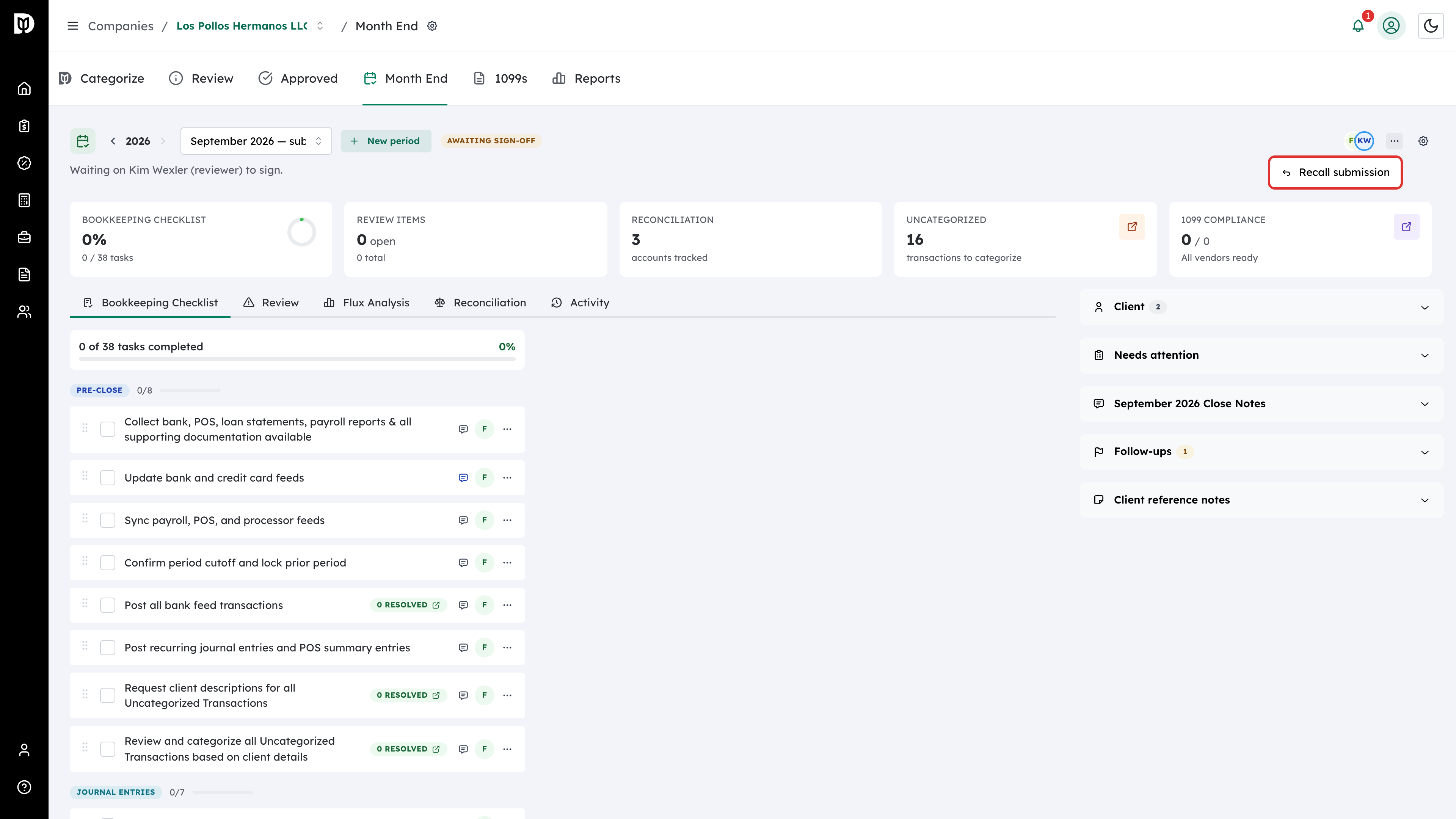
Submitted by mistake? If you submitted the month or you are its bookkeeper, open the … menu beside the header button and select Recall submission to pull the month back to In Progress. A recall sends no change request and does not move the client’s board card.
-
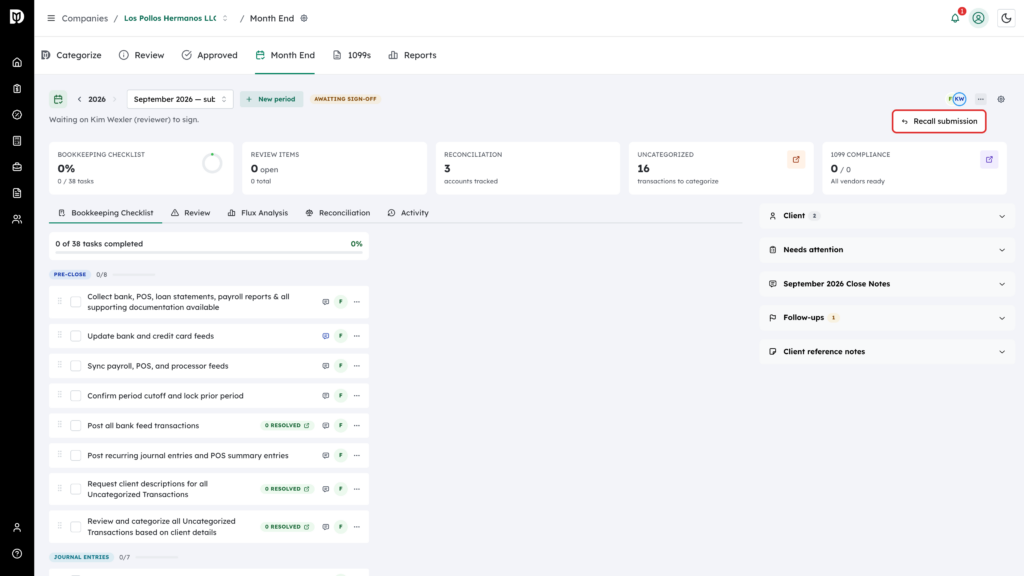
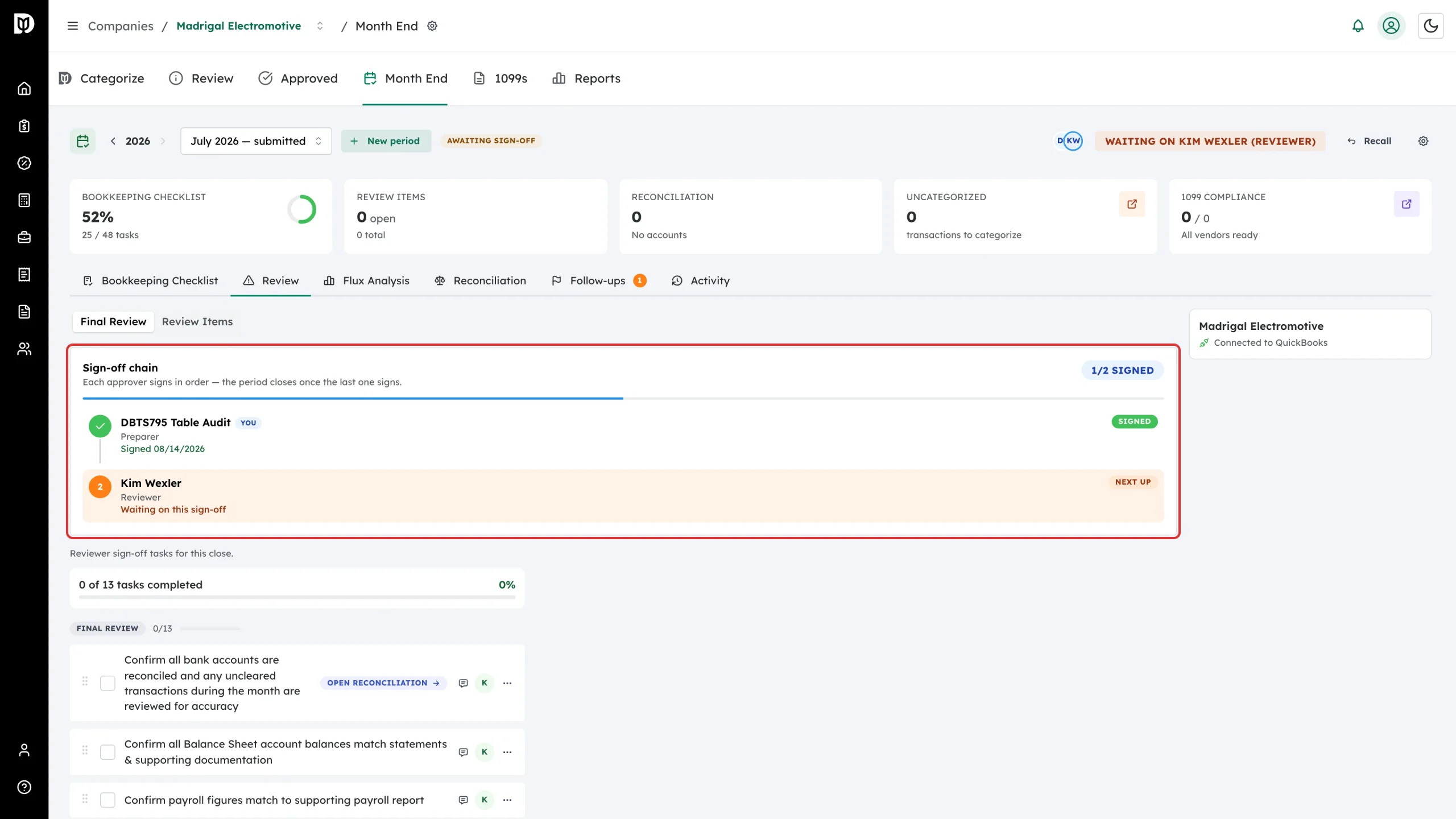
On the Review tab, Final Review shows the Sign-off chain: who has signed, who is next, and the reviewer’s own sign-off tasks underneath.
-
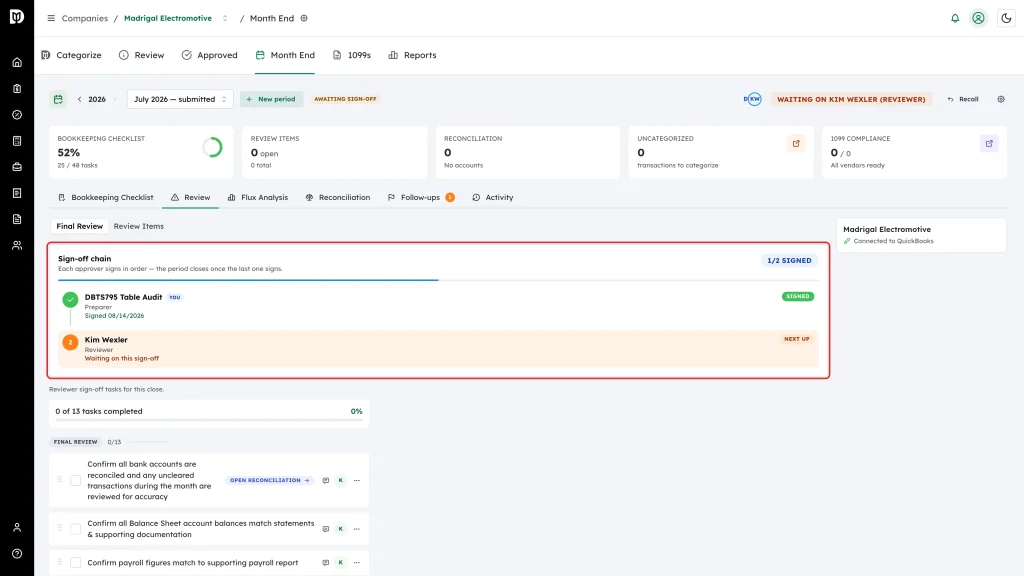
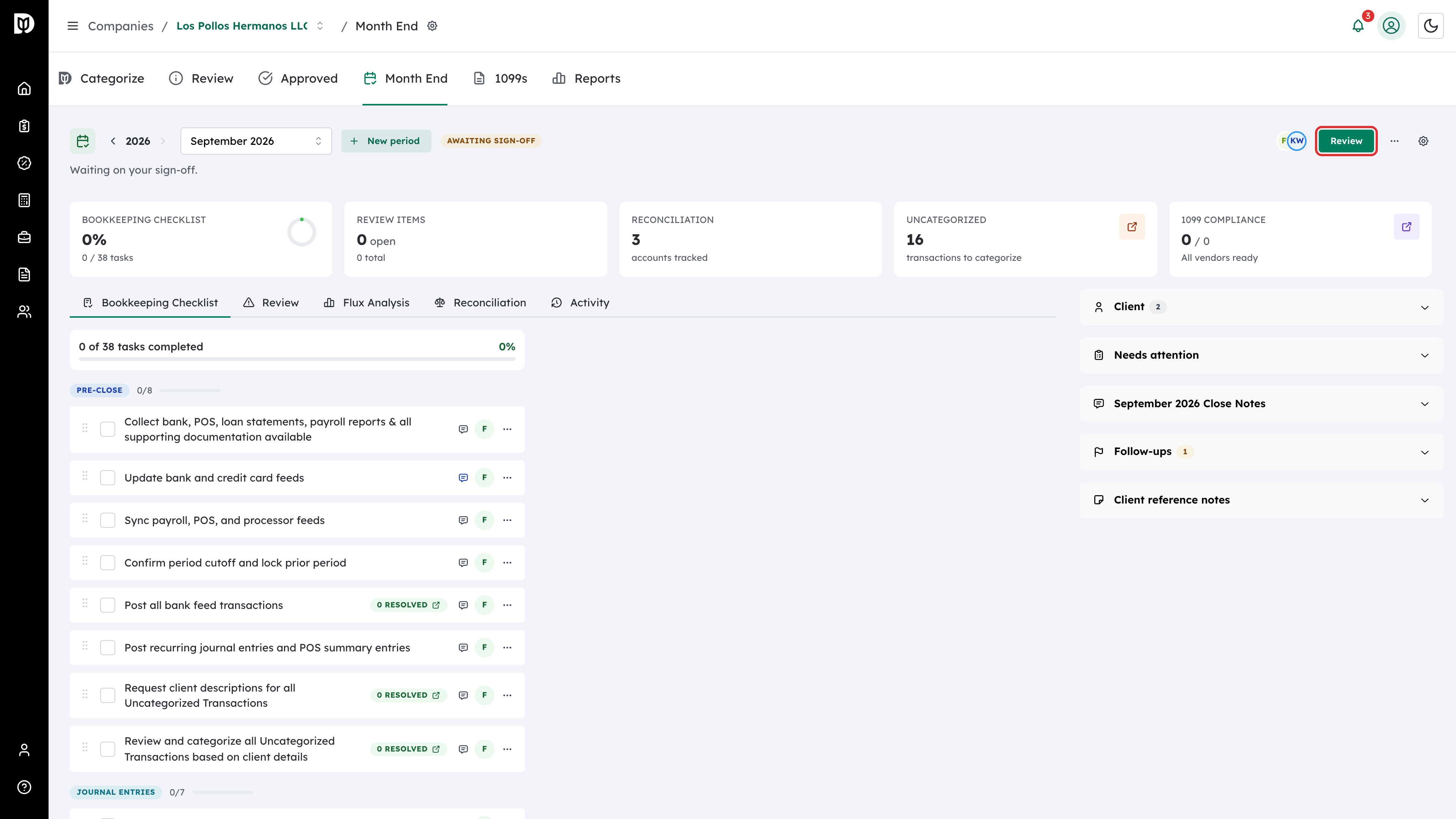
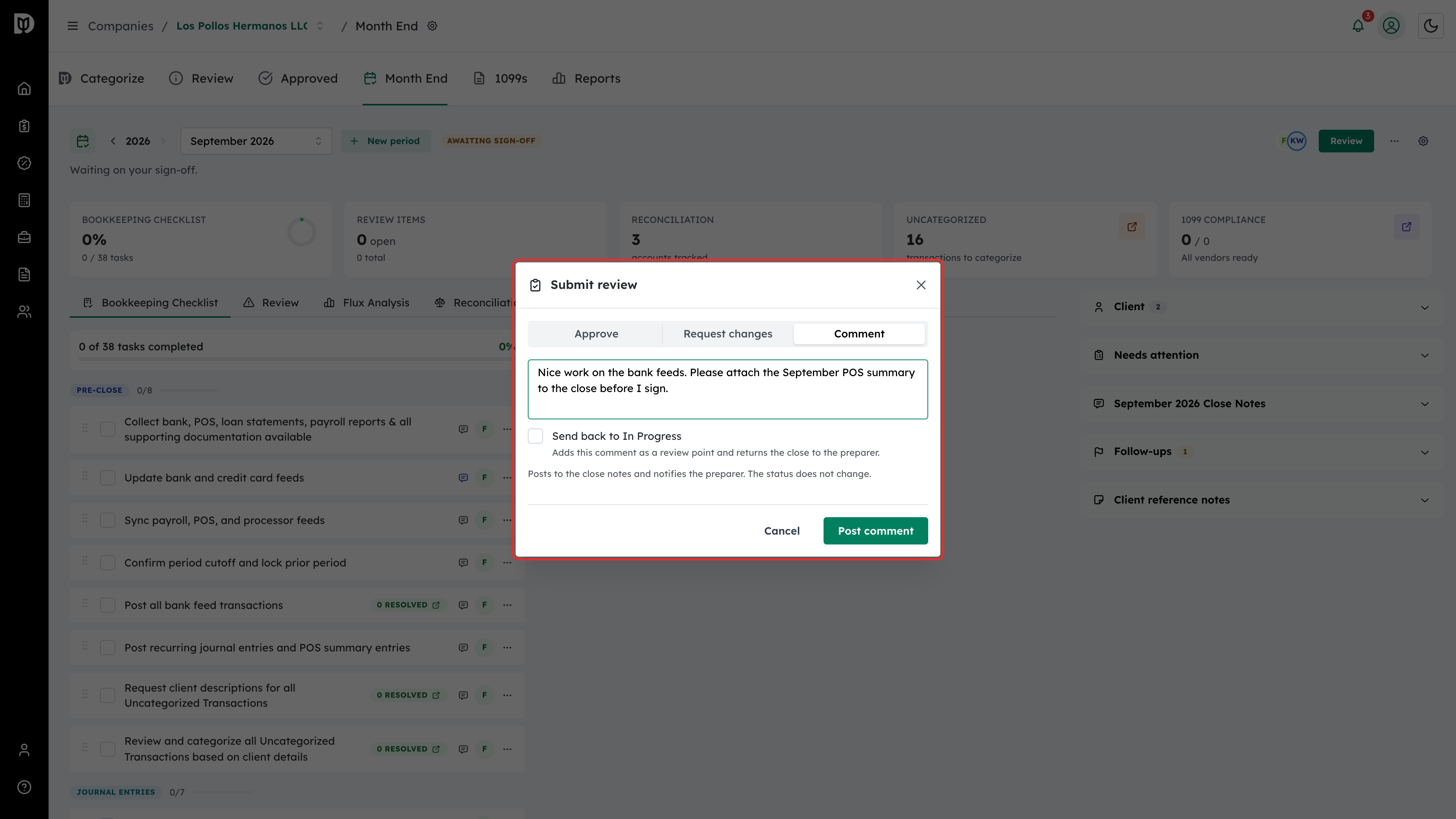
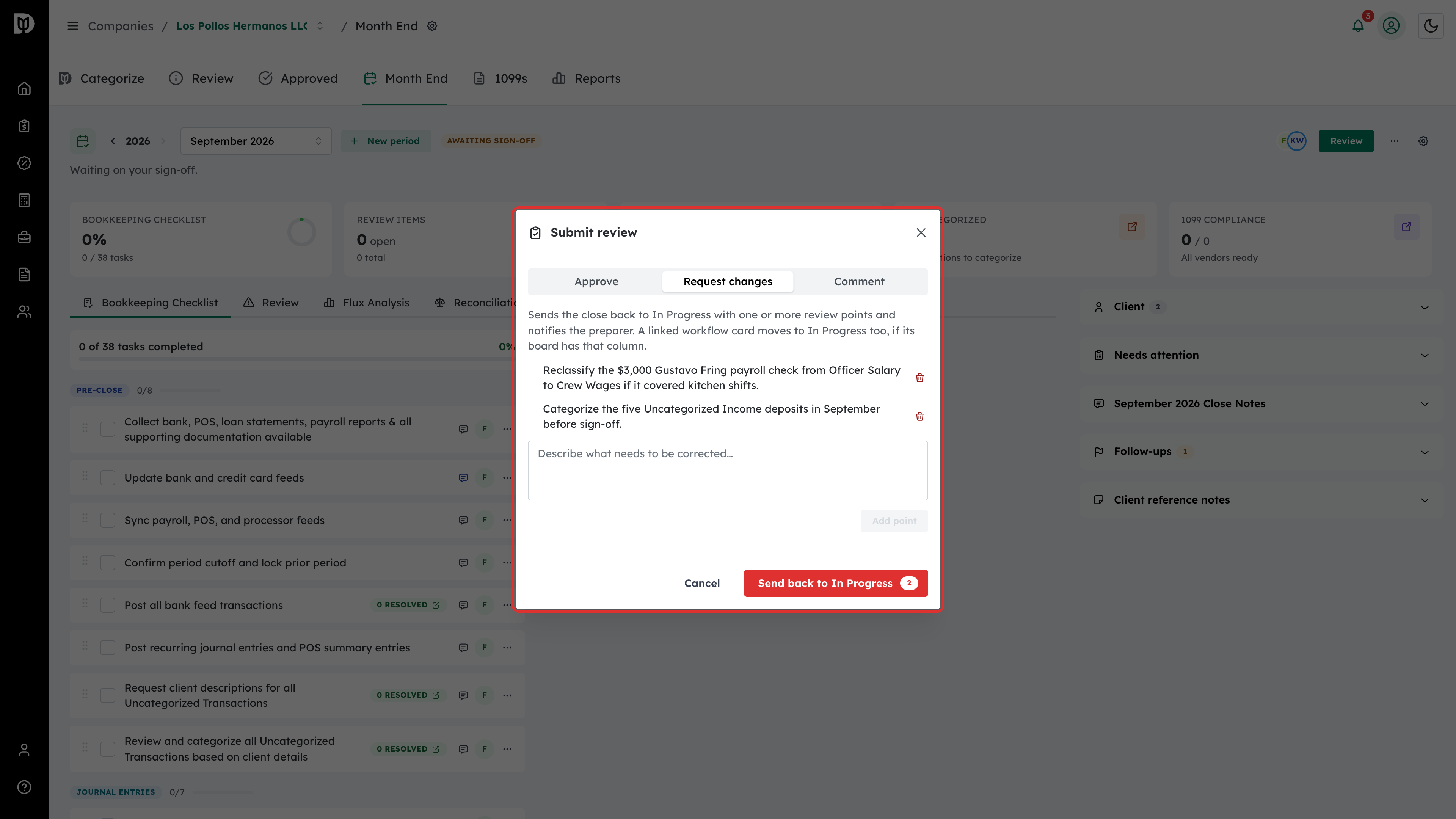
When it is your turn to review, select Review in the header. The Submit review window offers three choices: Approve, Request changes and Comment. To sign off, choose Approve and select Approve & sign off. (If you are a later signer rather than the reviewer, the header button reads Sign off.)
-
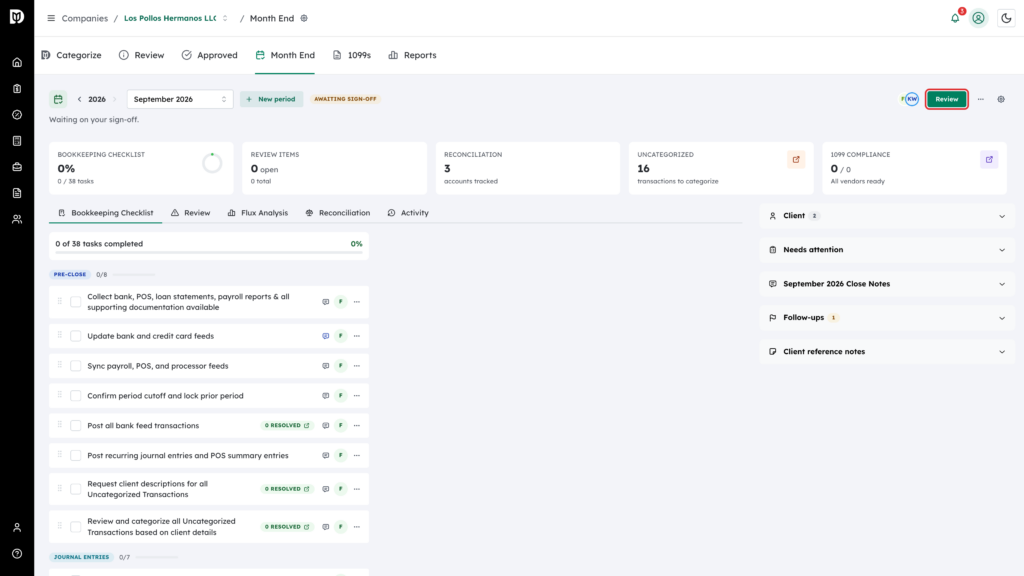
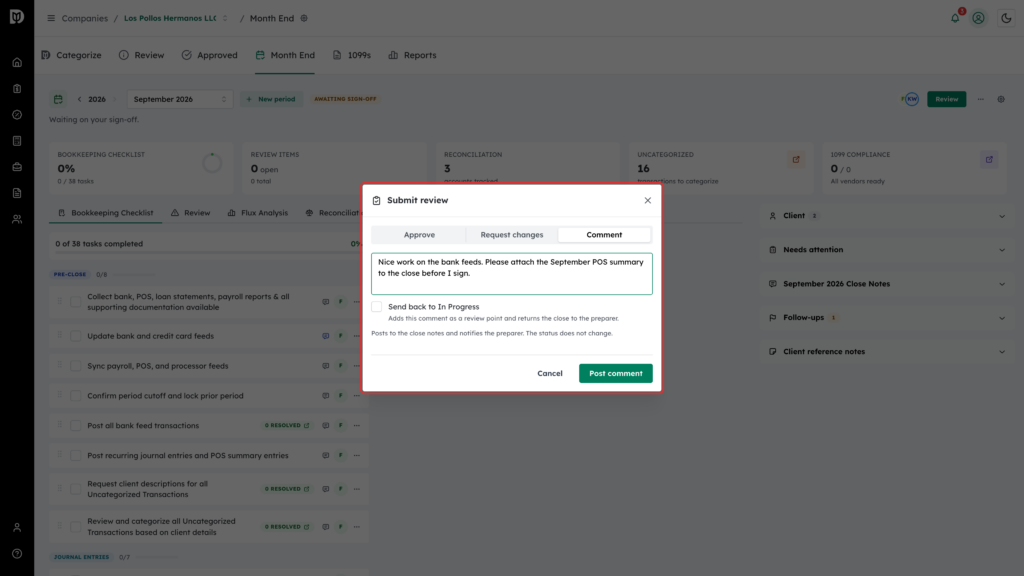
Need to tell the bookkeeper something without sending the month back? In the Submit review window choose Comment, write your note and post it. It is added to the period’s close notes and the preparer is notified; the status does not change. You can also post a note, with @mentions, in the period’s Close Notes card in the right-hand panel.
-
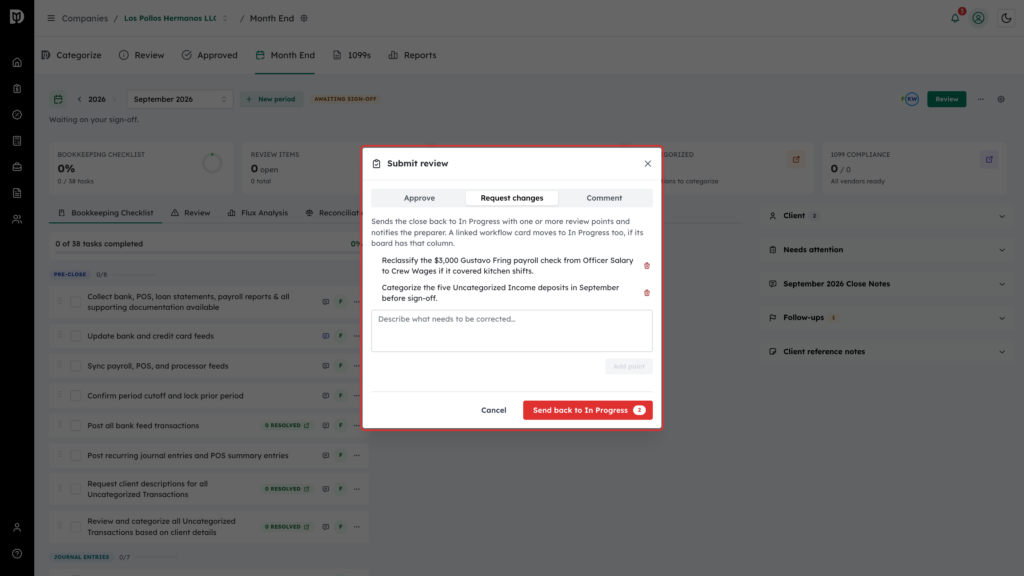
To send the month back instead, choose Request changes. Describe each thing that needs fixing and select Add point (up to 20), then select Send back to In Progress. Each point becomes a review point the preparer resolves. (A Comment with Send back to In Progress ticked does the same with a single point.)
-
Once the last approver signs, the period is Closed and locked.
What happens next
- Setting a bookkeeper or reviewer builds the sign-off chain automatically — preparer first, reviewer second — and assigns checklist tasks that carry that default role.
- A month you submitted is view-only for you until the reviewer closes it or sends it back.
- Requesting changes resets the chain, so every approver signs again on the next submission.
- When you send a month back, the bookkeeper and whoever submitted it get a notification and an email listing each review point, the open points appear on their dashboard and in their morning digest, and a linked bookkeeping card on the workflow board moves back to In Progress (if the board has that column). You are notified once every point has been resolved.
- While review points are still open, signing off or closing stops and asks you to confirm with Sign off anyway; the override is logged. This check is a firm setting, Require review points resolved before sign-off, in the workflow automations settings.
- Closing the month sets the client’s bookkeeping closing date to the last day of that month, so edits dated before it are blocked.
- Every status change, sign-off, note, and recall is written to the Activity tab.
Troubleshooting
- You do not see Sign off. Only the person the chain is waiting on can sign. The header names them.
- You do not see Review or Request changes. Only the assigned reviewer, or a manager or partner whose sign-off is still pending, can send a month back. Owners and admins who are not on the sign-off chain cannot. Ask the reviewer, or have the reviewer reassigned.
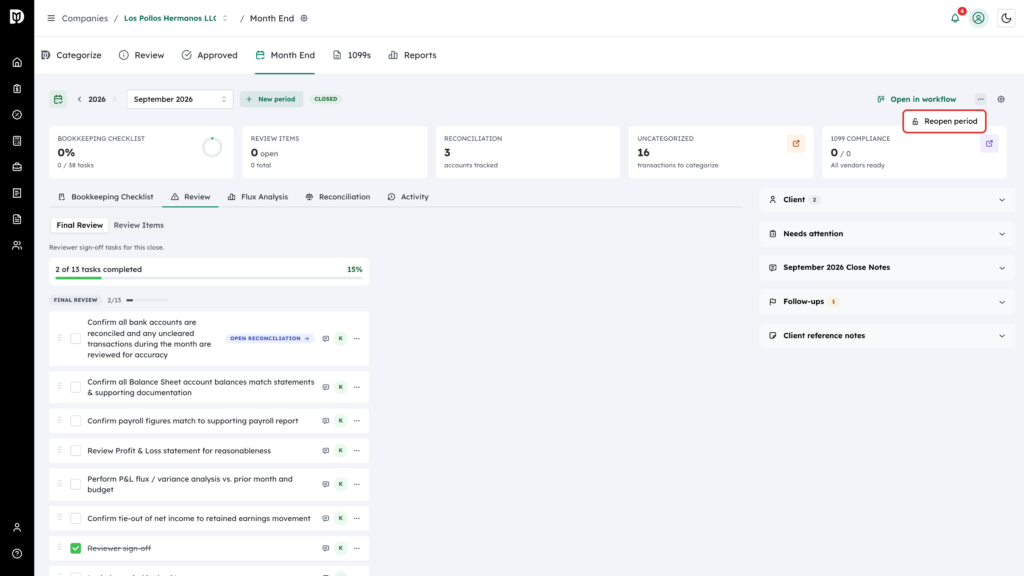
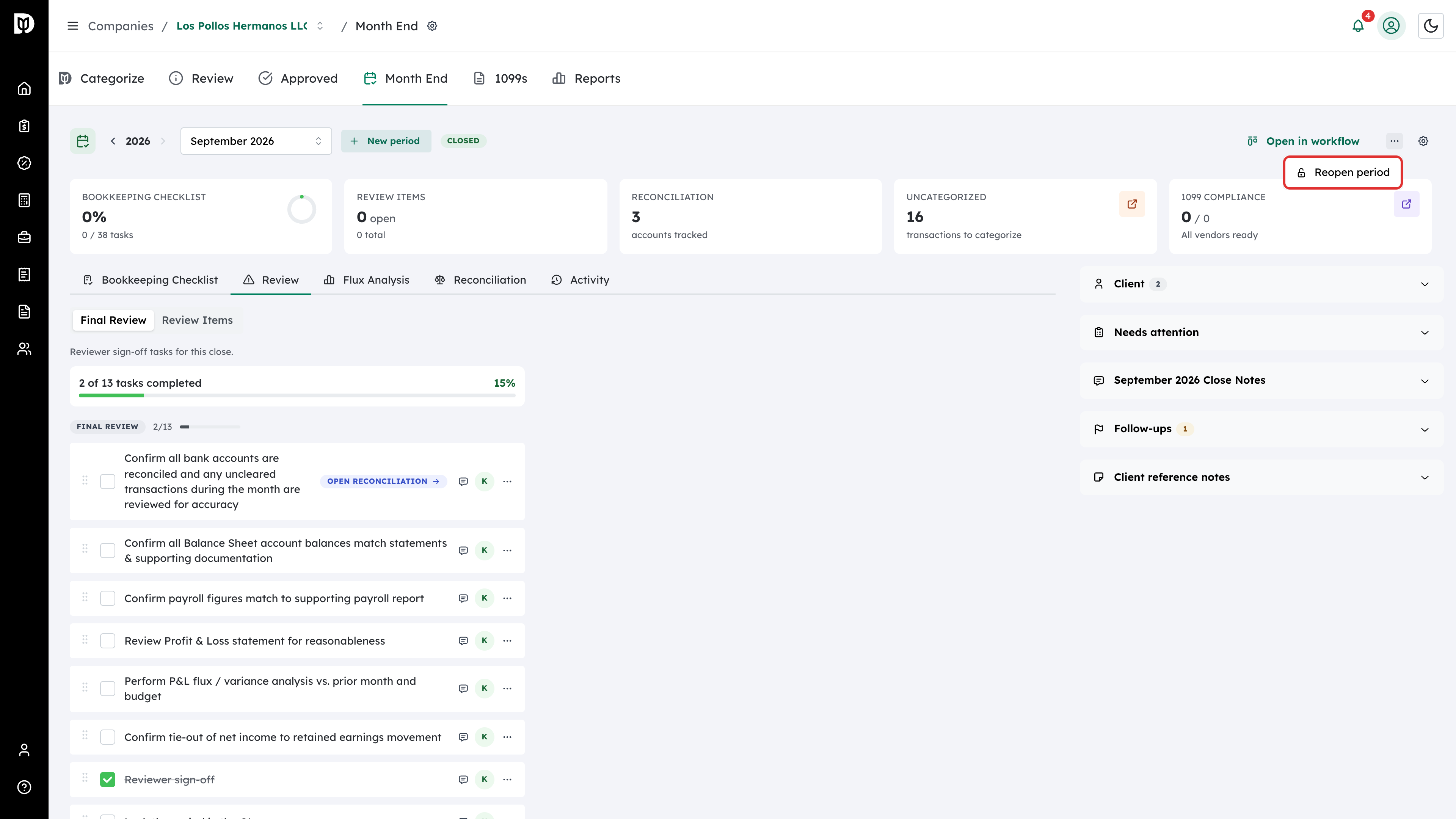
- You need to reopen a closed month. An owner or admin opens the … menu in the header and selects Reopen period, then enters a Reason for reopening (at least 10 characters, recorded on the audit trail) and selects Reopen. The month returns to review, not to the bookkeeper: the reviewer must send it back to In Progress before the bookkeeper can edit it again.
- “Segregation of duties is required on this account.” Your firm requires a second person: whoever submitted the month cannot also be the one who closes it. Assign a different reviewer.