Who this is for: Bookkeepers whose month-end close was sent back by the reviewer, and the reviewers who send it.
What you’ll learn: Where you hear that changes were requested, how to work through the review points and resolve them, how the reviewer finds out, and how sending a close back differs from recalling it.
Before you begin
- A close is sent back when the reviewer chooses Request changes in the Submit review window, or posts a Comment with Send back to In Progress ticked. Each thing to fix becomes a review point.
- Only the assigned reviewer, or a manager or partner whose sign-off is still pending, can send a close back.
- You get these notices as the close’s bookkeeper, or as the person who submitted it. The person who sent it back is never notified of their own send-back.
Step-by-step instructions
Step 1: Open the notification
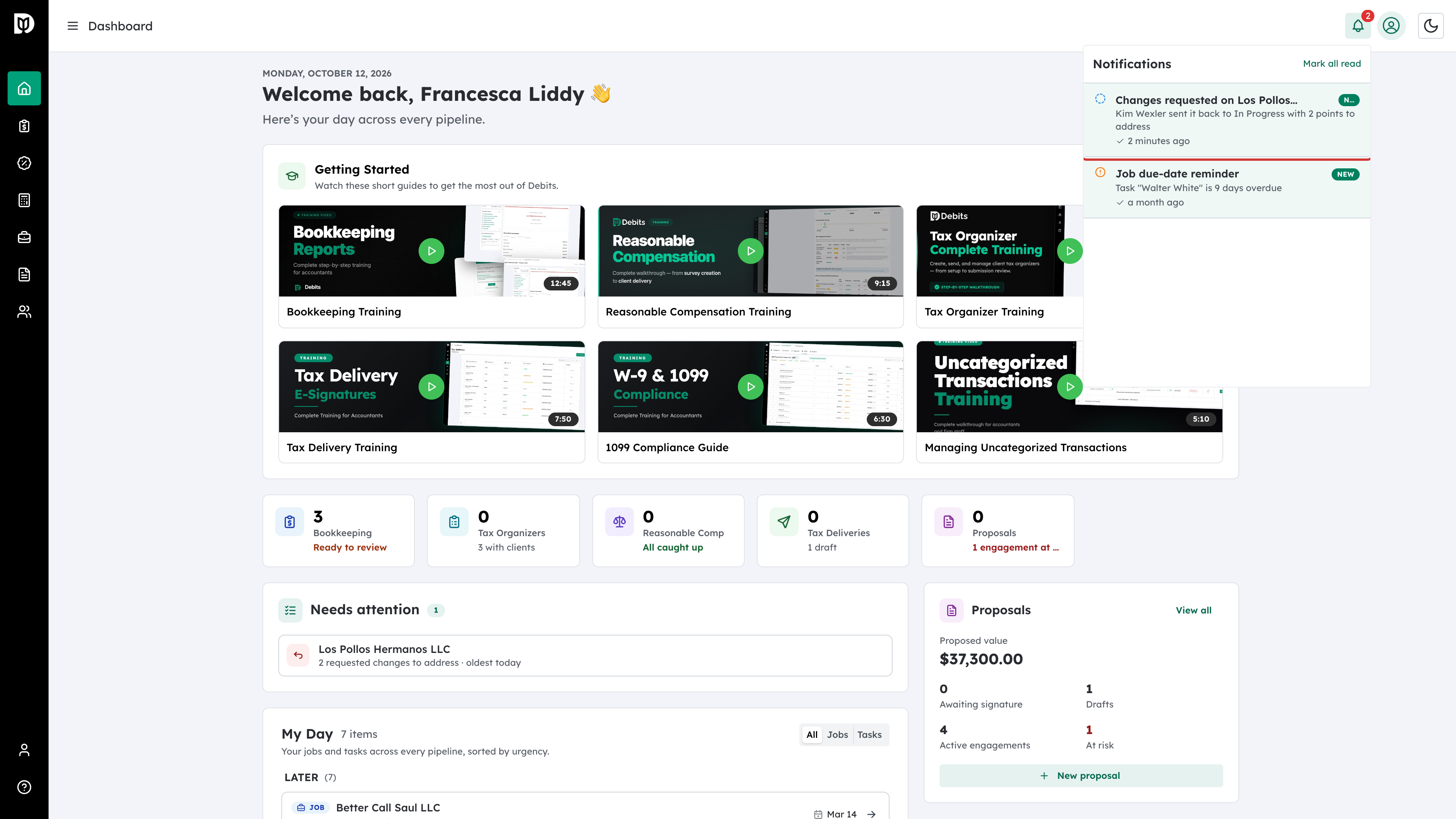
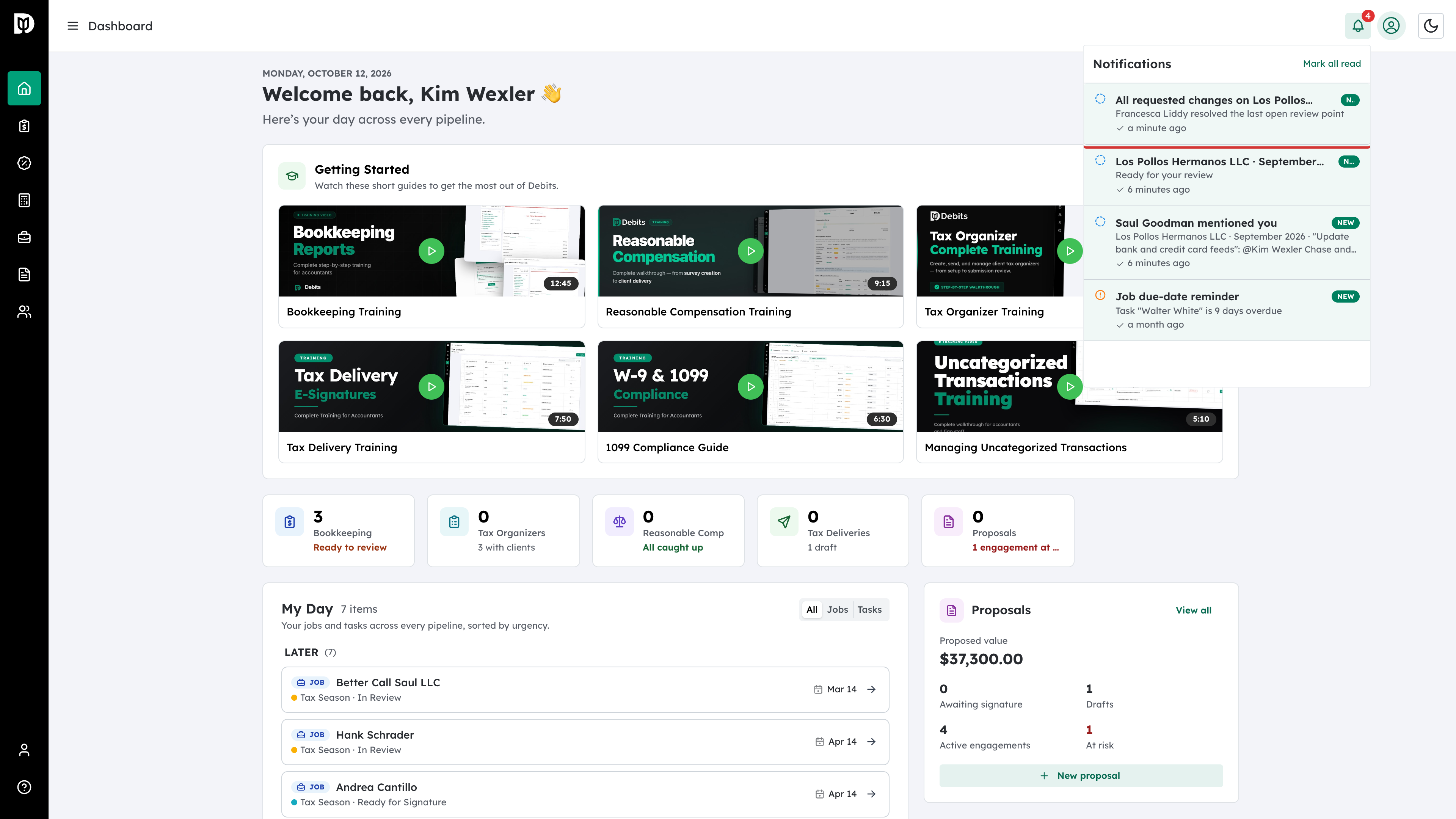
Select the bell at the top of any page. The notice reads Changes requested on the company and month, and says who sent it back and how many points there are to address. You also get an email, Month-End Close: Changes requested, that lists each review point.
Step 2: Check your dashboard
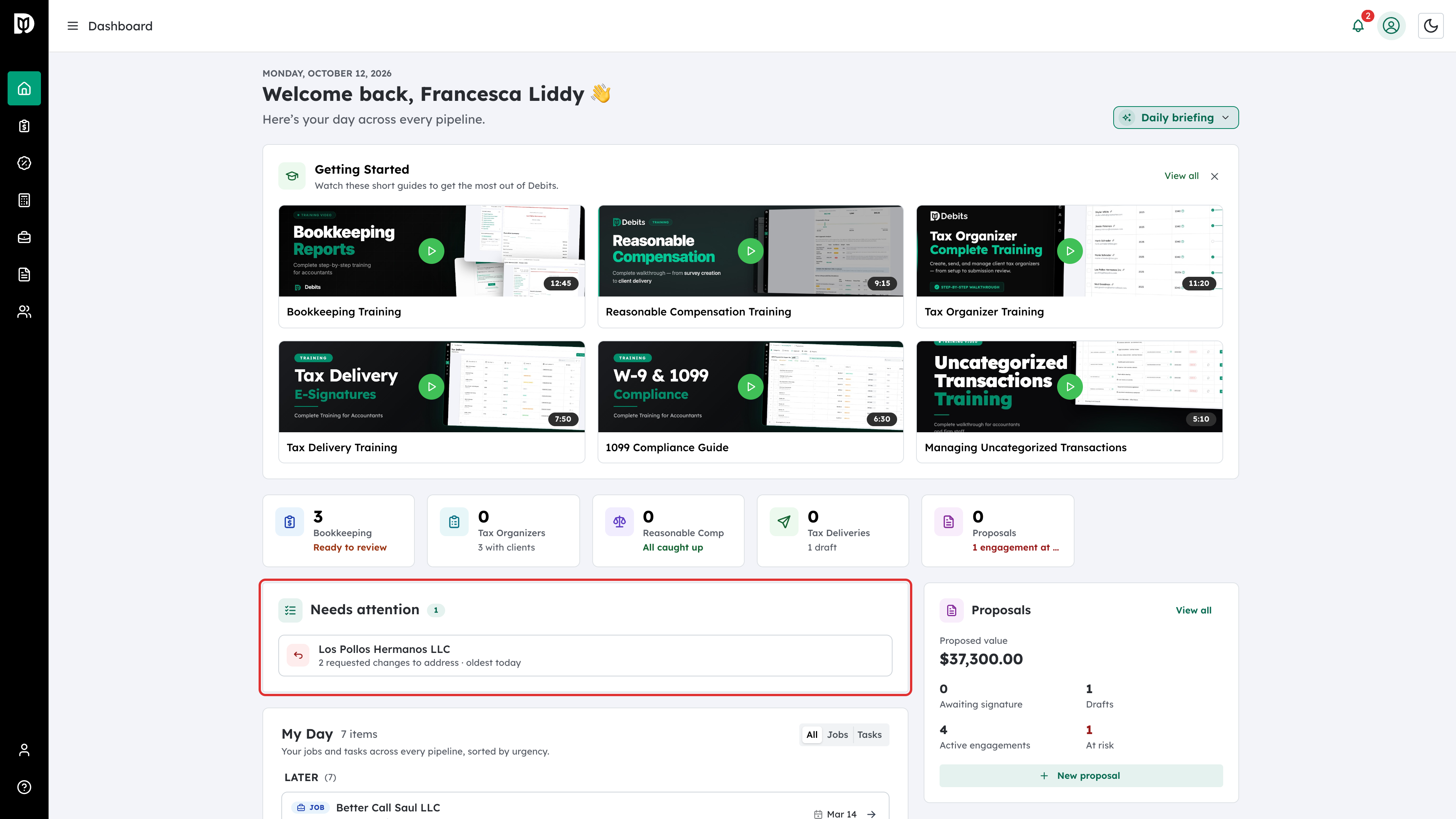
Until every point is resolved, the company stays in Needs attention on your dashboard with the number of requested changes to address. Select it to go to the close. The open points also appear in your 9 a.m. digest email under Requested changes to address.
Step 3: Read the review points
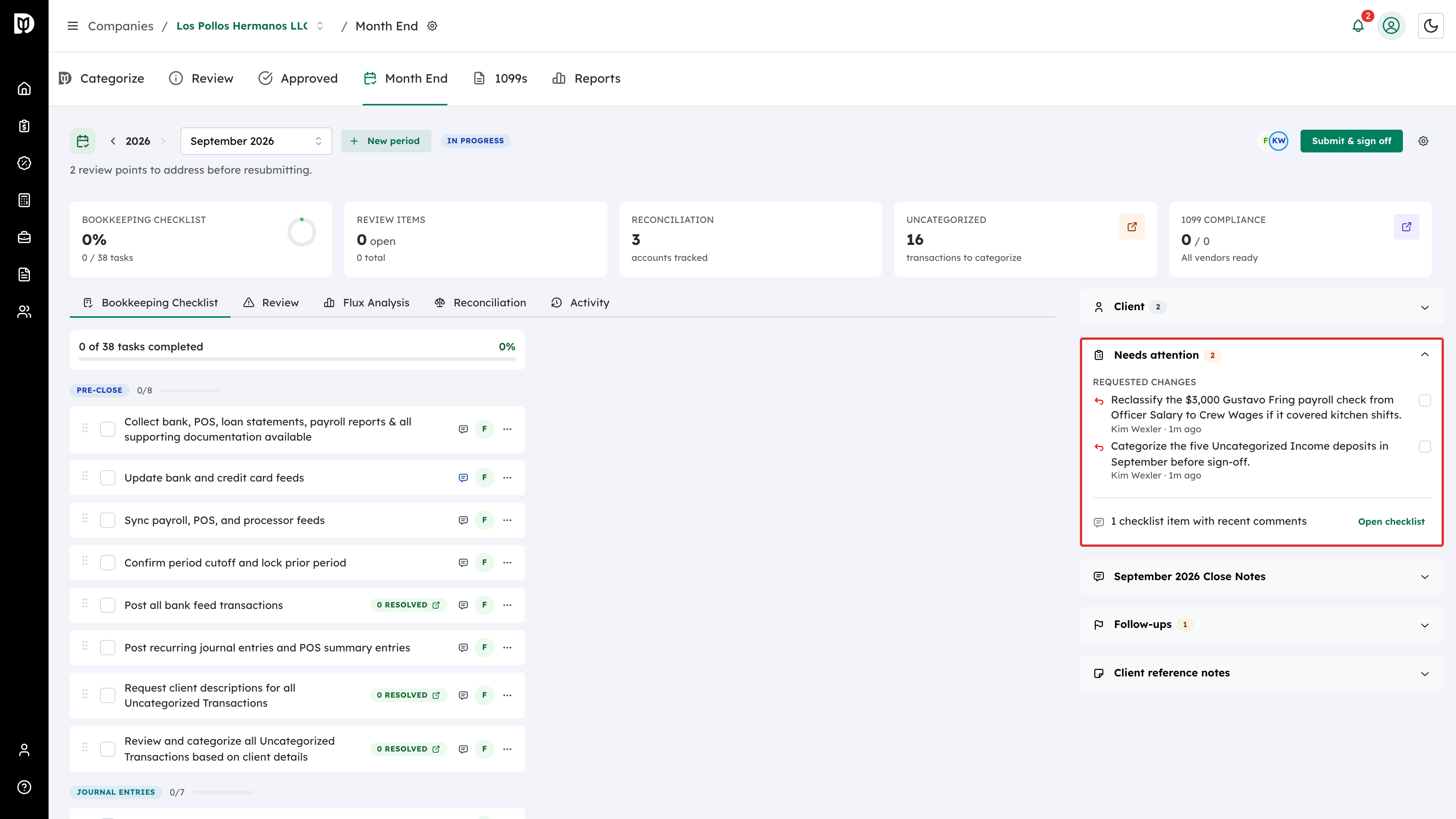
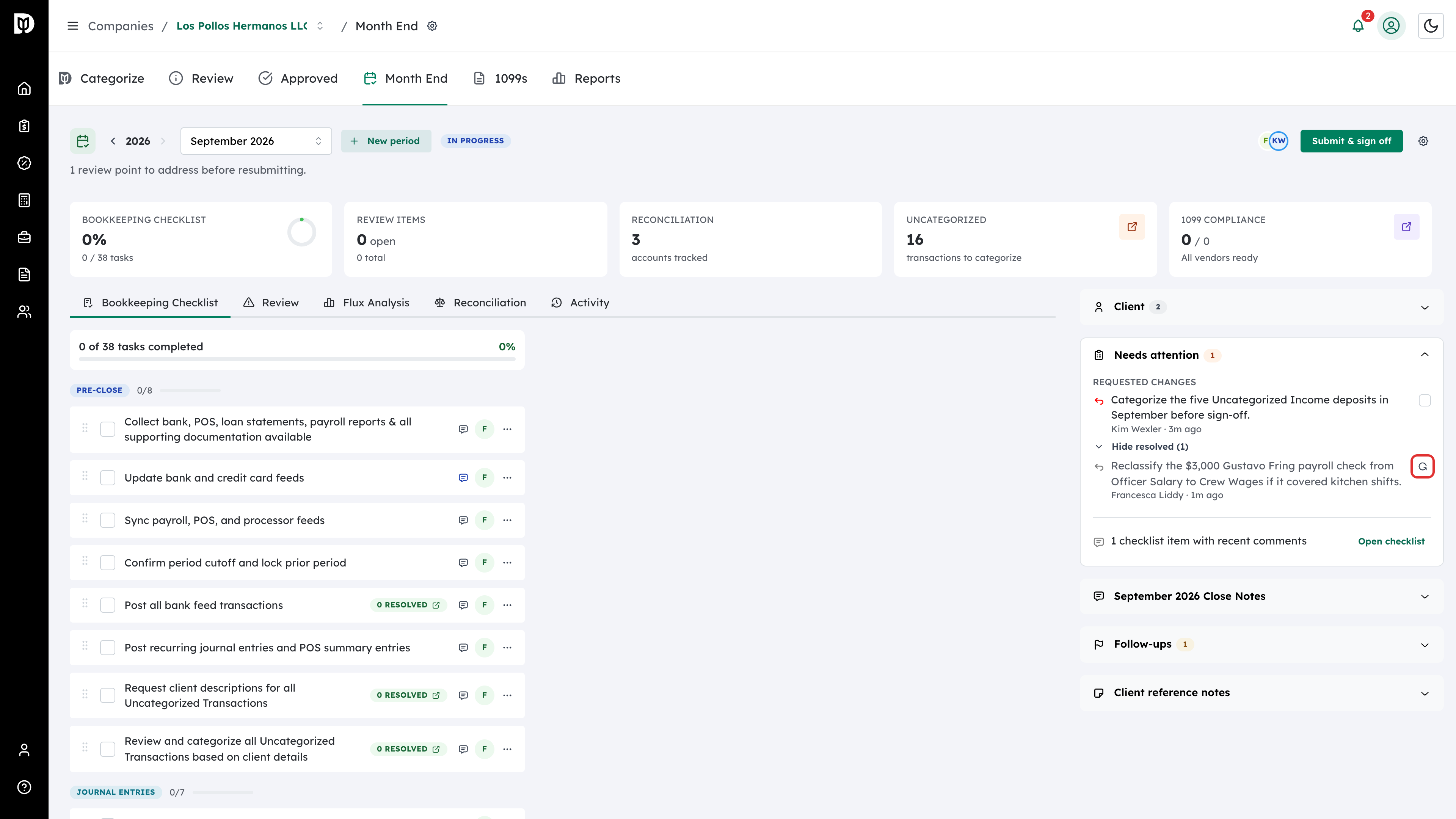
Open the company’s Month End tab. The close is back In Progress, and the header says how many review points are left. Expand Needs attention in the right-hand panel. Each point is listed under Requested changes with who raised it and when.
Step 4: Resolve a point when it is done
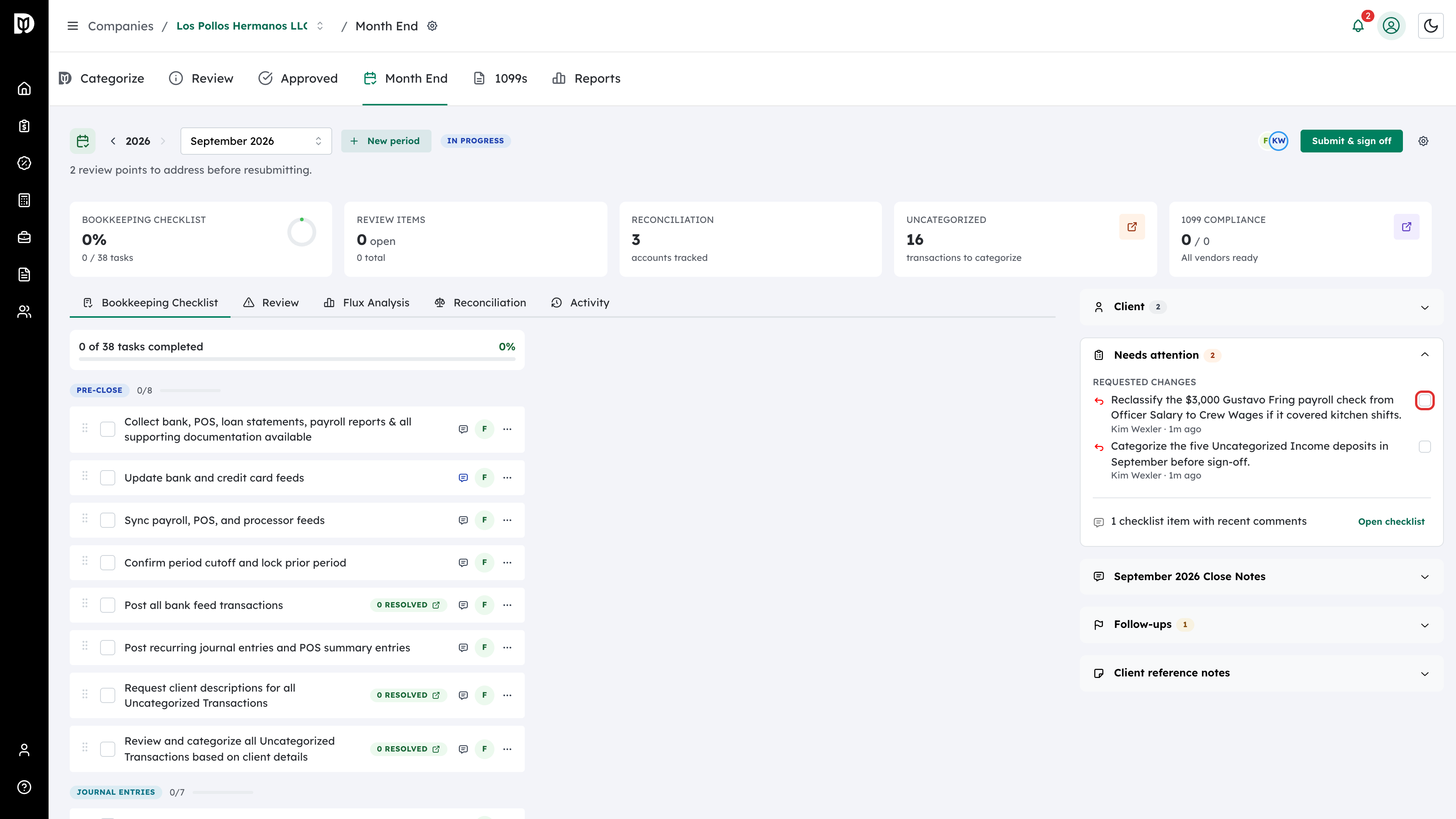
Make the fix, then tick the Mark resolved box beside that point.
Step 5: Reopen a point if needed
Resolved points move under Show resolved. If you resolved one too early, open that list and select the Reopen icon beside it. The point goes back to the open list.
Step 6: Let the reviewer know
When the last open point is resolved, the header reads All review points resolved — resubmit when ready. The reviewer gets one notice that All requested changes on the close are addressed. Then select Submit & sign off to send the close back for review.
Step 7: Recall a close you submitted by mistake
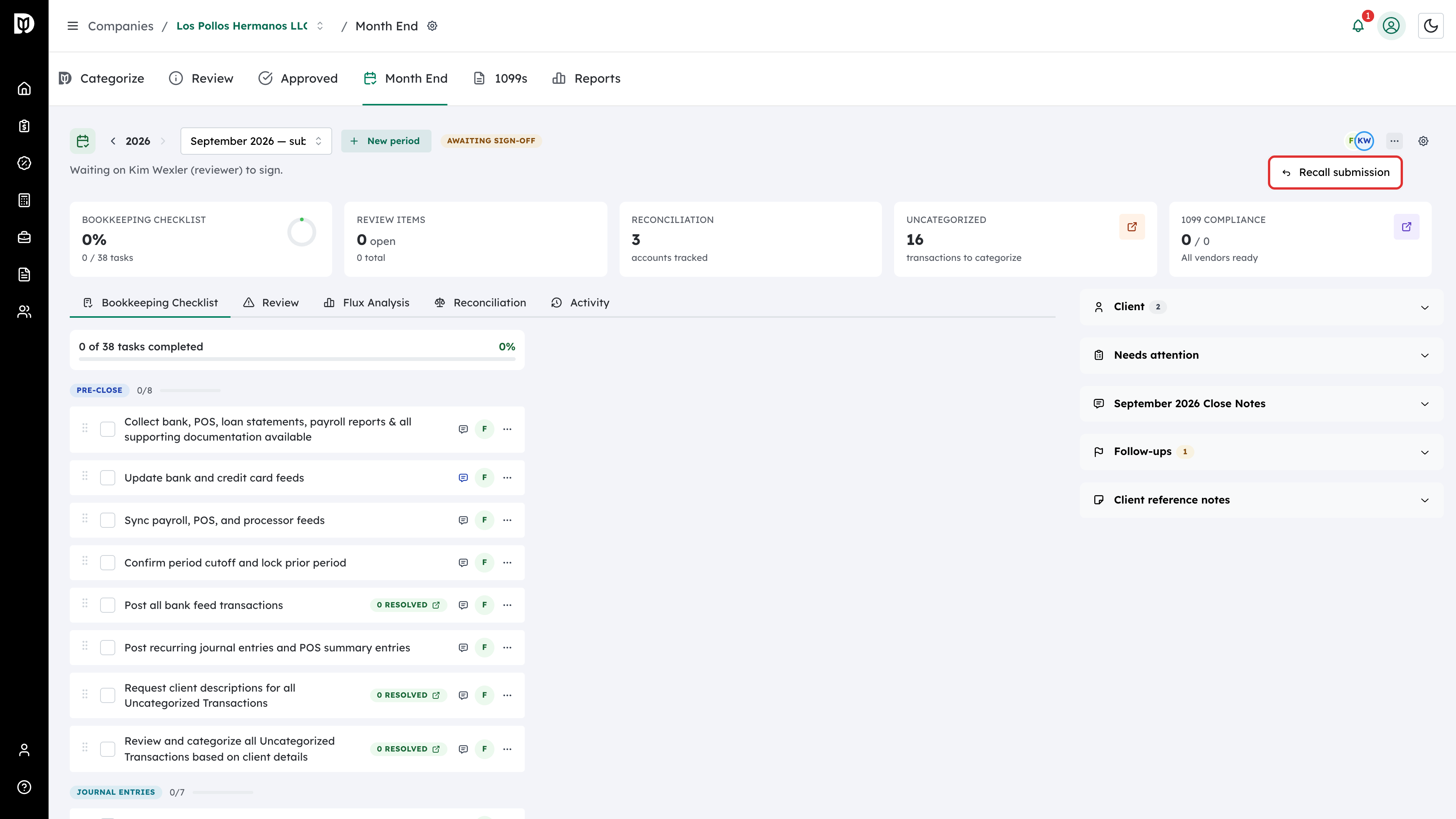
A recall is different from a send-back. If you submitted the month or you are its bookkeeper, open the … menu beside the header button and select Recall submission. The close goes back to In Progress, but no review points are created, nobody is notified that changes were requested, and the bookkeeping card on the workflow board stays where it is.
What happens next
- A send-back moves the close’s bookkeeping card on the workflow board back to In Progress, if the board has a column with that name.
- Sending a close back resets the sign-off chain, so everyone signs again on the next submission.
- A reviewer’s Comment without Send back to In Progress ticked does not change the status. It still notifies the bookkeeper and the submitter.
- Every send-back and recall is written to the Activity tab.
Troubleshooting
- You were not notified. Notices go to the close’s bookkeeper and to whoever submitted it. Check that you are set as the Bookkeeper on the period.
- You cannot send a close back. Only the reviewer, or a manager or partner whose sign-off is still pending, can. Owners and admins who are not on the sign-off chain cannot.
- The reviewer is asked to sign off anyway. Some review points are still open. Resolve them first, or the reviewer can override, which is logged.