

W-9 Status Badges #
After requesting W-9 forms from vendors, you can track the status of each request directly in the 1099 Report panel. This guide explains the different W-9 statuses and how to monitor pending requests.
Each vendor displays a status badge indicating their current W-9 status:
- Needs W-9 – No W-9 on file and no request has been sent
- W-9 Requested – W-9 request has been sent, awaiting vendor response
- W-9 Valid – Valid W-9 is on file with complete information

View W-9 Details #
Step 1: Open Vendor Details #
Click the eye icon on a vendor row to open the details modal.
Step 2: Go to 1099 Info Tab #
Click the 1099 Info tab to see the W-9 section.
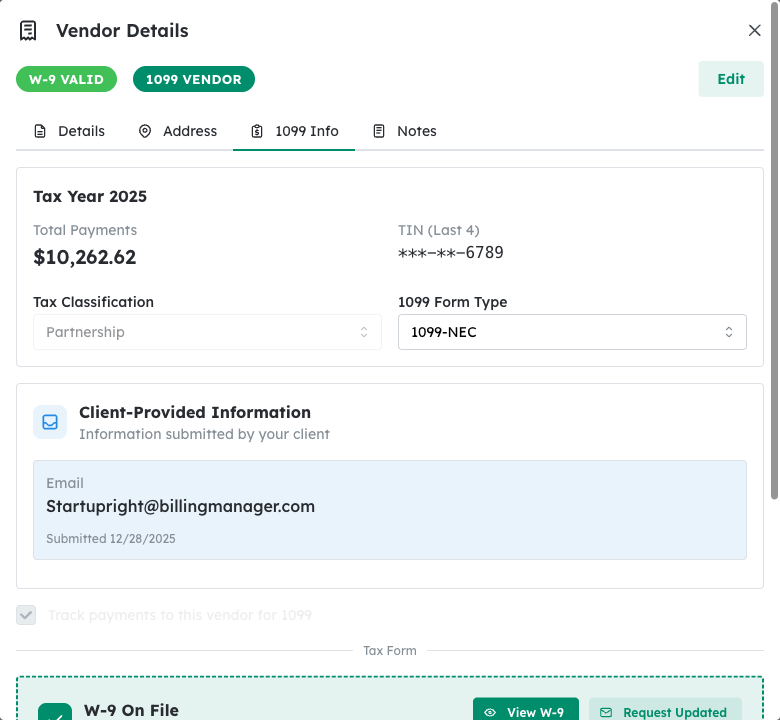
W-9 Section Information #
The W-9 section shows:
- W-9 Status – Current status (On File, Requested, or Needed)
- Request Date – When the W-9 request was sent (if applicable)
- Received Date – When the W-9 was received (if on file)
- View W-9 – Link to view the submitted W-9 form (if on file)
Filter by W-9 Status #
To quickly find vendors with specific W-9 statuses:
Step 1: Click the Status Filter #
Use the status filter dropdown above the vendor table.
Step 2: Select W-9 Status #
Choose from options like Needs W-9 or W-9 Requested to filter the list.
Resend W-9 Request #
If a vendor hasn’t responded to your W-9 request, you can send a reminder:
Step 1: Open the Actions Menu #
Click the three-dot menu on the vendor row.
Step 2: Click Resend W-9 Request #
Select Resend W-9 Request to send another email to the vendor.
Tip: Follow up with vendors who haven’t responded within 2 weeks. You can resend the request or contact them directly using the phone number or email in their vendor details.
Automatic Updates: When a vendor completes their W-9 form through the secure link, the status automatically updates to W-9 Valid and their tax information is populated in the system.


