In this guide
Table of Contents
- Introduction
- Benefits of Using QuickBooks Messenger
- Steps to Enable QuickBooks Messenger
- Step 1: Log In as Admin
- Step 2: Switch to Multi-User Mode
- Step 3: Open QuickBooks Messenger
- Steps to Disable QuickBooks Messenger
- Step 1: Log In as Admin
- Step 2: Switch to Single-User Mode
- Step 3: Close QuickBooks Messenger
- Managing QuickBooks Messenger Notifications
- Step 1: Open QuickBooks Messenger
- Step 2: Adjust Notifications
- Best Practices for Using QuickBooks Messenger
- Conclusion
Introduction
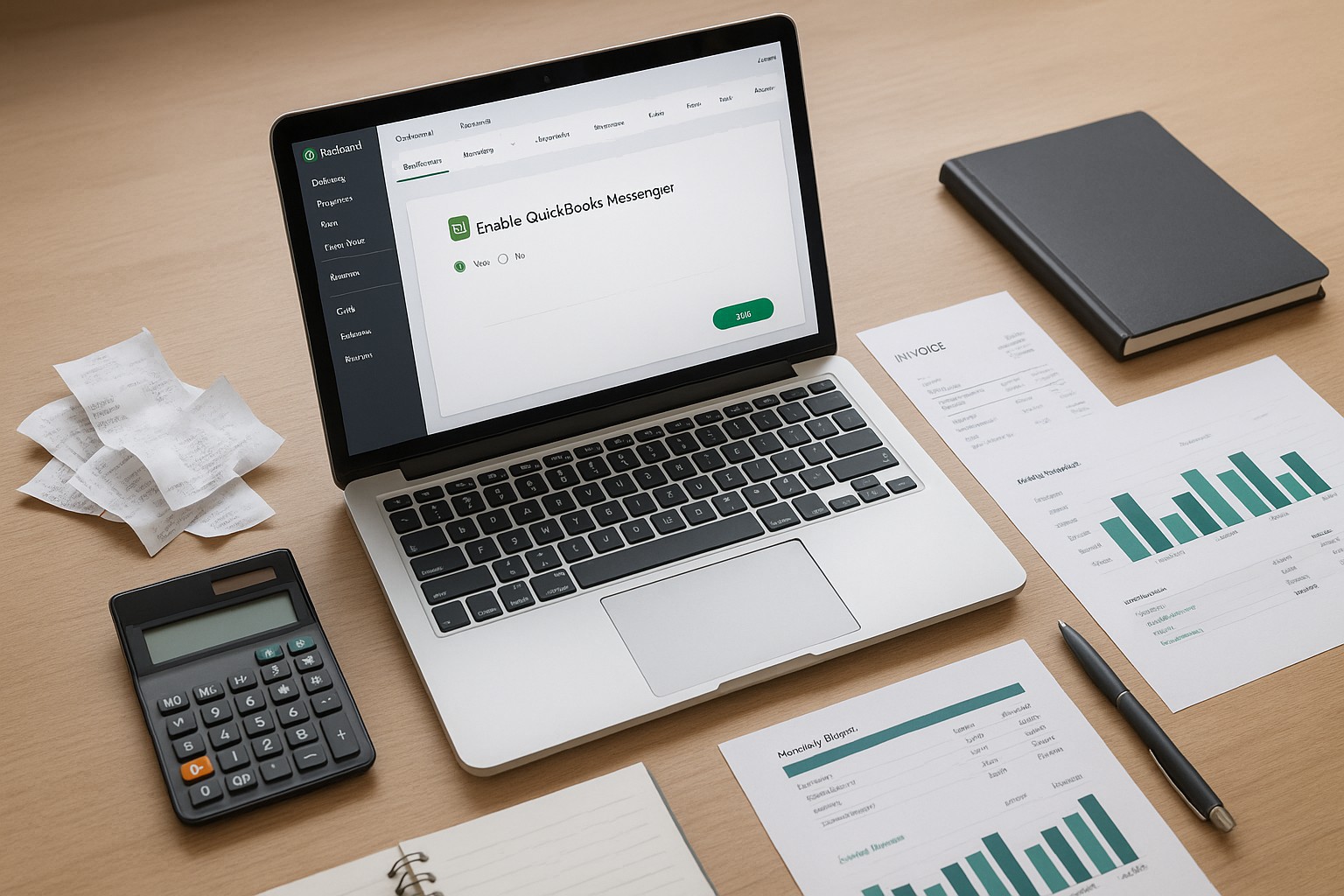
QuickBooks Messenger is a useful tool for multi-user mode that allows users to communicate directly within QuickBooks Desktop. This guide provides step-by-step instructions on how to enable and disable QuickBooks Messenger to streamline communication and manage your QuickBooks environment efficiently.
Benefits of Using QuickBooks Messenger
- Real-Time Communication: Communicate instantly with other users logged into QuickBooks.
- Efficient Collaboration: Enhance collaboration by discussing changes and issues directly.
- User Management: Notify users about updates or request them to log out for maintenance.
Steps to Enable QuickBooks Messenger
Step 1: Log In as Admin
- Open QuickBooks Desktop: Launch QuickBooks Desktop and log in as the Admin user.
Step 2: Switch to Multi-User Mode
Step 3: Open QuickBooks Messenger
Steps to Disable QuickBooks Messenger
Step 1: Log In as Admin
Step 2: Switch to Single-User Mode
Step 3: Close QuickBooks Messenger
Managing QuickBooks Messenger Notifications
Step 1: Open QuickBooks Messenger
Step 2: Adjust Notifications
Best Practices for Using QuickBooks Messenger
- Regular Updates: Keep QuickBooks Desktop updated to ensure QuickBooks Messenger runs smoothly.
- Clear Communication: Use QuickBooks Messenger for clear and concise communication among users.
- Monitor Activity: Admin users should regularly monitor QuickBooks Messenger activity to manage user collaboration effectively.
Conclusion
Enabling and disabling QuickBooks Messenger in QuickBooks Desktop is a straightforward process that enhances real-time communication and collaboration among users. By following the steps outlined in this guide, you can efficiently manage QuickBooks Messenger to suit your business needs.
Tired of QuickBooks Headaches?
Debits connects directly to QuickBooks Online and helps you clean up uncategorized transactions, collect receipts from clients via magic link, and categorize in bulk. Your clients respond in seconds, not days.
Starting at $5 per company, per month.
Simplify This With Debits
Debits helps you calculate and document defensible S-corp reasonable compensation — audit-ready in minutes.
- Uncategorized Transactions — clients answer, you bulk-approve, QuickBooks syncs back
- Tax Organizers — conditional questions clients finish in minutes